> ## Documentation Index
> Fetch the complete documentation index at: https://docs.gumloop.com/llms.txt
> Use this file to discover all available pages before exploring further.
# Organization Service Accounts for Slack Agents
Normally, anyone who messages a Gumloop agent in Slack needs their own Gumloop account, because the agent runs on that person's credentials. This feature lets an organization lift that requirement for specific agents: people in a Slack workspace you have registered can message those agents with **no Gumloop account at all**, and their requests run on a shared **organization service account** instead of a personal one.
**Enterprise plan required.** Registering Slack workspaces and creating a service account both require the **Admin** or **Security** organization role.
## When to use it
An IT or HR agent that everyone in your Slack workspace should be able to ask questions, even the majority of employees who never log in to Gumloop.
You want Slack-first adoption across hundreds of people without provisioning a Gumloop account for each of them first.
Every request should hit the same connected accounts and produce the same behavior regardless of who asked, instead of depending on each person's own connectors.
Because everyone shares one identity, this is the wrong choice for agents that read the asker's own mailbox, calendar, or files. Leave those on personal credentials.
## How it works
Three things must line up before a person without a Gumloop account can use an agent from Slack:
A non-human Gumloop identity that Slack-originated requests execute as.
Access is granted per workspace, not per person.
The agent must be shared with the organization **and** have **Allow Slack members without Gumloop accounts** turned on.
If any one of these is missing, nothing changes for that person: they get the usual sign-up prompt. The feature is **off by default for every agent** and fails closed.
People who **do** have a Gumloop account are unaffected. If a Slack user's email matches a Gumloop account, their request runs on their own account as it always has, even when the toggle is on. The service account is only used for people who have no Gumloop account.
***
## Step 1: Create an organization service account
Go to [Settings → Organization → General](https://www.gumloop.com/settings/organization/general) and find the **Service account** section, then click **Create account**.
 Gumloop provisions a synthetic organization member that nobody can log in to. It has:
| Property | Value |
| ----------------- | --------------------------------------------------------------------------------------------------------- |
| Email | An auto-generated address ending in `.gumloopserviceaccount.com`. It receives no mail and cannot sign in. |
| Organization role | Plain **member**. Service accounts cannot hold Admin, Security, or any other elevated organization role. |
| Custom Roles | Your organization's default role, adjustable (see below) |
You get **one active service account per organization**, and it is the identity for all Slack requests from people without Gumloop accounts, across every opted-in agent.
### Restricting what the service account can do
Because every unsigned Slack request executes as this account, it is worth treating it like any other principal you would lock down. Click the service account row to open **Manage Access**, where you assign [Custom Roles](/enterprise-features/user_groups) that control the apps, tools, scopes, nodes, and AI models it may use, plus per-user usage caps. The three-dot menu on the row also lets you copy the service account ID or remove it.
Gumloop provisions a synthetic organization member that nobody can log in to. It has:
| Property | Value |
| ----------------- | --------------------------------------------------------------------------------------------------------- |
| Email | An auto-generated address ending in `.gumloopserviceaccount.com`. It receives no mail and cannot sign in. |
| Organization role | Plain **member**. Service accounts cannot hold Admin, Security, or any other elevated organization role. |
| Custom Roles | Your organization's default role, adjustable (see below) |
You get **one active service account per organization**, and it is the identity for all Slack requests from people without Gumloop accounts, across every opted-in agent.
### Restricting what the service account can do
Because every unsigned Slack request executes as this account, it is worth treating it like any other principal you would lock down. Click the service account row to open **Manage Access**, where you assign [Custom Roles](/enterprise-features/user_groups) that control the apps, tools, scopes, nodes, and AI models it may use, plus per-user usage caps. The three-dot menu on the row also lets you copy the service account ID or remove it.
 Give the service account a **dedicated Custom Role** rather than leaving it on your organization default. A tight role is the single best lever for limiting the blast radius of broad Slack access.
Removing the service account immediately stops all access for people without Gumloop accounts. Existing conversation history stays intact.
## Step 2: Register your Slack workspace
In the same settings page, find **Slack workspaces** and click **Add workspace**.
Give the service account a **dedicated Custom Role** rather than leaving it on your organization default. A tight role is the single best lever for limiting the blast radius of broad Slack access.
Removing the service account immediately stops all access for people without Gumloop accounts. Existing conversation history stays intact.
## Step 2: Register your Slack workspace
In the same settings page, find **Slack workspaces** and click **Add workspace**.
 A popup runs Slack OAuth. **Pick the exact workspace you want to authorize** in that popup; the list updates automatically once authorization completes. Each row records the workspace name, its Slack workspace ID (`T…`), who added it, and when.
You can register **multiple workspaces** (for example an internal workspace plus a community one). Each is authorized independently, and removing one does not affect the others.
**Registration is per Slack workspace, not per Slack Enterprise Grid organization.** If your company runs a Grid with several workspaces, an admin must add each workspace individually. Being in the same Grid as a registered workspace is not enough.
Each section prompts you if the other half is missing: the Slack workspaces card tells you to create a service account, and the service account card tells you to add a workspace. Both must exist before any agent can be opted in.
## Step 3: Opt in a specific agent
Open the agent and click **Share**. Two things are required in this dialog:
1. Set **General Access** to **Organization**.
2. Turn on **Allow Slack members without Gumloop accounts**.
A popup runs Slack OAuth. **Pick the exact workspace you want to authorize** in that popup; the list updates automatically once authorization completes. Each row records the workspace name, its Slack workspace ID (`T…`), who added it, and when.
You can register **multiple workspaces** (for example an internal workspace plus a community one). Each is authorized independently, and removing one does not affect the others.
**Registration is per Slack workspace, not per Slack Enterprise Grid organization.** If your company runs a Grid with several workspaces, an admin must add each workspace individually. Being in the same Grid as a registered workspace is not enough.
Each section prompts you if the other half is missing: the Slack workspaces card tells you to create a service account, and the service account card tells you to add a workspace. Both must exist before any agent can be opted in.
## Step 3: Opt in a specific agent
Open the agent and click **Share**. Two things are required in this dialog:
1. Set **General Access** to **Organization**.
2. Turn on **Allow Slack members without Gumloop accounts**.
 The toggle only appears when you can edit the agent, the agent belongs to your organization, and General Access is already set to **Organization**. If your organization setup is incomplete, the dialog shows a setup link instead of the toggle:
| What you see | What it means |
| -------------------------------------------------------------------------------------------- | ------------------------------------------------------------------- |
| **Create a service account for Slack access without Gumloop accounts** | Workspace registered, service account missing |
| **Verify a Slack workspace for Slack access without Gumloop accounts** | Service account exists, no workspace registered |
| **Set up Slack access for people without Gumloop accounts** | Neither is configured |
| Setup link greyed out, tooltip **"Ask an organization admin to set up Slack agent access."** | Setup is incomplete and you do not have the role to fix it yourself |
**Why Organization and not "Anyone with link"?** Public agents are not allowed to carry [agent-owned credentials](/core-concepts/credentials#agent-owned-credentials), so they must never inherit the organization service account. The organization-level share is what gates service account execution. If you later switch the agent's General Access to **Anyone**, Slack access for people without Gumloop accounts stops working.
Opt-in is per agent. Turning it on for one agent does not affect any other agent, and it can only be changed from this control, not through the general agent settings save path.
***
## Credentials: what the agent can actually touch
This is the part most people get wrong on the first try. The service account is a brand new identity with **no connected apps of its own**. It cannot borrow the admin's personal connections, and it cannot borrow the Slack user's connections either.
So for tools to work in a Slack request from someone without a Gumloop account, the agent's connectors must be set to **[agent-owned](/core-concepts/credentials#agent-owned-credentials)** — an account explicitly pinned to the agent, which everyone using the agent acts as.
If a connector is left user-owned, the request fails with a message like:
```text theme={"dark"}
is configured on this agent, but external Slack users can only use it
when the credential is agent-owned. Ask an organization admin or the agent owner to
set an agent-owned credential for this integration.
```
People without Gumloop accounts are never shown the usual "connect this app" prompt, because there is no account for them to connect it to.
Select the **specific account** you want the agent to use.
See [Agent-Owned Credentials](/core-concepts/credentials#agent-owned-credentials) for the full walkthrough. Connectors in this mode show an **Agent Owned** label in the tool list.
The toggle only appears when you can edit the agent, the agent belongs to your organization, and General Access is already set to **Organization**. If your organization setup is incomplete, the dialog shows a setup link instead of the toggle:
| What you see | What it means |
| -------------------------------------------------------------------------------------------- | ------------------------------------------------------------------- |
| **Create a service account for Slack access without Gumloop accounts** | Workspace registered, service account missing |
| **Verify a Slack workspace for Slack access without Gumloop accounts** | Service account exists, no workspace registered |
| **Set up Slack access for people without Gumloop accounts** | Neither is configured |
| Setup link greyed out, tooltip **"Ask an organization admin to set up Slack agent access."** | Setup is incomplete and you do not have the role to fix it yourself |
**Why Organization and not "Anyone with link"?** Public agents are not allowed to carry [agent-owned credentials](/core-concepts/credentials#agent-owned-credentials), so they must never inherit the organization service account. The organization-level share is what gates service account execution. If you later switch the agent's General Access to **Anyone**, Slack access for people without Gumloop accounts stops working.
Opt-in is per agent. Turning it on for one agent does not affect any other agent, and it can only be changed from this control, not through the general agent settings save path.
***
## Credentials: what the agent can actually touch
This is the part most people get wrong on the first try. The service account is a brand new identity with **no connected apps of its own**. It cannot borrow the admin's personal connections, and it cannot borrow the Slack user's connections either.
So for tools to work in a Slack request from someone without a Gumloop account, the agent's connectors must be set to **[agent-owned](/core-concepts/credentials#agent-owned-credentials)** — an account explicitly pinned to the agent, which everyone using the agent acts as.
If a connector is left user-owned, the request fails with a message like:
```text theme={"dark"}
is configured on this agent, but external Slack users can only use it
when the credential is agent-owned. Ask an organization admin or the agent owner to
set an agent-owned credential for this integration.
```
People without Gumloop accounts are never shown the usual "connect this app" prompt, because there is no account for them to connect it to.
Select the **specific account** you want the agent to use.
See [Agent-Owned Credentials](/core-concepts/credentials#agent-owned-credentials) for the full walkthrough. Connectors in this mode show an **Agent Owned** label in the tool list.
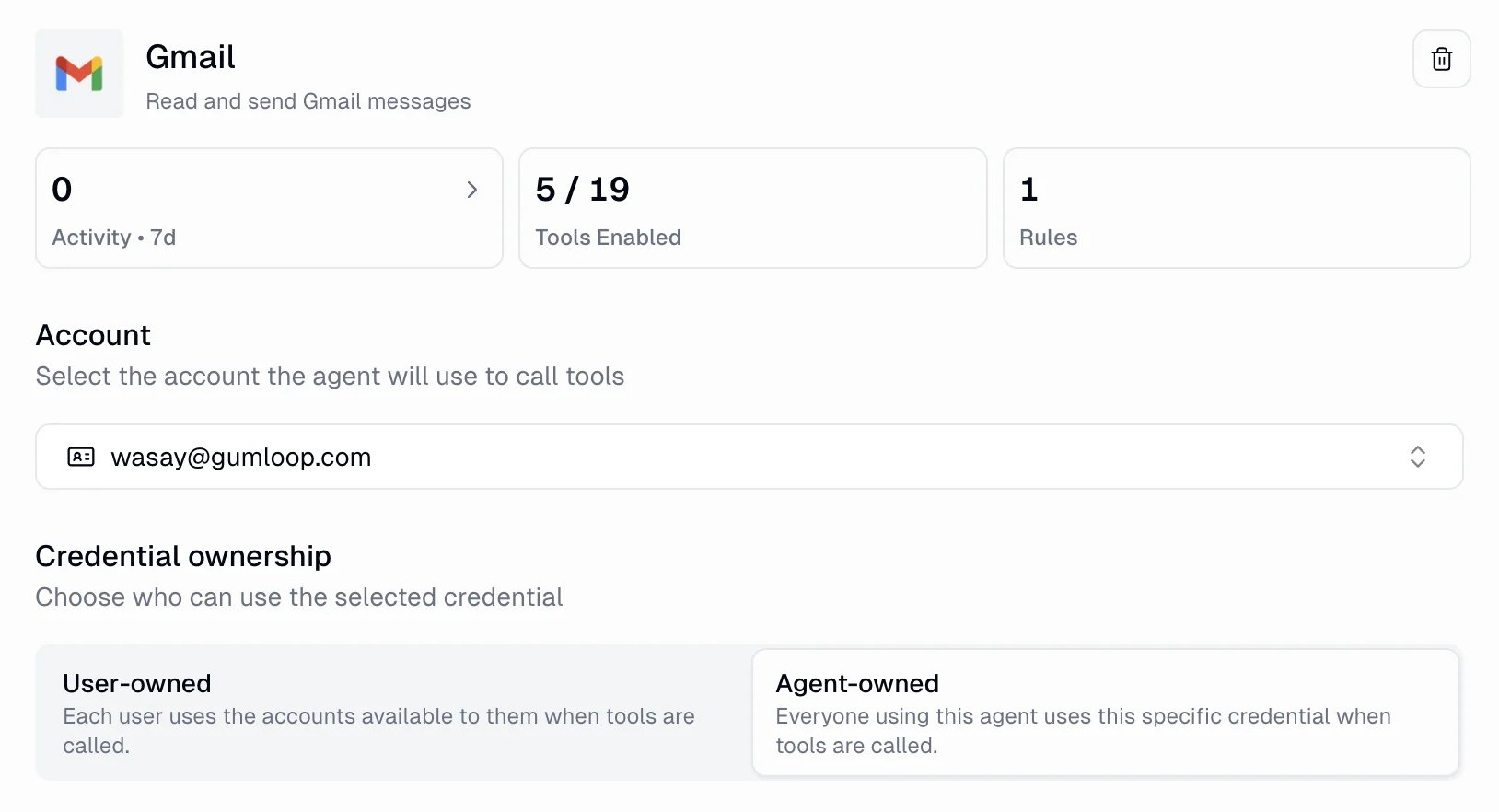 In organizations, agent-owned credentials are **restricted by default**. If the **Agent-owned** option is greyed out for you, an admin has to enable the **Agent-owned credentials** feature toggle on your [Custom Role](/enterprise-features/user_groups) first.
Agent-owned pins are tied to the space the agent lives in. Cloning the agent, using it as a template, or moving it to another team **drops the agent-owned pin**, and the connector reverts to user-owned. If you move or copy an opted-in agent, re-check its credential ownership.
## Attribution, credits, and auditing
* **Runs execute as the service account.** Permissions, Custom Role restrictions, and org policies are all evaluated against the service account, not the Slack person and not the admin who created it.
* **The Slack person is still recorded.** Each request stores the originating Slack actor (platform, workspace ID, Slack user ID, display name) alongside the conversation, so you can see who actually asked.
* **Usage draws on organization credits**, not on any individual's balance.
* **Setup changes are audit-logged**: service account creation and removal, and Slack workspace registration and removal all emit [audit log](/enterprise-features/audit_logging) events.
## Who is eligible
Registering a workspace authorizes its **full members**. Gumloop deliberately excludes several categories, all of which fall back to the sign-up prompt:
| Who | Can use an opted-in agent without a Gumloop account? |
| ----------------------------------------------------------------------------- | ---------------------------------------------------- |
| Full member of a registered workspace | Yes |
| Member of a workspace you have not registered | No |
| Slack Connect user from an external organization, posting in a shared channel | No — their home workspace is their own, not yours |
| Single-channel or multi-channel guest | No |
| Deactivated Slack user, or a bot | No |
| Anyone, when the agent's toggle is off | No |
**Shared channels are the case to watch.** Registering a workspace does not extend access to Slack Connect partners in channels you share with them. That is intentional, but it also means an opted-in agent living in a shared channel behaves differently for your own members than for the partner's members.
***
## Frequently asked questions
No. Registering a workspace grants nothing by itself. Each agent must be individually shared with your organization and individually opted in. The default for every agent, including newly created ones, is off.
No. Authorization is based on the specific Slack workspace ID, so each workspace in a Grid must be registered on its own. If you run a Grid, register every workspace whose members should have access, and verify the behavior for members whose home workspace differs from the one they are posting in.
Two separate things. The **execution identity** is the organization service account, a synthetic non-human Gumloop user. The **integration credentials** are whatever the agent owner pinned as [agent-owned](/core-concepts/credentials#agent-owned-credentials). Never the admin's personal login, and never the Slack user's own connected accounts.
Work down the list: is the toggle on for **that** agent; is General Access set to **Organization**; is **their** workspace registered (not just another workspace in the same Grid); are they a full member rather than a guest or Slack Connect user; and does an active service account exist. Any single missing piece produces the sign-up prompt.
That specific wording means the agent is opted in and the workspace is registered, but there is no usable active organization service account — usually because it was removed after the agent was enabled. Recreate it in [Settings → Organization → General](https://www.gumloop.com/settings/organization/general).
Nothing changes for them. Their Slack requests keep running on their own account and their own credentials. The service account path applies only to people with no matching Gumloop account.
Yes, at three levels. Turn off the agent's toggle to revoke one agent. Remove a Slack workspace to revoke one workspace while leaving others intact. Remove the service account to revoke all unsigned Slack access across the organization at once. All three take effect for subsequent requests; existing conversation history is preserved.
Yes. Assign the service account a restrictive [Custom Role](/enterprise-features/user_groups) through **Manage Access**. Since every unsigned Slack request runs as that one account, its Custom Roles are an effective org-wide ceiling on this whole surface. Restricting the agent's tool list is the other lever.
Yes, they draw on your organization's credits, since the service account is an organization member.
No. This feature does not change where agents can live. Agents work in public and private channels, not in direct messages. See [Using Agents in Slack](/core-concepts/agents_slack).
The toggle is only rendered when you have edit access to the agent, the agent is owned by your organization, and General Access is already **Organization**. On top of that, your organization must be on Enterprise. If setup is incomplete you see a setup link in its place instead of the toggle.
## Related
Adding agents to channels, Slack preferences, commands, and how credentials work for signed-up users.
Pin one account to an agent so everyone using it acts as that account. Required for this feature's tools to work.
Restrict the apps, tools, scopes, nodes, and models the service account may use.
How General Access rings work, including the Organization level this feature requires.
In organizations, agent-owned credentials are **restricted by default**. If the **Agent-owned** option is greyed out for you, an admin has to enable the **Agent-owned credentials** feature toggle on your [Custom Role](/enterprise-features/user_groups) first.
Agent-owned pins are tied to the space the agent lives in. Cloning the agent, using it as a template, or moving it to another team **drops the agent-owned pin**, and the connector reverts to user-owned. If you move or copy an opted-in agent, re-check its credential ownership.
## Attribution, credits, and auditing
* **Runs execute as the service account.** Permissions, Custom Role restrictions, and org policies are all evaluated against the service account, not the Slack person and not the admin who created it.
* **The Slack person is still recorded.** Each request stores the originating Slack actor (platform, workspace ID, Slack user ID, display name) alongside the conversation, so you can see who actually asked.
* **Usage draws on organization credits**, not on any individual's balance.
* **Setup changes are audit-logged**: service account creation and removal, and Slack workspace registration and removal all emit [audit log](/enterprise-features/audit_logging) events.
## Who is eligible
Registering a workspace authorizes its **full members**. Gumloop deliberately excludes several categories, all of which fall back to the sign-up prompt:
| Who | Can use an opted-in agent without a Gumloop account? |
| ----------------------------------------------------------------------------- | ---------------------------------------------------- |
| Full member of a registered workspace | Yes |
| Member of a workspace you have not registered | No |
| Slack Connect user from an external organization, posting in a shared channel | No — their home workspace is their own, not yours |
| Single-channel or multi-channel guest | No |
| Deactivated Slack user, or a bot | No |
| Anyone, when the agent's toggle is off | No |
**Shared channels are the case to watch.** Registering a workspace does not extend access to Slack Connect partners in channels you share with them. That is intentional, but it also means an opted-in agent living in a shared channel behaves differently for your own members than for the partner's members.
***
## Frequently asked questions
No. Registering a workspace grants nothing by itself. Each agent must be individually shared with your organization and individually opted in. The default for every agent, including newly created ones, is off.
No. Authorization is based on the specific Slack workspace ID, so each workspace in a Grid must be registered on its own. If you run a Grid, register every workspace whose members should have access, and verify the behavior for members whose home workspace differs from the one they are posting in.
Two separate things. The **execution identity** is the organization service account, a synthetic non-human Gumloop user. The **integration credentials** are whatever the agent owner pinned as [agent-owned](/core-concepts/credentials#agent-owned-credentials). Never the admin's personal login, and never the Slack user's own connected accounts.
Work down the list: is the toggle on for **that** agent; is General Access set to **Organization**; is **their** workspace registered (not just another workspace in the same Grid); are they a full member rather than a guest or Slack Connect user; and does an active service account exist. Any single missing piece produces the sign-up prompt.
That specific wording means the agent is opted in and the workspace is registered, but there is no usable active organization service account — usually because it was removed after the agent was enabled. Recreate it in [Settings → Organization → General](https://www.gumloop.com/settings/organization/general).
Nothing changes for them. Their Slack requests keep running on their own account and their own credentials. The service account path applies only to people with no matching Gumloop account.
Yes, at three levels. Turn off the agent's toggle to revoke one agent. Remove a Slack workspace to revoke one workspace while leaving others intact. Remove the service account to revoke all unsigned Slack access across the organization at once. All three take effect for subsequent requests; existing conversation history is preserved.
Yes. Assign the service account a restrictive [Custom Role](/enterprise-features/user_groups) through **Manage Access**. Since every unsigned Slack request runs as that one account, its Custom Roles are an effective org-wide ceiling on this whole surface. Restricting the agent's tool list is the other lever.
Yes, they draw on your organization's credits, since the service account is an organization member.
No. This feature does not change where agents can live. Agents work in public and private channels, not in direct messages. See [Using Agents in Slack](/core-concepts/agents_slack).
The toggle is only rendered when you have edit access to the agent, the agent is owned by your organization, and General Access is already **Organization**. On top of that, your organization must be on Enterprise. If setup is incomplete you see a setup link in its place instead of the toggle.
## Related
Adding agents to channels, Slack preferences, commands, and how credentials work for signed-up users.
Pin one account to an agent so everyone using it acts as that account. Required for this feature's tools to work.
Restrict the apps, tools, scopes, nodes, and models the service account may use.
How General Access rings work, including the Organization level this feature requires.