> ## Documentation Index
> Fetch the complete documentation index at: https://docs.gumloop.com/llms.txt
> Use this file to discover all available pages before exploring further.
# Proxied MCPs
> Connect external MCP servers through a managed proxy for centralized monitoring, access control, and security.
Proxied MCPs let you connect existing, external MCP servers to Gumloop through a managed proxy. Instead of deploying your own code, you point Gumloop at a third-party MCP server URL and get full observability, tool access control, and security, all without changing anything on the remote server.
 ## Where to find it
Go to **Settings → Organization → Proxied MCPs** at
[gumloop.com/settings/organization/proxied-mcps](https://gumloop.com/settings/organization/proxied-mcps).
Proxied MCPs is an **Enterprise** feature. Contact your organization admin
if you don't see it under **Settings → Organization**.
## Hosted vs. Proxied
Not sure which one to use? Here's a quick comparison:
| | Hosted MCPs | Proxied MCPs |
| ------------------------------ | ---------------------------------- | ----------------------------------------------- |
| **You deploy code?** | Yes, from a GitHub repo | No, just provide a URL |
| **Where does the server run?** | On Gumloop's infrastructure | On the third party's infrastructure |
| **Deployment management** | Full CI/CD with GitHub integration | Not applicable |
| **Monitoring (pods, logs)** | Yes | No |
| **Activity tracking** | Yes | Yes |
| **Tool access control** | Yes | Yes |
| **Best for** | Custom internal tools | Third-party MCP servers (Granola, Notion, etc.) |
Use **[Hosted MCPs](/enterprise-features/hosted_mcps)** when you want to build and deploy your own MCP server. Use **Proxied MCPs** when you want to connect an existing third-party server.
## Server List
The main Proxied MCPs page shows a table of all connected external servers. Each row displays:
* **Server name** with the remote URL (credentials automatically redacted for security)
* **Auth method**: None, API Key, or OAuth 2.0
* **Tool count**: How many tools were discovered on the server
* **Last Updated** timestamp
Use the search bar to filter by name or URL. Click **Connect** to add a new server.
## Connecting a New Proxied MCP
Click the **Connect** button to launch a multi-step wizard that connects an external MCP server through the proxy.
### Step 1: Enter the Server URL
## Where to find it
Go to **Settings → Organization → Proxied MCPs** at
[gumloop.com/settings/organization/proxied-mcps](https://gumloop.com/settings/organization/proxied-mcps).
Proxied MCPs is an **Enterprise** feature. Contact your organization admin
if you don't see it under **Settings → Organization**.
## Hosted vs. Proxied
Not sure which one to use? Here's a quick comparison:
| | Hosted MCPs | Proxied MCPs |
| ------------------------------ | ---------------------------------- | ----------------------------------------------- |
| **You deploy code?** | Yes, from a GitHub repo | No, just provide a URL |
| **Where does the server run?** | On Gumloop's infrastructure | On the third party's infrastructure |
| **Deployment management** | Full CI/CD with GitHub integration | Not applicable |
| **Monitoring (pods, logs)** | Yes | No |
| **Activity tracking** | Yes | Yes |
| **Tool access control** | Yes | Yes |
| **Best for** | Custom internal tools | Third-party MCP servers (Granola, Notion, etc.) |
Use **[Hosted MCPs](/enterprise-features/hosted_mcps)** when you want to build and deploy your own MCP server. Use **Proxied MCPs** when you want to connect an existing third-party server.
## Server List
The main Proxied MCPs page shows a table of all connected external servers. Each row displays:
* **Server name** with the remote URL (credentials automatically redacted for security)
* **Auth method**: None, API Key, or OAuth 2.0
* **Tool count**: How many tools were discovered on the server
* **Last Updated** timestamp
Use the search bar to filter by name or URL. Click **Connect** to add a new server.
## Connecting a New Proxied MCP
Click the **Connect** button to launch a multi-step wizard that connects an external MCP server through the proxy.
### Step 1: Enter the Server URL
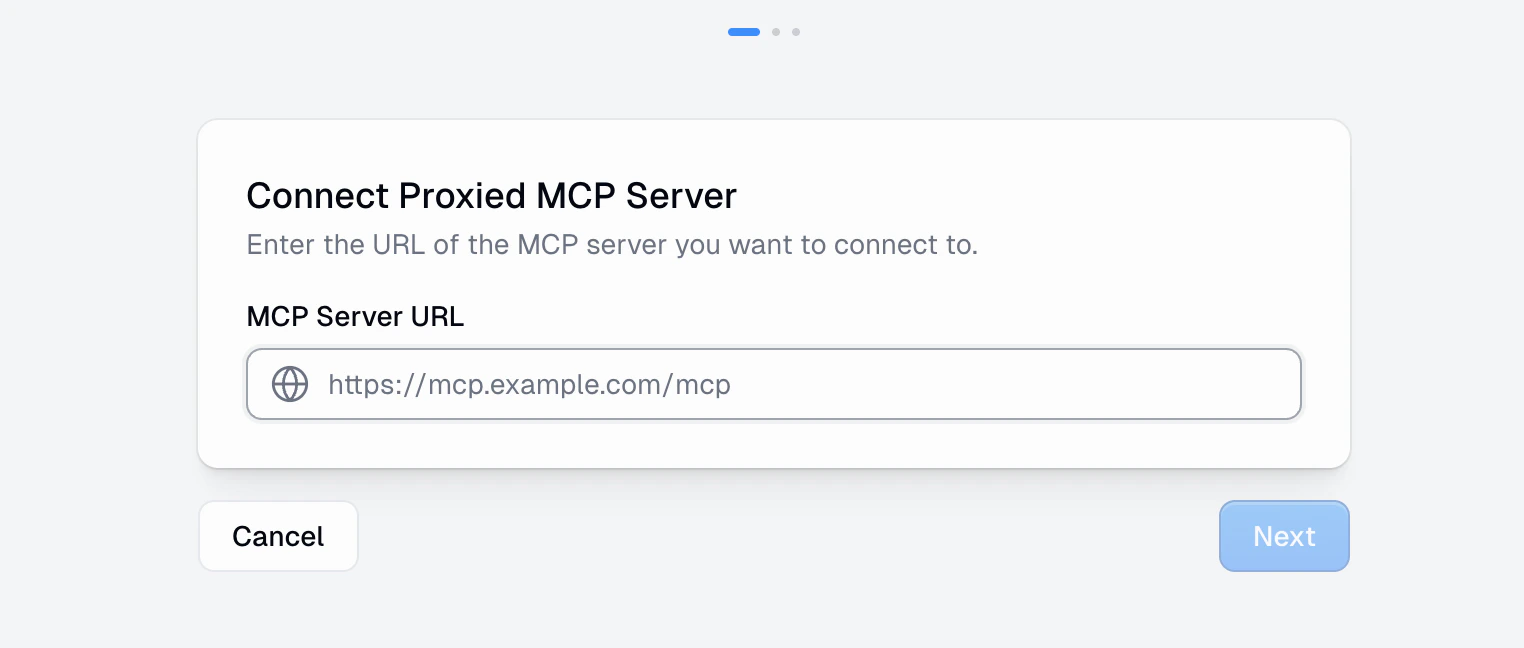 Enter the URL of the MCP server you want to connect to. This should be the server's MCP endpoint (e.g., `https://mcp.example.com/mcp`).
Click **Next** to proceed. Gumloop will probe the server to detect its capabilities and authentication requirements.
### Step 2: Configure Connection
Enter the URL of the MCP server you want to connect to. This should be the server's MCP endpoint (e.g., `https://mcp.example.com/mcp`).
Click **Next** to proceed. Gumloop will probe the server to detect its capabilities and authentication requirements.
### Step 2: Configure Connection
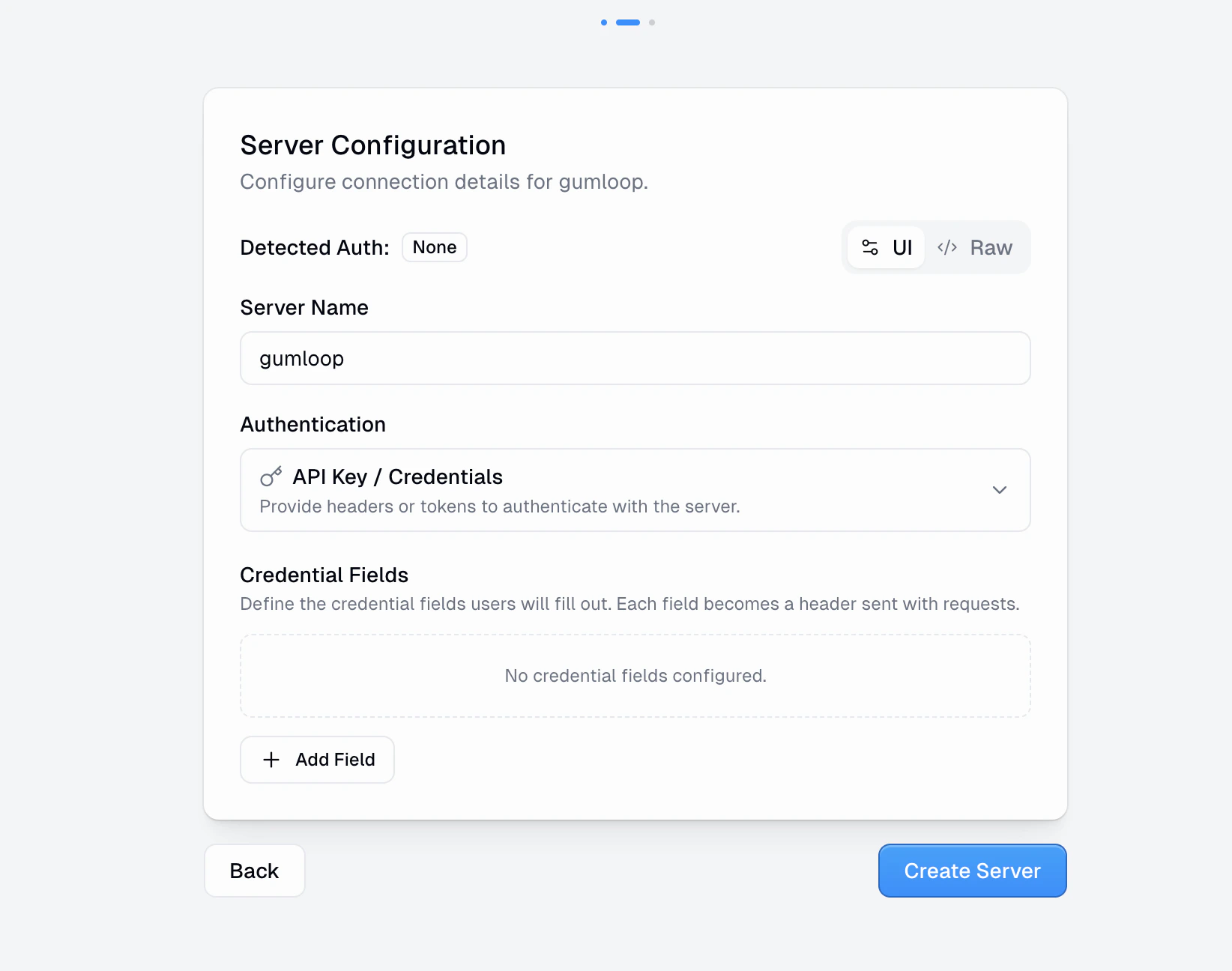 On this step, you configure:
* **Server Name**: A display name for this server in your organization
* **Detected Auth**: Gumloop automatically detects the server's auth requirements and shows it here
* **Authentication**: Choose the method that matches what the server expects:
* **No Authentication**: No credentials required
* **API Key / Credentials**: Provide headers or tokens. Define credential fields that become headers sent with every request.
* **OAuth 2.0**: If the server supports OAuth, users authenticate via an OAuth flow
* **UI / Raw toggle**: Switch between a form-based UI and raw JSON configuration (using the standard `mcpServers` config format)
If you have an existing MCP server config in JSON format (like you'd use in
Claude Desktop or Cursor), switch to **Raw** mode and paste it directly.
Click **Create Server** (or **Next** if OAuth is detected) to proceed.
### Step 3: Discover & Activate
After creating the server connection, Gumloop connects to the remote server, discovers available tools and resources, and activates the proxy. For servers using API Key auth, you'll add your credentials at this step. For OAuth servers, you'll complete the OAuth authentication flow.
Once discovery completes, you'll see a summary of discovered tools and the server will be active.
## Server Detail Page
Every proxied MCP has a detail page with four tabs. Since Gumloop doesn't host the server, there are no Deployments or Monitoring tabs.
### Overview
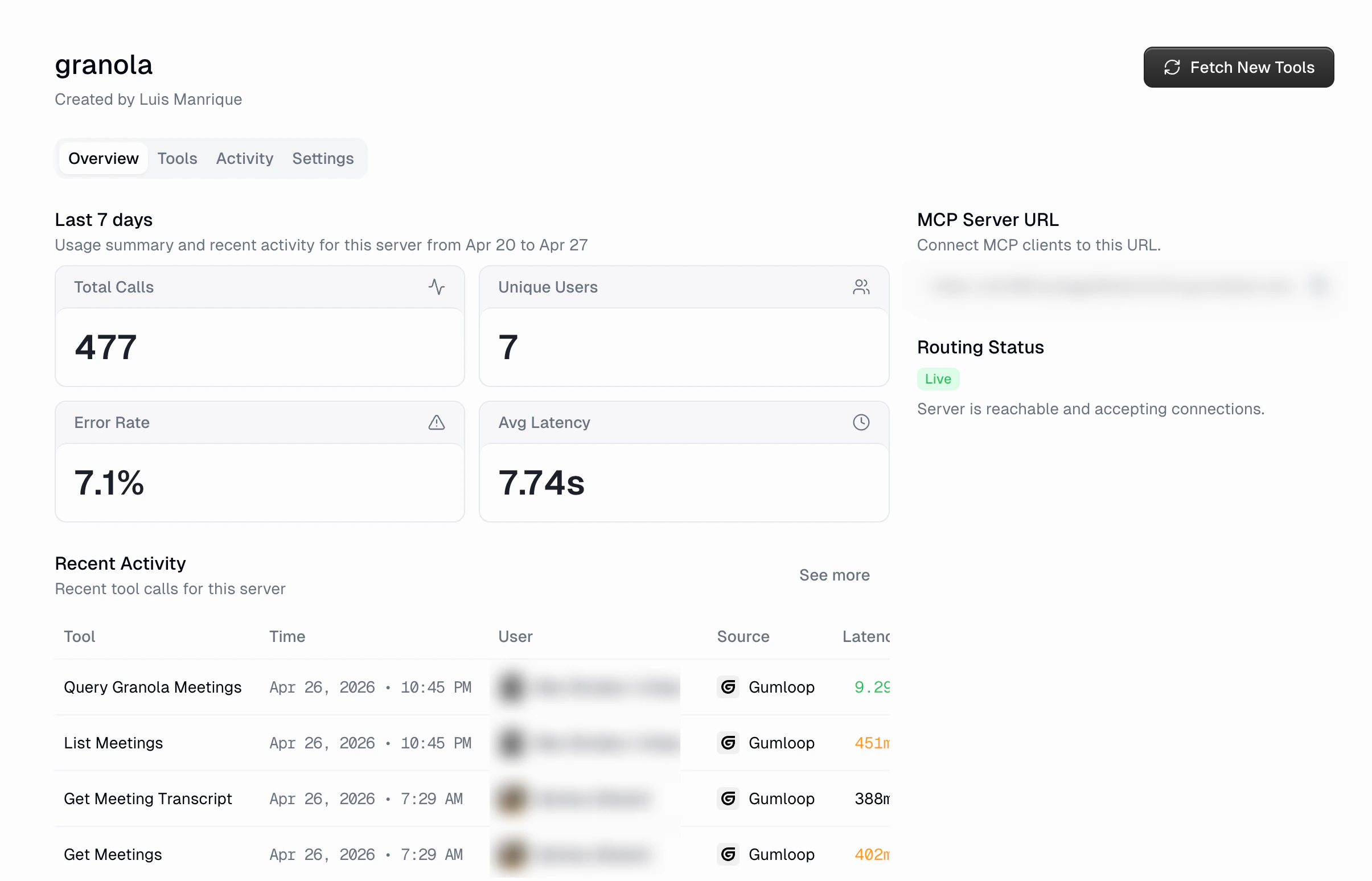
The overview tab shows a snapshot of the server's last 7 days:
* **Total Calls**: Number of tool calls routed through the proxy
* **Unique Users**: How many distinct users made calls
* **Error Rate**: Percentage of calls that failed
* **Avg Latency**: Average response time
* **MCP Server URL**: The Gumloop proxy URL that clients should connect to
* **Routing Status**: Shows whether the remote server is reachable and accepting connections (displays "Live" when healthy)
* **Recent Activity**: A table of the most recent tool calls
The **Fetch New Tools** button in the header re-discovers tools from the remote server. Use this when the external server has added new tools or changed its capabilities.
### Tools
On this step, you configure:
* **Server Name**: A display name for this server in your organization
* **Detected Auth**: Gumloop automatically detects the server's auth requirements and shows it here
* **Authentication**: Choose the method that matches what the server expects:
* **No Authentication**: No credentials required
* **API Key / Credentials**: Provide headers or tokens. Define credential fields that become headers sent with every request.
* **OAuth 2.0**: If the server supports OAuth, users authenticate via an OAuth flow
* **UI / Raw toggle**: Switch between a form-based UI and raw JSON configuration (using the standard `mcpServers` config format)
If you have an existing MCP server config in JSON format (like you'd use in
Claude Desktop or Cursor), switch to **Raw** mode and paste it directly.
Click **Create Server** (or **Next** if OAuth is detected) to proceed.
### Step 3: Discover & Activate
After creating the server connection, Gumloop connects to the remote server, discovers available tools and resources, and activates the proxy. For servers using API Key auth, you'll add your credentials at this step. For OAuth servers, you'll complete the OAuth authentication flow.
Once discovery completes, you'll see a summary of discovered tools and the server will be active.
## Server Detail Page
Every proxied MCP has a detail page with four tabs. Since Gumloop doesn't host the server, there are no Deployments or Monitoring tabs.
### Overview
The overview tab shows a snapshot of the server's last 7 days:
* **Total Calls**: Number of tool calls routed through the proxy
* **Unique Users**: How many distinct users made calls
* **Error Rate**: Percentage of calls that failed
* **Avg Latency**: Average response time
* **MCP Server URL**: The Gumloop proxy URL that clients should connect to
* **Routing Status**: Shows whether the remote server is reachable and accepting connections (displays "Live" when healthy)
* **Recent Activity**: A table of the most recent tool calls
The **Fetch New Tools** button in the header re-discovers tools from the remote server. Use this when the external server has added new tools or changed its capabilities.
### Tools
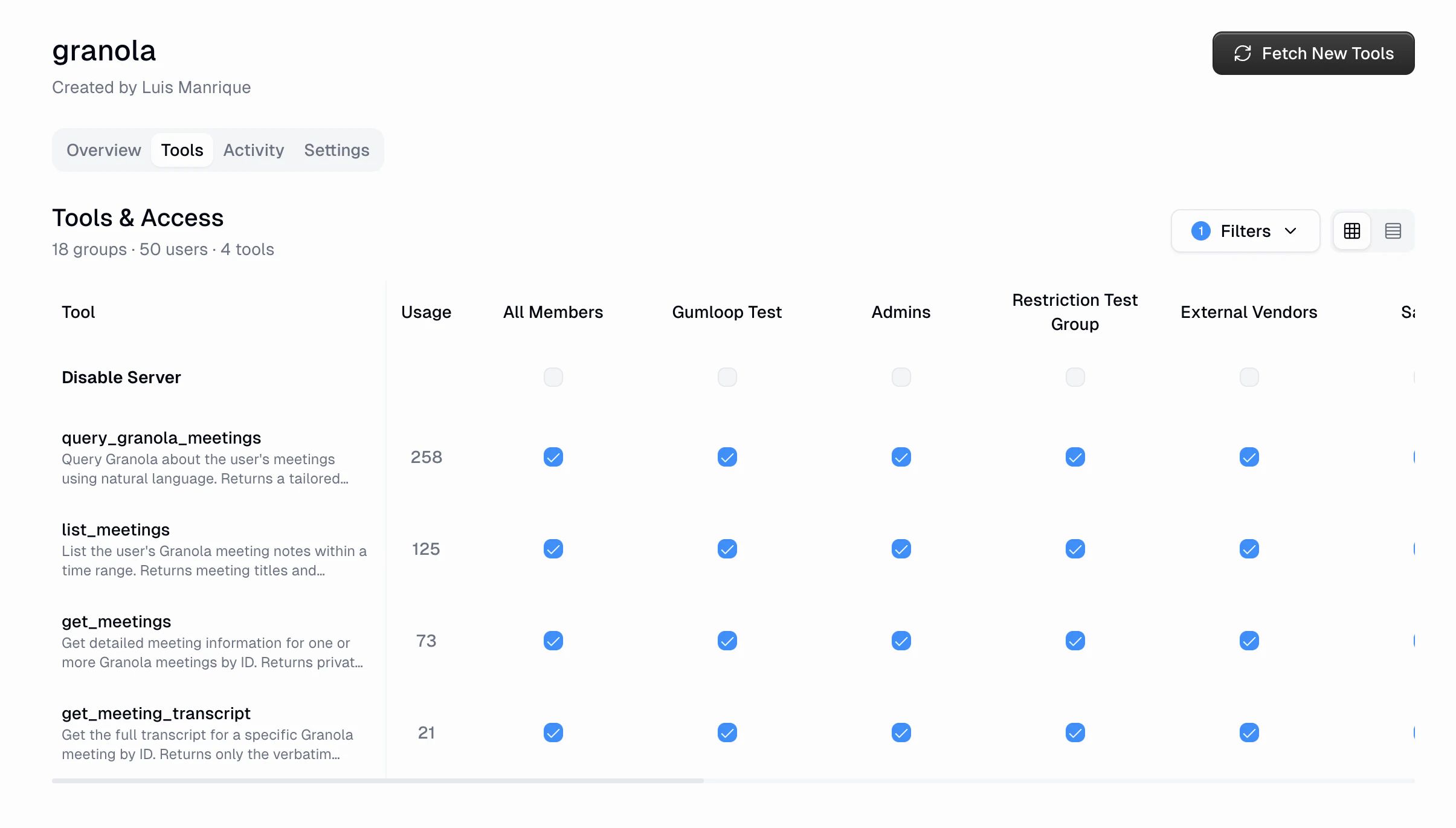 The Tools tab works the same as for hosted MCPs. You get a custom-role matrix where you can:
* See every discovered tool with its description and usage count
* Toggle access per [custom role](/enterprise-features/user_groups)
* Disable the entire server for a specific role
### Activity
The Tools tab works the same as for hosted MCPs. You get a custom-role matrix where you can:
* See every discovered tool with its description and usage count
* Toggle access per [custom role](/enterprise-features/user_groups)
* Disable the entire server for a specific role
### Activity
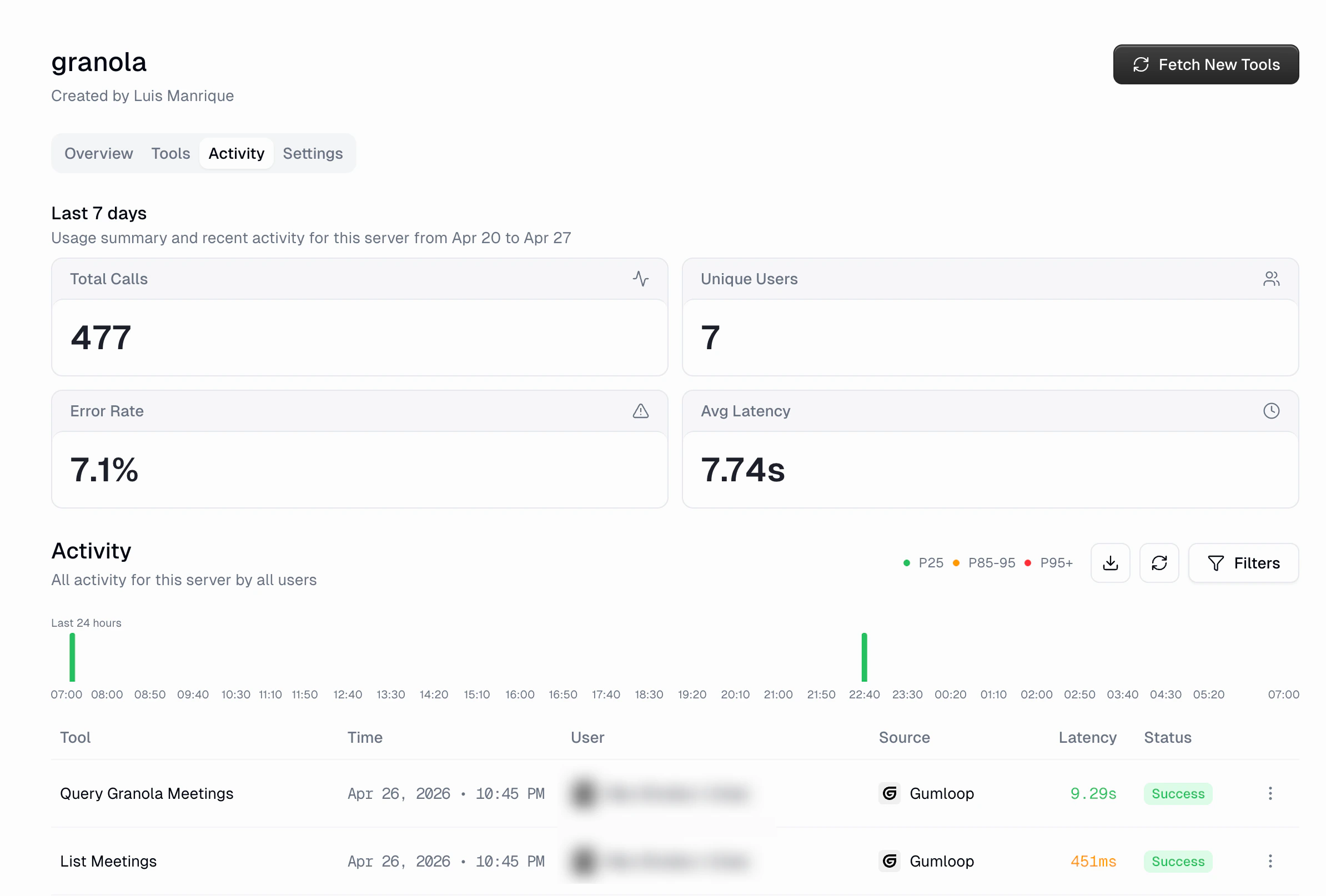 The Activity tab shows a server-scoped activity view with:
* **Usage summary**: Total Calls, Unique Users, Error Rate, and Avg Latency for the period
* **Activity histogram**: 24-hour tool call volume with latency color coding (P25/P85-95/P95+)
* **Activity table**: Every tool call with Tool, Time, User, Source, Latency, and Status columns
* **Filters**: Same filtering options as the global [App Activity](/enterprise-features/app_activity) page
* **Export**: Download the filtered data as CSV
### Settings
The Activity tab shows a server-scoped activity view with:
* **Usage summary**: Total Calls, Unique Users, Error Rate, and Avg Latency for the period
* **Activity histogram**: 24-hour tool call volume with latency color coding (P25/P85-95/P95+)
* **Activity table**: Every tool call with Tool, Time, User, Source, Latency, and Status columns
* **Filters**: Same filtering options as the global [App Activity](/enterprise-features/app_activity) page
* **Export**: Download the filtered data as CSV
### Settings
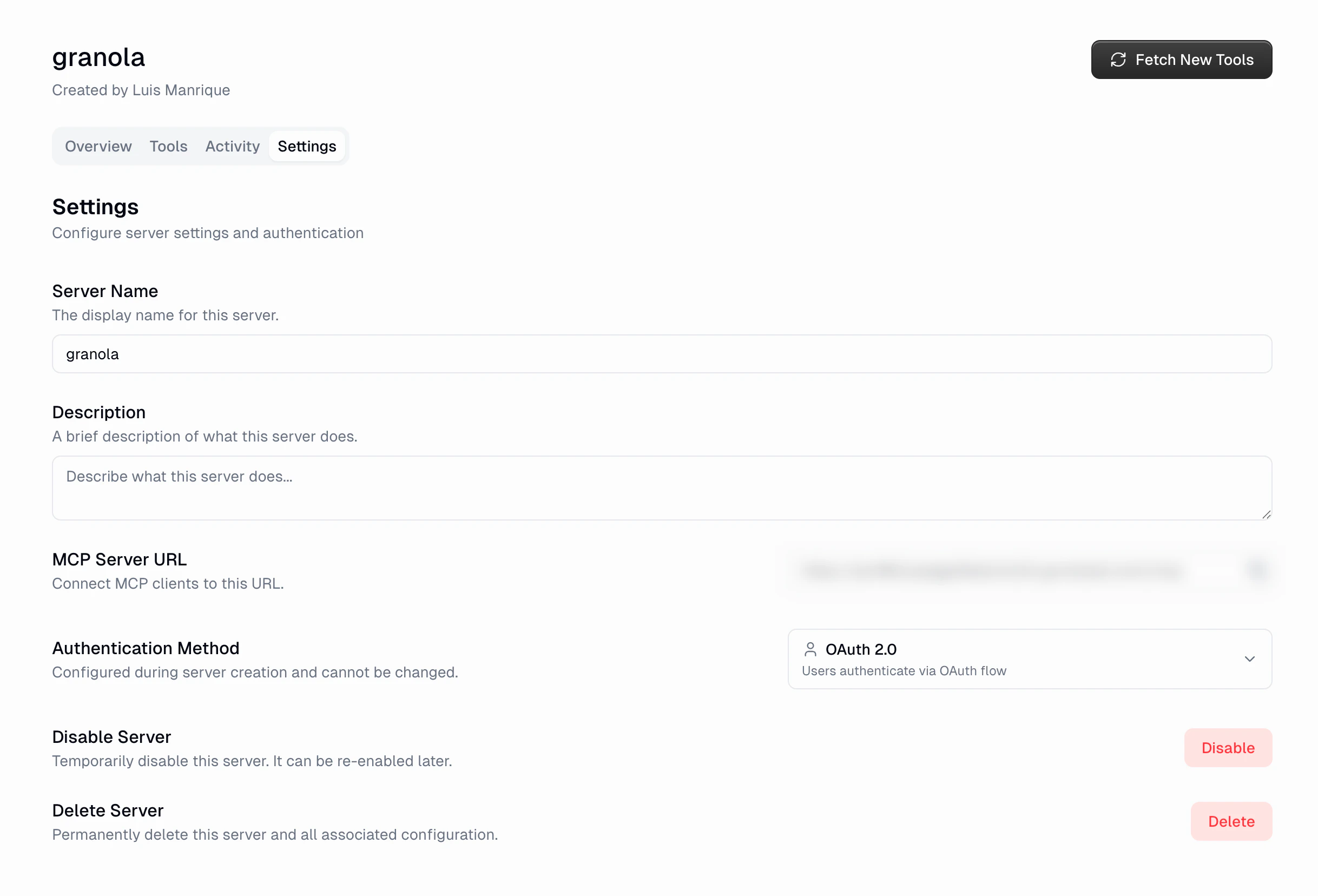 The Settings tab lets you manage:
* **Server Name**: Update the display name
* **Description**: Describe what the server does
* **MCP Server URL**: The proxy URL for MCP clients to connect to
* **Authentication Method**: Shows the configured auth type (set during creation)
* **Disable Server**: Temporarily disable the server. It can be re-enabled later.
* **Delete Server**: Permanently remove the server and all associated configuration
Deleting a proxied MCP server is permanent. All activity history, tool access
settings, and the proxy configuration will be removed. The external server
itself is not affected.
## URL Security
When displaying proxied server URLs in the interface, Gumloop automatically **redacts credentials** embedded in URLs. If a server URL contains authentication tokens or API keys, they are masked in the UI to prevent accidental exposure.
## FAQ
No. The external server receives standard MCP requests from the Gumloop
proxy. It doesn't need any special configuration or awareness of Gumloop.
Tool calls routed through the proxy will fail, and the **Routing Status** on
the overview page will reflect the connection issue. Activity logs will show
errors for the affected period. The proxy continues to check connectivity
and will resume routing when the server comes back.
The authentication method is configured during server creation and cannot be
changed afterward. If you need a different auth method, delete the server
and create a new connection with the correct settings.
Click the **Fetch New Tools** button in the server header. Gumloop will
re-discover tools from the remote server and update the tool list. Any new
tools will be enabled for all custom roles by default.
Proxied MCPs support MCP servers that expose an HTTP-based endpoint
(Streamable HTTP or SSE). The URL you provide should be the server's MCP
transport endpoint.
The Settings tab lets you manage:
* **Server Name**: Update the display name
* **Description**: Describe what the server does
* **MCP Server URL**: The proxy URL for MCP clients to connect to
* **Authentication Method**: Shows the configured auth type (set during creation)
* **Disable Server**: Temporarily disable the server. It can be re-enabled later.
* **Delete Server**: Permanently remove the server and all associated configuration
Deleting a proxied MCP server is permanent. All activity history, tool access
settings, and the proxy configuration will be removed. The external server
itself is not affected.
## URL Security
When displaying proxied server URLs in the interface, Gumloop automatically **redacts credentials** embedded in URLs. If a server URL contains authentication tokens or API keys, they are masked in the UI to prevent accidental exposure.
## FAQ
No. The external server receives standard MCP requests from the Gumloop
proxy. It doesn't need any special configuration or awareness of Gumloop.
Tool calls routed through the proxy will fail, and the **Routing Status** on
the overview page will reflect the connection issue. Activity logs will show
errors for the affected period. The proxy continues to check connectivity
and will resume routing when the server comes back.
The authentication method is configured during server creation and cannot be
changed afterward. If you need a different auth method, delete the server
and create a new connection with the correct settings.
Click the **Fetch New Tools** button in the server header. Gumloop will
re-discover tools from the remote server and update the tool list. Any new
tools will be enabled for all custom roles by default.
Proxied MCPs support MCP servers that expose an HTTP-based endpoint
(Streamable HTTP or SSE). The URL you provide should be the server's MCP
transport endpoint.