> ## Documentation Index
> Fetch the complete documentation index at: https://docs.gumloop.com/llms.txt
> Use this file to discover all available pages before exploring further.
# Usage Data Export
Usage Data Export allows enterprise organization administrators to export comprehensive data from their Gumloop organization. This feature supports both **one-time exports** and **continuous data drains** for analysis, compliance reporting, credit consumption tracking, and backup purposes.
Exports can be scoped to the **entire organization** or to your **personal data only**. See [Export Scopes](#export-scopes) for details.
## What You Can Do
Monitor credit usage across teams and users over time
Export data for audit trails and regulatory compliance
Analyze workflow execution patterns and user activity
Create backups of organizational workflow metadata
Understand cost allocation across teams and projects
Set up data drains to continuously push data to external destinations
Navigate to your organization's data export settings at: [gumloop.com/settings/organization/data\_export](https://gumloop.com/settings/organization/data_export)
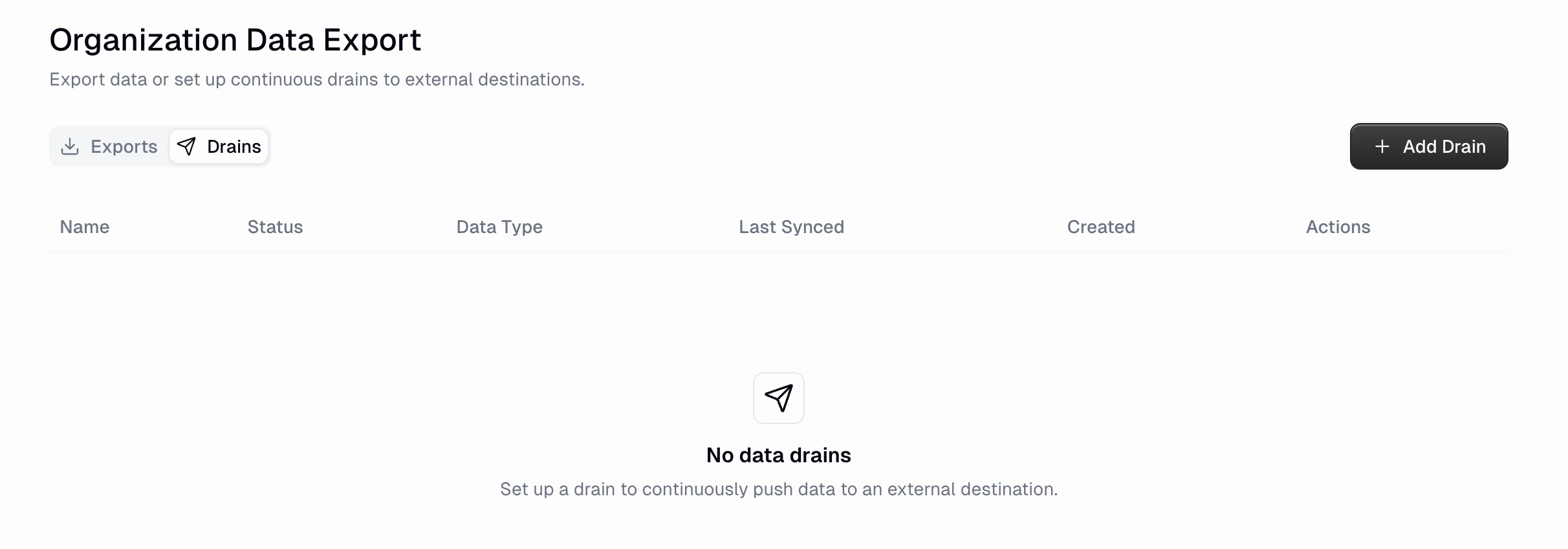
The data export page has two tabs: **Exports** for one-time data downloads, and **Drains** for continuous data syncing.
## Data Types
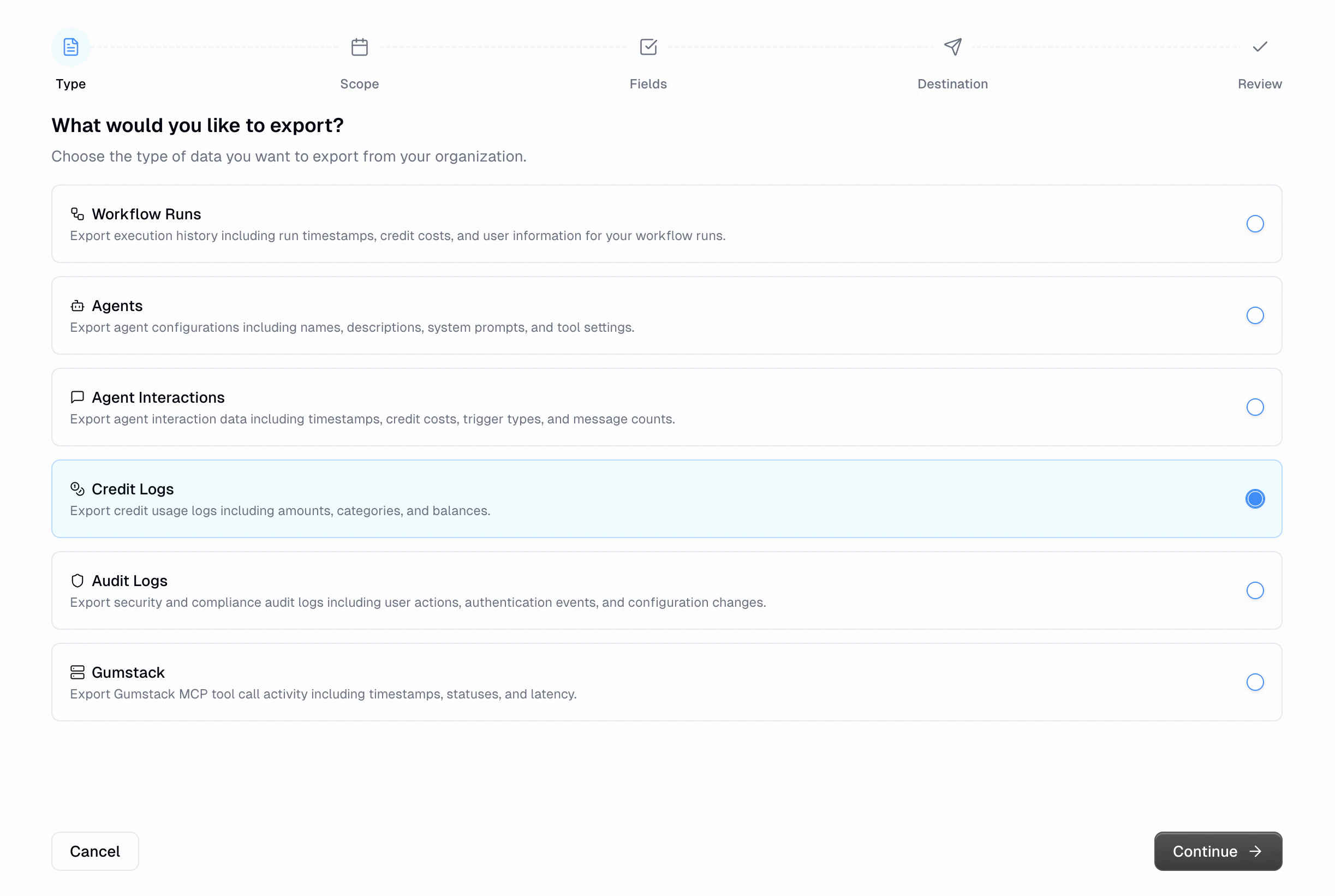
Gumloop supports six types of data for both exports and drains:
| Data Type | Description |
| ---------------------- | ----------------------------------------------------------------------------------------------------------- |
| **Workflow Runs** | Execution history including run IDs, credit costs, timestamps, and workflow metadata |
| **Agents** | Agent configurations including names, descriptions, system prompts, and tool settings |
| **Agent Interactions** | Agent interaction data including timestamps, credit costs, trigger types, and message counts |
| **Credit Logs** | Credit usage logs including amounts, categories, and balances |
| **Audit Logs** | Security and compliance audit logs including user actions, authentication events, and configuration changes |
| **Gumstack** | Gumstack MCP tool call activity including timestamps, statuses, and latency |
## One-Time Exports
One-time exports let you download a snapshot of your organization's data for a specific date range as a CSV file.
### Export Process
Choose what data you want to export from the six available types.
Define the time period for your data extraction.
**Features:**
* **Billing Period Presets**: Quickly select a billing period from the dropdown
* **Custom Date Range**: Pick specific start and end dates with the calendar picker
* **Timezone Support**: Choose the timezone for date interpretation
Select which teams to include in your export.
This step applies to **Workflow Runs**, **Agents**, and **Agent Interactions** exports only. **Credit Logs**, **Audit Logs**, and **Gumstack** exports are scoped to the entire organization.
* **Searchable List**: Find teams quickly using search functionality
* **Individual Selection**: Choose specific teams with checkboxes
* **Select All Toggle**: Bulk select all organization teams
* **Optional Toggle**: Include personal spaces of organization members
* **Comprehensive Coverage**: When enabled, includes all user personal spaces in the export
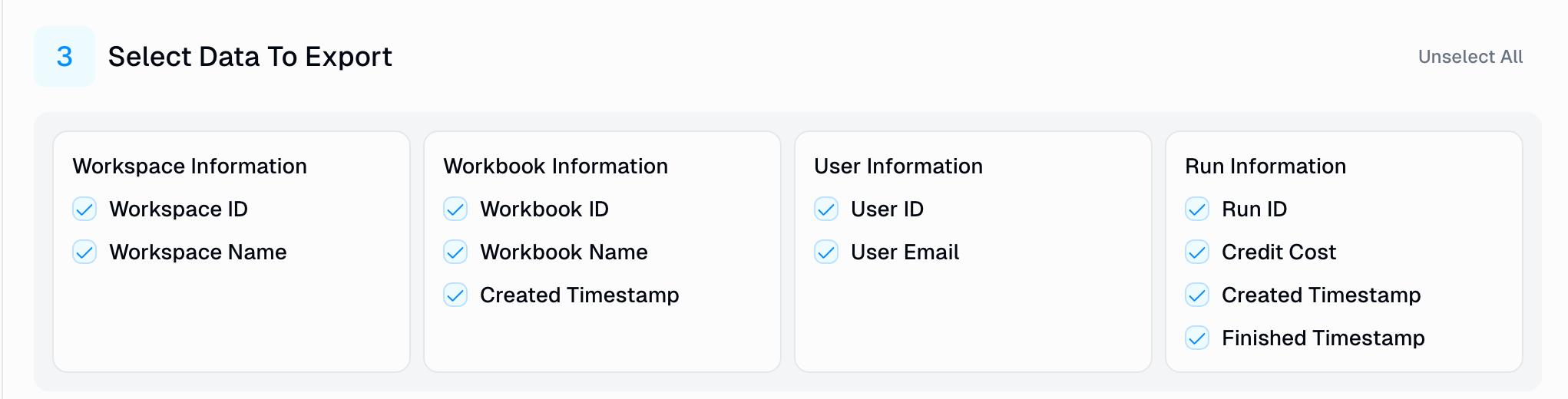
Choose which data categories and fields to include in your export.
### Field Presets
| Preset | Description |
| ----------- | -------------------------------------------- |
| **Minimal** | Essential identifiers and timestamps only |
| **Default** | Recommended set of commonly used fields |
| **Full** | All available fields including detailed data |
| **Custom** | Select specific fields manually |
### Available Data Categories
| Field | Description |
| --------- | ------------------------------ |
| Team ID | Unique identifier for the team |
| Team Name | Display name of the team |
| Field | Description |
| ----------------- | ---------------------------------- |
| Workbook ID | Unique identifier for the workbook |
| Workbook Name | Display name of the workbook |
| Created Timestamp | When the workbook was created |
| Field | Description |
| ---------- | ------------------------------ |
| User ID | Unique identifier for the user |
| User Email | Email address of the user |
| Field | Description |
| ------------------ | -------------------------------------- |
| Run ID | Unique identifier for the workflow run |
| Credit Cost | Number of credits consumed |
| Created Timestamp | When the run started |
| Finished Timestamp | When the run completed |
| Category | Fields |
| --------------- | ---------------------------------------------------------------------------------------------- |
| **User** | User Email, Custom Role ID(s) (disabled by default), Custom Role Name(s) (disabled by default) |
| **Log** | Date, Category, Type, Name, Amount, Balance |
| **Identifiers** | Log ID, Project ID (disabled by default) |
### Managing Exports
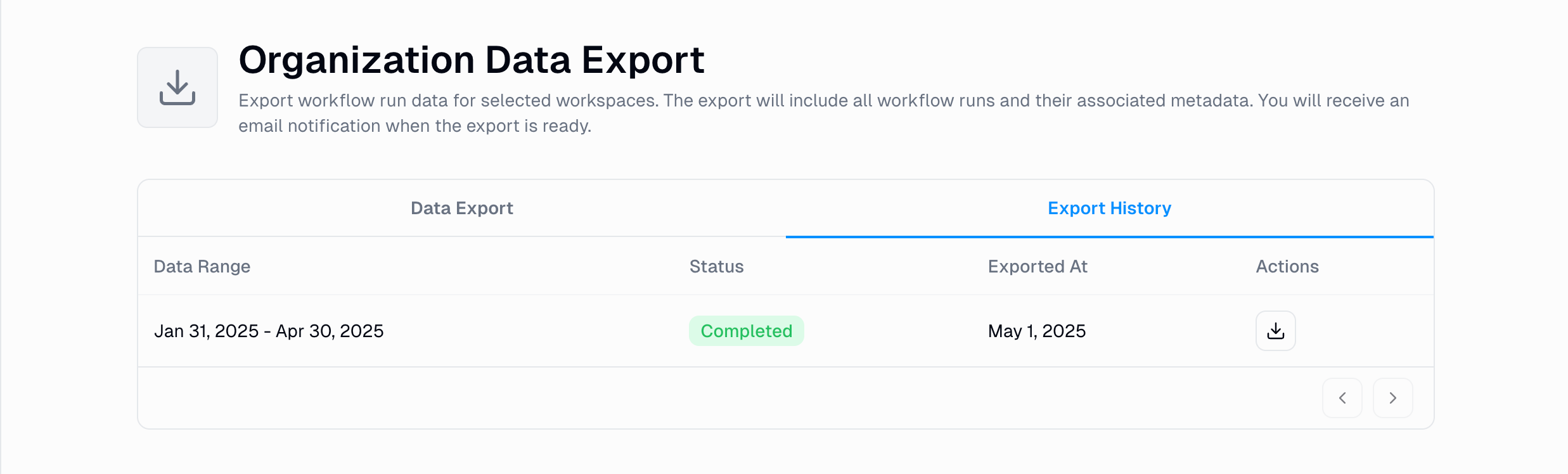
Monitor and manage all your previous export requests from the **Exports** tab.
**What you'll see:**
* **Status Tracking**: Real-time status updates with colored badges
* **Date Range Display**: Clear indication of exported data timeframes
* **Creation Timestamps**: When each export was requested
* **Download Actions**: Direct CSV file download capability
When your export completes successfully, you'll receive an email notification confirming that your export is ready for download.
### Downloaded Data Format
Exported data is provided as CSV files with:
* **Header Row**: Column names matching selected fields
* **Comma Separation**: Standard CSV format for easy import into analysis tools
* **Date Formatting**: ISO 8601 timestamp format
***
## Data Drains
Data Drains let you continuously push organization data to an external destination. Unlike one-time exports, drains run automatically in the background and sync new data as it becomes available.
### How Drains Work
Once created, a drain continuously monitors your selected data type for new records. When new data appears, it is automatically batched and delivered to your configured destination. The drain keeps track of what has already been synced using an internal cursor, so you never receive duplicate data.
Key behaviors:
* **Automatic syncing**: New data is pushed to your destination without manual intervention
* **Adaptive polling**: Sync frequency adjusts based on data volume, from every 15 seconds during high activity to up to 10 minutes during quiet periods
* **Crash-safe cursor**: The sync cursor advances after each successfully delivered batch, so no data is lost if a delivery fails mid-cycle
* **Automatic error handling**: If a drain encounters 3 consecutive failures, it is automatically paused with an "Error" status
### Creating a Drain
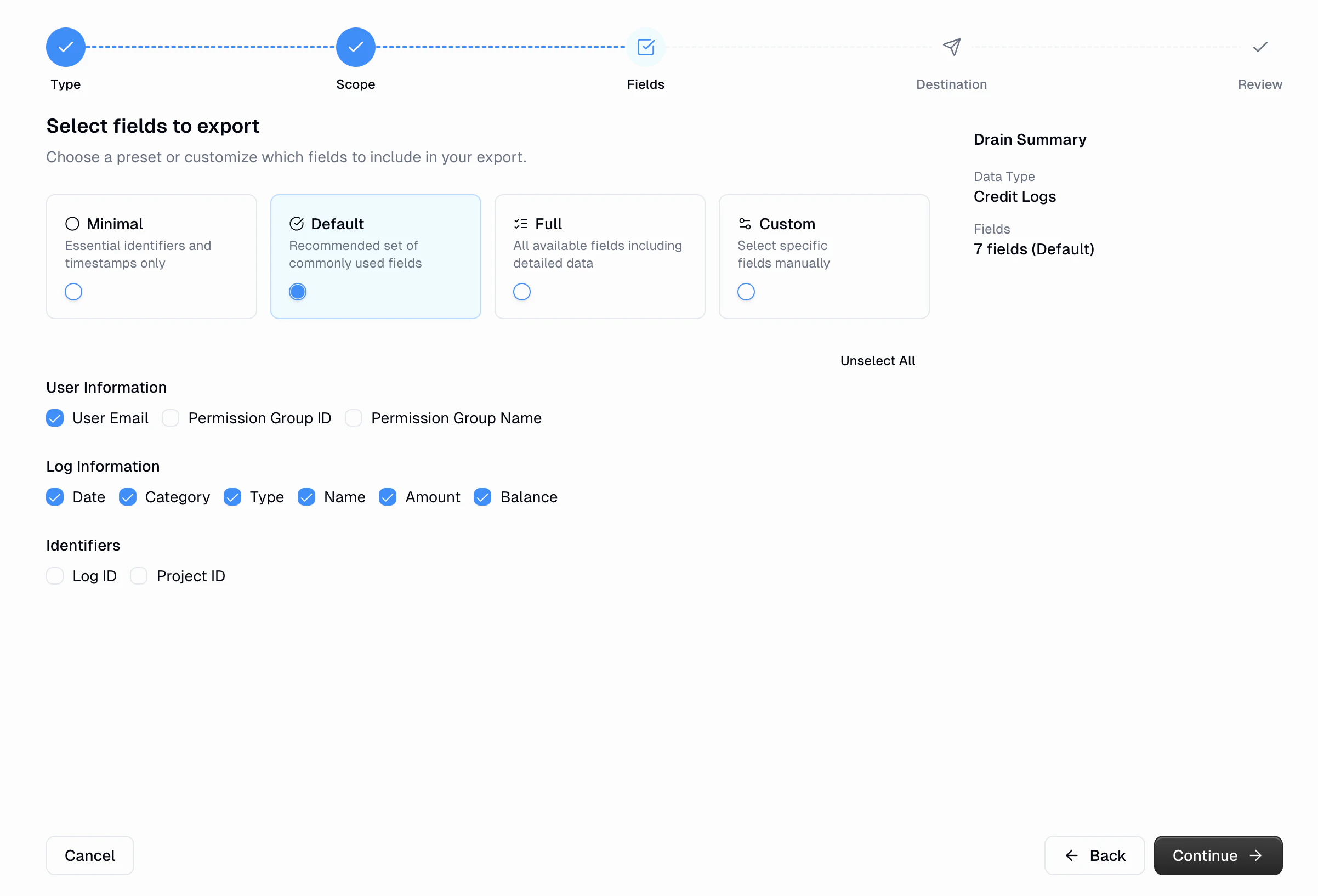
To create a new drain, switch to the **Drains** tab and click **+ Add Drain**. The drain creation wizard walks you through the following steps:
Choose the type of data you want to continuously sync. Available types are: Workflow Runs, Agents, Agent Interactions, Credit Logs, Audit Logs, and Gumstack.
Depending on the data type, configure filtering options for the drain:
* **Workflow Runs, Agents, Agent Interactions**: Select which teams to include and optionally include personal workspaces
* **Credit Logs**: Optionally filter by credit log category
* **Audit Logs, Gumstack**: No additional scope configuration needed (this step is skipped)
Unlike one-time exports, drains do not require a date range. They start syncing from the time the drain is created and continue forward.
Choose which fields to include in the synced data. The same field presets are available as for one-time exports: Minimal, Default, Full, or Custom.
Set up where data should be delivered. You'll need to provide a **drain name** and select a **destination type**.
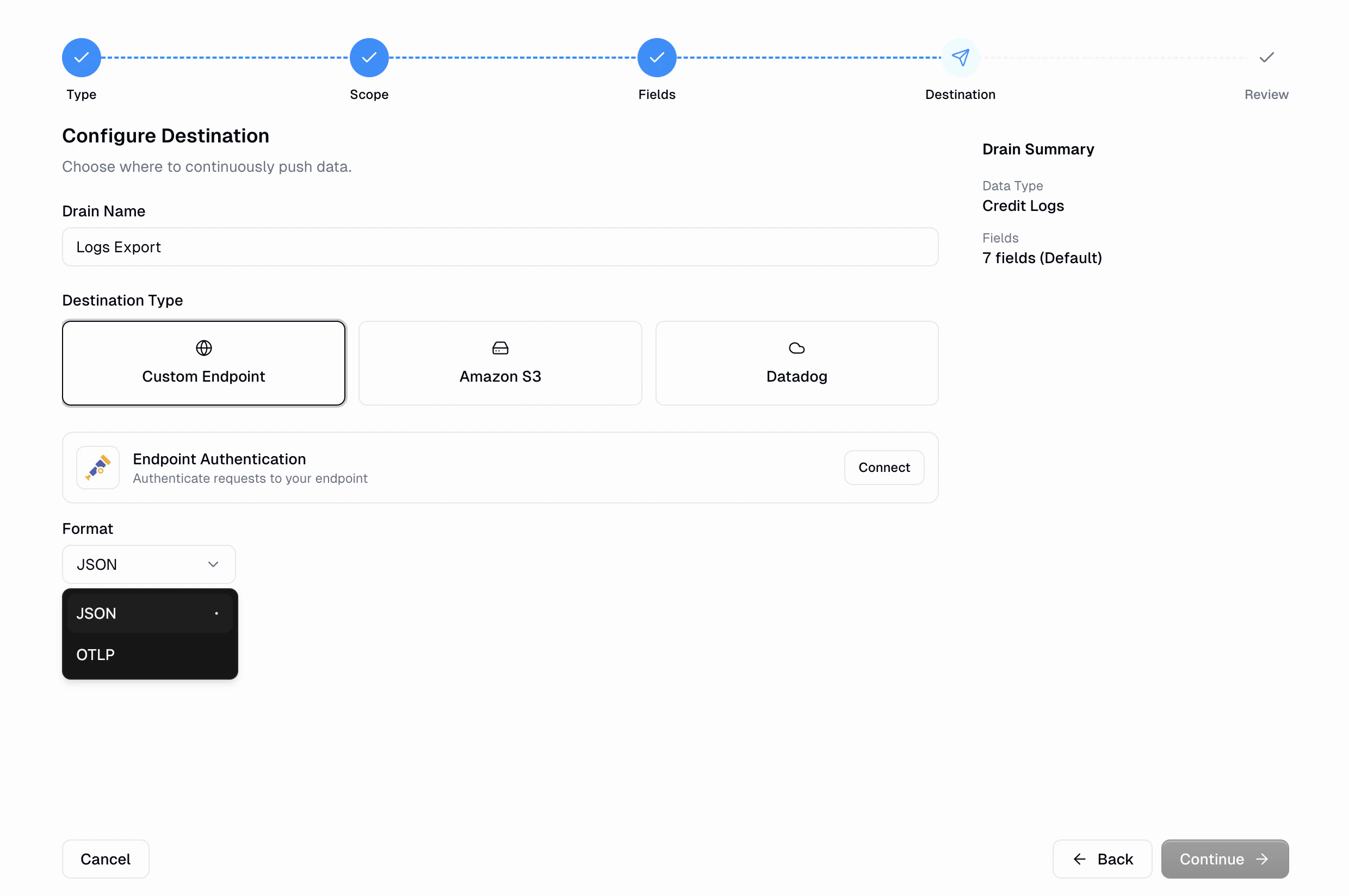
Gumloop supports three destination types:
Push data to any HTTP endpoint you control.
**Configuration:**
* **Endpoint Authentication**: Connect your HTTP credentials (URL, authorization header, and optional signing secret)
* **Format**: Choose between **JSON** (default) or **OTLP** (OpenTelemetry Log Protocol)
**Payload format (JSON):**
```json theme={"dark"}
{
"source": "gumloop",
"drain_id": "abc123",
"drain_name": "My Drain",
"data_type": "credit_logs",
"records": [
{ "user_email": "user@example.com", "amount": 5, "category": "PIPELINE_RUN", ... }
]
}
```
**Headers included:**
* `Content-Type: application/json`
* `X-Gumloop-Drain-Id`: The drain's unique identifier
* `X-Gumloop-Data-Type`: The data type being synced
* `Authorization`: Your configured authorization header (if set)
* `X-Gumloop-Signature`: HMAC-SHA256 signature of the request body (if a signing secret is configured)
Use the signing secret to verify that incoming requests are genuinely from Gumloop. Compute an HMAC-SHA256 of the raw request body using your signing secret and compare it with the `X-Gumloop-Signature` header.
Push data as JSON files to an S3 bucket.
**Configuration:**
* **AWS Credentials**: Connect your AWS access key and secret
* **Bucket**: The name of your S3 bucket
* **Path Prefix** (optional): A folder path prefix for the uploaded files (e.g., `exports/gumloop`)
Files are organized by date with the path pattern:
```
{prefix}/{YYYY}/{MM}/{DD}/{drain_id}_{HHMMSS}_{microseconds}.json
```
Push data as logs to Datadog.
**Configuration:**
* **Datadog API Key**: Connect your Datadog API key credentials
Logs are sent to Datadog's Log Intake API with:
* **Source**: `gumloop`
* **Service**: `gumloop.{data_type}` (e.g., `gumloop.credit_logs`)
* **Tags**: `drain_id:{id},drain_name:{name}`
Supported Datadog sites include `datadoghq.com`, `datadoghq.eu`, `us3.datadoghq.com`, `us5.datadoghq.com`, `ap1.datadoghq.com`, and `ddog-gov.com`.
Review all your settings before creating the drain. When you click **Create Drain**, Gumloop runs a preflight check to verify the destination is reachable and properly configured. If the check passes, the drain is created and begins syncing immediately.
### Managing Drains
The **Drains** tab shows all your configured drains with the following information:
| Column | Description |
| --------------- | ----------------------------------------- |
| **Name** | Drain name and destination type icon |
| **Status** | Current status: Active, Paused, or Error |
| **Data Type** | The type of data being synced |
| **Last Synced** | When data was last successfully delivered |
| **Created** | When the drain was first set up |
| **Actions** | Delete the drain |
### Drain Statuses
| Status | Description |
| ---------- | ---------------------------------------------------------------------------------------------------------------------------------------- |
| **Active** | The drain is running normally and syncing data |
| **Paused** | The drain has been paused |
| **Error** | The drain encountered 3 consecutive delivery failures and was automatically paused. Check your destination configuration and credentials |
Deleting a drain is permanent. If you delete a drain and create a new one, the new drain will start syncing from the current time, not from where the previous drain left off.
***
## Export Scopes
Every export (one-time or drain) runs in one of two scopes:
| Scope | What it returns | Who can use it |
| -------------------------- | ----------------------------------------------------------------------- | ------------------------------------------------------- |
| **Organization** (default) | All data across selected teams and personal spaces in your organization | Organization admins with the Export Data permission |
| **Personal** | Only rows where you are the creator or runner | Any organization member with the Export Data permission |
### Organization Scope
This is the default behavior. Organization-scoped exports let admins select specific teams, include personal spaces, and filter by entity IDs. All existing exports use this scope.
### Personal Scope
Personal exports return only your own data: workflow runs you triggered, agents you created, and interactions from your sessions. This is useful for individual compliance requests or personal usage auditing.
**How it works:**
* The export filters rows by your user ID automatically. You do not need to select teams or workspaces.
* `start_date`, `end_date`, and `export_fields` are required.
* Team/workspace selection parameters (`workspace_ids`, `include_all_workspaces`) are ignored.
* Supported for **Workflow Runs**, **Agents**, **Agent Interactions**, and **Credit Logs**. Not supported for Audit Logs or Gumstack exports.
**Via the API**, set `export_scope` to `"personal"` in your request body:
```json theme={"dark"}
{
"export_scope": "personal",
"data_type": "workflows",
"start_date": "2025-01-01T00:00:00",
"end_date": "2025-06-01T00:00:00",
"export_fields": ["run_id", "credit_cost", "pl_run_created_ts", "pl_run_finished_ts", "flowbook_name"]
}
```
Personal exports require the **Enterprise** plan. The `export_scope` parameter defaults to `"organization"` when omitted, preserving backward compatibility.
***
## API Integration
For programmatic access to data export functionality, use the following endpoints:
**Endpoint**: `POST /export_data`
**Request Body:**
```json theme={"dark"}
{
"user_id": "string",
"export_fields": [
"workbook_id",
"workbook_name",
"user_email",
"run_id",
"credit_cost",
"pl_run_created_ts",
"pl_run_finished_ts"
],
"start_date": "2024-01-01T00:00:00",
"end_date": "2024-12-31T23:59:59",
"include_personal_workspaces": false,
"workspace_ids": ["workspace_id_1", "workspace_id_2"],
"entity_ids": ["workbook_id_1", "workbook_id_2"]
}
```
**Optional Parameters:**
* `export_scope`: `"organization"` (default) or `"personal"`. Personal scope returns only your own data and requires the Enterprise plan.
* `data_type`: The type of data to export (`"workflows"`, `"agents"`, `"agent_interactions"`, `"credit_logs"`, `"audit_logs"`, or `"gumstack"`). Defaults to `"workflows"`.
* `entity_ids`: Filter the export to specific entities. For workflow exports, provide workbook IDs. For agent exports, provide agent IDs. Not applicable for credit log exports.
**Credit log exports** work differently from workflow and agent exports:
* Team/workspace selection parameters (`workspace_ids`, `include_personal_workspaces`) are **not applicable**
* Credit log exports are always scoped to the entire organization
* Use `category_filter` to filter by a specific credit log category (e.g., `"PIPELINE_RUN"`, `"AGENT_RUN"`)
* Use `permission_group_filter` to filter credit logs by a specific [custom role](/enterprise-features/user_groups) (legacy parameter name retained for API compatibility)
**Endpoint**: `GET /export_status`
**Query Parameters:**
* `user_id` (required): User requesting the status
* `data_export_id` (required): Export job identifier
* `download` (optional): Set to `true` to download the file if completed
**Endpoint**: `GET /data-drains`
**Query Parameters:**
* `organization_id` (required): Your organization ID
**Response:** Returns an array of drain objects with their current status, configuration, and sync timestamps.
**Endpoint**: `POST /data-drains`
**Request Body:**
```json theme={"dark"}
{
"name": "My Credit Logs Drain",
"drain_type": "custom_endpoint",
"data_type": "credit_logs",
"destination_config": {
"format": "json"
},
"export_fields": ["user_email", "timestamp", "category", "type", "name", "amount", "balance"],
"secret_id": "your_credential_secret_id",
"organization_id": "your_org_id"
}
```
**Required Parameters:**
* `organization_id`: Your organization ID
* `name`: A display name for the drain
* `drain_type`: `"custom_endpoint"`, `"s3"`, or `"datadog"`
* `data_type`: `"workflows"`, `"agents"`, `"agent_interactions"`, `"credit_logs"`, `"audit_logs"`, or `"gumstack"`
* `destination_config`: Configuration object specific to the destination type
* `export_fields`: Array of field IDs to include in the synced data
**Optional Parameters:**
* `secret_id`: The credential secret ID for authenticating with the destination
* `project_ids`: Filter to specific team/workspace IDs
* `include_personal_workspaces`: Include personal workspaces in scope
* `entity_ids`: Filter to specific entity IDs
* `category_filter`: Filter credit logs by category
* `event_type_filter`: Filter audit logs by event type
* `start_ts`: ISO 8601 timestamp to start syncing from (defaults to current time)
When creating a drain, Gumloop performs a **preflight check** to verify the destination is reachable. If the check fails, the drain will not be created and an error will be returned.
**Endpoint**: `DELETE /data-drains/{drain_id}`
**Query Parameters:**
* `organization_id` (required): Your organization ID
View the full API reference for detailed endpoint specifications and examples
## Related Resources
Learn about security and compliance audit logging
Learn about managing user permissions and roles
Understand how to structure your Gumloop organization
View organization-wide usage analytics and dashboards