> ## Documentation Index
> Fetch the complete documentation index at: https://docs.gumloop.com/llms.txt
> Use this file to discover all available pages before exploring further.
# Cross App Access with Okta
> Let Okta connect Slack and Asana for your members in Gumloop
This guide walks an Okta administrator through Okta Cross App Access for Gumloop: you allow refresh tokens on the Gumloop app, register Gumloop as an *AI agent*, connect Slack and Asana to it, then confirm the connection from Gumloop.
With Cross App Access, members do not connect each app to Gumloop separately. Gumloop uses the member's Okta connection to obtain short-lived app tokens and caches them for reuse instead of requiring a separate direct app connection. You decide in Okta which apps Gumloop can reach and for whom.
Cross App Access builds on Okta OpenID Connect sign-in. Set up [OIDC with Okta](/enterprise-features/idp-guides/oidc-with-okta) first. The **Cross App Access** section appears on your Gumloop **Identity Provider** settings page once OIDC is active.
## Before you start
You need the *Super Admin* role in Okta and the **Admin** role in your Gumloop organization. Okta OpenID Connect sign-in must already be active in Gumloop.
Older Okta versions may label the *Machine Assignments* tab *Resource Server*. If neither tab nor *Directory* > *AI Agents* appears, confirm that you have the *Super Admin* role and contact Okta Support.
Each app also needs its own admin to allow access through Okta:
* **Slack.** Slack Enterprise+ with Okta as its identity provider. A Slack Org Owner opens *Organization settings* > *Security* > *SSO settings*, presses *Edit* next to *Enterprise-Managed Authorization*, and turns on the toggle. Check that the *ID-JAG issuer URL* matches your Okta org URL, then press *Save*. The Gumloop Slack app must be installed at the organization level. See [Enterprise-managed authorization](https://docs.slack.dev/authentication/enterprise-managed-authorization).
* **Asana.** An Asana Organization Admin opens *Admin Console* > *Security* > *Cross-app access (XAA)* and turns on *Cross-app access*. Set *Issuer URL* to your Okta org's base URL, *JWKS URI* to that URL followed by `/oauth2/v1/keys`, and *Expected Audience* to `https://app.asana.com`. Do not use a custom authorization server path such as `/oauth2/default`. Press *Save*. See [Cross-App Access](https://help.asana.com/s/article/cross-app-access) for Asana's setup requirements.
Gumloop shows one value you will copy into Okta for each app: the **client ID** under **Settings** > **Identity Provider** > **Cross App Access**.
## Allow refresh tokens on the Gumloop app
Gumloop asks Okta for app access with a refresh token from the member's sign-in. The Gumloop app must be allowed to issue one.
In the Okta Admin Console, select *Applications and Resources* > *Applications* and open the Gumloop OpenID Connect app you created for sign-in. On the *General* tab, press *Edit* next to *General Settings*. Under *Grant type*, check *Refresh Token*, then press *Save*.
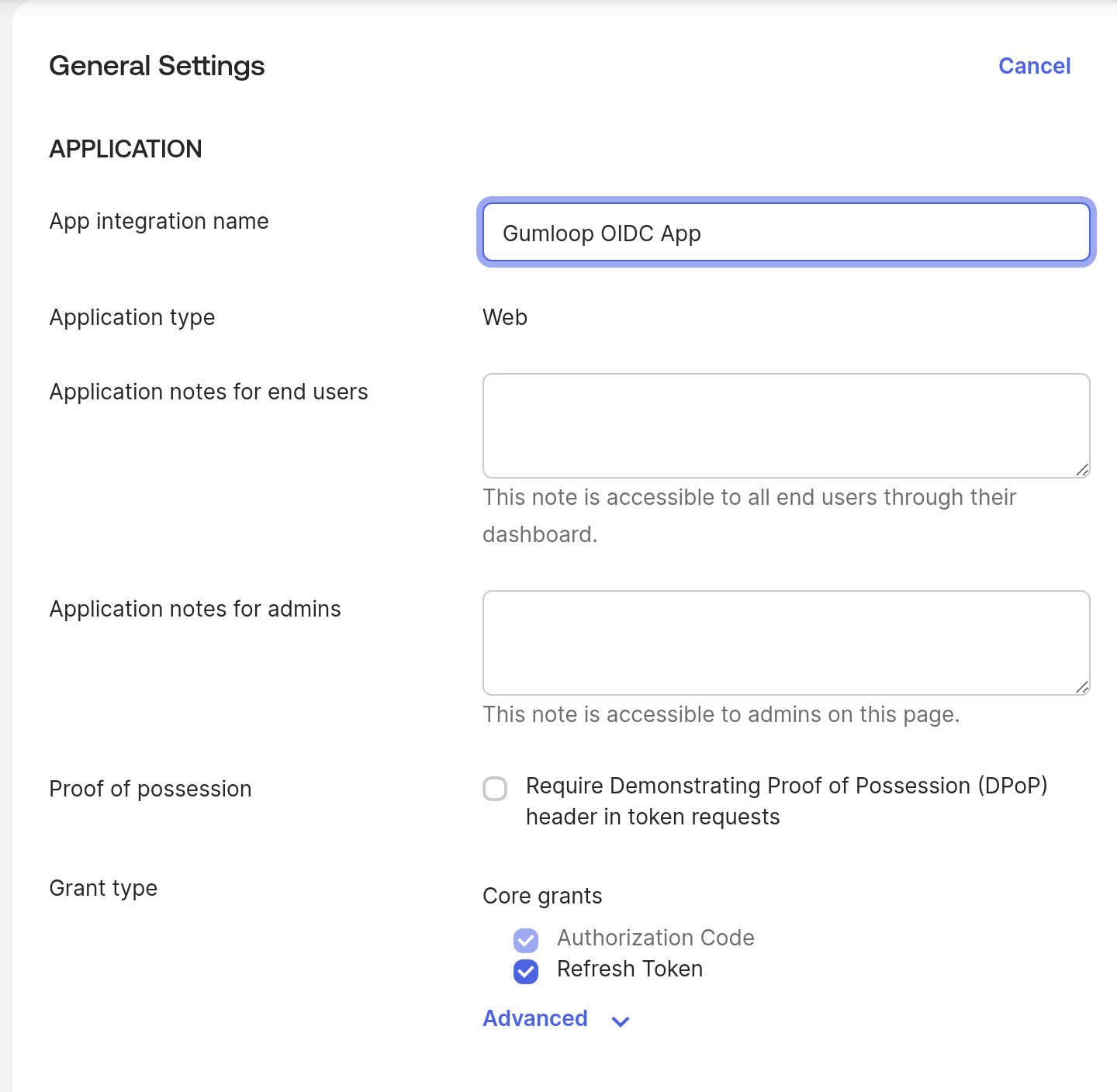 Members who sign in to Gumloop **with Okta** after this change are connected to Okta automatically. Members who signed in before it, or used another sign-in method, connect once from their Gumloop connectors page (see [What members see](#what-members-see)).
## Register Gumloop as an AI agent
Okta represents the Gumloop side of Cross App Access as an AI agent linked to the Gumloop app.
On the Gumloop app page, open the *Machine Assignments* tab and select the *Resources* tile. Press *Register AI agent*.
Under *Profile*, name the agent "Gumloop" and press *Next*. Under *User access and authentication*, the Gumloop app is already selected. Keep it and press *Next*.
Leave *Client registration* as it is. Gumloop authenticates with the app's existing client ID and secret.
The new agent appears under *Directory* > *AI Agents* with the status *Staged*. Open it and select *Actions* > *Activate*.
The people who can use the agent are the people assigned to the Gumloop app. The group you assigned during OIDC setup already covers them. There is nothing extra to assign on the agent.
## Connect each app to the Gumloop agent
Do this once for Slack and once for Asana.
### Turn on Cross App Access on the app
Slack and Asana must exist as app integrations in your Okta org. If one is missing, add it from *Browse App Catalog* and assign the same people who use Gumloop. Both catalog apps list Cross App Access among their features.
Open the app in Okta. On the *Machine Assignments* tab, select the *Callers* tile. Next to *Cross-app access (XAA)*, press *Edit*, select *Enable*, then press *Save*. The issuer and scopes are set by the vendor for catalog apps. Leave them as they are.
### Copy the client ID from Gumloop
In Gumloop, open [gumloop.com/settings/organization/sso](https://www.gumloop.com/settings/organization/sso) and scroll to **Cross App Access**. Each app row shows the client ID Okta needs, with a copy button next to it.
### Add the resource connection in Okta
Select *Directory* > *AI Agents*, open the Gumloop agent, and select the *Resource connections* tab. Press *Add resource connection* and choose the app under *Application instance*.
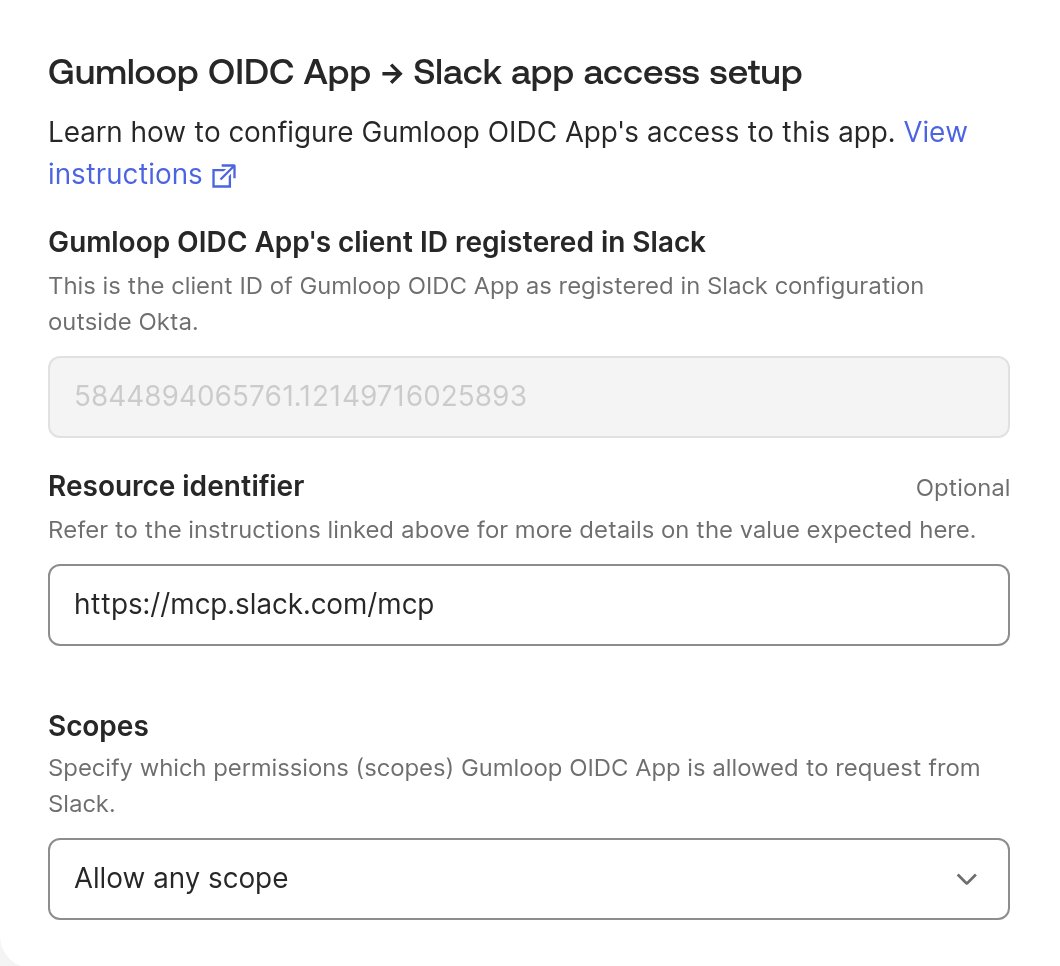
Paste the client ID you copied from Gumloop into the field named for your AI agent and the resource app, such as *Gumloop's client ID registered in Slack*. Okta uses your AI agent's name in this label. *Resource identifier* is optional; the Slack connection shown below uses `https://mcp.slack.com/mcp`. Under *Scopes*, select *Allow any scope*. If you prefer an allowlist, select *Allow specific scopes* and choose all the scopes listed for the app in Gumloop's Cross App Access section.
Press *Add*.
Members who sign in to Gumloop **with Okta** after this change are connected to Okta automatically. Members who signed in before it, or used another sign-in method, connect once from their Gumloop connectors page (see [What members see](#what-members-see)).
## Register Gumloop as an AI agent
Okta represents the Gumloop side of Cross App Access as an AI agent linked to the Gumloop app.
On the Gumloop app page, open the *Machine Assignments* tab and select the *Resources* tile. Press *Register AI agent*.
Under *Profile*, name the agent "Gumloop" and press *Next*. Under *User access and authentication*, the Gumloop app is already selected. Keep it and press *Next*.
Leave *Client registration* as it is. Gumloop authenticates with the app's existing client ID and secret.
The new agent appears under *Directory* > *AI Agents* with the status *Staged*. Open it and select *Actions* > *Activate*.
The people who can use the agent are the people assigned to the Gumloop app. The group you assigned during OIDC setup already covers them. There is nothing extra to assign on the agent.
## Connect each app to the Gumloop agent
Do this once for Slack and once for Asana.
### Turn on Cross App Access on the app
Slack and Asana must exist as app integrations in your Okta org. If one is missing, add it from *Browse App Catalog* and assign the same people who use Gumloop. Both catalog apps list Cross App Access among their features.
Open the app in Okta. On the *Machine Assignments* tab, select the *Callers* tile. Next to *Cross-app access (XAA)*, press *Edit*, select *Enable*, then press *Save*. The issuer and scopes are set by the vendor for catalog apps. Leave them as they are.
### Copy the client ID from Gumloop
In Gumloop, open [gumloop.com/settings/organization/sso](https://www.gumloop.com/settings/organization/sso) and scroll to **Cross App Access**. Each app row shows the client ID Okta needs, with a copy button next to it.
### Add the resource connection in Okta
Select *Directory* > *AI Agents*, open the Gumloop agent, and select the *Resource connections* tab. Press *Add resource connection* and choose the app under *Application instance*.
Paste the client ID you copied from Gumloop into the field named for your AI agent and the resource app, such as *Gumloop's client ID registered in Slack*. Okta uses your AI agent's name in this label. *Resource identifier* is optional; the Slack connection shown below uses `https://mcp.slack.com/mcp`. Under *Scopes*, select *Allow any scope*. If you prefer an allowlist, select *Allow specific scopes* and choose all the scopes listed for the app in Gumloop's Cross App Access section.
Press *Add*.
 ## Confirm the connection from Gumloop
First connect your own Okta account. Use the same email as your Gumloop account, and ensure your Okta account is assigned to both the Gumloop app and the resource app you want to test. Open [gumloop.com/settings/profile/connectors](https://www.gumloop.com/settings/profile/connectors), press **Connect Okta** at the top of the page, and sign in as yourself. The banner then reads *Connected to Okta as* followed by your email.
Then open **Settings** > **Identity Provider**, scroll to **Cross App Access**, and press **Test connection** on each app. The test uses your personal Okta connection to check that Okta grants access and the app accepts it. *Connection works* without warnings confirms the connection. A result with warnings is not a passing test: fix every warning and test again before telling members the app is ready.
The switch next to each app stops Gumloop from using that app through Okta. It does not change anything in Okta, and the app stays off until you turn it back on.
## What members see
Members who sign in with Okta after the Refresh Token grant is enabled are connected automatically. Members who signed in earlier, or without Okta, connect once from their [connectors page](https://www.gumloop.com/settings/profile/connectors). When Okta-managed apps are available, the **Connect your Okta account** banner shows a **Connect Okta** button.
## Confirm the connection from Gumloop
First connect your own Okta account. Use the same email as your Gumloop account, and ensure your Okta account is assigned to both the Gumloop app and the resource app you want to test. Open [gumloop.com/settings/profile/connectors](https://www.gumloop.com/settings/profile/connectors), press **Connect Okta** at the top of the page, and sign in as yourself. The banner then reads *Connected to Okta as* followed by your email.
Then open **Settings** > **Identity Provider**, scroll to **Cross App Access**, and press **Test connection** on each app. The test uses your personal Okta connection to check that Okta grants access and the app accepts it. *Connection works* without warnings confirms the connection. A result with warnings is not a passing test: fix every warning and test again before telling members the app is ready.
The switch next to each app stops Gumloop from using that app through Okta. It does not change anything in Okta, and the app stays off until you turn it back on.
## What members see
Members who sign in with Okta after the Refresh Token grant is enabled are connected automatically. Members who signed in earlier, or without Okta, connect once from their [connectors page](https://www.gumloop.com/settings/profile/connectors). When Okta-managed apps are available, the **Connect your Okta account** banner shows a **Connect Okta** button.
 Apps granted to the member through Okta appear in their connectors list marked *via Okta*, and in the credential picker as **Use Okta connection**. There is no separate app sign-in step. The connector list may take time to reflect assignment changes: Gumloop checks app grants after sign-in or connection and in a daily background refresh.
A member who also connects their own Slack account directly uses that account. The Okta connection is used only when nothing is connected.
For connections resolved through Okta, Gumloop reuses app tokens for no more than an hour. Revoking a member's app access in Okta takes effect when the cached token expires and Gumloop requests a new one. This does not revoke a separately connected direct app account.
## Troubleshooting
**Test connection in Gumloop**
These examples use Slack. Results for another app use that app's name.
| Result | What to do |
| - | - |
| "Connect your Okta account before testing an app connection." | Connect your own Okta account first. See [Confirm the connection](#confirm-the-connection-from-gumloop). |
| "Okta didn't issue a token." followed by *Your Okta admin hasn't granted Gumloop access to Slack* | The agent has no resource connection for that app, the agent is not active, or you are not assigned to the app in Okta. Check [Connect each app](#connect-each-app-to-the-gumloop-agent) and your own assignment. |
| "Okta didn't issue a token." followed by *Your Okta connection has expired or been revoked* | Press **Reconnect Okta** on your connectors page, then run the test again. |
| "Okta didn't issue a token." followed by *Your Okta session needs a fresh sign-in to access Slack* | Press **Reconnect Okta** on your connectors page and complete the fresh sign-in, then test again. |
| "Okta didn't issue a token." followed by *Gumloop couldn't complete the Slack connection. Try again.* | Run the test again. If it keeps failing, contact [support@gumloop.com](mailto:support@gumloop.com). |
| "Okta didn't issue a token." followed by *This organization's Okta connection isn't set up for Cross App Access* | The Refresh Token grant is off on the Gumloop app, or the app credentials saved in Gumloop no longer match Okta. Check [Allow refresh tokens](#allow-refresh-tokens-on-the-gumloop-app), then re-save the credentials under **Identity Provider**. |
| "Okta issued a token, but Slack rejected it." followed by *Slack isn't set up for Okta access yet* | The app side is not ready. For Slack, check Enterprise-Managed Authorization, the issuer URL, and the organization-level Gumloop app installation. For Asana, check the Cross-app access toggle, Issuer URL, JWKS URI, and Expected Audience. See [Before you start](#before-you-start). |
| "Okta issued a token, but Slack would reject it." or "Slack accepted the token but didn't grant scopes agents need" | The resource connection in Okta restricts scopes or carries a different client ID. Set its scopes to *Allow any scope*, or add the scopes listed in Gumloop, and check that the client ID matches the one shown in Gumloop. |
| "Okta issued a token, but Slack rejected Gumloop's registration. Contact Gumloop support." | Contact [support@gumloop.com](mailto:support@gumloop.com). Nothing on your side fixes this. |
**Members**
| Message | Cause and fix |
| - | - |
| "Your Okta account isn't assigned to the Gumloop app." | Assign the member, or their group, to the Gumloop app in Okta. |
| "Okta didn't return a refresh token." | The Refresh Token grant is off on the Gumloop app. See [Allow refresh tokens](#allow-refresh-tokens-on-the-gumloop-app). |
| "Couldn't connect Okta. Ask an organization admin to check the Okta app under Identity Provider settings." | Ask a Gumloop organization admin to check the saved Okta app configuration and SSO domains under **Identity Provider**, then press **Try again**. |
| "Okta signed in as a different account, which doesn't match your Gumloop account" | The member signed in to Okta with a different email. They sign in to Okta as the matching account, or you align the email in Okta. |
| "Your Okta admin hasn't granted Gumloop access to Slack." | The member is not assigned to Slack in Okta, or the resource connection is missing. |
| An agent says *Connect Okta in Credentials* | The member has not connected Okta yet. They press **Connect Okta** on their connectors page once. |
Okta documents a limit of **250 XAA tokens per licensed active SSO user, per resource app, per month** for Cross App Access included with SSO. See [Configure AI agent-to-app with XAA](https://developer.okta.com/docs/guides/xaa-agent-to-app/main/). For higher-volume use, confirm your entitlement with your Okta account team.
Apps granted to the member through Okta appear in their connectors list marked *via Okta*, and in the credential picker as **Use Okta connection**. There is no separate app sign-in step. The connector list may take time to reflect assignment changes: Gumloop checks app grants after sign-in or connection and in a daily background refresh.
A member who also connects their own Slack account directly uses that account. The Okta connection is used only when nothing is connected.
For connections resolved through Okta, Gumloop reuses app tokens for no more than an hour. Revoking a member's app access in Okta takes effect when the cached token expires and Gumloop requests a new one. This does not revoke a separately connected direct app account.
## Troubleshooting
**Test connection in Gumloop**
These examples use Slack. Results for another app use that app's name.
| Result | What to do |
| - | - |
| "Connect your Okta account before testing an app connection." | Connect your own Okta account first. See [Confirm the connection](#confirm-the-connection-from-gumloop). |
| "Okta didn't issue a token." followed by *Your Okta admin hasn't granted Gumloop access to Slack* | The agent has no resource connection for that app, the agent is not active, or you are not assigned to the app in Okta. Check [Connect each app](#connect-each-app-to-the-gumloop-agent) and your own assignment. |
| "Okta didn't issue a token." followed by *Your Okta connection has expired or been revoked* | Press **Reconnect Okta** on your connectors page, then run the test again. |
| "Okta didn't issue a token." followed by *Your Okta session needs a fresh sign-in to access Slack* | Press **Reconnect Okta** on your connectors page and complete the fresh sign-in, then test again. |
| "Okta didn't issue a token." followed by *Gumloop couldn't complete the Slack connection. Try again.* | Run the test again. If it keeps failing, contact [support@gumloop.com](mailto:support@gumloop.com). |
| "Okta didn't issue a token." followed by *This organization's Okta connection isn't set up for Cross App Access* | The Refresh Token grant is off on the Gumloop app, or the app credentials saved in Gumloop no longer match Okta. Check [Allow refresh tokens](#allow-refresh-tokens-on-the-gumloop-app), then re-save the credentials under **Identity Provider**. |
| "Okta issued a token, but Slack rejected it." followed by *Slack isn't set up for Okta access yet* | The app side is not ready. For Slack, check Enterprise-Managed Authorization, the issuer URL, and the organization-level Gumloop app installation. For Asana, check the Cross-app access toggle, Issuer URL, JWKS URI, and Expected Audience. See [Before you start](#before-you-start). |
| "Okta issued a token, but Slack would reject it." or "Slack accepted the token but didn't grant scopes agents need" | The resource connection in Okta restricts scopes or carries a different client ID. Set its scopes to *Allow any scope*, or add the scopes listed in Gumloop, and check that the client ID matches the one shown in Gumloop. |
| "Okta issued a token, but Slack rejected Gumloop's registration. Contact Gumloop support." | Contact [support@gumloop.com](mailto:support@gumloop.com). Nothing on your side fixes this. |
**Members**
| Message | Cause and fix |
| - | - |
| "Your Okta account isn't assigned to the Gumloop app." | Assign the member, or their group, to the Gumloop app in Okta. |
| "Okta didn't return a refresh token." | The Refresh Token grant is off on the Gumloop app. See [Allow refresh tokens](#allow-refresh-tokens-on-the-gumloop-app). |
| "Couldn't connect Okta. Ask an organization admin to check the Okta app under Identity Provider settings." | Ask a Gumloop organization admin to check the saved Okta app configuration and SSO domains under **Identity Provider**, then press **Try again**. |
| "Okta signed in as a different account, which doesn't match your Gumloop account" | The member signed in to Okta with a different email. They sign in to Okta as the matching account, or you align the email in Okta. |
| "Your Okta admin hasn't granted Gumloop access to Slack." | The member is not assigned to Slack in Okta, or the resource connection is missing. |
| An agent says *Connect Okta in Credentials* | The member has not connected Okta yet. They press **Connect Okta** on their connectors page once. |
Okta documents a limit of **250 XAA tokens per licensed active SSO user, per resource app, per month** for Cross App Access included with SSO. See [Configure AI agent-to-app with XAA](https://developer.okta.com/docs/guides/xaa-agent-to-app/main/). For higher-volume use, confirm your entitlement with your Okta account team.