> ## Documentation Index
> Fetch the complete documentation index at: https://docs.gumloop.com/llms.txt
> Use this file to discover all available pages before exploring further.
# Hosted MCPs
> Deploy, manage, and monitor custom MCP servers directly from GitHub repositories with full lifecycle management.
Hosted MCPs let your organization build and deploy custom MCP servers on Gumloop's infrastructure. You write the code in a GitHub repository, and Gumloop handles building, deploying, monitoring, and routing requests to your server. Every tool call is logged, and access is controlled through [custom roles](/enterprise-features/user_groups).
 ## Where to find it
Go to **Settings → Organization → Hosted MCPs** at
[gumloop.com/settings/organization/hosted-mcps](https://gumloop.com/settings/organization/hosted-mcps).
Hosted MCPs is an **Enterprise** feature. Contact your organization admin
if you don't see it under **Settings → Organization**.
## Initial Setup
Before creating your first hosted MCP, you need to connect GitHub. Go to
**Hosted MCPs → Settings** (or visit
[gumloop.com/settings/organization/hosted-mcps/setup](https://gumloop.com/settings/organization/hosted-mcps/setup))
to configure two connections:
Connect your personal GitHub account. This lets Gumloop create repositories
on your behalf when you set up new servers. Each developer on your team
connects their own GitHub account.
Install the Gumloop GitHub App on your GitHub organization. This enables
**automatic deployments**: every push to your main branch triggers a new
build and deploy. This is a one-time setup for the whole organization.
You can revoke either connection at any time from the setup page. Revoking the
GitHub App stops automatic deployments for all hosted MCPs in your org.
## Server List
The main Hosted MCPs page shows a table of all your organization's servers. Each row displays:
* **Server name** with a status indicator (green dot = active, yellow dot = disabled)
* **Linked GitHub repository** with a badge linking to the repo
* **Tool count** showing how many tools the server exposes
* **Last Updated** timestamp
### Filtering
Use the toolbar above the table to:
* **Search** by server name or repository
* **Filter: My Servers Only** to show only servers you created
* **Filter: Show Disabled Servers** to include disabled servers in the list
* Click **Settings** to go to the GitHub integration setup page
* Click **Create** to start the new server wizard
## Creating a New Hosted MCP
Click the **Create** button to launch a 3-step wizard that sets up a new MCP server with a GitHub repository.
### Step 1: Basic Info
## Where to find it
Go to **Settings → Organization → Hosted MCPs** at
[gumloop.com/settings/organization/hosted-mcps](https://gumloop.com/settings/organization/hosted-mcps).
Hosted MCPs is an **Enterprise** feature. Contact your organization admin
if you don't see it under **Settings → Organization**.
## Initial Setup
Before creating your first hosted MCP, you need to connect GitHub. Go to
**Hosted MCPs → Settings** (or visit
[gumloop.com/settings/organization/hosted-mcps/setup](https://gumloop.com/settings/organization/hosted-mcps/setup))
to configure two connections:
Connect your personal GitHub account. This lets Gumloop create repositories
on your behalf when you set up new servers. Each developer on your team
connects their own GitHub account.
Install the Gumloop GitHub App on your GitHub organization. This enables
**automatic deployments**: every push to your main branch triggers a new
build and deploy. This is a one-time setup for the whole organization.
You can revoke either connection at any time from the setup page. Revoking the
GitHub App stops automatic deployments for all hosted MCPs in your org.
## Server List
The main Hosted MCPs page shows a table of all your organization's servers. Each row displays:
* **Server name** with a status indicator (green dot = active, yellow dot = disabled)
* **Linked GitHub repository** with a badge linking to the repo
* **Tool count** showing how many tools the server exposes
* **Last Updated** timestamp
### Filtering
Use the toolbar above the table to:
* **Search** by server name or repository
* **Filter: My Servers Only** to show only servers you created
* **Filter: Show Disabled Servers** to include disabled servers in the list
* Click **Settings** to go to the GitHub integration setup page
* Click **Create** to start the new server wizard
## Creating a New Hosted MCP
Click the **Create** button to launch a 3-step wizard that sets up a new MCP server with a GitHub repository.
### Step 1: Basic Info
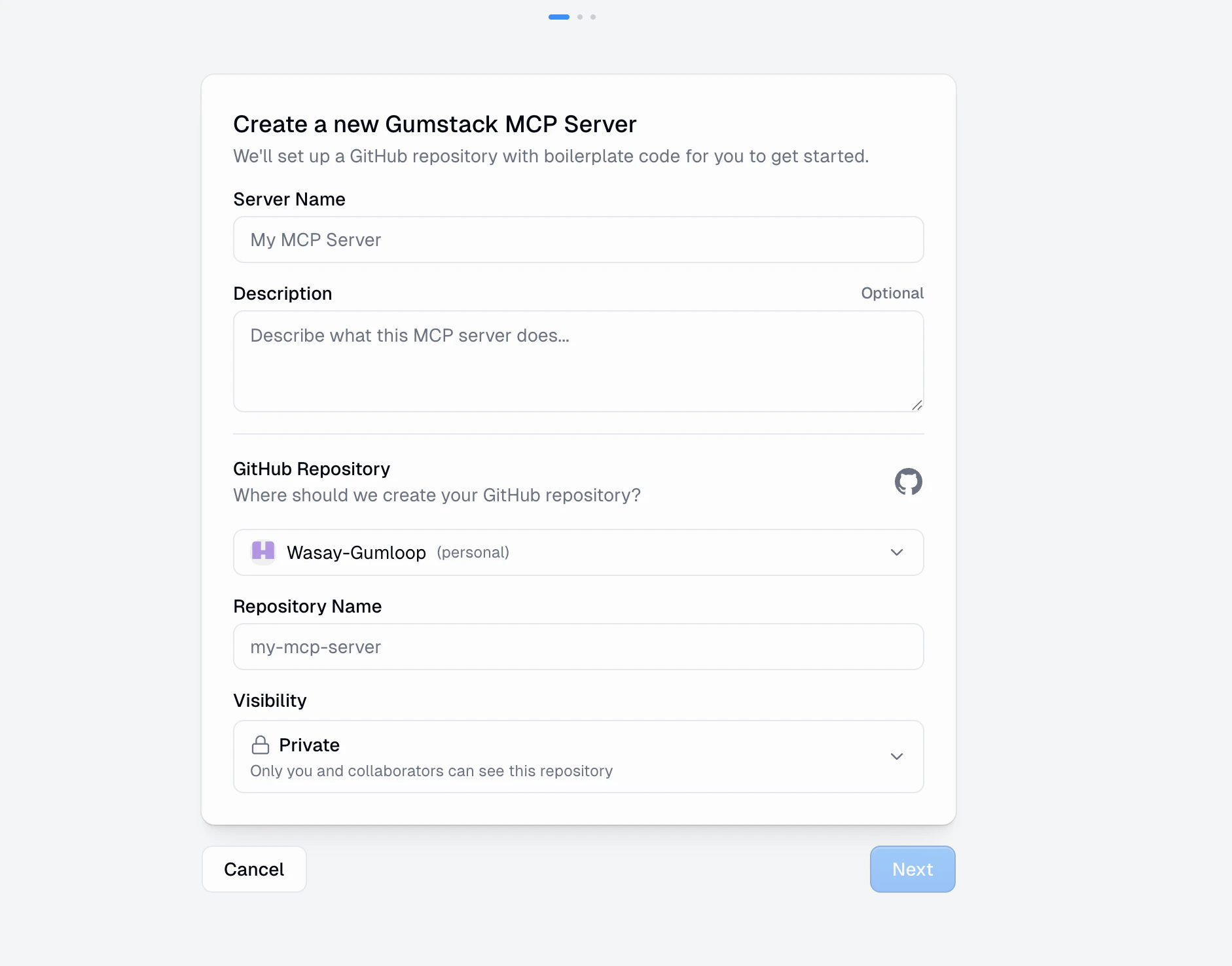 Fill in:
* **Server Name**: A display name for your MCP server (up to 100 characters)
* **Description** (optional): A brief description of what your server does
* **GitHub Repository**: Choose which GitHub account or organization should own the repo
* **Repository Name**: The name for the new GitHub repo (letters, numbers, hyphens, underscores, dots)
* **Visibility**: Public, Private, or Internal
### Step 2: Authentication & Environment
Fill in:
* **Server Name**: A display name for your MCP server (up to 100 characters)
* **Description** (optional): A brief description of what your server does
* **GitHub Repository**: Choose which GitHub account or organization should own the repo
* **Repository Name**: The name for the new GitHub repo (letters, numbers, hyphens, underscores, dots)
* **Visibility**: Public, Private, or Internal
### Step 2: Authentication & Environment
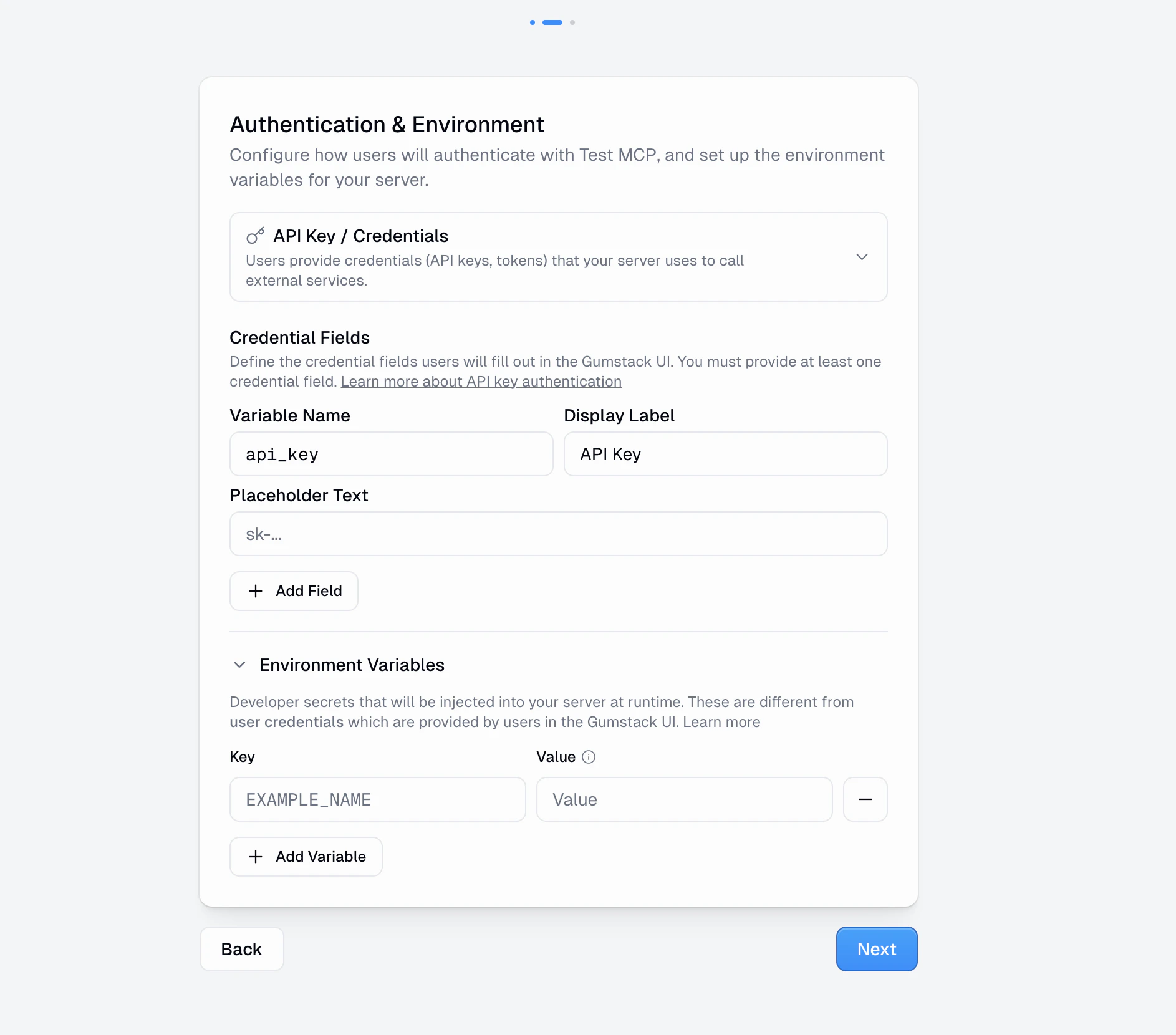 Configure how users will authenticate with your server:
* **No Authentication**: Anyone with access can use the server without credentials
* **API Key / Credentials**: Users provide API keys or tokens. You define the credential fields (variable name, display label, placeholder text) that users fill out in the Gumloop UI
* **OAuth 2.0**: Users authenticate through an OAuth flow with a third-party provider
You can also add **Environment Variables** that get injected into your server at runtime. These are developer secrets (database URLs, API keys for external services, etc.) that are different from user-provided credentials.
**Credentials vs. Environment Variables**: Credentials are provided by each
end user and are unique per person. Environment variables are set by the
server developer and shared across all users of the server.
### Step 3: Review
Configure how users will authenticate with your server:
* **No Authentication**: Anyone with access can use the server without credentials
* **API Key / Credentials**: Users provide API keys or tokens. You define the credential fields (variable name, display label, placeholder text) that users fill out in the Gumloop UI
* **OAuth 2.0**: Users authenticate through an OAuth flow with a third-party provider
You can also add **Environment Variables** that get injected into your server at runtime. These are developer secrets (database URLs, API keys for external services, etc.) that are different from user-provided credentials.
**Credentials vs. Environment Variables**: Credentials are provided by each
end user and are unique per person. Environment variables are set by the
server developer and shared across all users of the server.
### Step 3: Review
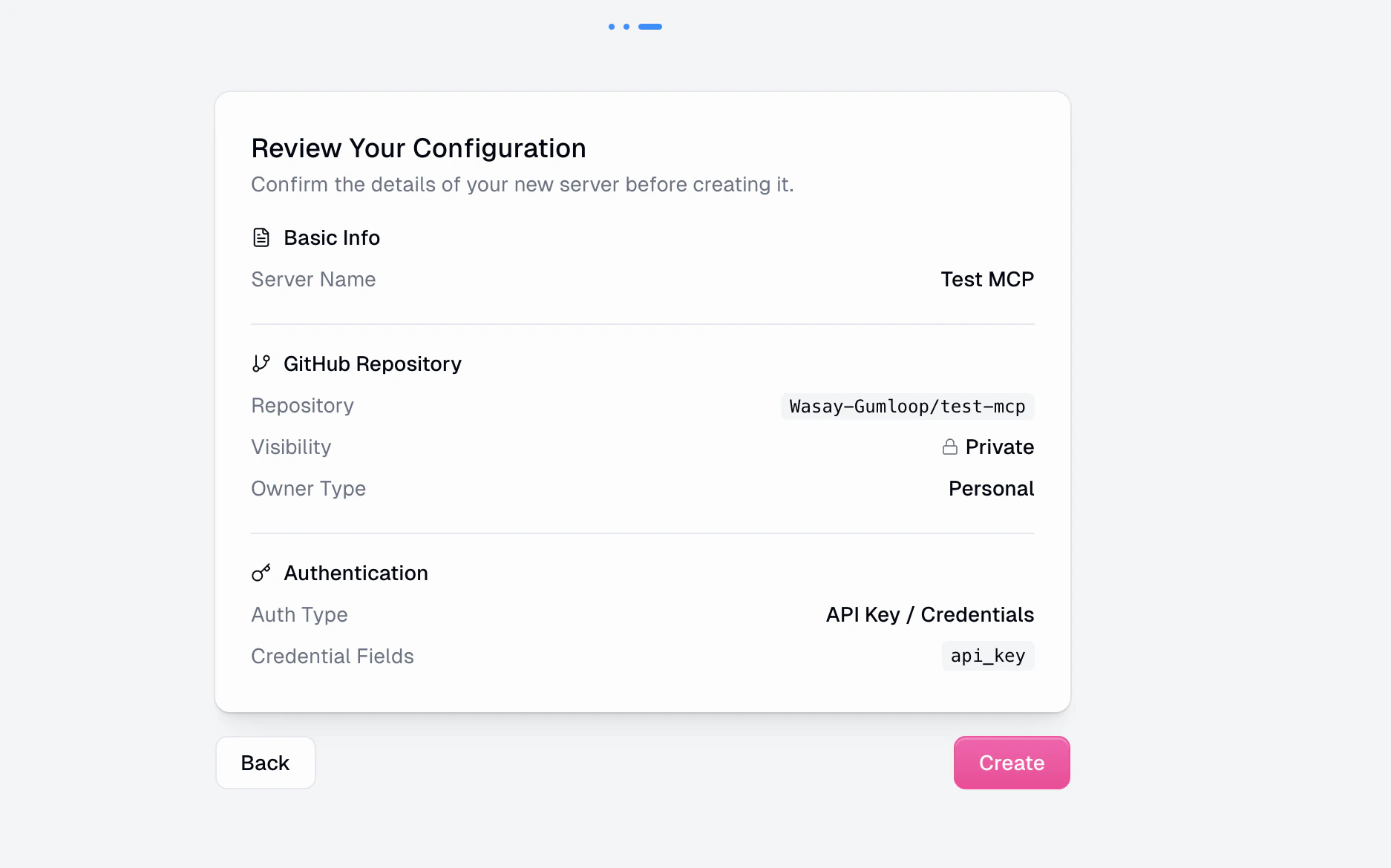 Review your configuration and click **Create**. Gumloop will:
1. Create a new GitHub repository with boilerplate MCP server code
2. Register the server in your organization
3. Redirect you to the server detail page
From there, you can push code to your repo and deploy.
## Server Detail Page
Every hosted MCP has a detail page with six tabs:
### Overview
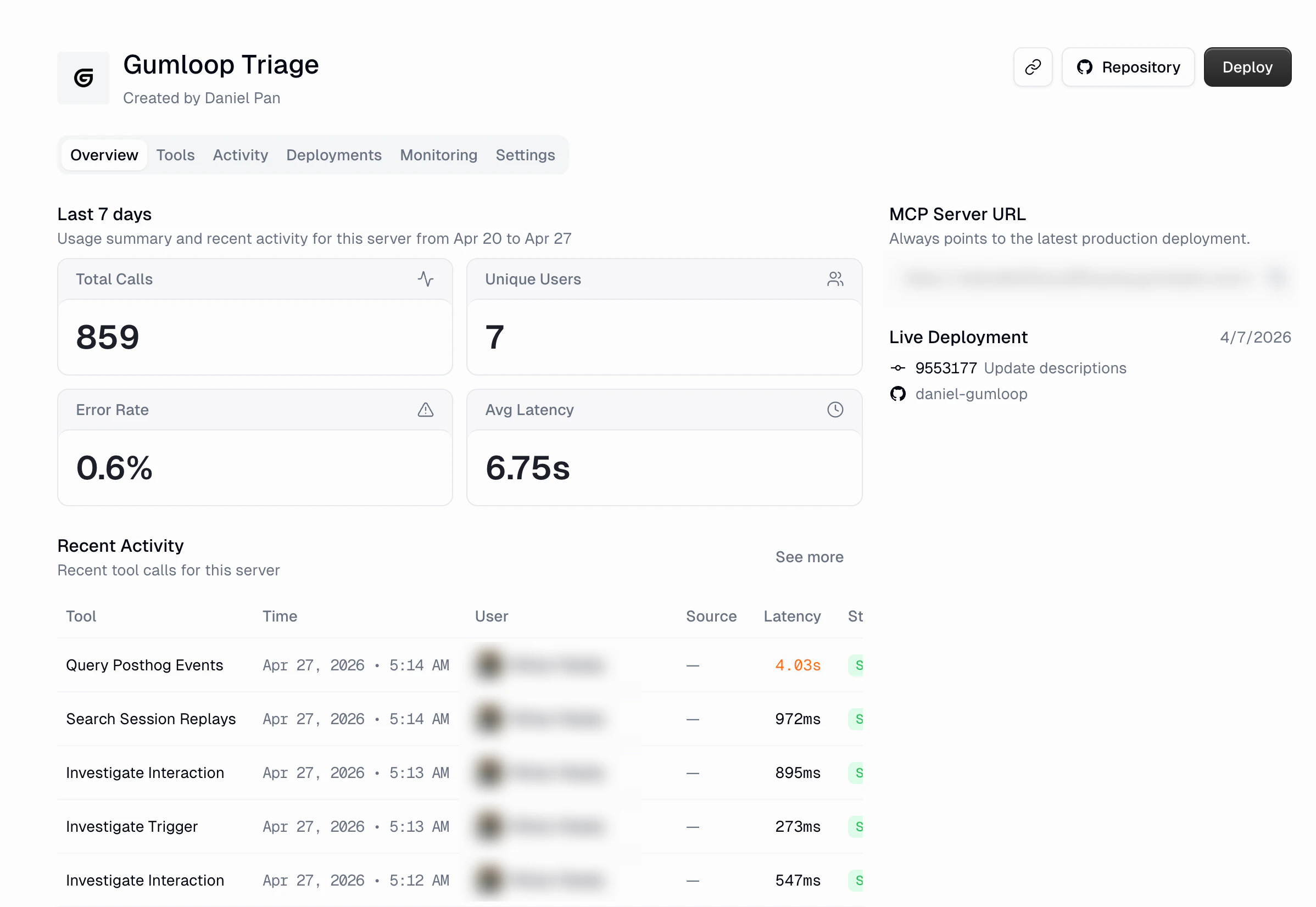
The overview tab gives you a snapshot of server health and activity for the last 7 days:
* **Total Calls**: Total number of tool calls
* **Unique Users**: How many distinct users made calls
* **Error Rate**: Percentage of calls that failed
* **Avg Latency**: Average response time
* **MCP Server URL**: A unique, stable URL that always points to your latest production deployment. Copy this to configure MCP clients.
* **Live Deployment**: Shows the current deployed commit, author, and date
* **Recent Activity**: A quick-look table of the most recent tool calls
The header also provides quick actions:
* **Copy URL** (link icon): Copy the server URL to your clipboard
* **Repository** button: Jump to the GitHub repo
* **Deploy** button: Trigger a new deployment
### Tools
The Tools tab shows every tool your server exposes and lets you control access per [custom role](/enterprise-features/user_groups).
The matrix view shows:
* **Tool name and description** for each tool
* **Usage count**: How many times each tool has been called
* **Custom role columns**: Toggle access on or off for each role
* **Disable Server** row: Block all tools for a specific role at once
Changes are saved when you click **Save** in the toolbar.
### Activity
The Activity tab is a server-scoped version of the global [App Activity](/enterprise-features/app_activity) page. It shows the same histogram and table, but filtered to just this server.
The histogram here uses latency-based color coding:
* **Green (P25)**: Fast calls
* **Orange (P85-95)**: Moderately slow calls
* **Red (P95+)**: Slowest calls
You get the same filtering, export, and refresh capabilities as the global Activity page.
### Deployments
Review your configuration and click **Create**. Gumloop will:
1. Create a new GitHub repository with boilerplate MCP server code
2. Register the server in your organization
3. Redirect you to the server detail page
From there, you can push code to your repo and deploy.
## Server Detail Page
Every hosted MCP has a detail page with six tabs:
### Overview
The overview tab gives you a snapshot of server health and activity for the last 7 days:
* **Total Calls**: Total number of tool calls
* **Unique Users**: How many distinct users made calls
* **Error Rate**: Percentage of calls that failed
* **Avg Latency**: Average response time
* **MCP Server URL**: A unique, stable URL that always points to your latest production deployment. Copy this to configure MCP clients.
* **Live Deployment**: Shows the current deployed commit, author, and date
* **Recent Activity**: A quick-look table of the most recent tool calls
The header also provides quick actions:
* **Copy URL** (link icon): Copy the server URL to your clipboard
* **Repository** button: Jump to the GitHub repo
* **Deploy** button: Trigger a new deployment
### Tools
The Tools tab shows every tool your server exposes and lets you control access per [custom role](/enterprise-features/user_groups).
The matrix view shows:
* **Tool name and description** for each tool
* **Usage count**: How many times each tool has been called
* **Custom role columns**: Toggle access on or off for each role
* **Disable Server** row: Block all tools for a specific role at once
Changes are saved when you click **Save** in the toolbar.
### Activity
The Activity tab is a server-scoped version of the global [App Activity](/enterprise-features/app_activity) page. It shows the same histogram and table, but filtered to just this server.
The histogram here uses latency-based color coding:
* **Green (P25)**: Fast calls
* **Orange (P85-95)**: Moderately slow calls
* **Red (P95+)**: Slowest calls
You get the same filtering, export, and refresh capabilities as the global Activity page.
### Deployments
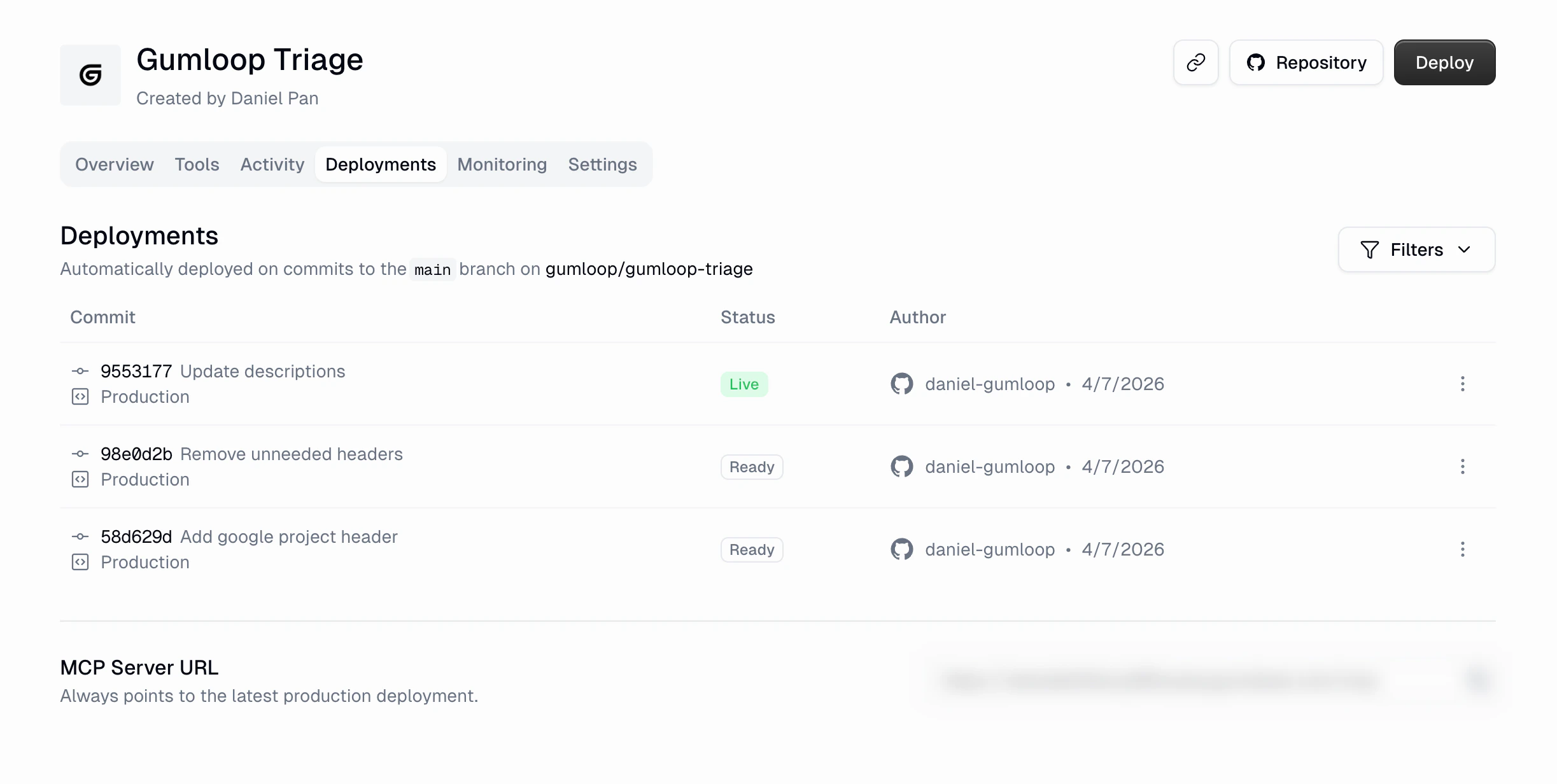 The Deployments tab shows your deployment history. Each deployment entry includes:
* **Commit hash and message**
* **Status**: Building, Deploying, Live, Ready, Failed, or Rolled Back
* **Author**: Who pushed the commit (from GitHub)
* **Date**: When the deployment happened
Deployments are triggered automatically on pushes to the `main` branch (when the GitHub App is installed). You can also manually deploy from the **Deploy** button in the header, choosing a specific branch or commit.
The **MCP Server URL** at the bottom of the Deployments tab always routes to
the latest production deployment. Previous deployments remain in the history
for rollback purposes.
### Monitoring
The Deployments tab shows your deployment history. Each deployment entry includes:
* **Commit hash and message**
* **Status**: Building, Deploying, Live, Ready, Failed, or Rolled Back
* **Author**: Who pushed the commit (from GitHub)
* **Date**: When the deployment happened
Deployments are triggered automatically on pushes to the `main` branch (when the GitHub App is installed). You can also manually deploy from the **Deploy** button in the header, choosing a specific branch or commit.
The **MCP Server URL** at the bottom of the Deployments tab always routes to
the latest production deployment. Previous deployments remain in the history
for rollback purposes.
### Monitoring
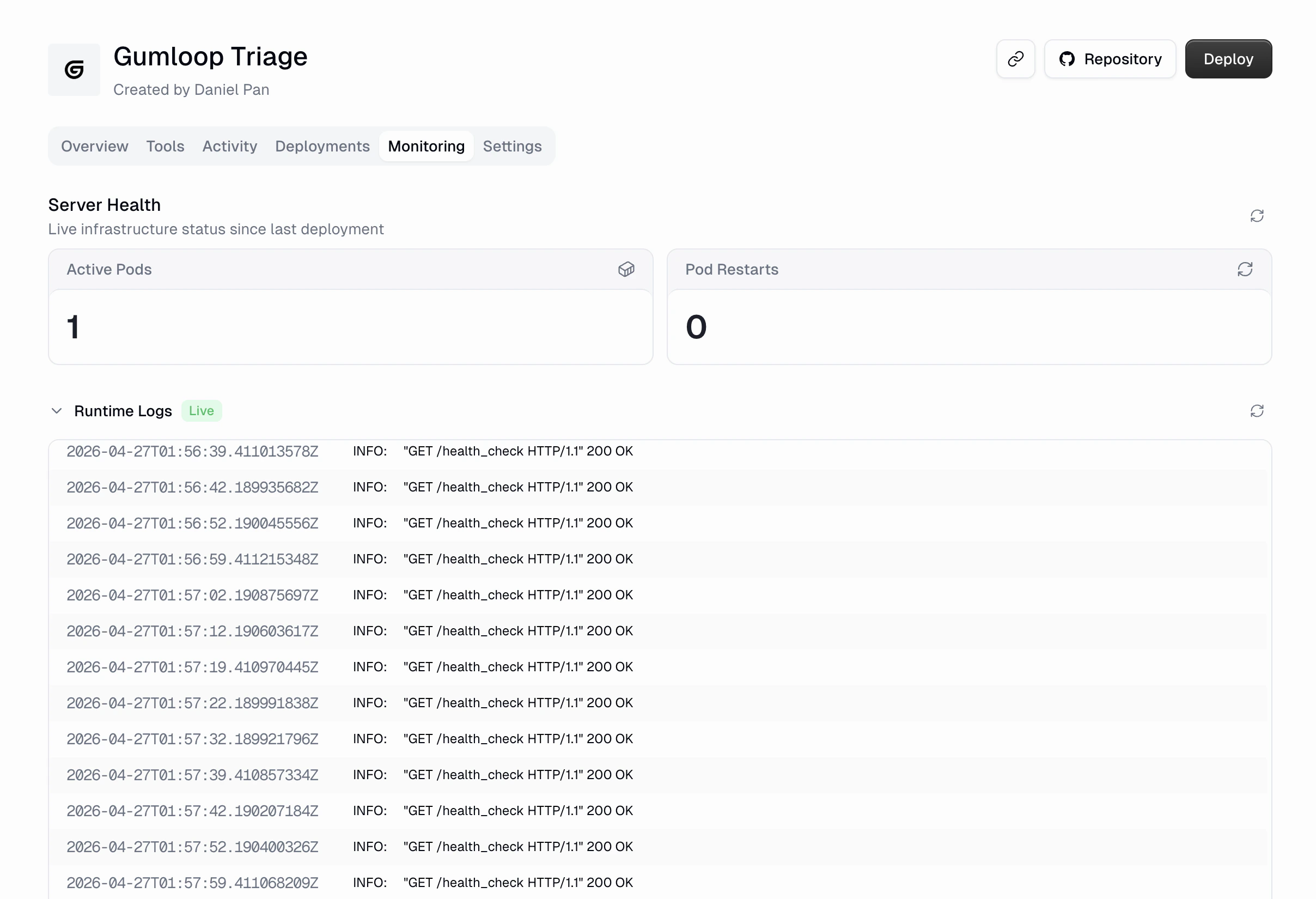 The Monitoring tab shows live infrastructure status:
* **Active Pods**: How many server instances are running
* **Pod Restarts**: Number of times pods have restarted since the last deployment
* **Runtime Logs**: A live, streaming log view of your server's output (health checks, request logs, errors, etc.)
Use this tab to diagnose startup issues, confirm your server is healthy, or watch logs in real time.
### Settings
The Monitoring tab shows live infrastructure status:
* **Active Pods**: How many server instances are running
* **Pod Restarts**: Number of times pods have restarted since the last deployment
* **Runtime Logs**: A live, streaming log view of your server's output (health checks, request logs, errors, etc.)
Use this tab to diagnose startup issues, confirm your server is healthy, or watch logs in real time.
### Settings
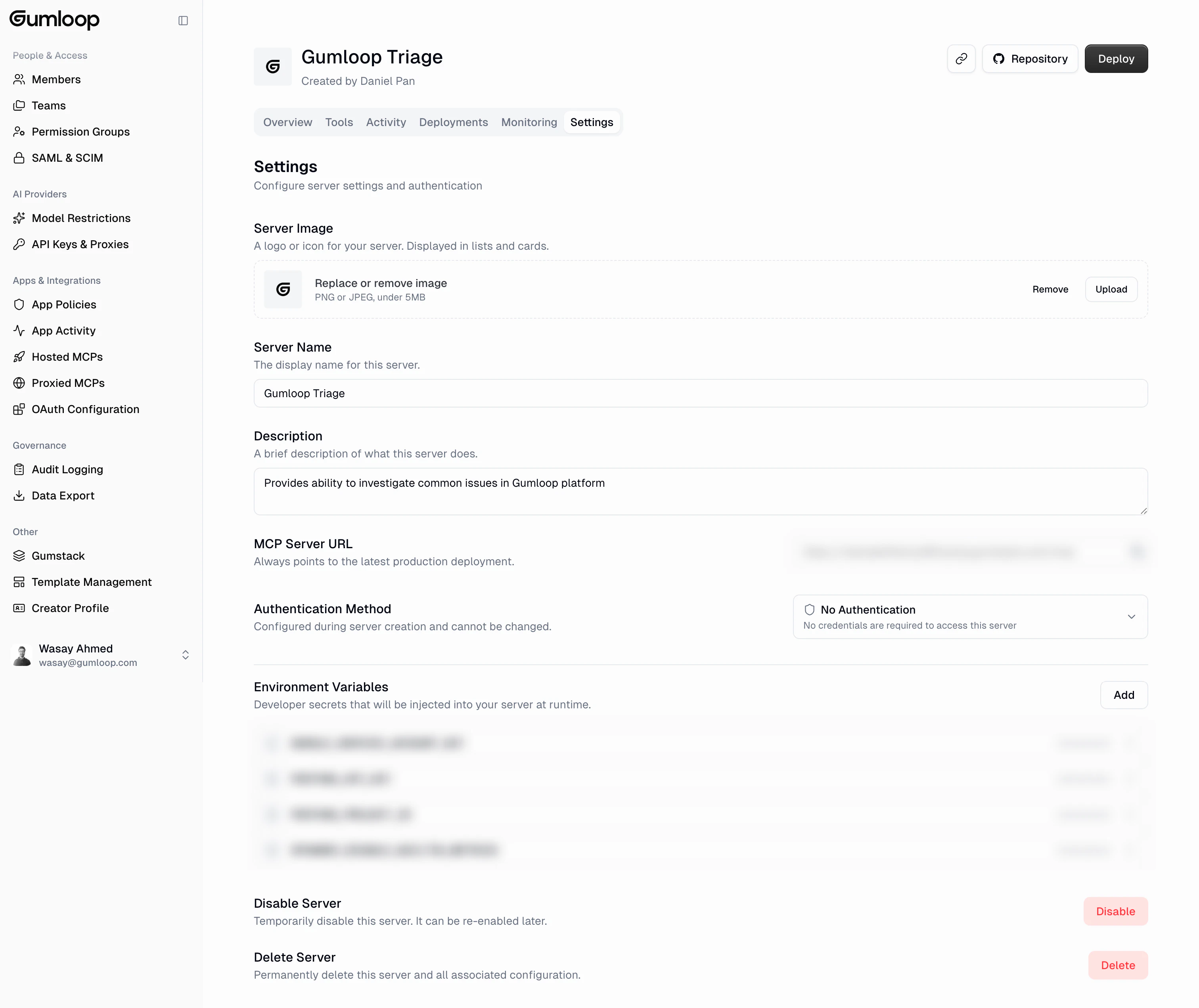 The Settings tab lets you manage:
* **Server Image**: Upload a logo or icon (PNG or JPEG, under 5MB) shown in lists and cards
* **Server Name**: Update the display name
* **Description**: Update what the server does
* **MCP Server URL**: View and copy the server's unique URL
* **Authentication Method**: Shows the auth type configured during creation (cannot be changed after creation)
* **Environment Variables**: Add, edit, or remove developer secrets injected at runtime
* **Disable Server**: Temporarily disable the server. It can be re-enabled later.
* **Delete Server**: Permanently delete the server and all associated configuration
Deleting a server is permanent and cannot be undone. All deployment history,
activity logs, and tool access settings will be removed.
## FAQ
The boilerplate repository uses Python, but you can use any language that
implements the MCP protocol. Your server just needs to expose the standard
MCP endpoints over HTTP.
When the GitHub App is installed, every push to the `main` branch triggers
a build and deploy. Gumloop builds a container from your code, deploys it,
and routes the MCP Server URL to the new version once it's healthy.
Yes. Go to the **Deployments** tab, find the deployment you want to restore,
and use the actions menu to redeploy that version.
**Hosted MCPs** are servers you build and deploy on Gumloop's infrastructure
from a GitHub repository. You own the code and Gumloop handles the hosting.
**[Proxied MCPs](/enterprise-features/proxied_mcps)** are external MCP
servers (hosted elsewhere) that you connect through Gumloop's managed proxy
for observability and access control. You don't deploy any code, just
provide a URL.
Go to the **Tools** tab on your server's detail page. The custom-role
matrix lets you toggle access for each tool per role. You can also disable
the entire server for a group using the **Disable Server** toggle.
The Settings tab lets you manage:
* **Server Image**: Upload a logo or icon (PNG or JPEG, under 5MB) shown in lists and cards
* **Server Name**: Update the display name
* **Description**: Update what the server does
* **MCP Server URL**: View and copy the server's unique URL
* **Authentication Method**: Shows the auth type configured during creation (cannot be changed after creation)
* **Environment Variables**: Add, edit, or remove developer secrets injected at runtime
* **Disable Server**: Temporarily disable the server. It can be re-enabled later.
* **Delete Server**: Permanently delete the server and all associated configuration
Deleting a server is permanent and cannot be undone. All deployment history,
activity logs, and tool access settings will be removed.
## FAQ
The boilerplate repository uses Python, but you can use any language that
implements the MCP protocol. Your server just needs to expose the standard
MCP endpoints over HTTP.
When the GitHub App is installed, every push to the `main` branch triggers
a build and deploy. Gumloop builds a container from your code, deploys it,
and routes the MCP Server URL to the new version once it's healthy.
Yes. Go to the **Deployments** tab, find the deployment you want to restore,
and use the actions menu to redeploy that version.
**Hosted MCPs** are servers you build and deploy on Gumloop's infrastructure
from a GitHub repository. You own the code and Gumloop handles the hosting.
**[Proxied MCPs](/enterprise-features/proxied_mcps)** are external MCP
servers (hosted elsewhere) that you connect through Gumloop's managed proxy
for observability and access control. You don't deploy any code, just
provide a URL.
Go to the **Tools** tab on your server's detail page. The custom-role
matrix lets you toggle access for each tool per role. You can also disable
the entire server for a group using the **Disable Server** toggle.