> ## Documentation Index
> Fetch the complete documentation index at: https://docs.gumloop.com/llms.txt
> Use this file to discover all available pages before exploring further.
# Domain Restrictions
> Require OAuth connections to a given app to use an email address from a domain your organization controls.
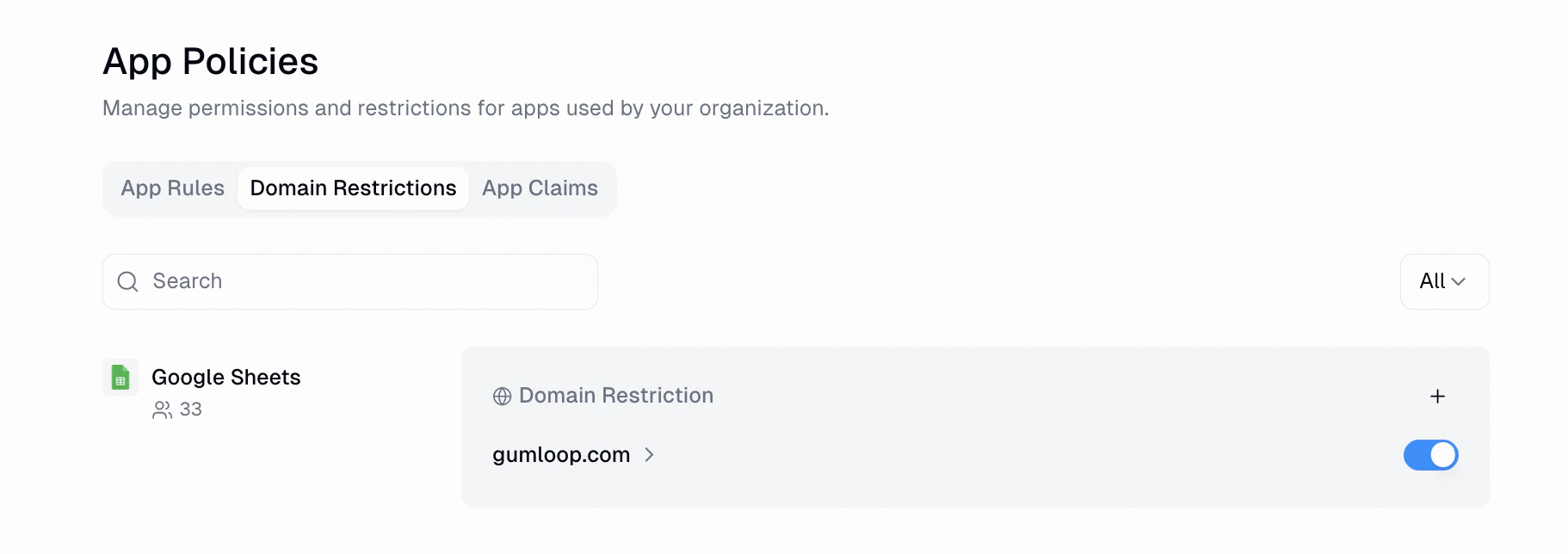
Domain Restrictions make sure every new OAuth connection to a given app uses
an email from a domain your organization owns. This prevents users from
connecting personal accounts to business-critical apps by mistake.
 ## What it does
When someone in your organization connects a new credential to a protected
app, Gumloop inspects the email address of the account they're authorizing.
If that email's domain isn't on the allowlist you've configured, the OAuth
flow fails and their connection is not saved.
Domain Restrictions only affect **new** connections. Existing credentials that
were already connected before the restriction was added continue to work —
revoke them manually if you want to remove them.
Not every app supports Domain Restrictions. The **Available Apps** section of
the tab lists only the apps where Gumloop can reliably read the connecting
user's email from the provider (Google Workspace, Slack, Microsoft, etc.).
## Creating a restriction
Go to [Settings → Organization → App Policies → Domain Restrictions](https://gumloop.com/settings/organization/app-policies?tab=domain-restrictions).
Click an app card in **Available Apps**, or click the `+` next to an
already-restricted app to add another allowed domain.
Enter a domain like `yourcompany.com`. Any email whose domain matches
exactly will be allowed; everything else will be blocked.
Click **Add Restriction**. The restriction is enforced immediately for new
OAuth connections.
You can add more than one restriction per app if you want to allow multiple
domains (for example, `yourcompany.com` and `yourcompany.co.uk`). Each
restriction adds one domain to the allowlist for that app.
## Enable, disable, delete
Each restriction has an **Enabled** toggle. Disabling a restriction pauses
enforcement without deleting the rule, so you can turn it back on later. You
can also delete a restriction from its detail page.
## What end users see
When someone tries to connect an account that doesn't match, the OAuth flow
ends with an error explaining that their organization requires a different
email domain for this app. They can retry the connection with an account on an
allowed domain.
## Related
Restrict connections by provider workspace rather than by email domain.
Learn how OAuth connections are stored and used across Gumloop.
## What it does
When someone in your organization connects a new credential to a protected
app, Gumloop inspects the email address of the account they're authorizing.
If that email's domain isn't on the allowlist you've configured, the OAuth
flow fails and their connection is not saved.
Domain Restrictions only affect **new** connections. Existing credentials that
were already connected before the restriction was added continue to work —
revoke them manually if you want to remove them.
Not every app supports Domain Restrictions. The **Available Apps** section of
the tab lists only the apps where Gumloop can reliably read the connecting
user's email from the provider (Google Workspace, Slack, Microsoft, etc.).
## Creating a restriction
Go to [Settings → Organization → App Policies → Domain Restrictions](https://gumloop.com/settings/organization/app-policies?tab=domain-restrictions).
Click an app card in **Available Apps**, or click the `+` next to an
already-restricted app to add another allowed domain.
Enter a domain like `yourcompany.com`. Any email whose domain matches
exactly will be allowed; everything else will be blocked.
Click **Add Restriction**. The restriction is enforced immediately for new
OAuth connections.
You can add more than one restriction per app if you want to allow multiple
domains (for example, `yourcompany.com` and `yourcompany.co.uk`). Each
restriction adds one domain to the allowlist for that app.
## Enable, disable, delete
Each restriction has an **Enabled** toggle. Disabling a restriction pauses
enforcement without deleting the rule, so you can turn it back on later. You
can also delete a restriction from its detail page.
## What end users see
When someone tries to connect an account that doesn't match, the OAuth flow
ends with an error explaining that their organization requires a different
email domain for this app. They can retry the connection with an account on an
allowed domain.
## Related
Restrict connections by provider workspace rather than by email domain.
Learn how OAuth connections are stored and used across Gumloop.