> ## Documentation Index
> Fetch the complete documentation index at: https://docs.gumloop.com/llms.txt
> Use this file to discover all available pages before exploring further.
# App Rules
> Block or tag specific tool calls for third-party apps at the organization or agent level.
App Rules let you intercept individual tool calls for any third-party app your
organization uses and either **block** them or **tag** them for review. Each
rule is a lightweight policy with a phase, an action, a scope, and a CEL
condition that Gumloop evaluates automatically every time a tool call runs.
Rules can be created at two different levels depending on how broadly you
want them to apply.
| Scope | Where to manage | Who it applies to |
| ---------------- | ------------------------------------------------------------------------------------ | ---------------------------------------- |
| **Organization** | [App Policies settings page](https://gumloop.com/settings/organization/app-policies) | Every user and agent in the organization |
| **Agent** | Agent config → app detail → **Rules** tab, or via agent chat | That specific agent's tool calls only |
The rest of this page walks through each scope in order, from broadest to most
specific, followed by how rules are built, how overlapping rules interact, and
a FAQ.
***
## Organization-level rules
Organization-level rules are the default. They apply to **every user and agent**
in your organization.
### Where to find it
Go to **Settings → Organization → App Policies** at
[gumloop.com/settings/organization/app-policies](https://gumloop.com/settings/organization/app-policies)
and open the **App Rules** tab.
 ### What you see
* **Stat cards** for the selected time range: *Rule matches*, *Allowed*,
*Tagged*, *Blocked*.
* **Enforcement Activity** histogram: allowed vs. blocked tool calls over time.
* **Rules by Server**: every app that has rules (or could have rules), with its
rules listed underneath. You can toggle each rule on or off from here.
* **Search + time range filter** to narrow down the view.
* **+ App Rule** button to create a new rule.
### Creating an organization rule
Click **+ App Rule**, pick the app, and the AI rule builder opens (see
[Building a rule with the AI rule builder](#building-a-rule-with-the-ai-rule-builder)
below). The rule is scoped to the entire organization by default.
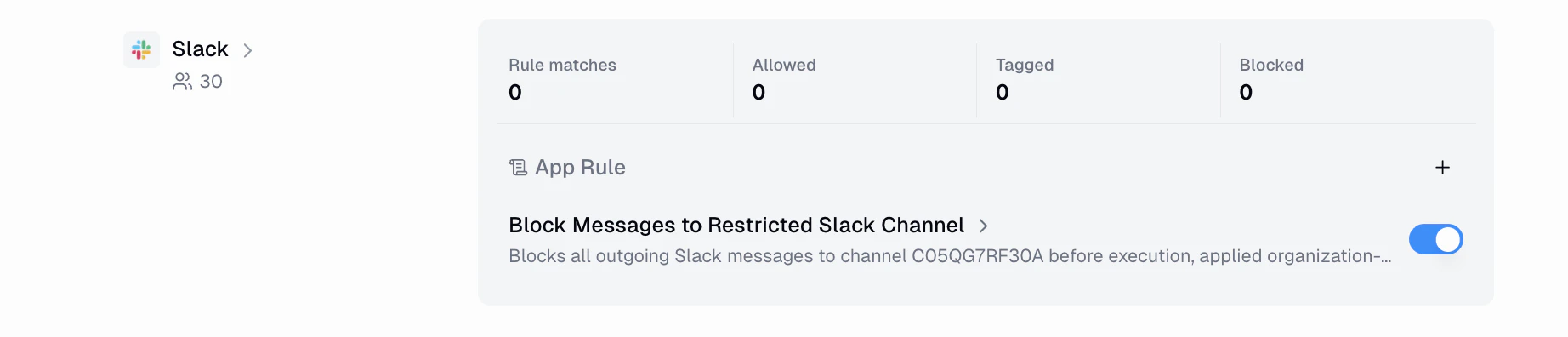
### Active rules
Rules appear under their app in the **Rules by Server** list. Each entry shows
the rule name and description, a toggle to enable or disable it, and
click-through to the rule's detail page.
### What you see
* **Stat cards** for the selected time range: *Rule matches*, *Allowed*,
*Tagged*, *Blocked*.
* **Enforcement Activity** histogram: allowed vs. blocked tool calls over time.
* **Rules by Server**: every app that has rules (or could have rules), with its
rules listed underneath. You can toggle each rule on or off from here.
* **Search + time range filter** to narrow down the view.
* **+ App Rule** button to create a new rule.
### Creating an organization rule
Click **+ App Rule**, pick the app, and the AI rule builder opens (see
[Building a rule with the AI rule builder](#building-a-rule-with-the-ai-rule-builder)
below). The rule is scoped to the entire organization by default.
### Active rules
Rules appear under their app in the **Rules by Server** list. Each entry shows
the rule name and description, a toggle to enable or disable it, and
click-through to the rule's detail page.
 ### What users see when blocked
The tool call fails with the message:
*"This action has been restricted by your organization's security policy."*
The user doesn't see the rule's name, its condition, or which field tripped it.
Admins can see the full context in the rule's **Activity** tab.
***
## Agent-level rules
Agent-level rules target a specific agent, so they only apply to tool
calls made by that agent. There are two ways to create them.
### Rules in the agent configuration panel
When configuring an agent, open the detail view of any connected app. The
**Rules** tab shows all rules that target this specific agent for that app.
You can toggle rules on or off and click through to the rule detail sheet.
### What users see when blocked
The tool call fails with the message:
*"This action has been restricted by your organization's security policy."*
The user doesn't see the rule's name, its condition, or which field tripped it.
Admins can see the full context in the rule's **Activity** tab.
***
## Agent-level rules
Agent-level rules target a specific agent, so they only apply to tool
calls made by that agent. There are two ways to create them.
### Rules in the agent configuration panel
When configuring an agent, open the detail view of any connected app. The
**Rules** tab shows all rules that target this specific agent for that app.
You can toggle rules on or off and click through to the rule detail sheet.
 ### Agent-created rules (via chat)
Agents can also propose their own rules during a conversation. To enable this:
1. Open the agent's configuration panel and find the **Abilities** section.
2. Toggle **App Rules Creation** to **ON**.
### Agent-created rules (via chat)
Agents can also propose their own rules during a conversation. To enable this:
1. Open the agent's configuration panel and find the **Abilities** section.
2. Toggle **App Rules Creation** to **ON**.
 When App Rules Creation is enabled, the agent can propose rule changes for its
own tool calls. You can ask the agent something like *"Create a linear app rule
to never create a ticket without having at least two labels"* and the agent
will propose a rule for your review.
All rule mutations proposed by the agent require explicit user approval. The
agent cannot create, update, or delete rules on its own. You'll see a
proposal card in the chat with the rule details and **Accept** / **Reject**
buttons.
When App Rules Creation is enabled, the agent can propose rule changes for its
own tool calls. You can ask the agent something like *"Create a linear app rule
to never create a ticket without having at least two labels"* and the agent
will propose a rule for your review.
All rule mutations proposed by the agent require explicit user approval. The
agent cannot create, update, or delete rules on its own. You'll see a
proposal card in the chat with the rule details and **Accept** / **Reject**
buttons.
 Clicking **Accept** creates the rule and scopes it to this agent. Clicking
**Reject** discards the proposal and lets the agent know so it can try a
different approach.
### What the agent sees when blocked
The tool call fails with the message:
*"This action has been restricted by a rule configured for this agent."*
Agent-created rules only apply to that specific agent's tool calls. They
do not affect other agents, other users, or organization-wide policies.
***
## How a rule works
Regardless of scope, every rule has four core pieces of configuration:
Pick **before** to check the call before it runs, or **after** to check it
once the result comes back. Use *before* to block risky actions and *after*
to tag calls based on what was returned (for example, a search that came
back with sensitive data).
Pick **block** to deny the call, or **tag** to let it through while
labeling the call with your rule's name so you can find it later in
activity views.
Limit the rule to specific **tool names** on the app (for example, only
`send_message` in Slack, or only `create_event` in Google Calendar).
Leaving it empty applies the rule to every tool on that app.
A CEL expression that decides whether the rule fires. You have access to:
* `args`: the arguments the caller passed to the tool
* `tool_name`: the tool being called
* `server_id`: the app the tool belongs to
* `output`: the tool's return value (only in *after* rules)
Example: `args.channel == "C05QG7RF30A"` fires whenever Slack's
`send_message` targets that specific channel.
## Building a rule with the AI rule builder
Clicking **+ App Rule** (from either scope above) opens a prompt to
choose which app the rule is for, and then takes you into the rule builder. The
left panel is a chat with the AI assistant, and the right panel shows the
live rule configuration and simulation results.
Clicking **Accept** creates the rule and scopes it to this agent. Clicking
**Reject** discards the proposal and lets the agent know so it can try a
different approach.
### What the agent sees when blocked
The tool call fails with the message:
*"This action has been restricted by a rule configured for this agent."*
Agent-created rules only apply to that specific agent's tool calls. They
do not affect other agents, other users, or organization-wide policies.
***
## How a rule works
Regardless of scope, every rule has four core pieces of configuration:
Pick **before** to check the call before it runs, or **after** to check it
once the result comes back. Use *before* to block risky actions and *after*
to tag calls based on what was returned (for example, a search that came
back with sensitive data).
Pick **block** to deny the call, or **tag** to let it through while
labeling the call with your rule's name so you can find it later in
activity views.
Limit the rule to specific **tool names** on the app (for example, only
`send_message` in Slack, or only `create_event` in Google Calendar).
Leaving it empty applies the rule to every tool on that app.
A CEL expression that decides whether the rule fires. You have access to:
* `args`: the arguments the caller passed to the tool
* `tool_name`: the tool being called
* `server_id`: the app the tool belongs to
* `output`: the tool's return value (only in *after* rules)
Example: `args.channel == "C05QG7RF30A"` fires whenever Slack's
`send_message` targets that specific channel.
## Building a rule with the AI rule builder
Clicking **+ App Rule** (from either scope above) opens a prompt to
choose which app the rule is for, and then takes you into the rule builder. The
left panel is a chat with the AI assistant, and the right panel shows the
live rule configuration and simulation results.
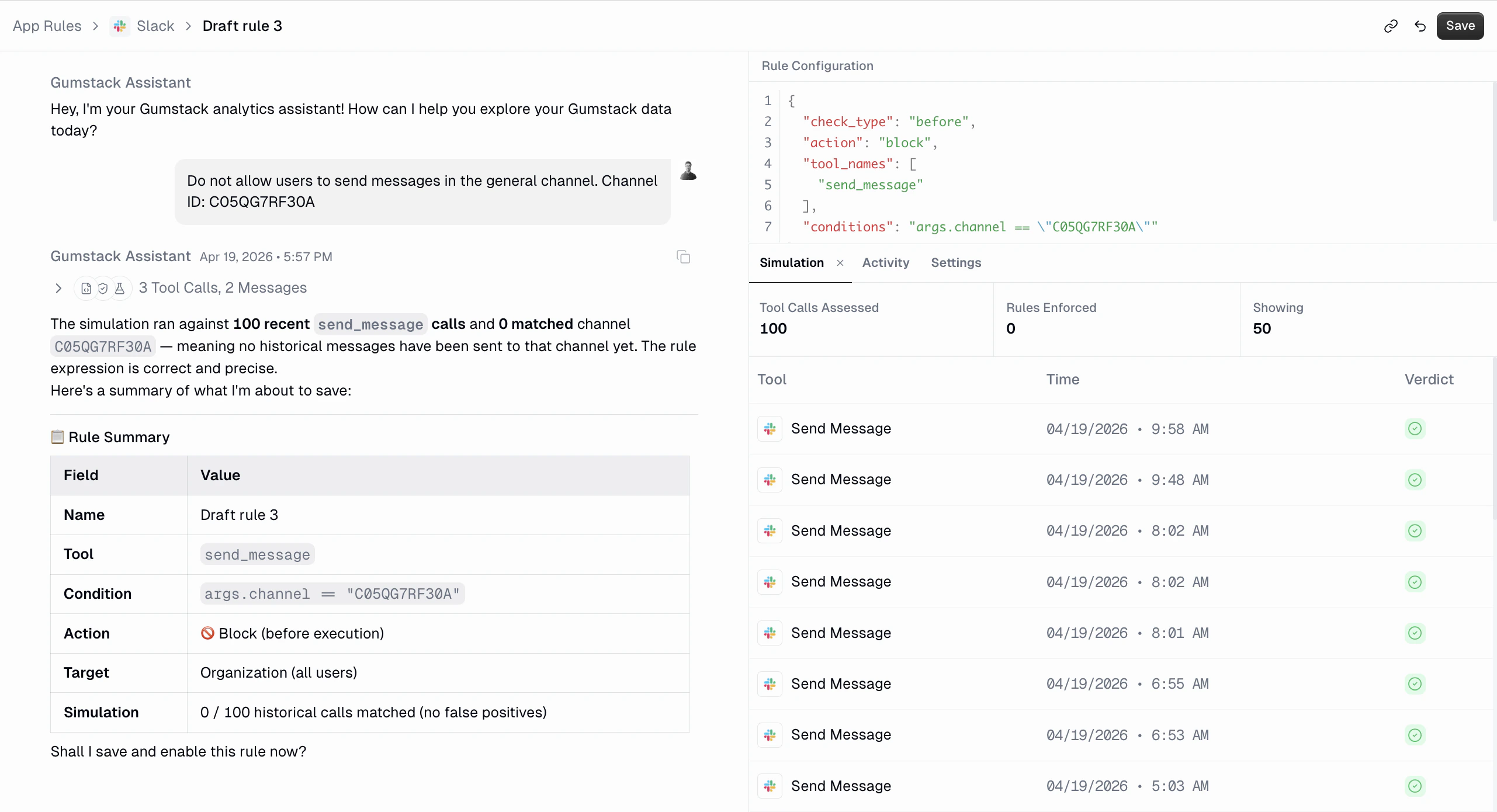 For example: *"Do not allow users to send messages in the general channel.
Channel ID: C05QG7RF30A."*
The assistant will ask for any missing details it needs (channel IDs, tool
names, thresholds, etc.). You can `@mention` tools on the app to pull them
directly into the conversation.
The top-right panel shows the `check_type`, `action`, `tool_names`, and
`conditions` that the assistant produced. This is what will actually be
enforced.
Every time the assistant changes the rule, it re-runs the rule against the
most recent tool calls for that app and shows the verdict for each. This
lets you confirm it catches what you want (no false negatives) and doesn't
catch anything you didn't expect (no false positives) before the rule ever
goes live.
When you're happy, click **Save** in the top right. The rule starts
enforcing immediately once it's enabled.
The assistant also accepts follow-ups like *"Change this to block before
execution instead of tagging after"* or *"Expand the conditions to cover more
edge cases."* You don't have to edit the JSON by hand.
### Suggested prompts
If you aren't sure where to start, the builder offers prompts like:
* *Help me create a new rule for this server*
* *What types of rules can I create?*
* *Show me examples of common security rules*
* *Help me set up a rule to block sensitive operations*
* *Explain how MCP rules work*
## Editing a rule
Opening a rule takes you back into the rule builder. The right panel has three
tabs:
* **Simulation**: re-runs the rule against recent tool calls so you can see
the impact of any in-flight edit before saving.
* **Activity**: shows the actual tool calls this rule has evaluated since it
was enabled, with their verdict (allowed, tagged, or blocked), the user who
made the call, and where the call came from.
* **Settings**: the read-only/edit panel shown below.
For example: *"Do not allow users to send messages in the general channel.
Channel ID: C05QG7RF30A."*
The assistant will ask for any missing details it needs (channel IDs, tool
names, thresholds, etc.). You can `@mention` tools on the app to pull them
directly into the conversation.
The top-right panel shows the `check_type`, `action`, `tool_names`, and
`conditions` that the assistant produced. This is what will actually be
enforced.
Every time the assistant changes the rule, it re-runs the rule against the
most recent tool calls for that app and shows the verdict for each. This
lets you confirm it catches what you want (no false negatives) and doesn't
catch anything you didn't expect (no false positives) before the rule ever
goes live.
When you're happy, click **Save** in the top right. The rule starts
enforcing immediately once it's enabled.
The assistant also accepts follow-ups like *"Change this to block before
execution instead of tagging after"* or *"Expand the conditions to cover more
edge cases."* You don't have to edit the JSON by hand.
### Suggested prompts
If you aren't sure where to start, the builder offers prompts like:
* *Help me create a new rule for this server*
* *What types of rules can I create?*
* *Show me examples of common security rules*
* *Help me set up a rule to block sensitive operations*
* *Explain how MCP rules work*
## Editing a rule
Opening a rule takes you back into the rule builder. The right panel has three
tabs:
* **Simulation**: re-runs the rule against recent tool calls so you can see
the impact of any in-flight edit before saving.
* **Activity**: shows the actual tool calls this rule has evaluated since it
was enabled, with their verdict (allowed, tagged, or blocked), the user who
made the call, and where the call came from.
* **Settings**: the read-only/edit panel shown below.
 On the **Settings** tab you can:
* Rename the rule or change its description (changes save on blur).
* Toggle **Enabled** on or off.
* See who created the rule, when it was created, and when it was last updated.
* **Delete** the rule (this cannot be undone).
## Enforcement activity
Every evaluated tool call is recorded so you can audit what the rule has been
doing. You can view it in two places:
* The **App Rules** tab at the top of the App Policies page shows enforcement
across every rule in the organization, with stat cards and a histogram.
* The **Activity** tab inside a specific rule shows only that rule's history.
Tool calls appear with one of three statuses:
* **Allowed**: the call ran normally and no rule matched it.
* **Tagged**: the call ran, but one or more `tag`-action rules matched it.
The matched rule names are shown in the *Rule* column.
* **Blocked**: a `block`-action rule matched and the call was denied.
You can click any tool call to expand it and inspect the arguments and output.
***
## How overlapping rules interact
Rules at different scopes stack. When a tool call is evaluated, Gumloop checks
**all** enabled rules across every scope that matches the caller:
* An **organization-wide** rule is always checked for every caller.
* An **agent-scoped** rule is checked if the caller is that specific agent.
If *any* matching rule has action `block` and its condition fires, the call is
blocked, regardless of what other rules say. There is no "allow" override. A
more-specific scope cannot override a broader block.
Think of it as layering: organization rules set the baseline, and agent rules
add agent-specific restrictions. Each layer can only make things *more*
restrictive, never less.
## FAQ
No. Rules only add restrictions. If an org-wide rule blocks a tool call,
an agent rule cannot un-block it. To allow the call, you would need
to disable or modify the org-wide rule.
Yes. Agent-scoped rules are evaluated whenever that agent makes a tool call,
regardless of whether the agent is running in a direct conversation, through
Slack, or inside a pipeline.
Yes. Both `block` and `tag` actions are supported at every scope level.
Tagged calls show up in the enforcement activity views just like org-wide
tagged calls.
On the **Settings** tab you can:
* Rename the rule or change its description (changes save on blur).
* Toggle **Enabled** on or off.
* See who created the rule, when it was created, and when it was last updated.
* **Delete** the rule (this cannot be undone).
## Enforcement activity
Every evaluated tool call is recorded so you can audit what the rule has been
doing. You can view it in two places:
* The **App Rules** tab at the top of the App Policies page shows enforcement
across every rule in the organization, with stat cards and a histogram.
* The **Activity** tab inside a specific rule shows only that rule's history.
Tool calls appear with one of three statuses:
* **Allowed**: the call ran normally and no rule matched it.
* **Tagged**: the call ran, but one or more `tag`-action rules matched it.
The matched rule names are shown in the *Rule* column.
* **Blocked**: a `block`-action rule matched and the call was denied.
You can click any tool call to expand it and inspect the arguments and output.
***
## How overlapping rules interact
Rules at different scopes stack. When a tool call is evaluated, Gumloop checks
**all** enabled rules across every scope that matches the caller:
* An **organization-wide** rule is always checked for every caller.
* An **agent-scoped** rule is checked if the caller is that specific agent.
If *any* matching rule has action `block` and its condition fires, the call is
blocked, regardless of what other rules say. There is no "allow" override. A
more-specific scope cannot override a broader block.
Think of it as layering: organization rules set the baseline, and agent rules
add agent-specific restrictions. Each layer can only make things *more*
restrictive, never less.
## FAQ
No. Rules only add restrictions. If an org-wide rule blocks a tool call,
an agent rule cannot un-block it. To allow the call, you would need
to disable or modify the org-wide rule.
Yes. Agent-scoped rules are evaluated whenever that agent makes a tool call,
regardless of whether the agent is running in a direct conversation, through
Slack, or inside a pipeline.
Yes. Both `block` and `tag` actions are supported at every scope level.
Tagged calls show up in the enforcement activity views just like org-wide
tagged calls.