> ## Documentation Index
> Fetch the complete documentation index at: https://docs.gumloop.com/llms.txt
> Use this file to discover all available pages before exploring further.
# App Claims
> Claim a provider workspace (a specific Slack workspace, Salesforce org, Notion workspace, etc.) for your organization so only your members can connect to it from Gumloop.
App Claims let your organization assert ownership of a specific third-party
workspace. Once claimed, anyone outside your organization who tries to connect
to that same workspace from Gumloop will be denied.
 ## What it does
Many apps treat each customer as a separate "instance" — a single Slack
workspace, a single Salesforce org, a single Notion workspace. When you claim
one from Gumloop, you're telling Gumloop: *"This specific workspace belongs to
our organization."*
From that point on:
* **Members of your org** can continue to connect to that workspace normally.
* **Anyone else** who tries to OAuth into the same workspace from Gumloop is
blocked, with a message saying the workspace is claimed by another
organization.
This is useful if you want to stop shadow accounts: somebody outside your
organization shouldn't be able to pull data out of your company's Salesforce
org via Gumloop, even if they happen to have login credentials to it.
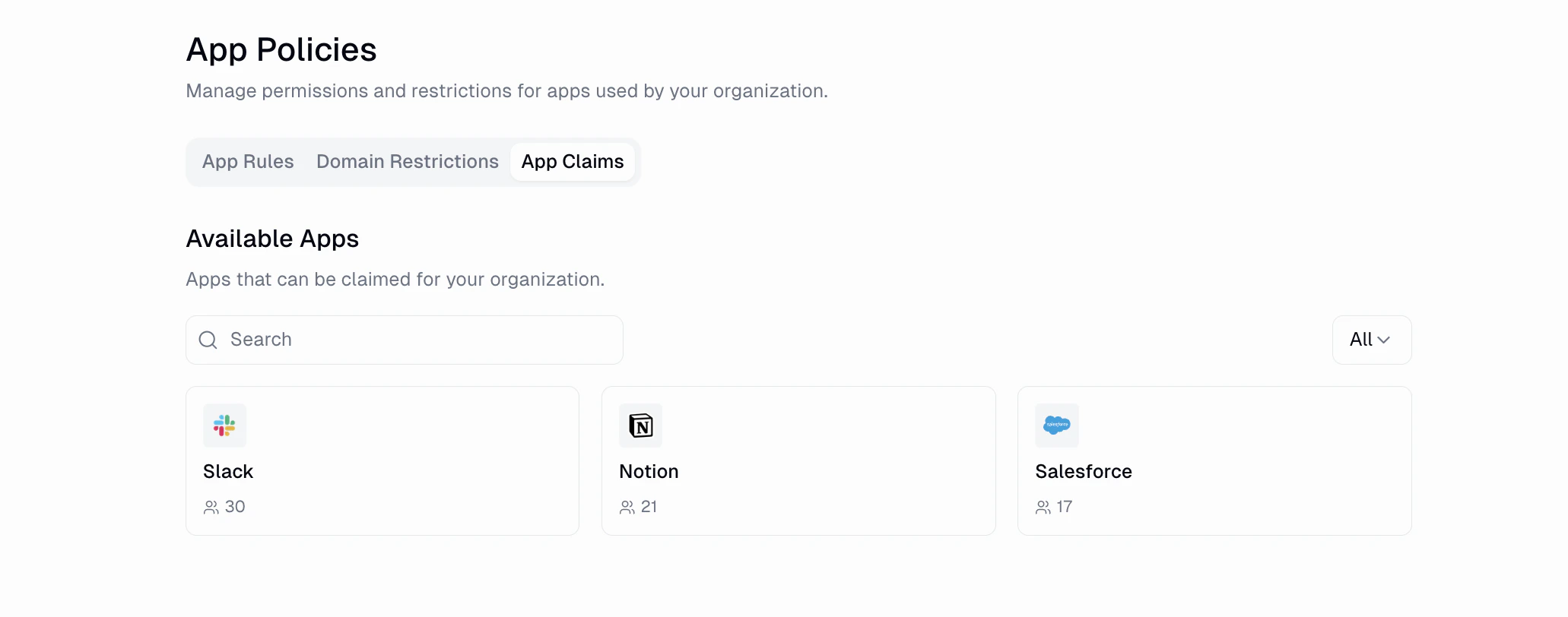
Only apps that expose a stable workspace identifier during OAuth can be
claimed. The **Available Apps** section of the tab lists exactly which ones
— Slack, Notion, and Salesforce are common examples.
## Claiming an app
Claims are always created through the OAuth flow. You can't claim a workspace
without actually signing into it.
Go to [Settings → Organization → App Policies → App Claims](https://gumloop.com/settings/organization/app-policies?tab=app-claims).
Click an app card under **Available Apps** (for example, Slack or
Salesforce).
Gumloop opens the provider's OAuth flow in a new tab. Sign in to the
specific workspace you want to claim for your organization.
Once OAuth completes, Gumloop captures the workspace identifier and
creates the claim. The workspace now appears in your **Claimed** list and
enforcement starts immediately.
Claim the right workspace. If an admin signs into the wrong Slack workspace
or the wrong Salesforce org during the OAuth step, Gumloop will claim that
one. You can delete a claim and start over if this happens.
## Managing claims
Each claimed workspace can be:
* **Renamed** — you can give the claim a friendly label so other admins know
what it corresponds to. The underlying workspace identifier stays the same.
* **Disabled** — toggle off to pause enforcement. Other organizations can
connect to the workspace again while the claim is disabled.
* **Deleted** — remove the claim entirely.
## What end users see
When someone outside your organization tries to connect to a workspace you've
claimed, their OAuth flow ends with an error explaining that the workspace is
claimed by another organization. They cannot proceed, and no credential is
stored on their account.
Members of your own organization never see this error — they connect normally.
## Related
Require OAuth connections to use a corporate email domain.
See how App Claims fit alongside App Rules and Domain Restrictions.
## What it does
Many apps treat each customer as a separate "instance" — a single Slack
workspace, a single Salesforce org, a single Notion workspace. When you claim
one from Gumloop, you're telling Gumloop: *"This specific workspace belongs to
our organization."*
From that point on:
* **Members of your org** can continue to connect to that workspace normally.
* **Anyone else** who tries to OAuth into the same workspace from Gumloop is
blocked, with a message saying the workspace is claimed by another
organization.
This is useful if you want to stop shadow accounts: somebody outside your
organization shouldn't be able to pull data out of your company's Salesforce
org via Gumloop, even if they happen to have login credentials to it.
Only apps that expose a stable workspace identifier during OAuth can be
claimed. The **Available Apps** section of the tab lists exactly which ones
— Slack, Notion, and Salesforce are common examples.
## Claiming an app
Claims are always created through the OAuth flow. You can't claim a workspace
without actually signing into it.
Go to [Settings → Organization → App Policies → App Claims](https://gumloop.com/settings/organization/app-policies?tab=app-claims).
Click an app card under **Available Apps** (for example, Slack or
Salesforce).
Gumloop opens the provider's OAuth flow in a new tab. Sign in to the
specific workspace you want to claim for your organization.
Once OAuth completes, Gumloop captures the workspace identifier and
creates the claim. The workspace now appears in your **Claimed** list and
enforcement starts immediately.
Claim the right workspace. If an admin signs into the wrong Slack workspace
or the wrong Salesforce org during the OAuth step, Gumloop will claim that
one. You can delete a claim and start over if this happens.
## Managing claims
Each claimed workspace can be:
* **Renamed** — you can give the claim a friendly label so other admins know
what it corresponds to. The underlying workspace identifier stays the same.
* **Disabled** — toggle off to pause enforcement. Other organizations can
connect to the workspace again while the claim is disabled.
* **Deleted** — remove the claim entirely.
## What end users see
When someone outside your organization tries to connect to a workspace you've
claimed, their OAuth flow ends with an error explaining that the workspace is
claimed by another organization. They cannot proceed, and no credential is
stored on their account.
Members of your own organization never see this error — they connect normally.
## Related
Require OAuth connections to use a corporate email domain.
See how App Claims fit alongside App Rules and Domain Restrictions.