> ## Documentation Index
> Fetch the complete documentation index at: https://docs.gumloop.com/llms.txt
> Use this file to discover all available pages before exploring further.
# AI Model Governance & Configuration
AI Model Governance & Configuration provides enterprise organizations with comprehensive control over AI usage, credentials, and routing. These features enable administrators to implement security policies, manage costs, ensure compliance, and maintain centralized control over AI automation workflows.
## What You Can Control
Restrict which models members can use, set the default agent presets, and configure fallbacks
Centrally manage AI provider API keys and proxy routing
Route AI requests through custom proxy URLs
Together, these features provide complete governance over AI usage within your organization while maintaining the flexibility and power of Gumloop's automation platform.
***
## AI Model Access Control
Control which AI models your organization can use, set the default agent presets, and configure fallbacks for restricted models. These settings apply to everyone in your organization.
**Available at:** [gumloop.com/settings/organization/models](https://gumloop.com/settings/organization/models)
The **Models** page has three tabs: **Restrictions**, **Presets**, and **Fallbacks**.
### Restrictions
Decide exactly which models your members can use. Turn on **Model access control** with the "restrict models?" toggle, then pick an access mode.
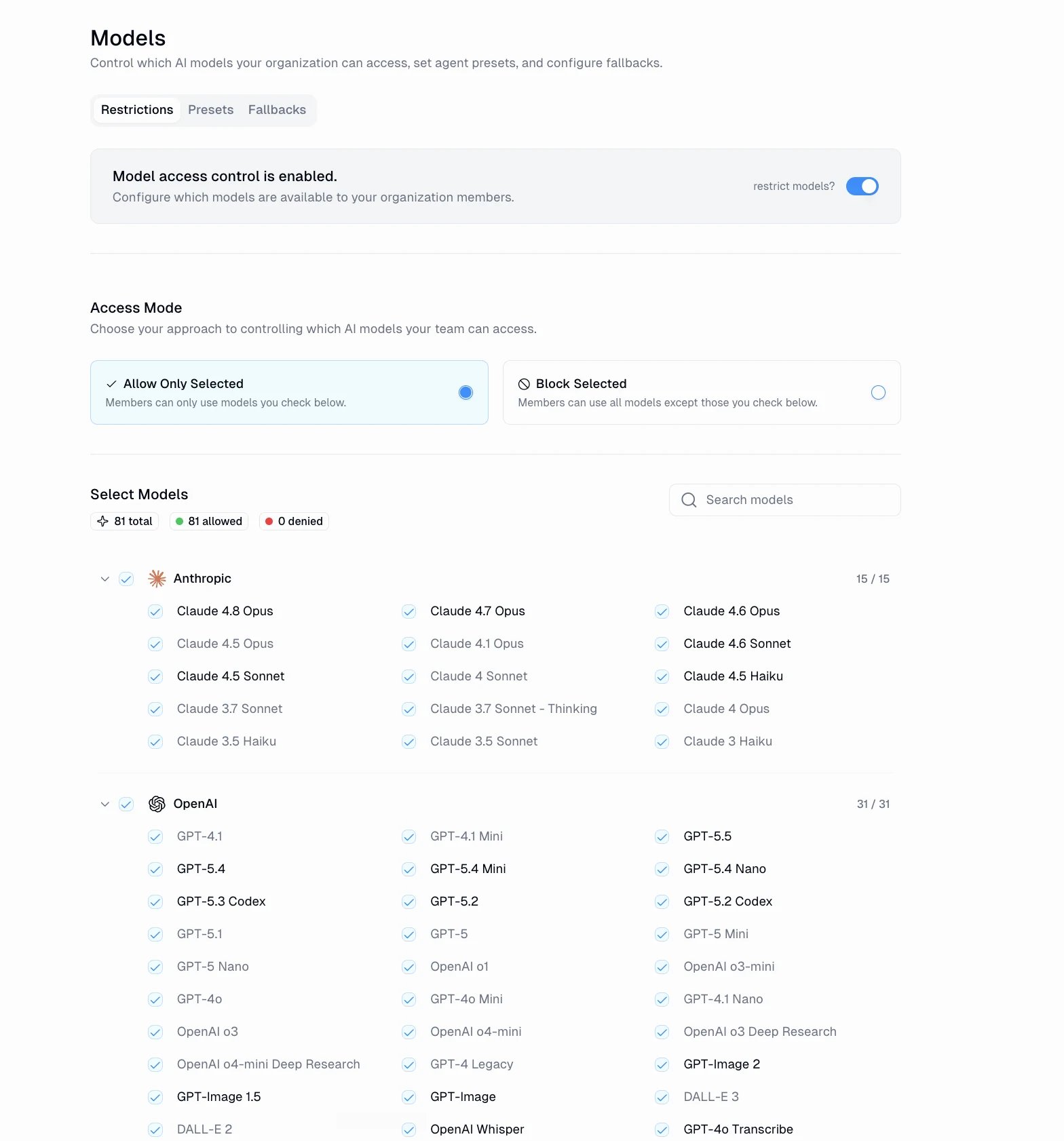 * **Allow Only Selected**: members can use only the models you check. Best for compliance-heavy organizations that permit a fixed, approved set.
* **Block Selected**: members can use every model except the ones you check. Best for general access with a few targeted exclusions.
Models are grouped by provider (Anthropic, OpenAI, Google, and more) with running **allowed** and **denied** counts. You can select or clear a whole provider at once, or search for a specific model.
### Presets
Agents choose a model through three presets: **Recommended**, **Smartest**, and **Fastest**. On this tab you set which model each preset maps to for your whole organization, so members see your choices in the agent model picker instead of the Gumloop defaults.
* **Allow Only Selected**: members can use only the models you check. Best for compliance-heavy organizations that permit a fixed, approved set.
* **Block Selected**: members can use every model except the ones you check. Best for general access with a few targeted exclusions.
Models are grouped by provider (Anthropic, OpenAI, Google, and more) with running **allowed** and **denied** counts. You can select or clear a whole provider at once, or search for a specific model.
### Presets
Agents choose a model through three presets: **Recommended**, **Smartest**, and **Fastest**. On this tab you set which model each preset maps to for your whole organization, so members see your choices in the agent model picker instead of the Gumloop defaults.
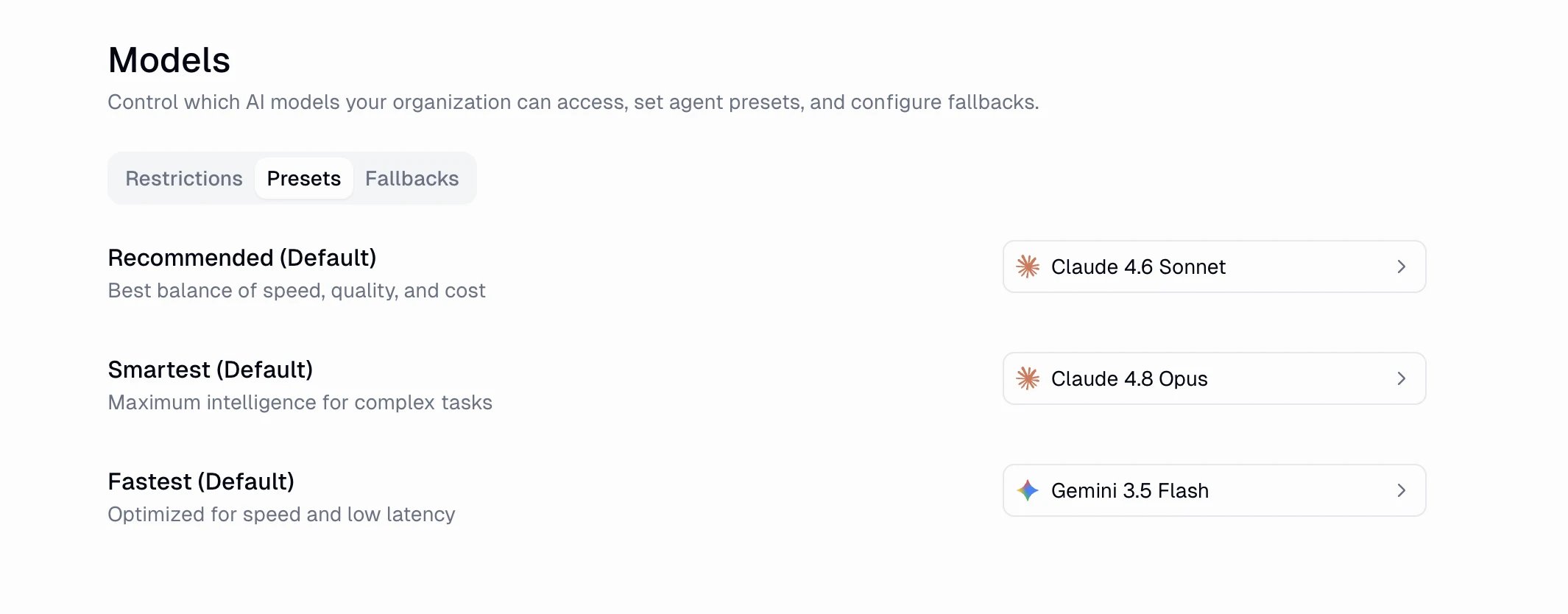 By default, Recommended is the best balance of speed, quality, and cost, Smartest maximizes intelligence for complex tasks, and Fastest is optimized for speed and low latency. Override any of them to standardize on the models your organization prefers.
### Fallbacks
When a flow or agent references a model that is now restricted, Gumloop uses a fallback instead of failing.
By default, Recommended is the best balance of speed, quality, and cost, Smartest maximizes intelligence for complex tasks, and Fastest is optimized for speed and low latency. Override any of them to standardize on the models your organization prefers.
### Fallbacks
When a flow or agent references a model that is now restricted, Gumloop uses a fallback instead of failing.
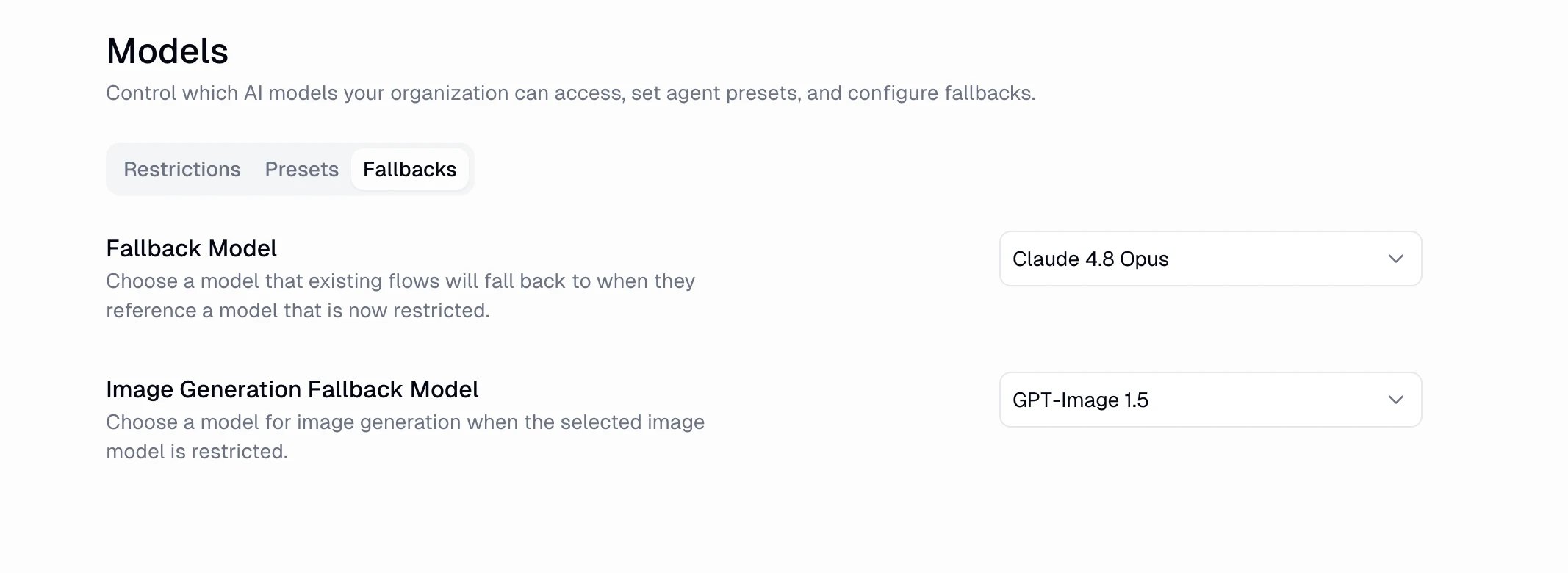 * **Fallback Model**: the model existing flows fall back to when they reference a restricted model.
* **Image Generation Fallback Model**: the model used for image generation when the selected image model is restricted.
### Common Use Cases
Enable **Allow Only Selected**, permit only models that meet your data residency and regulatory requirements (HIPAA, GDPR, and so on), and set a compliant **Fallback Model** so restricted references keep working.
Use **Presets** to point Recommended, Smartest, and Fastest at the exact models your organization has approved, so every agent uses consistent models without each builder choosing their own.
***
## API Keys & Proxies
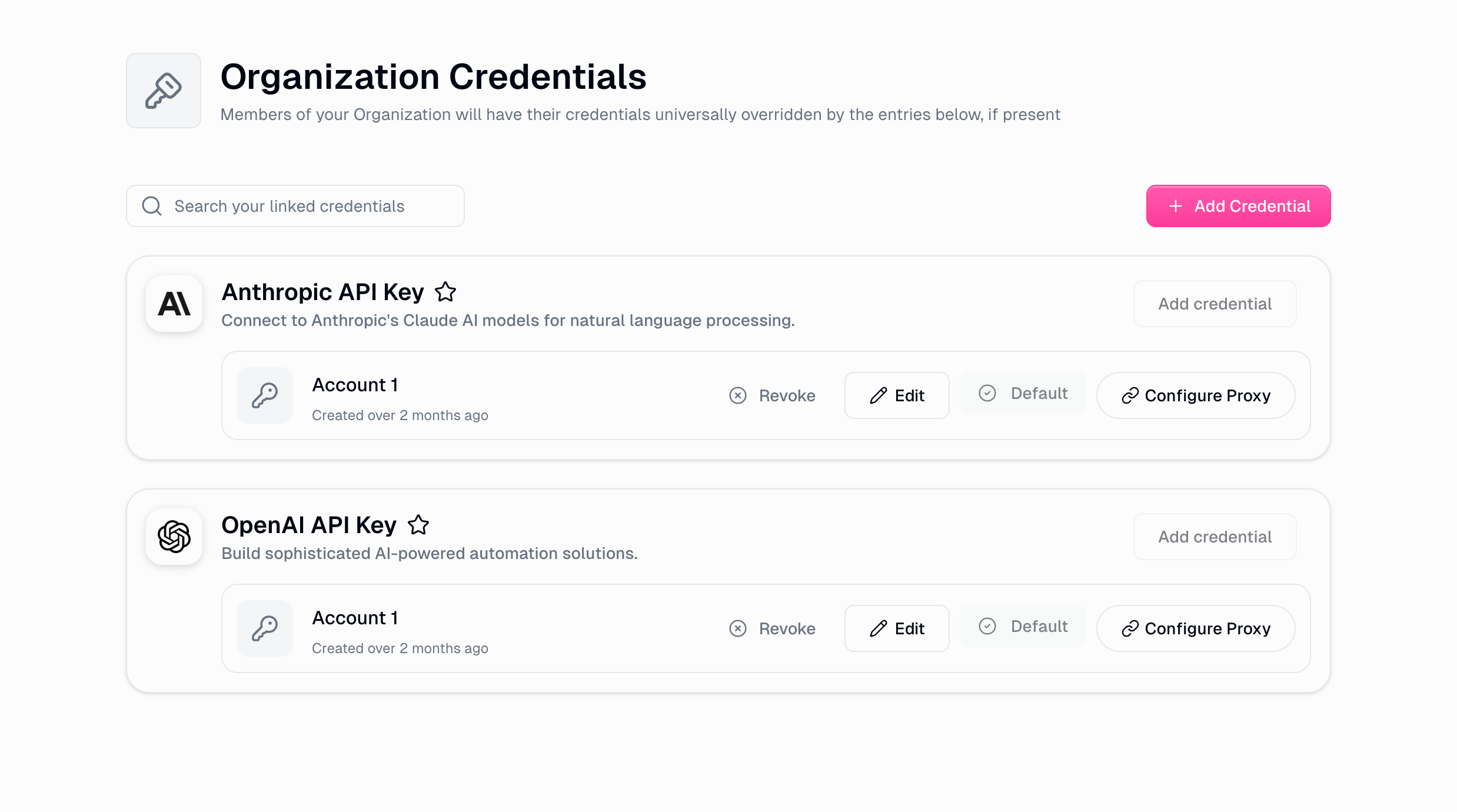
Centrally manage AI provider API keys at the organization level. When configured, these credentials automatically override personal and team credentials across your entire organization. This page is also where you configure AI proxy routing (see below).
**Available at:** [gumloop.com/settings/organization/api-keys](https://gumloop.com/settings/organization/api-keys)
Enterprise OAuth client configurations for services like Snowflake, Databricks, Okta, and NetSuite now live on a separate page: [OAuth Configuration](https://gumloop.com/settings/organization/oauth-configuration).
### How It Works
Organization credentials follow this hierarchy:
```mermaid theme={"dark"}
graph TD
A[Workflow Executes] --> B{Organization
* **Fallback Model**: the model existing flows fall back to when they reference a restricted model.
* **Image Generation Fallback Model**: the model used for image generation when the selected image model is restricted.
### Common Use Cases
Enable **Allow Only Selected**, permit only models that meet your data residency and regulatory requirements (HIPAA, GDPR, and so on), and set a compliant **Fallback Model** so restricted references keep working.
Use **Presets** to point Recommended, Smartest, and Fastest at the exact models your organization has approved, so every agent uses consistent models without each builder choosing their own.
***
## API Keys & Proxies
Centrally manage AI provider API keys at the organization level. When configured, these credentials automatically override personal and team credentials across your entire organization. This page is also where you configure AI proxy routing (see below).
**Available at:** [gumloop.com/settings/organization/api-keys](https://gumloop.com/settings/organization/api-keys)
Enterprise OAuth client configurations for services like Snowflake, Databricks, Okta, and NetSuite now live on a separate page: [OAuth Configuration](https://gumloop.com/settings/organization/oauth-configuration).
### How It Works
Organization credentials follow this hierarchy:
```mermaid theme={"dark"}
graph TD
A[Workflow Executes] --> B{Organization
Credential Exists?}
B -->|Yes| C[Use Organization Credential]
B -->|No| D{Team
Credential Exists?}
D -->|Yes| E[Use Team Credential]
D -->|No| F[Use Personal Credential]
C --> G[Execute Workflow]
E --> G
F --> G
```
Organization credentials **always take priority** over both team and personal credentials. This ensures consistent billing, access control, and compliance across all workflows in your organization.
### Supported Providers
| Provider | API Key Type | What You Get |
| -------------- | ------------ | ---------------------------------------- |
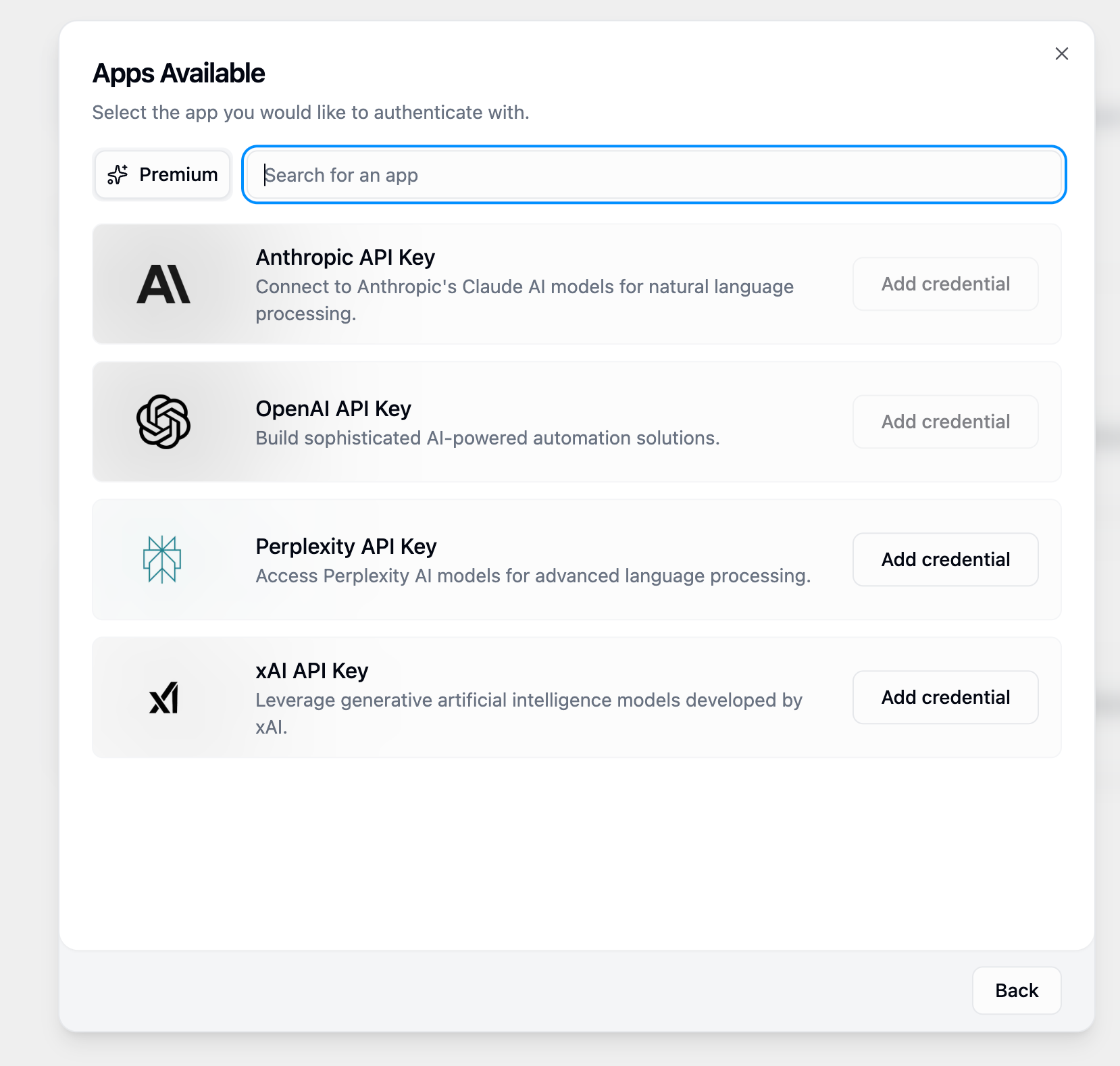
| **OpenAI** | API Key | Access to GPT models and OpenAI services |
| **Anthropic** | API Key | Access to Claude models |
| **Perplexity** | API Key | Access to Perplexity AI models |
| **XAI** | API Key | Access to Grok models |
### Setup Process
Click "Add Credential" and select your AI provider (OpenAI, Anthropic, Perplexity, or XAI). Choose "API Key" as the credential type.
Enter your organization's API key for the selected provider. Configure any provider-specific settings as needed.
Keep your API keys secure. Never share them in documentation, code repositories, or public channels.
### Key Benefits
All members automatically use organization API keys. No need for individual key management across teams.
Centralized billing for all AI usage. Track consumption across teams and simplify budget management.
All AI calls use audited and compliant credentials. Maintain consistent security policies across workflows.
Prevent unauthorized AI usage through personal credentials. Ensure all usage goes through approved channels.
***
## AI Proxy Routing
Route AI provider requests through custom proxy URLs to use your own infrastructure, implement security policies, or integrate with specialized AI gateways.
### Core Features
Route all requests through organization-controlled proxy servers. Direct traffic through your own infrastructure for complete control over AI interactions.
Map Gumloop model names to custom proxy model identifiers. Use your own model naming conventions while maintaining compatibility with existing workflows.
Configure different proxies for different AI providers. Customize routing based on your infrastructure and compliance requirements.
### Setup Process
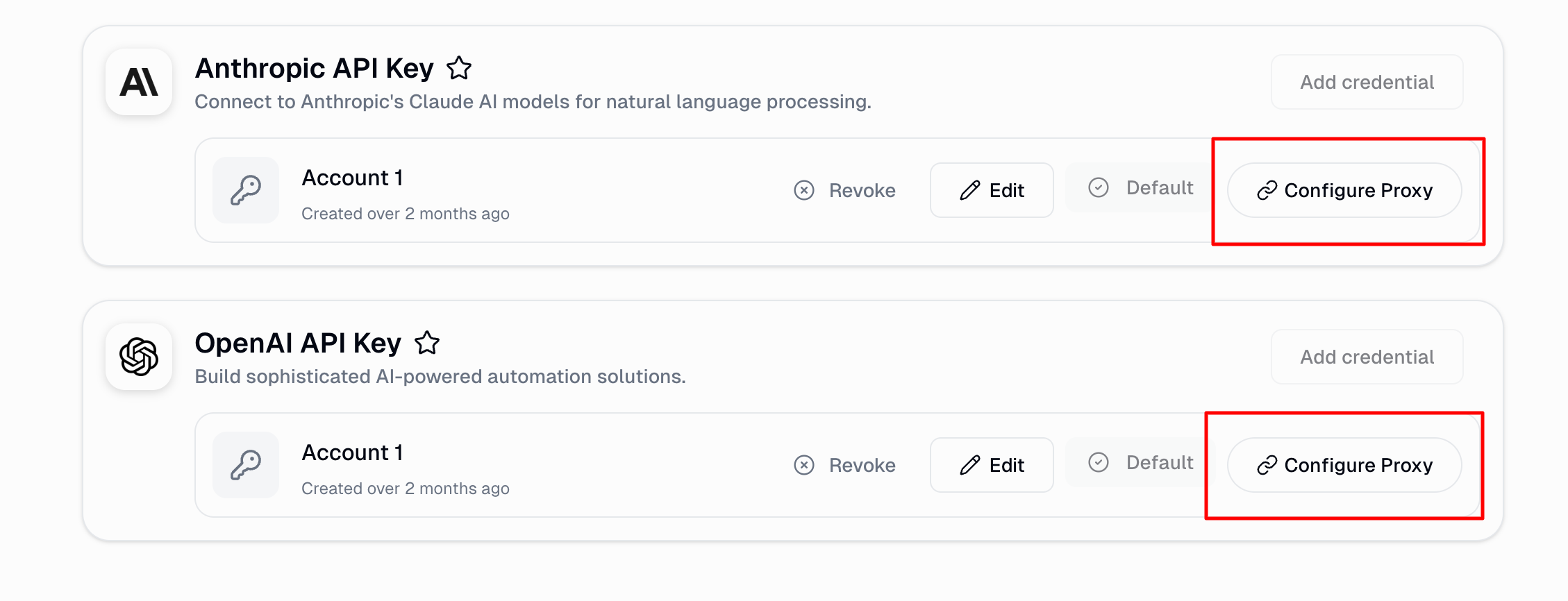
Navigate to the [API Keys & Proxies page](https://gumloop.com/settings/organization/api-keys), find your AI provider credential (OpenAI, Anthropic, etc.), and click "Configure Proxy".
The "Configure Proxy" button only appears for AI provider credentials.
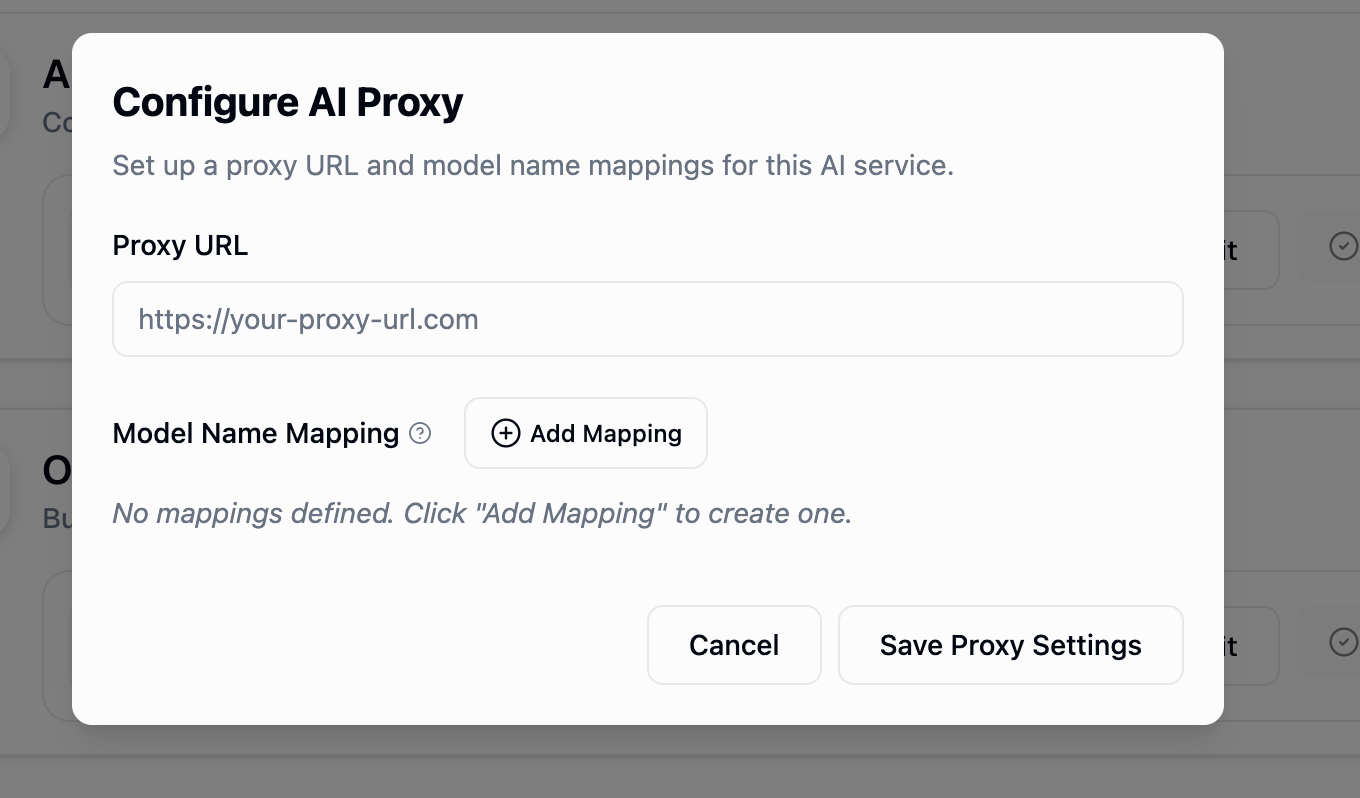
Enter your custom proxy base URL (e.g., `https://your-proxy.company.com`). This URL will replace the default AI provider endpoint.
Your proxy URL must be accessible from Gumloop infrastructure.
Map Gumloop model names to your proxy-specific model identifiers. For example, map `gpt-4` to `custom-gpt-4-enterprise` if your proxy uses non-standard model names.
### Common Scenarios
**Corporate AI Management Platform**
Route through your corporate AI gateway for:
* Centralized logging and monitoring
* Unified cost tracking across all AI usage
* Consistent security policies
* Compliance with corporate standards
**Organization-Specific AI Models**
Access your fine-tuned models:
* Route to custom endpoints for specialized models
* Map standard names to your model variants
* Maintain workflow compatibility
* Use organization-trained AI models
**Data Residency & Regulations**
Meet compliance requirements:
* Keep all AI requests within geographic regions
* Route through compliant infrastructure
* Maintain audit trails for regulatory needs
* Ensure data never leaves approved locations
### Configuration Examples
```
Proxy URL: https://ai-gateway.company.com/v1
Model Mappings: (none - use default model names)
```
Simple routing through your gateway without custom model names.
```
Proxy URL: https://custom-ai.company.com/api
Model Mappings:
gpt-4 → company-gpt-4-tuned
gpt-3.5-turbo → company-gpt-35-fast
claude-3-opus → company-claude-opus
```
Map Gumloop model names to your organization's custom model identifiers.
```
Proxy URL: https://eu-ai-proxy.company.com/v1
Model Mappings: (none - standard names with EU routing)
```
Route through EU infrastructure for GDPR compliance while using standard model names.
***
## How These Features Work Together
When a workflow executes that requires AI, here's what happens:
```mermaid theme={"dark"}
flowchart LR
A[Workflow Starts] --> B[Model Selection]
B --> C{Model Allowed?}
C -->|No| D[Use Fallback Model]
C -->|Yes| E[Continue]
D --> E
E --> F[Get Credentials]
F --> G[Organization API Key?]
G -->|Yes| H[Use Org API Key]
G -->|No| I[Use Team/Personal]
H --> J{Proxy Configured?}
I --> J
J -->|Yes| K[Route Through Proxy]
J -->|No| L[Direct to Provider]
K --> M[Execute Request]
L --> M
```
AI Model Access Control determines which models are available based on your allow/deny list configuration.
Organization API keys (from the API Keys & Proxies page) provide authentication, overriding any team or personal credentials.
AI Proxy Routing determines the endpoint and applies any model name mappings before execution.
The request is sent through the configured proxy (if any) with organization credentials to the AI provider.
***
## Security and Compliance
Configuring AI model access requires the **Admin** or **Security** organization role. See [Organization Roles](/core-concepts/organization_user_roles#security) for the full assignment matrix.
Encrypted storage for all credentials and configurations with secure transmission protocols.
All administrative actions are logged for compliance and security monitoring.
Built for organizations with strict compliance and governance requirements.
***
## Need Help?
For additional support or questions about AI Model Governance & Configuration:
* **Email:** [support@gumloop.com](mailto:support@gumloop.com)
* **Slack:** Reach out in your dedicated support channel
## Related Documentation
Manage organizational roles and permissions
Export and analyze usage data
Understanding organizational structure