> ## Documentation Index
> Fetch the complete documentation index at: https://docs.gumloop.com/llms.txt
> Use this file to discover all available pages before exploring further.
# Workflows
A workflow is your canvas for building automations in Gumloop. It's where you drag and drop nodes, connect them together, and create powerful automations. Each workbook can contain multiple workflows organized as tabs at the bottom of the screen.
## What is a Workbook?
A workbook is a canvas where you chain multiple nodes together to build your automation. You drag nodes from the library onto the canvas, connect them in sequence, and create workflows that process data, use AI, and integrate with external services.
Drag and drop nodes, then connect them with edges to define the workflow of data through your automation
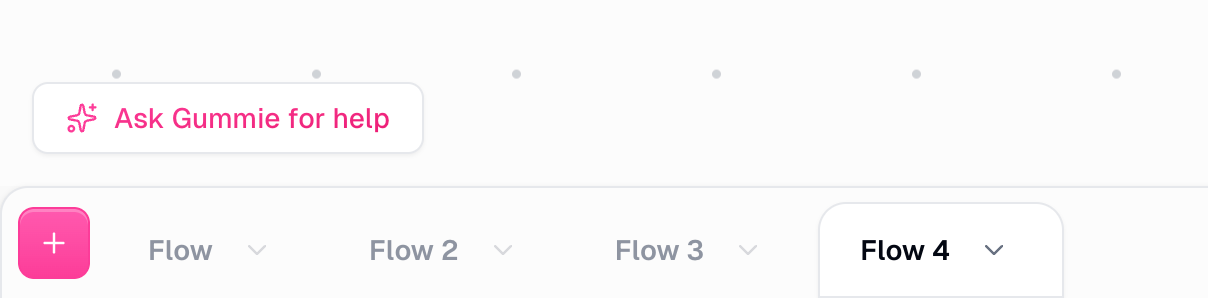
Each tab at the bottom is a separate workflow. Keep related workflows together in one workbook (like how Excel has multiple sheets in one file)
Track run history and save [checkpoints](https://docs.gumloop.com/core-concepts/checkpoint_history) to preserve working versions
Every automation you create in Gumloop lives in a workbook. When you open a workflow, you're working on this canvas where nodes connect together to form your automation logic.
## Workbook Navigation & Controls
Navigate your workbook canvas efficiently with these controls:
### Basic Navigation
* **Scroll wheel**: Zoom in and out
* **Trackpad**: Use pinch gestures to zoom or two finger swipe
* **Keyboard**: `Cmd/Ctrl + 0` to fit entire workflow in view
* **Click and drag**: Click on empty canvas space and drag to move your view
* Works like Google Maps or Figma
* **Single node**: Click to select
* **Multiple nodes**: Hold `Shift` and drag to select a group
* **Deselect**: Click on empty canvas space
### Canvas Control Buttons
Located in the bottom right corner of your canvas, you'll find these helpful controls:
Automatically adjusts the zoom and position to show your entire workflow on screen. Perfect for getting a bird's-eye view of complex workflows.
Automatically arranges your nodes in a clean, organized layout. Use this when your canvas gets messy or after making significant changes.
Expands all nodes simultaneously, making it easy to review your entire workflow's logic.
Collapses all node nodes to clean up your canvas and focus on the workflow structure.
Toggles grid snapping to help align nodes precisely. Great for creating visually organized workflows.
## Understanding Tabs and Subflows
The tabs you see at the bottom of your workbook are actually individual **subflows**. This is important to understand:
* Each tab represents a complete workflow that can run independently
* Tabs can also be used as reusable components (subflows) within other workflows
* The main workflow is just one tab, and you can create additional tabs for modular organization
To learn more about how subflows work and how to use them effectively, see the [Subflows documentation](https://docs.gumloop.com/core-concepts/subflows).
### Managing Tabs
Click the plus `+` icon in the bottom bar to add a new workflow to your workbook
Right-click on any tab to rename, duplicate, or delete workflows within your workbook
Give each tab a clear name that indicates its purpose for easy navigation
Use descriptive names that clearly indicate each workflow's purpose. This becomes especially helpful as your workbook grows in complexity.
## Converting Nodes into Subflows
As your workflows grow complex, you can easily convert groups of nodes into modular subflows:
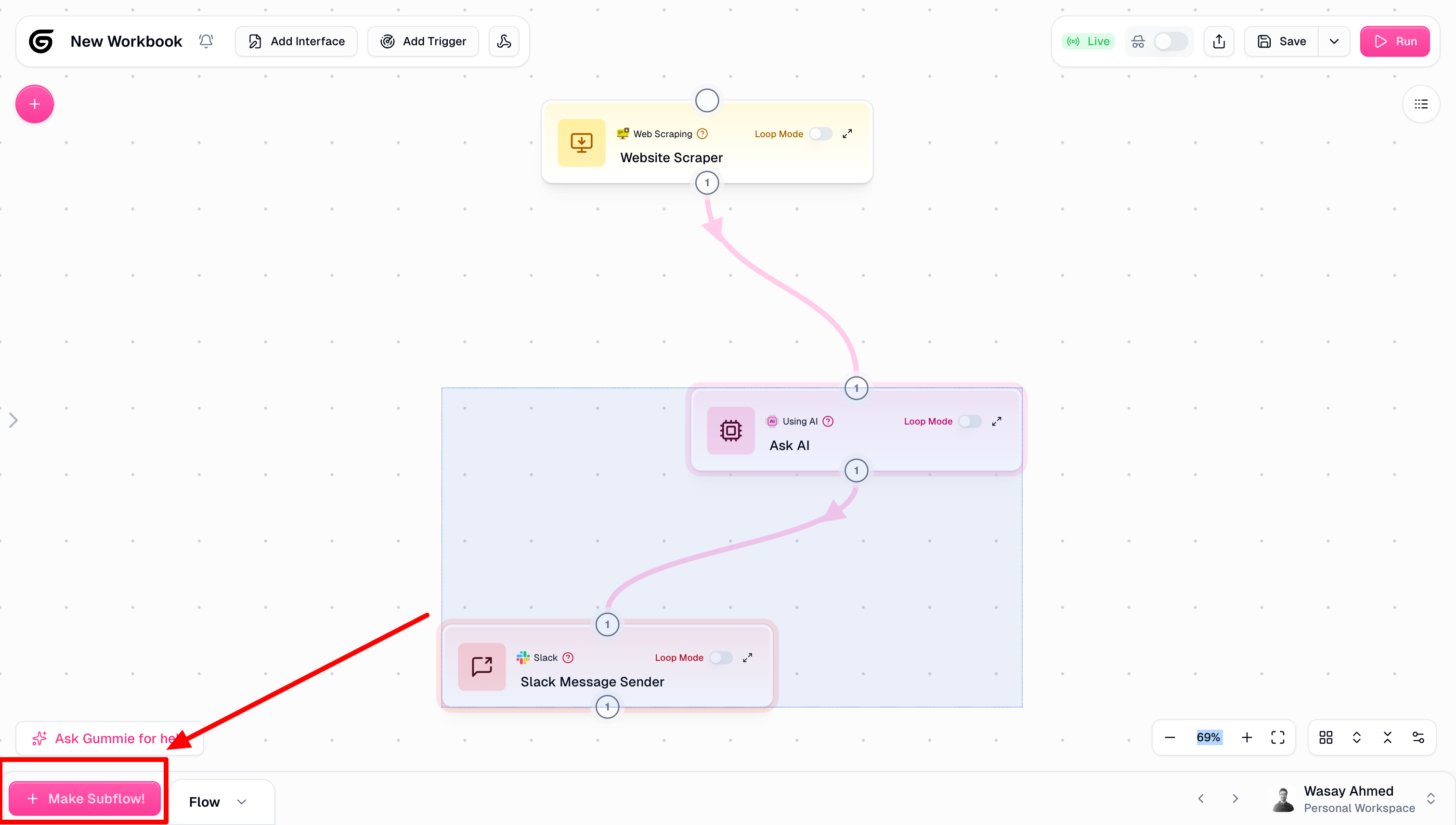
Hold `Shift` and drag to select the nodes you want to group
Click the "Make Subflow" button in the bottom bar
The selected nodes move to a new tab, and inputs/outputs are automatically configured
This feature is invaluable when building large automations. Break your workflow into logical chunks, test each piece independently, and reuse components across different workflows.
## Running and Debugging
Click the **Run** button in the top right corner to execute your workflow. A run report appears showing real-time progress through each node.
### Resume Button for Faster Iteration
Instead of re-running an entire workflow, use the **Resume** button (`Cmd/Ctrl + Shift + Enter`) to jump to a specific node and continue from there. This saves credits and dramatically speeds up development when you're iterating on specific parts of your workflow.
### Viewing Run History
Track and debug workflow executions directly from the canvas:
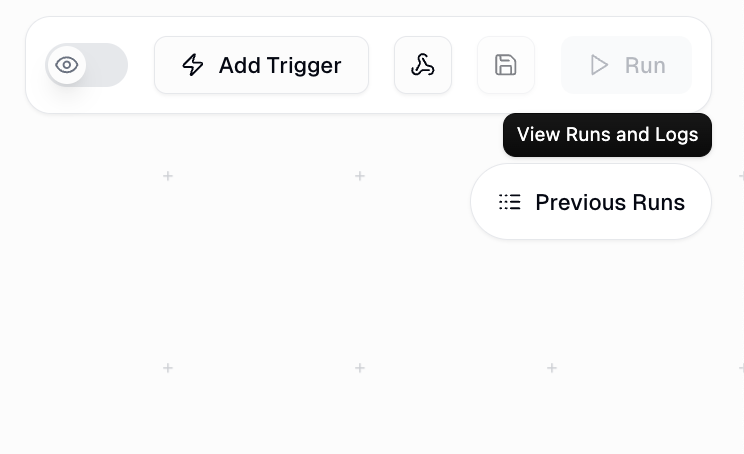
Ensure your workbook is saved to enable run history tracking
Click the "Previous Runs" icon in the top right corner
View current runs, past executions, success/failure status, and detailed node information
The run log is invaluable for debugging and understanding how your workflows perform over time.
Learn more about debugging with the run log
## Sharing Workbooks
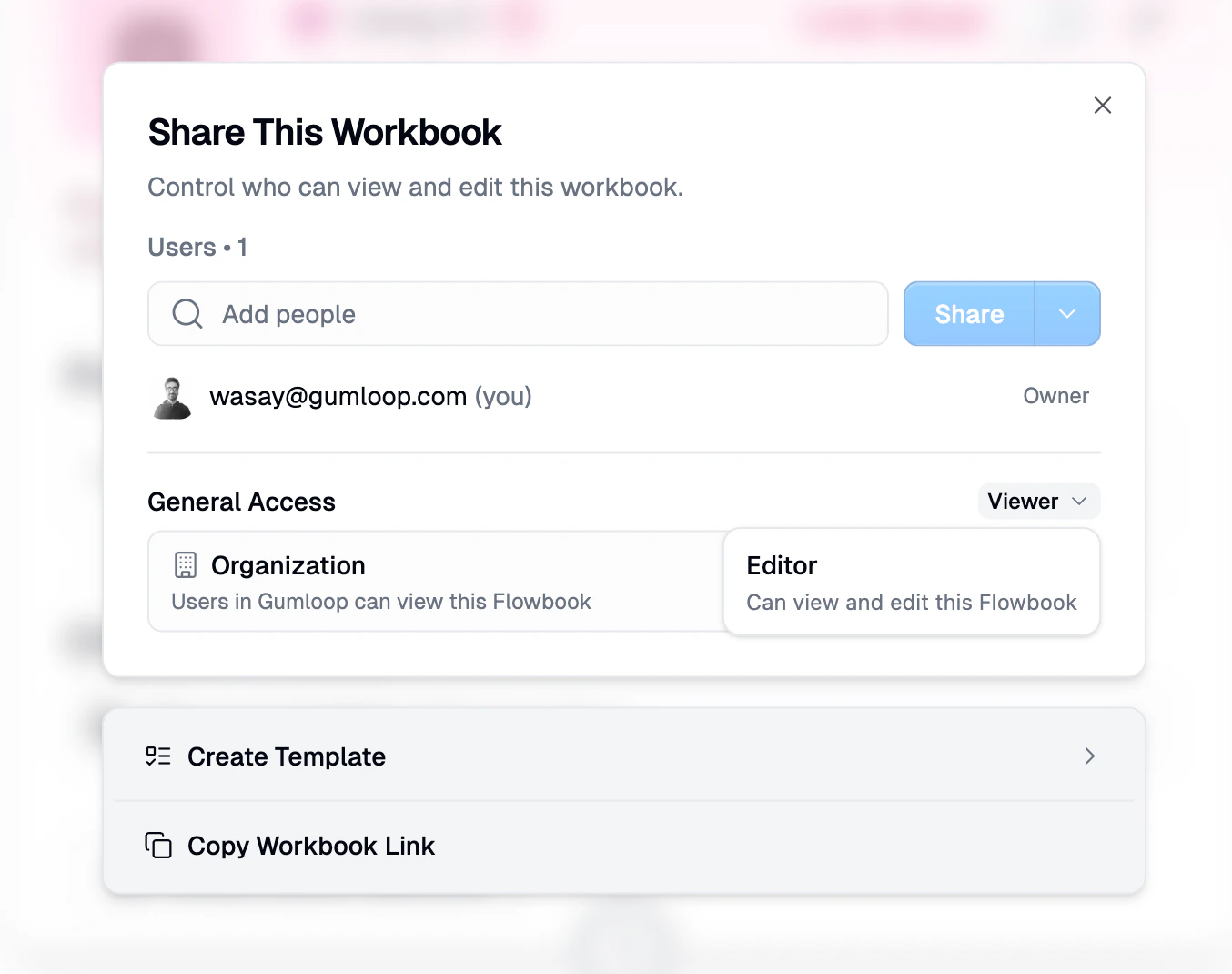
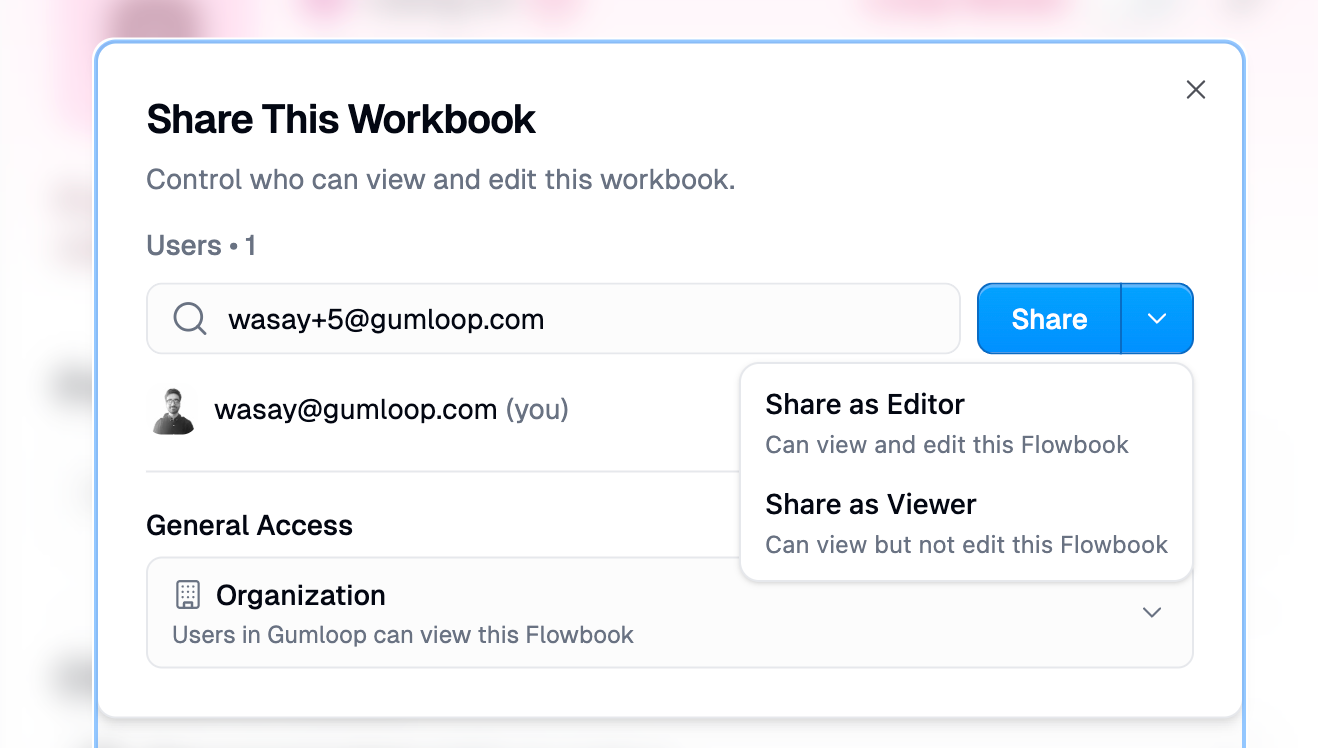
Share your workbooks with team members, collaborators, or external stakeholders using Gumloop's sharing system. You can control exactly who has access and what they can do.
### Sharing with Specific Users
Add individual users by email and assign them a role:
| Role | What They Can Do |
| ---------- | ------------------------------------------------------------------------------------------------------- |
| **Editor** | View, edit, and run the workbook. Can also manage sharing settings. |
| **Viewer** | View the workbook and its configuration, but cannot edit or run it. Can make a copy to their own space. |
### General Access
Control broader access with General Access settings:
| Level | Who Gets Access |
| -------------------- | ---------------------------------------------------------------------------- |
| **Restricted** | Only explicitly added users and the owner (personal workbooks only) |
| **Team** | All members of the team the workbook belongs to (team workbooks only) |
| **Organization** | All members of your organization |
| **Anyone with link** | Anyone, including people without a Gumloop account (capped at Viewer access) |
You can also set the **role** for General Access (e.g., give your entire organization Viewer or Editor access).
For workbooks in a team, the minimum General Access level is **Team**. For personal workbooks, the default is **Restricted**. Learn more in the [Share Permissions documentation](/core-concepts/share_permissions).
## Triggering Workbooks
Automate your workbooks to run on schedules or in response to events:
Click the "Add Trigger" button in the top navigation bar
Select from time-based schedules, webhooks, or service-specific triggers (Gmail, Slack, etc.)
Set your parameters and enable the trigger to start automated execution
Schedule your workbook to run hourly, daily, weekly, or on custom intervals. Great for regular reports or data syncs.
Start your workbook when external services send HTTP requests. Perfect for real-time integrations with other tools.
Trigger on events from integrated services like Gmail (new emails), Slack (new messages), Google Sheets (new rows), and more.
Explore all trigger options and configuration details
## Managing Workbooks
### Moving Workbooks Between Teams
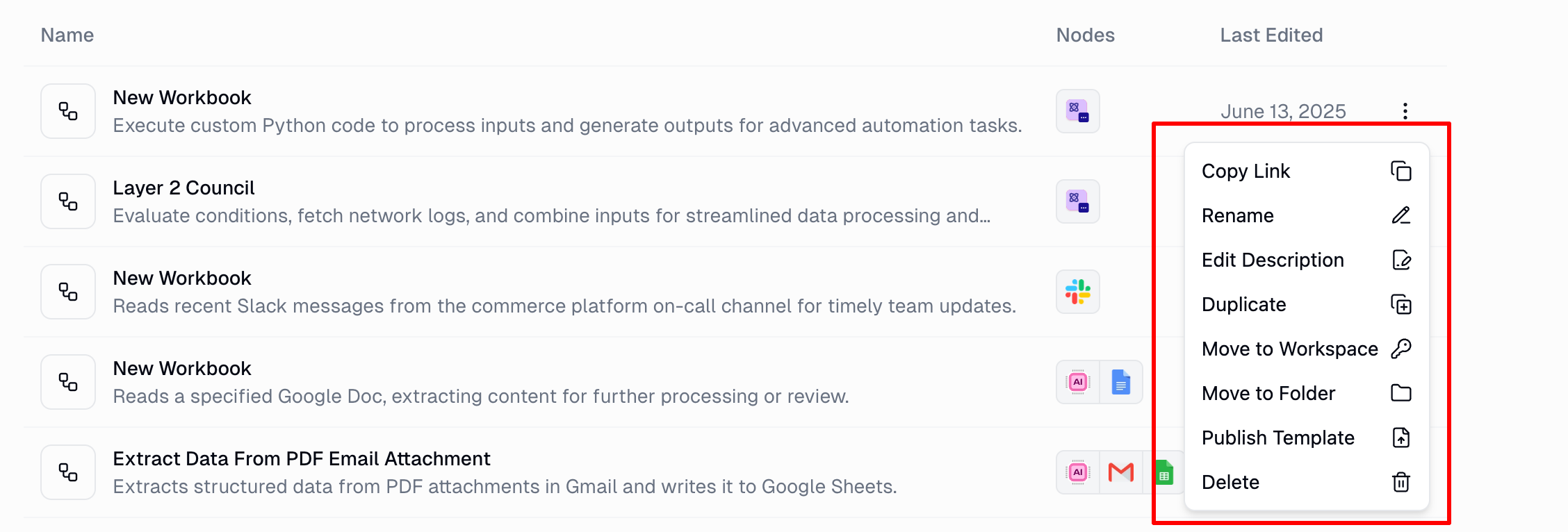
1. Go to the [Hub](https://www.gumloop.com/hub)
2. Click the three dots (⋮) next to the workbook name
3. Select "Move to Team"
4. Choose the destination team
Useful for sharing templates or workflows within your organization.
1. Go to the [Hub](https://www.gumloop.com/hub)
2. Click the three dots (⋮) next to the workbook name
3. Select "Duplicate"
4. A copy appears in your current space
Perfect for creating backups or variations of existing workflows.
## Keyboard Shortcuts
Speed up your workflow building with these essential shortcuts:
| Shortcut | Action |
| -------------------------- | ---------------------- |
| `Cmd/Ctrl + S` | Save workbook |
| `Cmd/Ctrl + Enter` | Run workflow |
| `Cmd/Ctrl + Shift + Enter` | Resume run |
| `Cmd/Ctrl + B` | Toggle node menu |
| `Cmd/Ctrl + 0` | Fit view to canvas |
| `Shift + Drag` | Select multiple nodes |
| `@` symbol | Reference node outputs |
Type `@` in any text field to bring up a menu of available node outputs. This is much faster than dragging badges manually.
## Best Practices
Use `Cmd/Ctrl + S` often as you build. Regular saving ensures run history is tracked and prevents data loss. Consider creating [checkpoints](https://docs.gumloop.com/core-concepts/checkpoint_history) before major changes.
Name your workbooks, tabs, and even individual nodes clearly. Include version numbers or dates when relevant (e.g., "Customer Onboarding v2" or "Q4 2024 Reports").
If a workflow has more than 10-15 nodes, consider splitting it into subflows. This improves maintainability, enables reusability, and makes testing easier.
Use the Resume button to test specific parts of your workflow without re-running everything. This saves time and credits during development.
After making significant changes, click the Auto Format button to clean up your canvas layout. A well-organized canvas is easier to understand and maintain.
For critical workflows, configure [alerts](https://docs.gumloop.com/core-concepts/alerts) to notify you via email if errors occur. This helps you catch issues quickly in production.
## Related Documentation
Learn how to create and use modular, reusable workflows
Automate your workbooks with schedules and event-driven triggers
Debug and monitor your workflow executions
Save and restore versions of your workflows
***
Workbooks provide the foundation for all your automation work in Gumloop. Master the canvas, leverage subflows effectively, and use the tools provided to build maintainable, production-ready workflows.