> ## Documentation Index
> Fetch the complete documentation index at: https://docs.gumloop.com/llms.txt
> Use this file to discover all available pages before exploring further.
# Types
# Understanding Types in Gumloop
Each input and output in a node has a specific **type** that defines the kind of data it can handle. Understanding types is crucial for building workflows that work correctly, as type mismatches are one of the most common causes of workflow errors.
The most common type you'll encounter is **Text**, as most workflows involve working with text data.
## Core Data Types
Gumloop primarily works with these data types:
A single piece of text such as a message, document, or value.
**Example:** "Hello, world" or "The quarterly report shows a 15% increase in sales"
A collection of multiple text items.
**Example:** \["Email 1", "Email 2", "Email 3"] or \["Product A", "Product B", "Product C"]
A nested collection of text lists, similar to a table or matrix.
**Example:** A table with rows and columns of data
### List of List of Text Example
This type is often the output of nodes that read tables or produce grouped data:
```json theme={"dark"}
[
["Apple", "Red", "$1.50"], // First row: Item, Color, Price
["Banana", "Yellow", "$0.75"], // Second row: Item, Color, Price
["Orange", "Orange", "$1.25"] // Third row: Item, Color, Price
]
```
## Identifying Types in Your Workflow
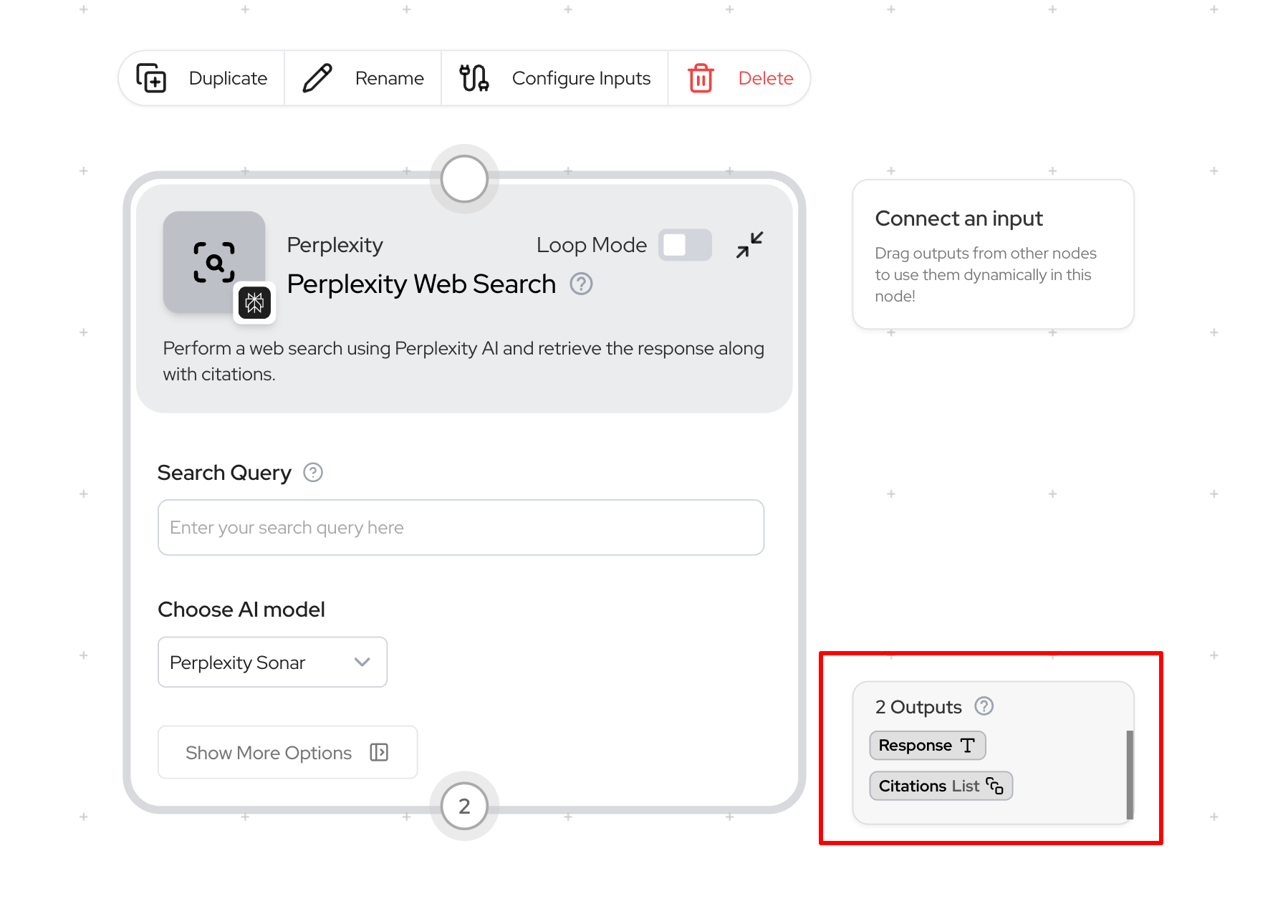
Types are visually indicated in the node's side-menu when you click on a node.
## Type Compatibility
For a workflow to work correctly, the **output type** of one node must match the **input type** of the next node. If the types don't match, the workflow will fail due to a **type mismatch error**.
### Compatibility Reference Table
| Source Type | Target Type | Compatible? | Solution if Incompatible |
| -------------------- | ------------ | ------------------------------- | -------------------------------- |
| Text | Text | Compatible | N/A |
| Text | List of text | Incompatible | Use Duplicate node |
| List of text | Text | Incompatible | Use Join List Items or Loop Mode |
| List of text | List of text | Compatible | N/A |
| List of List of text | List of text | Incompatible | Use Flatten List of Lists |
| List of List of text | Text | Incompatible | Use Flatten + Join List Items |
## Common Type Mismatch Scenarios
**Problem:** You have a list of items (such as emails from Gmail Reader) but need to process them as a single text input.
**Example:**
* Gmail Reader outputs a **List of text** (multiple emails)
* You want to send a single message to Slack containing all emails
**Solutions:**
Combines all items in the list into one text string.
* **Input:** List of emails
* **Output:** One text string containing all emails (with separators)
* **Use case:** When you need to process all items together as one unit
Process each list item one at a time.
* Each email is processed individually through the workflow
* Results in multiple outputs (one per email)
* **Use case:** When you need to process each item independently
**Problem:** You have a single text item but need to use it with each item in a list.
**Example:**
* You have a style guide (text) that needs to be applied to multiple blog posts (list)
* An API key (text) that needs to be used with multiple API calls (list)
**Solution: Use the Duplicate Node**
* **Input:** Single text
* **"List size to match" input:** Connect your list
* **Output:** List containing copies of your text, matching the size of your other list
**Problem:** You have a nested list (lists within a list) but need a flat list.
**Example:**
* Website Crawler outputs URLs for each site (creating a list of lists)
* You need a simple list of all URLs for processing
**Solutions:**
Combines all nested lists into one flat list.
* **Input:** Nested list structure
* **Output:** Single-level list with all items
* **Use case:** When you need all items in one flat structure
Process each inner list separately.
* Create a subflow to handle each inner list
* Run the subflow in Loop Mode to process each list
* **Use case:** When you need to maintain the grouping of items
## Loop Mode: A Powerful Tool for Type Handling
**Loop Mode** is one of the most powerful features for handling type mismatches in Gumloop. When enabled on a node, it allows that node to process a list input one item at a time.
### How Loop Mode Works
* **Input:** List of text \["Item 1", "Item 2", "Item 3"]
* **Node expecting Text input:** Error: Type mismatch
* **Input:** List of text \["Item 1", "Item 2", "Item 3"]
* **Processing:** Node processes "Item 1", then "Item 2", then "Item 3" separately
* **Output:** List of results, one for each input item
* **Result:** Success
### When to Use Loop Mode
Loop Mode is ideal when you need to:
* Process each item in a list individually
* Apply the same operation to multiple items
* Connect List outputs to nodes that expect Text inputs
### Loop Mode vs. Join List Items
| Feature | Loop Mode | Join List Items |
| -------------------- | ----------------------------------------- | ------------------------------------------- |
| **Processing Style** | Individual processing | Combined processing |
| **Input** | List of items | List of items |
| **Output** | List of results | Single text item |
| **Use Case** | When each item needs individual attention | When all items should be processed together |
| **Example** | Summarize each document separately | Combine all documents and summarize once |
## List Operation Nodes for Type Conversion
Gumloop provides several specialized nodes designed specifically for handling type conversions:
**Purpose:** Combine all items in a list into a single text string
* **Input:** List of text
* **Output:** Text
* **Options:** Choose separator (newline, comma, space, etc.)
* **Example use:** Combining search results into one report
**Purpose:** Create multiple copies of a single text item
* **Input:** Text
* **Output:** List of text (with repeated items)
* **Options:** Specify how many copies or match another list's size
* **Example use:** Using the same prompt for multiple documents
**Purpose:** Convert a nested list into a simple, flat list
* **Input:** List of List of text
* **Output:** List of text
* **Example use:** Processing crawled web pages
**Purpose:** Extract a specific item from a list
* **Input:** List of text
* **Output:** Text (single item)
* **Options:** Specify index (position) to extract
* **Example use:** Getting only the first search result
**Purpose:** Merge multiple lists into one
* **Input:** Multiple List of text inputs
* **Output:** Single List of text with all items
* **Example use:** Combining results from multiple sources
## Best Practices for Managing Types
Consider what type of data each step will produce and consume. Identify where type conversions will be needed before you start building your workflow.
Use Error Shield around sections processing lists. Use Duplicate node to match list sizes when needed.
Include type information in your node names and descriptions.
**Example:** "Join Customer Names (List → Text)"
This makes it easier to understand data flow at a glance.
Creates cleaner, more maintainable workflows. Helps isolate and solve type-related issues.
## Frequently Asked Questions
If you can't connect two nodes, check their input/output types. Hover over the connection points to see the expected type. Use appropriate type conversion nodes or Loop Mode to resolve mismatches.
* Use **Loop Mode** when you want to process each item in a list individually
* Use **type conversion nodes** (like Join List Items) when you want to transform the data structure itself
When a node outputs multiple lists (like a Google Sheets Reader with multiple columns), you have several options:
1. Process each list separately with different nodes
2. Combine the lists first if they need to be processed together
3. Use Loop Mode to process corresponding items across multiple lists
When working with nodes that produce a `None` type output (like JSON Reader or Run Code):
1. First, understand what the actual output will be at runtime based on your input data
2. Set up your subsequent nodes expecting that type
3. Use type conversion nodes if needed to ensure compatibility
## Related Resources
Learn more about Loop Mode functionality
Explore all list operation nodes
Troubleshoot type mismatch errors