> ## Documentation Index
> Fetch the complete documentation index at: https://docs.gumloop.com/llms.txt
> Use this file to discover all available pages before exploring further.
# Tips & Tricks
> Boost your productivity with these workflow building techniques and keyboard shortcuts
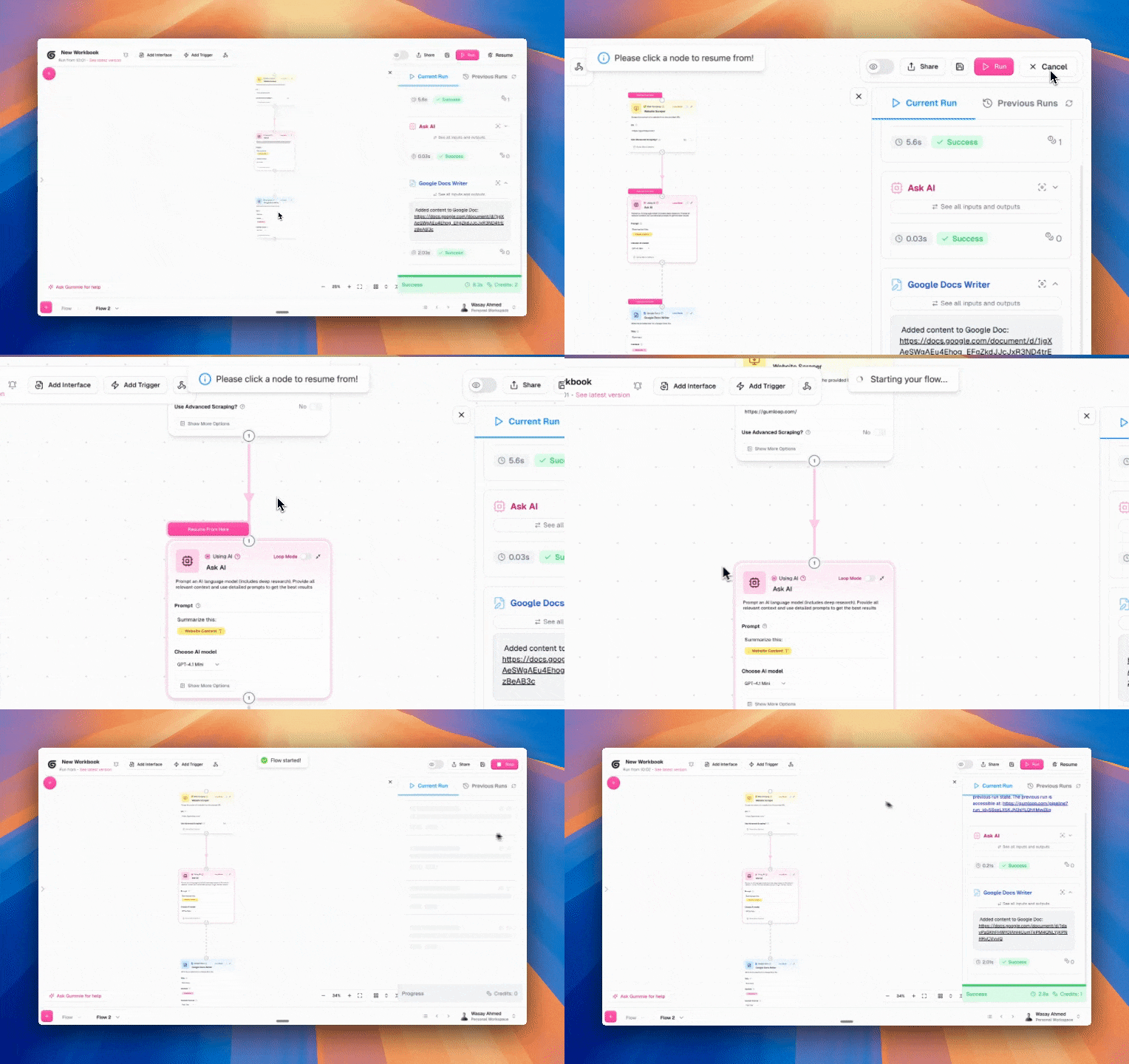
## Resume Button
The easiest way to iterate on your workflow is by using the resume button. Imagine you have a workflow with many steps but you want to iterate on the AI prompt at the end of the workflow. You can tweak that prompt at the end, click the resume button and it'll jump right to the step you care about. No more re-running the whole workflow. This saves credits and tons of time.
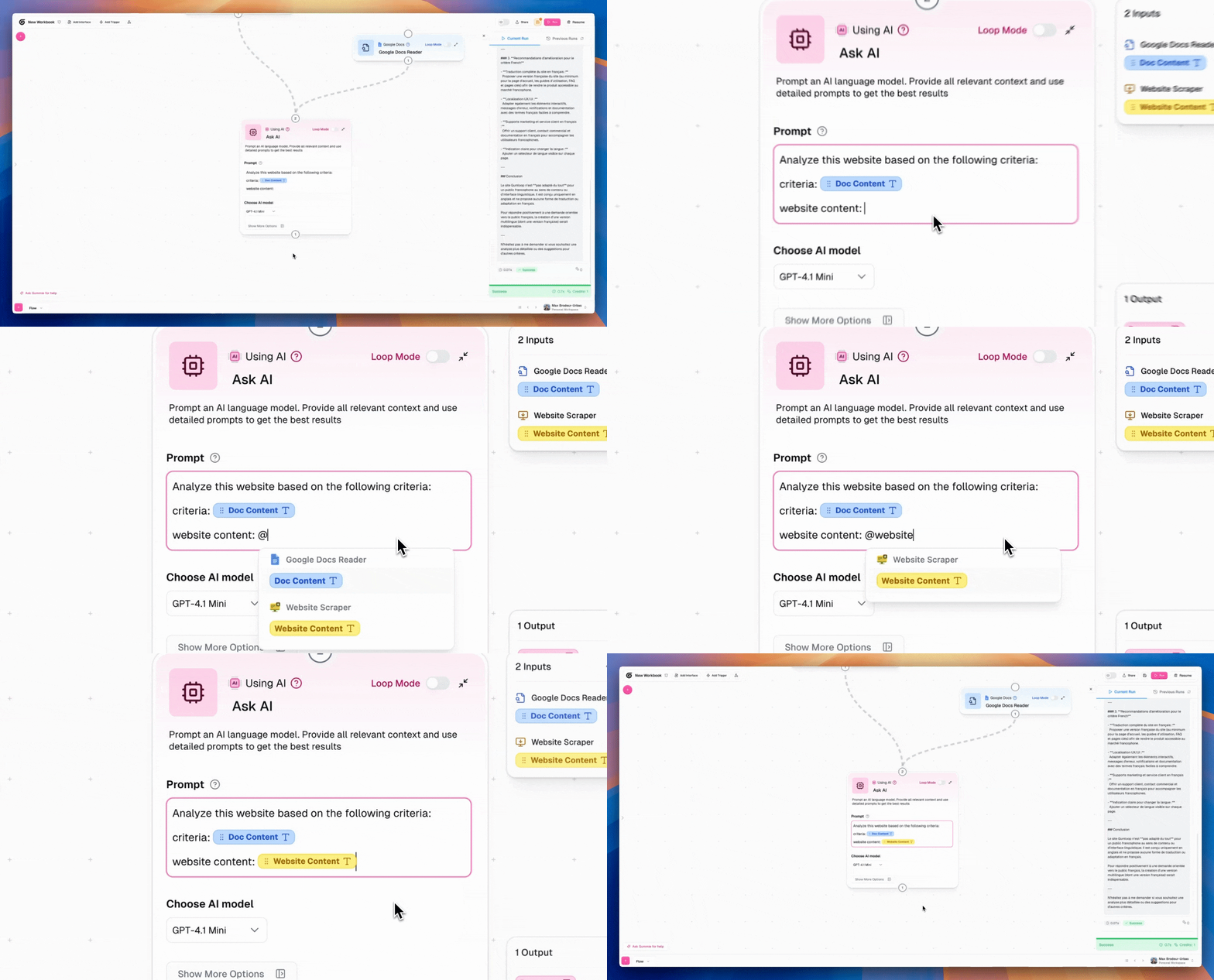
 ## Use the @ Symbol to Invoke Badges
You can drag badges into your node OR you can tag them in by typing the @ symbol and bringing them in. I find this much quicker as I'm typing in my workflows.
## Use the @ Symbol to Invoke Badges
You can drag badges into your node OR you can tag them in by typing the @ symbol and bringing them in. I find this much quicker as I'm typing in my workflows.
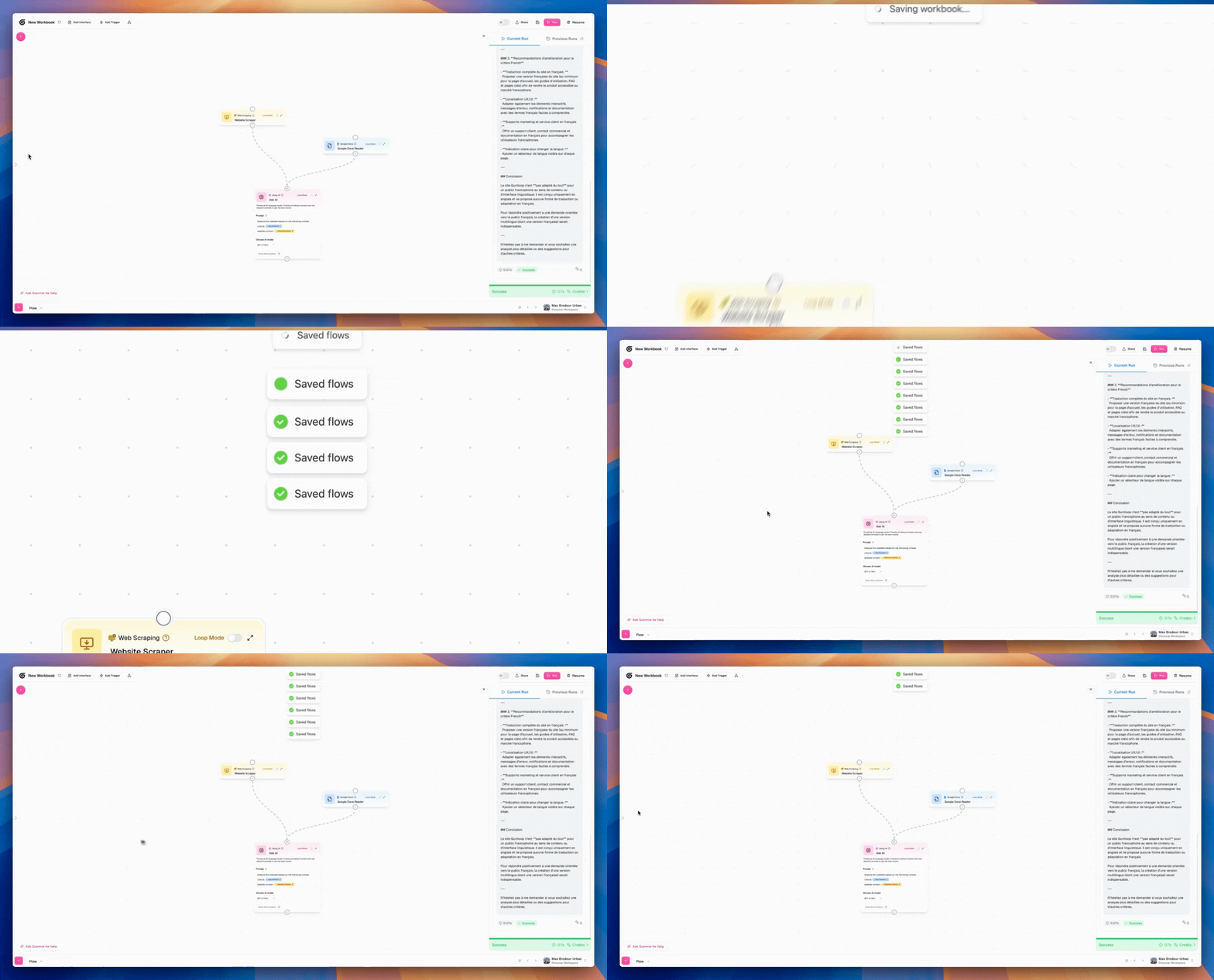
 ## Save Your Work Frequently
There are tons of shortcuts on Gumloop but I use `Cmd + S` the most. I save often as I build to ensure no work is lost.
## Save Your Work Frequently
There are tons of shortcuts on Gumloop but I use `Cmd + S` the most. I save often as I build to ensure no work is lost.
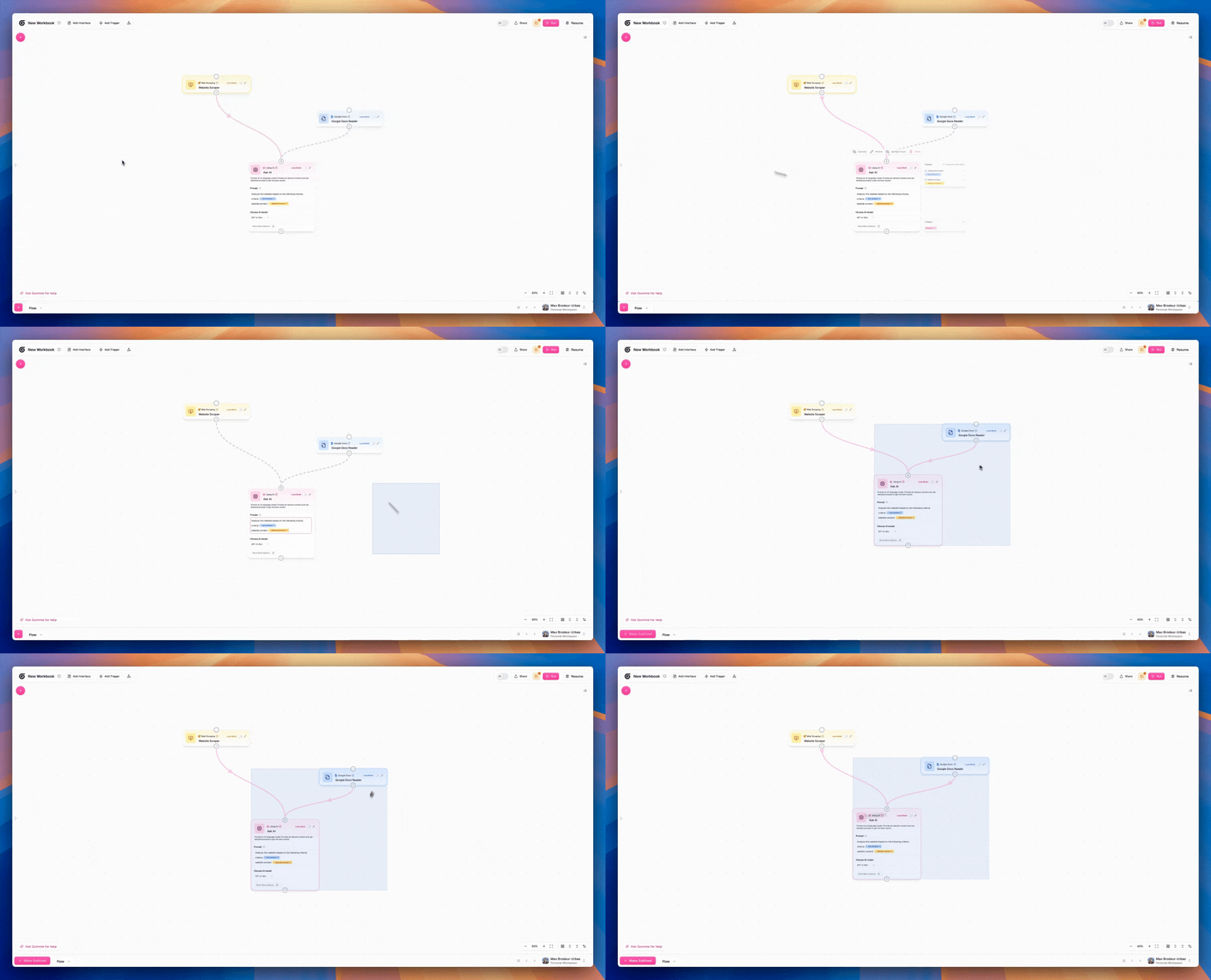
 ## Select Groups of Nodes
Hold your Shift key, click and drag to select many nodes at once. This helps when you want to drag around or delete many nodes at once.
## Select Groups of Nodes
Hold your Shift key, click and drag to select many nodes at once. This helps when you want to drag around or delete many nodes at once.
 ## Convert Groups of Nodes to Subflows
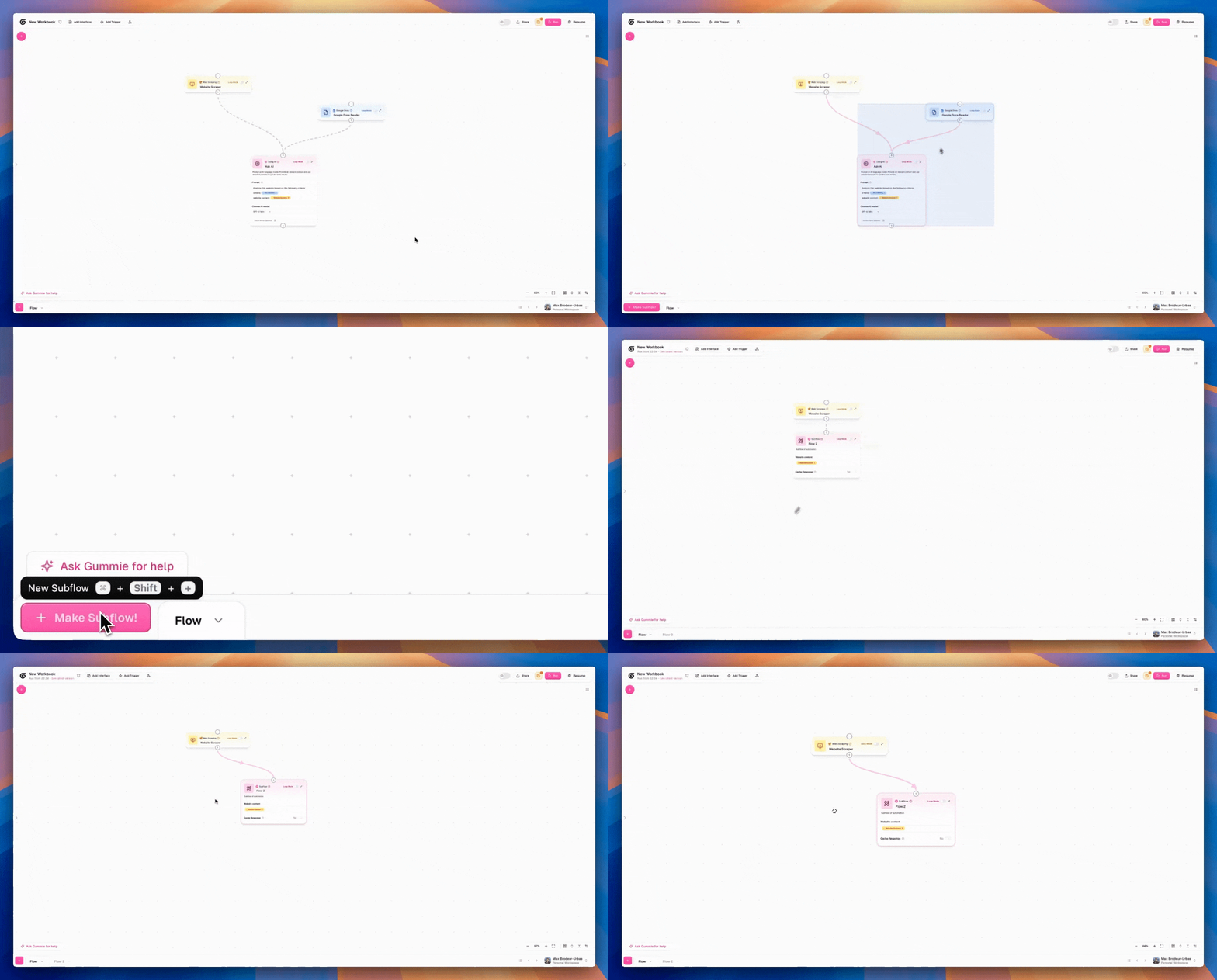
If you highlight a group of nodes, you can convert it to a subflow with a single click. If you ever are mid-build and realize a section of it should be a subflow it's very easy to convert it into the right format.
## Convert Groups of Nodes to Subflows
If you highlight a group of nodes, you can convert it to a subflow with a single click. If you ever are mid-build and realize a section of it should be a subflow it's very easy to convert it into the right format.
 ## Change Your Edge Type
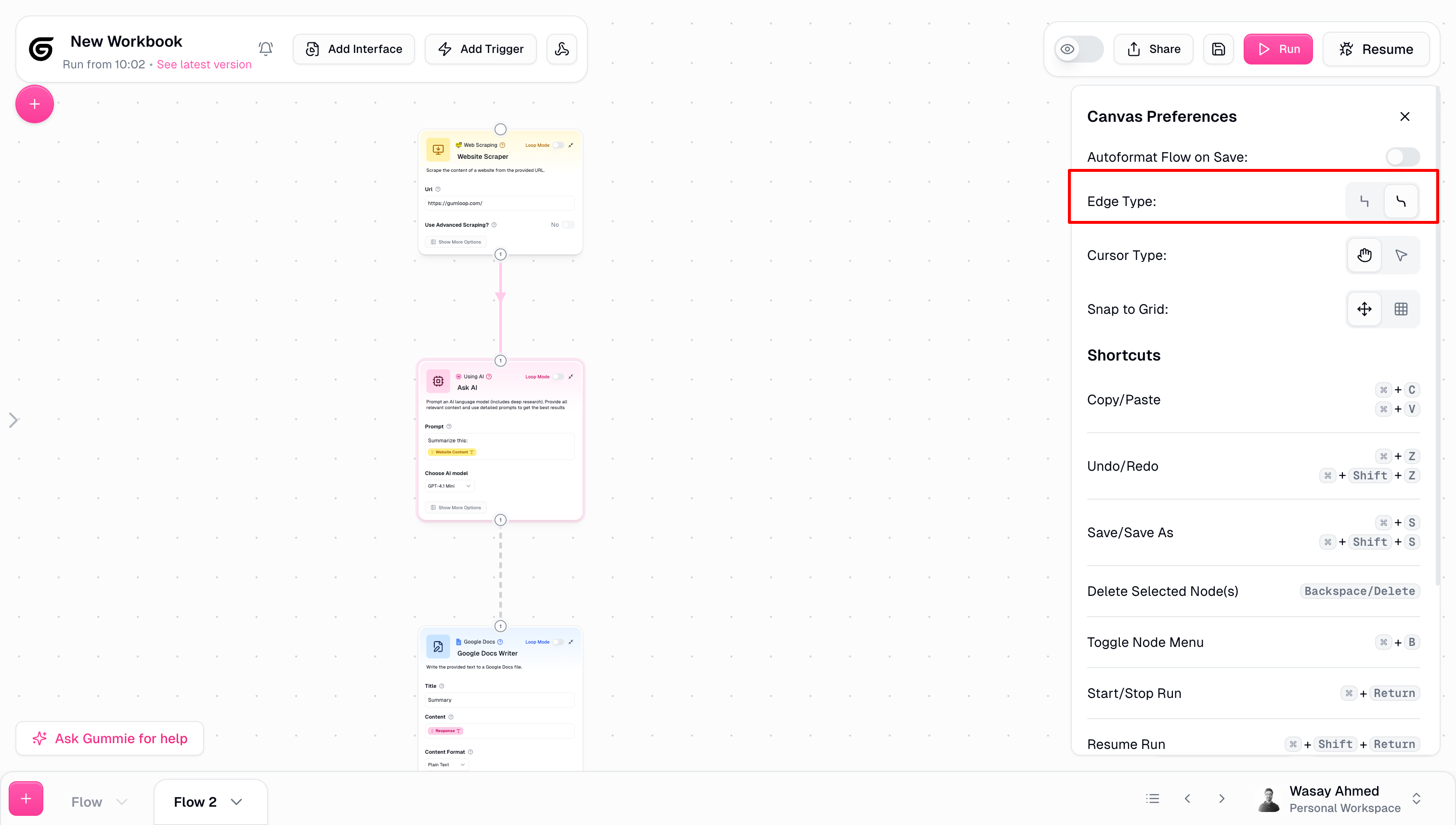
I really prefer curved edges on Gumloop. Some people like straight edges. Pick your poison.
## Change Your Edge Type
I really prefer curved edges on Gumloop. Some people like straight edges. Pick your poison.
 ## Drag Edges Onto Nodes Themselves
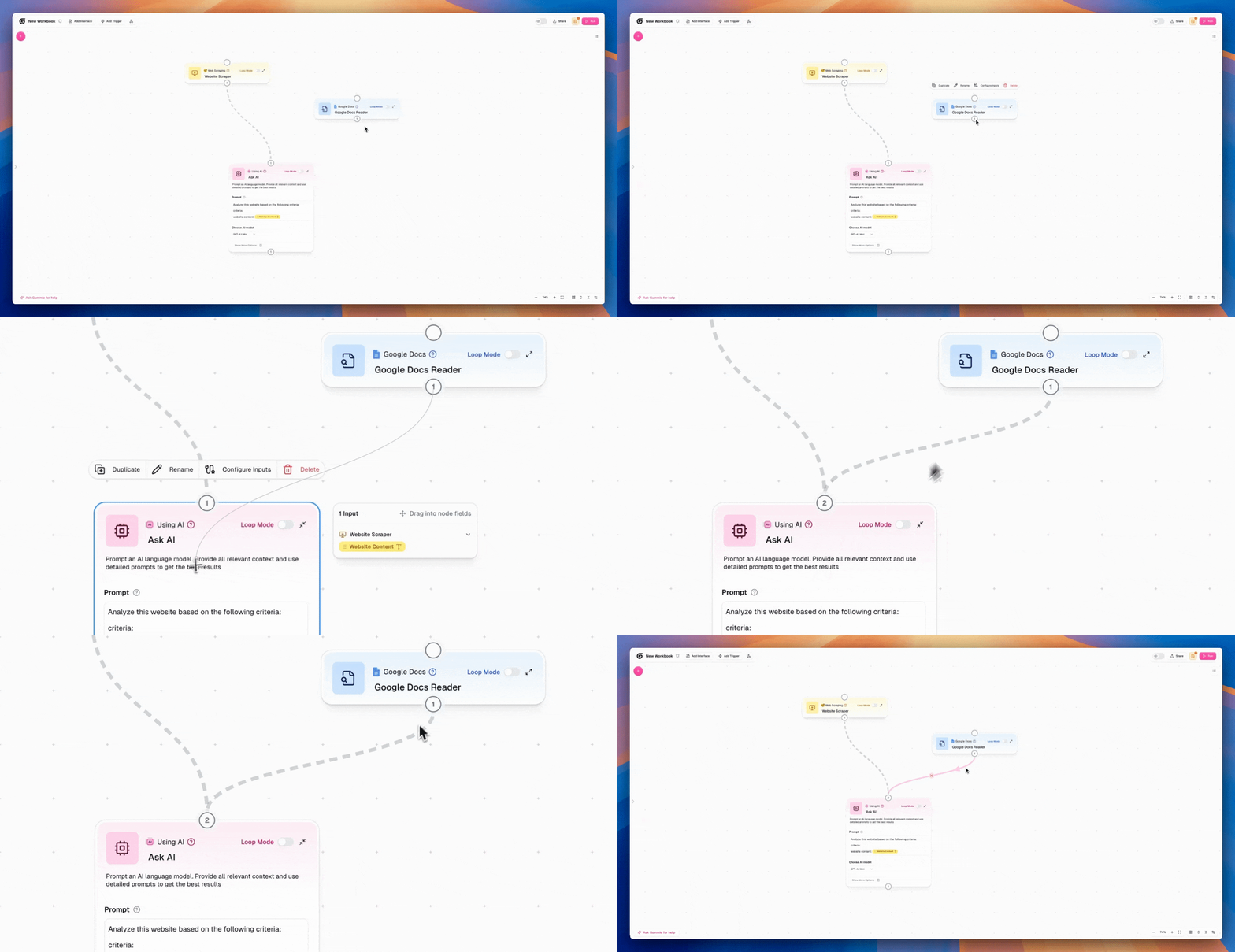
Most people are carefully dragging outputs into inputs. You can just drag the edges onto the nodes themselves! Much bigger targets.
## Drag Edges Onto Nodes Themselves
Most people are carefully dragging outputs into inputs. You can just drag the edges onto the nodes themselves! Much bigger targets.
 ## Make Custom Nodes
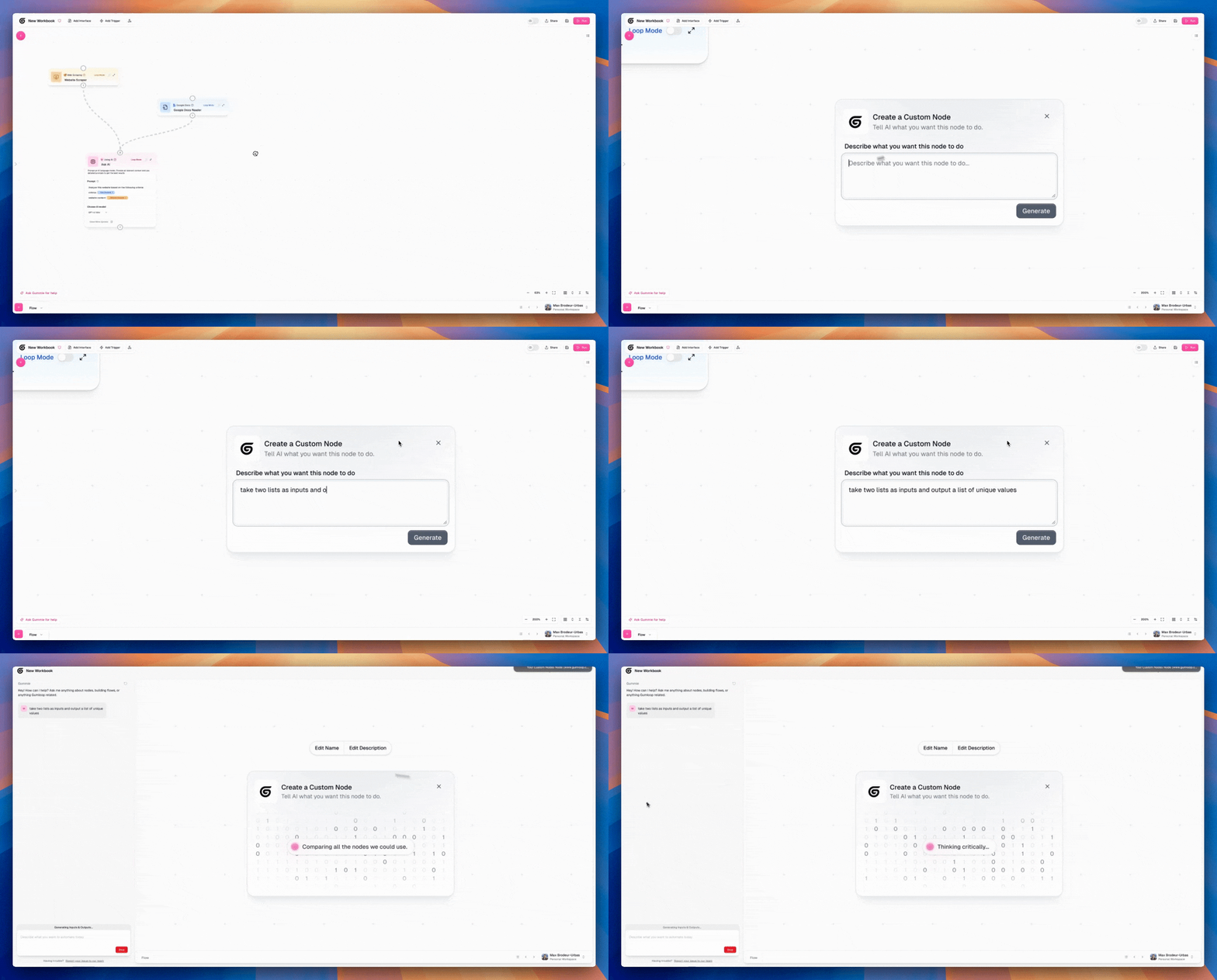
Whenever I need to filter, manipulate data or call any external APIs, I hit `Shift + Cmd + G` to create a custom node inline. I just describe what I want that node to do and AI will build it for me.
## Make Custom Nodes
Whenever I need to filter, manipulate data or call any external APIs, I hit `Shift + Cmd + G` to create a custom node inline. I just describe what I want that node to do and AI will build it for me.
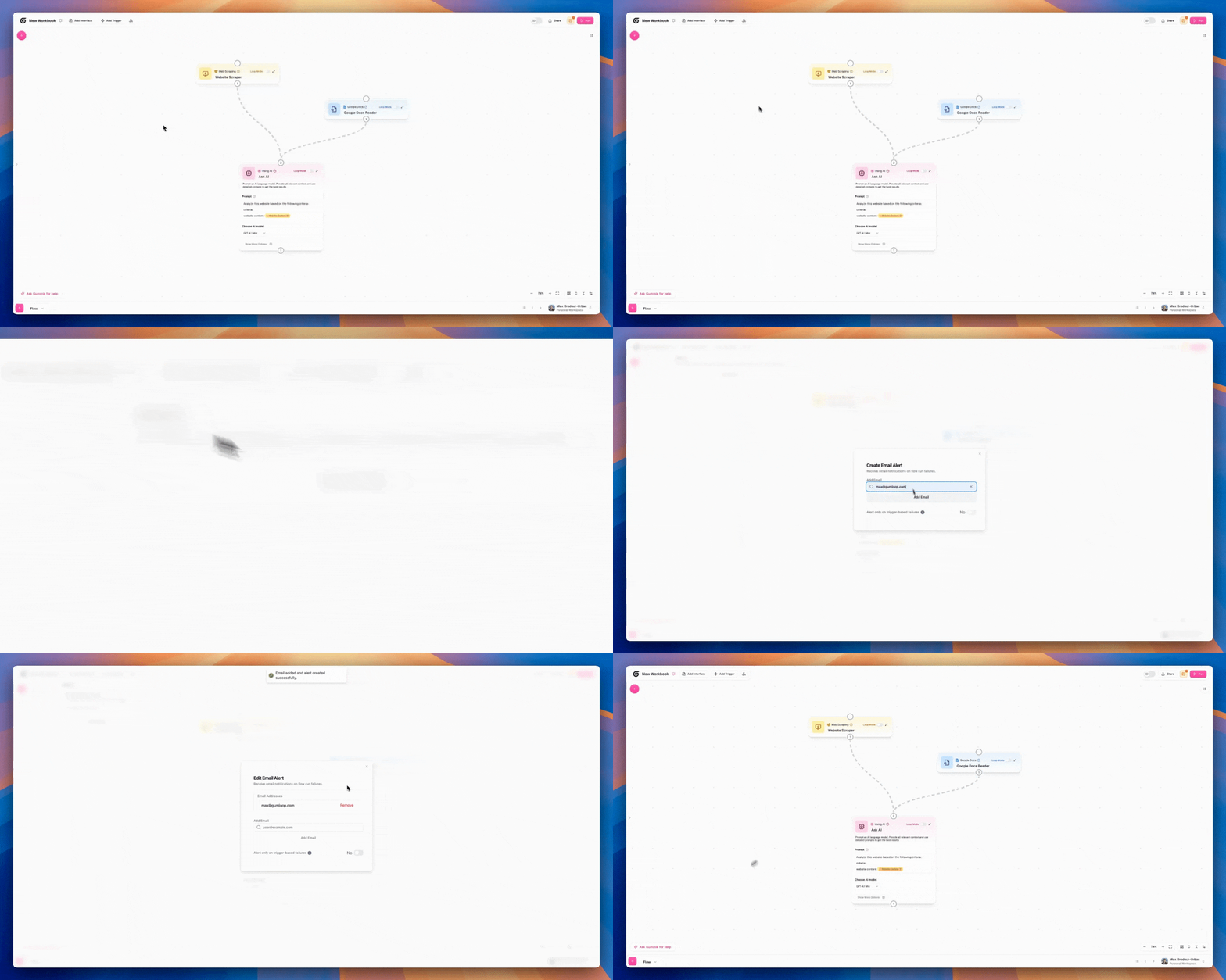
 ## Use Alerts
If your workflow is super critical, you can set up alerts easily so you get emailed whenever there's an error. Ideally there are no errors but you can sleep easy knowing you'll hear about it if any happen.
## Use Alerts
If your workflow is super critical, you can set up alerts easily so you get emailed whenever there's an error. Ideally there are no errors but you can sleep easy knowing you'll hear about it if any happen.
 ## Keyboard Shortcuts
Master these keyboard shortcuts to speed up your workflow building process.
### General
| Shortcut | Action |
| ---------------------- | ---------------------------- |
| `Cmd/Ctrl + C` | Copy selected nodes |
| `Cmd/Ctrl + V` | Paste copied nodes |
| `Cmd/Ctrl + Z` | Undo last action |
| `Cmd/Ctrl + Shift + Z` | Redo undone action |
| `Cmd/Ctrl + S` | Save current workflow |
| `Cmd/Ctrl + Shift + S` | Save workflow as new version |
| `Backspace/Delete` | Delete selected node(s) |
### Node and Workflow Management
| Shortcut | Action |
| -------------------------- | ----------------------------------- |
| `Cmd/Ctrl + B` | Toggle node menu |
| `Cmd/Ctrl + Enter` | Start or stop workflow run |
| `Cmd/Ctrl + Shift + Enter` | Resume workflow run |
| `Cmd/Ctrl + Shift + +` | Create new workflow or make subflow |
### Navigation
| Shortcut | Action |
| -------------------- | ----------------------------- |
| `Cmd/Ctrl + Alt + [` | Navigate to previous workflow |
| `Cmd/Ctrl + Alt + ]` | Navigate to next workflow |
| `Cmd/Ctrl + 0` | Zoom to fit all nodes |
### AI and Custom Nodes
| Shortcut | Action |
| ---------------------- | ----------------------- |
| `Cmd/Ctrl + G` | Toggle AI chat (Gummie) |
| `Shift + Cmd/Ctrl + G` | Create custom node |
## Keyboard Shortcuts
Master these keyboard shortcuts to speed up your workflow building process.
### General
| Shortcut | Action |
| ---------------------- | ---------------------------- |
| `Cmd/Ctrl + C` | Copy selected nodes |
| `Cmd/Ctrl + V` | Paste copied nodes |
| `Cmd/Ctrl + Z` | Undo last action |
| `Cmd/Ctrl + Shift + Z` | Redo undone action |
| `Cmd/Ctrl + S` | Save current workflow |
| `Cmd/Ctrl + Shift + S` | Save workflow as new version |
| `Backspace/Delete` | Delete selected node(s) |
### Node and Workflow Management
| Shortcut | Action |
| -------------------------- | ----------------------------------- |
| `Cmd/Ctrl + B` | Toggle node menu |
| `Cmd/Ctrl + Enter` | Start or stop workflow run |
| `Cmd/Ctrl + Shift + Enter` | Resume workflow run |
| `Cmd/Ctrl + Shift + +` | Create new workflow or make subflow |
### Navigation
| Shortcut | Action |
| -------------------- | ----------------------------- |
| `Cmd/Ctrl + Alt + [` | Navigate to previous workflow |
| `Cmd/Ctrl + Alt + ]` | Navigate to next workflow |
| `Cmd/Ctrl + 0` | Zoom to fit all nodes |
### AI and Custom Nodes
| Shortcut | Action |
| ---------------------- | ----------------------- |
| `Cmd/Ctrl + G` | Toggle AI chat (Gummie) |
| `Shift + Cmd/Ctrl + G` | Create custom node |