> ## Documentation Index
> Fetch the complete documentation index at: https://docs.gumloop.com/llms.txt
> Use this file to discover all available pages before exploring further.
# Text Gumball
Gumball has its own phone number. Text it from a phone number you've verified in Gumloop and your own [Gumball](/core-concepts/gumball) picks up the request, works on it with your connectors and skills, and texts you back.
 Text from your phone's messaging app. The same number works over iMessage, RCS, and SMS.
Everyone texts the same number. Each verified sender reaches their own Gumball, running on their own connectors and skills.
A reply continues the current task. A new request after a break starts a fresh one.
When a tool call needs your approval, reply `approve` instead of opening Gumloop.
***
## Get Started
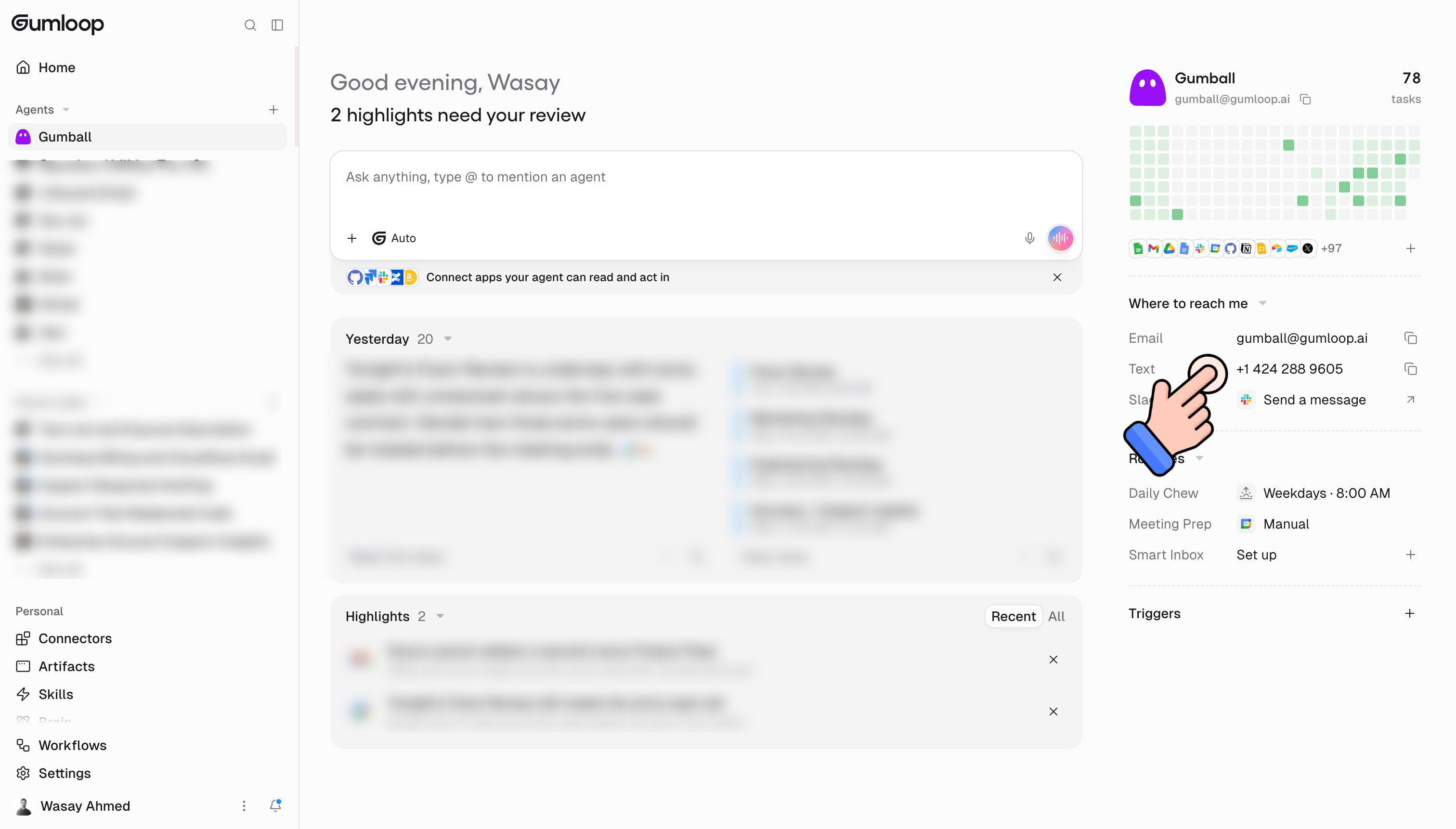
Find the **Text** row under **Where to reach me** in the right-hand rail. It shows Gumball's phone number.
If you haven't verified a number yet, clicking the **Text** row opens **Add a phone number**. Enter your mobile number, click **Text me a code**, then enter the 6-digit code under **Enter your code** and click **Verify number**.
Once you have a verified number, clicking the **Text** row copies Gumball's number. Save it as a contact and send it a message from your verified phone.
The **Text** row only shows when texting Gumball is available on your deployment. If your role isn't allowed to text Gumball, the row reads **Texting Gumball is off for your role** and clicking it lets you request access. See [Availability and Permissions](#availability-and-permissions).
***
## Verifying Your Phone Number
Gumball only answers phone numbers verified in Gumloop. The sender's number is how Gumloop knows which account — and which Gumball — a text belongs to.
| Detail | Value |
| - | - |
| **Number format** | International format, like `+14155550123`. |
| **Code length** | 6 digits, sent to your phone by text. |
| **Code expiry** | 10 minutes. |
| **Resend** | Available after 60 seconds (**Request a new code in …s**). |
| **Wrong codes** | After 5 failed attempts the code stops working. Request a new one. |
| **Code requests** | Up to 5 per hour per account, and 5 per hour to the same number. |
| **One account per number** | A number linked to another Gumloop account can't be verified again (**This phone number is already linked to another Gumloop account.**). |
### Texting Before You Verify
If you text Gumball from a number that isn't linked to a Gumloop account, Gumball doesn't run. It texts back instead:
> This number isn't linked to a Gumloop account.
>
> New to Gumloop? Get started at …
> Already have an account? Verify this number at …
The verification link opens a Gumloop page with your number already filled in. Sign in, confirm the code, and once you see **Number linked**, text Gumball again. The page also has an **Open Gumball** button.
### Managing Your Numbers
Verified numbers are listed under **Phone numbers** at **Settings → Profile → [General](https://www.gumloop.com/settings/profile/general)**.
* **Add phone number** opens the same verification flow.
* Each number's menu has **Copy number** and **Remove number**.
* Removing a number means agents with texting enabled stop answering texts from it. You can verify it again later.
You can verify more than one number. Gumball answers any of them.
***
## What You Can Send
| Message | What happens |
| - | - |
| **Text** | Starts or continues a task with Gumball. |
| **Photos and files** | Downloaded and passed to Gumball as attachments, up to 32 MB each. Text and attachments can be sent together. |
| **Group chats** | Ignored. Gumball only answers one-to-one chats. |
| **Empty messages** | Ignored. |
Each sender can send up to **20 texts per minute** and **200 per hour**. Over that, Gumball replies "You're texting faster than I can keep up. Give it a minute and try again." instead of starting a task.
***
## How a Conversation Works
Your message is marked as read as soon as it's picked up. On iMessage, you also see a typing indicator while Gumball works. SMS and RCS don't get typing indicators.
Texts have no threads, so Gumball decides whether your message continues the current task or starts a new one. See [Follow-ups and New Tasks](#follow-ups-and-new-tasks).
It runs like any other Gumball chat, with your connectors, skills, and history. If the task has to wait for a workflow run to finish, you first get "Working on it. I'll text you when it's done."
The answer arrives in the same chat, written for a phone. Typing stops when the reply is sent.
### Follow-ups and New Tasks
Gumball uses the time since your last message, and what you wrote, to decide:
| Situation | Result |
| - | - |
| Gumball is still working on your previous message | **Continues** the current task. |
| Less than **20 minutes** since the task's last activity | **Continues** the current task. |
| **7 days** or more since the task's last activity | **Starts a new task**. |
| Anything in between | A model checks whether your text refers back to the prior task — answering a question Gumball asked, giving an approval or correction, or asking about status — or stands on its own. It starts a new task only when your text is clearly a new request. If the check fails, it continues. |
When a new task starts, Gumball still gets a short recap of your last text conversation as background, so you can refer back to it. Older conversations aren't lost either: Gumball can search your past conversations.
There's no command to force a new task. Just send your new request — or wait, since anything 7 days after the last activity starts fresh.
***
## What Replies Look Like
Gumball is told it's writing a text, not an email: short, plain sentences that match your length and tone, no Markdown, tables, lists, or headers, and links on their own line.
| Part of the reply | How it's sent |
| - | - |
| **Text** | Any remaining Markdown is converted to plain text. Long replies are split into texts of up to 1,500 characters each. |
| **Very long replies** | Capped at 6 texts. Anything beyond that is cut and replaced with "The full reply is too long for a text. Open it in Gumloop." |
| **Images** | Sent as picture messages. If an image can't be sent, you get a link instead. |
| **Other files** | Sent as a `name: link` line you can tap to open or download. |
| **Nothing to say** | "I finished, but I don't have anything to send back for that." |
Gumball won't use a messaging tool to send its reply — your answer always comes back to the phone that asked. It only uses messaging tools when you ask it to message someone else.
***
## Approving Actions by Text
When a tool call needs your [approval](/core-concepts/human_in_the_loop), Gumball texts you what it wants to do, followed by:
> Reply "approve" to approve, or review in Gumloop: …
The approval is always sent as its own text, after the rest of the reply, so it's never cut off.
Reply `approve`. Capitalization and surrounding spaces don't matter. Every pending tool approval on that task is approved, and Gumball carries on and texts you the result. Your `approve` text isn't added to the conversation as a new request.
There's no decline keyword. Open the review link and decline in Gumloop.
Some steps need more than a yes — for example, questions Gumball asked you. Those texts only include **Review in Gumloop** with a link. If you reply `approve` anyway, you get "This one needs answers I can't take by text. Open the task in Gumloop to respond."
| Reply | Meaning |
| - | - |
| "Nothing is waiting for your approval right now." | There's no pending approval. |
| "Only the person this approval was sent to can approve it. Open the task in Gumloop to see who that is." | The approval belongs to someone else. |
| "Approved. This task still needs an answer in Gumloop: …" | Your approval went through, but another step still needs input in Gumloop. |
| "I couldn't continue after your approval. Open Gumloop to retry." | The task couldn't resume. |
While a task is waiting for approval, the typing indicator pauses.
***
## Opting Out
Text any of these to stop receiving texts from Gumloop:
`STOP` · `UNSUBSCRIBE` · `OPTOUT` · `CANCEL` · `END` · `QUIT` · `opt out` · `opt-out`
The single-word keywords must match exactly (all caps, nothing else in the message). `opt out` and `opt-out` match in any capitalization.
* An opt-out text never starts a task.
* Once you've opted out, Gumloop stops sending texts to your number.
* Sending any other text afterwards turns texts back on, unless the messaging provider still reports your chat as opted out.
* A number that has opted out can't receive a verification code: "This number has opted out of texts from Gumloop, so we can't send a code to it."
***
## Availability and Permissions
| Requirement | Details |
| - | - |
| **Plan** | Texting is an **Enterprise** feature. |
| **Gumball access** | Your role needs [Gumball access](/core-concepts/gumball#availability-and-permissions). Turning off Gumball for a role also turns off texting it. |
| **Gumball text messaging** | A separate permission for texting Gumball. Organization roles include it. |
| **Verified phone number** | Required. See [Verifying Your Phone Number](#verifying-your-phone-number). |
For [custom roles](/enterprise-features/user_groups), **Gumball text messaging** ("Users can text Gumball from a phone number they verified.") is **restricted by default**. An admin has to grant it explicitly.
### Messages When Access Is Missing
If Gumball can't take your text, you get one of these instead. Each is sent at most once per hour per chat, so you won't get the same one repeatedly.
| Reply | Why |
| - | - |
| "This number isn't linked to a Gumloop account." | Your number isn't verified. Follow the link to verify it. |
| "Your organization hasn't turned on Gumball for your role." | Your role doesn't have Gumball access. Includes a link to request access. |
| "Your organization hasn't turned on texting Gumball for your role." | Your role has Gumball but not **Gumball text messaging**. Includes a link to request access. |
| "You're texting faster than I can keep up. Give it a minute and try again." | You hit the per-sender rate limit. |
| "Your message is queued and will be processed shortly." | Your message is waiting to run. |
| "You have too many tasks running right now. Try again shortly." | Too many of your tasks are running at once. |
***
## Credits
There's no per-message charge for texting. The work Gumball does for a text uses [credits](/core-concepts/credits) like any other Gumball task.
***
## FAQ
Yes. Gumball has one shared number. Gumloop looks up who sent each text by their verified number and routes it to that person's own Gumball, so you never see anyone else's conversations.
No. Group chats are ignored. Text Gumball one-to-one.
Typing indicators only work over iMessage. Over SMS and RCS, your message is still marked as read and Gumball still replies.
Replies are capped at 6 texts of up to 1,500 characters each. Anything longer ends with "The full reply is too long for a text. Open it in Gumloop."
Just text the new request. If it's been more than 20 minutes and your message stands on its own, Gumball starts a new task. After 7 days, every message starts a new task.
Yes. Photos and files you text are passed to Gumball as attachments, up to 32 MB each.
No. A phone number can only be verified on one Gumloop account at a time. Remove it from the other account first.
Send Gumball any other message. That clears the opt-out.
Text from your phone's messaging app. The same number works over iMessage, RCS, and SMS.
Everyone texts the same number. Each verified sender reaches their own Gumball, running on their own connectors and skills.
A reply continues the current task. A new request after a break starts a fresh one.
When a tool call needs your approval, reply `approve` instead of opening Gumloop.
***
## Get Started
Find the **Text** row under **Where to reach me** in the right-hand rail. It shows Gumball's phone number.
If you haven't verified a number yet, clicking the **Text** row opens **Add a phone number**. Enter your mobile number, click **Text me a code**, then enter the 6-digit code under **Enter your code** and click **Verify number**.
Once you have a verified number, clicking the **Text** row copies Gumball's number. Save it as a contact and send it a message from your verified phone.
The **Text** row only shows when texting Gumball is available on your deployment. If your role isn't allowed to text Gumball, the row reads **Texting Gumball is off for your role** and clicking it lets you request access. See [Availability and Permissions](#availability-and-permissions).
***
## Verifying Your Phone Number
Gumball only answers phone numbers verified in Gumloop. The sender's number is how Gumloop knows which account — and which Gumball — a text belongs to.
| Detail | Value |
| - | - |
| **Number format** | International format, like `+14155550123`. |
| **Code length** | 6 digits, sent to your phone by text. |
| **Code expiry** | 10 minutes. |
| **Resend** | Available after 60 seconds (**Request a new code in …s**). |
| **Wrong codes** | After 5 failed attempts the code stops working. Request a new one. |
| **Code requests** | Up to 5 per hour per account, and 5 per hour to the same number. |
| **One account per number** | A number linked to another Gumloop account can't be verified again (**This phone number is already linked to another Gumloop account.**). |
### Texting Before You Verify
If you text Gumball from a number that isn't linked to a Gumloop account, Gumball doesn't run. It texts back instead:
> This number isn't linked to a Gumloop account.
>
> New to Gumloop? Get started at …
> Already have an account? Verify this number at …
The verification link opens a Gumloop page with your number already filled in. Sign in, confirm the code, and once you see **Number linked**, text Gumball again. The page also has an **Open Gumball** button.
### Managing Your Numbers
Verified numbers are listed under **Phone numbers** at **Settings → Profile → [General](https://www.gumloop.com/settings/profile/general)**.
* **Add phone number** opens the same verification flow.
* Each number's menu has **Copy number** and **Remove number**.
* Removing a number means agents with texting enabled stop answering texts from it. You can verify it again later.
You can verify more than one number. Gumball answers any of them.
***
## What You Can Send
| Message | What happens |
| - | - |
| **Text** | Starts or continues a task with Gumball. |
| **Photos and files** | Downloaded and passed to Gumball as attachments, up to 32 MB each. Text and attachments can be sent together. |
| **Group chats** | Ignored. Gumball only answers one-to-one chats. |
| **Empty messages** | Ignored. |
Each sender can send up to **20 texts per minute** and **200 per hour**. Over that, Gumball replies "You're texting faster than I can keep up. Give it a minute and try again." instead of starting a task.
***
## How a Conversation Works
Your message is marked as read as soon as it's picked up. On iMessage, you also see a typing indicator while Gumball works. SMS and RCS don't get typing indicators.
Texts have no threads, so Gumball decides whether your message continues the current task or starts a new one. See [Follow-ups and New Tasks](#follow-ups-and-new-tasks).
It runs like any other Gumball chat, with your connectors, skills, and history. If the task has to wait for a workflow run to finish, you first get "Working on it. I'll text you when it's done."
The answer arrives in the same chat, written for a phone. Typing stops when the reply is sent.
### Follow-ups and New Tasks
Gumball uses the time since your last message, and what you wrote, to decide:
| Situation | Result |
| - | - |
| Gumball is still working on your previous message | **Continues** the current task. |
| Less than **20 minutes** since the task's last activity | **Continues** the current task. |
| **7 days** or more since the task's last activity | **Starts a new task**. |
| Anything in between | A model checks whether your text refers back to the prior task — answering a question Gumball asked, giving an approval or correction, or asking about status — or stands on its own. It starts a new task only when your text is clearly a new request. If the check fails, it continues. |
When a new task starts, Gumball still gets a short recap of your last text conversation as background, so you can refer back to it. Older conversations aren't lost either: Gumball can search your past conversations.
There's no command to force a new task. Just send your new request — or wait, since anything 7 days after the last activity starts fresh.
***
## What Replies Look Like
Gumball is told it's writing a text, not an email: short, plain sentences that match your length and tone, no Markdown, tables, lists, or headers, and links on their own line.
| Part of the reply | How it's sent |
| - | - |
| **Text** | Any remaining Markdown is converted to plain text. Long replies are split into texts of up to 1,500 characters each. |
| **Very long replies** | Capped at 6 texts. Anything beyond that is cut and replaced with "The full reply is too long for a text. Open it in Gumloop." |
| **Images** | Sent as picture messages. If an image can't be sent, you get a link instead. |
| **Other files** | Sent as a `name: link` line you can tap to open or download. |
| **Nothing to say** | "I finished, but I don't have anything to send back for that." |
Gumball won't use a messaging tool to send its reply — your answer always comes back to the phone that asked. It only uses messaging tools when you ask it to message someone else.
***
## Approving Actions by Text
When a tool call needs your [approval](/core-concepts/human_in_the_loop), Gumball texts you what it wants to do, followed by:
> Reply "approve" to approve, or review in Gumloop: …
The approval is always sent as its own text, after the rest of the reply, so it's never cut off.
Reply `approve`. Capitalization and surrounding spaces don't matter. Every pending tool approval on that task is approved, and Gumball carries on and texts you the result. Your `approve` text isn't added to the conversation as a new request.
There's no decline keyword. Open the review link and decline in Gumloop.
Some steps need more than a yes — for example, questions Gumball asked you. Those texts only include **Review in Gumloop** with a link. If you reply `approve` anyway, you get "This one needs answers I can't take by text. Open the task in Gumloop to respond."
| Reply | Meaning |
| - | - |
| "Nothing is waiting for your approval right now." | There's no pending approval. |
| "Only the person this approval was sent to can approve it. Open the task in Gumloop to see who that is." | The approval belongs to someone else. |
| "Approved. This task still needs an answer in Gumloop: …" | Your approval went through, but another step still needs input in Gumloop. |
| "I couldn't continue after your approval. Open Gumloop to retry." | The task couldn't resume. |
While a task is waiting for approval, the typing indicator pauses.
***
## Opting Out
Text any of these to stop receiving texts from Gumloop:
`STOP` · `UNSUBSCRIBE` · `OPTOUT` · `CANCEL` · `END` · `QUIT` · `opt out` · `opt-out`
The single-word keywords must match exactly (all caps, nothing else in the message). `opt out` and `opt-out` match in any capitalization.
* An opt-out text never starts a task.
* Once you've opted out, Gumloop stops sending texts to your number.
* Sending any other text afterwards turns texts back on, unless the messaging provider still reports your chat as opted out.
* A number that has opted out can't receive a verification code: "This number has opted out of texts from Gumloop, so we can't send a code to it."
***
## Availability and Permissions
| Requirement | Details |
| - | - |
| **Plan** | Texting is an **Enterprise** feature. |
| **Gumball access** | Your role needs [Gumball access](/core-concepts/gumball#availability-and-permissions). Turning off Gumball for a role also turns off texting it. |
| **Gumball text messaging** | A separate permission for texting Gumball. Organization roles include it. |
| **Verified phone number** | Required. See [Verifying Your Phone Number](#verifying-your-phone-number). |
For [custom roles](/enterprise-features/user_groups), **Gumball text messaging** ("Users can text Gumball from a phone number they verified.") is **restricted by default**. An admin has to grant it explicitly.
### Messages When Access Is Missing
If Gumball can't take your text, you get one of these instead. Each is sent at most once per hour per chat, so you won't get the same one repeatedly.
| Reply | Why |
| - | - |
| "This number isn't linked to a Gumloop account." | Your number isn't verified. Follow the link to verify it. |
| "Your organization hasn't turned on Gumball for your role." | Your role doesn't have Gumball access. Includes a link to request access. |
| "Your organization hasn't turned on texting Gumball for your role." | Your role has Gumball but not **Gumball text messaging**. Includes a link to request access. |
| "You're texting faster than I can keep up. Give it a minute and try again." | You hit the per-sender rate limit. |
| "Your message is queued and will be processed shortly." | Your message is waiting to run. |
| "You have too many tasks running right now. Try again shortly." | Too many of your tasks are running at once. |
***
## Credits
There's no per-message charge for texting. The work Gumball does for a text uses [credits](/core-concepts/credits) like any other Gumball task.
***
## FAQ
Yes. Gumball has one shared number. Gumloop looks up who sent each text by their verified number and routes it to that person's own Gumball, so you never see anyone else's conversations.
No. Group chats are ignored. Text Gumball one-to-one.
Typing indicators only work over iMessage. Over SMS and RCS, your message is still marked as read and Gumball still replies.
Replies are capped at 6 texts of up to 1,500 characters each. Anything longer ends with "The full reply is too long for a text. Open it in Gumloop."
Just text the new request. If it's been more than 20 minutes and your message stands on its own, Gumball starts a new task. After 7 days, every message starts a new task.
Yes. Photos and files you text are passed to Gumball as attachments, up to 32 MB each.
No. A phone number can only be verified on one Gumloop account at a time. Remove it from the other account first.
Send Gumball any other message. That clears the opt-out.