> ## Documentation Index
> Fetch the complete documentation index at: https://docs.gumloop.com/llms.txt
> Use this file to discover all available pages before exploring further.
# Community Template Submission Guidelines
Share your automations with the Gumloop community by publishing them as templates. This guide covers everything you need to know about creating, submitting, and managing templates in the marketplace.
Gumloop offers two types of automations: **Workflows** (visual, node-based automations) and **Agents** (AI-powered reasoning engines). Each has its own template creation process.
## Quick Navigation
Create and publish your first template
Update templates after publication
Remove templates from the marketplace
***
## Creating and Submitting Templates
The process for creating templates differs between Workflows and Agents. Choose the type that matches your automation:
### Submitting a Workflow Template
Turn any workflow into a template with setup instructions that guide new users through configuration.
Open the workflow you want to share as a template.
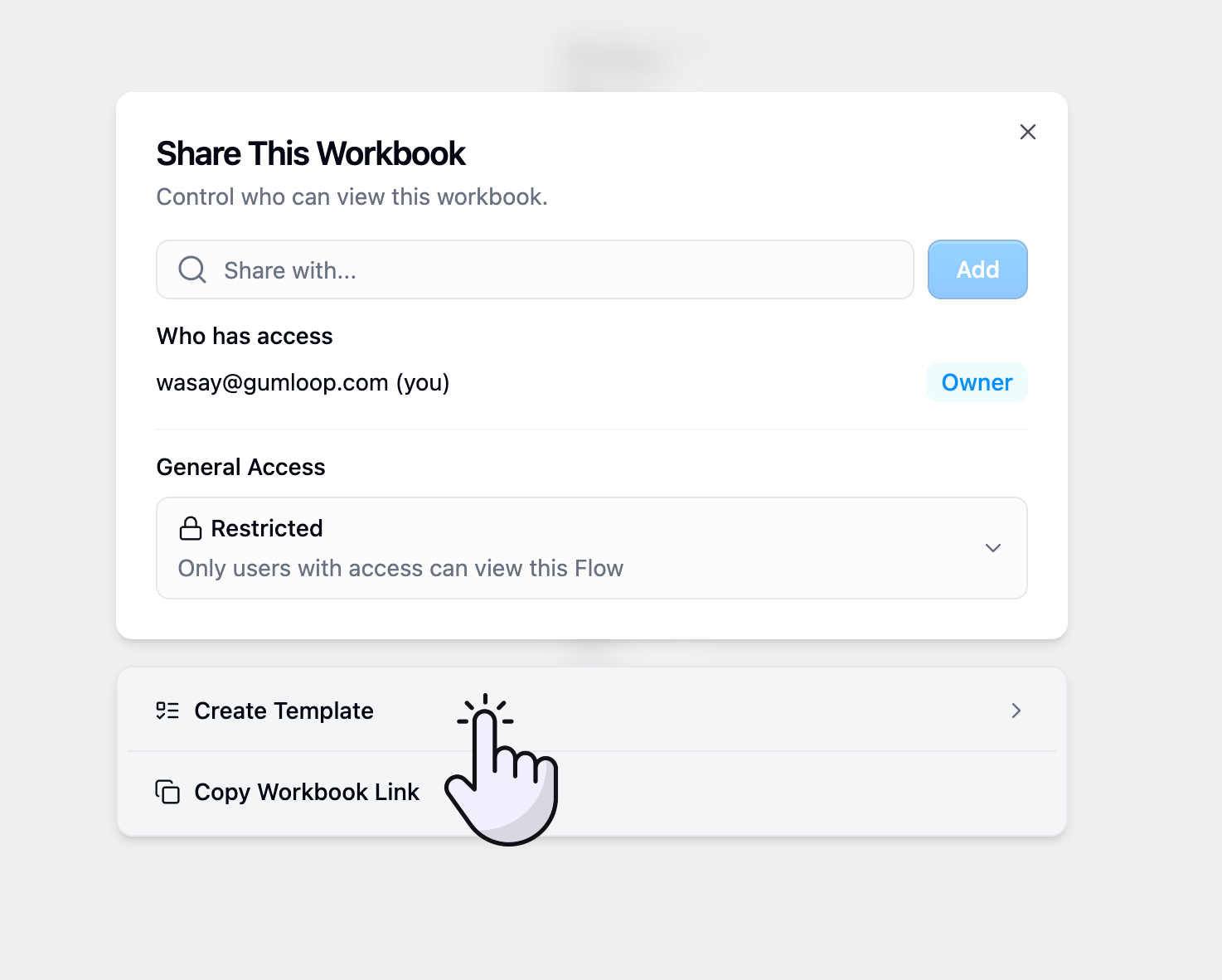
Click the **Share** button in the top-right corner of your workflow.
Select **Create Template with Set-up Instructions** from the options.
Gumloop automatically generates initial template information including:
* Template title
* Description
* Setup checklist with basic steps
* Required credentials detection
This provides a starting point that you can customize.
Customize your template information to help users understand and implement your workflow.
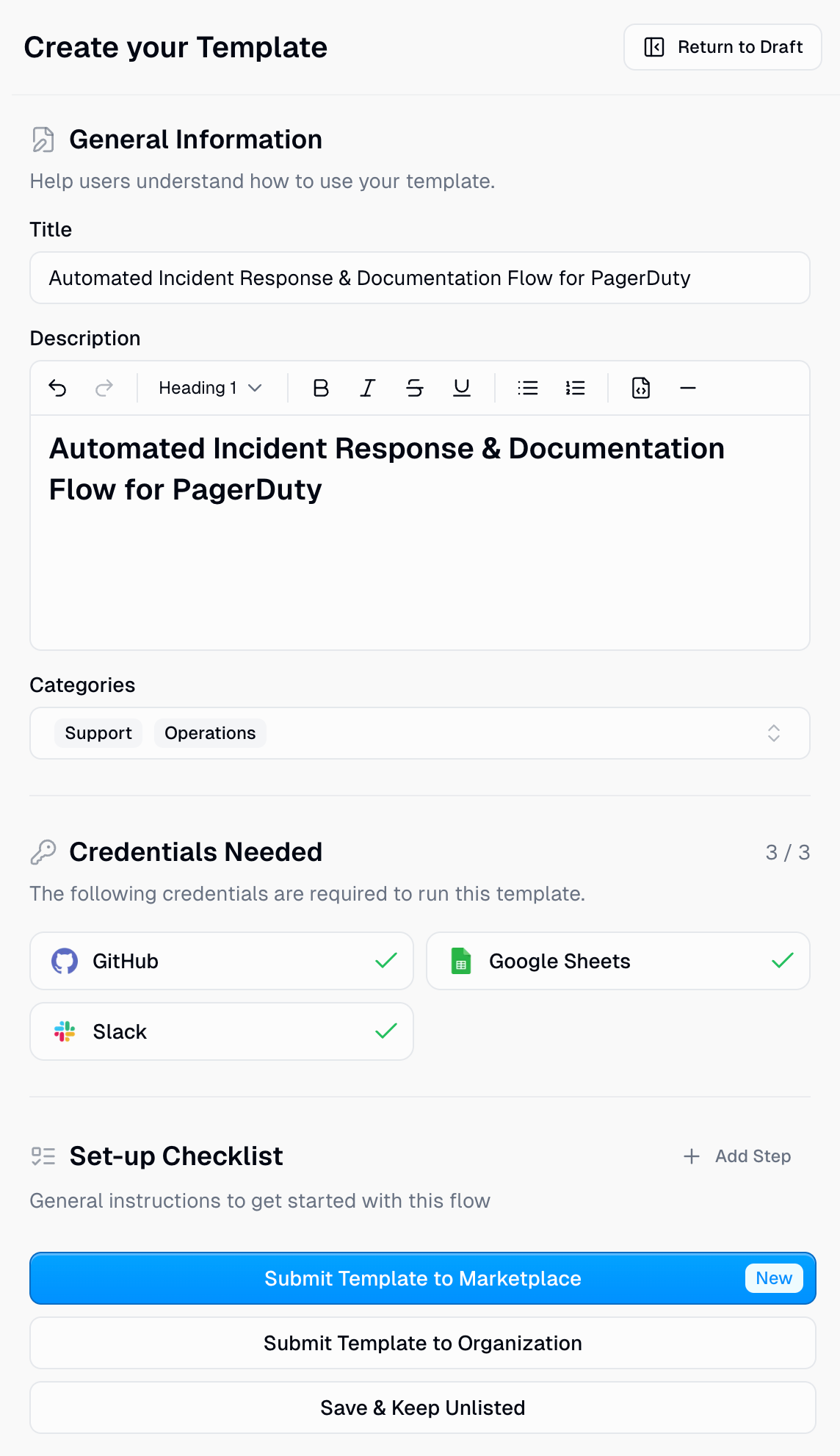
**Title**
Create a clear, action-oriented title that describes what the template does. Include key integrations or tools used.
Example: "Executive Escalations Email and Slack Automation"
**Description**
Provide a detailed overview using markdown formatting. Break your description into sections:
* Who is this for?
* What problem does it solve?
* What does the workflow do?
* How can users customize it?
* Any requirements or prerequisites
**Categories**
Select at least one category that matches your template's primary use case.
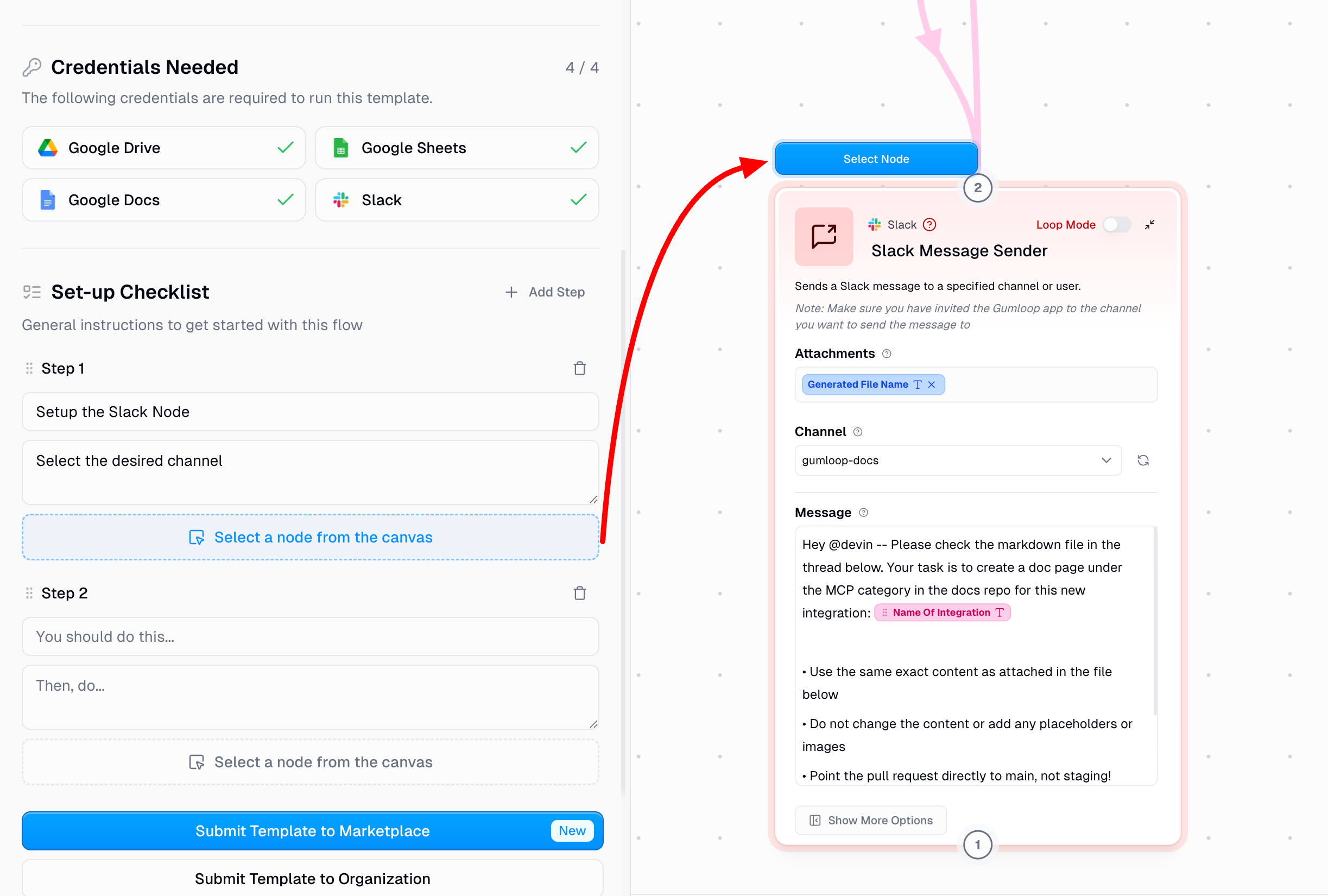
Review the automatically detected credentials required to run your template. These are identified based on the integrations used in your workflow.
Users will be prompted to connect these services before using your template.
Create a step-by-step guide that walks users through configuring your template.
**For each step:**
1. **Add a Clear Title**: Describe what the user needs to do (e.g., "Configure Email Trigger Node")
2. **Provide Detailed Instructions**: Explain exactly what to configure and why. Don't assume users are familiar with your specific setup.
3. **Link to Relevant Nodes**: Click **Select a node from the canvas** to highlight the specific node users should configure for this step. This helps users navigate complex workflows.
4. **Include External Resources**: If users need to set up external tools (like copying a Google Sheet template), provide direct links.
Use the **Add Step** button to create additional checklist items. You can reorder steps by dragging them.
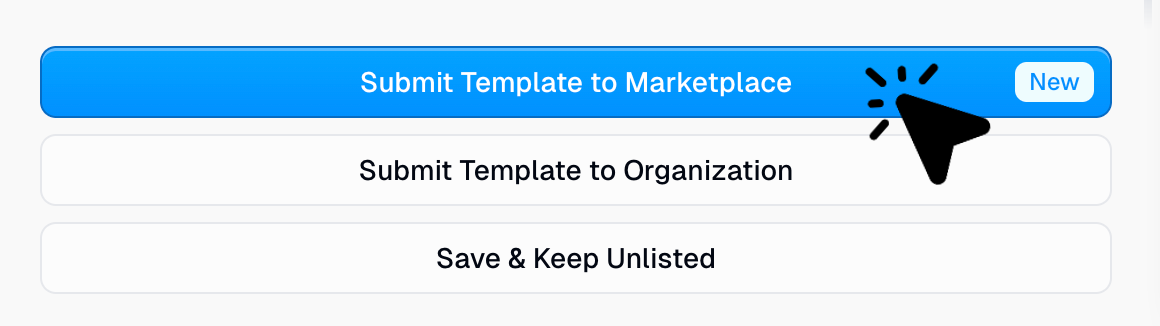
Once you've configured all details, submit your template for marketplace review. All submissions go through a review process to ensure quality and security standards are met.
Review the [submission requirements](#submission-requirements) below before submitting to ensure your template meets all guidelines.
### Submitting an Agent Template
Share your AI agent with the community by publishing it as a template.
Open the agent you want to share as a template.
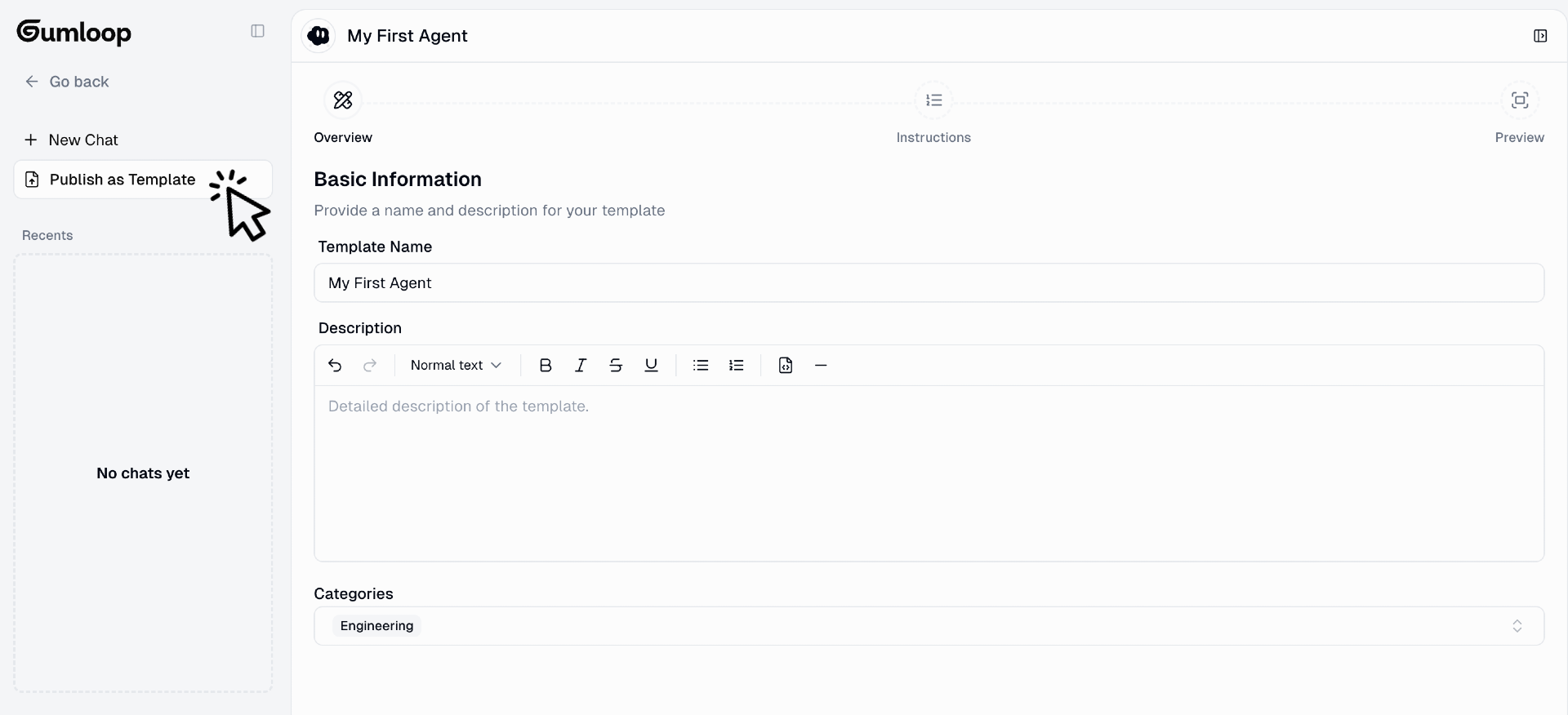
In the left sidebar, click the **Publish as Template** button located directly below the "New Chat" button.
Fill in the template information to help users understand your agent's capabilities.
**Agent Name**
Create a clear, descriptive name that explains what your agent does.
**Description**
Provide a detailed overview of your agent using markdown formatting. Explain:
* Who is this agent for?
* What problem does it solve?
* What capabilities does it have?
* How can users interact with it?
**Categories**
Select at least one category that matches your agent's primary purpose.
This is where you define your agent's behavior and capabilities. The instructions you've configured for your agent will be visible to users.
Make sure your instructions are clear and explain the agent's role, available tools, and how it should respond to different types of requests.
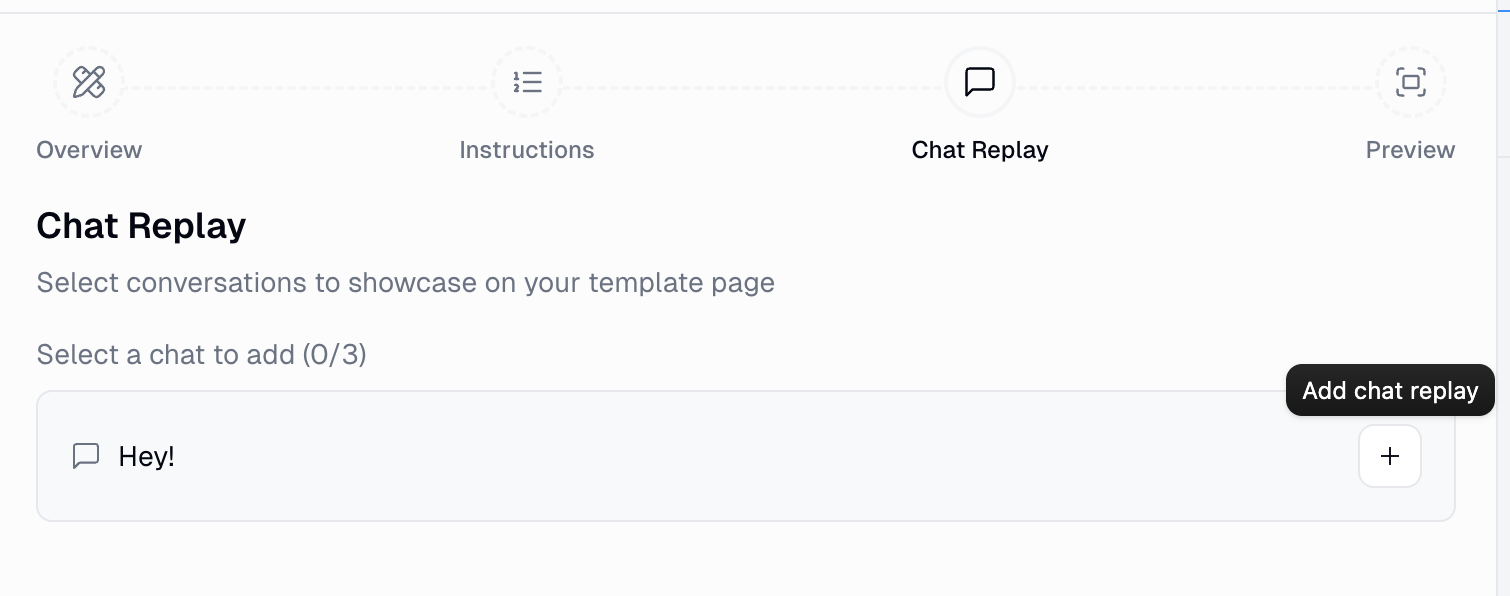
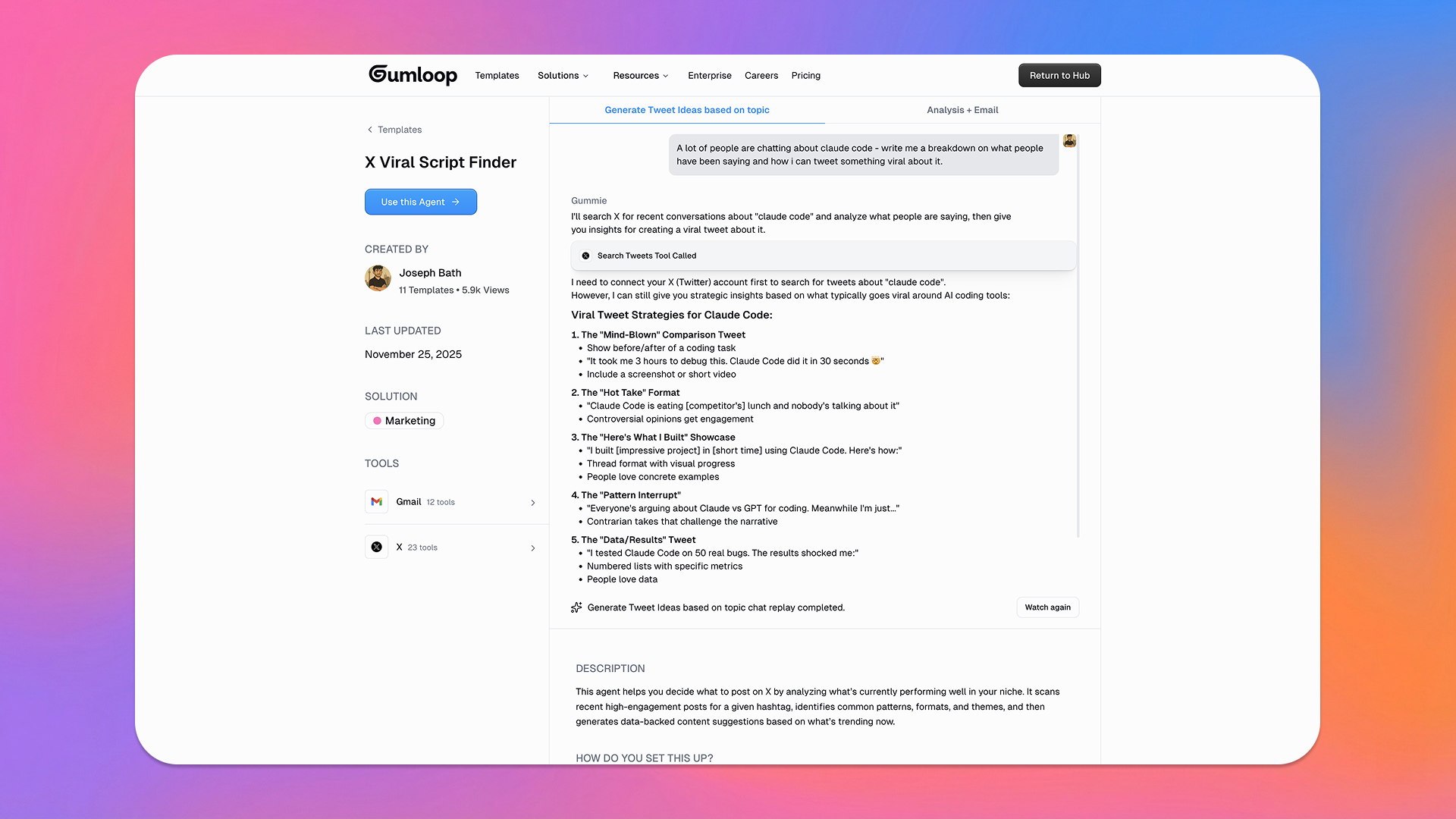
Showcase your agent's capabilities by adding example conversations to your template page. You can select up to 3 chat replays from your existing conversations with the agent.
Chat replays help potential users understand how your agent responds and what kinds of interactions they can expect. When users view your template, they'll see these conversations play back, demonstrating your agent in action.
To add a chat replay, browse your existing conversations and click the **+** button next to any chat you want to include. You can preview each replay before adding it to ensure it showcases your agent effectively.
Chat replays will be publicly visible on your template page. Do not include conversations containing sensitive information, personal data, API keys, or confidential content.
Review how your agent template will appear to users in the marketplace. Check that all information is accurate and complete before submitting.
Once you've configured all details, submit your agent template for marketplace review.
Review the [submission requirements](#submission-requirements) below before submitting to ensure your template meets all guidelines.
Unlike workflow templates, agent templates don't include node-based setup instructions since agents don't use a visual canvas. Focus on providing clear instructions and a comprehensive description.
***
## Editing Published Templates
Need to update a template after it's been published? You can make changes and submit them for review.
Navigate to the workflow or agent that has been published as a template.
In the top-right corner of your workflow or agent, you'll see a **Template** badge or icon. Click on it to open the template editor.
The template editor will open, showing all your template configuration:
* General Information (title, description, categories)
* Credentials needed
* Setup checklist (for workflows)
* Agent instructions (for agents)
Update any fields you want to change. You can modify descriptions, add new setup steps, update categories, or refine instructions.
Once you've made your changes, click **Save & Submit Edits for Review** at the bottom of the template editor.
Your updates will be sent to the Gumloop team for review.
The Gumloop team will review your changes to ensure they meet quality and security standards. Once approved, your updated template will go live on the marketplace.
**Important:** Users who have already cloned your template will not receive the updated version. Template updates only apply to new users who clone the template after your changes are approved. Each user gets their own independent copy when they use a template.
***
## Delisting Templates
If you need to remove a template from the marketplace, you can delist it at any time.
Navigate to the workflow or agent that has been published as a template.
In the top-right corner, click the **Template** badge or icon to open the template editor.
At the bottom of the template editor, click **Save & Delist Template**.
This will immediately remove your template from the marketplace.
Delisting a template removes it from the marketplace, but users who have already cloned your template will still have access to their copies. Delisting does not affect existing template clones.
If you want to relist a template later, you can follow the same process to edit your template and resubmit it for review.
***
## Submission Requirements
Before submitting your template, ensure it meets all quality, security, and documentation standards.
### Must-Have Requirements
If your template doesn't follow these guidelines, we will immediately reject it.
**No Security Credentials**
Don't store security credentials anywhere in the template (e.g., no hardcoded API keys in any custom nodes or agent instructions).
**Remove Sensitive Information**
Remove all sensitive or personally identifying information (e.g., remove real email addresses, personal data).
**No Low-Effort Templates**
Don't submit low-effort or spammy templates. Templates should be thoughtful and add value to the marketplace.
**Template Must Work**
The template has to actually work. If the workflow doesn't run properly or the agent doesn't respond correctly, we will reject it.
**Accurate Description**
The description has to match what the automation actually does.
***
## Preparing Your Template
Before submitting, review these preparation checklists to ensure your template is ready:
The more context you provide about how your workflow operates, the better. Use Note nodes to explain:
* Where users need to input their own information or authenticate services
* What subflows, if/else operators, or custom nodes do
* Any important logic or decision points
Make your template easier for others to use by removing personal specifics:
* Check AI prompts for mentions of your company, coworkers, or specific strategies—reword them to be generic
* Check custom node code for hardcoded API keys or references to internal systems
* Add notes recommending where users should make their own customizations
Hover over all nodes to check if they're upgraded to the latest versions. If a node needs updates, you'll see an option like "Upgrade Version (v28 to v31)" when hovering over the node.
Rename nodes and outputs to clearly describe their purpose:
| Default Name | Better Name |
| -------------- | -------------------------- |
| "Gmail Sender" | "Send Weekly Brand Report" |
| "Ask AI" | "Generate Report Summary" |
| "Response" | "Personalized Email Copy" |
| "Workflow 2" | "Analyze SEO Keywords" |
* Use auto-formatting to organize your layout
* Group related logic into [subflows](https://docs.gumloop.com/core-concepts/subflows) when appropriate
* Remove any unused or disconnected nodes
When users copy an agent template, they also receive copies of any connected workflows. Ensure all connected workflows are appropriate for submission and follow the workflow preparation guidelines.
Agents perform best with only the tools they need. Having too many connected tools can negatively impact performance. Remove any tools or workflows that aren't essential to your agent's core functionality.
Read through your AI instructions carefully. If there are hard-coded references to specific URLs, email addresses, or other personal details:
* Rewrite instructions to remove sensitive information
* Add a "Template Instructions" section listing all variables users need to customize
* Make it clear where users should input their own information
Ask your agent for help! Try: "This agent is designed to be copied and used as a template by others. Do you have any suggestions for rewriting the AI Instructions to make it easier to use and customize as a template?"
While not required, a well-chosen icon helps your agent stand out in the marketplace and gives users a visual cue about its purpose.
***
## General Guidelines
Creating great marketplace templates means building automations that solve real problems and can be easily adopted by others across the Gumloop community.
Make templates that are relevant to real-world use cases
Check out what's currently on the [marketplace](https://www.gumloop.com/templates) to get a sense of what's already been done
Provide as much context as possible. Assume that the user may be new to AI automation
Keep your automation clean and easy to understand. For workflows, use auto-formatting and subflows when needed
***
## Best Practices for the Template Description Page
The template description page is what potential users see when browsing the marketplace. Make it clear, comprehensive, and helpful.
### Creating Effective Titles
The title should clearly describe the purpose of the template. Use action verbs (e.g. "Summarize," "Optimize," "Generate," "Analyze").
For workflows, include the most important integrations (e.g. Google Sheets, YouTube, Apollo). For agents, highlight key capabilities.
### Writing the Details Section
Use markdown formatting in the longform description (the "Details" section). Break up the description into sections:
**Who is this for?**
Describe the target audience.
**What problem is this solving?**
Explain the pain point this template addresses.
**What does this automation do?**
Provide an overview of how the workflow or agent operates.
**How can I customize this?**
For workflows, list configurable nodes and parameters. For agents, explain how users can modify instructions or behavior.
**Requirements**
Detail prerequisites and setup needs (credentials, external tools, etc.).
If your automation requires external setup (e.g. a formatted Google Sheet, an Airtable database), include a link to make a copy.
If necessary, include links to external setup guides (e.g. Notion page, YouTube or Loom videos).
### Setting Up the Checklist (Workflows Only)
For workflow templates, include brief descriptions of steps a user would need to take to set up the template (e.g., "Make a copy of this Google Sheet," "Connect to this Slack channel," etc.)
If a node is relevant to a particular step, make sure to select that node using the "Select a node from the canvas" button for that step.
***
## Bannable Offenses
If your template violates these guidelines, we will ban you and suspend your account.
| Violation | Description |
| --------------------- | ---------------------------------------------------------------------------------- |
| **Malicious Content** | Do not attempt to upload anything malicious. We review all submissions thoroughly. |
| **Plagiarism** | Do not plagiarize other people's work. |
| **Legal Violations** | Do not submit anything that could put you, others, or Gumloop at legal risk. |
***
## Submission Checklist
Before submitting your template, verify it meets all requirements:
**Content & Quality**
* [ ] Template solves a real-world problem
* [ ] Checked marketplace for similar templates
* [ ] Workflow has been thoroughly tested and runs properly
* [ ] Description accurately reflects functionality
**Security**
* [ ] All credentials and API keys removed
* [ ] All sensitive/personally identifying information removed
**Documentation**
* [ ] Nodes renamed with descriptive names
* [ ] Outputs renamed to reflect actual data
* [ ] Note nodes added for context
* [ ] Auto-formatting applied
* [ ] Subflows used where appropriate
**Template Page**
* [ ] Title uses action verbs
* [ ] Important integrations included in title
* [ ] At least one category selected
* [ ] Details section uses markdown formatting
* [ ] All recommended sections included in description
* [ ] External resource links provided where needed
* [ ] Setup checklist completed with clear steps
* [ ] Nodes linked to relevant setup steps
**Content & Quality**
* [ ] Template solves a real-world problem
* [ ] Checked marketplace for similar templates
* [ ] Agent has been thoroughly tested and responds correctly
* [ ] Description accurately reflects agent behavior
**Security**
* [ ] All credentials and API keys removed from instructions
* [ ] All sensitive/personally identifying information removed
**Documentation**
* [ ] Agent instructions are clear and comprehensive
* [ ] Agent capabilities and limitations are documented
* [ ] Example interactions provided
**Template Page**
* [ ] Title uses action verbs
* [ ] Key capabilities included in title
* [ ] At least one category selected
* [ ] Details section uses markdown formatting
* [ ] All recommended sections included in description
* [ ] Chat replays added to showcase agent capabilities (up to 3)
* [ ] External resource links provided where needed
***
## Related Resources
Learn how to use subflows for cleaner, more organized workflows
Explore existing templates on the marketplace