> ## Documentation Index
> Fetch the complete documentation index at: https://docs.gumloop.com/llms.txt
> Use this file to discover all available pages before exploring further.
# Talk Mode
Talk mode lets you **call your agent and speak to it** instead of typing. The agent answers out loud, and when you ask for something that needs real work — looking up a ticket, sending a message, running a skill — it does that work in the chat while you stay on the call.
Everything said on the call is written into the chat as ordinary messages, so a call is just another way to use a task you can scroll back through later.
***
## Turn on voice calls
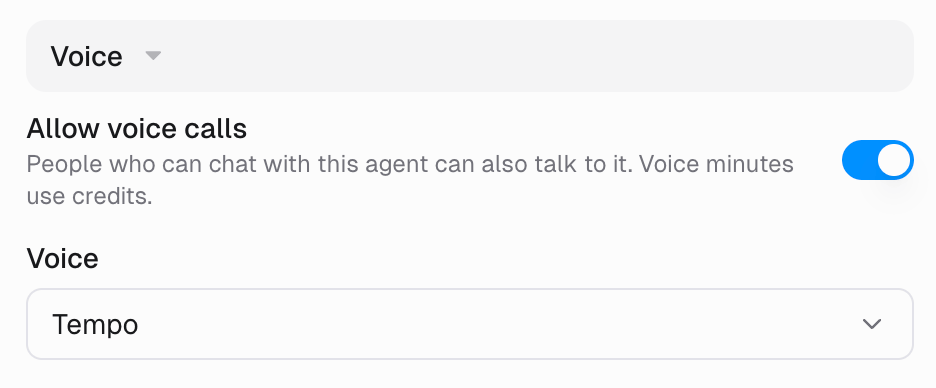
[Gumball](/core-concepts/gumball), your personal agent, can always be called. **Custom agents have to opt in**, which the agent's editors do from the **Settings** tab, under **Voice**.
 | Setting | What it does |
| --------------------- | -------------------------------------------------------------------------------------------------------------------------------------------------------------------------------------------- |
| **Allow voice calls** | Makes the agent callable. Anyone who can chat with the agent can also talk to it — voice follows the [sharing](/core-concepts/agent_access) you already set up, with no separate permission. |
| **Voice** | The voice the agent speaks in. Pick from Gumloop's voice list; agents use **Marin** until you choose another. |
Voice minutes use credits. See [Voice call costs](/core-concepts/credits#voice-call-costs) for the rate and how it appears in a chat's breakdown.
***
## Start a call
Open a chat with the agent and select the **voice button** at the right of the message bar, next to the microphone.
| Setting | What it does |
| --------------------- | -------------------------------------------------------------------------------------------------------------------------------------------------------------------------------------------- |
| **Allow voice calls** | Makes the agent callable. Anyone who can chat with the agent can also talk to it — voice follows the [sharing](/core-concepts/agent_access) you already set up, with no separate permission. |
| **Voice** | The voice the agent speaks in. Pick from Gumloop's voice list; agents use **Marin** until you choose another. |
Voice minutes use credits. See [Voice call costs](/core-concepts/credits#voice-call-costs) for the rate and how it appears in a chat's breakdown.
***
## Start a call
Open a chat with the agent and select the **voice button** at the right of the message bar, next to the microphone.
 The two buttons do different things. The **microphone** dictates a single message — your audio is [transcribed](/core-concepts/agents#voice-input) and sent as text. The **voice button** starts a live call where the agent talks back.
You can start a call in a brand-new chat or in one you have already been typing in; the agent hears the recent conversation either way.
***
## While you are on a call
The two buttons do different things. The **microphone** dictates a single message — your audio is [transcribed](/core-concepts/agents#voice-input) and sent as text. The **voice button** starts a live call where the agent talks back.
You can start a call in a brand-new chat or in one you have already been typing in; the agent hears the recent conversation either way.
***
## While you are on a call
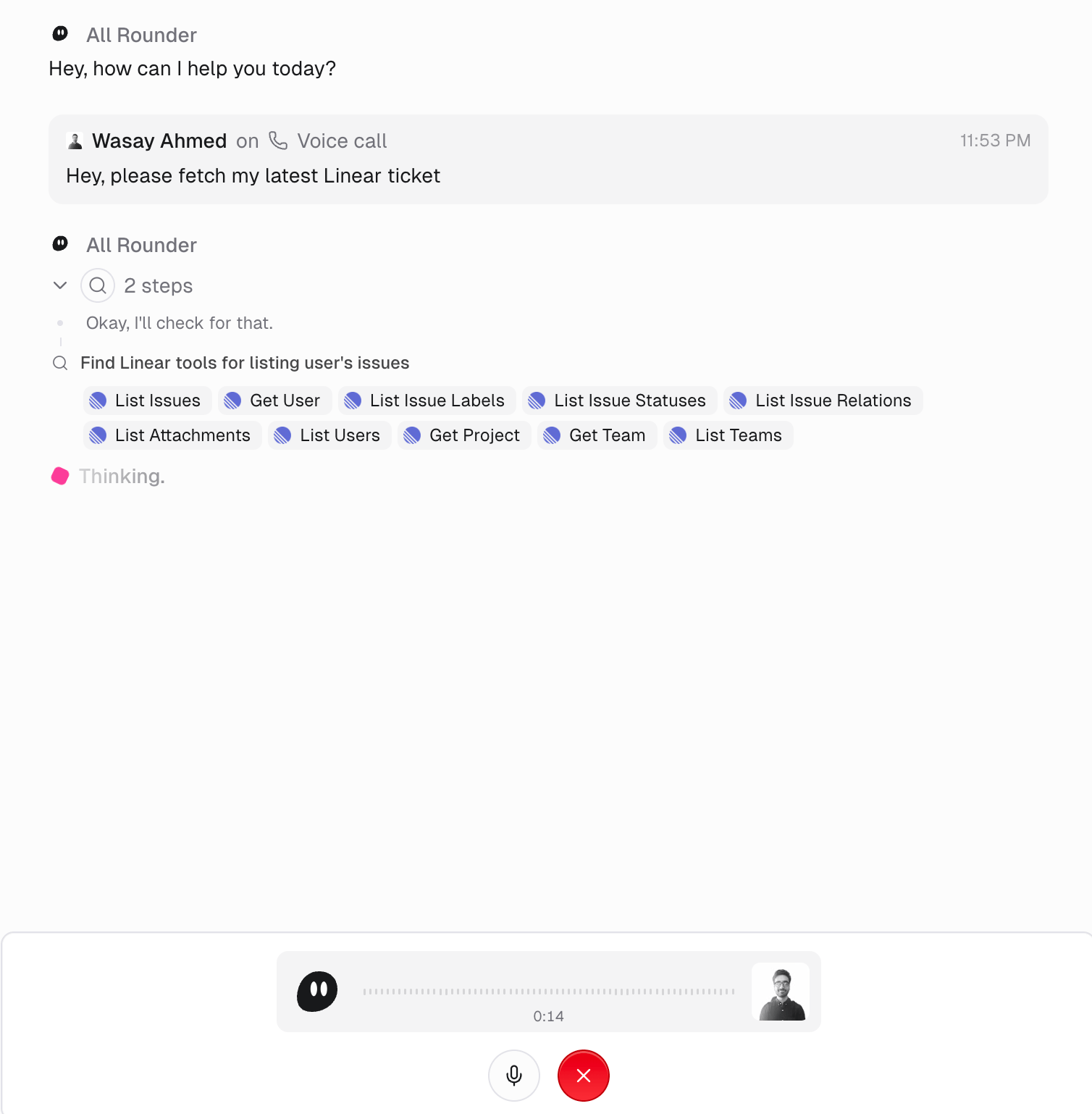 * **Your words appear in the chat.** Each thing you say is added as a message tagged **Voice call**, and the agent's spoken replies are added as its messages.
* **Small talk is answered on the call**; real requests are handed to the agent, which then runs in the chat exactly as if you had typed them — thinking, tool calls, and steps all visible.
* **The agent tells you what it can do.** It knows its connected apps, skills, and knowledge, so you can ask "can you check Linear?" and get a truthful answer.
* **The call bar** at the bottom shows how long you have been talking, with a microphone control and a **red button to hang up**.
Ending the call leaves the chat exactly where it was: the transcript, the agent's work, and any files it produced stay in the task.
***
## Good to know
* **One call per task.** A chat can hold one live call at a time. If several calls are already running on your account, the next one is refused until you end one.
* **Model access applies.** If your organization restricts which models you can use, the voice model may be blocked for you. The call says so, and you can request access from an admin.
* **Credits run the call.** You need credits for the minute ahead, so a call ends if your balance runs out mid-conversation.
* **Calls happen in the browser.** You start a call from the agent's chat in Gumloop.
***
## FAQ
No. Voice follows chat access: if someone can chat with the agent, they can call it once **Allow voice calls** is on.
Yes. The call is transcribed into the chat as it happens, so the task holds both sides of the conversation along with everything the agent did.
By time, not by tokens, and it shows up as **Voice** in the chat's credit breakdown. Work the agent does during the call — tool calls, thinking, compute — is billed the usual way on top. See [Voice call costs](/core-concepts/credits#voice-call-costs).
The microphone records one message and sends it as text. The voice button opens a live, two-way call.
* **Your words appear in the chat.** Each thing you say is added as a message tagged **Voice call**, and the agent's spoken replies are added as its messages.
* **Small talk is answered on the call**; real requests are handed to the agent, which then runs in the chat exactly as if you had typed them — thinking, tool calls, and steps all visible.
* **The agent tells you what it can do.** It knows its connected apps, skills, and knowledge, so you can ask "can you check Linear?" and get a truthful answer.
* **The call bar** at the bottom shows how long you have been talking, with a microphone control and a **red button to hang up**.
Ending the call leaves the chat exactly where it was: the transcript, the agent's work, and any files it produced stay in the task.
***
## Good to know
* **One call per task.** A chat can hold one live call at a time. If several calls are already running on your account, the next one is refused until you end one.
* **Model access applies.** If your organization restricts which models you can use, the voice model may be blocked for you. The call says so, and you can request access from an admin.
* **Credits run the call.** You need credits for the minute ahead, so a call ends if your balance runs out mid-conversation.
* **Calls happen in the browser.** You start a call from the agent's chat in Gumloop.
***
## FAQ
No. Voice follows chat access: if someone can chat with the agent, they can call it once **Allow voice calls** is on.
Yes. The call is transcribed into the chat as it happens, so the task holds both sides of the conversation along with everything the agent did.
By time, not by tokens, and it shows up as **Voice** in the chat's credit breakdown. Work the agent does during the call — tool calls, thinking, compute — is billed the usual way on top. See [Voice call costs](/core-concepts/credits#voice-call-costs).
The microphone records one message and sends it as text. The voice button opens a live, two-way call.