> ## Documentation Index
> Fetch the complete documentation index at: https://docs.gumloop.com/llms.txt
> Use this file to discover all available pages before exploring further.
# Subflows
Subflows allow you to use any workflow as a reusable node within other workflows. This modular approach is one of Gumloop's most powerful features, enabling you to build complex automations from smaller, well-tested components.
## Why Use Subflows?
Break complex logic into manageable pieces. Like functions in programming, subflows make large automations easier to
maintain and debug.
Perfect a single task once, then loop it across thousands of items. Build and test on one instance, then scale
effortlessly.
Handle multi-level data structures with ease. Process emails containing orders, each with multiple items, using
nested subflows.
### Example: Web Scraping at Scale
You want to scrape contact information from thousands of company websites. With subflows, you build one workflow that perfectly handles a single website, then loop it across your entire list. This approach makes testing simple and scaling automatic.
### Example: Nested Data Processing
Process an email inbox containing orders, where each order has multiple items. Using three nested subflows, you can:
1. **First workflow**: Process the entire inbox and extract orders
2. **Second workflow** (looped): Process each individual order
3. **Third workflow** (looped): Process each item within an order
This creates a triple-nested loop structure, allowing operations at each level of your data hierarchy.
**Build Workflows Backwards Using Subflows**
When working with lists or batch processing, start by building a subflow that handles a single item perfectly:
1. Create a subflow with input nodes and default test values
2. Perfect the logic for one item at a time
3. Once working, use it as a node in your main workflow
4. Connect your data source and enable Loop Mode
This approach provides parallel processing, faster execution, easier testing, better error handling, and prevents type structure issues.
## Working with Subflows
### Adding Subflows to Your Canvas
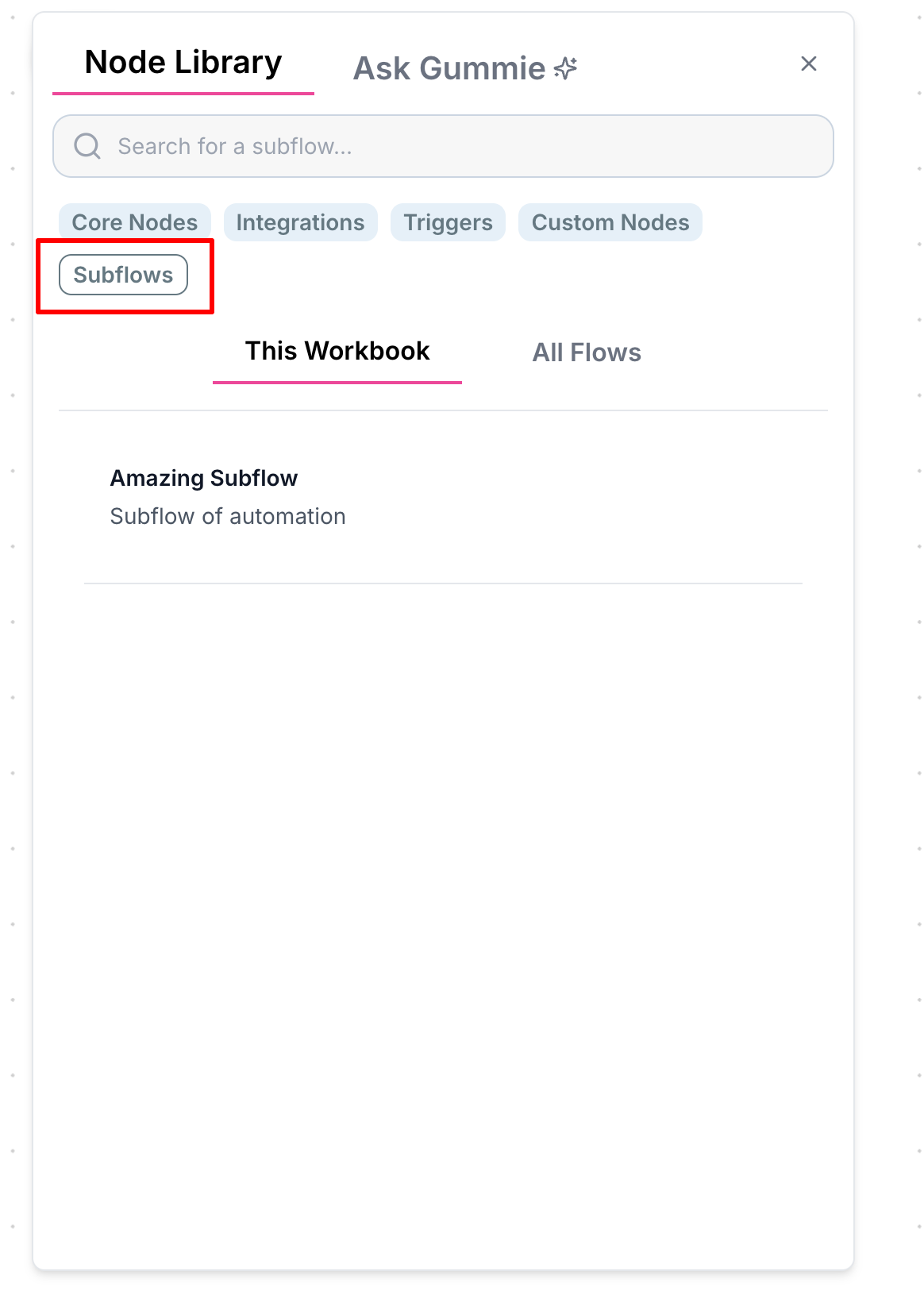
In the workflow builder, locate the Subflow Library in the node menu. All of your existing workflows appear here and can be dragged onto the canvas like any standard node.
### Configuring Inputs and Outputs
Subflows need defined inputs and outputs to be useful in other workflows. Here's how to set them up:
#### Step 1: Initial Subflow Without Inputs
Consider this example workflow that scrapes a website, extracts the company name, summarizes it, and categorizes the business:
When you first add this workflow as a subflow node, it has no connection points:
#### Step 2: Adding Input Nodes
Return to the subflow and add an Input node for each parameter you want to accept. For this example, we need one input for the website URL:
You can name your input nodes for clarity, though this is optional. The name will appear as the connection label in
the parent workflow.
After saving, the subflow node now displays the URL input:
#### Step 3: Adding Output Nodes
Add Output nodes for each value you want to return. In this example, we want to output the summary, company name, and category separately:
The completed subflow node now has both inputs and outputs: