> ## Documentation Index
> Fetch the complete documentation index at: https://docs.gumloop.com/llms.txt
> Use this file to discover all available pages before exploring further.
# Agent Skills
> Skills are reusable knowledge packs that teach your agents how to do specific work, and get better over time.
Skills teach your agents how to do specific work **your way**, and get better at it over time.
## What is a skill?
A **skill** is a reusable set of instructions (and optionally templates and scripts) that teaches an agent how to do a specific task.
Think of a skill as a **playbook** your agent can pull out when it needs it:
A step-by-step outreach process, your templates, and follow-up rules.
An escalation checklist, severity rules, and response templates.
Which KPIs to include, the exact format, and optional scripts to compute metrics.
Skills can feel like **memory**, because the agent can update them after you give feedback. Technically, it is not remembering your conversation. It is updating a shared playbook that gets reused in future conversations.
**This is the superpower:** when your agent makes a mistake and you correct it, the agent can update the relevant skill so it does it right next time.
> **You:** "Reply to this customer email. Keep it short and friendly."
> **Agent:** *\[replies, but uses the wrong sign-off]*
> **You:** "We never sign off with 'Best'. Use 'Thanks' instead."
> **Agent:** "Got it. I updated the relevant skill so future replies use 'Thanks'."
## Why Skills?
When you set up an agent, you typically give it two things:
Defines who the agent is. "You're a sales assistant. Be professional." Always active, always loaded.
Gives the agent hands. Gmail, Salesforce, Slack, etc. The raw ability to take actions.
That gets you an agent that **can** send emails and update your CRM. But it doesn't know **your** outreach process, **your** email templates, or **your** follow-up rules. It's winging it every time.
**Skills fill that gap.** A skill is a set of instructions, templates, and even executable scripts that teach your agent exactly how to do a specific task. Your agent can read, follow, improve, and even create skills on its own.
## The New Employee Analogy
The simplest way to understand skills is to imagine you just hired someone new.
| What you give them | Agent equivalent | What it does |
| ---------------------------------------------- | ----------------- | --------------------------------------------------------------------- |
| **Job description & company handbook** | **System prompt** | Defines who they are, their tone, and universal rules. Always active. |
| **Software logins** (Gmail, Salesforce, Slack) | **Tools** | Gives them the raw ability to take actions. |
| **Training materials & SOPs** | **Skills** | Teaches them your specific processes, templates, and best practices. |
Without skills, your agent has access to email and CRM but improvises every time. It might send a decent email, but it won't follow your specific outreach sequence, use your templates, or log things the way you want.
**Skills are the difference between "an AI that can send emails" and "an AI that follows our exact outreach process."**
## When Do You Need a Skill?
Not everything needs to be a skill. Here's a quick guide:
**Put it in the system prompt** if it applies to **every single conversation:**
* Agent personality and tone
* Universal guardrails ("Never share pricing without approval")
* Response format rules
The system prompt is always loaded in full. Keep it short and universal.
**Use a tool** if it's a **simple, one-off action:**
* "What's on my calendar today?"
* "Send this message on Slack"
* "Look up this contact in Salesforce"
Tools give the agent the raw ability to interact with external services.
**Create a skill** when you have:
* A **multi-step process** the agent should follow every time
* **Templates** or specific formats the agent should use
* **Domain knowledge** that's too long for the system prompt
* **Instructions that only apply sometimes** (skills load on demand, saving tokens)
* Work that **multiple agents** need to do the same way
**Rule of thumb:** If your instructions are over 200 words and don't apply to every single conversation, they belong in a skill, not the system prompt.
| Scenario | System Prompt | Tool | Skill |
| ---------------------------------------------------- | ------------- | ---- | ----- |
| "Be friendly and professional" | ✅ | | |
| "Send this email for me" | | ✅ | |
| "Draft outreach emails using our 5-step sequence" | | | ✅ |
| "Generate a weekly sales report with specific KPIs" | | | ✅ |
| "Never delete customer data without confirmation" | ✅ | | |
| "Triage support tickets using our escalation matrix" | | | ✅ |
## How Agents Use Skills
Here's what happens behind the scenes:
**Skill-Tool Dependencies:** If a skill is designed to use a specific integration (e.g., Salesforce, Gmail) but that integration is not connected to the agent, the skill will load successfully but fail at execution. There is no automatic dependency enforcement — make sure any integration a skill depends on is also connected to the agent.
Your agent loads up and sees a list of all attached skills, but only the **names and descriptions** (not the full instructions). This keeps things fast and lightweight.
You send a message like "Draft an outreach email to the VP of Sales at Acme Corp."
The agent scans the skill descriptions and finds `email-outreach-playbook` is relevant. It reads the full skill from the sandbox.
Now the agent has the complete playbook in context. It follows the step-by-step process: researches the prospect, personalizes the email using your template, and drafts it exactly the way you want.
If the agent made any changes to skills during the conversation (more on that below), those changes are automatically saved.
**Key insight:** Skills are only loaded when needed. If you have 20 skills attached to an agent but the user asks a simple question, the agent doesn't waste time or tokens loading irrelevant skills. This is fundamentally different from a system prompt, which is always loaded in full.
## Built-in System Skills
Every Gumloop team comes with two built-in system skills that are automatically available to your agents:
Powers the **Create With AI** flow. When skill creation is enabled on an agent and you click **Create With AI**, the agent uses this skill to guide you through skill creation step by step — naming, scoping, writing instructions, and validating the result.
Enables agents to call your connected integrations (Gmail, Salesforce, Slack, Google Sheets, etc.) **directly from Python scripts** in the sandbox. This is what makes it possible to build skills that combine custom logic with real tool calls — e.g., a script that reads from Sheets, processes the data, and posts a summary to Slack.
Both system skills are **read-only** — they are maintained by Gumloop and updated automatically. You cannot edit or delete them. The `skill-creator` skill is only active when skill creation is enabled on the agent (via the **Skill Editing & Creation** toggle in Tools).
## Creating Skills
There are three ways to create a skill. Pick whichever feels most natural.
**Naming Rules:** Skill names are validated by the backend and must follow these constraints:
* Lowercase letters, digits, and hyphens only
* No spaces, underscores, or uppercase letters
* Maximum 64 characters
* Cannot start or end with a hyphen
* No consecutive hyphens
✅ `my-cool-skill` · ❌ `My_Skill`, `my skill`, `mySkill`
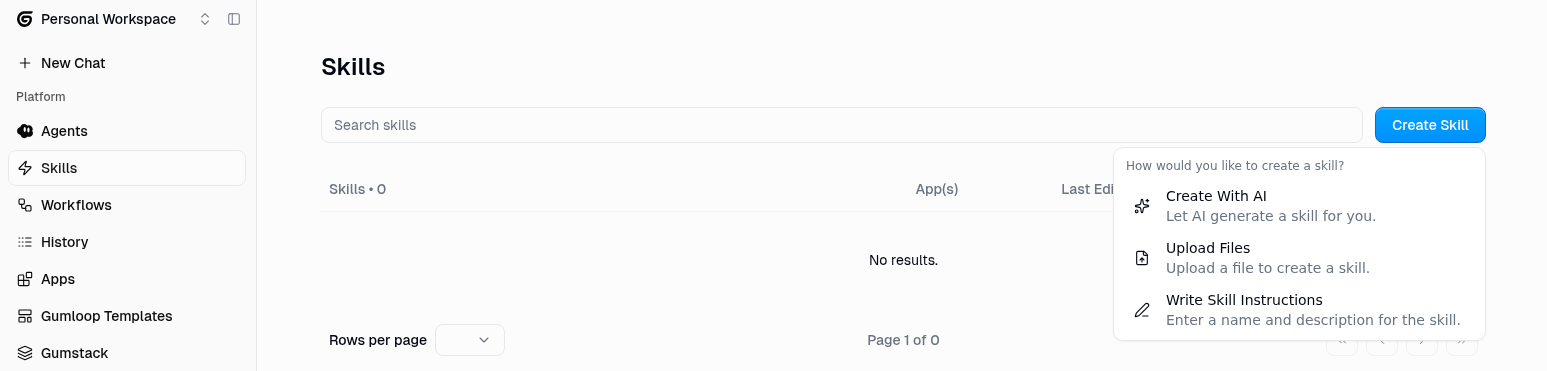 The easiest way to get started. Click **Create Skill** → **Create With AI**, and a chat opens where the AI walks you through skill creation step by step.
You describe what you want the skill to do, and the AI:
1. Helps you nail down the scope and name
2. Writes the instructions based on your description
3. Adds any necessary scripts or reference files
4. Validates everything to make sure it's properly formatted
**Best for:** Anyone who isn't sure where to start, or wants a quick way to turn ideas into skills.
A simple form where you fill in three fields: **Name**, **Description**, and **Instructions**. Click **Create** and you're done.
The easiest way to get started. Click **Create Skill** → **Create With AI**, and a chat opens where the AI walks you through skill creation step by step.
You describe what you want the skill to do, and the AI:
1. Helps you nail down the scope and name
2. Writes the instructions based on your description
3. Adds any necessary scripts or reference files
4. Validates everything to make sure it's properly formatted
**Best for:** Anyone who isn't sure where to start, or wants a quick way to turn ideas into skills.
A simple form where you fill in three fields: **Name**, **Description**, and **Instructions**. Click **Create** and you're done.
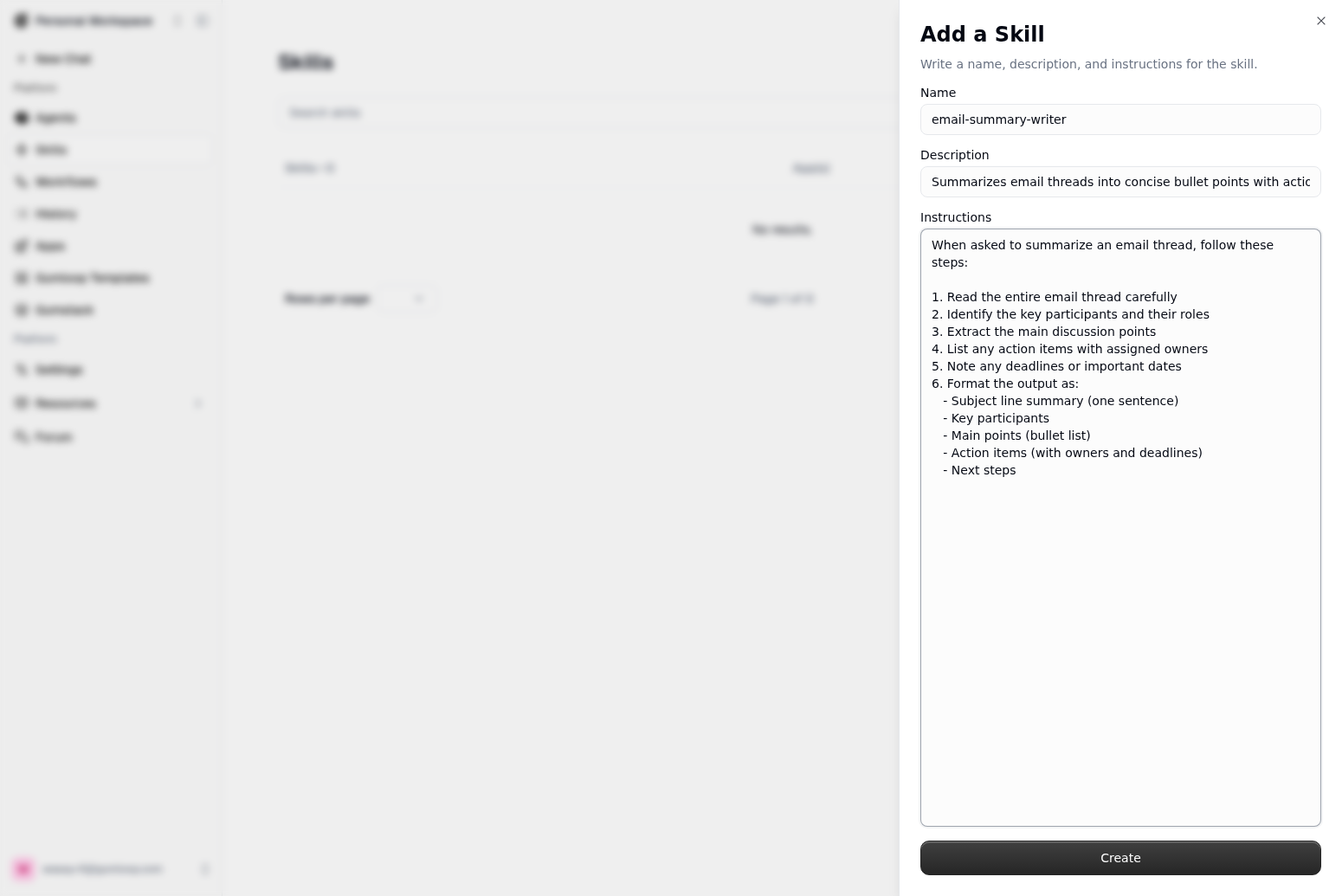 **Best for:** Simple skills that are just instructions (no scripts or extra files needed). Great for brand voice guidelines, email templates, response formatting rules, etc.
Upload a `.md`, `.zip`, or `.skill` file containing a properly formatted `SKILL.md`. If you're uploading a `.zip`, it can include scripts, references, and assets alongside the `SKILL.md`.
**Best for:** Simple skills that are just instructions (no scripts or extra files needed). Great for brand voice guidelines, email templates, response formatting rules, etc.
Upload a `.md`, `.zip`, or `.skill` file containing a properly formatted `SKILL.md`. If you're uploading a `.zip`, it can include scripts, references, and assets alongside the `SKILL.md`.
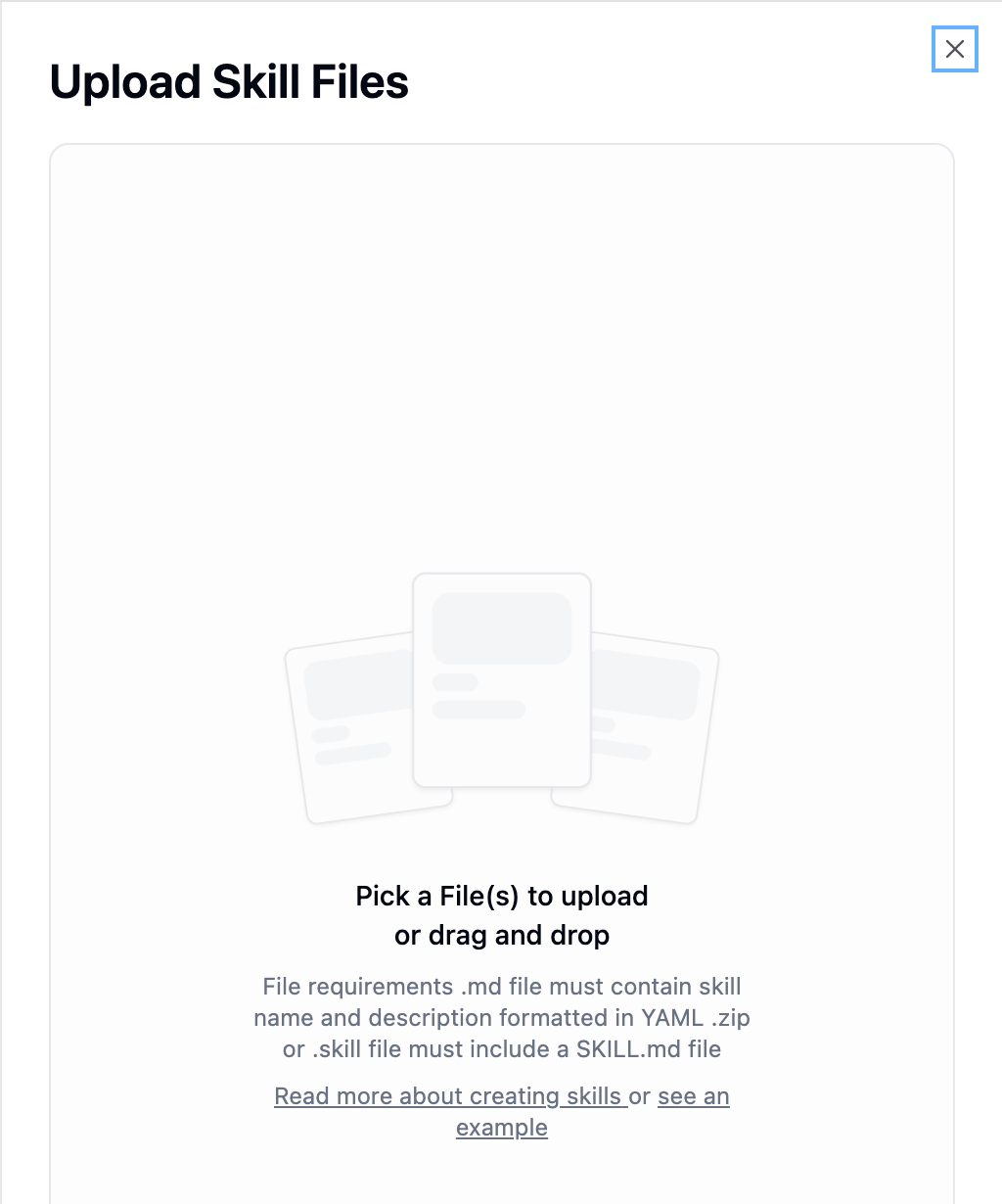 **Best for:** Technical users with existing documentation, SOPs, or code they want to package as a skill.
## What's Inside a Skill?
At its core, a skill is a folder containing a `SKILL.md` file with instructions your agent can read. Some skills also include helper scripts, reference docs, and templates.
```text theme={"dark"}
email-outreach-playbook/
SKILL.md ← Required: the instructions
scripts/ ← Optional: executable code
personalize_email.py
references/ ← Optional: detailed docs
email_templates.md
prospect_research_checklist.md
assets/ ← Optional: templates and files
signature_template.html
```
Most skills only need the `SKILL.md` file. You can always add scripts and references later as the skill grows.
### Why This Structure Exists
The directory structure isn't just organizational — it reflects how the agent uses each part:
| Component | What it's for | How the agent uses it |
| ----------------- | -------------------------------------------------------------- | ---------------------------------------------------------------------------------------------------------------------- |
| **`SKILL.md`** | Instructions, decision logic, context | Loaded directly into the agent's context window. Keep it under **500 lines** for token efficiency and focus. |
| **`references/`** | Detailed documentation, lookup tables, API specs | Read **on demand** when the agent needs specific details. Keeps `SKILL.md` lean. |
| **`scripts/`** | Deterministic logic — calculations, data transforms, API calls | **Executed in the sandbox** and the output is used in the agent's response. Never left to the agent to reason through. |
| **`assets/`** | Static files used in output — templates, images | Referenced by instructions or scripts when producing output. |
**Rule of thumb:** If the agent needs to *reason* through something (decisions, steps, context), it belongs in `SKILL.md` instructions. If the agent needs to *calculate or process* something and the result must be correct every time, it belongs in a `scripts/` file.
The 500-line soft limit on `SKILL.md` is enforced as a validation warning — skills exceeding it still work, but you should move detailed content to `references/` to keep the agent's context focused.
### The SKILL.md File
Every skill starts with a short header (called "frontmatter") that tells the agent what the skill does and when to use it, followed by the actual instructions:
```yaml theme={"dark"}
---
name: email-outreach-playbook
description: Draft personalized cold outreach emails for sales prospects.
Use when the user asks to contact or email a prospect.
---
## Overview
This skill guides the outreach process for cold prospects.
## Step 1: Research the Prospect
- Look up the prospect's company and role
- Note recent news or achievements to personalize the email
## Step 2: Draft the Email
- Use the greeting: "Hey {first_name},"
- Reference something specific about their company
- Keep it under 150 words
...
```
The **description** is the most important part. Your agent uses it to decide whether to load the skill for the current task. Be specific about **what** the skill does and **when** to use it. A vague description means the agent might never find your skill.
**Description constraints:** Maximum 1,024 characters. No angle brackets allowed.
Beyond `name` and `description`, you can add these optional fields to your frontmatter:
| Field | What it does | Example |
| ------------------------ | ------------------------------------------------------------------------------------------------------------------------------------------------------------------ | -------------------------------------- |
| **`icon`** | Sets the skill's icon in the UI. Uses [Lucide](https://lucide.dev) icon names in kebab-case. | `icon: chart-line` |
| **`color`** | Sets the skill's accent color in the UI. | `color: Blue` |
| **`related_server_ids`** | Links the skill to specific integrations, enabling integration-scoped discovery. When set, agents working with that integration are more likely to find the skill. | `related_server_ids: [gsheets, slack]` |
Available colors: `Grey`, `Blue`, `Green`, `Orange`, `Red`, `Yellow`, `Teal`, `Pink`, `Purple`, `Bronze`, `Black`
```yaml theme={"dark"}
---
name: weekly-sales-summary
description: Generate a weekly sales performance summary from Google Sheets data.
icon: chart-line
color: Green
related_server_ids: [gsheets, slack]
---
```
**Server IDs** must match the actual integration identifiers, not display names. For example, Google Sheets is `gsheets`, not `google-sheets`. The agent can discover correct IDs by running `python3 /home/user/skills/gumcp-client/scripts/list_tools.py` in the sandbox.
## Attaching Skills to Agents
Once you've created a skill, attach it to the agents that should use it.
**Best for:** Technical users with existing documentation, SOPs, or code they want to package as a skill.
## What's Inside a Skill?
At its core, a skill is a folder containing a `SKILL.md` file with instructions your agent can read. Some skills also include helper scripts, reference docs, and templates.
```text theme={"dark"}
email-outreach-playbook/
SKILL.md ← Required: the instructions
scripts/ ← Optional: executable code
personalize_email.py
references/ ← Optional: detailed docs
email_templates.md
prospect_research_checklist.md
assets/ ← Optional: templates and files
signature_template.html
```
Most skills only need the `SKILL.md` file. You can always add scripts and references later as the skill grows.
### Why This Structure Exists
The directory structure isn't just organizational — it reflects how the agent uses each part:
| Component | What it's for | How the agent uses it |
| ----------------- | -------------------------------------------------------------- | ---------------------------------------------------------------------------------------------------------------------- |
| **`SKILL.md`** | Instructions, decision logic, context | Loaded directly into the agent's context window. Keep it under **500 lines** for token efficiency and focus. |
| **`references/`** | Detailed documentation, lookup tables, API specs | Read **on demand** when the agent needs specific details. Keeps `SKILL.md` lean. |
| **`scripts/`** | Deterministic logic — calculations, data transforms, API calls | **Executed in the sandbox** and the output is used in the agent's response. Never left to the agent to reason through. |
| **`assets/`** | Static files used in output — templates, images | Referenced by instructions or scripts when producing output. |
**Rule of thumb:** If the agent needs to *reason* through something (decisions, steps, context), it belongs in `SKILL.md` instructions. If the agent needs to *calculate or process* something and the result must be correct every time, it belongs in a `scripts/` file.
The 500-line soft limit on `SKILL.md` is enforced as a validation warning — skills exceeding it still work, but you should move detailed content to `references/` to keep the agent's context focused.
### The SKILL.md File
Every skill starts with a short header (called "frontmatter") that tells the agent what the skill does and when to use it, followed by the actual instructions:
```yaml theme={"dark"}
---
name: email-outreach-playbook
description: Draft personalized cold outreach emails for sales prospects.
Use when the user asks to contact or email a prospect.
---
## Overview
This skill guides the outreach process for cold prospects.
## Step 1: Research the Prospect
- Look up the prospect's company and role
- Note recent news or achievements to personalize the email
## Step 2: Draft the Email
- Use the greeting: "Hey {first_name},"
- Reference something specific about their company
- Keep it under 150 words
...
```
The **description** is the most important part. Your agent uses it to decide whether to load the skill for the current task. Be specific about **what** the skill does and **when** to use it. A vague description means the agent might never find your skill.
**Description constraints:** Maximum 1,024 characters. No angle brackets allowed.
Beyond `name` and `description`, you can add these optional fields to your frontmatter:
| Field | What it does | Example |
| ------------------------ | ------------------------------------------------------------------------------------------------------------------------------------------------------------------ | -------------------------------------- |
| **`icon`** | Sets the skill's icon in the UI. Uses [Lucide](https://lucide.dev) icon names in kebab-case. | `icon: chart-line` |
| **`color`** | Sets the skill's accent color in the UI. | `color: Blue` |
| **`related_server_ids`** | Links the skill to specific integrations, enabling integration-scoped discovery. When set, agents working with that integration are more likely to find the skill. | `related_server_ids: [gsheets, slack]` |
Available colors: `Grey`, `Blue`, `Green`, `Orange`, `Red`, `Yellow`, `Teal`, `Pink`, `Purple`, `Bronze`, `Black`
```yaml theme={"dark"}
---
name: weekly-sales-summary
description: Generate a weekly sales performance summary from Google Sheets data.
icon: chart-line
color: Green
related_server_ids: [gsheets, slack]
---
```
**Server IDs** must match the actual integration identifiers, not display names. For example, Google Sheets is `gsheets`, not `google-sheets`. The agent can discover correct IDs by running `python3 /home/user/skills/gumcp-client/scripts/list_tools.py` in the sandbox.
## Attaching Skills to Agents
Once you've created a skill, attach it to the agents that should use it.
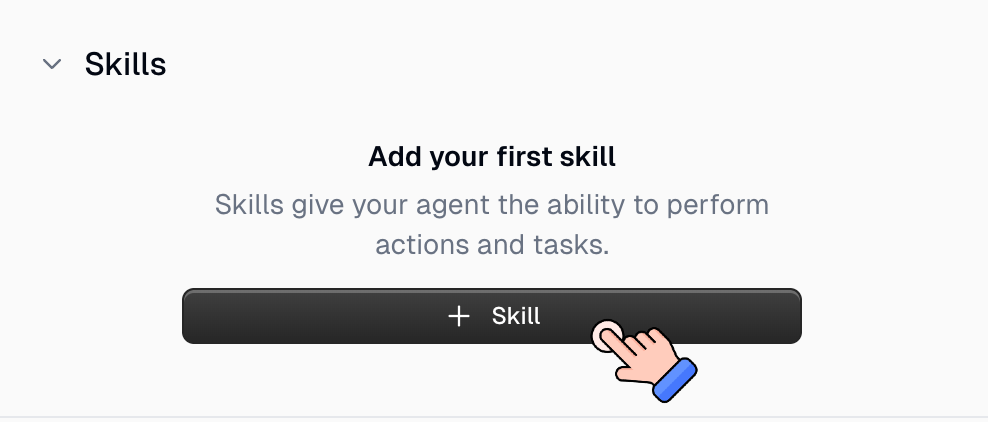 Go to your agent's configuration page.
Scroll down to the **Skills** section.
Click **+ Skill** and select a skill from the list (or create a new one right there).
That's it. Your agent can now find and use that skill whenever it's relevant.
[Personal assistant agents (the general agent you chat with)](https://www.gumloop.com/chat) automatically have access to all skills in your space. You don't need to attach skills manually for those.
**General Agent vs. Custom Agent skill behavior:** The general agent discovers skills from your full library dynamically using semantic search — it finds skills by matching your request against skill descriptions. Custom agents only see skills explicitly attached to them (listed in the system prompt). A practical consequence: when an agent creates a new skill during a conversation, on a custom agent it gets auto-attached; on the general agent it is added to your library but not auto-attached to anything.
## Skills That Improve Over Time
This is the most powerful part of skills, and what makes them fundamentally different from static instructions.
**Your agent can edit, improve, and create skills on its own.**
This behavior is controlled by the **Skill Editing & Creation** toggle in your agent's Tools configuration. It's **enabled by default**.
Go to your agent's configuration page.
Scroll down to the **Skills** section.
Click **+ Skill** and select a skill from the list (or create a new one right there).
That's it. Your agent can now find and use that skill whenever it's relevant.
[Personal assistant agents (the general agent you chat with)](https://www.gumloop.com/chat) automatically have access to all skills in your space. You don't need to attach skills manually for those.
**General Agent vs. Custom Agent skill behavior:** The general agent discovers skills from your full library dynamically using semantic search — it finds skills by matching your request against skill descriptions. Custom agents only see skills explicitly attached to them (listed in the system prompt). A practical consequence: when an agent creates a new skill during a conversation, on a custom agent it gets auto-attached; on the general agent it is added to your library but not auto-attached to anything.
## Skills That Improve Over Time
This is the most powerful part of skills, and what makes them fundamentally different from static instructions.
**Your agent can edit, improve, and create skills on its own.**
This behavior is controlled by the **Skill Editing & Creation** toggle in your agent's Tools configuration. It's **enabled by default**.
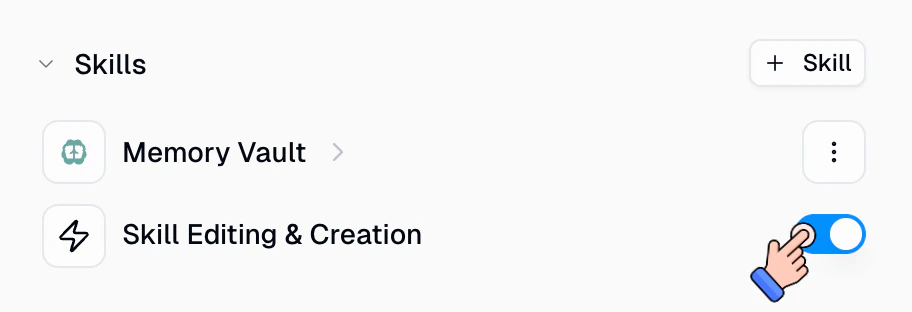 * **Enabled (default):** The agent can create new skills, update existing ones, and fix its own mistakes. This is the recommended option because it lets the agent iterate, learn from corrections, and continuously improve.
* **Disabled:** The agent can still **read and use** skills you've already attached, but cannot create or modify skills. Choose this for tighter control over your skill library.
**This toggle is global** — it applies to all skills on the agent, not per-skill. There is no way to lock individual skills while keeping others editable. If you need certain skills to be immutable, disable the toggle entirely.
Keep this enabled to unlock the full compound learning effect described below. An agent that can refine its own playbooks gets better with every conversation.
> **You:** "Draft an outreach email to the VP at Acme Corp."
* **Enabled (default):** The agent can create new skills, update existing ones, and fix its own mistakes. This is the recommended option because it lets the agent iterate, learn from corrections, and continuously improve.
* **Disabled:** The agent can still **read and use** skills you've already attached, but cannot create or modify skills. Choose this for tighter control over your skill library.
**This toggle is global** — it applies to all skills on the agent, not per-skill. There is no way to lock individual skills while keeping others editable. If you need certain skills to be immutable, disable the toggle entirely.
Keep this enabled to unlock the full compound learning effect described below. An agent that can refine its own playbooks gets better with every conversation.
> **You:** "Draft an outreach email to the VP at Acme Corp."
> **Agent:** *\[drafts email using the outreach-playbook skill]*
> **You:** "Actually, we don't use that greeting anymore. Use 'Hey \{first\_name}' instead."
> **Agent:** "Got it. I've updated the outreach playbook skill with the new greeting."
Next time the agent drafts an outreach email, it uses the corrected greeting. **The fix is permanent.** It's saved back to the skill.
> **Conversation 1:** You ask the agent to summarize your emails. It does a basic job.
> **You:** "Group them by sender."
> **Agent:** *\[creates an email-summary skill with the grouping rule]*
> **Conversation 2:** You ask the agent to summarize your emails. It groups by sender automatically.
> **You:** "Also flag anything from my boss as urgent."
> **Agent:** *\[updates the skill to add the urgent-flagging rule]*
> **Conversation 3:** You ask the agent to summarize your emails. It groups by sender AND flags your boss's emails. No corrections needed.
> **You:** "Every Monday I need you to pull last week's support tickets from Zendesk, categorize them, and post a summary to #support-updates in Slack."
> **Agent:** "I'll create a skill to remember this workflow."
> *\[Creates a `weekly-support-summary` skill with the full process, automatically attached to this agent]*
The agent now remembers this process for every future Monday.
**Version history:** You can view a full timeline of file-level changes (added, modified, removed) in the **Edits** tab on each skill's detail page. Each version shows what changed and when, along with which agent made the edit. This helps you track how a skill evolves over time. We still recommend manually copying your skill instructions before enabling free agent editing on critical skills.
**Concurrent edits:** If two conversations edit the same skill simultaneously, the last one to complete wins and overwrites the other. Teams with multiple users on shared agents should be aware of this race condition.
### The Compound Effect
Every correction, every new instruction, every "actually, do it this way" compounds over time:
| Timeline | What the skill looks like |
| ----------- | ------------------------------------------------------------------------------ |
| **Day 1** | A basic outreach skill with a simple template. |
| **Week 1** | Includes templates for 3 scenarios and an updated greeting. |
| **Month 1** | Has 10 templates, a research checklist, follow-up rules, and a scoring script. |
| **Month 6** | Essentially a senior salesperson's playbook. |
This happens naturally through normal usage. You just tell the agent what to do differently, and it updates its own playbook.
Think of skills as a **living knowledge base**. Every interaction is a chance for the agent to learn and get better. System prompts are static. Tools are static. Skills are alive.
## FAQs
Skills can feel like memory because your agent can **update a skill** after you correct it.
Technically, skills are not conversation memory. Skills are saved playbooks your agent can reuse later, and the agent still needs to **load the skill again** in future conversations when it is relevant.
Skills are **loaded on demand**. Your agent sees skill names and descriptions first, then decides what to load based on relevance.
Common fixes:
* Make the skill **description** more specific about what it does and when to use it.
* Make sure the skill is attached to the right agent. (Personal assistant agents can access all skills in your space. Custom agents only see attached skills.)
A few edge cases can prevent changes from being saved:
* **Invalid `SKILL.md` frontmatter**: If `SKILL.md` is missing required fields like `name` or `description`, or the YAML is malformed, the skill update is skipped and the previous version stays intact.
* **Rename mismatch**: If the skill folder name and the `name:` field do not match, saving is skipped.
* **Concurrent edits**: If two conversations edit the same skill at the same time, the last conversation to finish wins.
* **Conversation ended abnormally**: Skill edits are saved at the end of a completed agent turn. If the conversation crashes, is interrupted, or ends before the agent's turn finishes, any skill changes made during that session may not have been saved. If you suspect this happened, check the skill and re-apply any corrections in a new conversation.
You can review what changed in the **Edits** tab on the skill's detail page, which shows a file-level diff for each version.
## What Kinds of Skills Should You Build?
Multi-step business processes. Sales outreach sequences, onboarding checklists, content publishing workflows.
Domain expertise. Product features, pricing tiers, competitive positioning, company policies.
Consistent formatting. Email templates, report formats, Slack update structures, CRM field mapping.
Deterministic code the agent runs in the sandbox. Data transformations, metric calculations, invoice validation.
### Calling Integrations From Scripts
Your skill scripts can do more than local calculations — they can **call your connected integrations** (Google Sheets, Gmail, Slack, Salesforce, etc.) directly from Python using the built-in `gumcp-client` system skill.
In plain terms: you can write a Python script that reads data from one service, processes it, and writes the result to another — all in one go, without the agent needing to figure out each step.
**How it works under the hood:** The `gumcp-client` skill provides a Python `Client` class that's pre-installed in every agent sandbox. Your script imports it, creates a client with credentials that are already set up as environment variables, and calls tools using the `server__tool_name` format (e.g. `gsheets__read_spreadsheet`, `slack__send_message`). The agent just runs the script and uses the printed output.
 Say you want a skill that pulls sales data from a Google Sheet, computes totals, and gives the agent a clean summary to post. Here's how it works:
**`SKILL.md`** tells the agent when and how:
```text theme={"dark"}
---
name: weekly-sales-summary
description: Generate a weekly sales summary from the team spreadsheet.
Use when the user asks for sales numbers, weekly summary, or
team performance update.
related_server_ids: [gsheets, slack]
---
## Steps
1. Run: python3 scripts/generate_summary.py
2. Review the printed output
3. Post the summary to the #sales Slack channel (or present to the user)
```
**`scripts/generate_summary.py`** does the heavy lifting:
```python theme={"dark"}
import json, os
from gumcp_client import Client
def get_client():
return Client(
user_id=os.getenv("GUMCP_USER_ID"),
gumcp_api_key=os.getenv("GUMCP_API_KEY"),
base_url=os.getenv("GUMCP_BASE_URL"),
)
with get_client() as client:
# Read the raw data from your team spreadsheet
raw = client.call_tool(
"gsheets__read_spreadsheet",
dict(spreadsheet_id="1ABC...", range="Sales!A1:F100")
)
data = json.loads(raw[0])
rows = data.get("values", [])
# Process with Python — exact math, no guessing
total_revenue = sum(float(r[3]) for r in rows[1:])
top_rep = max(rows[1:], key=lambda r: float(r[3]))
print("Total revenue: $" + format(total_revenue, ",.2f"))
print("Top performer: " + top_rep[0] + " ($" + format(float(top_rep[3]), ",.2f") + ")")
```
The agent runs this script in its sandbox, gets the printed output, and uses it in its response. If you want it posted to Slack, the agent can do that as a separate step (or you could add the Slack post directly to the script).
**Why this is useful:** The spreadsheet might have hundreds of rows. If the agent called the Google Sheets tool directly, all that raw data would land in the agent's context window, costing tokens and potentially getting truncated. With a script, the data stays in the sandbox — only the summary comes back.
A skill that reads meeting notes from Google Docs and pulls out the to-do items:
**`scripts/extract_action_items.py`:**
```python theme={"dark"}
import json, os
from gumcp_client import Client
def get_client():
return Client(
user_id=os.getenv("GUMCP_USER_ID"),
gumcp_api_key=os.getenv("GUMCP_API_KEY"),
base_url=os.getenv("GUMCP_BASE_URL"),
)
with get_client() as client:
raw = client.call_tool(
"gdocs__read_document",
dict(document_id="1XYZ...")
)
content = json.loads(raw[0])
# Parse the document text with Python
lines = content.get("text", "").split("\n")
action_items = [l for l in lines if l.strip().startswith("- [ ]")]
for item in action_items:
print(item)
```
The agent reads the printed output and can then create tasks in your project management tool, send reminders via Slack, or just present them to you.
**Server IDs aren't always obvious.** Google Sheets is `gsheets`, Google Docs is `gdocs`, Google Calendar is `gcalendar`, Google BigQuery is `gbigquery`. The agent can run `python3 /home/user/skills/gumcp-client/scripts/list_tools.py` in its sandbox to discover the exact IDs and available tools for your connected integrations.
#### When to use scripts vs. direct tool calls
Your agent can already call integrations directly — "read this spreadsheet" or "send this Slack message" work fine as regular tool calls. **You don't need scripts for most integration tasks.** Both approaches have strengths:
| | Direct tool calls | Scripts in the sandbox |
| ----------------- | ------------------------------------------------------------ | ------------------------------------------------------------ |
| **Best for** | Simple, one-off actions | Multi-step processing, large data, exact calculations |
| **Example** | "Send this email", "Post to Slack" | "Read 500 rows from Sheets, compute totals, format a report" |
| **Agent sees** | The full tool response — can reason about it, ask follow-ups | Only the printed output — data stays in the sandbox |
| **Repeatability** | Agent decides approach each time | Script runs identically every time, saved in the skill |
| **Token cost** | Full response goes into context window | Data processed in sandbox, only summary enters context |
| **Flexibility** | Agent can adapt based on what it gets back | Logic is fixed in code — great for precision, less adaptive |
**Start with direct tool calls.** They're simpler, and the agent can reason about the results conversationally. Move logic into a script when you hit one of these cases:
* The tool response is very large and you only need a subset (avoids flooding the agent's context)
* You need to chain multiple calls together (read → filter → compute → write) without round-tripping
* The calculation must be exact every time (Python math vs. the agent estimating)
* The same process should run identically across conversations — save it once, reuse everywhere
**Most skills don't need scripts or integration calls.** The majority of useful skills are just well-written instructions and templates. Integration scripts are a power feature for when you need them, not a starting point.
**Workflow Skill: Sales outreach sequence**
* Step 1: Research the prospect
* Step 2: Personalize the email using a template
* Step 3: Log the activity in Salesforce
* Step 4: Set a follow-up reminder for 3 days later
**Knowledge Skill: Product knowledge base**
* Product features and pricing tiers
* Common customer questions and answers
* Competitive positioning
**Template Skill: Email templates by scenario**
* Cold outreach template
* Follow-up template
* Meeting request template
* Thank you template
**Automation Skill: Weekly analytics report**
* `SKILL.md`: Report structure and formatting rules
* `scripts/calculate_metrics.py`: Pulls data and computes KPIs
* `assets/report_template.md`: The markdown template
**Integration-Specific Skill: Salesforce deal management**
* When to create vs update opportunities
* Required fields for each stage
* Naming conventions for deals
* When to notify the team
## Skill Examples (Inspiration)
If you want to see real skill folders, complete with `SKILL.md` files and supporting resources, browse these public examples:
* [Anthropic Skills examples repo](https://github.com/anthropics/skills/tree/main/skills)
If you have used Claude Skills before, the packaging concept is very similar: a folder with a `Skill.md` file and optional resources. Gumloop uses `SKILL.md` and adds agent-specific features like attaching skills to agents and letting agents improve skills over time. For reference, see [How to create custom Skills](https://support.claude.com/en/articles/12512198-how-to-create-custom-skills).
## Best Practices
The description is how your agent decides whether to load a skill. Be specific about **what** it does and **when** to use it.
✅ **Good:** "Generate weekly sales performance reports from BigQuery data, formatted as Markdown tables with week-over-week comparisons. Use when the user asks for sales reports or weekly metrics."
❌ **Bad:** "Helps with reports."
A vague description means the agent might never find your skill.
One skill should do one thing well. Don't create a mega-skill called "everything" with 3,000 lines of instructions.
Instead of one "sales-operations" skill, create:
* `outreach-playbook` (email sequences)
* `crm-logging` (Salesforce field mapping)
* `deal-qualification` (scoring criteria)
Focused skills are easier to maintain, share, and compose.
Show the agent what good output looks like. Include sample inputs and expected outputs in your `SKILL.md`.
```text theme={"dark"}
## Example
Input: "Draft an email to John at Acme Corp"
Expected output:
- Subject: Quick question about [specific thing]
- Greeting: Hey John,
- Body: 2-3 sentences, personalized
- CTA: One clear ask
```
Agents learn better from examples than abstract descriptions.
If the skill involves math, data formatting, or any logic that needs to be 100% correct every time, put it in a Python script in the `scripts/` directory. Don't rely on the agent to reason through calculations.
**The pattern works like this:**
1. **`SKILL.md`** describes *when* and *why* to run the script (e.g., "After collecting the sales data, run the commission calculator to compute payouts")
2. **The script** handles the *how* — deterministic logic that produces the same correct result every time
3. **The agent** executes the script in its sandbox, reads the output, and uses it in the response
This separation means the agent handles context and judgment (which deals to include, how to present results) while the script handles precision (the actual math).
**Example: Sales commission calculator**
`SKILL.md` instructions:
```text theme={"dark"}
## Computing Commissions
When the user asks for commission calculations:
1. Collect the deal data (rep name, deal value, deal stage)
2. Run: python3 scripts/calculate_commission.py --input deals.json
3. Present the results in a table, highlighting any reps above quota
```
`scripts/calculate_commission.py` handles the actual math:
```python theme={"dark"}
# Tiered commission rates, quota thresholds, accelerators
# — all encoded in code, not left to the agent
```
Other good candidates for scripts: tax calculations, metric aggregations, data transformations, invoice validation, and any formula-driven logic.
You don't need to write the perfect skill on day one. Create a basic version with core instructions, then let the agent refine it through usage.
Create a simple skill via "Write Skill Instructions" → use it a few times → give feedback → the agent updates the skill → repeat.
If your system prompt says "Always be professional" and a skill says "Use casual language," the agent gets confused.
**System prompt** = who the agent is (always active).
**Skills** = how to do specific tasks (loaded on demand).
Keep them separate and non-contradictory.
Skills exceeding 500 lines trigger a validation warning and consume significant tokens when loaded. Move detailed content to the `references/` directory instead — the agent can selectively read reference files as needed rather than loading everything at once.
All attached skills are listed in the agent's system prompt (roughly 50–100 tokens per skill). Attaching a very large number of skills to a single custom agent adds meaningful token overhead on every request. Keep attached skills focused and relevant; use the general agent if you need access to your full skill library.
* **Don't create catch-all mega-skills** with thousands of lines — break them into focused, single-purpose skills.
* **Don't duplicate system prompt content in a skill** — if it applies to every interaction, it belongs in the system prompt.
* **Don't create skills that just restate tool documentation** — skills should add your business logic and process, not explain how Gmail works.
* **Don't put time-sensitive information in skills without labeling it** — "Q4 promotion ends Dec 31" will be wrong in January.
## Managing Skills
You can view, search, and manage all your skills from the **Skills** page in the sidebar. Each skill shows its name, description, connected apps, last edit time, and creator.
### Finding Skills
Use the tabs at the top of the Skills page to switch between views:
| Tab | What It Shows |
| ------------------ | ------------------------------------------------------------------------- |
| **Mine** | Skills you created |
| **Shared with me** | Skills that others have shared with you directly or via your organization |
| **Organization** | All skills visible to your entire organization |
Say you want a skill that pulls sales data from a Google Sheet, computes totals, and gives the agent a clean summary to post. Here's how it works:
**`SKILL.md`** tells the agent when and how:
```text theme={"dark"}
---
name: weekly-sales-summary
description: Generate a weekly sales summary from the team spreadsheet.
Use when the user asks for sales numbers, weekly summary, or
team performance update.
related_server_ids: [gsheets, slack]
---
## Steps
1. Run: python3 scripts/generate_summary.py
2. Review the printed output
3. Post the summary to the #sales Slack channel (or present to the user)
```
**`scripts/generate_summary.py`** does the heavy lifting:
```python theme={"dark"}
import json, os
from gumcp_client import Client
def get_client():
return Client(
user_id=os.getenv("GUMCP_USER_ID"),
gumcp_api_key=os.getenv("GUMCP_API_KEY"),
base_url=os.getenv("GUMCP_BASE_URL"),
)
with get_client() as client:
# Read the raw data from your team spreadsheet
raw = client.call_tool(
"gsheets__read_spreadsheet",
dict(spreadsheet_id="1ABC...", range="Sales!A1:F100")
)
data = json.loads(raw[0])
rows = data.get("values", [])
# Process with Python — exact math, no guessing
total_revenue = sum(float(r[3]) for r in rows[1:])
top_rep = max(rows[1:], key=lambda r: float(r[3]))
print("Total revenue: $" + format(total_revenue, ",.2f"))
print("Top performer: " + top_rep[0] + " ($" + format(float(top_rep[3]), ",.2f") + ")")
```
The agent runs this script in its sandbox, gets the printed output, and uses it in its response. If you want it posted to Slack, the agent can do that as a separate step (or you could add the Slack post directly to the script).
**Why this is useful:** The spreadsheet might have hundreds of rows. If the agent called the Google Sheets tool directly, all that raw data would land in the agent's context window, costing tokens and potentially getting truncated. With a script, the data stays in the sandbox — only the summary comes back.
A skill that reads meeting notes from Google Docs and pulls out the to-do items:
**`scripts/extract_action_items.py`:**
```python theme={"dark"}
import json, os
from gumcp_client import Client
def get_client():
return Client(
user_id=os.getenv("GUMCP_USER_ID"),
gumcp_api_key=os.getenv("GUMCP_API_KEY"),
base_url=os.getenv("GUMCP_BASE_URL"),
)
with get_client() as client:
raw = client.call_tool(
"gdocs__read_document",
dict(document_id="1XYZ...")
)
content = json.loads(raw[0])
# Parse the document text with Python
lines = content.get("text", "").split("\n")
action_items = [l for l in lines if l.strip().startswith("- [ ]")]
for item in action_items:
print(item)
```
The agent reads the printed output and can then create tasks in your project management tool, send reminders via Slack, or just present them to you.
**Server IDs aren't always obvious.** Google Sheets is `gsheets`, Google Docs is `gdocs`, Google Calendar is `gcalendar`, Google BigQuery is `gbigquery`. The agent can run `python3 /home/user/skills/gumcp-client/scripts/list_tools.py` in its sandbox to discover the exact IDs and available tools for your connected integrations.
#### When to use scripts vs. direct tool calls
Your agent can already call integrations directly — "read this spreadsheet" or "send this Slack message" work fine as regular tool calls. **You don't need scripts for most integration tasks.** Both approaches have strengths:
| | Direct tool calls | Scripts in the sandbox |
| ----------------- | ------------------------------------------------------------ | ------------------------------------------------------------ |
| **Best for** | Simple, one-off actions | Multi-step processing, large data, exact calculations |
| **Example** | "Send this email", "Post to Slack" | "Read 500 rows from Sheets, compute totals, format a report" |
| **Agent sees** | The full tool response — can reason about it, ask follow-ups | Only the printed output — data stays in the sandbox |
| **Repeatability** | Agent decides approach each time | Script runs identically every time, saved in the skill |
| **Token cost** | Full response goes into context window | Data processed in sandbox, only summary enters context |
| **Flexibility** | Agent can adapt based on what it gets back | Logic is fixed in code — great for precision, less adaptive |
**Start with direct tool calls.** They're simpler, and the agent can reason about the results conversationally. Move logic into a script when you hit one of these cases:
* The tool response is very large and you only need a subset (avoids flooding the agent's context)
* You need to chain multiple calls together (read → filter → compute → write) without round-tripping
* The calculation must be exact every time (Python math vs. the agent estimating)
* The same process should run identically across conversations — save it once, reuse everywhere
**Most skills don't need scripts or integration calls.** The majority of useful skills are just well-written instructions and templates. Integration scripts are a power feature for when you need them, not a starting point.
**Workflow Skill: Sales outreach sequence**
* Step 1: Research the prospect
* Step 2: Personalize the email using a template
* Step 3: Log the activity in Salesforce
* Step 4: Set a follow-up reminder for 3 days later
**Knowledge Skill: Product knowledge base**
* Product features and pricing tiers
* Common customer questions and answers
* Competitive positioning
**Template Skill: Email templates by scenario**
* Cold outreach template
* Follow-up template
* Meeting request template
* Thank you template
**Automation Skill: Weekly analytics report**
* `SKILL.md`: Report structure and formatting rules
* `scripts/calculate_metrics.py`: Pulls data and computes KPIs
* `assets/report_template.md`: The markdown template
**Integration-Specific Skill: Salesforce deal management**
* When to create vs update opportunities
* Required fields for each stage
* Naming conventions for deals
* When to notify the team
## Skill Examples (Inspiration)
If you want to see real skill folders, complete with `SKILL.md` files and supporting resources, browse these public examples:
* [Anthropic Skills examples repo](https://github.com/anthropics/skills/tree/main/skills)
If you have used Claude Skills before, the packaging concept is very similar: a folder with a `Skill.md` file and optional resources. Gumloop uses `SKILL.md` and adds agent-specific features like attaching skills to agents and letting agents improve skills over time. For reference, see [How to create custom Skills](https://support.claude.com/en/articles/12512198-how-to-create-custom-skills).
## Best Practices
The description is how your agent decides whether to load a skill. Be specific about **what** it does and **when** to use it.
✅ **Good:** "Generate weekly sales performance reports from BigQuery data, formatted as Markdown tables with week-over-week comparisons. Use when the user asks for sales reports or weekly metrics."
❌ **Bad:** "Helps with reports."
A vague description means the agent might never find your skill.
One skill should do one thing well. Don't create a mega-skill called "everything" with 3,000 lines of instructions.
Instead of one "sales-operations" skill, create:
* `outreach-playbook` (email sequences)
* `crm-logging` (Salesforce field mapping)
* `deal-qualification` (scoring criteria)
Focused skills are easier to maintain, share, and compose.
Show the agent what good output looks like. Include sample inputs and expected outputs in your `SKILL.md`.
```text theme={"dark"}
## Example
Input: "Draft an email to John at Acme Corp"
Expected output:
- Subject: Quick question about [specific thing]
- Greeting: Hey John,
- Body: 2-3 sentences, personalized
- CTA: One clear ask
```
Agents learn better from examples than abstract descriptions.
If the skill involves math, data formatting, or any logic that needs to be 100% correct every time, put it in a Python script in the `scripts/` directory. Don't rely on the agent to reason through calculations.
**The pattern works like this:**
1. **`SKILL.md`** describes *when* and *why* to run the script (e.g., "After collecting the sales data, run the commission calculator to compute payouts")
2. **The script** handles the *how* — deterministic logic that produces the same correct result every time
3. **The agent** executes the script in its sandbox, reads the output, and uses it in the response
This separation means the agent handles context and judgment (which deals to include, how to present results) while the script handles precision (the actual math).
**Example: Sales commission calculator**
`SKILL.md` instructions:
```text theme={"dark"}
## Computing Commissions
When the user asks for commission calculations:
1. Collect the deal data (rep name, deal value, deal stage)
2. Run: python3 scripts/calculate_commission.py --input deals.json
3. Present the results in a table, highlighting any reps above quota
```
`scripts/calculate_commission.py` handles the actual math:
```python theme={"dark"}
# Tiered commission rates, quota thresholds, accelerators
# — all encoded in code, not left to the agent
```
Other good candidates for scripts: tax calculations, metric aggregations, data transformations, invoice validation, and any formula-driven logic.
You don't need to write the perfect skill on day one. Create a basic version with core instructions, then let the agent refine it through usage.
Create a simple skill via "Write Skill Instructions" → use it a few times → give feedback → the agent updates the skill → repeat.
If your system prompt says "Always be professional" and a skill says "Use casual language," the agent gets confused.
**System prompt** = who the agent is (always active).
**Skills** = how to do specific tasks (loaded on demand).
Keep them separate and non-contradictory.
Skills exceeding 500 lines trigger a validation warning and consume significant tokens when loaded. Move detailed content to the `references/` directory instead — the agent can selectively read reference files as needed rather than loading everything at once.
All attached skills are listed in the agent's system prompt (roughly 50–100 tokens per skill). Attaching a very large number of skills to a single custom agent adds meaningful token overhead on every request. Keep attached skills focused and relevant; use the general agent if you need access to your full skill library.
* **Don't create catch-all mega-skills** with thousands of lines — break them into focused, single-purpose skills.
* **Don't duplicate system prompt content in a skill** — if it applies to every interaction, it belongs in the system prompt.
* **Don't create skills that just restate tool documentation** — skills should add your business logic and process, not explain how Gmail works.
* **Don't put time-sensitive information in skills without labeling it** — "Q4 promotion ends Dec 31" will be wrong in January.
## Managing Skills
You can view, search, and manage all your skills from the **Skills** page in the sidebar. Each skill shows its name, description, connected apps, last edit time, and creator.
### Finding Skills
Use the tabs at the top of the Skills page to switch between views:
| Tab | What It Shows |
| ------------------ | ------------------------------------------------------------------------- |
| **Mine** | Skills you created |
| **Shared with me** | Skills that others have shared with you directly or via your organization |
| **Organization** | All skills visible to your entire organization |
 ### Popular Skills
At the top of the Skills page, a **Popular Skills** carousel highlights the most-used skills in your workspace. These are ranked automatically based on usage across your team — skills that are referenced, run, or viewed most frequently appear here. Click any card to open the skill's detail page.
### Popular Skills
At the top of the Skills page, a **Popular Skills** carousel highlights the most-used skills in your workspace. These are ranked automatically based on usage across your team — skills that are referenced, run, or viewed most frequently appear here. Click any card to open the skill's detail page.
 ### Searching and Filtering
The Skills page includes a search bar and a **Filters** panel to help you find exactly what you need.
**Search** works server-side — type a query and results are filtered by skill name and description as you type (with a short debounce so it doesn't fire on every keystroke).
Click the **Filters** button to open the filter panel. Available filters:
### Searching and Filtering
The Skills page includes a search bar and a **Filters** panel to help you find exactly what you need.
**Search** works server-side — type a query and results are filtered by skill name and description as you type (with a short debounce so it doesn't fire on every keystroke).
Click the **Filters** button to open the filter panel. Available filters:
 | Filter | What it does |
| -------------- | ---------------------------------------------------------------------------------------------------------------------------------------------------- |
| **Sort by** | Order results by **Newest**, **Oldest**, **Most Used**, or **Popular**. Defaults to Newest. |
| **Creator** | Show only skills created by a specific team member. |
| **App** | Show only skills linked to a specific integration (e.g., Google Sheets, Slack). This uses the `related_server_ids` field in the skill's frontmatter. |
| **In use by** | Show only skills attached to a specific agent. |
| **Not in use** | Toggle to show only skills that are not currently attached to any agent — useful for cleanup. |
The **In use by** and **Not in use** filters are mutually exclusive. Enabling the "Not in use" toggle automatically clears any agent filter, and vice versa.
All filters are reflected in the URL as query parameters, so you can bookmark or share filtered views with your team. A badge on the Filters button shows the number of active filters, and you can clear them all at once with the **Clear Filters** button inside the panel.
### Skill Detail Page
Clicking on a skill opens its detail page, which has a left panel with metadata and a right panel showing file contents. The left panel is organized into four tabs:
| Filter | What it does |
| -------------- | ---------------------------------------------------------------------------------------------------------------------------------------------------- |
| **Sort by** | Order results by **Newest**, **Oldest**, **Most Used**, or **Popular**. Defaults to Newest. |
| **Creator** | Show only skills created by a specific team member. |
| **App** | Show only skills linked to a specific integration (e.g., Google Sheets, Slack). This uses the `related_server_ids` field in the skill's frontmatter. |
| **In use by** | Show only skills attached to a specific agent. |
| **Not in use** | Toggle to show only skills that are not currently attached to any agent — useful for cleanup. |
The **In use by** and **Not in use** filters are mutually exclusive. Enabling the "Not in use" toggle automatically clears any agent filter, and vice versa.
All filters are reflected in the URL as query parameters, so you can bookmark or share filtered views with your team. A badge on the Filters button shows the number of active filters, and you can clear them all at once with the **Clear Filters** button inside the panel.
### Skill Detail Page
Clicking on a skill opens its detail page, which has a left panel with metadata and a right panel showing file contents. The left panel is organized into four tabs:
 The default view. Shows the skill's file tree on the left, with `SKILL.md`, plus any `references/`, `scripts/`, and `assets/` folders. Click a file to preview its contents in the right panel. You can also download the skill from the header.
#### Editing Files Directly
You can edit any text file in a skill directly from the browser. Click the edit icon in the top-right corner of the file preview to switch to edit mode.
The default view. Shows the skill's file tree on the left, with `SKILL.md`, plus any `references/`, `scripts/`, and `assets/` folders. Click a file to preview its contents in the right panel. You can also download the skill from the header.
#### Editing Files Directly
You can edit any text file in a skill directly from the browser. Click the edit icon in the top-right corner of the file preview to switch to edit mode.
 The file viewer has three modes, toggled by the icons in the top-right:
| Icon | Mode | What it does |
| ----------- | ----------------- | ---------------------------------------------- |
| File icon | **Preview** | Read-only view of the file (default) |
| Pencil icon | **Edit** | Edit the file contents directly |
| Diff icon | **Local Changes** | See a diff of all unsaved changes across files |
You can edit multiple files before saving. When you are ready, click **Commit** to save all your changes as a single new version. This creates a new entry in the Edits tab so you can always see what changed and roll back if needed.
Use direct editing for quick fixes to instructions, updating templates, or tweaking scripts. For larger rewrites, you might prefer re-uploading a `.zip` file with all your changes.
A timeline of all file-level changes to the skill. Each entry shows what happened (file added, modified, or removed), which file was affected, when it happened, and who or which agent made the change. Click an entry to jump to that file in the preview.
A timeline of all usage events for the skill, including views, script runs, and edits. Each entry shows the action type, timestamp, and the user or agent involved. This gives you visibility into how actively a skill is being used and by whom.
Shows which **agents** and **people** are using this skill, along with usage counts. Agent entries link directly to the agent's configuration page. This is useful for understanding the impact of a skill before editing or deleting it.
### Usage Tracking
Gumloop automatically tracks usage metrics for every skill:
* **Usage count** — how many times the skill has been used (script runs, referenced in conversations)
* **View count** — how many times the skill has been opened or viewed
* **Last used** — when the skill was last used by any agent or user
These metrics power the **Popular Skills** carousel and the **Most Used** / **Popular** sort options. They also appear in the skill detail page's Activity and Used By tabs.
### Sharing Skills
You can share skills with specific people, your team, your organization, or anyone with the link. Each person you share with gets a **role** that controls what they can do with the skill.
To share a skill, go to the [Skills page](https://www.gumloop.com/personal/skills), find the skill you want to share, click the **three-dot menu** (⋮), and select **Share**. You can also click the **share icon** in the skill detail view header.
The file viewer has three modes, toggled by the icons in the top-right:
| Icon | Mode | What it does |
| ----------- | ----------------- | ---------------------------------------------- |
| File icon | **Preview** | Read-only view of the file (default) |
| Pencil icon | **Edit** | Edit the file contents directly |
| Diff icon | **Local Changes** | See a diff of all unsaved changes across files |
You can edit multiple files before saving. When you are ready, click **Commit** to save all your changes as a single new version. This creates a new entry in the Edits tab so you can always see what changed and roll back if needed.
Use direct editing for quick fixes to instructions, updating templates, or tweaking scripts. For larger rewrites, you might prefer re-uploading a `.zip` file with all your changes.
A timeline of all file-level changes to the skill. Each entry shows what happened (file added, modified, or removed), which file was affected, when it happened, and who or which agent made the change. Click an entry to jump to that file in the preview.
A timeline of all usage events for the skill, including views, script runs, and edits. Each entry shows the action type, timestamp, and the user or agent involved. This gives you visibility into how actively a skill is being used and by whom.
Shows which **agents** and **people** are using this skill, along with usage counts. Agent entries link directly to the agent's configuration page. This is useful for understanding the impact of a skill before editing or deleting it.
### Usage Tracking
Gumloop automatically tracks usage metrics for every skill:
* **Usage count** — how many times the skill has been used (script runs, referenced in conversations)
* **View count** — how many times the skill has been opened or viewed
* **Last used** — when the skill was last used by any agent or user
These metrics power the **Popular Skills** carousel and the **Most Used** / **Popular** sort options. They also appear in the skill detail page's Activity and Used By tabs.
### Sharing Skills
You can share skills with specific people, your team, your organization, or anyone with the link. Each person you share with gets a **role** that controls what they can do with the skill.
To share a skill, go to the [Skills page](https://www.gumloop.com/personal/skills), find the skill you want to share, click the **three-dot menu** (⋮), and select **Share**. You can also click the **share icon** in the skill detail view header.
 #### Sharing Roles
Skills support four roles. Each role builds on the one below it:
| Role | What they can do |
| ------------ | ------------------------------------------------------------------------------------------------------------------------------------------------------------------------------------------------------------------------ |
| **Owner** | Full control. Can edit, delete, share with others, and manage general access. Cannot be removed. |
| **Editor** | Can view the skill's files and source code, edit the skill, delete it, and manage sharing (add/remove Editors, Viewers, and Use Only users). |
| **Viewer** | Can view the skill's files, source code, and configuration. Can use the skill in agents. Cannot edit or delete. |
| **Use Only** | Can use the skill in agents, but **cannot** see the skill's files, source code, or configuration. This is ideal for sharing a skill with people who should benefit from it without seeing your proprietary instructions. |
Every role (including Use Only) can **invoke** the skill, meaning it can be attached to and used by agents. The difference is what you can *see* and *change*.
#### Sharing with Specific People
1. Open the Share dialog for the skill
2. Type an email address in the **Add people** field
3. Click the dropdown arrow on the **Share** button to choose a role (Editor, Viewer, or Use Only)
4. Click **Share**
The person will get access immediately. You can change their role or remove them at any time from the same dialog.
#### General Access
General Access controls who can access the skill *without* being explicitly added by email. The options depend on where the skill lives:
| Setting | Who gets access |
| -------------------- | --------------------------------------------------------------- |
| **Restricted** | Only people you've explicitly added (personal skills only) |
| **Team** | All members of the team the skill belongs to (team skills only) |
| **Organization** | All members of your organization |
| **Anyone with link** | Anyone, including people without a Gumloop account |
When you set General Access to Team, Organization, or Anyone, you also choose which **role** that audience gets (Editor, Viewer, or Use Only).
**Team skills cannot be set to Restricted.** If a skill lives in a team, the minimum access level is Team. All team members will have access.
#### Requesting Access
If someone tries to open a skill they don't have access to, they'll see an **access gate** with a **Request Access** button. They can choose which role they'd like (Viewer, Editor, or Use Only). The skill owner or an editor receives a notification and can approve or deny the request with one click.
#### Examples
Here are some common sharing patterns:
Open the Share dialog, set **General Access** to **Team**, and pick the **Use Only** role. Everyone on the team can now use this skill in their agents, but they can't see or modify your instructions.
Open the Share dialog, add their email, and select **Editor**. They can now view the source, make edits, and even share it with others.
Set **General Access** to **Anyone with link** and select **Viewer**. Anyone with the link can see the skill's files and use it, but can't modify your original.
Add specific users with the **Use Only** role. They can attach the skill to their agents and benefit from its instructions, but they'll never see the underlying files, prompts, or scripts.
#### Sharing FAQ
On the [Skills page](https://www.gumloop.com/personal/skills), click the **three-dot menu** (⋮) on any skill you own or can manage, and select **Share**. You can also find the share icon in the header when viewing a skill's detail page.
Only **Owners** and **Editors** can manage sharing. Viewers and Use Only users cannot add or remove others.
No. Use Only users can **only** use the skill in agents. They cannot view the skill's files, instructions, or configuration. They see a message that says "Skill details unavailable" if they try to open the skill detail page.
Yes. You can share with any Gumloop user by email. They don't need to be on your team or in your organization.
They immediately lose access to the skill. If the skill was attached to one of their agents, the agent will no longer be able to load that skill.
Yes. Open the Share dialog, click the role label next to their name, and select a new role. The change takes effect immediately.
Ownership is assigned at creation time. To transfer ownership, contact Gumloop support.
You can download a skill's files directly from the Skills page. Click the three-dot menu on any skill and select **Download**.
#### Sharing Roles
Skills support four roles. Each role builds on the one below it:
| Role | What they can do |
| ------------ | ------------------------------------------------------------------------------------------------------------------------------------------------------------------------------------------------------------------------ |
| **Owner** | Full control. Can edit, delete, share with others, and manage general access. Cannot be removed. |
| **Editor** | Can view the skill's files and source code, edit the skill, delete it, and manage sharing (add/remove Editors, Viewers, and Use Only users). |
| **Viewer** | Can view the skill's files, source code, and configuration. Can use the skill in agents. Cannot edit or delete. |
| **Use Only** | Can use the skill in agents, but **cannot** see the skill's files, source code, or configuration. This is ideal for sharing a skill with people who should benefit from it without seeing your proprietary instructions. |
Every role (including Use Only) can **invoke** the skill, meaning it can be attached to and used by agents. The difference is what you can *see* and *change*.
#### Sharing with Specific People
1. Open the Share dialog for the skill
2. Type an email address in the **Add people** field
3. Click the dropdown arrow on the **Share** button to choose a role (Editor, Viewer, or Use Only)
4. Click **Share**
The person will get access immediately. You can change their role or remove them at any time from the same dialog.
#### General Access
General Access controls who can access the skill *without* being explicitly added by email. The options depend on where the skill lives:
| Setting | Who gets access |
| -------------------- | --------------------------------------------------------------- |
| **Restricted** | Only people you've explicitly added (personal skills only) |
| **Team** | All members of the team the skill belongs to (team skills only) |
| **Organization** | All members of your organization |
| **Anyone with link** | Anyone, including people without a Gumloop account |
When you set General Access to Team, Organization, or Anyone, you also choose which **role** that audience gets (Editor, Viewer, or Use Only).
**Team skills cannot be set to Restricted.** If a skill lives in a team, the minimum access level is Team. All team members will have access.
#### Requesting Access
If someone tries to open a skill they don't have access to, they'll see an **access gate** with a **Request Access** button. They can choose which role they'd like (Viewer, Editor, or Use Only). The skill owner or an editor receives a notification and can approve or deny the request with one click.
#### Examples
Here are some common sharing patterns:
Open the Share dialog, set **General Access** to **Team**, and pick the **Use Only** role. Everyone on the team can now use this skill in their agents, but they can't see or modify your instructions.
Open the Share dialog, add their email, and select **Editor**. They can now view the source, make edits, and even share it with others.
Set **General Access** to **Anyone with link** and select **Viewer**. Anyone with the link can see the skill's files and use it, but can't modify your original.
Add specific users with the **Use Only** role. They can attach the skill to their agents and benefit from its instructions, but they'll never see the underlying files, prompts, or scripts.
#### Sharing FAQ
On the [Skills page](https://www.gumloop.com/personal/skills), click the **three-dot menu** (⋮) on any skill you own or can manage, and select **Share**. You can also find the share icon in the header when viewing a skill's detail page.
Only **Owners** and **Editors** can manage sharing. Viewers and Use Only users cannot add or remove others.
No. Use Only users can **only** use the skill in agents. They cannot view the skill's files, instructions, or configuration. They see a message that says "Skill details unavailable" if they try to open the skill detail page.
Yes. You can share with any Gumloop user by email. They don't need to be on your team or in your organization.
They immediately lose access to the skill. If the skill was attached to one of their agents, the agent will no longer be able to load that skill.
Yes. Open the Share dialog, click the role label next to their name, and select a new role. The change takes effect immediately.
Ownership is assigned at creation time. To transfer ownership, contact Gumloop support.
You can download a skill's files directly from the Skills page. Click the three-dot menu on any skill and select **Download**.
 From the three-dot menu on any skill, you can rename or delete it (requires Editor or Owner role). Deleted skills are soft-deleted (marked inactive rather than permanently removed), so they can potentially be recovered by Gumloop support if needed.
## Next Steps
Learn how to build and configure agents with tools, instructions, and skills
Deploy your skilled agents to Slack channels for team-wide access
From the three-dot menu on any skill, you can rename or delete it (requires Editor or Owner role). Deleted skills are soft-deleted (marked inactive rather than permanently removed), so they can potentially be recovered by Gumloop support if needed.
## Next Steps
Learn how to build and configure agents with tools, instructions, and skills
Deploy your skilled agents to Slack channels for team-wide access