> ## Documentation Index
> Fetch the complete documentation index at: https://docs.gumloop.com/llms.txt
> Use this file to discover all available pages before exploring further.
# Run Log
The Run Log is your command center for understanding how your workflows execute. It provides real-time insights into every step of your automation, from execution status to detailed input/output data, helping you quickly identify issues and optimize performance.
**Important:** Your workbook must be saved to track run history. Unsaved workbooks will show the current run log, but previous runs may not be recorded until saved.
***
## How to Access the Run Log
There are two ways to access the Run Log depending on where you are in Gumloop:
### When You're on a Run Link
You can identify if you're on a run link by checking your URL - it will contain a `run_id` parameter.
**Example URL:**
```text theme={"dark"}
https://www.gumloop.com/pipeline?workbook_id=YOUR_WORKBOOK_ID&run_id=YOUR_RUN_ID
```
When you're on a run link:
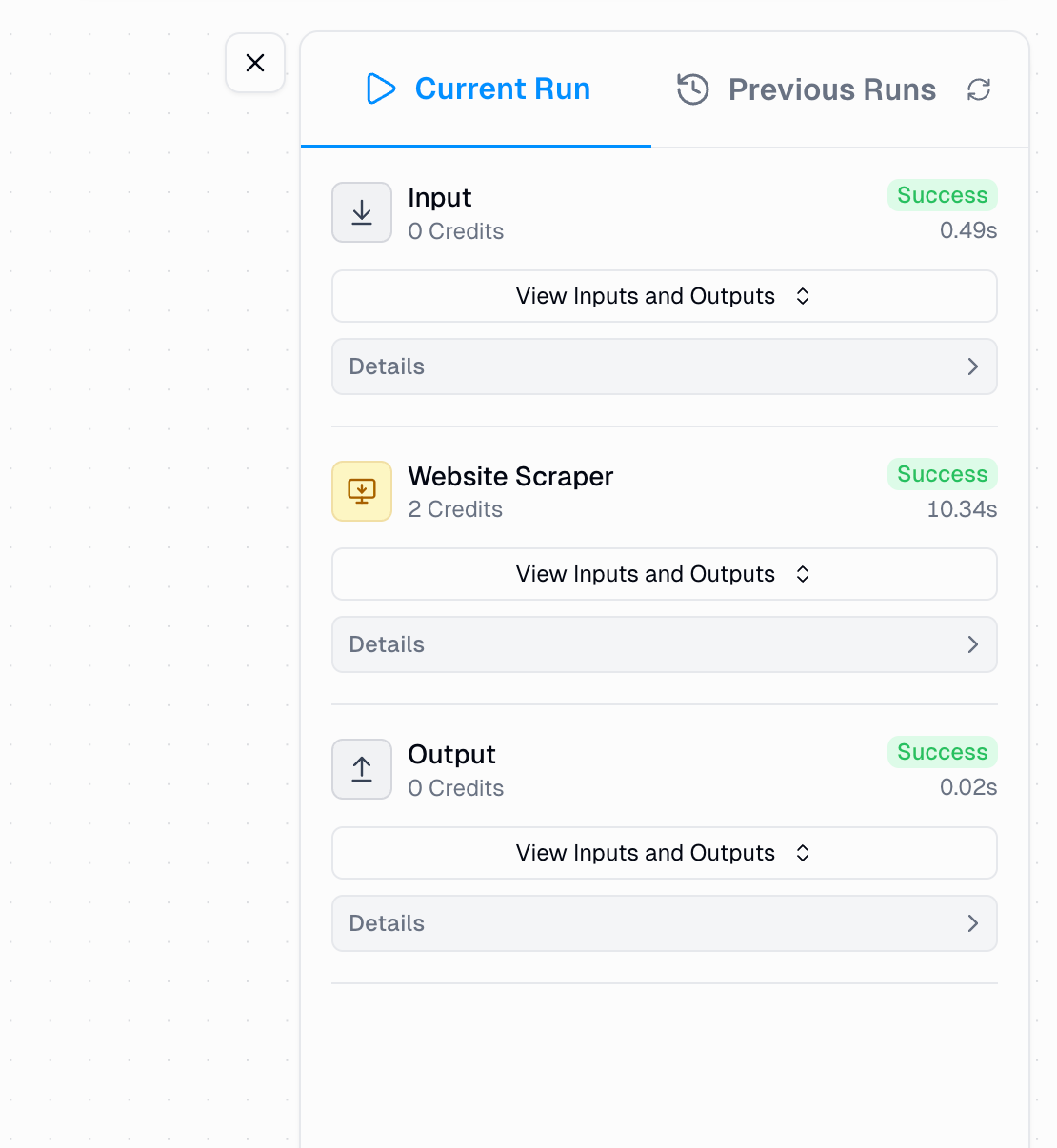
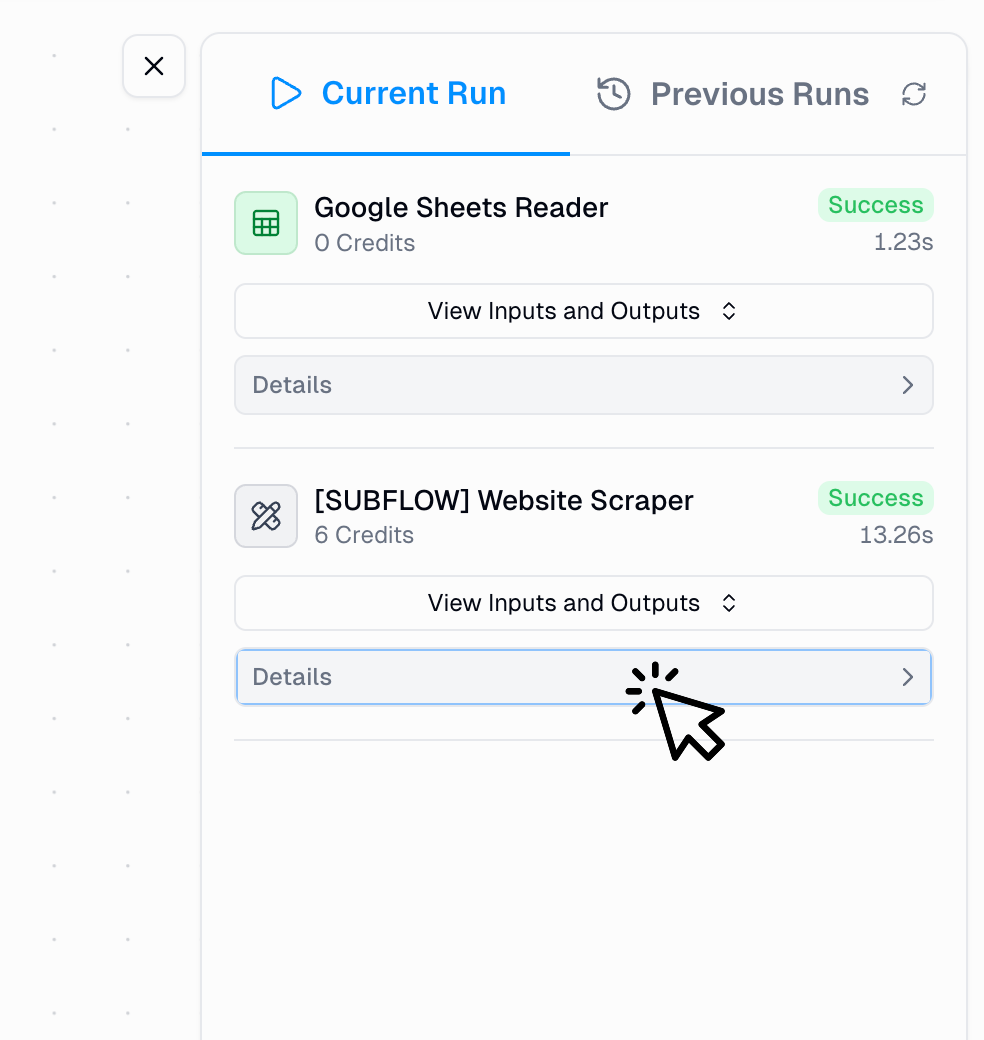
* The **Current Run** panel appears on the right-hand side
* It automatically displays the execution details for that specific run
* You'll see all node statuses, execution times, and outputs
### When You're on a Workflow Page
If you're not on a run link and want to view previous executions:
Navigate to the workflow you want to inspect
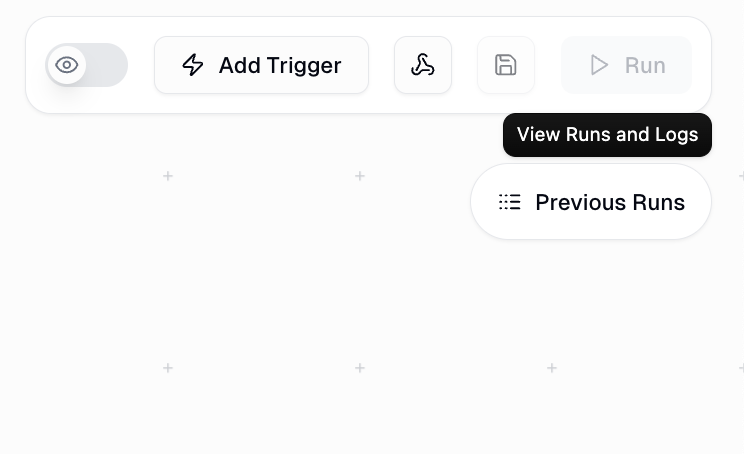
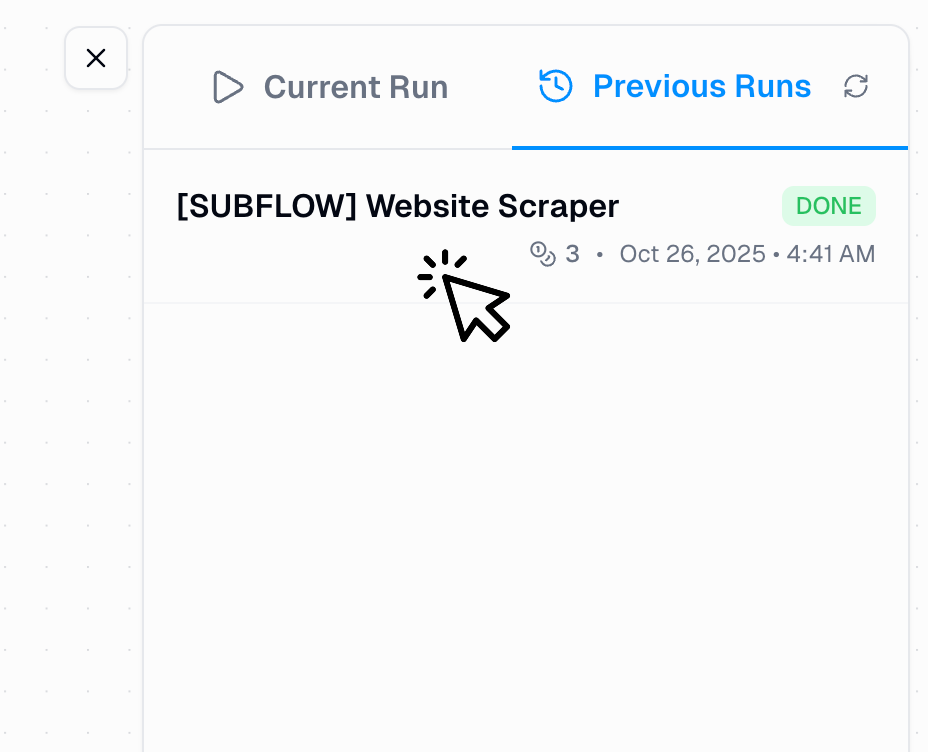
Look for the "Previous Runs" section in your workflow interface
Select any previous run from the list to open its Run Log
Previous runs are only available for saved workbooks. Make sure to save your workbook to preserve run history.
***
## What You'll See in the Run Log
Once you've accessed the Run Log, here's what information is available:
Real-time status indicators for each node showing success, errors, or running state
Time taken by each node and total workflow execution time
Credit costs per node and total credits consumed by the workflow
Complete access to inputs and outputs for every node
***
## Run Log Components
### Execution Status Indicators
Each node displays a clear status indicator to help you quickly identify execution results:
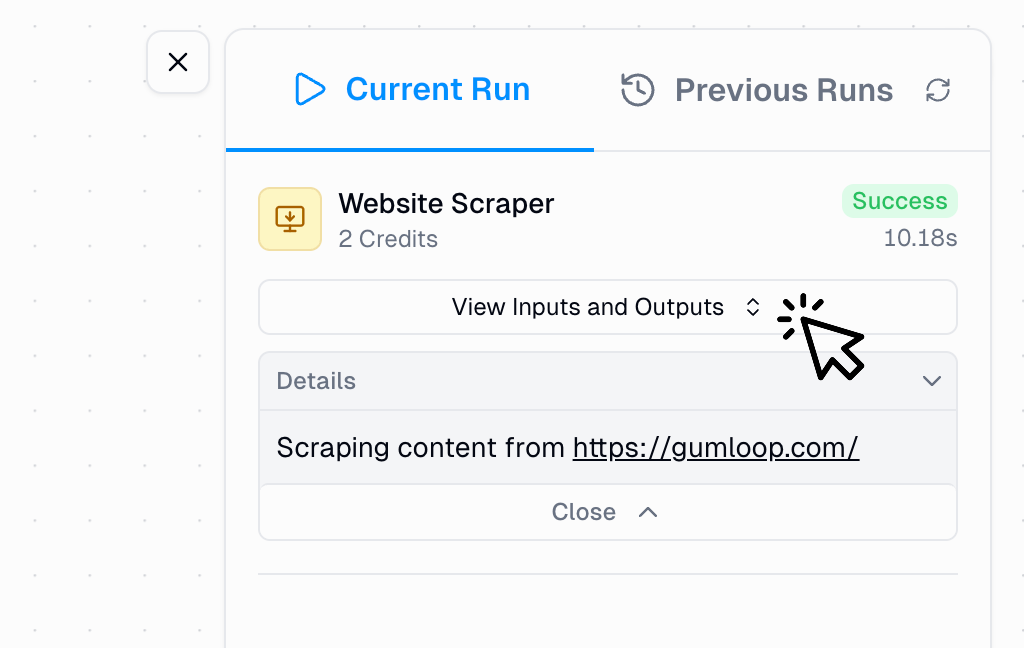
**Green checkmark** - Node executed successfully without errors
This means the node completed its task and passed data to the next node as expected.
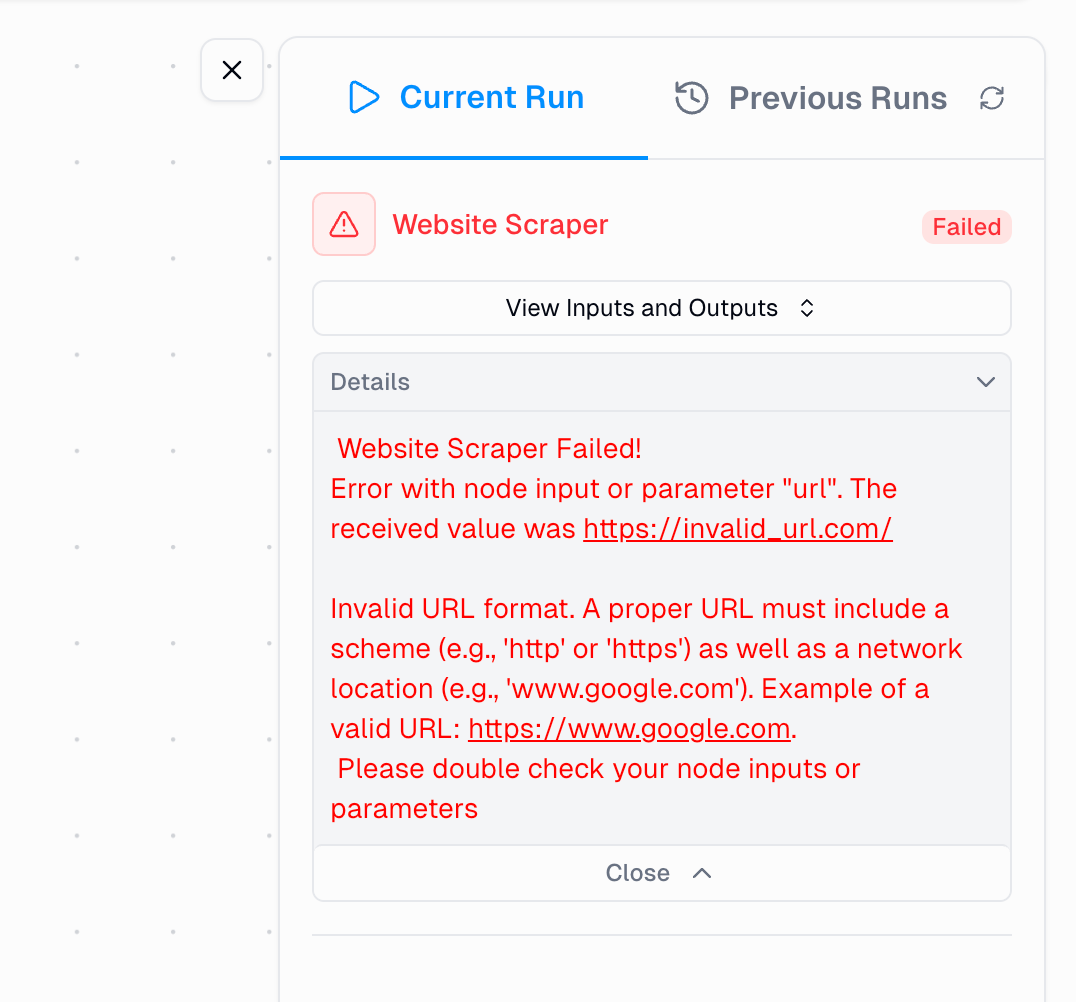
**Red X mark** - Node failed during execution
Click on the node to view detailed error messages and troubleshoot the issue.
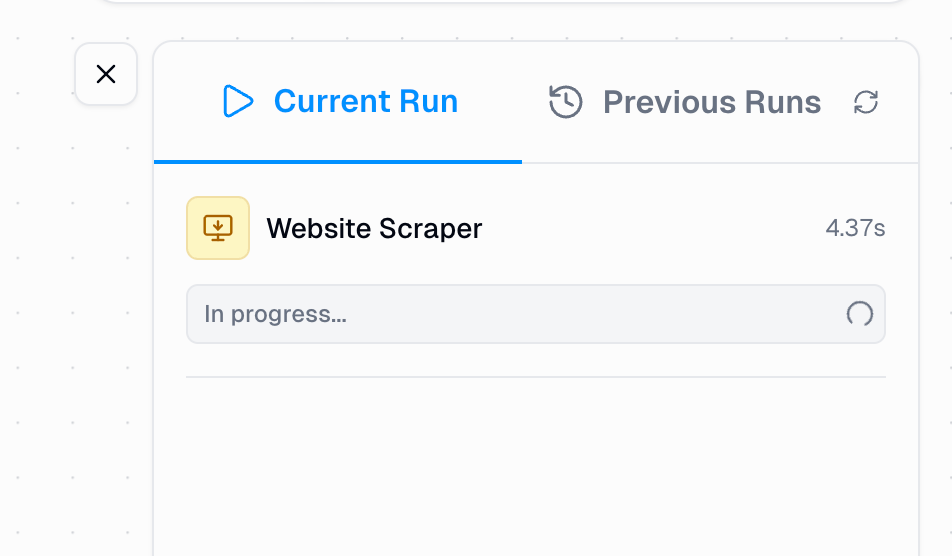
**Animated clock** - Node is currently executing
The node is actively processing. Wait for completion or monitor progress.
### Time and Credit Information
Monitor the performance and cost of your workflow execution:
**Per Node:**
* **Execution time**: Duration each node took to run (e.g., "6.18s")
* **Credit cost**: Number of credits consumed by that specific node
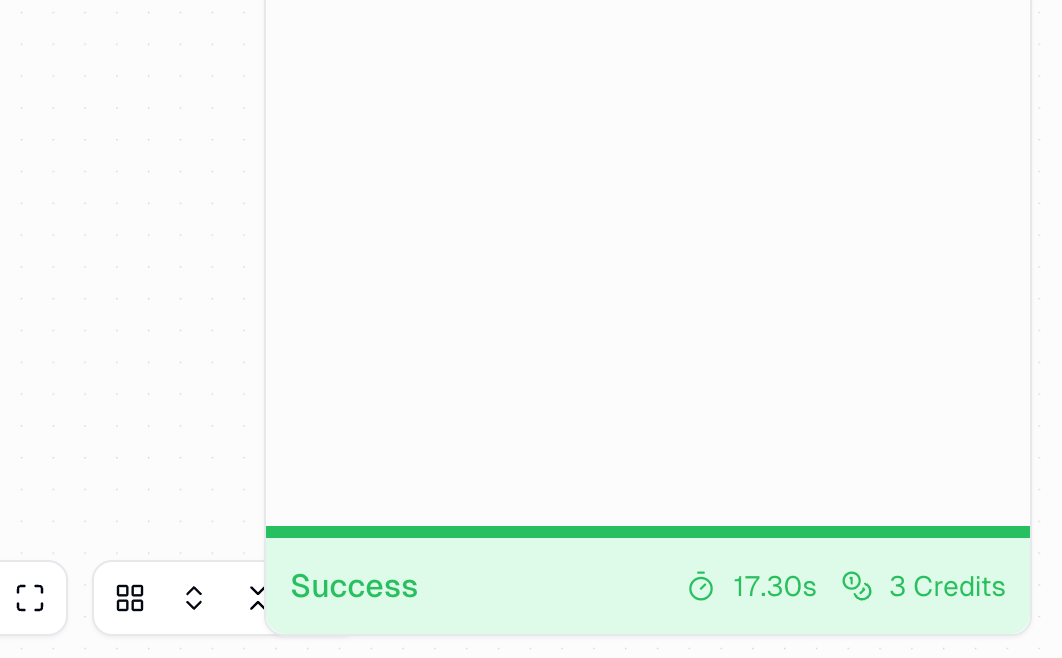
**Workflow Summary:**
Located at the bottom of the Run Log, you'll find:
* **Total execution time**: Cumulative time for the entire workflow
* **Total credits consumed**: Sum of all node credit costs
Use these metrics to identify bottlenecks and optimize your workflow's performance and credit efficiency.
***
## Inspecting Inputs and Outputs
One of the most powerful debugging features in the Run Log is the ability to inspect exactly what data flows between nodes.
### How to View Data
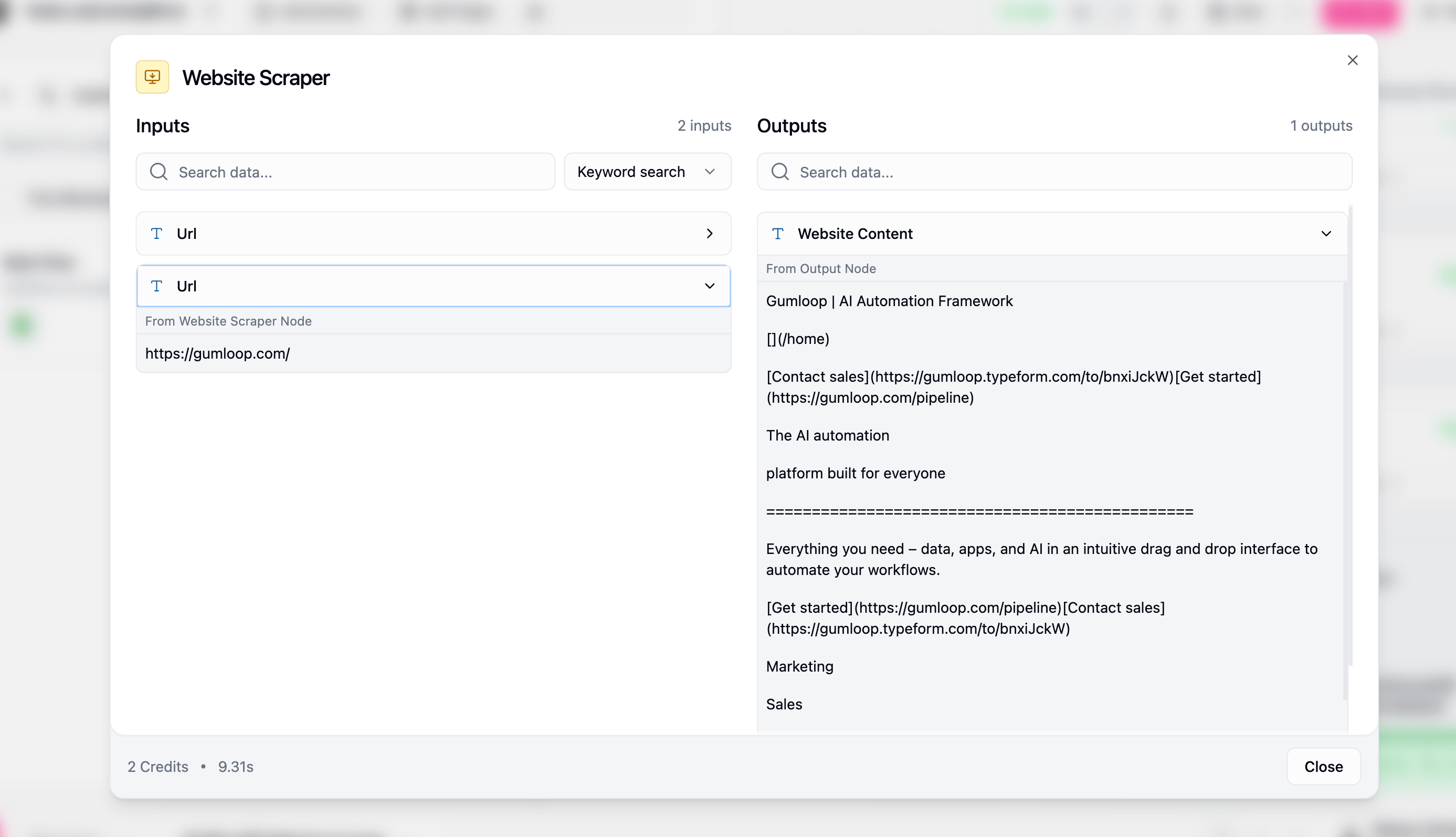
Click the **"See all inputs and outputs"** button for any node in the Run Log
A modal appears displaying:
* **All input data** the node received from previous nodes
* **All output data** the node produced for downstream nodes
### Understanding Data Display
The modal shows data according to its type, with visual icons to help you quickly identify what you're looking at:
| Data Type | Icon | Display Format | Use Case |
| ---------- | -------------------- | --------------------------- | ---------------------------------------- |
| **Text** | | Plain text format | Verify text content and formatting |
| **List** | | Expandable with item counts | Check list length and individual entries |
| **File** | | File names and metadata | Confirm file processing and names |
| **Object** | Plain text | Structured display | Inspect complex data structures |
This modal is invaluable for:
* **Verifying data flow** between nodes is working correctly
* **Checking text formatting** matches your expectations
* **Ensuring list items** contain the expected values
* **Confirming files** are being processed properly
* **Debugging errors** by seeing exactly what data caused issues
* Start debugging from the first failed node and work backwards
* Compare inputs vs outputs to see how each node transforms data
* Use inputs/outputs to understand why a node produced unexpected results
* Check for empty inputs that might indicate issues with previous nodes
* Look for the type icons to quickly understand data structure
***
## Working with Subflows
Subflows have special Run Log behavior that helps you debug complex, nested workflows.
### Navigation Between Parent and Subflow
When your workflow contains subflows, the Run Log provides two levels of visibility:
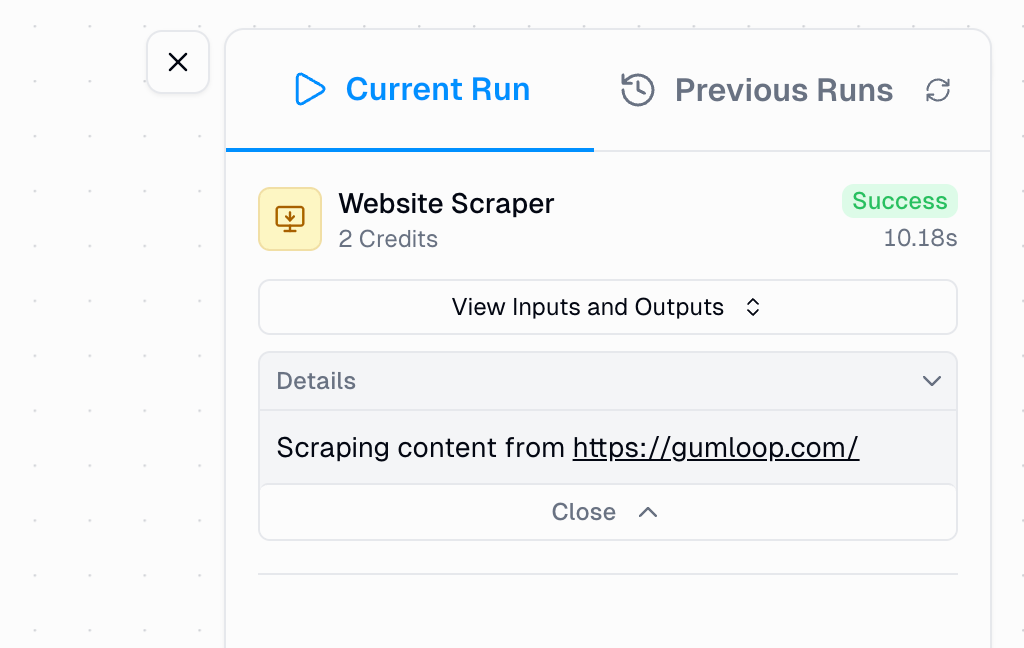
1. **Parent Workflow View**: Shows the subflow as a single node with overall status
2. **Subflow Detail View**: Shows individual node execution within the subflow
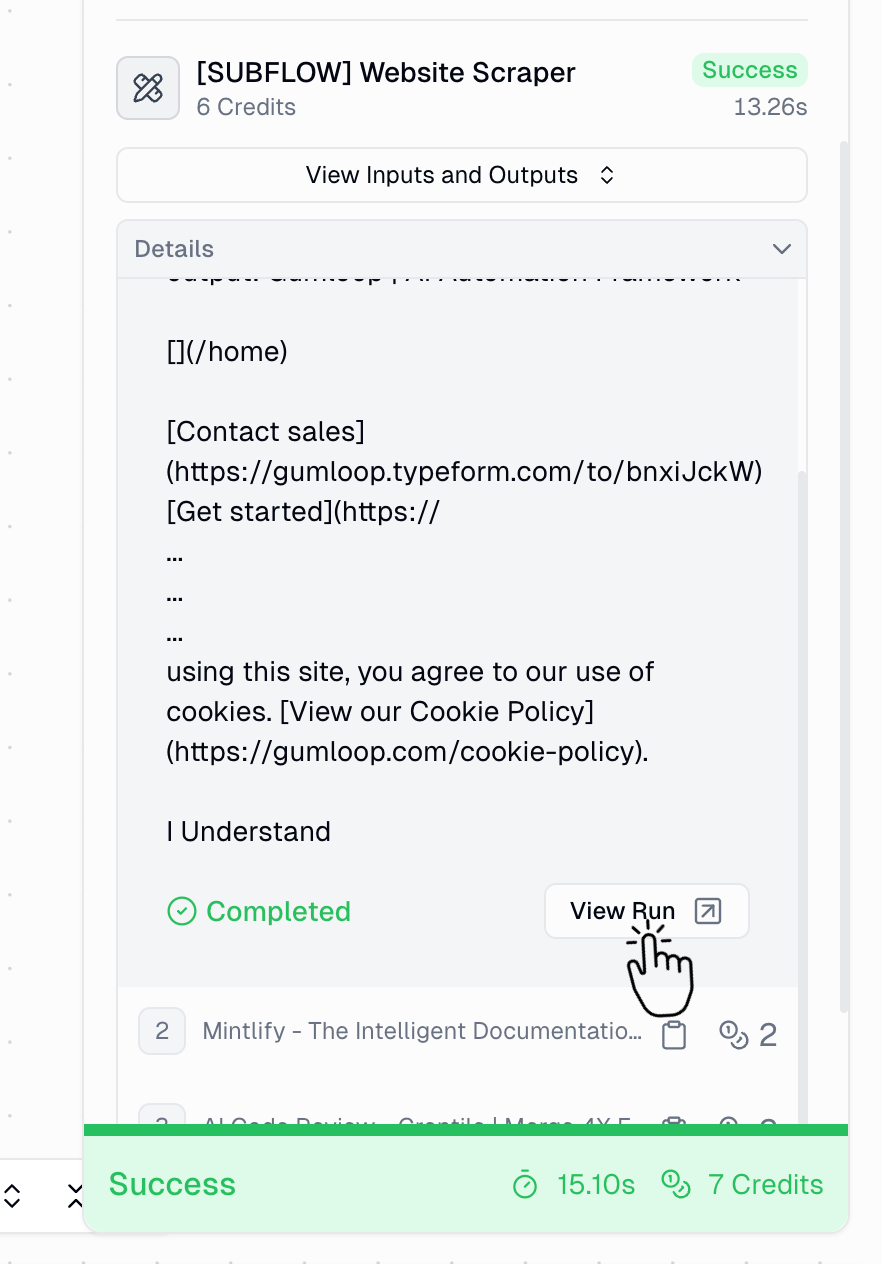
In the parent workflow's Run Log, click on any subflow node
A "View Run" option appears - click it to see detailed subflow execution
Use the workflow tabs at the bottom of the screen to navigate back to the parent workflow
**Why this matters:** This navigation lets you pinpoint exactly where issues occur in complex workflows and see how data flows through different levels of your automation.
***
## Loop Mode Execution
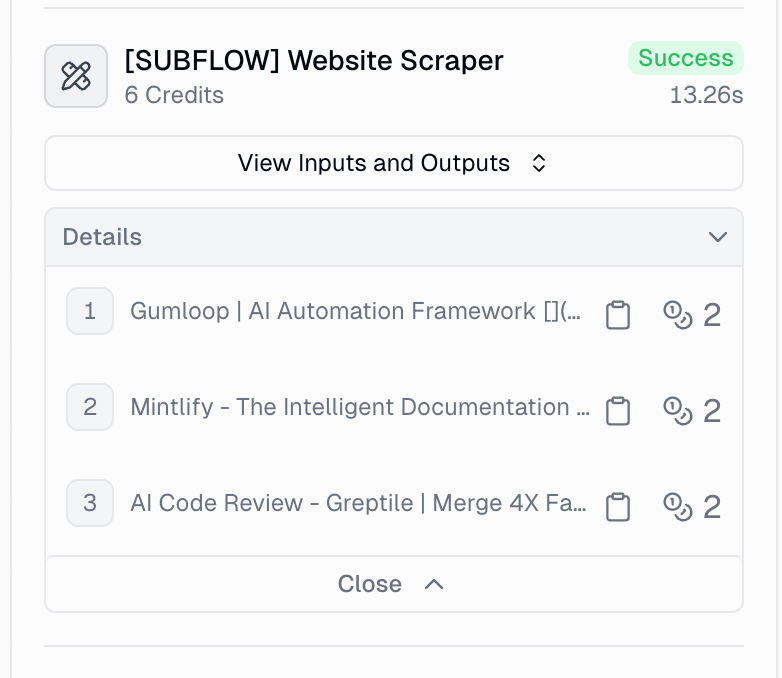
When nodes run in Loop Mode, the Run Log enumerates each iteration, giving you visibility into how individual items are processed.
### Viewing Loop Mode Details
**In Loop Mode:**
1. Expand the node or subflow in the Run Log
2. Each iteration is numbered (1, 2, 3, etc.)
3. Click any iteration to view its specific inputs/outputs
4. Monitor which items succeeded or failed individually
**List Size Mismatch Error**
This is one of the most common Loop Mode errors. It happens when a node receives multiple list inputs of different lengths.
Learn how to diagnose and resolve list size mismatch errors
***
## Debugging with the Run Log
### Common Error Patterns
**How it appears:** "Failed to authenticate" or "Credentials not found"
**Solution:**
* Check your credentials in [Credentials settings](https://docs.gumloop.com/core-concepts/credentials)
* Verify credentials haven't expired or been revoked
* Re-authenticate the integration if necessary
**How it appears:** "No input provided" or "Input is required"
**Solution:**
* Inspect the previous node's output using the input/output modal
* Ensure the previous node is outputting data as expected
* Check for type mismatches between nodes
**How it appears:** "Request timed out" or "Execution exceeded time limit"
**Solution:**
* Break large operations into smaller chunks using Loop Mode
* Add error handling with [Error Shield nodes](https://docs.gumloop.com/nodes/flow_basics/error_shield)
* Consider using pagination for data source nodes
### Systematic Debugging Approach
Scan the Run Log for nodes with error status indicators
Use the input/output modal to see exactly what data the node received and produced
Read the specific error information in the node's output
Follow how data changes as it moves through your workflow to identify where issues begin
For complex workflows, drill down into subflow runs to isolate the exact location of issues
Reference previous successful runs to identify what changed
***
## Best Practices
Run workflows with limited data first to quickly identify and fix issues before processing large datasets
Wrap critical nodes in [Error Shield nodes](https://docs.gumloop.com/nodes/flow_basics/error_shield) to see both success and failure paths
Track credit usage in the Run Log to optimize efficiency and reduce unnecessary costs
Always save your workbook to preserve run history for future troubleshooting and comparison
Share run links with team members when asking for help or documenting issues
Check previous runs periodically to catch patterns in errors or performance degradation
***
## Quick Reference: Run Log Features
| Feature | Purpose | How to Access |
| ------------------- | -------------------------------- | ----------------------------------------- |
| **Node Status** | View success/error/running state | Automatically visible in Run Log |
| **Execution Time** | Monitor performance per node | Shown on each node in Run Log |
| **Credit Cost** | Track credit usage | Displayed on each node and in summary |
| **Inputs/Outputs** | Debug data flow | Click "See all inputs and outputs" button |
| **Subflow Details** | Inspect nested workflows | Click subflow node → "View Run" |
| **Loop Iterations** | View individual loop processing | Expand loop mode node |
| **Run History** | Compare past executions | Click "Previous Runs" tab |
| **Run Links** | Share for collaboration | Available in run history |
***
## Need More Help?
Need help? Reach out to us and we'll assist you.
Learn how to fix common errors like list size mismatches
Add error handling to your workflows for better debugging
Configure authentication for integrations
***
## Summary
The Run Log is your most powerful tool for understanding, debugging, and optimizing Gumloop workflows. By mastering its features - from status indicators to input/output inspection to subflow navigation - you can:
✅ **Quickly identify and resolve issues** with detailed error information\
✅ **Understand data flow** through your entire automation\
✅ **Optimize performance** by monitoring execution time and credit usage\
✅ **Collaborate effectively** by sharing run links with your team\
✅ **Track improvements** by comparing runs over time
**Pro Tip:** Bookmark successful run logs as reference points. When something breaks, compare the current run with a known-good run to quickly identify what changed.