> ## Documentation Index
> Fetch the complete documentation index at: https://docs.gumloop.com/llms.txt
> Use this file to discover all available pages before exploring further.
# Reflections
> Let your agents periodically review their own work, find patterns, and propose improvements automatically.
Reflections give your agent the ability to **learn from its own history**. Instead of relying solely on your feedback, the agent periodically reviews its recent conversations, identifies patterns (repeated mistakes, inefficient tool usage, missing knowledge), and proposes concrete improvements to its skills and instructions.
Think of it as a built-in performance review that runs on autopilot.
***
## Why Reflections?
Without Reflections, your agent improves only when you explicitly correct it or manually update its instructions. That works for one-off fixes, but it doesn't scale.
With Reflections enabled, your agent:
* **Detects recurring problems** across multiple conversations, not just the one you noticed
* **Proposes targeted fixes** like new skills, instruction updates, or tool configuration changes
* **Backs every suggestion with evidence** from actual conversation transcripts
* **Gets better over time** without requiring constant hands-on management from you
You notice the agent keeps making the same mistake. You manually update the instructions or skill. Repeat for every issue you catch.
The agent reviews its own work on a schedule. It finds the mistake pattern across 8 conversations, proposes a skill fix, and you approve it with one click.
Reflections works best when paired with [Skills](/core-concepts/skills) and [Self-Improve Instructions](/core-concepts/agents#self-improve-instructions). Skills give the agent structured playbooks to update. Self-Improve Instructions lets the agent tweak its own system prompt. Reflections is the engine that identifies *what* to change.
***
## How Reflections Work
Here's what happens behind the scenes when a reflection runs:
The agent collects all operations (tool calls, conversations, errors) since its last reflection run. These are the raw data it will analyze.
Automated analysis identifies candidates: repeated request types, recurring errors, inefficient tool sequences, frequently re-fetched data. Each pattern gets a confidence score and support count (how many interactions showed it).
This is the critical step. The agent reads actual conversation transcripts for each candidate pattern. It checks whether the pattern is real, consistent across interactions, and worth fixing. Patterns that are one-off, already handled, or inherent to the task get rejected.
The agent reads its current instructions and skills to make sure it's not proposing a change that's already covered. It also checks previous reflections to see if a pattern is persistent (keeps coming up) or resolved (a past fix worked).
For each validated pattern, the agent picks the right type of improvement and creates a suggestion with a detailed prompt explaining exactly what to change and why.
### Types of Improvements
Reflections can propose several types of changes:
| Type | When It's Used | Example |
| ---------------------- | ------------------------------------------------------------------------ | ------------------------------------------------------------------------------------- |
| **New Skill** | A repeating multi-step workflow (3+ tool calls in a consistent sequence) | "Search Jira by status, filter results, format as table" recurs across 8 interactions |
| **Skill Fix** | An existing skill covers the case but misses an edge case | The outreach skill works but doesn't handle out-of-office replies |
| **Instruction Update** | A behavioral rule or domain fact, not a workflow | "Always use UTC for timestamps" or "User X prefers CSV over JSON" |
| **Tool Access** | The agent is working around a missing integration | The agent uses sandbox curl instead of the proper API tool |
***
## Setting Up Reflections
### Enabling Reflections
1. Open your agent's configuration
2. Find **Reflections** in the left side panel
 3. If reflections aren't enabled yet, you'll see an overview page. Click **Enable Reflections**
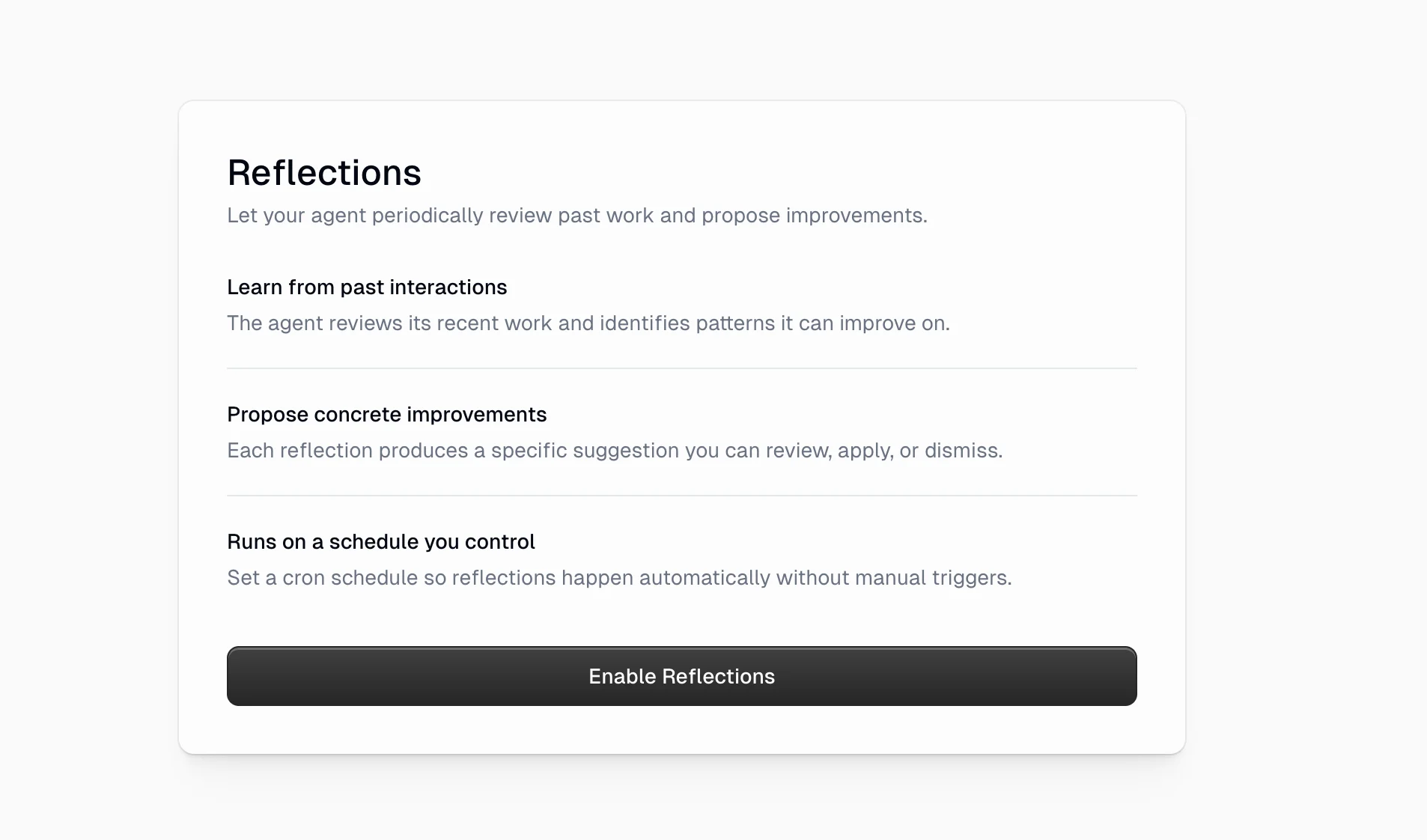 4. Configure the reflection settings
 5. Click **Save**
Once enabled, a scheduled trigger is automatically created to run reflections on the schedule you configure.
### Apply Behavior
This controls what happens when the agent proposes an improvement.
5. Click **Save**
Once enabled, a scheduled trigger is automatically created to run reflections on the schedule you configure.
### Apply Behavior
This controls what happens when the agent proposes an improvement.
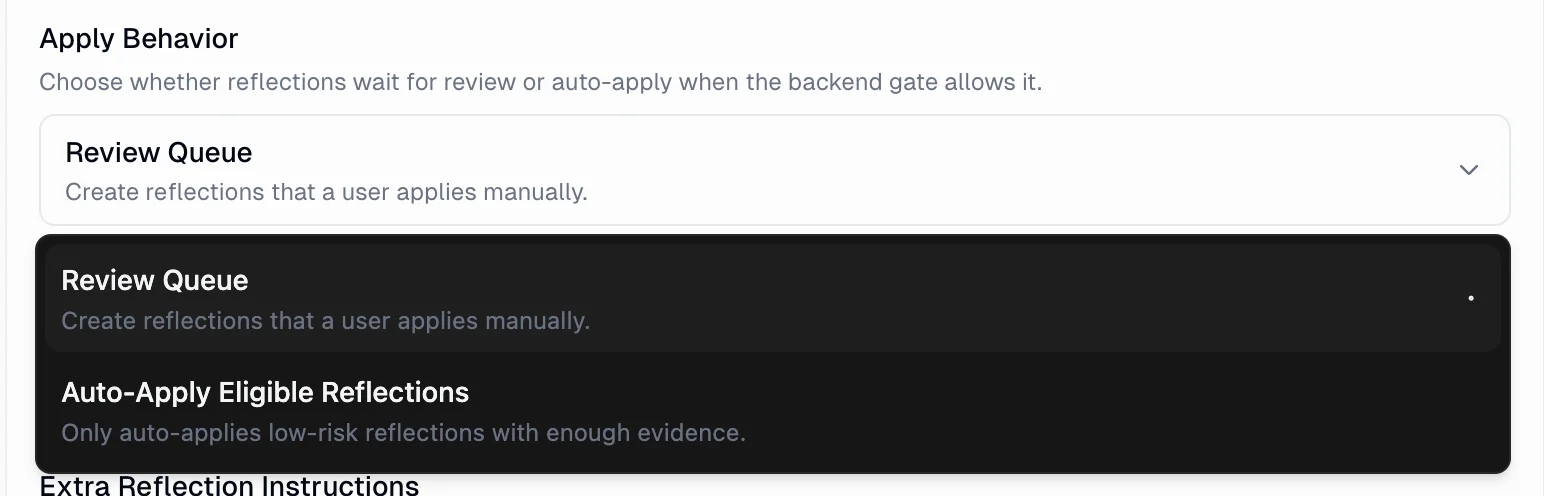 Every suggestion goes into a queue for you to review. Nothing changes until you explicitly approve it. This is the safest option and the default for all agents.
**Best for:** Production agents, customer-facing workflows, or any agent where you want full control over changes.
Low-risk suggestions with strong evidence get applied automatically. The agent still creates the suggestion, but it fires the improvement run immediately without waiting for your approval.
**Best for:** Internal agents, personal assistants, or agents where you trust the improvement process and want faster iteration.
Auto-apply only fires suggestions the system classifies as low-risk with sufficient evidence. High-risk or uncertain suggestions still go to the Review Queue even with this mode enabled.
### Reflection Schedule
Set how often reflections run using a cron schedule. The default is **daily at 10:00 PM UTC**. You can change this to match your needs.
Use the schedule picker to set a custom frequency, like every 2 days, weekly, or at a specific time that works for your team.
If your agent handles a high volume of conversations daily, consider running reflections daily. For lower-volume agents, every 2-3 days or weekly is usually enough. There's no benefit to reflecting when there's no new activity to analyze.
### Extra Reflection Instructions
Optionally guide what your agent pays attention to during reflections. This is a free-text field where you can steer the reflection focus.
**Examples:**
* "Focus on repeated tasks, missed tools, and recurring user requests."
* "Pay special attention to error patterns in Salesforce queries."
* "Prioritize improvements that reduce the number of tool calls per interaction."
* "Look for cases where the agent asked for clarification but shouldn't have needed to."
Leave this blank if you want the agent to reflect on everything equally.
### Report Delivery
Get notified when reflections complete by enabling email or Slack DM reports. These settings are found in the **Configuration** panel on the Reflections page.
Every suggestion goes into a queue for you to review. Nothing changes until you explicitly approve it. This is the safest option and the default for all agents.
**Best for:** Production agents, customer-facing workflows, or any agent where you want full control over changes.
Low-risk suggestions with strong evidence get applied automatically. The agent still creates the suggestion, but it fires the improvement run immediately without waiting for your approval.
**Best for:** Internal agents, personal assistants, or agents where you trust the improvement process and want faster iteration.
Auto-apply only fires suggestions the system classifies as low-risk with sufficient evidence. High-risk or uncertain suggestions still go to the Review Queue even with this mode enabled.
### Reflection Schedule
Set how often reflections run using a cron schedule. The default is **daily at 10:00 PM UTC**. You can change this to match your needs.
Use the schedule picker to set a custom frequency, like every 2 days, weekly, or at a specific time that works for your team.
If your agent handles a high volume of conversations daily, consider running reflections daily. For lower-volume agents, every 2-3 days or weekly is usually enough. There's no benefit to reflecting when there's no new activity to analyze.
### Extra Reflection Instructions
Optionally guide what your agent pays attention to during reflections. This is a free-text field where you can steer the reflection focus.
**Examples:**
* "Focus on repeated tasks, missed tools, and recurring user requests."
* "Pay special attention to error patterns in Salesforce queries."
* "Prioritize improvements that reduce the number of tool calls per interaction."
* "Look for cases where the agent asked for clarification but shouldn't have needed to."
Leave this blank if you want the agent to reflect on everything equally.
### Report Delivery
Get notified when reflections complete by enabling email or Slack DM reports. These settings are found in the **Configuration** panel on the Reflections page.
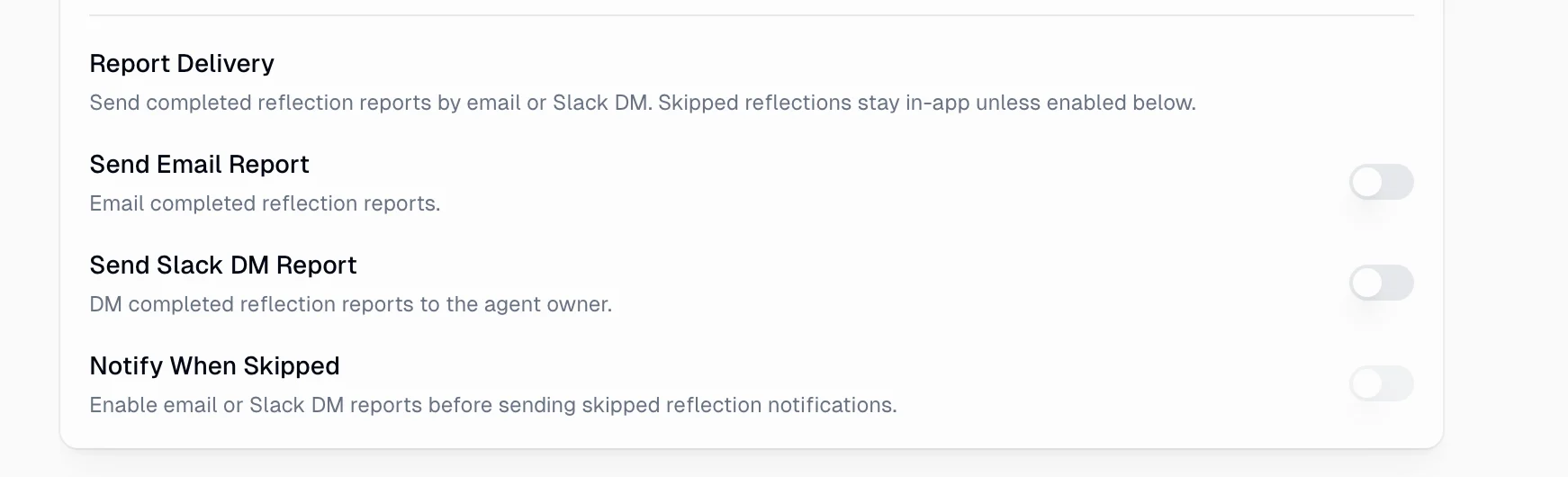 When enabled, completed reflection reports are emailed to the recipients you specify. Toggle this on, then add one or more email addresses. Each address is validated before it's saved.
**Best for:** Team leads or stakeholders who want to stay informed about agent improvements without logging into Gumloop.
When enabled, completed reflection reports are sent as a Slack DM to the agent owner.
**Best for:** Agent owners who live in Slack and want immediate visibility when their agent proposes changes.
When enabled, you'll also receive notifications when a scheduled reflection is skipped (because the agent didn't meet the minimum chat threshold). You must have at least one delivery channel (email or Slack DM) enabled before this option becomes available.
**Best for:** Keeping tabs on agent activity. If reflections are frequently skipped, it may indicate the agent isn't being used enough to benefit from the current reflection schedule.
Report delivery is disabled by default. Enabling reflections alone does not send any notifications outside the Gumloop app. You must explicitly opt in to email or Slack DM reports.
***
## Reviewing Reflections
When your agent completes a reflection run, the proposed improvements appear on the **Reflections** page. Navigate there from the agent's sidebar.
### The Reflections Page
When enabled, completed reflection reports are emailed to the recipients you specify. Toggle this on, then add one or more email addresses. Each address is validated before it's saved.
**Best for:** Team leads or stakeholders who want to stay informed about agent improvements without logging into Gumloop.
When enabled, completed reflection reports are sent as a Slack DM to the agent owner.
**Best for:** Agent owners who live in Slack and want immediate visibility when their agent proposes changes.
When enabled, you'll also receive notifications when a scheduled reflection is skipped (because the agent didn't meet the minimum chat threshold). You must have at least one delivery channel (email or Slack DM) enabled before this option becomes available.
**Best for:** Keeping tabs on agent activity. If reflections are frequently skipped, it may indicate the agent isn't being used enough to benefit from the current reflection schedule.
Report delivery is disabled by default. Enabling reflections alone does not send any notifications outside the Gumloop app. You must explicitly opt in to email or Slack DM reports.
***
## Reviewing Reflections
When your agent completes a reflection run, the proposed improvements appear on the **Reflections** page. Navigate there from the agent's sidebar.
### The Reflections Page
 Each reflection shows up as a card grouped by date with:
* **Title**: A short description of the proposed improvement
* **Rationale**: Why the agent thinks this change is needed
* **Status**: Current state of the reflection (Accepted, Completed, etc.)
* **Date**: When the reflection was created
Click any card to see the full details, including the exact prompt the agent will follow if you apply it.
### Applying a Reflection
To apply a pending reflection:
1. Click the reflection card to open the detail view
2. Review the prompt to understand what will change
3. Click **Apply**
When you apply a reflection, the agent starts a new self-improvement interaction. It follows the prompt's instructions to make the proposed changes (updating skills, modifying instructions, etc.). You can watch this interaction run in the agent's chat history.
Only users with **Owner** or **Editor** access to the agent can apply reflections.
***
## How Reflections Differ from Other Self-Improvement Features
Gumloop agents have several ways to learn and improve. Here's how they fit together:
| Feature | What It Does | When It Runs |
| -------------------------------------------------------------------------------- | --------------------------------------------------------------------------------------------------------------------- | ----------------------------------------- |
| **[Self-Improve Instructions](/core-concepts/agents#self-improve-instructions)** | Agent updates its own system prompt during a conversation based on your feedback | In real-time, during any chat |
| **[Skill Editing](/core-concepts/skills)** | Agent creates or updates skills when you ask it to, or when it learns something new | In real-time, during any chat |
| **Reflections** | Agent reviews past work on a schedule, identifies patterns across many conversations, and proposes batch improvements | On a schedule (e.g., daily, every 2 days) |
Self-Improve Instructions and Skill Editing are **reactive**: they happen when you correct the agent or ask it to learn something. Reflections are **proactive**: the agent looks for problems you might not have noticed yet, across all its recent conversations.
Use all three together for the best results. Real-time corrections fix issues in the moment. Reflections catch systemic patterns you might miss.
***
## Best Practices
**Start with Review Queue.** When first enabling Reflections, use the Review Queue mode so you can see what kinds of improvements the agent proposes. Once you're comfortable with the quality, you can switch to Auto-Apply.
**Write specific extra instructions.** Generic instructions like "improve everything" are less useful than targeted ones like "focus on reducing errors in our Salesforce integration" or "look for opportunities to create skills for repeated reporting tasks."
**Check reflections regularly.** Pending reflections don't expire, but they become less relevant over time. Review and apply (or dismiss) them within a few days of creation.
**Let the agent build momentum.** The first few reflections may be modest. As the agent accumulates more conversation history and applies improvements, subsequent reflections become more insightful because they can compare against previous ones.
**Combine with Search Past Conversations.** Enable [Search Past Conversations](/core-concepts/agents#search-past-conversations) so the reflection agent can look up full conversation transcripts. This makes reflection validation much more accurate.
***
## FAQ
No. If there are no new operations since the last reflection, the scheduled run will skip automatically. No credits are consumed.
Reflections use credits like any other agent interaction. The cost depends on how many operations need to be analyzed and how many conversation transcripts the agent reads for validation. Typically, a reflection run costs roughly the same as a moderate agent conversation.
Reflections run on their configured schedule. To get an immediate reflection, you can adjust the schedule to run soon, or use the agent's chat to ask it to review its recent work (which uses Self-Improve Instructions rather than the formal Reflections system).
Nothing breaks. Pending reflections stay in the queue indefinitely. Future reflection runs may propose newer, better versions of the same improvement (which supersede the older ones). But stale reflections lose relevance over time, so it's best to review them periodically.
Auto-apply is conservative by design. It only fires suggestions the system classifies as low-risk with enough supporting evidence. High-risk or ambiguous suggestions still go to the Review Queue. That said, if you want full control, stick with Review Queue mode.
Only users with **Owner** or **Editor** access to the agent can apply reflections. Viewers can see the reflections page but cannot apply or dismiss suggestions.
Yes. When you apply a reflection, it creates a new interaction in the agent's chat history. You can open that interaction to see exactly what the agent did: which files it edited, which skills it created or updated, and the reasoning behind each change.
Each reflection shows up as a card grouped by date with:
* **Title**: A short description of the proposed improvement
* **Rationale**: Why the agent thinks this change is needed
* **Status**: Current state of the reflection (Accepted, Completed, etc.)
* **Date**: When the reflection was created
Click any card to see the full details, including the exact prompt the agent will follow if you apply it.
### Applying a Reflection
To apply a pending reflection:
1. Click the reflection card to open the detail view
2. Review the prompt to understand what will change
3. Click **Apply**
When you apply a reflection, the agent starts a new self-improvement interaction. It follows the prompt's instructions to make the proposed changes (updating skills, modifying instructions, etc.). You can watch this interaction run in the agent's chat history.
Only users with **Owner** or **Editor** access to the agent can apply reflections.
***
## How Reflections Differ from Other Self-Improvement Features
Gumloop agents have several ways to learn and improve. Here's how they fit together:
| Feature | What It Does | When It Runs |
| -------------------------------------------------------------------------------- | --------------------------------------------------------------------------------------------------------------------- | ----------------------------------------- |
| **[Self-Improve Instructions](/core-concepts/agents#self-improve-instructions)** | Agent updates its own system prompt during a conversation based on your feedback | In real-time, during any chat |
| **[Skill Editing](/core-concepts/skills)** | Agent creates or updates skills when you ask it to, or when it learns something new | In real-time, during any chat |
| **Reflections** | Agent reviews past work on a schedule, identifies patterns across many conversations, and proposes batch improvements | On a schedule (e.g., daily, every 2 days) |
Self-Improve Instructions and Skill Editing are **reactive**: they happen when you correct the agent or ask it to learn something. Reflections are **proactive**: the agent looks for problems you might not have noticed yet, across all its recent conversations.
Use all three together for the best results. Real-time corrections fix issues in the moment. Reflections catch systemic patterns you might miss.
***
## Best Practices
**Start with Review Queue.** When first enabling Reflections, use the Review Queue mode so you can see what kinds of improvements the agent proposes. Once you're comfortable with the quality, you can switch to Auto-Apply.
**Write specific extra instructions.** Generic instructions like "improve everything" are less useful than targeted ones like "focus on reducing errors in our Salesforce integration" or "look for opportunities to create skills for repeated reporting tasks."
**Check reflections regularly.** Pending reflections don't expire, but they become less relevant over time. Review and apply (or dismiss) them within a few days of creation.
**Let the agent build momentum.** The first few reflections may be modest. As the agent accumulates more conversation history and applies improvements, subsequent reflections become more insightful because they can compare against previous ones.
**Combine with Search Past Conversations.** Enable [Search Past Conversations](/core-concepts/agents#search-past-conversations) so the reflection agent can look up full conversation transcripts. This makes reflection validation much more accurate.
***
## FAQ
No. If there are no new operations since the last reflection, the scheduled run will skip automatically. No credits are consumed.
Reflections use credits like any other agent interaction. The cost depends on how many operations need to be analyzed and how many conversation transcripts the agent reads for validation. Typically, a reflection run costs roughly the same as a moderate agent conversation.
Reflections run on their configured schedule. To get an immediate reflection, you can adjust the schedule to run soon, or use the agent's chat to ask it to review its recent work (which uses Self-Improve Instructions rather than the formal Reflections system).
Nothing breaks. Pending reflections stay in the queue indefinitely. Future reflection runs may propose newer, better versions of the same improvement (which supersede the older ones). But stale reflections lose relevance over time, so it's best to review them periodically.
Auto-apply is conservative by design. It only fires suggestions the system classifies as low-risk with enough supporting evidence. High-risk or ambiguous suggestions still go to the Review Queue. That said, if you want full control, stick with Review Queue mode.
Only users with **Owner** or **Editor** access to the agent can apply reflections. Viewers can see the reflections page but cannot apply or dismiss suggestions.
Yes. When you apply a reflection, it creates a new interaction in the agent's chat history. You can open that interaction to see exactly what the agent did: which files it edited, which skills it created or updated, and the reasoning behind each change.