> ## Documentation Index
> Fetch the complete documentation index at: https://docs.gumloop.com/llms.txt
> Use this file to discover all available pages before exploring further.
# Organization Skills
> Centrally manage skills for your whole organization, and keep them in sync with a GitHub repository.
**Organization Skills** let admins manage a shared library of [skills](/core-concepts/skills) for the entire organization from one place, and control who can use them.
There are two kinds of organization skills:
Created and stored directly in Gumloop — with AI, by uploading files, or by
writing instructions. Fully editable inside Gumloop.
Imported from a GitHub repository and kept in sync automatically. The
repository is the source of truth — you edit these in GitHub, not in Gumloop.
Organization Skills live under **Settings → Organization → Skills**
([gumloop.com/settings/organization/skills](https://gumloop.com/settings/organization/skills)).
## Who can use it
Available on **Pro** and **Enterprise** plans.
Managing organization skills and sources requires the
**Manage Organization Skills** permission, which belongs to the
**Admin** role by default.
Members without this permission don't manage sources — they simply *use* the skills that have been shared with them or their team, just like any other skill.
## Connect a GitHub repository
GitHub-backed skills are imported from a repository your organization has authorized through the **Gumloop GitHub App**. Connecting a source is a short guided flow.
**How skills are discovered:** every folder that contains a `SKILL.md` file
becomes one skill. Gumloop scans the branch and folder path you select and
imports each such folder as an organization skill.
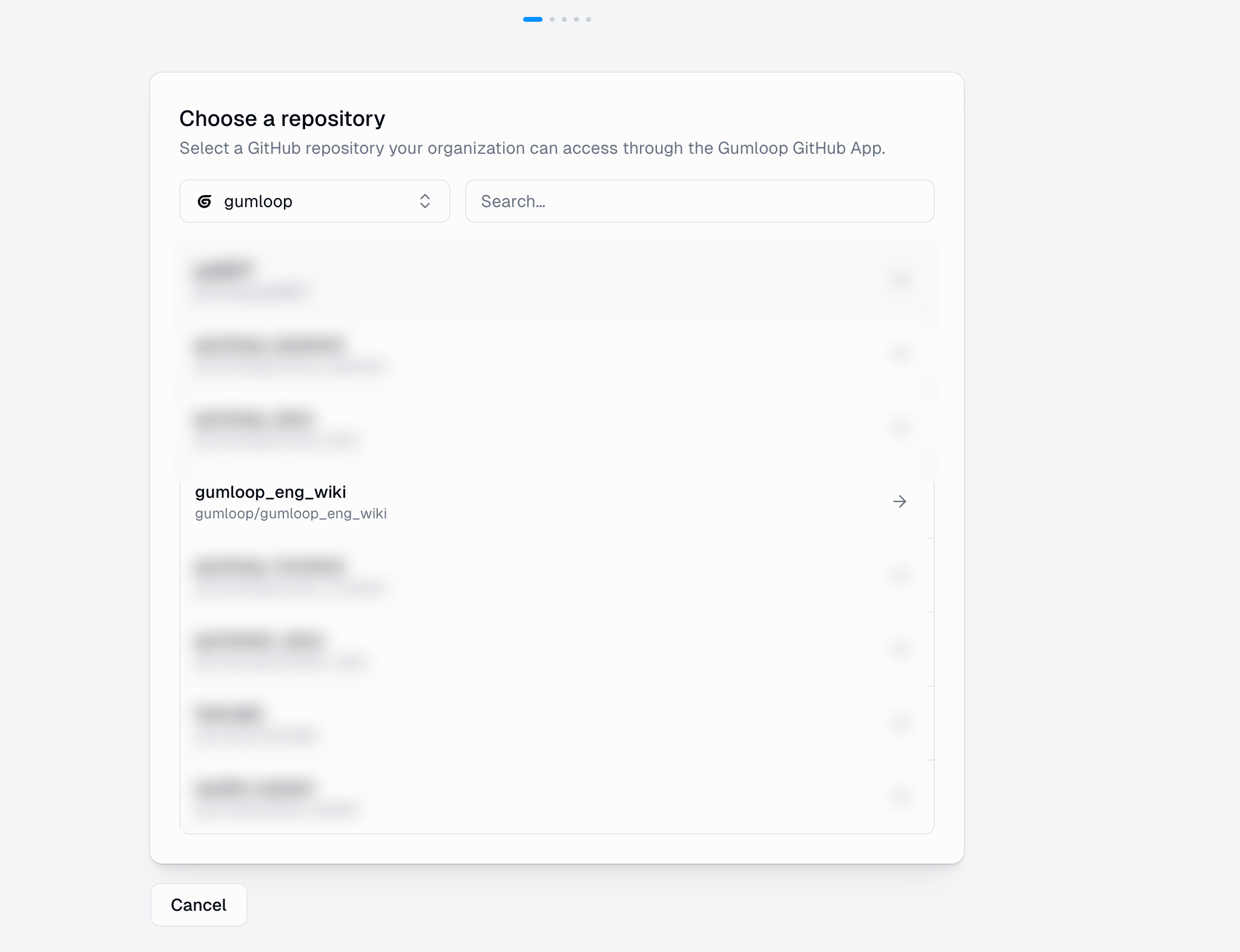
Pick the GitHub owner, then select a repository the Gumloop GitHub App can
access. Repositories you haven't used before are authorized for your
organization the first time you select them.
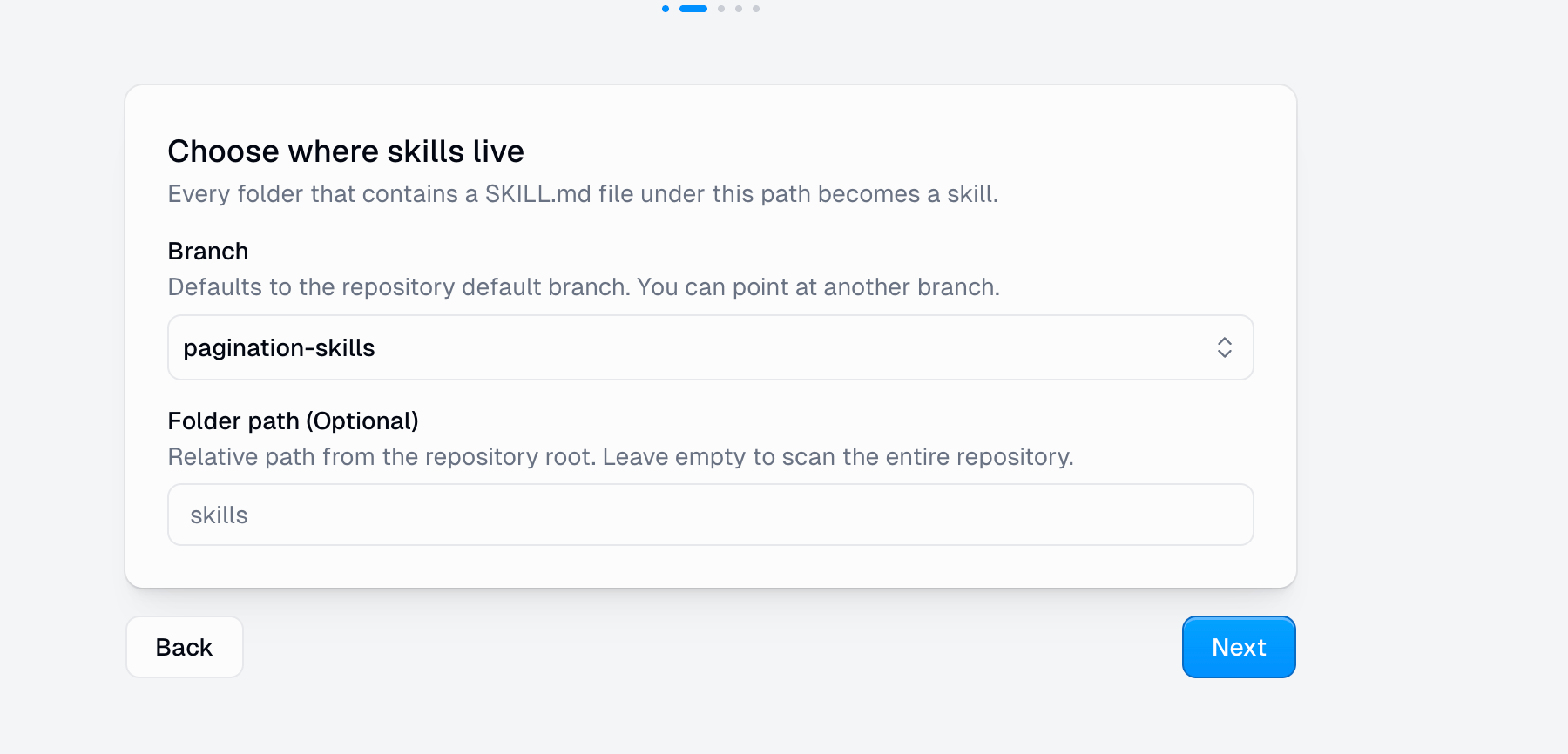
 Select a **branch** (defaults to the repository's default branch) and an
optional **folder path**. Leave the folder path empty to scan the entire
repository.
Select a **branch** (defaults to the repository's default branch) and an
optional **folder path**. Leave the folder path empty to scan the entire
repository.
 Choose who can use skills imported from this source *by default*. You can
grant one or more **teams** a role, and set **general access**:
| General access | Who can use imported skills |
| ---------------- | --------------------------------- |
| **Restricted** | Only members of the teams you add |
| **Organization** | Everyone in your organization |
Choose who can use skills imported from this source *by default*. You can
grant one or more **teams** a role, and set **general access**:
| General access | Who can use imported skills |
| ---------------- | --------------------------------- |
| **Restricted** | Only members of the teams you add |
| **Organization** | Everyone in your organization |
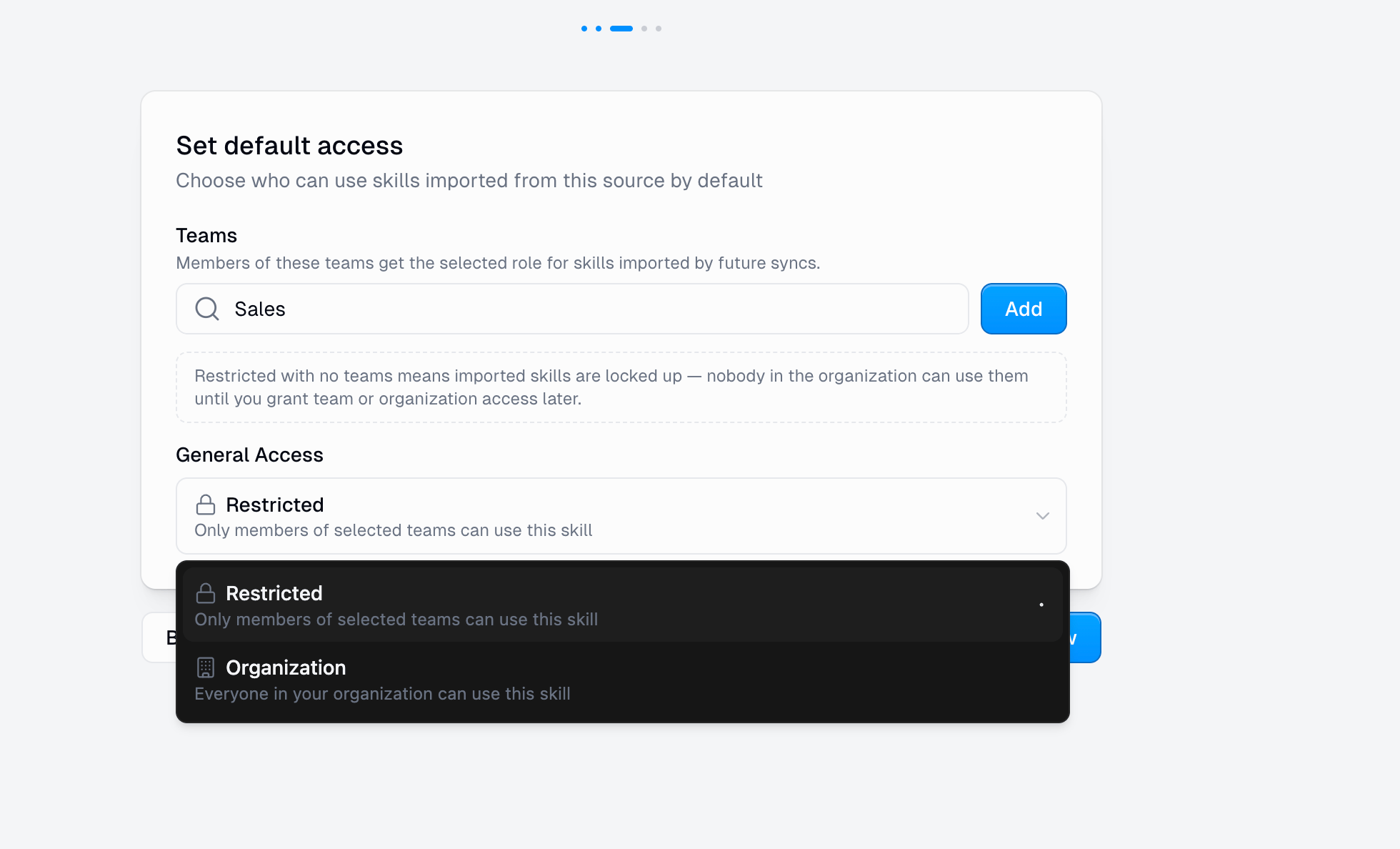 **Restricted with no teams** means imported skills are locked up — nobody
in the organization can use them until you grant team or organization
access later.
Gumloop previews the source and shows how many `SKILL.md` folders it found
on the selected commit. Confirming connects the source and kicks off the
first sync.
Default access applies to skills the source imports **for the first time**. It
seeds each new skill's access — you can still fine-tune access per skill
afterward (see [Manage access](#manage-who-can-use-skills)).
## How syncing works
Once a source is connected, Gumloop keeps its skills in sync with the repository.
Runs automatically right after you connect the source.
New commits pushed to the selected branch trigger a sync automatically.
Use **Sync now** on the source's Settings tab to re-import on demand.
Each sync reads the repository, validates the discovered skills, then adds, updates, or removes skills so Gumloop matches the repository. A sync moves through **queued → scanning → staging → applying → succeeded** (or **failed**).
### Source health
Each connected source shows a health status so you can spot problems at a glance:
| Status | Meaning |
| --------------------------- | --------------------------------------------------------------------------- |
| **Healthy** | Latest sync succeeded and updates are flowing |
| **Importing** | A sync is currently running |
| **Import failed** | The most recent sync failed — check the history for details |
| **Branch missing** | The selected branch no longer exists in the repository |
| **App access unavailable** | The Gumloop GitHub App can no longer access the repository |
| **Webhook updates missing** | Automatic push updates aren't being received; use **Sync now** or reconnect |
## Manage a connected source
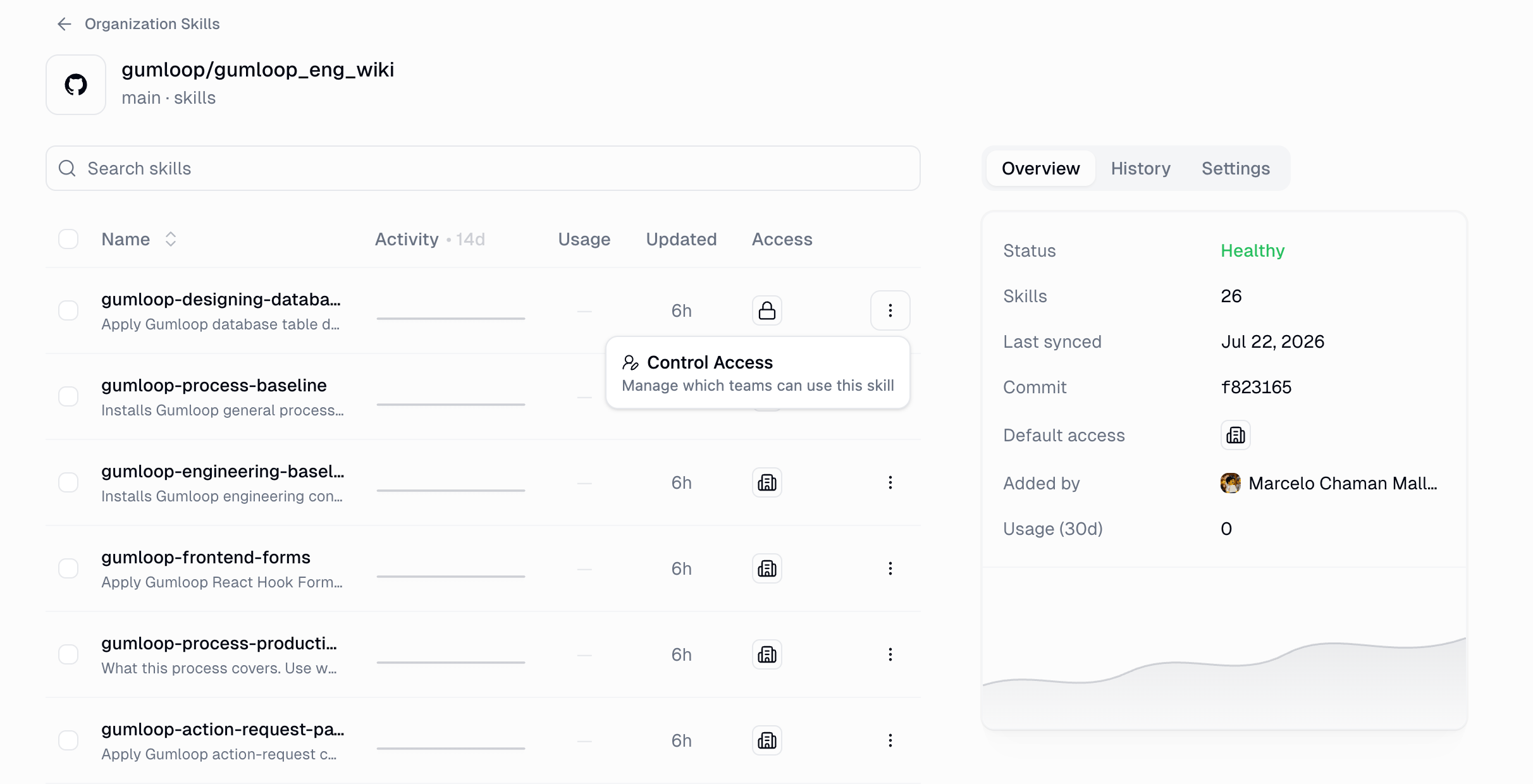
Opening a source shows its imported skills on the left and a detail panel with three tabs.
Status, number of skills, last synced time, the current commit, default
access, who connected the source, and 30-day usage.
**Restricted with no teams** means imported skills are locked up — nobody
in the organization can use them until you grant team or organization
access later.
Gumloop previews the source and shows how many `SKILL.md` folders it found
on the selected commit. Confirming connects the source and kicks off the
first sync.
Default access applies to skills the source imports **for the first time**. It
seeds each new skill's access — you can still fine-tune access per skill
afterward (see [Manage access](#manage-who-can-use-skills)).
## How syncing works
Once a source is connected, Gumloop keeps its skills in sync with the repository.
Runs automatically right after you connect the source.
New commits pushed to the selected branch trigger a sync automatically.
Use **Sync now** on the source's Settings tab to re-import on demand.
Each sync reads the repository, validates the discovered skills, then adds, updates, or removes skills so Gumloop matches the repository. A sync moves through **queued → scanning → staging → applying → succeeded** (or **failed**).
### Source health
Each connected source shows a health status so you can spot problems at a glance:
| Status | Meaning |
| --------------------------- | --------------------------------------------------------------------------- |
| **Healthy** | Latest sync succeeded and updates are flowing |
| **Importing** | A sync is currently running |
| **Import failed** | The most recent sync failed — check the history for details |
| **Branch missing** | The selected branch no longer exists in the repository |
| **App access unavailable** | The Gumloop GitHub App can no longer access the repository |
| **Webhook updates missing** | Automatic push updates aren't being received; use **Sync now** or reconnect |
## Manage a connected source
Opening a source shows its imported skills on the left and a detail panel with three tabs.
Status, number of skills, last synced time, the current commit, default
access, who connected the source, and 30-day usage.
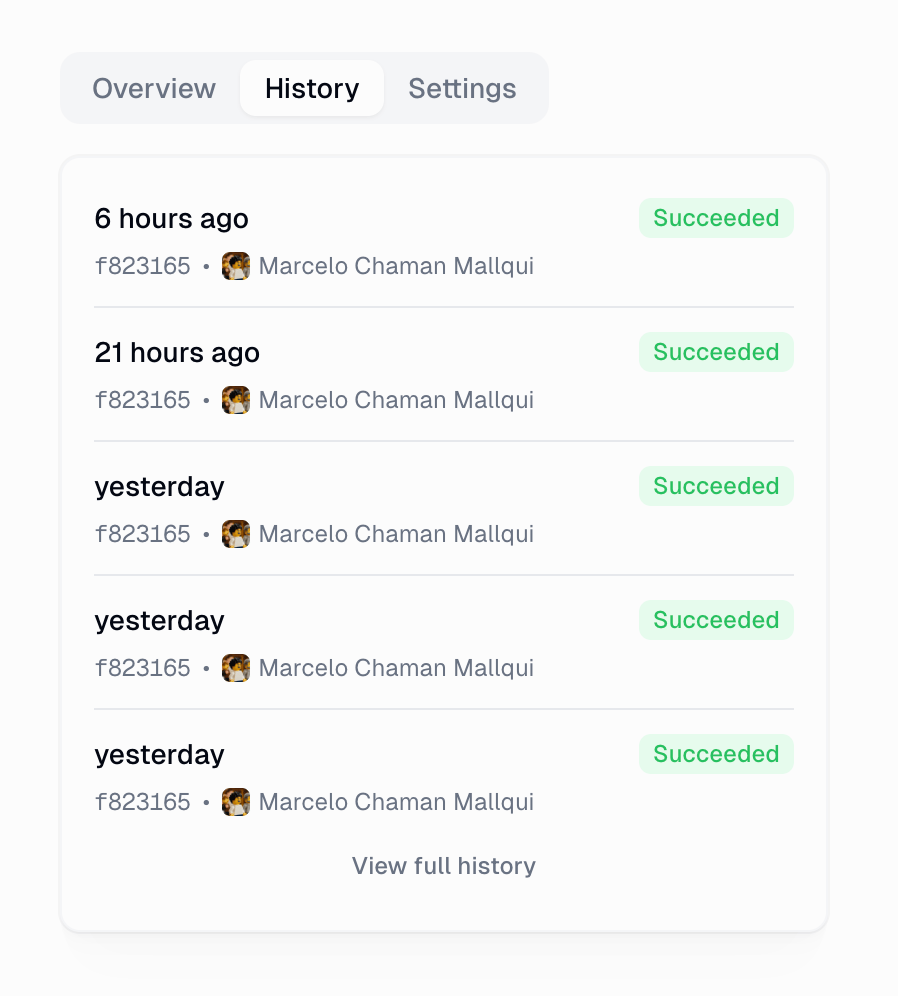
 A record of sync runs with their status, commit, actor, and time. Each run
is inspectable, and you can open the full history.
A record of sync runs with their status, commit, actor, and time. Each run
is inspectable, and you can open the full history.
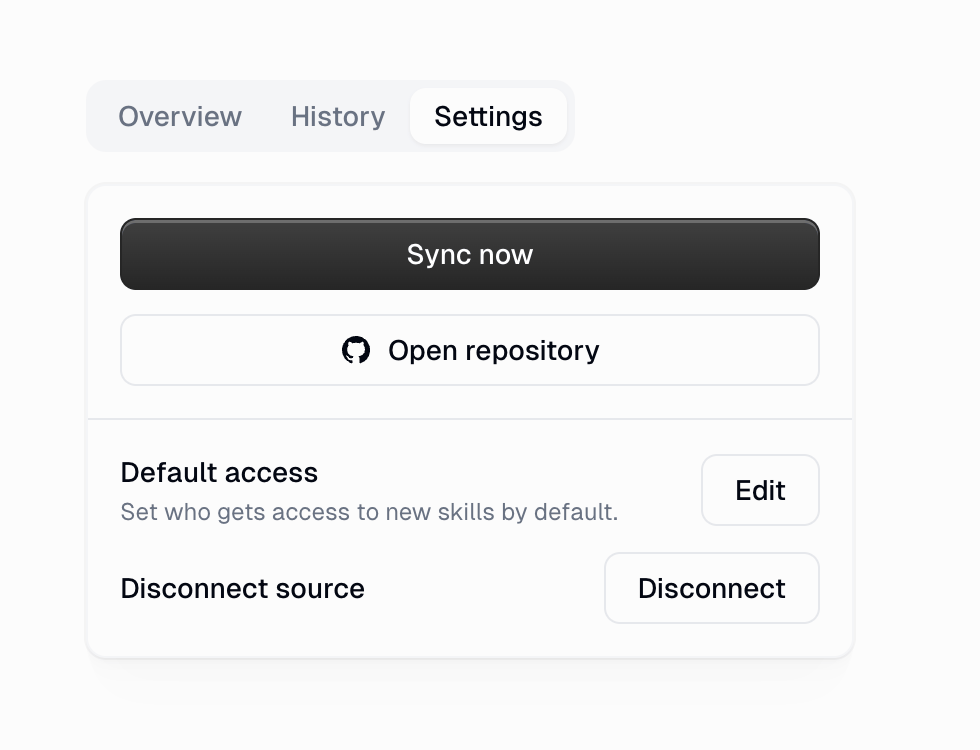
 **Sync now**, **Open repository** on GitHub, edit **default access**, and
**Disconnect** the source.
**Sync now**, **Open repository** on GitHub, edit **default access**, and
**Disconnect** the source.
 ### Disconnecting a source
When you disconnect a GitHub-backed source, you choose what happens to its skills:
The skills are kept and converted to hosted skills. Syncing stops, but the
skills remain usable and become editable in Gumloop.
The skills imported by this source are removed from the organization.
## Hosted skills
Hosted skills are created and maintained directly in Gumloop — no repository required. On the Organization Skills page you can create them by:
* **Create with AI** — let AI generate a skill for you
* **Upload files** — upload a skill package (must include a `SKILL.md`)
* **Write skill instructions** — enter a name and description
Hosted skills are fully editable in Gumloop. **GitHub-backed skills are
read-only in Gumloop** — edit them in the source repository and let a sync
bring the changes in.
## Manage who can use skills
Access can be managed for a whole source's default, or for individual skills.
**Per skill** — use a skill's menu to **Control Access** and choose which teams (and roles) can use it, or make it organization-wide.
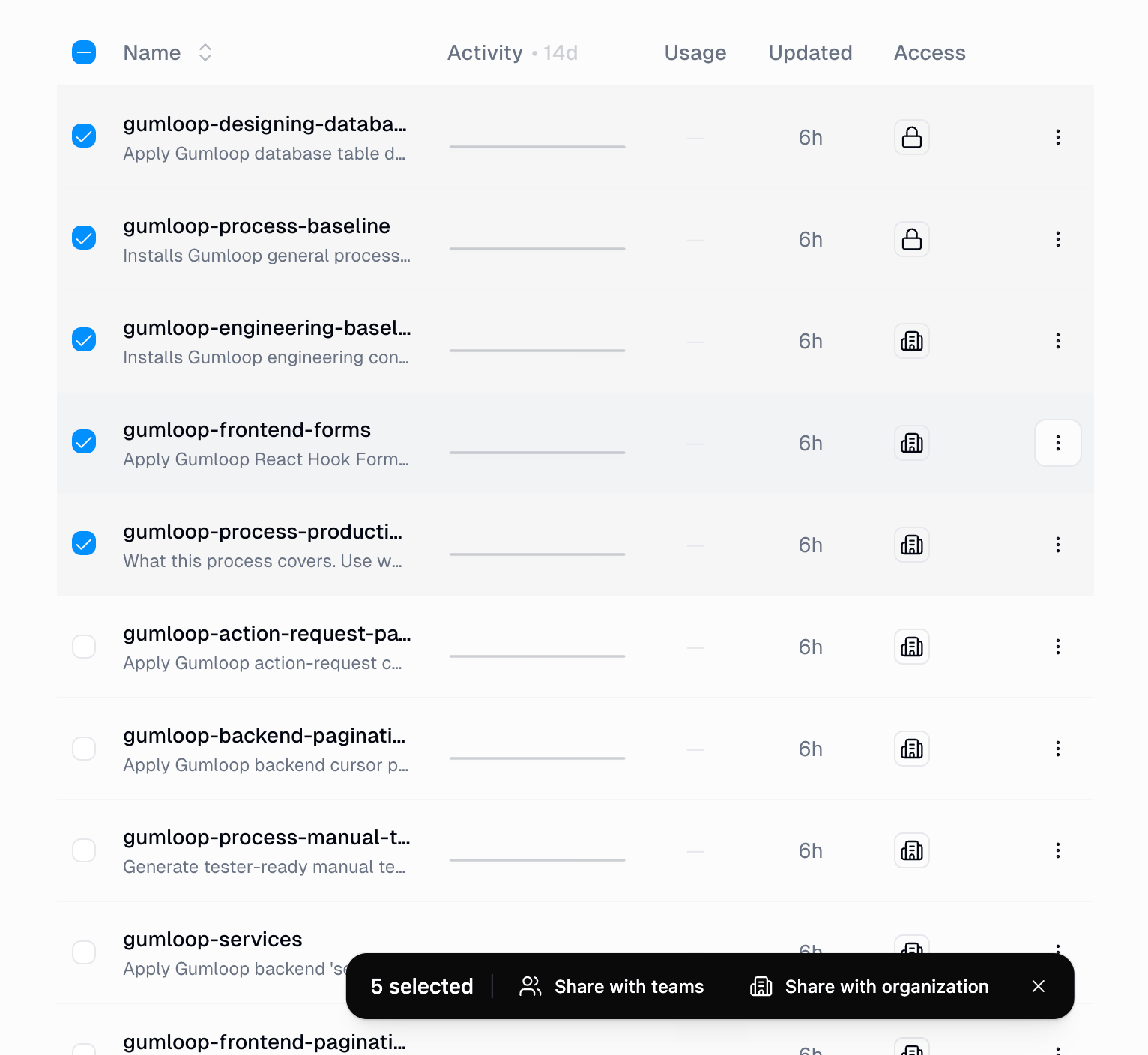
**In bulk** — select multiple skills and **Share with teams** or **Share with organization** at once.
### Disconnecting a source
When you disconnect a GitHub-backed source, you choose what happens to its skills:
The skills are kept and converted to hosted skills. Syncing stops, but the
skills remain usable and become editable in Gumloop.
The skills imported by this source are removed from the organization.
## Hosted skills
Hosted skills are created and maintained directly in Gumloop — no repository required. On the Organization Skills page you can create them by:
* **Create with AI** — let AI generate a skill for you
* **Upload files** — upload a skill package (must include a `SKILL.md`)
* **Write skill instructions** — enter a name and description
Hosted skills are fully editable in Gumloop. **GitHub-backed skills are
read-only in Gumloop** — edit them in the source repository and let a sync
bring the changes in.
## Manage who can use skills
Access can be managed for a whole source's default, or for individual skills.
**Per skill** — use a skill's menu to **Control Access** and choose which teams (and roles) can use it, or make it organization-wide.
**In bulk** — select multiple skills and **Share with teams** or **Share with organization** at once.
 Two roles control what a grant allows:
| Role | What it allows |
| ------------ | ---------------------------------------------------------------------- |
| **Use only** | Members can attach and use the skill on agents, but not view its files |
| **Viewer** | Members can also view the skill's files |
The access column marks each skill's visibility — a lock for **restricted** (team-only) skills and a building icon for **organization**-wide skills.
## Use organization skills in agents
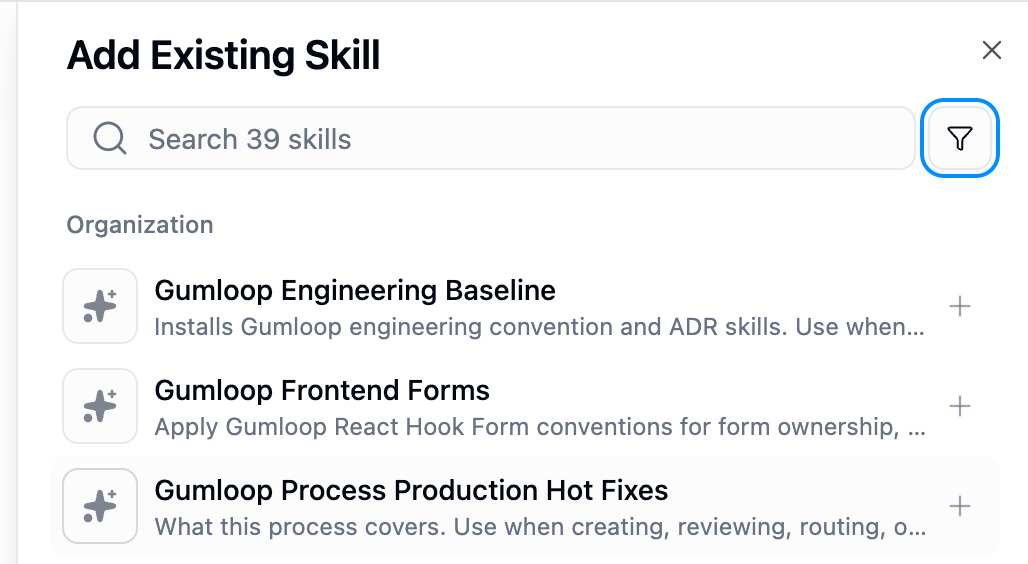
Organization skills that are shared with a member appear alongside their own skills. To add one to an agent, open the agent's **Skills** panel, click **Add → Add Existing Skill**, and pick from the **Organization** section.
Two roles control what a grant allows:
| Role | What it allows |
| ------------ | ---------------------------------------------------------------------- |
| **Use only** | Members can attach and use the skill on agents, but not view its files |
| **Viewer** | Members can also view the skill's files |
The access column marks each skill's visibility — a lock for **restricted** (team-only) skills and a building icon for **organization**-wide skills.
## Use organization skills in agents
Organization skills that are shared with a member appear alongside their own skills. To add one to an agent, open the agent's **Skills** panel, click **Add → Add Existing Skill**, and pick from the **Organization** section.
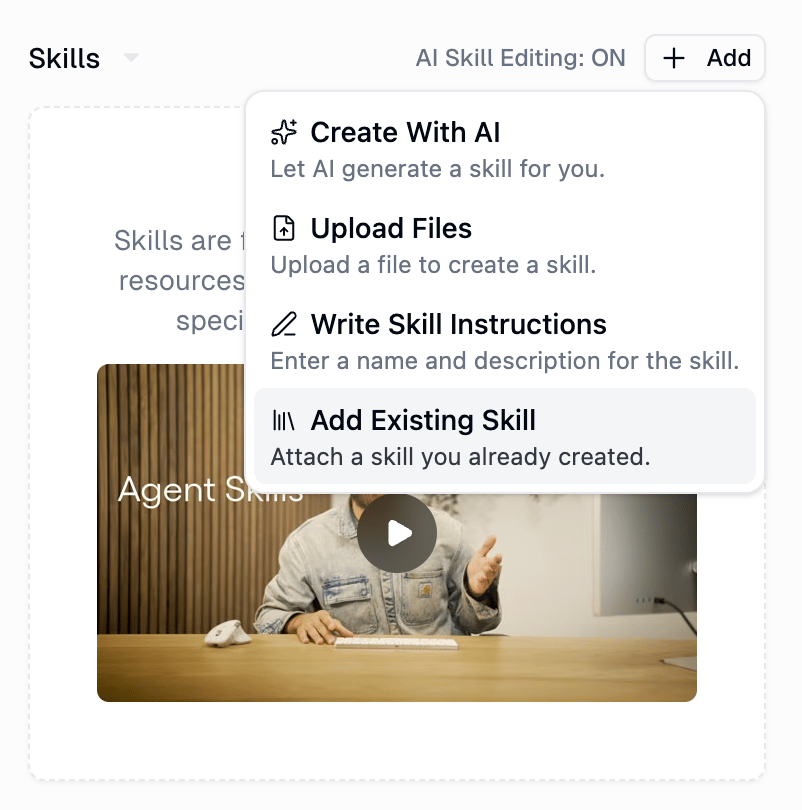
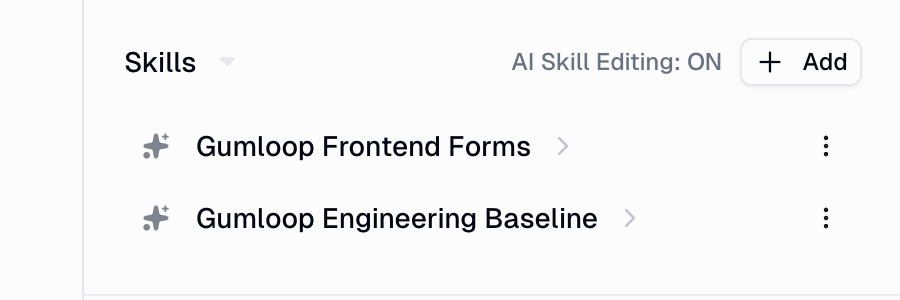
 Attached skills show up in the agent's Skills list and are used automatically when relevant.
 For more on how agents load and apply skills, see [Agent Skills](/core-concepts/skills).
## Limitations
* GitHub-backed skills are **read-only in Gumloop**; edit them in the repository.
* A source tracks **one branch and one folder path**. Point at a different branch or path by connecting another source.
* A new source can't **overlap** the branch and path of an existing source in the same repository.
* Skill discovery is driven entirely by `SKILL.md` — a folder without one is not imported.
* Managing sources and organization skills requires the **Manage Organization Skills** permission (Admin) on a **Pro** or **Enterprise** plan.
## FAQs
Any folder containing a `SKILL.md` file, under the branch and folder path you
selected for the source. Each such folder becomes one skill.
No. Gumloop syncs automatically after you connect a source and whenever new
commits land on the selected branch. **Sync now** is there for when you want
to re-import immediately.
No — those skills are read-only in Gumloop. Make changes in the source
repository and a sync will bring them in. Hosted skills, by contrast, are
fully editable in Gumloop.
You choose: **keep** them (they convert to hosted skills and stop syncing) or
**remove** them from the organization.
The source's default access is likely **Restricted** with no teams, which
locks the skills up. Grant team or organization access from the source's
default access settings or per skill.
**Use only** lets members attach and use the skill on agents without seeing
its files. **Viewer** additionally lets them view the skill's files.
Members with the **Manage Organization Skills** permission — the **Admin**
role by default — on a **Pro** or **Enterprise** plan. Everyone else can use
the skills shared with them.
For more on how agents load and apply skills, see [Agent Skills](/core-concepts/skills).
## Limitations
* GitHub-backed skills are **read-only in Gumloop**; edit them in the repository.
* A source tracks **one branch and one folder path**. Point at a different branch or path by connecting another source.
* A new source can't **overlap** the branch and path of an existing source in the same repository.
* Skill discovery is driven entirely by `SKILL.md` — a folder without one is not imported.
* Managing sources and organization skills requires the **Manage Organization Skills** permission (Admin) on a **Pro** or **Enterprise** plan.
## FAQs
Any folder containing a `SKILL.md` file, under the branch and folder path you
selected for the source. Each such folder becomes one skill.
No. Gumloop syncs automatically after you connect a source and whenever new
commits land on the selected branch. **Sync now** is there for when you want
to re-import immediately.
No — those skills are read-only in Gumloop. Make changes in the source
repository and a sync will bring them in. Hosted skills, by contrast, are
fully editable in Gumloop.
You choose: **keep** them (they convert to hosted skills and stop syncing) or
**remove** them from the organization.
The source's default access is likely **Restricted** with no teams, which
locks the skills up. Grant team or organization access from the source's
default access settings or per skill.
**Use only** lets members attach and use the skill on agents without seeing
its files. **Viewer** additionally lets them view the skill's files.
Members with the **Manage Organization Skills** permission — the **Admin**
role by default — on a **Pro** or **Enterprise** plan. Everyone else can use
the skills shared with them.