> ## Documentation Index
> Fetch the complete documentation index at: https://docs.gumloop.com/llms.txt
> Use this file to discover all available pages before exploring further.
# Human in the Loop
> Keep humans in control of your AI agents with tool approval settings, app rules, and the Ask Question ability.
Human in the Loop lets you decide **exactly** when your agent needs to pause and ask for permission before taking an action. Instead of blindly trusting every tool call, you can require approval for sensitive operations like sending emails, creating repositories, or deleting records.
Your agent works autonomously on low-risk tasks, while you stay in control of the high-stakes ones.
***
## How It Works
When the agent tries to use a tool that requires approval, it stops and shows you exactly what it wants to do: the tool, the arguments, and the intent.
You receive an approval request via in-app notification, Slack DM, or directly in the chat thread.
If approved, the agent continues from where it left off. If rejected, it acknowledges the rejection and adjusts its approach.
The agent never executes a gated tool call without your explicit go-ahead.
***
## Setting Up Approval Controls
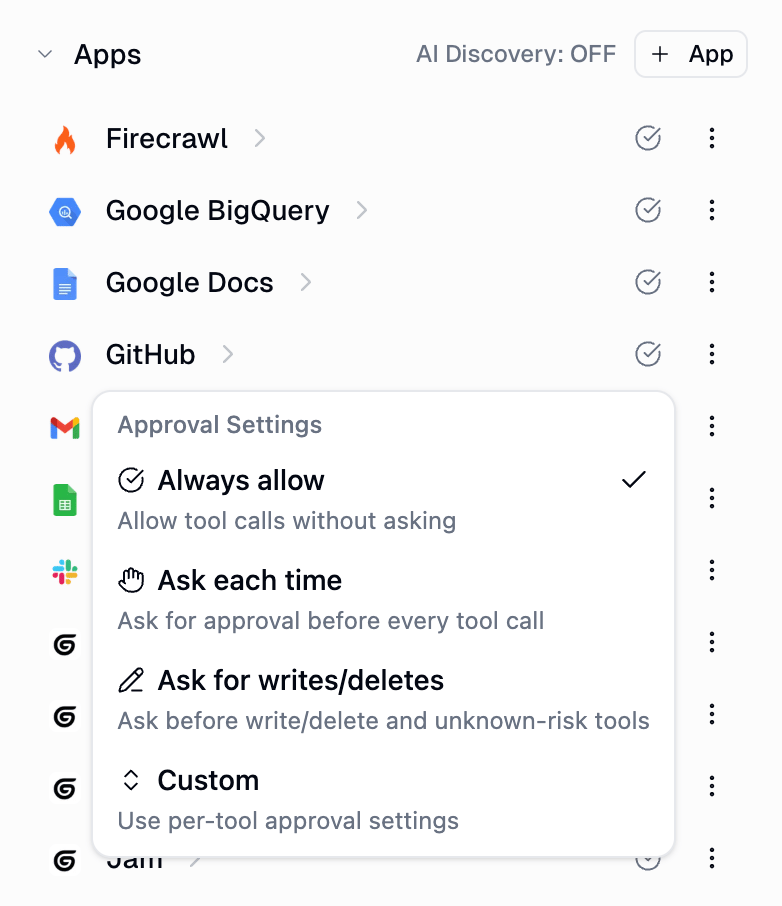
The most common approach. When you add a connector (like GitHub, Gmail, or Slack) to your agent, you can configure its **Approval Settings** to control when the agent needs permission.
Open your agent's configuration, find the connector in the **Connectors** list, and click the approval icon next to it.
 | Mode | What it does |
| -------------------------- | ---------------------------------------------------------------------------------- |
| **Always allow** | The agent can use all tools from this app without asking. This is the default. |
| **Ask each time** | Every tool call requires your approval, whether it reads or writes data. |
| **Ask for writes/deletes** | Read-only tools run freely. Write and delete operations require approval. |
| **Custom** | Set approval requirements on a per-tool basis. You control each tool individually. |
**"Ask for writes/deletes"** is a great default for most apps. It lets your agent gather information freely while keeping you in the loop for any changes.
When you select **Custom** as the approval mode, you unlock per-tool controls. Open the app's detail view to see the **Tool Management** section.
| Mode | What it does |
| -------------------------- | ---------------------------------------------------------------------------------- |
| **Always allow** | The agent can use all tools from this app without asking. This is the default. |
| **Ask each time** | Every tool call requires your approval, whether it reads or writes data. |
| **Ask for writes/deletes** | Read-only tools run freely. Write and delete operations require approval. |
| **Custom** | Set approval requirements on a per-tool basis. You control each tool individually. |
**"Ask for writes/deletes"** is a great default for most apps. It lets your agent gather information freely while keeping you in the loop for any changes.
When you select **Custom** as the approval mode, you unlock per-tool controls. Open the app's detail view to see the **Tool Management** section.
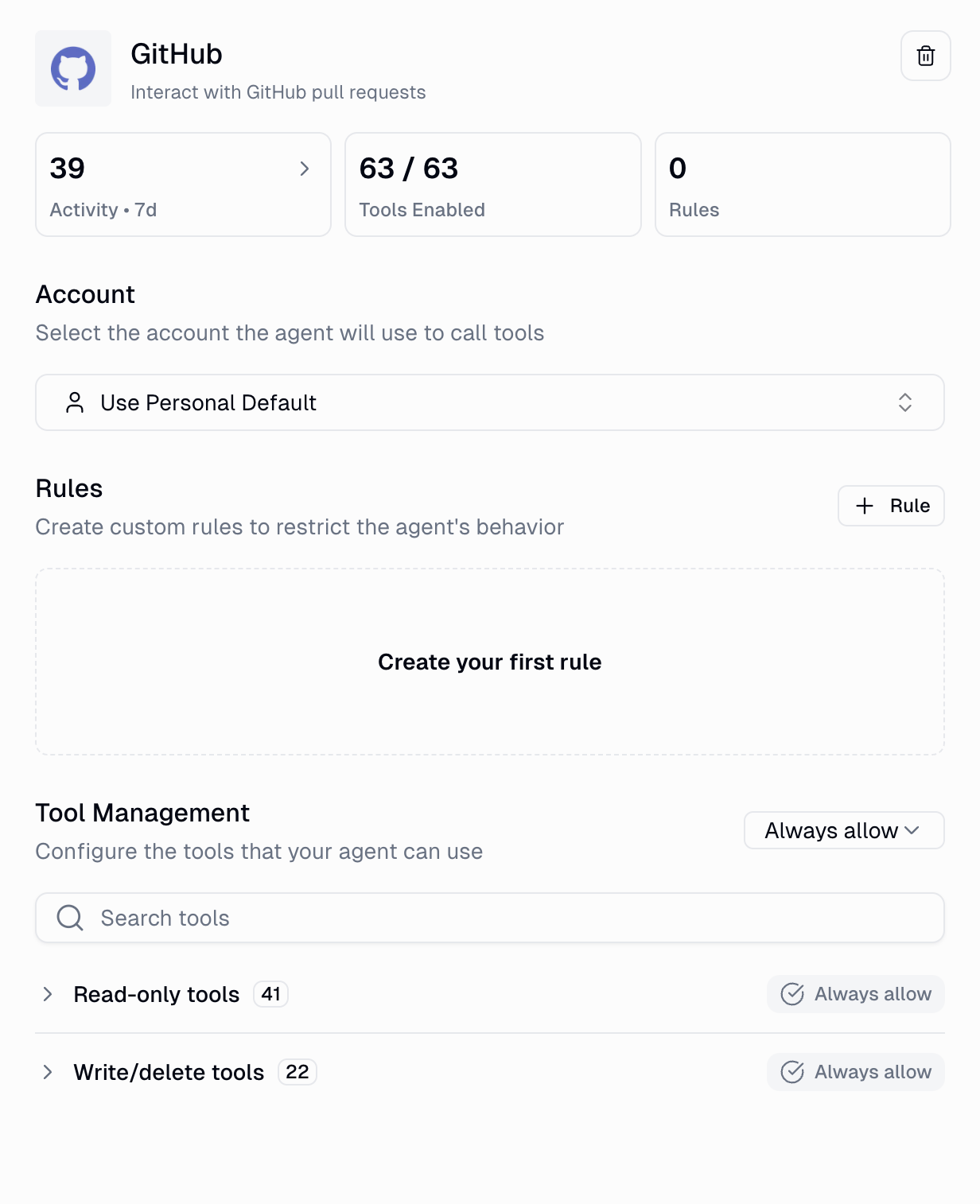 Tools are grouped by risk level: **Read-only tools** (fetch data) and **Write/delete tools** (modify or create data). Each group can be set to **Always allow** or **Custom**.
When a group is set to Custom, you configure each individual tool:
Tools are grouped by risk level: **Read-only tools** (fetch data) and **Write/delete tools** (modify or create data). Each group can be set to **Always allow** or **Custom**.
When a group is set to Custom, you configure each individual tool:
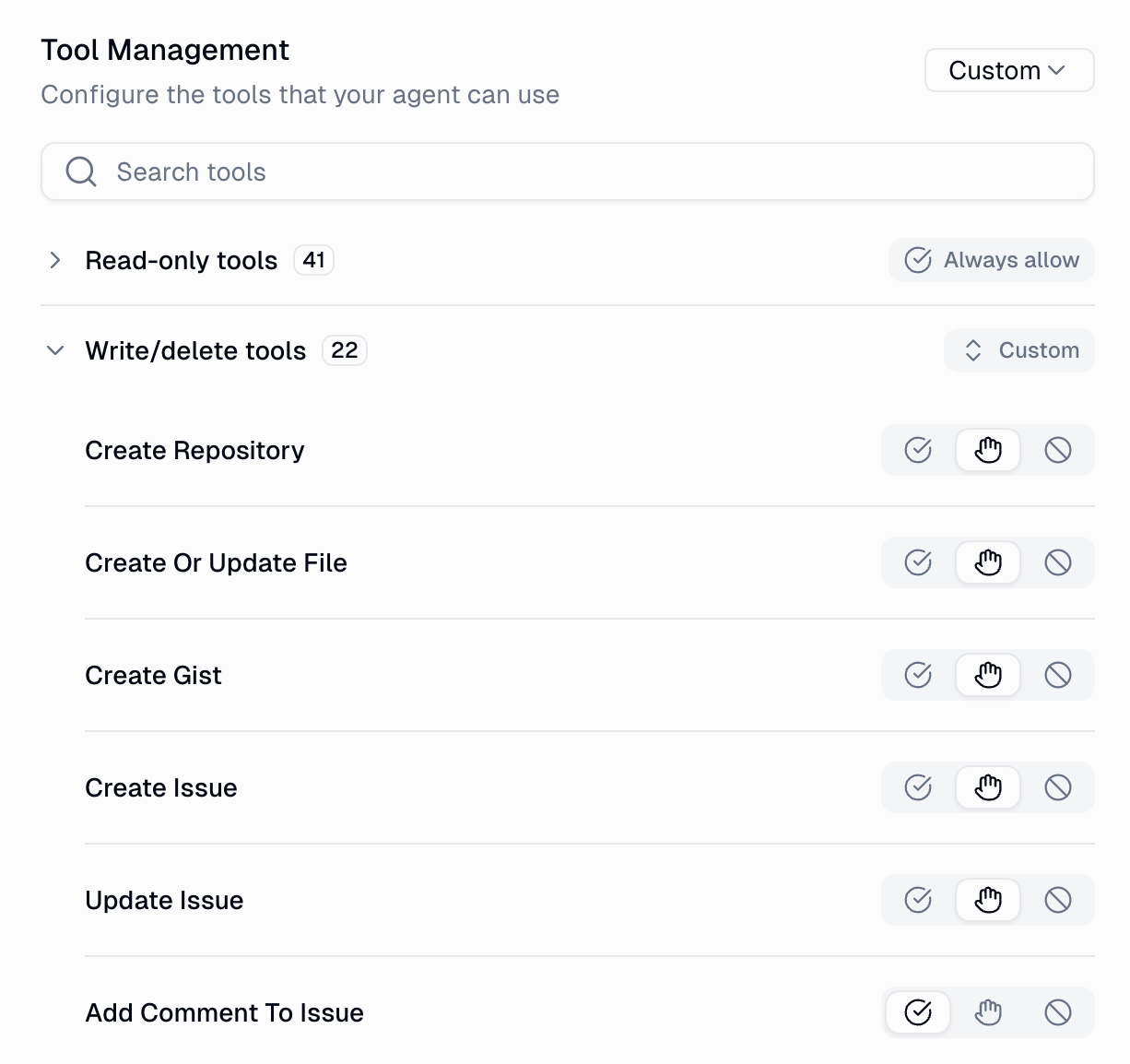 | Icon | Mode | What it does |
| ------------- | ----------------- | ---------------------------- |
| ✓ (checkmark) | **Always allow** | Runs without asking. |
| ✋ (hand) | **Ask each time** | Always requires approval. |
| 🚫 (block) | **Never allow** | Completely blocked from use. |
For example, you might allow "Add Comment To Issue" freely, require approval for "Create Repository", and block "Delete Repository" entirely.
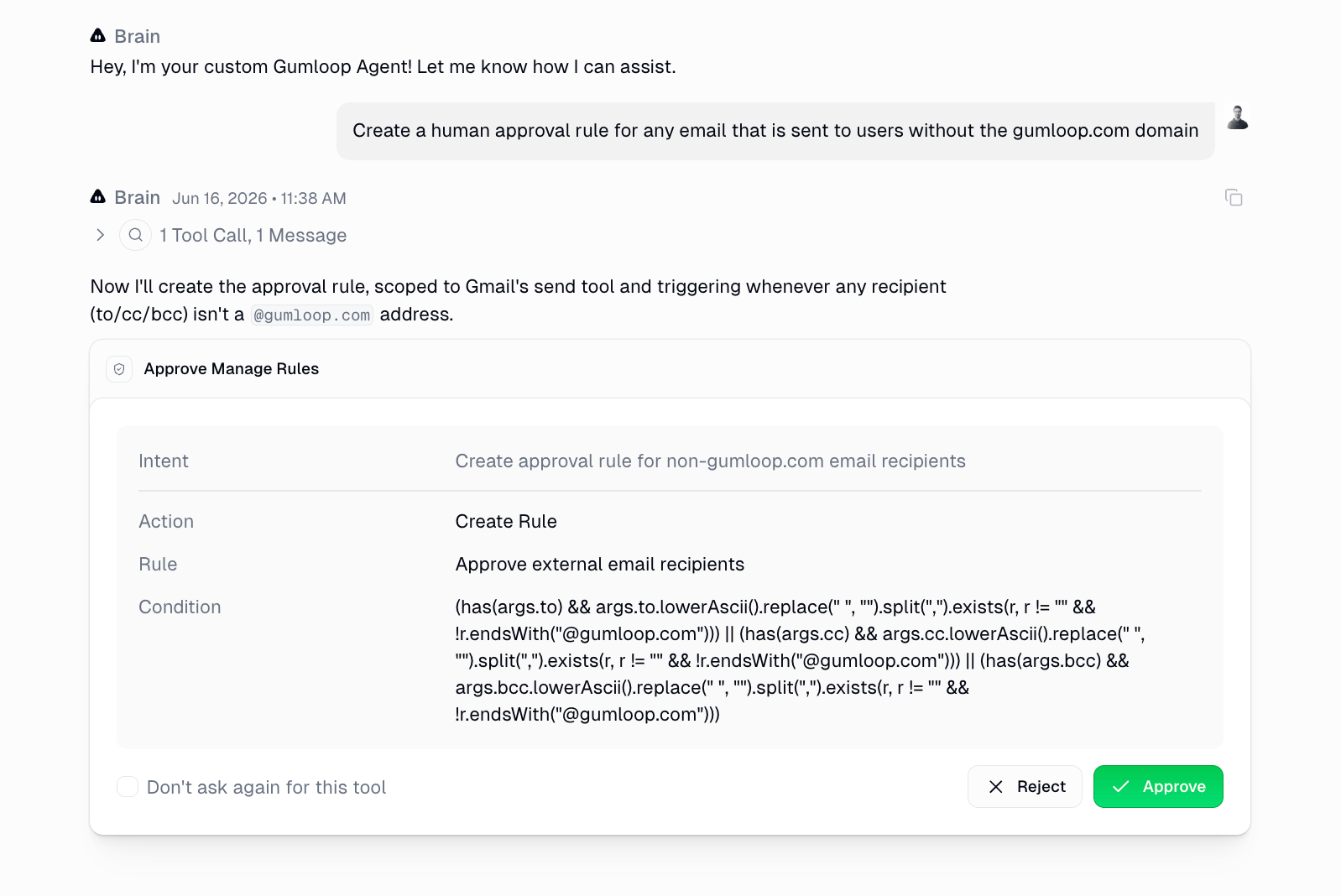
App Rules let you define **conditional** approval requirements using [CEL expressions](https://cel.dev/) that evaluate the actual arguments of each tool call. For example: "Require approval only when the email recipient is outside my company domain."
You can create rules in two ways:
Ask your agent to create a rule in natural language. The agent translates it into a CEL condition and presents it for your approval.
| Icon | Mode | What it does |
| ------------- | ----------------- | ---------------------------- |
| ✓ (checkmark) | **Always allow** | Runs without asking. |
| ✋ (hand) | **Ask each time** | Always requires approval. |
| 🚫 (block) | **Never allow** | Completely blocked from use. |
For example, you might allow "Add Comment To Issue" freely, require approval for "Create Repository", and block "Delete Repository" entirely.
App Rules let you define **conditional** approval requirements using [CEL expressions](https://cel.dev/) that evaluate the actual arguments of each tool call. For example: "Require approval only when the email recipient is outside my company domain."
You can create rules in two ways:
Ask your agent to create a rule in natural language. The agent translates it into a CEL condition and presents it for your approval.
 Open the app's detail view and use the **Rules** section to create rules manually.
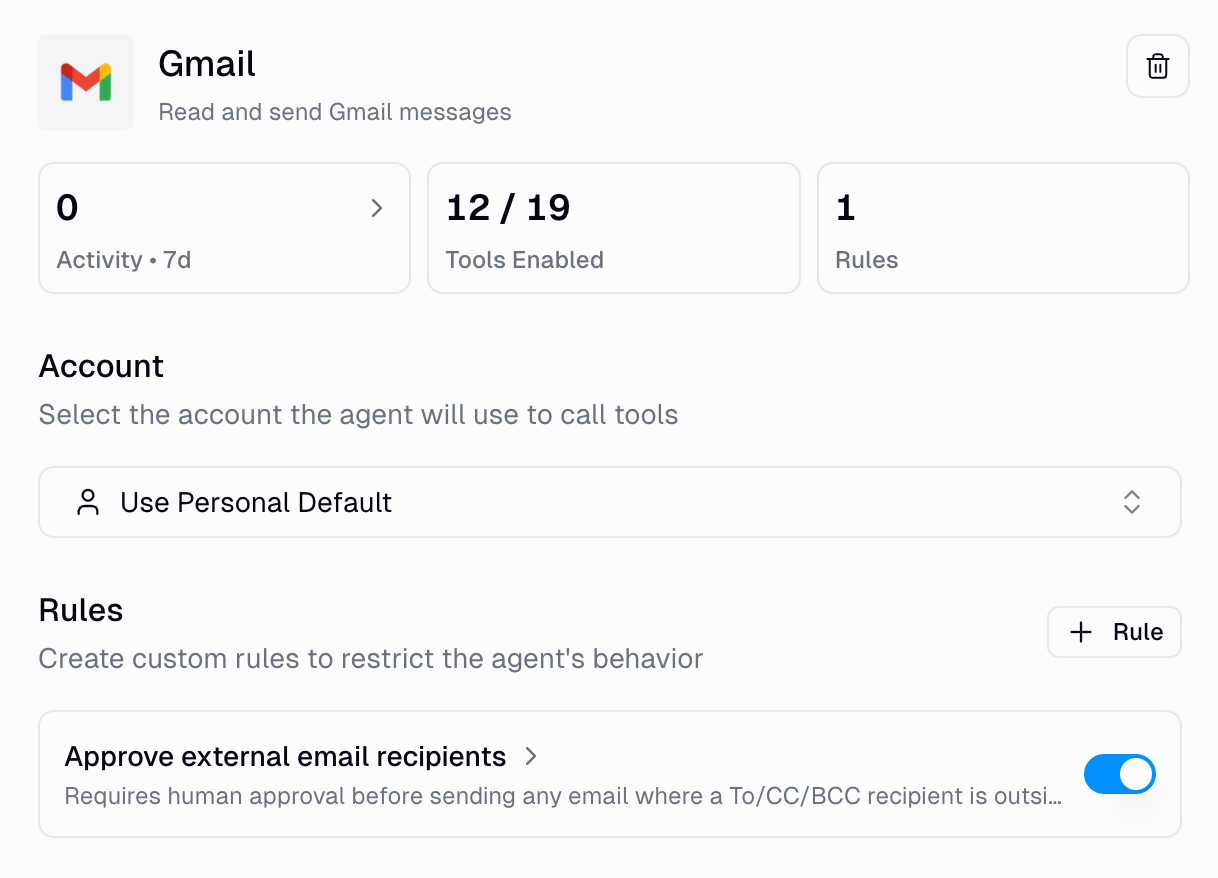 App Rules require the **App Rules Creation** ability to be enabled on your agent if you want the agent to create rules via chat. You can always create rules manually through the config UI. For a deeper dive, see the [App Rules documentation](/enterprise-features/app-policies/app-rules).
The **Ask Question** ability is different from the approval settings above. Instead of gating tool calls, it lets your agent proactively ask you a question when it needs input to continue.
App Rules require the **App Rules Creation** ability to be enabled on your agent if you want the agent to create rules via chat. You can always create rules manually through the config UI. For a deeper dive, see the [App Rules documentation](/enterprise-features/app-policies/app-rules).
The **Ask Question** ability is different from the approval settings above. Instead of gating tool calls, it lets your agent proactively ask you a question when it needs input to continue.
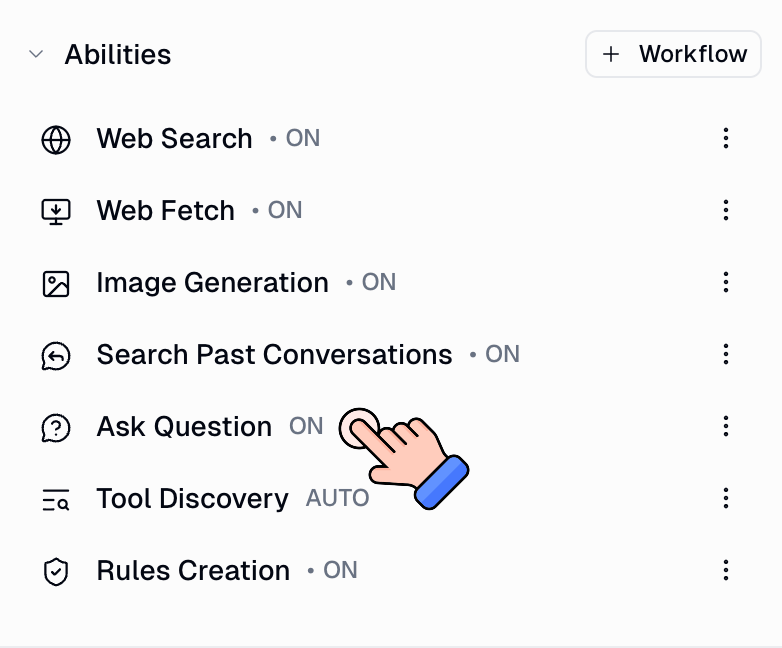 When enabled, the agent can present you with structured choice cards (toggle groups, multi-select options) to gather your preference before proceeding. Useful for decisions like "Which template should I use?" or "Which of these three options do you prefer?"
Toggle this on in your agent's **Abilities** section.
**Ask Question** is great for open-ended tasks where the agent might need clarification. It lets the agent pause naturally and ask for your input rather than guessing.
***
## Where You Get Notified
When an agent pauses for approval, you are notified in multiple places so you never miss it.
The approval card appears directly in the conversation with the tool name, intent, arguments, and **Approve** / **Reject** buttons. Use **⌘ + Enter** to quickly approve.
When enabled, the agent can present you with structured choice cards (toggle groups, multi-select options) to gather your preference before proceeding. Useful for decisions like "Which template should I use?" or "Which of these three options do you prefer?"
Toggle this on in your agent's **Abilities** section.
**Ask Question** is great for open-ended tasks where the agent might need clarification. It lets the agent pause naturally and ask for your input rather than guessing.
***
## Where You Get Notified
When an agent pauses for approval, you are notified in multiple places so you never miss it.
The approval card appears directly in the conversation with the tool name, intent, arguments, and **Approve** / **Reject** buttons. Use **⌘ + Enter** to quickly approve.
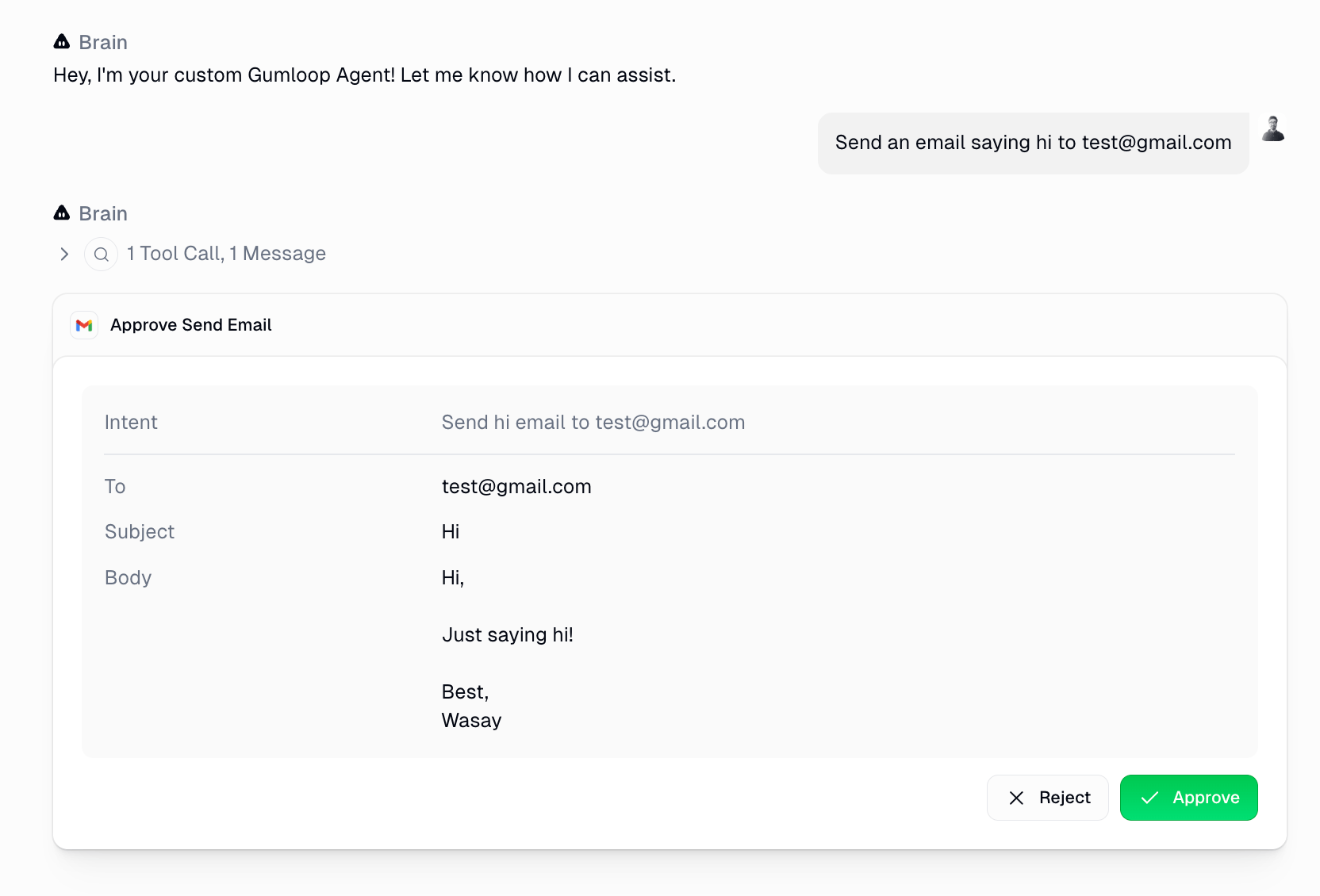
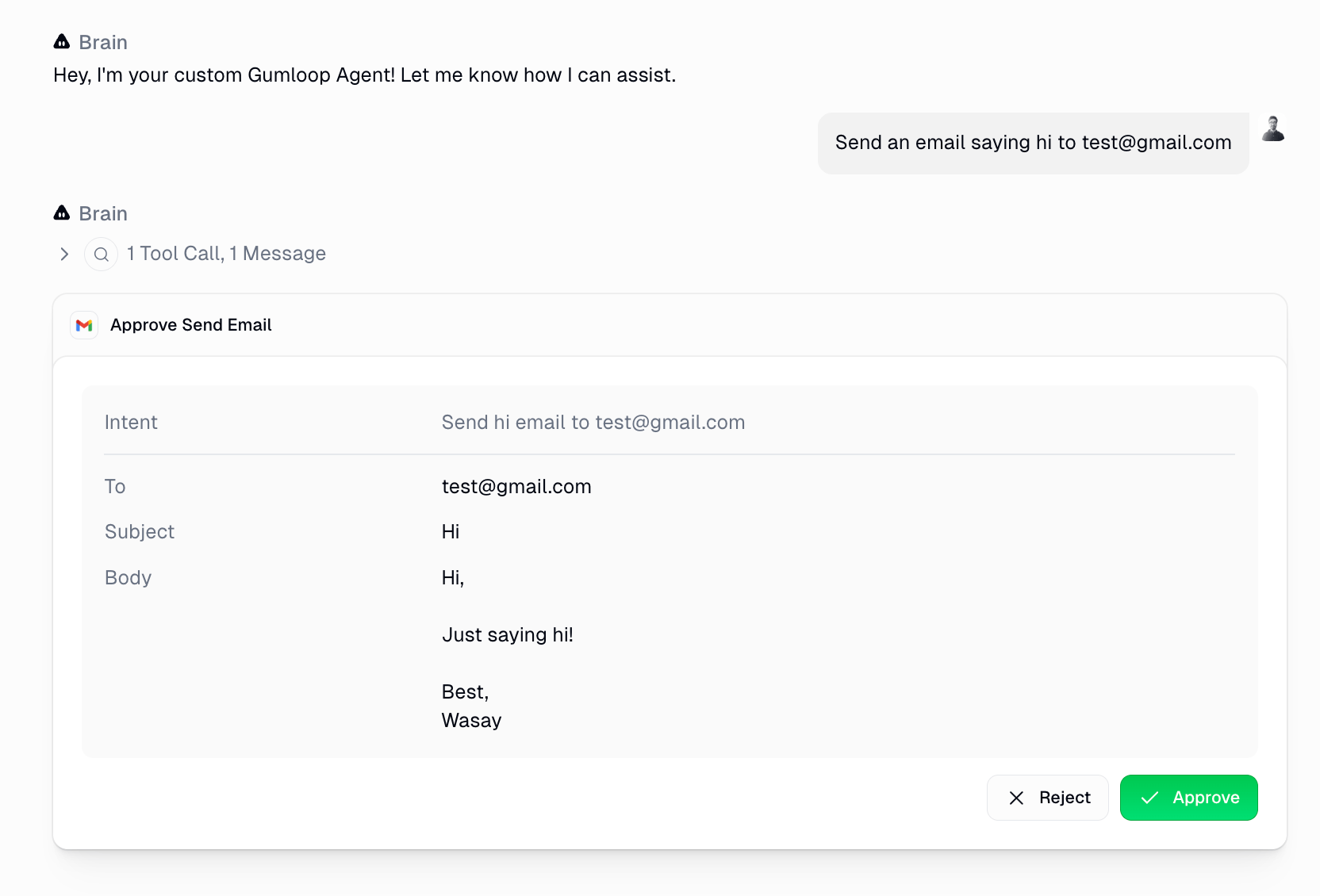 The card includes:
* **Tool name and icon** at the top (e.g. "Approve Send Email" with the Gmail icon)
* **Intent** describing what the agent is trying to do
* **Display fields** showing the key arguments (e.g. To, Subject, Body)
* **Reject** and **Approve** buttons
* **"Don't ask again for this tool"** checkbox to remember your decision for future calls
The in-app notification bell lights up with a badge count. Approve or reject directly from the inbox without opening the conversation.
The card includes:
* **Tool name and icon** at the top (e.g. "Approve Send Email" with the Gmail icon)
* **Intent** describing what the agent is trying to do
* **Display fields** showing the key arguments (e.g. To, Subject, Body)
* **Reject** and **Approve** buttons
* **"Don't ask again for this tool"** checkbox to remember your decision for future calls
The in-app notification bell lights up with a badge count. Approve or reject directly from the inbox without opening the conversation.
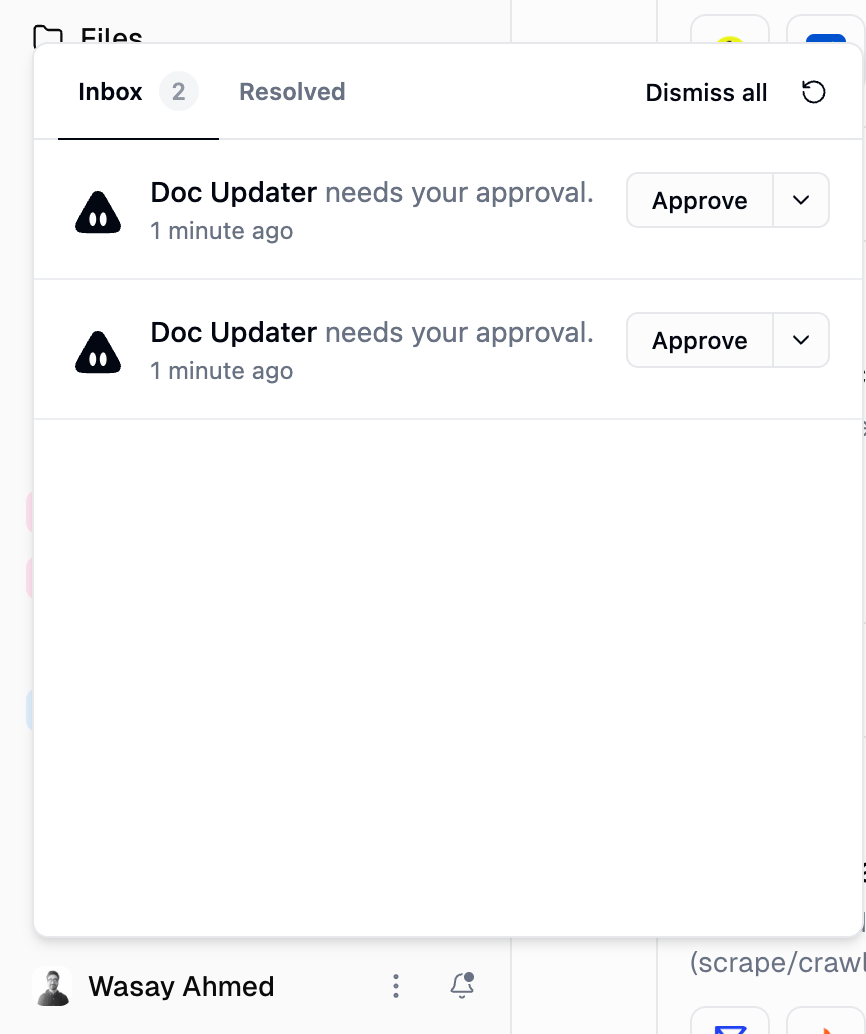 Quickly approve or reject from here. The inbox also has a **Resolved** tab to review past decisions.
The [Tasks page](https://www.gumloop.com/personal/tasks?status=approval_required) has an **Approval Required** filter showing every pending approval across all your agents in one place.
Quickly approve or reject from here. The inbox also has a **Resolved** tab to review past decisions.
The [Tasks page](https://www.gumloop.com/personal/tasks?status=approval_required) has an **Approval Required** filter showing every pending approval across all your agents in one place.
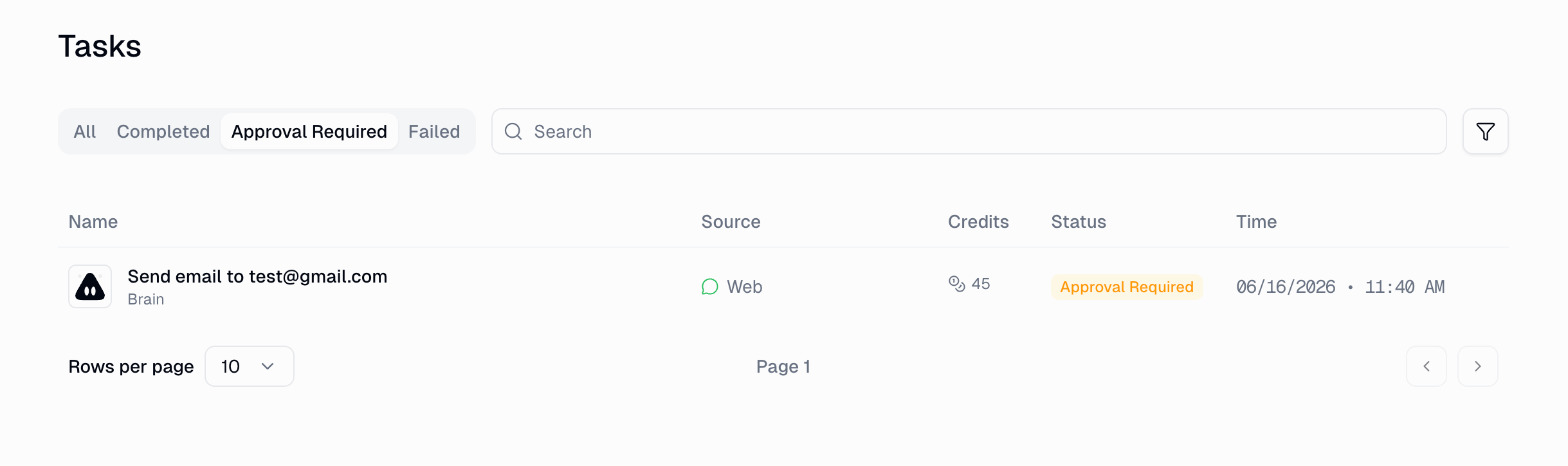 A centralized queue for everything that needs your attention, especially useful when you have multiple agents running.
For Slack-connected agents, approval buttons appear directly in the Slack thread. You get **Approve**, **Reject**, and **Open in Gumloop** buttons right in Slack.
A centralized queue for everything that needs your attention, especially useful when you have multiple agents running.
For Slack-connected agents, approval buttons appear directly in the Slack thread. You get **Approve**, **Reject**, and **Open in Gumloop** buttons right in Slack.
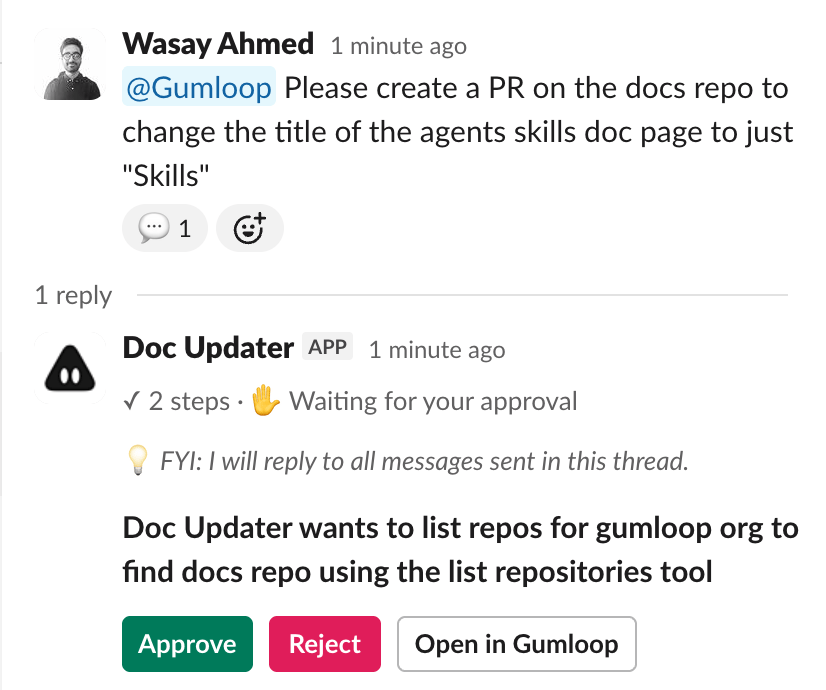 If you are not watching the thread, you also receive a **Slack DM** so nothing gets missed. Click **Open in Gumloop** to see the full context in the web app.
***
## Example Walkthroughs
Open your agent's config, find GitHub in the Apps list, and set the approval mode to "Ask each time" (or "Ask for writes/deletes" if you only want to gate mutations).
For example: *"Please create a PR on the docs repo to change the title of the agents skills doc page to just 'Skills'."*
Before executing the GitHub API call, it shows you an approval card with the details:
If you are not watching the thread, you also receive a **Slack DM** so nothing gets missed. Click **Open in Gumloop** to see the full context in the web app.
***
## Example Walkthroughs
Open your agent's config, find GitHub in the Apps list, and set the approval mode to "Ask each time" (or "Ask for writes/deletes" if you only want to gate mutations).
For example: *"Please create a PR on the docs repo to change the title of the agents skills doc page to just 'Skills'."*
Before executing the GitHub API call, it shows you an approval card with the details:
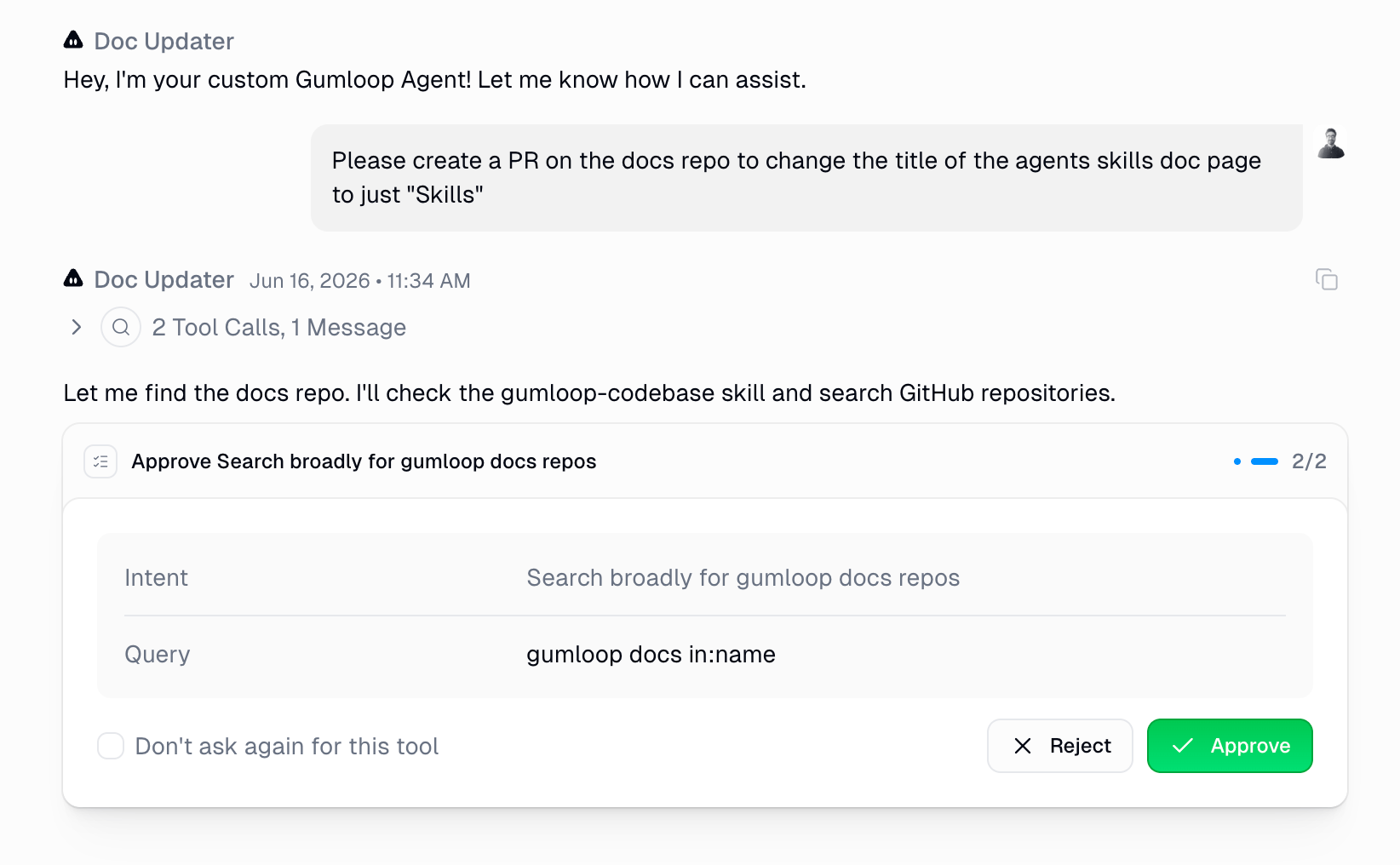 Check the arguments. If everything looks right, click **Approve**. If something is off, click **Reject** and optionally provide a reason.
After approval, the agent picks up right where it left off and completes the task.
Toggle it on in your agent's Abilities section.
For example: *"Create a human approval rule for any email that is sent to users without the gumloop.com domain."*
It generates the appropriate CEL expression and shows you the rule details:
Once you approve, the rule is live. You can see it in the app's config:
Whenever the agent sends email to a non-gumloop.com address, it pauses for approval. Internal emails go through without interruption.
Check the arguments. If everything looks right, click **Approve**. If something is off, click **Reject** and optionally provide a reason.
After approval, the agent picks up right where it left off and completes the task.
Toggle it on in your agent's Abilities section.
For example: *"Create a human approval rule for any email that is sent to users without the gumloop.com domain."*
It generates the appropriate CEL expression and shows you the rule details:
Once you approve, the rule is live. You can see it in the app's config:
Whenever the agent sends email to a non-gumloop.com address, it pauses for approval. Internal emails go through without interruption.
 ***
## What Happens When You Reject
When you reject a tool call:
* The agent receives the rejection (and your optional reason).
* It does **not** execute the tool.
* It continues the conversation, often suggesting an alternative approach or asking for clarification.
Rejections are non-destructive. The agent simply adapts and tries a different path.
***
## Approval Modes at a Glance
| Mode | Scope | Best for |
| -------------------------- | ----------------- | --------------------------------------------------------- |
| **Always allow** | App-level | Trusted, low-risk apps (e.g. read-only integrations) |
| **Ask each time** | App-level | High-sensitivity apps where every action matters |
| **Ask for writes/deletes** | App-level | Most apps, letting reads flow freely and gating mutations |
| **Custom** | Per-tool | Fine-grained control over individual tools within an app |
| **App Rules** | Conditional (CEL) | Context-dependent approvals based on tool arguments |
| **Ask Question** | Ability | Agent-initiated questions for gathering user input |
***
## FAQ
No. When an agent pauses for approval, it saves its full state. It can wait indefinitely for your response. When you approve or reject, it resumes exactly where it left off.
Yes. If your agent is connected to Slack, approval buttons appear directly in the Slack thread and in a Slack DM. You can approve or reject right from Slack. You can also click "Open in Gumloop" to see the full context in the web app.
When you check this box before approving, the agent remembers your decision for that specific tool. Future calls to the same tool will be auto-approved without asking. This preference is saved to the agent's configuration. You can always change it later in the app's Tool Management settings.
Approval settings are configured at the agent level and apply to all users interacting with that agent. For organization-wide policies that apply across all agents, use [App Rules](/enterprise-features/app-policies/app-rules) in your organization settings.
**Approval Settings** are simple toggles: always allow, ask each time, ask for writes, or custom per-tool. They apply based on the tool's risk category (read vs. write).
**App Rules** are conditional. They use CEL expressions to inspect the actual arguments of a tool call and decide whether to require approval. For example, "only require approval when the email recipient is outside my domain" is something only App Rules can do.
Both can work together. Approval Settings act as the baseline, and App Rules add conditional overrides on top.
The [Tasks page](https://www.gumloop.com/personal/tasks?status=approval_required) has an **Approval Required** filter that shows every pending approval across all your agents in one place. You can also use the notification bell in the top-right corner of the app for a quick glance.
The agent does not execute the rejected tool. It acknowledges the rejection, and if you provided a reason, it takes that into account. The agent then continues the conversation, often adjusting its approach or asking for clarification.
Yes, if you enable the **App Rules Creation** ability in your agent's Abilities section. The agent can translate natural-language instructions into CEL conditions. The rule creation itself also requires your approval before it takes effect.
Yes. When an agent needs to run code in the sandbox (Python or shell), the approval card shows a preview of the code it wants to execute. You can review the exact script before approving. If the code makes MCP tool calls (e.g., sending an email via Gmail), those nested calls are listed in the approval card as well.
***
## What Happens When You Reject
When you reject a tool call:
* The agent receives the rejection (and your optional reason).
* It does **not** execute the tool.
* It continues the conversation, often suggesting an alternative approach or asking for clarification.
Rejections are non-destructive. The agent simply adapts and tries a different path.
***
## Approval Modes at a Glance
| Mode | Scope | Best for |
| -------------------------- | ----------------- | --------------------------------------------------------- |
| **Always allow** | App-level | Trusted, low-risk apps (e.g. read-only integrations) |
| **Ask each time** | App-level | High-sensitivity apps where every action matters |
| **Ask for writes/deletes** | App-level | Most apps, letting reads flow freely and gating mutations |
| **Custom** | Per-tool | Fine-grained control over individual tools within an app |
| **App Rules** | Conditional (CEL) | Context-dependent approvals based on tool arguments |
| **Ask Question** | Ability | Agent-initiated questions for gathering user input |
***
## FAQ
No. When an agent pauses for approval, it saves its full state. It can wait indefinitely for your response. When you approve or reject, it resumes exactly where it left off.
Yes. If your agent is connected to Slack, approval buttons appear directly in the Slack thread and in a Slack DM. You can approve or reject right from Slack. You can also click "Open in Gumloop" to see the full context in the web app.
When you check this box before approving, the agent remembers your decision for that specific tool. Future calls to the same tool will be auto-approved without asking. This preference is saved to the agent's configuration. You can always change it later in the app's Tool Management settings.
Approval settings are configured at the agent level and apply to all users interacting with that agent. For organization-wide policies that apply across all agents, use [App Rules](/enterprise-features/app-policies/app-rules) in your organization settings.
**Approval Settings** are simple toggles: always allow, ask each time, ask for writes, or custom per-tool. They apply based on the tool's risk category (read vs. write).
**App Rules** are conditional. They use CEL expressions to inspect the actual arguments of a tool call and decide whether to require approval. For example, "only require approval when the email recipient is outside my domain" is something only App Rules can do.
Both can work together. Approval Settings act as the baseline, and App Rules add conditional overrides on top.
The [Tasks page](https://www.gumloop.com/personal/tasks?status=approval_required) has an **Approval Required** filter that shows every pending approval across all your agents in one place. You can also use the notification bell in the top-right corner of the app for a quick glance.
The agent does not execute the rejected tool. It acknowledges the rejection, and if you provided a reason, it takes that into account. The agent then continues the conversation, often adjusting its approach or asking for clarification.
Yes, if you enable the **App Rules Creation** ability in your agent's Abilities section. The agent can translate natural-language instructions into CEL conditions. The rule creation itself also requires your approval before it takes effect.
Yes. When an agent needs to run code in the sandbox (Python or shell), the approval card shows a preview of the code it wants to execute. You can review the exact script before approving. If the code makes MCP tool calls (e.g., sending an email via Gmail), those nested calls are listed in the approval card as well.