> ## Documentation Index
> Fetch the complete documentation index at: https://docs.gumloop.com/llms.txt
> Use this file to discover all available pages before exploring further.
# Hosted Pages
> Give your agent a standalone page on gumloopagents.com that anyone can open directly.
Hosted Pages let you publish your agent on a dedicated URL at `gumloopagents.com`. Instead of sharing access to the Gumloop builder, you give people a clean, focused chat interface where they can interact with your agent directly.
Each agent gets its own `your-agent.gumloopagents.com` link that people can bookmark and open directly.
People use the agent from a standalone chat page instead of navigating through the Gumloop builder.
The hosted page uses the same agent instructions and tools you already configured in Gumloop.
Update the URL alias or disable the hosted page whenever you want.
***
## Setting Up a Hosted Page
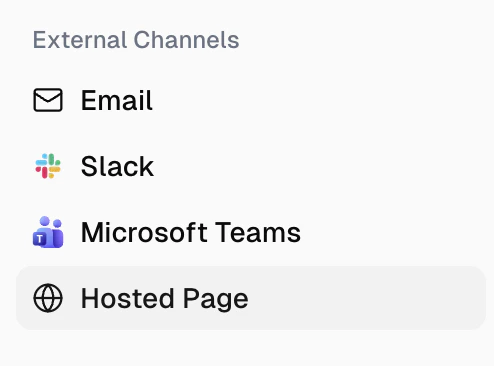
Navigate to your agent, then click **Hosted Page** under **External Channels** in the sidebar.
 You'll see a page describing the feature and its benefits.
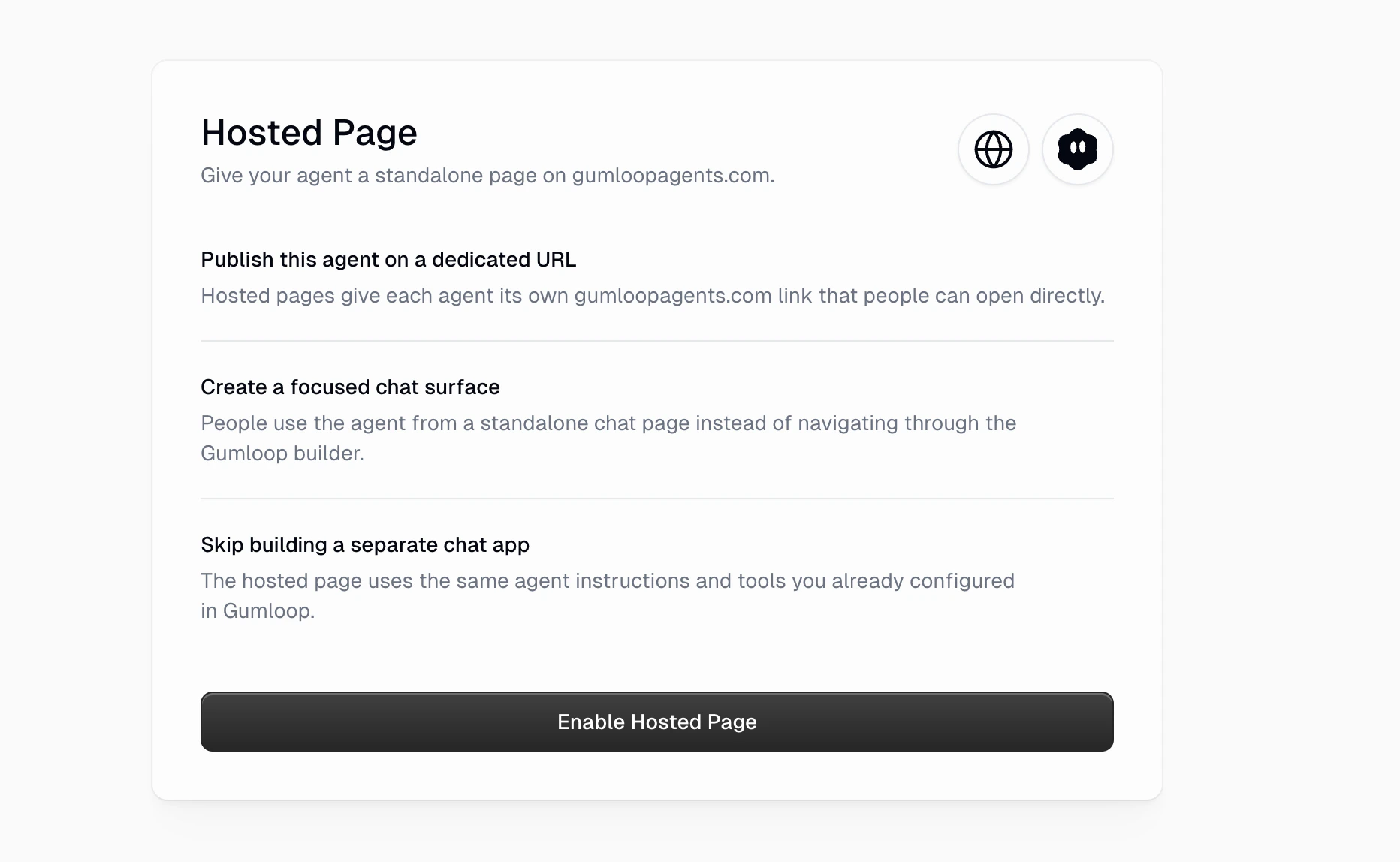 Click **Enable Hosted Page**. Gumloop automatically generates a URL alias based on your agent's name. The alias follows the format:
```
your-agent-name.gumloopagents.com
```
You can copy the URL using the copy button, or click the pencil icon to customize the alias.
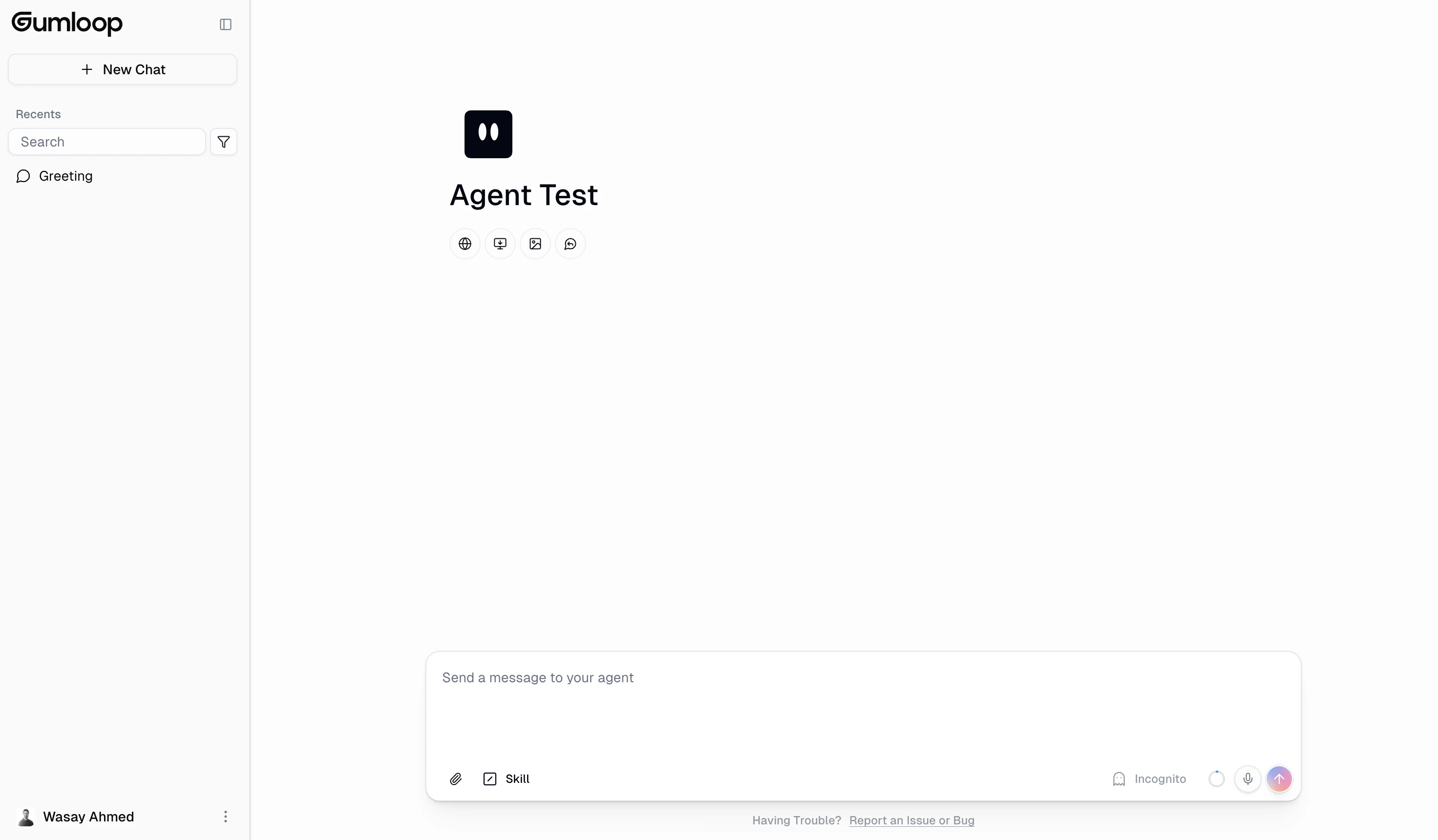
Share the hosted page URL with anyone who needs to use the agent. When they open the link, they'll see a standalone chat interface with your agent's name and icon.
Click **Enable Hosted Page**. Gumloop automatically generates a URL alias based on your agent's name. The alias follows the format:
```
your-agent-name.gumloopagents.com
```
You can copy the URL using the copy button, or click the pencil icon to customize the alias.
Share the hosted page URL with anyone who needs to use the agent. When they open the link, they'll see a standalone chat interface with your agent's name and icon.
 ***
## Customizing the URL Alias
You can change the hosted page alias at any time:
1. Click the pencil icon next to the current URL
2. Type your desired alias (3-64 characters, lowercase letters, numbers, and hyphens only)
3. Press **Enter** or click the checkmark to save
The alias must be unique across all Gumloop agents. If the alias you want is already taken, you'll need to choose a different one.
Certain aliases like `admin`, `api`, `app`, `auth`, `beta`, `docs`, `gumstack`, `help`, `localhost`, `mcp`, `sandbox`, `staging`, `support`, `ws`, and `www` are reserved and cannot be used.
***
## Authentication and Sign-In
Hosted pages require users to sign in before they can chat with the agent. Here's how the authentication flow works:
1. A visitor opens the hosted page URL (e.g., `your-agent.gumloopagents.com`)
2. The page resolves the agent alias and loads the agent's profile (name, icon, tools)
3. The visitor is prompted to sign in through Gumloop's authentication
4. After signing in, a secure one-time session token is exchanged, and the visitor is redirected back to the hosted page with full chat access
The sign-in session is scoped to the hosted page domain. Authentication uses a secure broker flow where credentials never pass through the hosted subdomain directly.
***
## Permissions and Access
Hosted pages use the same permission system as the rest of Gumloop. Each role determines what a user can do both on the hosted page itself and in the configuration panel within the Gumloop builder.
| Permission Level | Hosted Page (Chat) | Builder Config Panel | Conversation History |
| ------------------ | ------------------- | ---------------------------------------- | ------------------------------------- |
| **Owner / Editor** | Chat with the agent | Enable/disable hosted page, change alias | View all conversations from all users |
| **Viewer** | Chat with the agent | View settings (read-only) | View all conversations from all users |
| **Use-Only** | Chat with the agent | No access | Only their own conversations |
The "view all conversations" ability requires workspace-level access (being a member of the agent's project or an organization admin). Users who are individually shared into an agent only see their own conversations, regardless of their role.
The hosted page chat interface automatically hides features that aren't relevant for the surface:
* **No configuration panel**: Users cannot see or modify agent settings from the hosted page
* **No external channel management**: The sidebar for Email, Slack, and other channels is hidden
* **No app-level navigation**: The hosted page doesn't show the Gumloop builder navigation
Users can still share individual chat links directly from the hosted page.
Only users with **Editor** or **Owner** access can enable, disable, or modify the hosted page configuration. These roles carry the `manage_hosting` permission required for these actions. Organization administrators can also restrict hosted pages through [App Rules](/core-concepts/agents#app-rules) if needed.
Hosted Pages is a Pro feature. Free-tier users will see an upgrade prompt when attempting to enable a hosted page.
***
## Credits and Billing
Conversations on hosted pages consume credits the same way as regular agent chats in the Gumloop builder. The credit cost depends on:
* **AI model usage**: Token consumption based on the model your agent uses
* **Tool calls**: Each MCP integration or workflow execution costs credits
* **Conversation length**: Longer conversations with more context use more tokens
Credits are charged to the **account of the person chatting**. For team agents where users belong to the same organization, credits come from the shared organization credit pool. If a user outside your organization has been shared into the agent, their usage is deducted from their own credit balance.
Monitor credit usage from the [Credits](/core-concepts/credits) page. If you're sharing hosted pages widely, consider setting up credit alerts.
***
## Credentials and Integrations
When someone interacts with your agent through a hosted page, the agent uses the **chatting user's own credentials**. This is the same behavior as Slack, the Gumloop builder, and all other surfaces. This means:
* **MCP integrations** (Gmail, Slack, Salesforce, etc.) use the chatting user's connected accounts
* **Workflows** run with the chatting user's credentials
* **API keys** (BYOK or platform-provided) are resolved from the chatting user's account
If a hosted page user hasn't connected a required integration (e.g., Google Docs), they will be prompted to connect it before the agent can use that tool on their behalf.
Each user's actions through the hosted page use their own connected accounts. Make sure users understand which integrations the agent may use on their behalf.
***
## Disabling a Hosted Page
To disable a hosted page:
1. Navigate to the **Hosted Page** channel in your agent's sidebar
2. Click **Disable Hosted Page** in the status section
Disabling the hosted page immediately makes the URL inaccessible. The alias reservation is preserved, so if you re-enable later, you can use the same alias (unless it's been claimed by another agent in the meantime).
***
## FAQ
Hosted pages are currently served on the `gumloopagents.com` domain only. Custom domains are not supported at this time.
Yes. Users are prompted to sign in when they first visit a hosted page. If they don't already have a Gumloop account, one is created during the sign-in process. This ensures secure access and proper credit tracking.
Access is controlled through Gumloop's standard sharing and permissions system. Users need at least **Use-Only** level access to the agent. This can come from being directly shared into the agent, being a member of the agent's workspace project, or having organization-level access. Organization admins can also restrict hosted pages entirely via App Rules.
Changing the alias updates the URL. Existing conversations are preserved in the agent's chat history and remain accessible to users who sign in again on the new URL.
Yes. The hosted page is a responsive web interface that works on mobile browsers. Users can open the URL on any device and interact with the agent.
Hosted pages are designed to be opened as standalone pages at their `gumloopagents.com` URL. Embedding via iframe is not officially supported. If you need to embed an agent in your own site, consider using the [Gumloop API](/api-reference/agents/run-agent) to build a custom integration.
Credits are charged to the person chatting. For team agents where all users are in the same organization, this comes from the shared organization credit pool. Users outside the organization use their own credits.
Sharing an agent gives someone access through the Gumloop builder, where they see the full navigation, configuration options, and other workbooks. A hosted page provides a standalone, distraction-free chat surface at a dedicated URL. Use hosted pages when you want people to interact with your agent without needing to navigate the Gumloop platform.
It depends on your role and how you were given access. **Owners**, **Editors**, and **Viewers** who are members of the agent's workspace can see all conversations from all users. **Use-Only** users, and any user who was individually shared into the agent (rather than being a workspace member), can only see their own conversations.
For agents in a team workspace, any workspace member with the appropriate role can access the hosted page. Organization admins automatically get Owner-level access. Members of the agent's workspace project inherit their project-level role. The agent's tools and integrations remain the same regardless of who is chatting.
***
## Customizing the URL Alias
You can change the hosted page alias at any time:
1. Click the pencil icon next to the current URL
2. Type your desired alias (3-64 characters, lowercase letters, numbers, and hyphens only)
3. Press **Enter** or click the checkmark to save
The alias must be unique across all Gumloop agents. If the alias you want is already taken, you'll need to choose a different one.
Certain aliases like `admin`, `api`, `app`, `auth`, `beta`, `docs`, `gumstack`, `help`, `localhost`, `mcp`, `sandbox`, `staging`, `support`, `ws`, and `www` are reserved and cannot be used.
***
## Authentication and Sign-In
Hosted pages require users to sign in before they can chat with the agent. Here's how the authentication flow works:
1. A visitor opens the hosted page URL (e.g., `your-agent.gumloopagents.com`)
2. The page resolves the agent alias and loads the agent's profile (name, icon, tools)
3. The visitor is prompted to sign in through Gumloop's authentication
4. After signing in, a secure one-time session token is exchanged, and the visitor is redirected back to the hosted page with full chat access
The sign-in session is scoped to the hosted page domain. Authentication uses a secure broker flow where credentials never pass through the hosted subdomain directly.
***
## Permissions and Access
Hosted pages use the same permission system as the rest of Gumloop. Each role determines what a user can do both on the hosted page itself and in the configuration panel within the Gumloop builder.
| Permission Level | Hosted Page (Chat) | Builder Config Panel | Conversation History |
| ------------------ | ------------------- | ---------------------------------------- | ------------------------------------- |
| **Owner / Editor** | Chat with the agent | Enable/disable hosted page, change alias | View all conversations from all users |
| **Viewer** | Chat with the agent | View settings (read-only) | View all conversations from all users |
| **Use-Only** | Chat with the agent | No access | Only their own conversations |
The "view all conversations" ability requires workspace-level access (being a member of the agent's project or an organization admin). Users who are individually shared into an agent only see their own conversations, regardless of their role.
The hosted page chat interface automatically hides features that aren't relevant for the surface:
* **No configuration panel**: Users cannot see or modify agent settings from the hosted page
* **No external channel management**: The sidebar for Email, Slack, and other channels is hidden
* **No app-level navigation**: The hosted page doesn't show the Gumloop builder navigation
Users can still share individual chat links directly from the hosted page.
Only users with **Editor** or **Owner** access can enable, disable, or modify the hosted page configuration. These roles carry the `manage_hosting` permission required for these actions. Organization administrators can also restrict hosted pages through [App Rules](/core-concepts/agents#app-rules) if needed.
Hosted Pages is a Pro feature. Free-tier users will see an upgrade prompt when attempting to enable a hosted page.
***
## Credits and Billing
Conversations on hosted pages consume credits the same way as regular agent chats in the Gumloop builder. The credit cost depends on:
* **AI model usage**: Token consumption based on the model your agent uses
* **Tool calls**: Each MCP integration or workflow execution costs credits
* **Conversation length**: Longer conversations with more context use more tokens
Credits are charged to the **account of the person chatting**. For team agents where users belong to the same organization, credits come from the shared organization credit pool. If a user outside your organization has been shared into the agent, their usage is deducted from their own credit balance.
Monitor credit usage from the [Credits](/core-concepts/credits) page. If you're sharing hosted pages widely, consider setting up credit alerts.
***
## Credentials and Integrations
When someone interacts with your agent through a hosted page, the agent uses the **chatting user's own credentials**. This is the same behavior as Slack, the Gumloop builder, and all other surfaces. This means:
* **MCP integrations** (Gmail, Slack, Salesforce, etc.) use the chatting user's connected accounts
* **Workflows** run with the chatting user's credentials
* **API keys** (BYOK or platform-provided) are resolved from the chatting user's account
If a hosted page user hasn't connected a required integration (e.g., Google Docs), they will be prompted to connect it before the agent can use that tool on their behalf.
Each user's actions through the hosted page use their own connected accounts. Make sure users understand which integrations the agent may use on their behalf.
***
## Disabling a Hosted Page
To disable a hosted page:
1. Navigate to the **Hosted Page** channel in your agent's sidebar
2. Click **Disable Hosted Page** in the status section
Disabling the hosted page immediately makes the URL inaccessible. The alias reservation is preserved, so if you re-enable later, you can use the same alias (unless it's been claimed by another agent in the meantime).
***
## FAQ
Hosted pages are currently served on the `gumloopagents.com` domain only. Custom domains are not supported at this time.
Yes. Users are prompted to sign in when they first visit a hosted page. If they don't already have a Gumloop account, one is created during the sign-in process. This ensures secure access and proper credit tracking.
Access is controlled through Gumloop's standard sharing and permissions system. Users need at least **Use-Only** level access to the agent. This can come from being directly shared into the agent, being a member of the agent's workspace project, or having organization-level access. Organization admins can also restrict hosted pages entirely via App Rules.
Changing the alias updates the URL. Existing conversations are preserved in the agent's chat history and remain accessible to users who sign in again on the new URL.
Yes. The hosted page is a responsive web interface that works on mobile browsers. Users can open the URL on any device and interact with the agent.
Hosted pages are designed to be opened as standalone pages at their `gumloopagents.com` URL. Embedding via iframe is not officially supported. If you need to embed an agent in your own site, consider using the [Gumloop API](/api-reference/agents/run-agent) to build a custom integration.
Credits are charged to the person chatting. For team agents where all users are in the same organization, this comes from the shared organization credit pool. Users outside the organization use their own credits.
Sharing an agent gives someone access through the Gumloop builder, where they see the full navigation, configuration options, and other workbooks. A hosted page provides a standalone, distraction-free chat surface at a dedicated URL. Use hosted pages when you want people to interact with your agent without needing to navigate the Gumloop platform.
It depends on your role and how you were given access. **Owners**, **Editors**, and **Viewers** who are members of the agent's workspace can see all conversations from all users. **Use-Only** users, and any user who was individually shared into the agent (rather than being a workspace member), can only see their own conversations.
For agents in a team workspace, any workspace member with the appropriate role can access the hosted page. Organization admins automatically get Owner-level access. Members of the agent's workspace project inherit their project-level role. The agent's tools and integrations remain the same regardless of who is chatting.