> ## Documentation Index
> Fetch the complete documentation index at: https://docs.gumloop.com/llms.txt
> Use this file to discover all available pages before exploring further.
# Gumball
> Your personal Gumloop agent — chat, a labeled inbox, a morning report, and a brief before every meeting.
Gumball is the personal agent that comes with every Gumloop account. Unlike [custom agents](/core-concepts/agents), which you build and share with your team, Gumball belongs to you: it is created automatically the first time you open it, it can search your entire [skill library](/core-concepts/skills), and it uses your own [connectors](/core-concepts/credentials) to read and act in the apps you've connected.
 On top of chat, Gumball runs three proactive features that work while you're away:
A short report from your connected apps, delivered on your schedule.
Labels new Gmail as it arrives, moves the noise out of your Inbox, and can draft replies for you.
A context brief before each meeting on your calendar.
All three are **owner-only**. Gumball is a personal agent, so only you can configure or view its Smart Inbox, Daily Chew, and Meeting Prep — they can't be shared like a custom agent.
***
## What Gumball Comes With
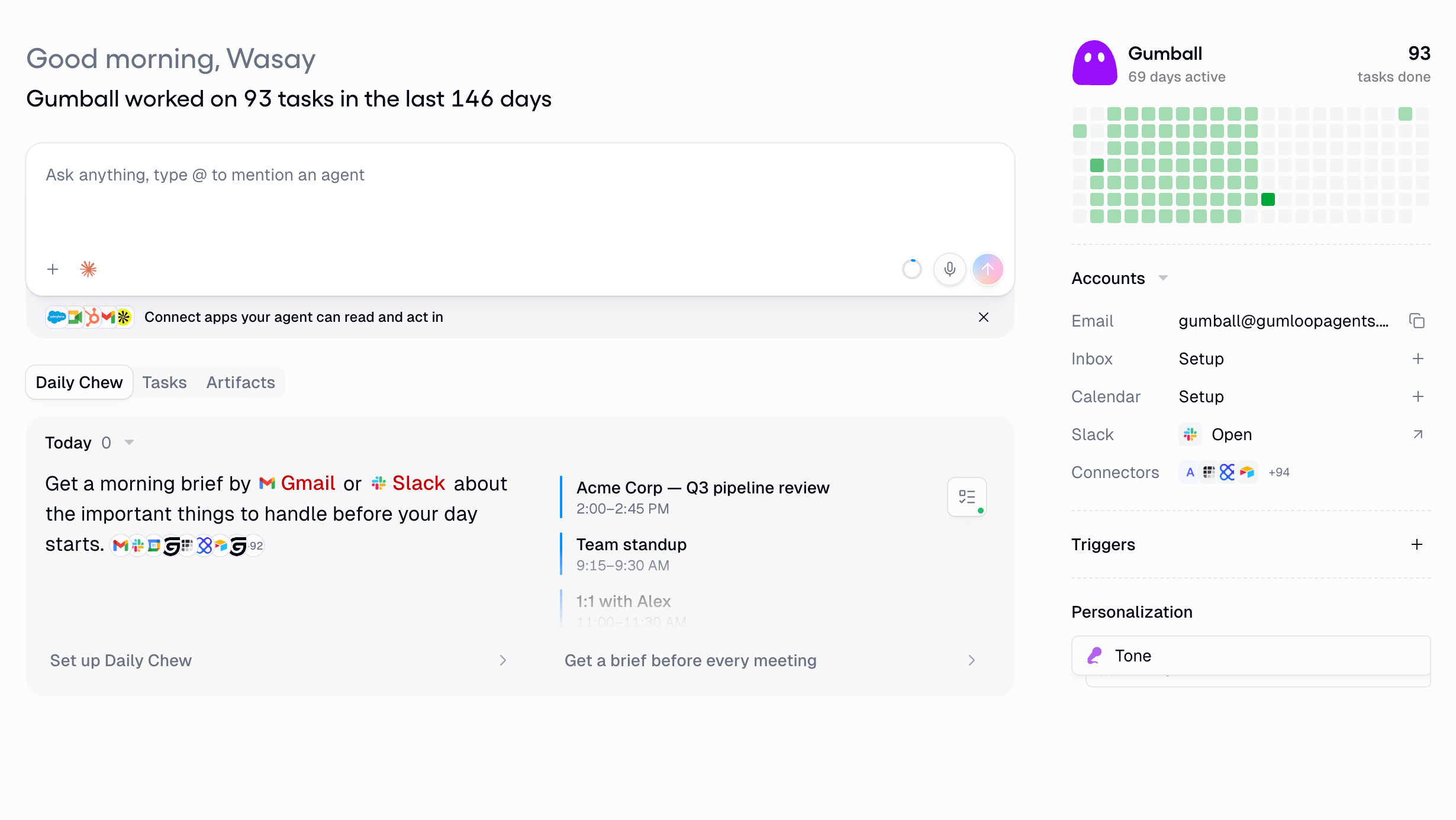
The right-hand rail on the Gumball home screen is the control panel for everything below.
| Section | What it does |
| ------------------- | ------------------------------------------------------------------------------------------------------------------------ |
| **Email** | Gumball's own address, `gumball@gumloopagents.com`. Email it like a coworker and it replies. |
| **Inbox** | Connect a Gmail account for [Smart Inbox](#smart-inbox). |
| **Calendar** | Connect a calendar account for [Meeting Prep](#meeting-prep). |
| **Slack** | Open Gumball in Slack. |
| **Connectors** | Every app Gumball can read and act in. |
| **Triggers** | Schedules and event triggers that run Gumball automatically. |
| **Personalization** | The **Tone** and **Design** skills Gumball curates about how you like to be written to and how you like output laid out. |
Below the chat box are tabs for **Daily Chew**, **Smart Inbox**, **Tasks**, and **Artifacts** — the reports Gumball has produced, work it has suggested, and the [files](/core-concepts/agent_artifacts) it has created.
### Emailing Gumball
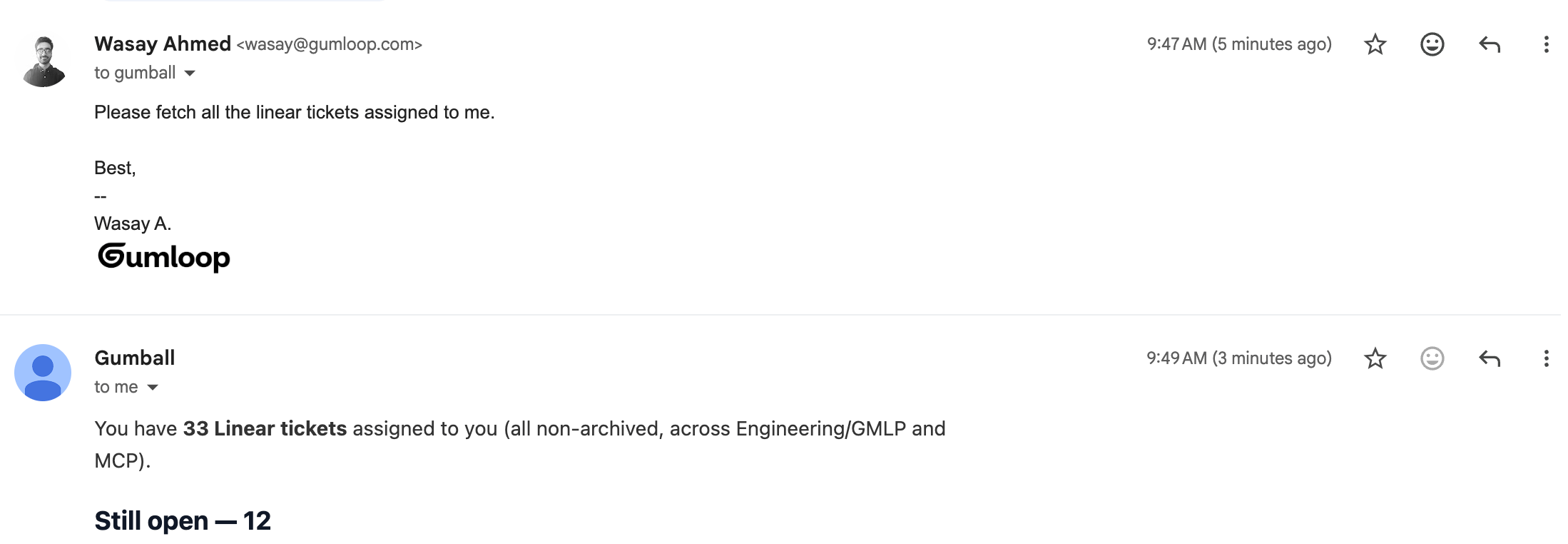
Gumball's email address is reserved and fixed — you can't rename it or hand it to another agent. Send it a request and it replies in the same thread using your connectors.
On top of chat, Gumball runs three proactive features that work while you're away:
A short report from your connected apps, delivered on your schedule.
Labels new Gmail as it arrives, moves the noise out of your Inbox, and can draft replies for you.
A context brief before each meeting on your calendar.
All three are **owner-only**. Gumball is a personal agent, so only you can configure or view its Smart Inbox, Daily Chew, and Meeting Prep — they can't be shared like a custom agent.
***
## What Gumball Comes With
The right-hand rail on the Gumball home screen is the control panel for everything below.
| Section | What it does |
| ------------------- | ------------------------------------------------------------------------------------------------------------------------ |
| **Email** | Gumball's own address, `gumball@gumloopagents.com`. Email it like a coworker and it replies. |
| **Inbox** | Connect a Gmail account for [Smart Inbox](#smart-inbox). |
| **Calendar** | Connect a calendar account for [Meeting Prep](#meeting-prep). |
| **Slack** | Open Gumball in Slack. |
| **Connectors** | Every app Gumball can read and act in. |
| **Triggers** | Schedules and event triggers that run Gumball automatically. |
| **Personalization** | The **Tone** and **Design** skills Gumball curates about how you like to be written to and how you like output laid out. |
Below the chat box are tabs for **Daily Chew**, **Smart Inbox**, **Tasks**, and **Artifacts** — the reports Gumball has produced, work it has suggested, and the [files](/core-concepts/agent_artifacts) it has created.
### Emailing Gumball
Gumball's email address is reserved and fixed — you can't rename it or hand it to another agent. Send it a request and it replies in the same thread using your connectors.
 Gumball follows the same rules as any [agent email inbox](/core-concepts/agents_email) — including DKIM checks on the sending domain.
***
## Daily Chew
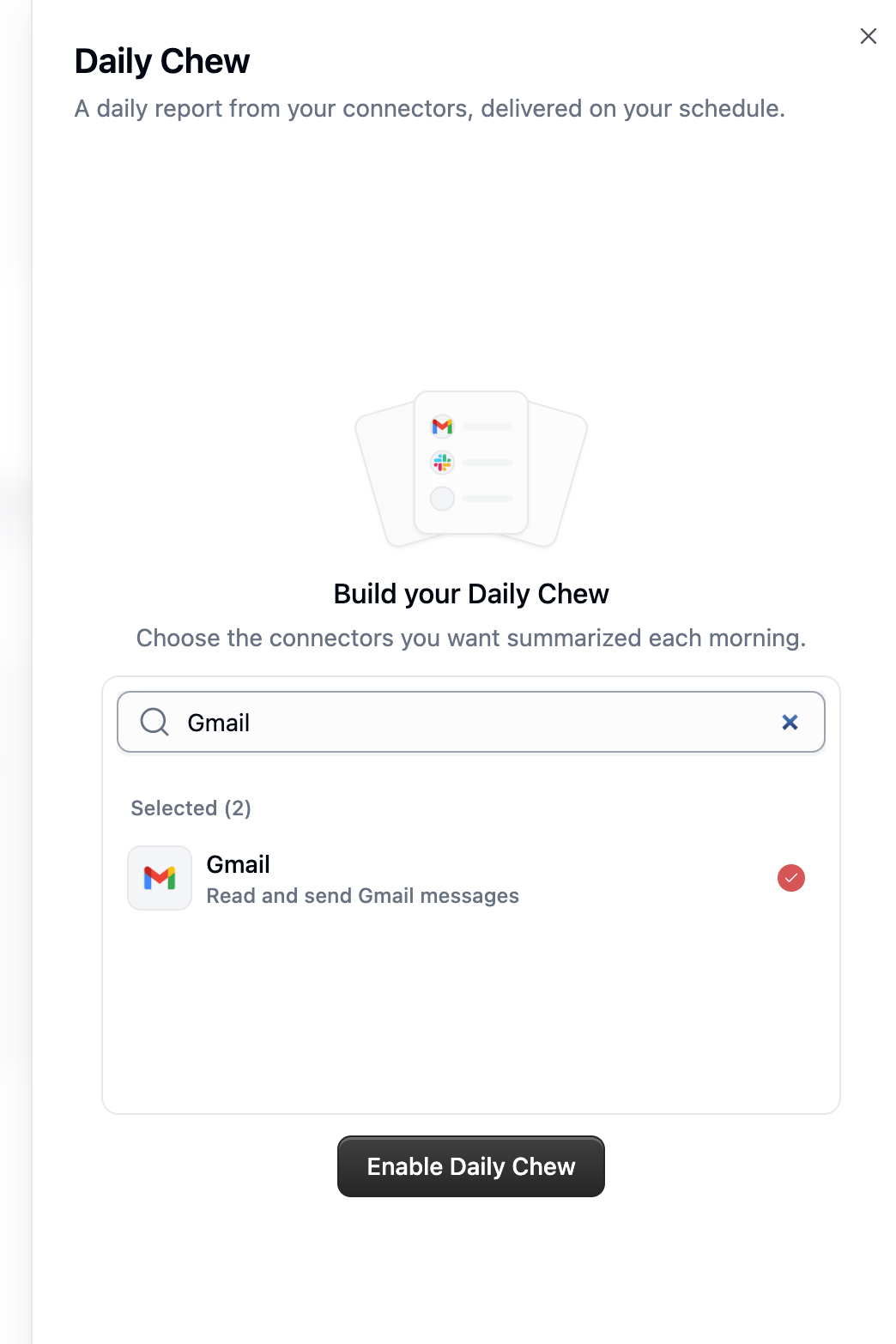
The Daily Chew is a short report about what happened across your connected apps, on the schedule you pick.
Gumball follows the same rules as any [agent email inbox](/core-concepts/agents_email) — including DKIM checks on the sending domain.
***
## Daily Chew
The Daily Chew is a short report about what happened across your connected apps, on the schedule you pick.
 ### Configuring It
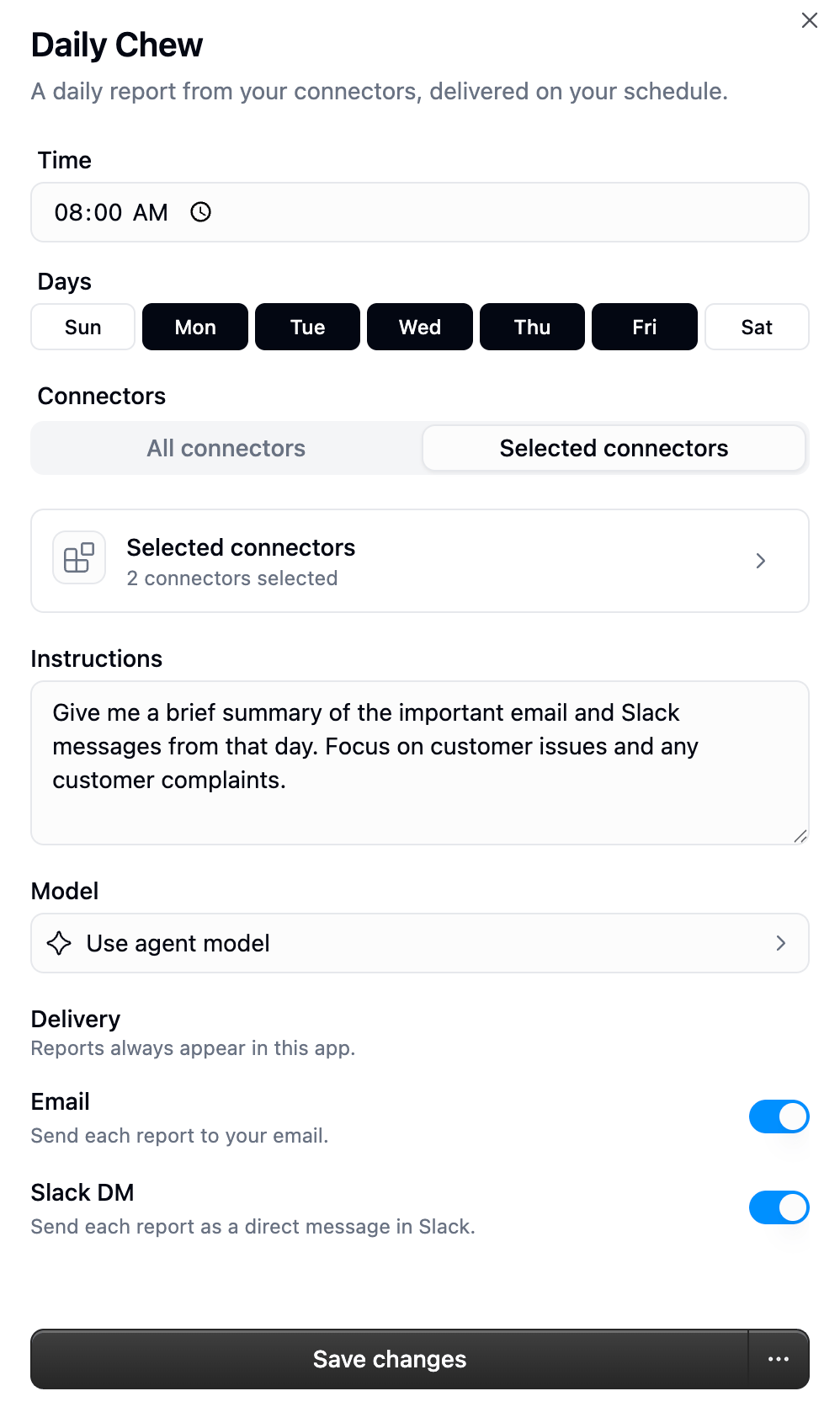 | Setting | Notes |
| --------------------- | --------------------------------------------------------------------------------------------------------------------------- |
| **Time** and **Days** | When the report runs, in your timezone. Both are required the first time you set it up. |
| **Connectors** | **All connectors** uses everything you have connected at run time. **Selected connectors** pins a specific list (up to 50). |
| **Instructions** | What you want emphasised, up to 4,000 characters. |
| **Model** | Defaults to Gumball's model. |
| **Delivery** | Reports always appear in Gumball. **Email** and **Slack DM** are optional extras. |
Leave **All connectors** selected if you keep adding tools — the report picks up new connectors automatically instead of needing to be re-configured.
### What a Report Looks Like
Each report has a one-glance summary (two sentences, 40 words max) plus a full document made of up to four sections, in this order — sections with nothing to say are left out entirely:
`## Catch-up` · `## Priorities` · `## Schedule` · `## Next steps`
Facts in the document are attributed back to the app they came from. Routine calendar entries stay in the document rather than the summary, since your schedule is already on screen next to it.
### How It Behaves
* **Runs are read-only.** The Daily Chew can only use tools that read; anything that could write, send, or change something is blocked, including tools reached through another tool.
* **Sources fail independently.** If Slack is down, the rest of the report still gets written and Slack is simply marked as failed for that run.
* **A failed source doesn't lose your place.** Gumball only advances its "last read" marker for sources that actually succeeded, so the next run picks up what it missed.
* **First run looks back 16 hours.** After that, each run covers everything since the previous successful one.
* **Reports are never sent twice.** If a run is retried internally, you get one report, not two.
* **Pausing** stops it from running; **resuming** puts it back on schedule. Past reports stay in your history either way.
### Suggested Actions
Reports can end with suggested actions — but only for real work you own with a concrete outcome Gumball could take on. Someone mentioning you in a channel isn't a suggested action; a customer waiting on a document you promised is. Accept one and it opens as a task in chat; dismiss it and it goes away.
***
## Smart Inbox
Smart Inbox labels **new** email as it lands in your Gmail, using labels you define in plain English. It's not a separate inbox — everything happens as real Gmail labels in your real mailbox, so it works in the Gmail app, on mobile, and in any client you already use.
Smart Inbox currently supports **Gmail only**, and requires a **Pro** plan or above.
### Turning It On
From the Gumball home screen, open the **Smart Inbox** tab and click **Enable Smart Inbox**.
| Setting | Notes |
| --------------------- | --------------------------------------------------------------------------------------------------------------------------- |
| **Time** and **Days** | When the report runs, in your timezone. Both are required the first time you set it up. |
| **Connectors** | **All connectors** uses everything you have connected at run time. **Selected connectors** pins a specific list (up to 50). |
| **Instructions** | What you want emphasised, up to 4,000 characters. |
| **Model** | Defaults to Gumball's model. |
| **Delivery** | Reports always appear in Gumball. **Email** and **Slack DM** are optional extras. |
Leave **All connectors** selected if you keep adding tools — the report picks up new connectors automatically instead of needing to be re-configured.
### What a Report Looks Like
Each report has a one-glance summary (two sentences, 40 words max) plus a full document made of up to four sections, in this order — sections with nothing to say are left out entirely:
`## Catch-up` · `## Priorities` · `## Schedule` · `## Next steps`
Facts in the document are attributed back to the app they came from. Routine calendar entries stay in the document rather than the summary, since your schedule is already on screen next to it.
### How It Behaves
* **Runs are read-only.** The Daily Chew can only use tools that read; anything that could write, send, or change something is blocked, including tools reached through another tool.
* **Sources fail independently.** If Slack is down, the rest of the report still gets written and Slack is simply marked as failed for that run.
* **A failed source doesn't lose your place.** Gumball only advances its "last read" marker for sources that actually succeeded, so the next run picks up what it missed.
* **First run looks back 16 hours.** After that, each run covers everything since the previous successful one.
* **Reports are never sent twice.** If a run is retried internally, you get one report, not two.
* **Pausing** stops it from running; **resuming** puts it back on schedule. Past reports stay in your history either way.
### Suggested Actions
Reports can end with suggested actions — but only for real work you own with a concrete outcome Gumball could take on. Someone mentioning you in a channel isn't a suggested action; a customer waiting on a document you promised is. Accept one and it opens as a task in chat; dismiss it and it goes away.
***
## Smart Inbox
Smart Inbox labels **new** email as it lands in your Gmail, using labels you define in plain English. It's not a separate inbox — everything happens as real Gmail labels in your real mailbox, so it works in the Gmail app, on mobile, and in any client you already use.
Smart Inbox currently supports **Gmail only**, and requires a **Pro** plan or above.
### Turning It On
From the Gumball home screen, open the **Smart Inbox** tab and click **Enable Smart Inbox**.
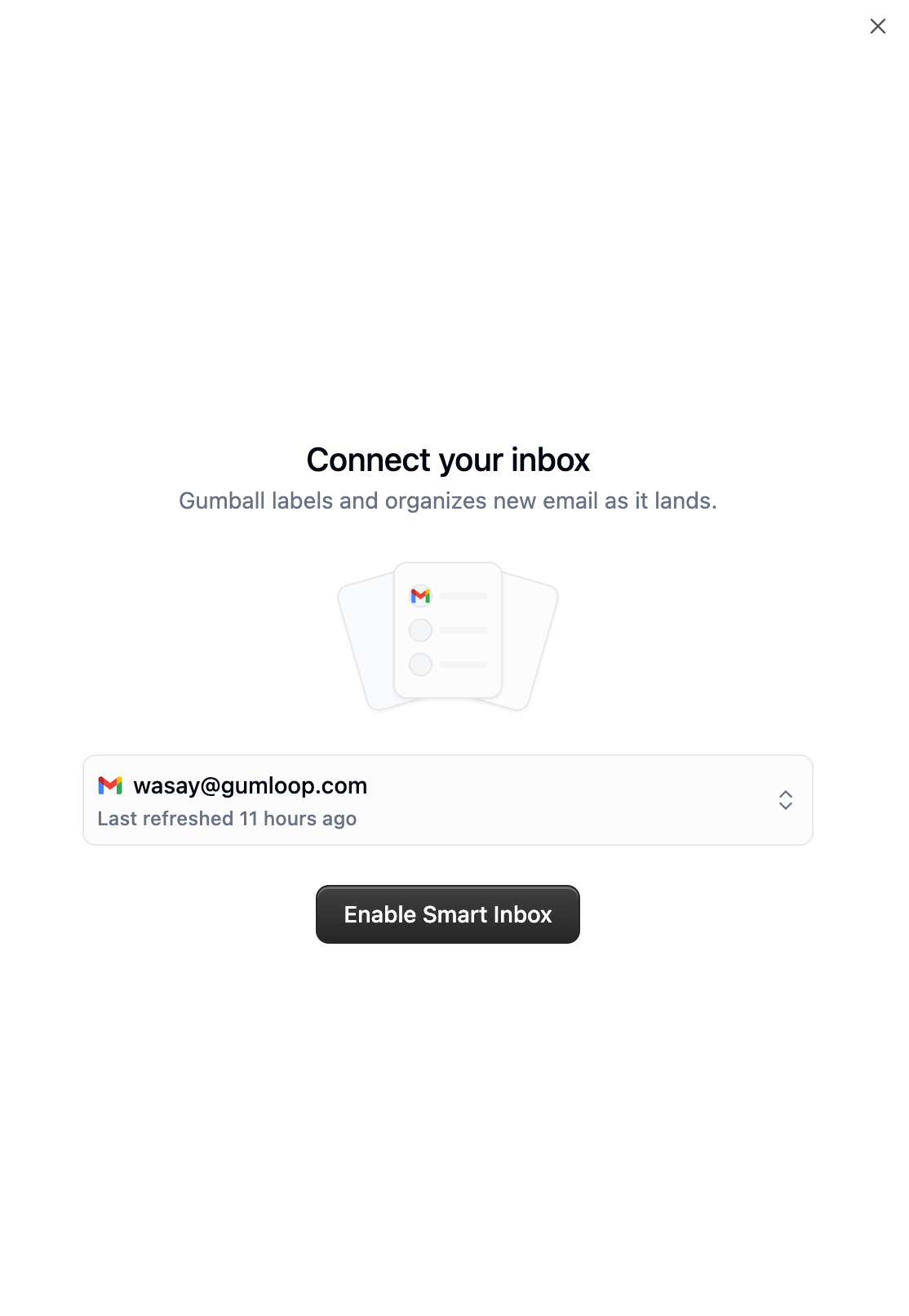
 Choose which connected Gmail account Gumball should watch, then confirm.
 Gumball seeds five built-in labels and starts classifying the next email that arrives.
Enabling requires the Gmail permissions to read email, list labels, create labels, and modify messages. Creating drafts is optional — if your organization's [app rules](/enterprise-features/app-policies/app-rules) block draft creation, labeling still works and only native Gmail drafts are turned off.
### Labels
You start with five built-in labels, and you can add your own up to a total of **25**.
| Built-in label | Applied when |
| ------------------ | ---------------------------------------- |
| **Needs reply** | You should reply. |
| **Time sensitive** | There's an explicit deadline or urgency. |
| **Waiting on you** | Progress requires your action. |
| **FYI** | Useful information, no action needed. |
| **Low priority** | Non-urgent, limited immediate value. |
A label is just a name, a definition, and a colour. The definition is the instruction Gumball classifies against — write it the way you'd explain it to a new assistant.
Gumball seeds five built-in labels and starts classifying the next email that arrives.
Enabling requires the Gmail permissions to read email, list labels, create labels, and modify messages. Creating drafts is optional — if your organization's [app rules](/enterprise-features/app-policies/app-rules) block draft creation, labeling still works and only native Gmail drafts are turned off.
### Labels
You start with five built-in labels, and you can add your own up to a total of **25**.
| Built-in label | Applied when |
| ------------------ | ---------------------------------------- |
| **Needs reply** | You should reply. |
| **Time sensitive** | There's an explicit deadline or urgency. |
| **Waiting on you** | Progress requires your action. |
| **FYI** | Useful information, no action needed. |
| **Low priority** | Non-urgent, limited immediate value. |
A label is just a name, a definition, and a colour. The definition is the instruction Gumball classifies against — write it the way you'd explain it to a new assistant.
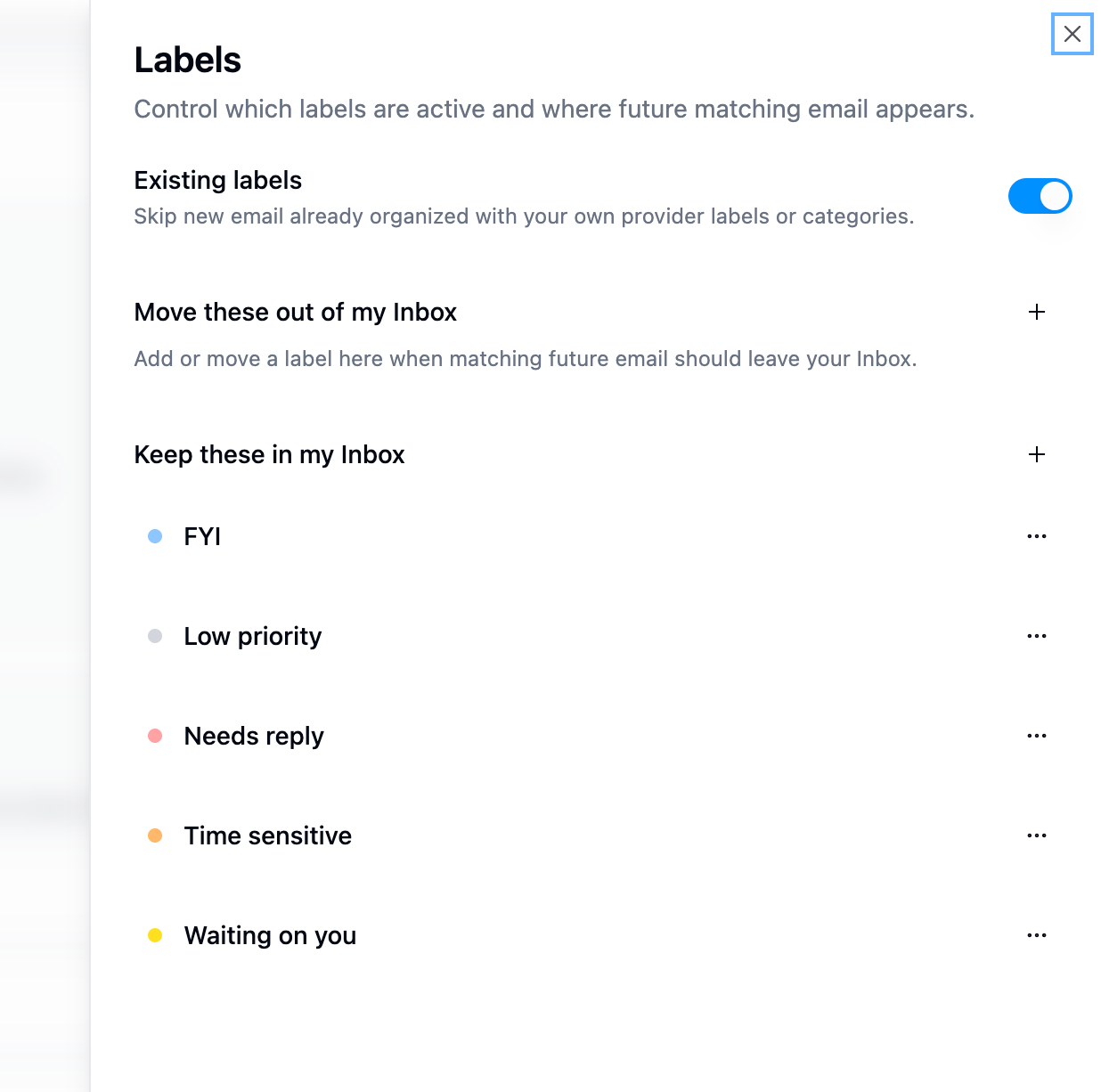
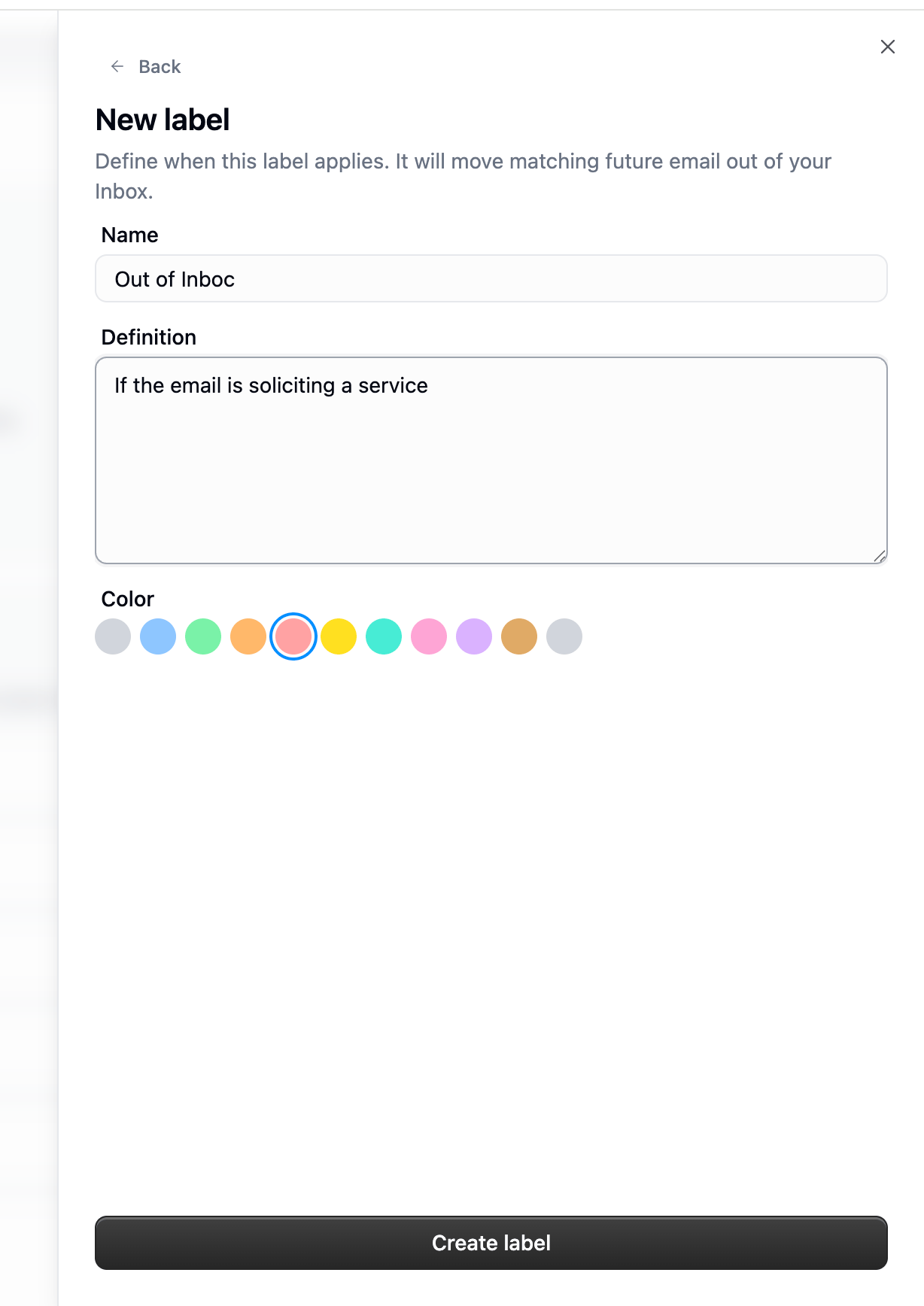 ### Keep In Inbox vs. Move Out
Every label sits in one of two groups, and the group decides where matching mail ends up.
### Keep In Inbox vs. Move Out
Every label sits in one of two groups, and the group decides where matching mail ends up.
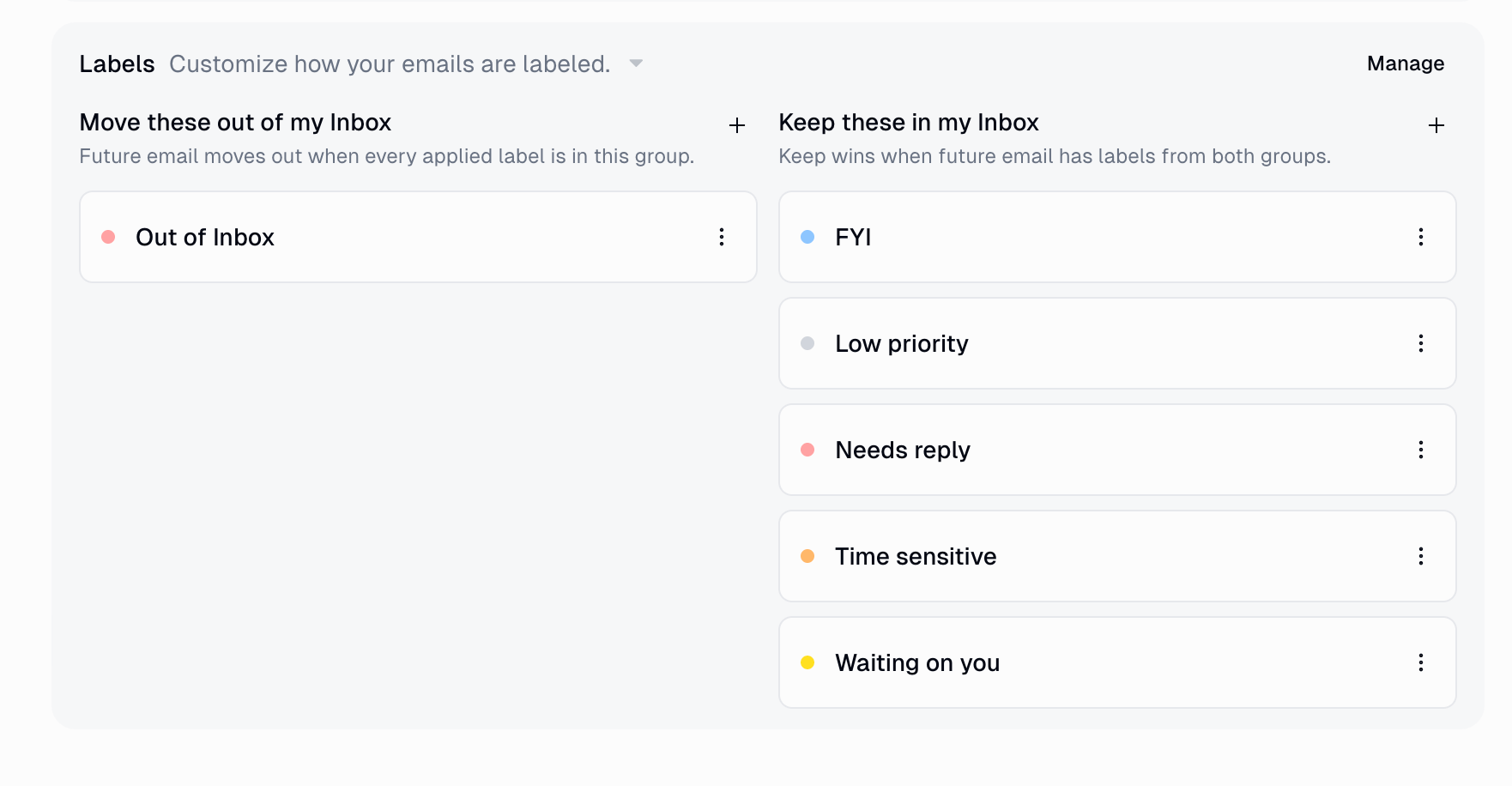 **Keep wins.** A message leaves your Inbox only when *every* label Gumball applied to it is in the "Move these out" group. One "Keep" label anywhere on the message keeps it in your Inbox.
The **Existing labels** toggle in **Manage** controls whether Gumball skips mail you've already organised: when it's on, any message that already carries one of your own Gmail labels or categories is left alone. Labels Gumball manages don't count for this.
**Keep wins.** A message leaves your Inbox only when *every* label Gumball applied to it is in the "Move these out" group. One "Keep" label anywhere on the message keeps it in your Inbox.
The **Existing labels** toggle in **Manage** controls whether Gumball skips mail you've already organised: when it's on, any message that already carries one of your own Gmail labels or categories is left alone. Labels Gumball manages don't count for this.
 A message can receive at most **5** labels. Labels Gumball isn't confident about are dropped rather than guessed.
### Classification Happens Once
Gumball classifies each email **as it arrives**, and never re-runs on old mail.
* Editing a label's definition, colour, or group changes **future** email only.
* Turning a label off stops it being applied going forward; mail already labelled keeps its label.
* Deleting a custom label removes it from Gumball; the Gmail label itself stays on the messages that already have it.
* Renaming a label renames the matching Gmail label, so your existing mail follows the new name.
* The five built-in labels can be disabled or edited, but not deleted.
### Reply Drafts
When Gumball decides a message needs a reply, it can write one straight into Gmail as a native draft — so you open Gmail, read it, edit it, and hit send.
A message can receive at most **5** labels. Labels Gumball isn't confident about are dropped rather than guessed.
### Classification Happens Once
Gumball classifies each email **as it arrives**, and never re-runs on old mail.
* Editing a label's definition, colour, or group changes **future** email only.
* Turning a label off stops it being applied going forward; mail already labelled keeps its label.
* Deleting a custom label removes it from Gumball; the Gmail label itself stays on the messages that already have it.
* Renaming a label renames the matching Gmail label, so your existing mail follows the new name.
* The five built-in labels can be disabled or edited, but not deleted.
### Reply Drafts
When Gumball decides a message needs a reply, it can write one straight into Gmail as a native draft — so you open Gmail, read it, edit it, and hit send.
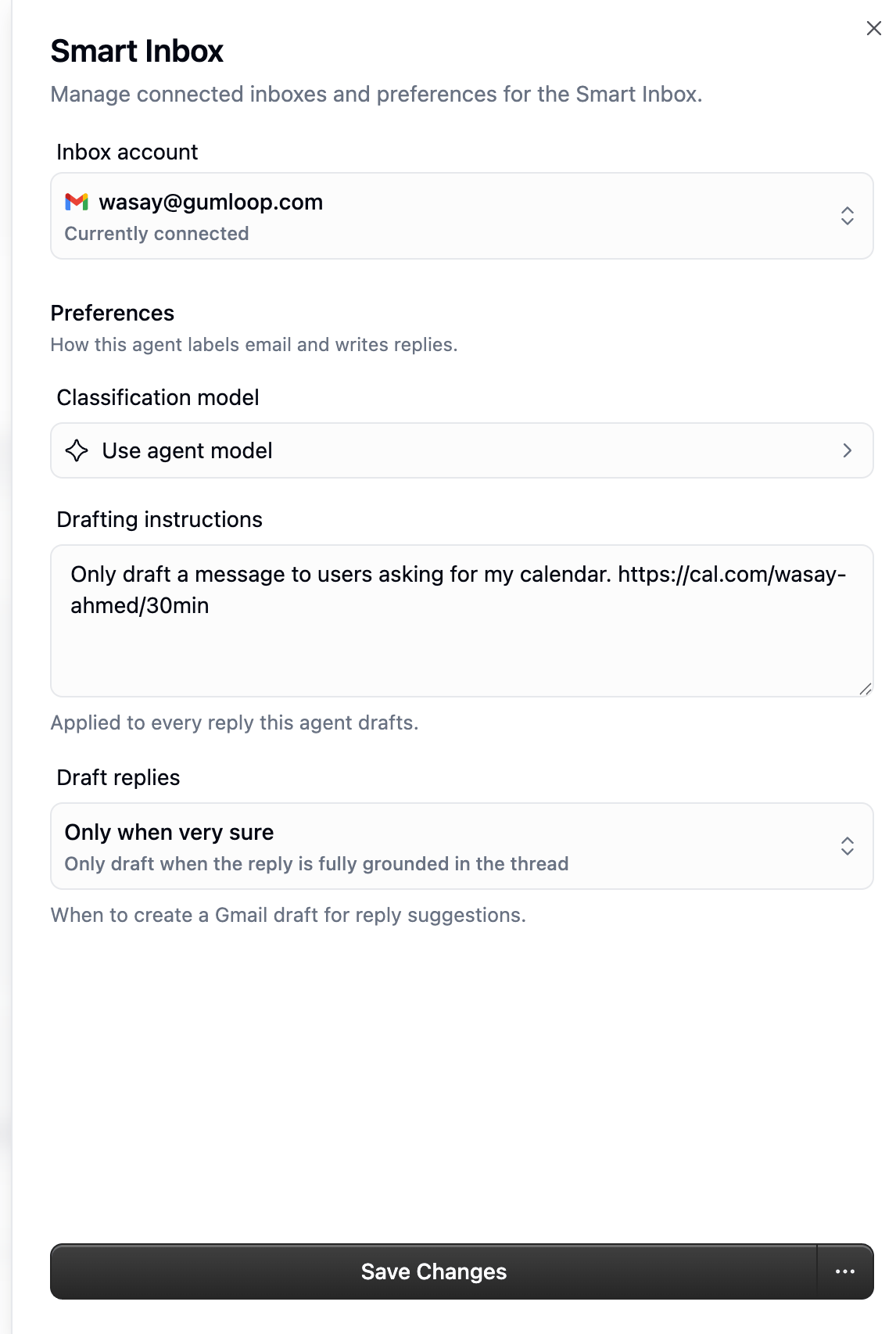 | Setting | What it controls |
| ------------------------- | ----------------------------------------------------------------------------------------------------- |
| **Inbox account** | Which Gmail account Smart Inbox watches. |
| **Classification model** | The model used to label email. Defaults to Gumball's own model. |
| **Drafting instructions** | Standing instructions applied to every reply Gumball drafts. These outrank your Tone personalization. |
| **Draft replies** | How confident Gumball must be before it writes a Gmail draft. |
Drafts are written from the thread itself plus up to three of your past replies to that sender, so they sound like you. If Gumball isn't confident enough to meet your threshold, **the reply suggestion still appears in Gumball** — you just don't get a Gmail draft, and you can accept the suggestion into chat instead.
Gumball never overwrites a draft you've touched. If a newer message arrives in a thread where you edited Gumball's draft, it skips drafting entirely rather than replacing your text.
Gumball only ever creates **drafts**. Smart Inbox cannot send email on your behalf.
### Disconnecting
Turning Smart Inbox off, or switching to a different Gmail account, clears Gumball's record of what it labelled and its link to the Gmail labels. The labels themselves stay in Gmail on the mail that already has them, and Gumball re-adopts them by name if you reconnect.
***
## Meeting Prep
Meeting Prep gives you a brief before a meeting starts: who's attending, what you've discussed with them before, what's still open, and what to raise.
### Turning It On
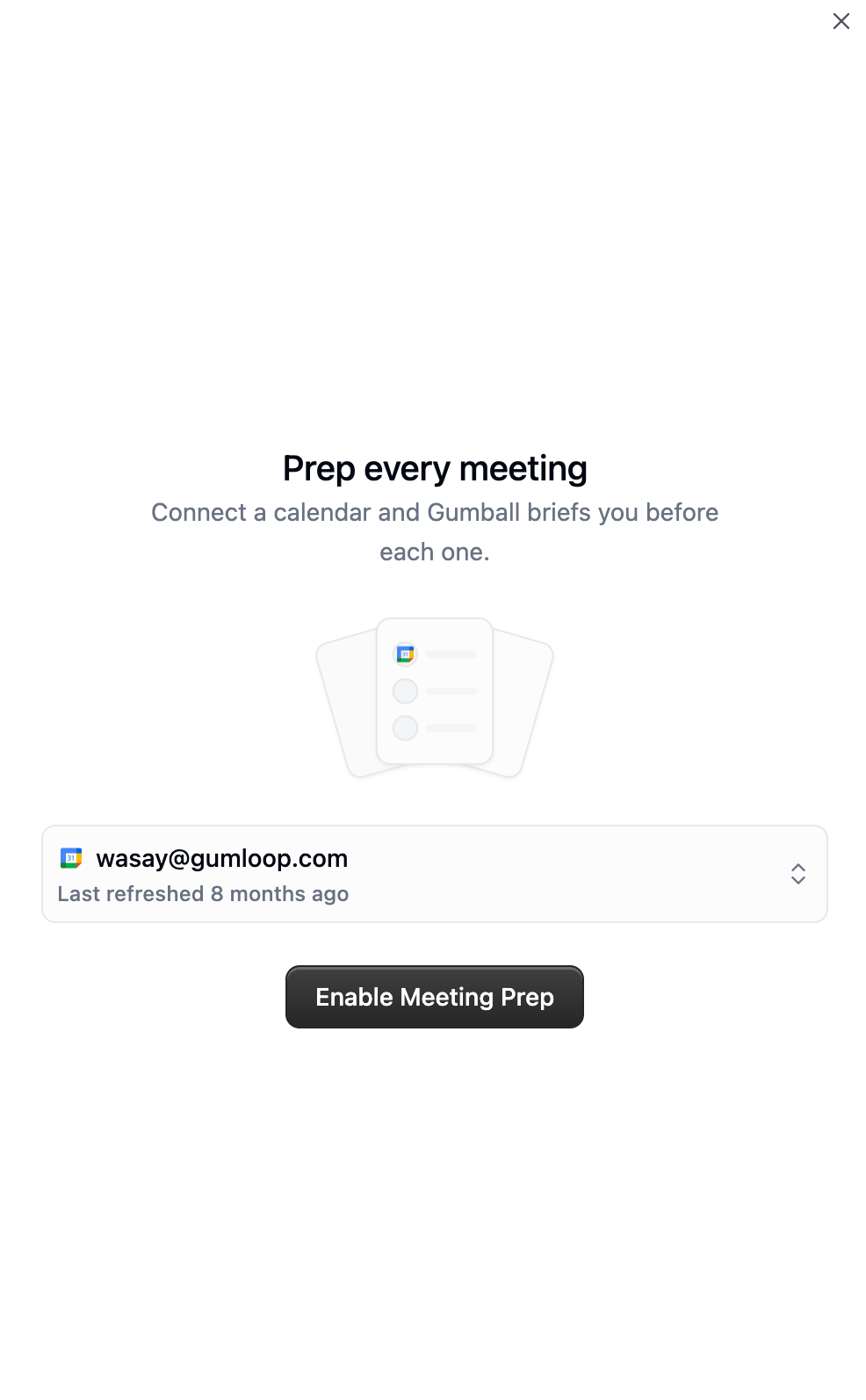
Pick the calendar account Gumball should watch, then click **Enable Meeting Prep**.
| Setting | What it controls |
| ------------------------- | ----------------------------------------------------------------------------------------------------- |
| **Inbox account** | Which Gmail account Smart Inbox watches. |
| **Classification model** | The model used to label email. Defaults to Gumball's own model. |
| **Drafting instructions** | Standing instructions applied to every reply Gumball drafts. These outrank your Tone personalization. |
| **Draft replies** | How confident Gumball must be before it writes a Gmail draft. |
Drafts are written from the thread itself plus up to three of your past replies to that sender, so they sound like you. If Gumball isn't confident enough to meet your threshold, **the reply suggestion still appears in Gumball** — you just don't get a Gmail draft, and you can accept the suggestion into chat instead.
Gumball never overwrites a draft you've touched. If a newer message arrives in a thread where you edited Gumball's draft, it skips drafting entirely rather than replacing your text.
Gumball only ever creates **drafts**. Smart Inbox cannot send email on your behalf.
### Disconnecting
Turning Smart Inbox off, or switching to a different Gmail account, clears Gumball's record of what it labelled and its link to the Gmail labels. The labels themselves stay in Gmail on the mail that already has them, and Gumball re-adopts them by name if you reconnect.
***
## Meeting Prep
Meeting Prep gives you a brief before a meeting starts: who's attending, what you've discussed with them before, what's still open, and what to raise.
### Turning It On
Pick the calendar account Gumball should watch, then click **Enable Meeting Prep**.
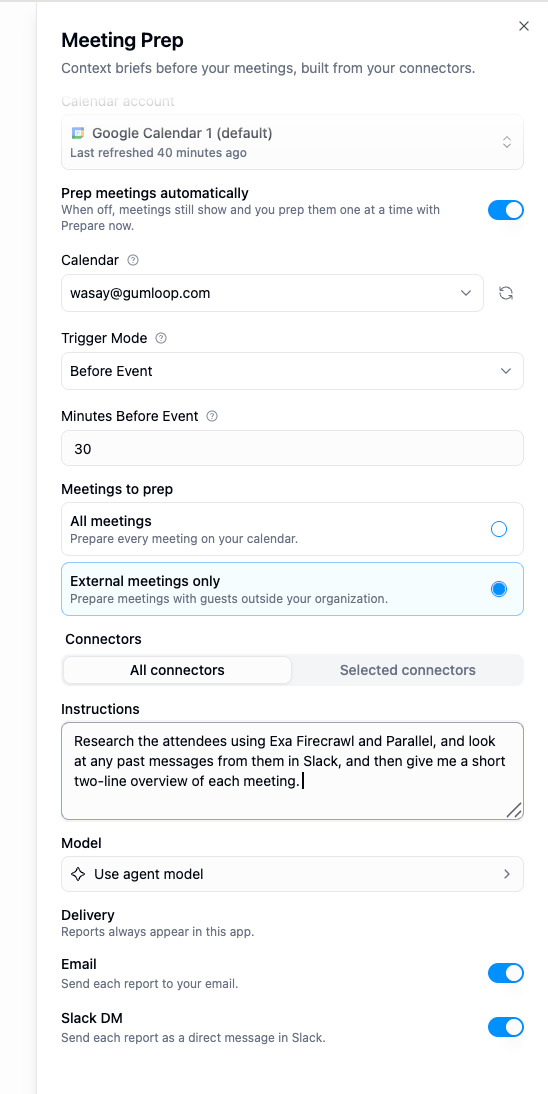 | Setting | Notes |
| ------------------------------- | ------------------------------------------------------------------------------------- |
| **Prep meetings automatically** | When off, meetings still appear and you prep them one at a time with **Prepare now**. |
| **Calendar** | Which calendar on the connected account to watch. |
| **Minutes Before Event** | How far ahead of the meeting the brief is written. |
| **Meetings to prep** | **All meetings**, or **External meetings only**. |
| **Connectors** | All connected apps, or a specific list. |
| **Instructions** | What research you want done and how you want it framed. |
| **Delivery** | In Gumball always; **Email** and **Slack DM** optional. |
**External meetings only** is the default. A meeting counts as external when at least one guest — other than you — has an email domain different from yours. Solo events and all-internal meetings are skipped.
### Prepping a Meeting Yourself
Upcoming meetings are listed on the Gumball home screen whether or not automatic prep is on.
| Setting | Notes |
| ------------------------------- | ------------------------------------------------------------------------------------- |
| **Prep meetings automatically** | When off, meetings still appear and you prep them one at a time with **Prepare now**. |
| **Calendar** | Which calendar on the connected account to watch. |
| **Minutes Before Event** | How far ahead of the meeting the brief is written. |
| **Meetings to prep** | **All meetings**, or **External meetings only**. |
| **Connectors** | All connected apps, or a specific list. |
| **Instructions** | What research you want done and how you want it framed. |
| **Delivery** | In Gumball always; **Email** and **Slack DM** optional. |
**External meetings only** is the default. A meeting counts as external when at least one guest — other than you — has an email domain different from yours. Solo events and all-internal meetings are skipped.
### Prepping a Meeting Yourself
Upcoming meetings are listed on the Gumball home screen whether or not automatic prep is on.
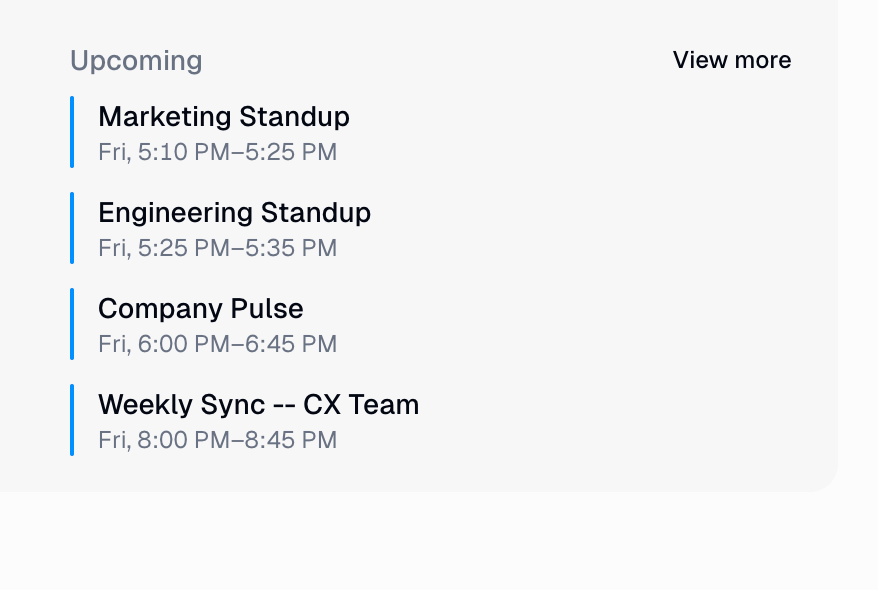 Open one and click **Prepare now** to generate a brief on demand.
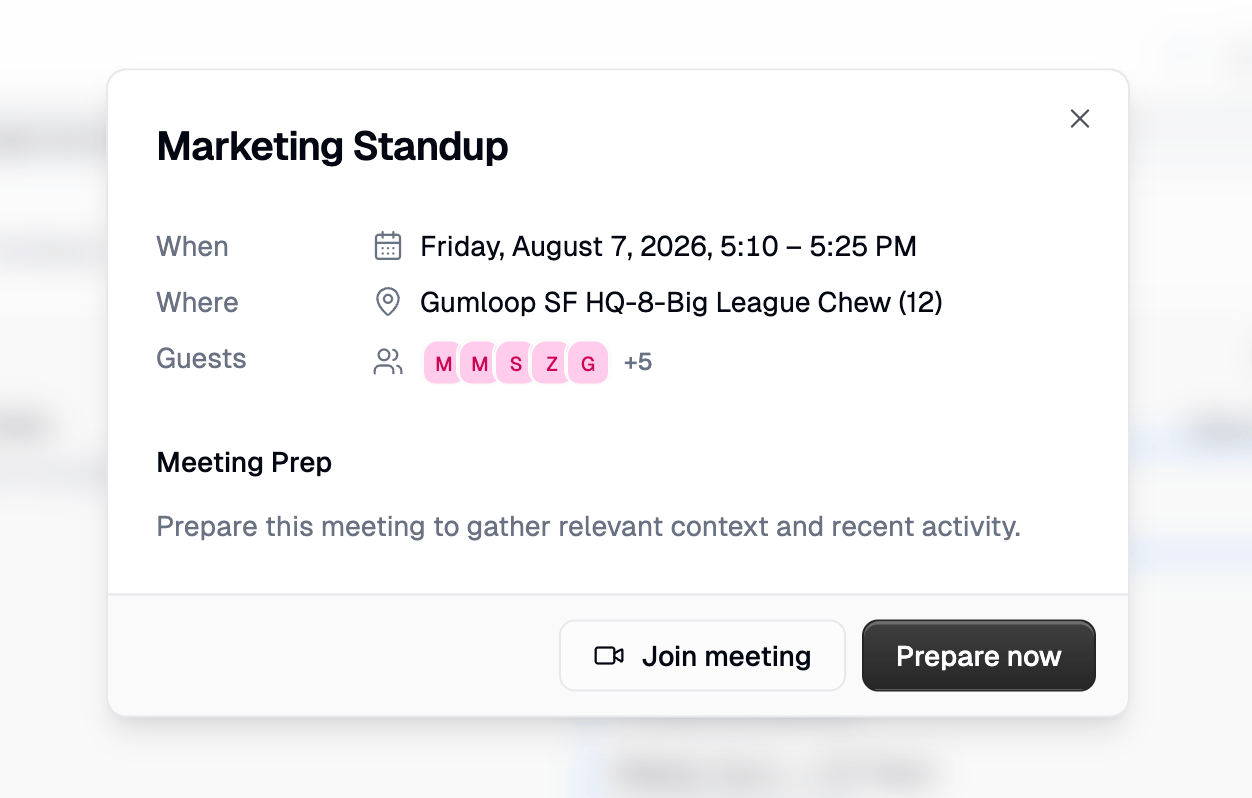 **Prepare now** works even when automatic prep is turned off — turning it off just means Gumball won't fire on its own.
### What a Brief Looks Like
A short summary (two to three sentences, 60 words max) plus a document with up to four sections, in this order, omitting any that are empty:
`## Attendees` · `## Prior context` · `## Open questions` · `## Talking points`
**Prior context** opens with a recap of your history with these people, then the relevant threads, decisions, and risks across every connected app — email, Slack, meeting notes, CRM activity — woven together rather than listed per tool. The meeting's time, location, and guest list aren't restated, since they're already on the card next to the brief.
Meeting Prep runs are read-only and handle source failures exactly like the Daily Chew.
***
## Availability and Permissions
| Feature | Requirement |
| ---------------- | ----------------------------------------------------------------------------------------- |
| **Gumball chat** | Included with every account. Gated by the `access_general_agent` organization permission. |
| **Smart Inbox** | **Pro** plan or above, plus a connected Gmail account. |
| **Daily Chew** | Any plan, with at least one connector. |
| **Meeting Prep** | Any plan, with a connected calendar account. |
Organization admins control access through [user roles](/core-concepts/organization_user_roles). Smart Inbox, Daily Chew, and Meeting Prep each have their own permission that cascades from Gumball access — turning off Gumball access for a role turns off all three.
For **custom roles**, Smart Inbox, Daily Chew, and Meeting Prep are **restricted by default**. An admin has to grant them explicitly.
If your access is removed while Smart Inbox is running, Gumball turns it off. If the restriction is later lifted, you need to re-enable it yourself — it doesn't resume on its own.
***
## FAQ
Gumball is personal and automatic — one per user, created for you, and it searches your whole skill library dynamically instead of using a fixed list of attached skills. Custom agents are built by you, shared with your team, and only see the skills, tools, and instructions you configure on them. Gumball is also the only agent with Smart Inbox, Daily Chew, and Meeting Prep.
No. Gumball is scoped to its owner. Everyone gets their own, and no one else can view or configure it. If you want a shared assistant, build a [custom agent](/core-concepts/agents).
No. `gumball@gumloopagents.com` is reserved for the personal agent and can't be renamed, disabled, or claimed by a custom agent.
No. Both run read-only. Only tools that read data are available during a run — anything that writes, sends, or modifies is blocked, including write tools reached indirectly through another tool.
No. Each source is tracked separately, and Gumball only advances its position for the sources that succeeded. The failed source is reported as failed for that run and its missed items show up in the next one.
The previous 16 hours. Every run after that covers everything since the last successful run.
Everything you have connected at the time the report runs. That's the same as choosing **All connectors** — and it means newly connected apps are picked up automatically.
Not currently. Smart Inbox supports Gmail only.
No. Classification happens as email arrives, so only mail received after you enable it gets labelled. The same applies to changes: editing or adding a label affects future email, never mail that's already been classified.
The rename is applied to the Gmail label itself, so existing mail keeps the label under its new name. Definitions, colours, and group changes only affect new mail.
Because another label on the same message was in the "Keep these in my Inbox" group. Keep always wins — a message only leaves your Inbox when every label applied to it says move.
Most often one of three reasons: the **Existing labels** toggle is on and you had already labelled or categorised that message yourself; none of your label definitions matched confidently enough; or the message arrived before Smart Inbox was enabled.
No. It only creates Gmail drafts. Sending is always your action.
Either the draft didn't clear your **Draft replies** confidence threshold, your organization's app rules block draft creation in Gmail, or you had edited Gumball's previous draft in that thread and it declined to overwrite it. The suggestion is still there, and you can accept it into chat.
Gumball forgets what it labelled and drops its links to the Gmail labels. The labels stay in Gmail on the mail that already has them, and if you reconnect, Gumball re-adopts the labels with matching names.
The most likely reason is **External meetings only** — a meeting is only external if at least one guest besides you has a different email domain. Also check that automatic prep is on and that the meeting starts further out than your **Minutes Before Event** setting. You can always use **Prepare now**.
Yes. Turning it off only stops Gumball firing on its own. Meetings still appear on the home screen and **Prepare now** works normally.
No. Each run has a single delivery boundary, so an internal retry can't produce a duplicate report.
Always into Gumball, where they're kept in history. **Email** and **Slack DM** are optional on top of that. Slack DMs are matched to you by your account email — if there's no email on your profile, the Slack DM is recorded as not sent and the report is still saved.
Suggested actions are deliberately narrow: they need work you own with a concrete outcome Gumball could deliver. Notifications, mentions, and general activity aren't enough on their own.
Yes. Classifying email, drafting replies, and generating reports use models and tools like any other agent activity. See [Credits](/core-concepts/credits).
Smart Inbox is switched off when access is removed and does not resume automatically. Re-enable it from the Smart Inbox tab.
**Prepare now** works even when automatic prep is turned off — turning it off just means Gumball won't fire on its own.
### What a Brief Looks Like
A short summary (two to three sentences, 60 words max) plus a document with up to four sections, in this order, omitting any that are empty:
`## Attendees` · `## Prior context` · `## Open questions` · `## Talking points`
**Prior context** opens with a recap of your history with these people, then the relevant threads, decisions, and risks across every connected app — email, Slack, meeting notes, CRM activity — woven together rather than listed per tool. The meeting's time, location, and guest list aren't restated, since they're already on the card next to the brief.
Meeting Prep runs are read-only and handle source failures exactly like the Daily Chew.
***
## Availability and Permissions
| Feature | Requirement |
| ---------------- | ----------------------------------------------------------------------------------------- |
| **Gumball chat** | Included with every account. Gated by the `access_general_agent` organization permission. |
| **Smart Inbox** | **Pro** plan or above, plus a connected Gmail account. |
| **Daily Chew** | Any plan, with at least one connector. |
| **Meeting Prep** | Any plan, with a connected calendar account. |
Organization admins control access through [user roles](/core-concepts/organization_user_roles). Smart Inbox, Daily Chew, and Meeting Prep each have their own permission that cascades from Gumball access — turning off Gumball access for a role turns off all three.
For **custom roles**, Smart Inbox, Daily Chew, and Meeting Prep are **restricted by default**. An admin has to grant them explicitly.
If your access is removed while Smart Inbox is running, Gumball turns it off. If the restriction is later lifted, you need to re-enable it yourself — it doesn't resume on its own.
***
## FAQ
Gumball is personal and automatic — one per user, created for you, and it searches your whole skill library dynamically instead of using a fixed list of attached skills. Custom agents are built by you, shared with your team, and only see the skills, tools, and instructions you configure on them. Gumball is also the only agent with Smart Inbox, Daily Chew, and Meeting Prep.
No. Gumball is scoped to its owner. Everyone gets their own, and no one else can view or configure it. If you want a shared assistant, build a [custom agent](/core-concepts/agents).
No. `gumball@gumloopagents.com` is reserved for the personal agent and can't be renamed, disabled, or claimed by a custom agent.
No. Both run read-only. Only tools that read data are available during a run — anything that writes, sends, or modifies is blocked, including write tools reached indirectly through another tool.
No. Each source is tracked separately, and Gumball only advances its position for the sources that succeeded. The failed source is reported as failed for that run and its missed items show up in the next one.
The previous 16 hours. Every run after that covers everything since the last successful run.
Everything you have connected at the time the report runs. That's the same as choosing **All connectors** — and it means newly connected apps are picked up automatically.
Not currently. Smart Inbox supports Gmail only.
No. Classification happens as email arrives, so only mail received after you enable it gets labelled. The same applies to changes: editing or adding a label affects future email, never mail that's already been classified.
The rename is applied to the Gmail label itself, so existing mail keeps the label under its new name. Definitions, colours, and group changes only affect new mail.
Because another label on the same message was in the "Keep these in my Inbox" group. Keep always wins — a message only leaves your Inbox when every label applied to it says move.
Most often one of three reasons: the **Existing labels** toggle is on and you had already labelled or categorised that message yourself; none of your label definitions matched confidently enough; or the message arrived before Smart Inbox was enabled.
No. It only creates Gmail drafts. Sending is always your action.
Either the draft didn't clear your **Draft replies** confidence threshold, your organization's app rules block draft creation in Gmail, or you had edited Gumball's previous draft in that thread and it declined to overwrite it. The suggestion is still there, and you can accept it into chat.
Gumball forgets what it labelled and drops its links to the Gmail labels. The labels stay in Gmail on the mail that already has them, and if you reconnect, Gumball re-adopts the labels with matching names.
The most likely reason is **External meetings only** — a meeting is only external if at least one guest besides you has a different email domain. Also check that automatic prep is on and that the meeting starts further out than your **Minutes Before Event** setting. You can always use **Prepare now**.
Yes. Turning it off only stops Gumball firing on its own. Meetings still appear on the home screen and **Prepare now** works normally.
No. Each run has a single delivery boundary, so an internal retry can't produce a duplicate report.
Always into Gumball, where they're kept in history. **Email** and **Slack DM** are optional on top of that. Slack DMs are matched to you by your account email — if there's no email on your profile, the Slack DM is recorded as not sent and the report is still saved.
Suggested actions are deliberately narrow: they need work you own with a concrete outcome Gumball could deliver. Notifications, mentions, and general activity aren't enough on their own.
Yes. Classifying email, drafting replies, and generating reports use models and tools like any other agent activity. See [Credits](/core-concepts/credits).
Smart Inbox is switched off when access is removed and does not resume automatically. Re-enable it from the Smart Inbox tab.