> ## Documentation Index
> Fetch the complete documentation index at: https://docs.gumloop.com/llms.txt
> Use this file to discover all available pages before exploring further.
# Custom Slack App Integration
Connect your own Slack app to a Gummie agent for custom branding, dedicated bot identity, and advanced enterprise deployments.
**This is an advanced feature.** For most users, we recommend using the [standard Gumloop Slack integration](https://docs.gumloop.com/core-concepts/agents_slack), which is simpler to set up and works great for the majority of use cases. Only use a custom Slack app if you have specific requirements for branding, multiple agents, or enterprise compliance.
## When to Use a Custom Slack App
The standard Gumloop integration (`@Gumloop`) is the fastest way to get agents into Slack—it works out of the box with minimal setup. However, there are scenarios where connecting your own custom Slack app makes sense:
Give your agent a unique name and avatar that reflects its purpose—like "Sales Assistant" or "Support Bot" instead of "@Gumloop"
Run multiple agents with distinct identities in the same Slack workspace without confusion
Meet IT security policies that require all Slack integrations to be owned and managed internally
Build products or services with AI agents that appear under your brand, not Gumloop's
### Standard Integration vs Custom Slack App
| Aspect | Standard Integration | Custom Slack App |
| -------------------- | --------------------------------------- | ------------------------------------------- |
| **Bot Identity** | @Gumloop (shared) | Your custom name & avatar |
| **Setup Complexity** | Simple (minutes) | Advanced (10-15 minutes) |
| **Slash Commands** | ✅ `/gummie add`, `/gummie remove`, etc. | ❌ Not supported |
| **Scope** | Per channel | Per custom app (works across all channels) |
| **Multiple Agents** | One per channel | One per custom app |
| **Best For** | Most users | Enterprise, white-label, multi-agent setups |
**Start with the [standard integration first](https://docs.gumloop.com/core-concepts/agents_slack).** If you find you need custom branding or multiple agents later, you can always add a custom Slack app.
***
## Prerequisites
Before setting up a custom Slack app, ensure you have:
* Admin access to your Slack workspace (to create and install apps)
* Permission to create Slack apps at [api.slack.com](https://api.slack.com/apps)
* An existing Gummie agent created in Gumloop
***
## Setup Options
Gumloop offers two ways to connect a custom Slack app to your agent:
**Best for:** Users who don't have an existing Slack app and want the fastest setup experience.
Gumloop provides a pre-configured manifest that automatically sets up all the required permissions and event subscriptions for you. This is the easiest path.
**Best for:** Users who already have a Slack app created or need specific configurations not covered by the manifest.
Connect an existing Slack app by providing its Client ID, Client Secret, and Signing Secret from Slack's API dashboard.
***
## Option 1: Create a New App (Recommended)
This guided workflow walks you through creating a new Slack app with all the correct settings pre-configured.
In your agent, click the **"Add to Slack"** button in the top bar.
In the connection dialog, select the **"Custom App"** tab.
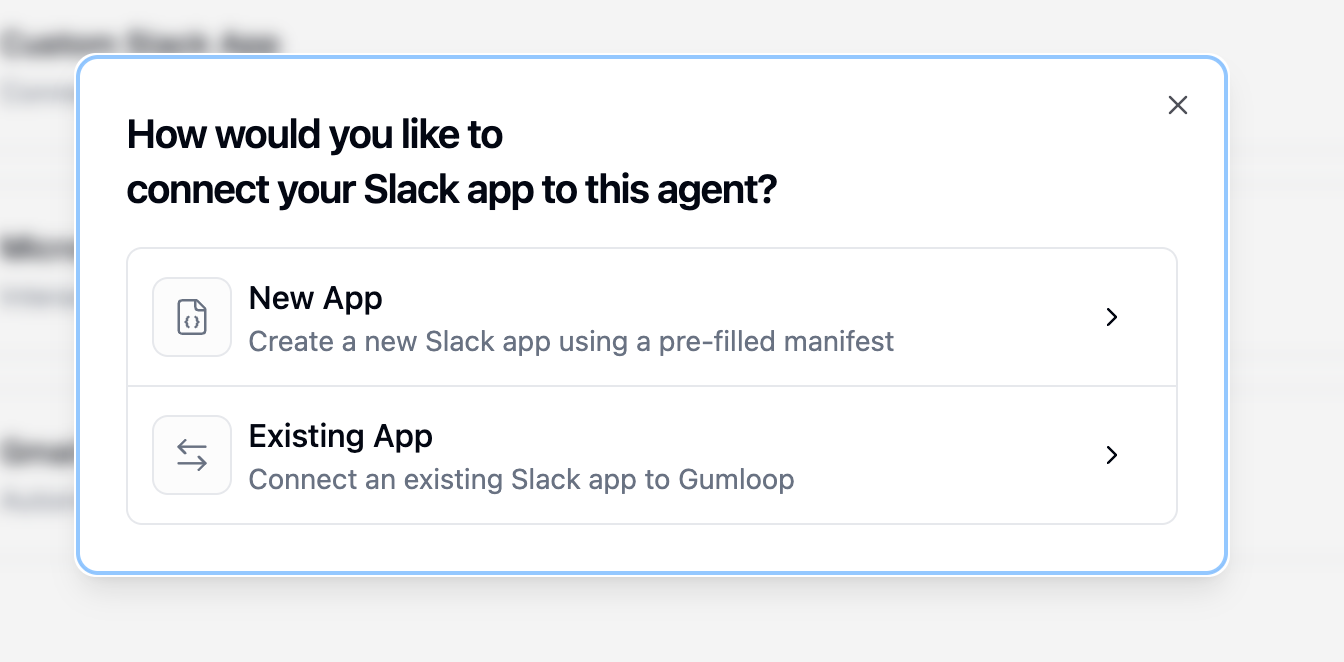
A modal will appear asking how you'd like to connect your Slack app. Select **"New App"** to create a fresh Slack app with Gumloop's pre-configured settings.
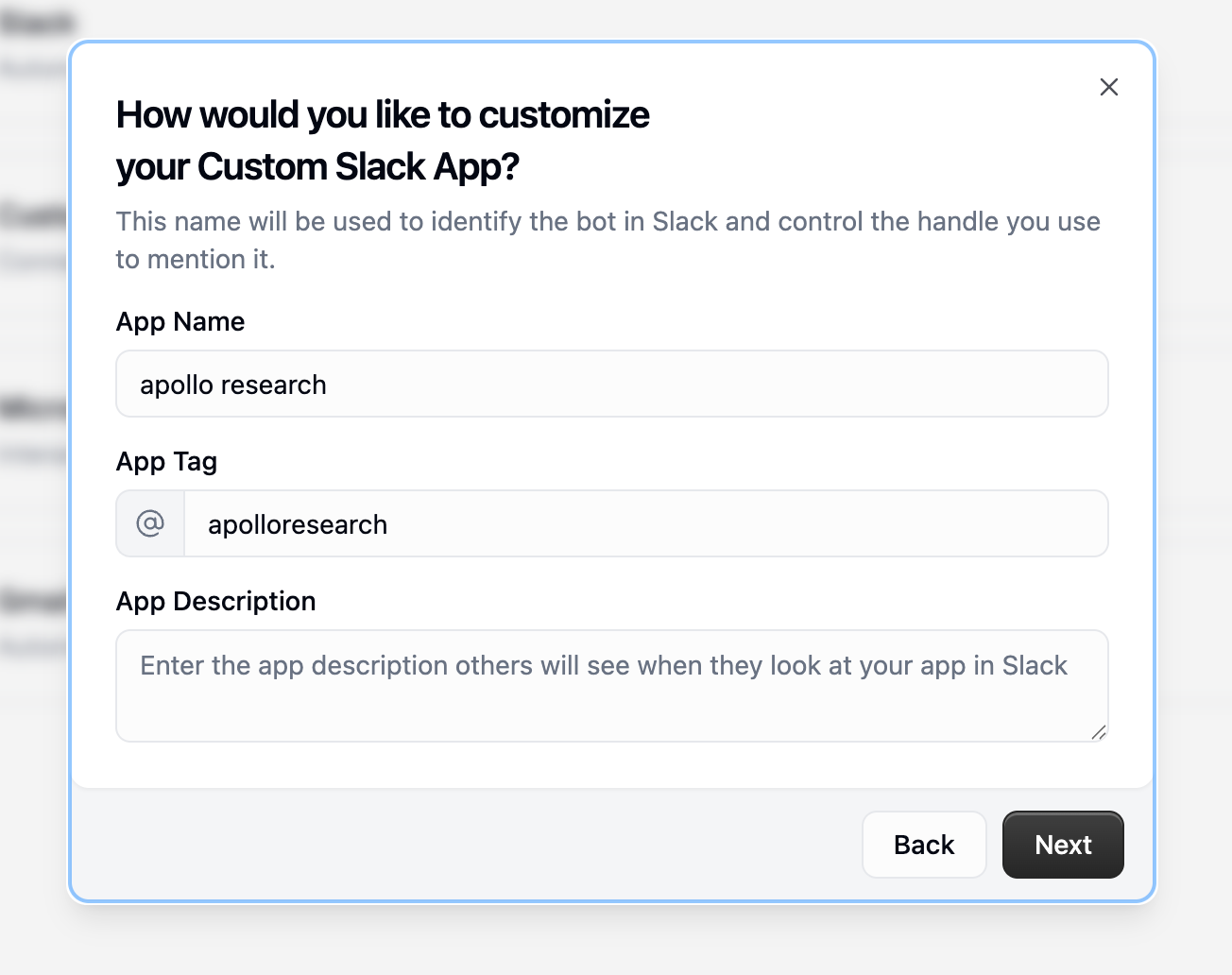
Enter the details for your custom Slack app:
* **App Name**: The display name your bot will have in Slack (e.g., "Sales Assistant", "Support Bot")
* **App Tag**: The @mention handle for your bot (e.g., `@salesassistant`)
* **App Description** (optional): A description others will see when viewing your app in Slack
Choose a descriptive name that reflects what your agent does. This is what your team will see when the bot responds in Slack.
Click **"Next"** when you're done.
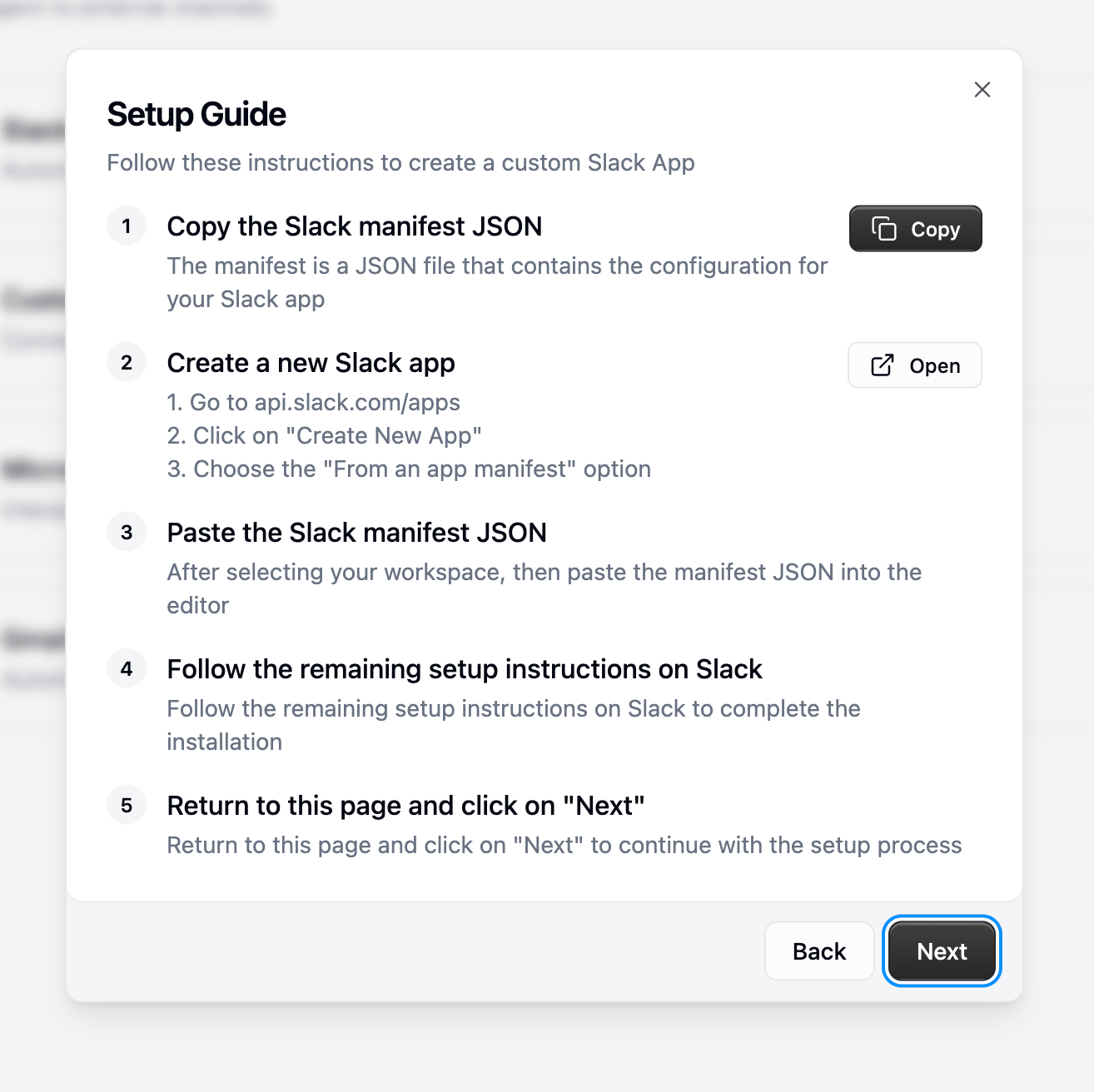
Gumloop provides a step-by-step setup guide with everything you need:
**Here's what to do:**
1. **Copy the Slack manifest JSON** — Click the **"Copy"** button. This manifest contains all the pre-configured permissions, scopes, and event subscriptions your app needs.
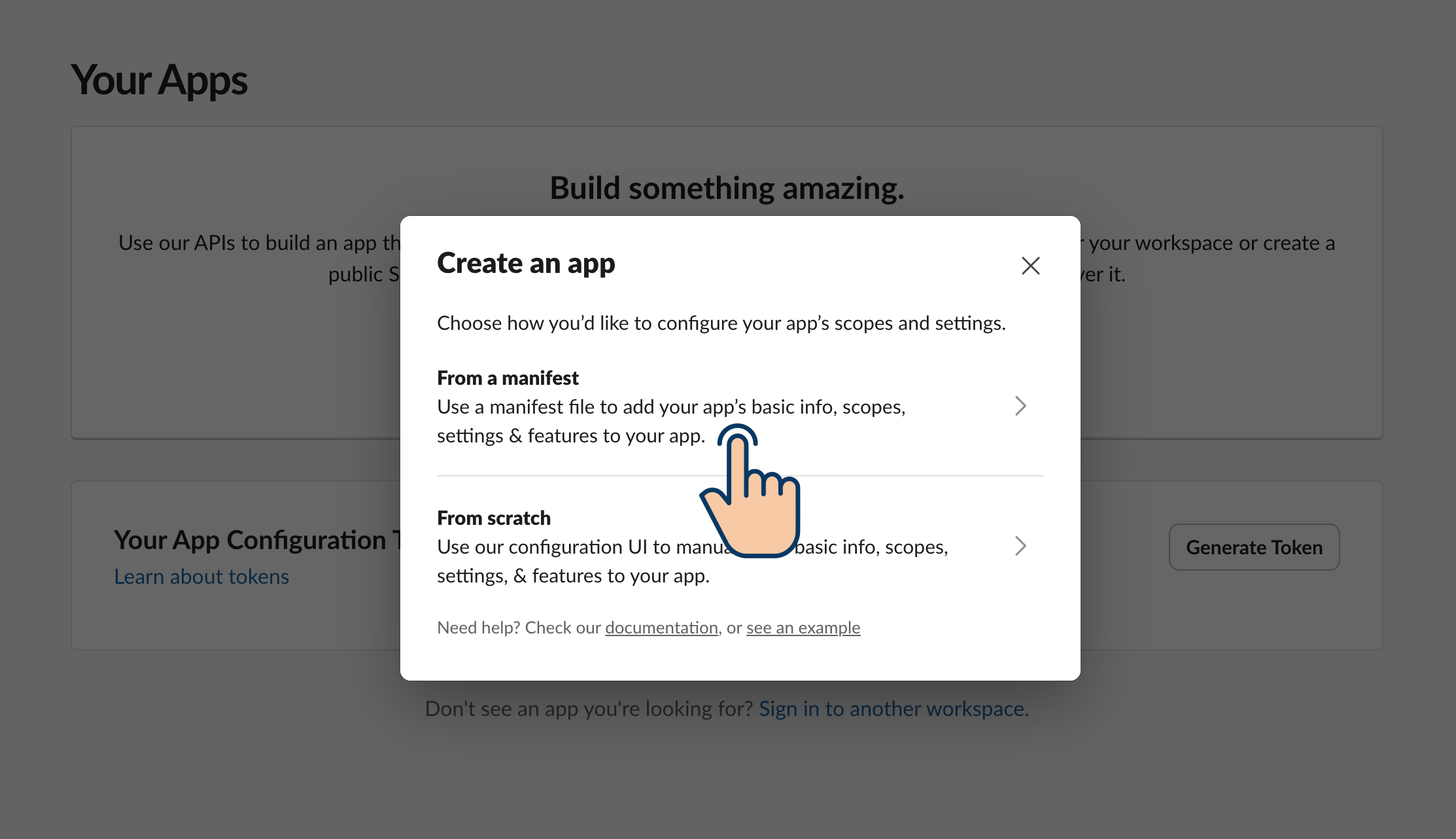
2. **Create a new Slack app** — Click **"Open"** to go to [api.slack.com/apps](https://api.slack.com/apps), then:
* Click **"Create New App"**
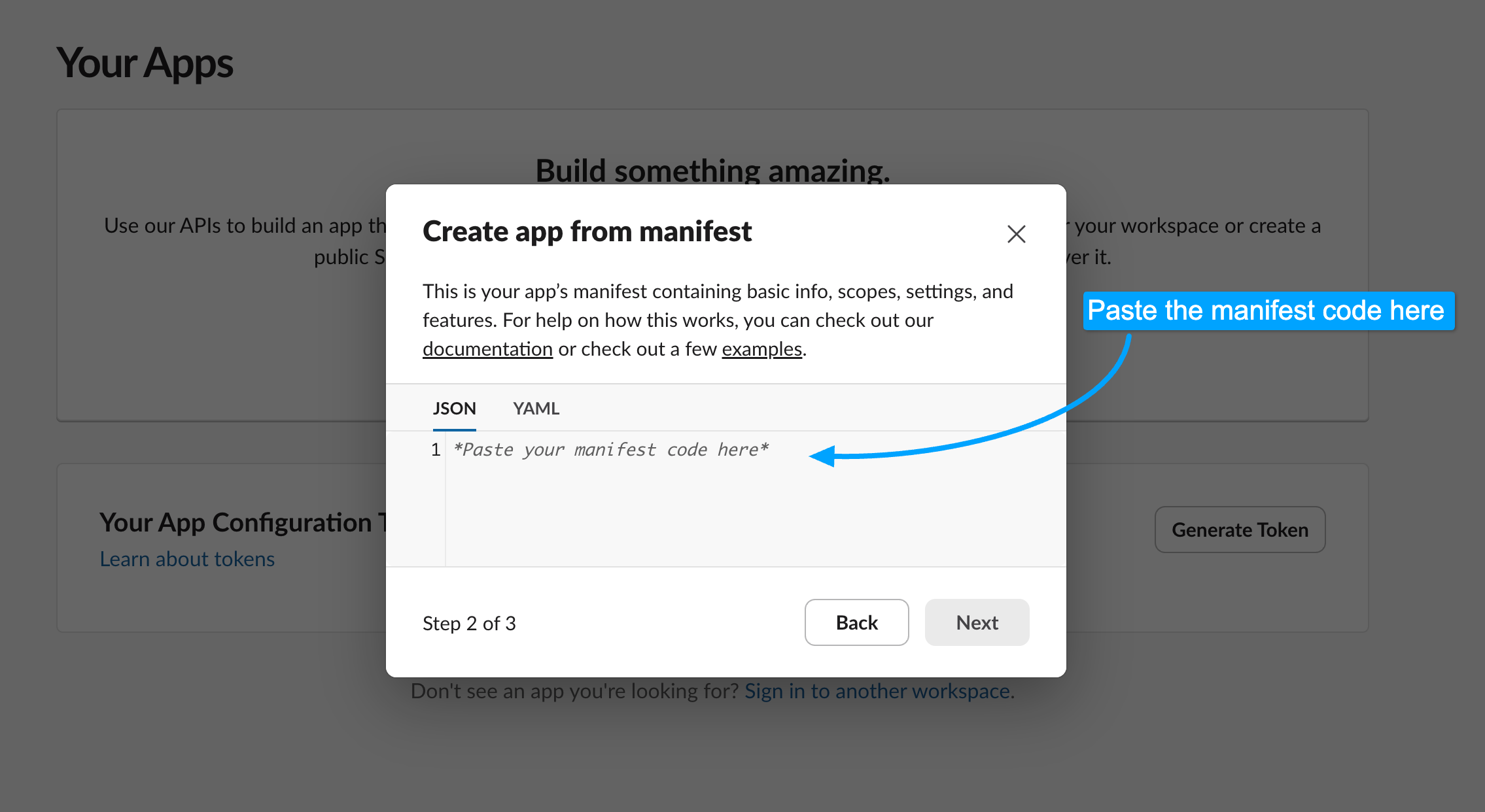
* Choose **"From an app manifest"**
* Select your Slack workspace
3. **Paste the manifest JSON** — In the manifest editor, paste the JSON you copied from Gumloop. This automatically configures:
* All required bot token scopes
* Event subscriptions with the correct webhook URL
* Interactivity with the correct request URL
* Bot user settings
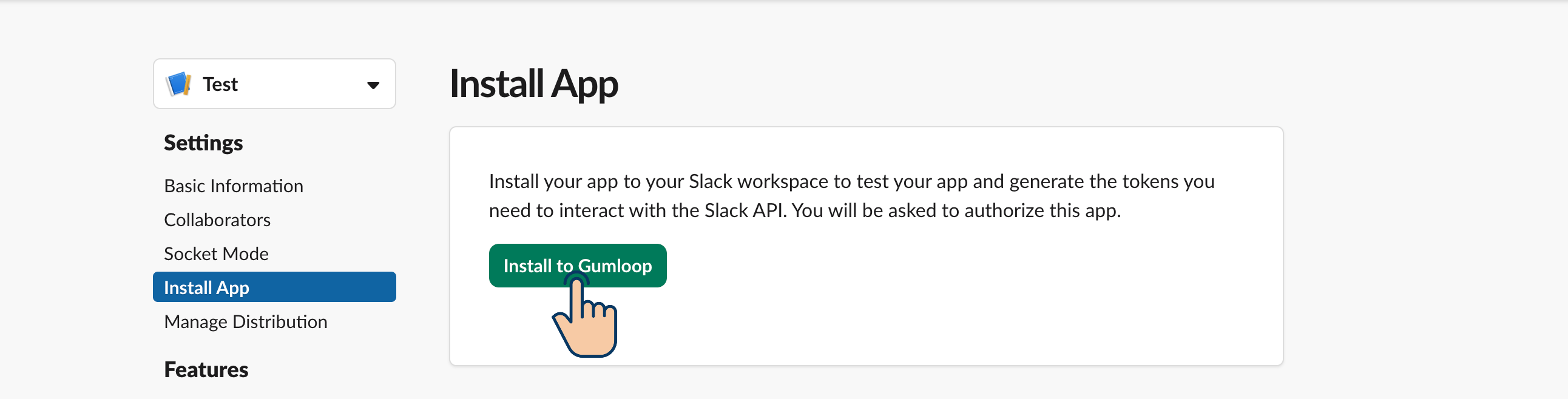
4. **Complete installation in Slack** — Review the app settings and click **"Create"**, then **"Install to Workspace"** and authorize the app.
5. **Return to Gumloop** — Come back to this page and click **"Next"** to continue.
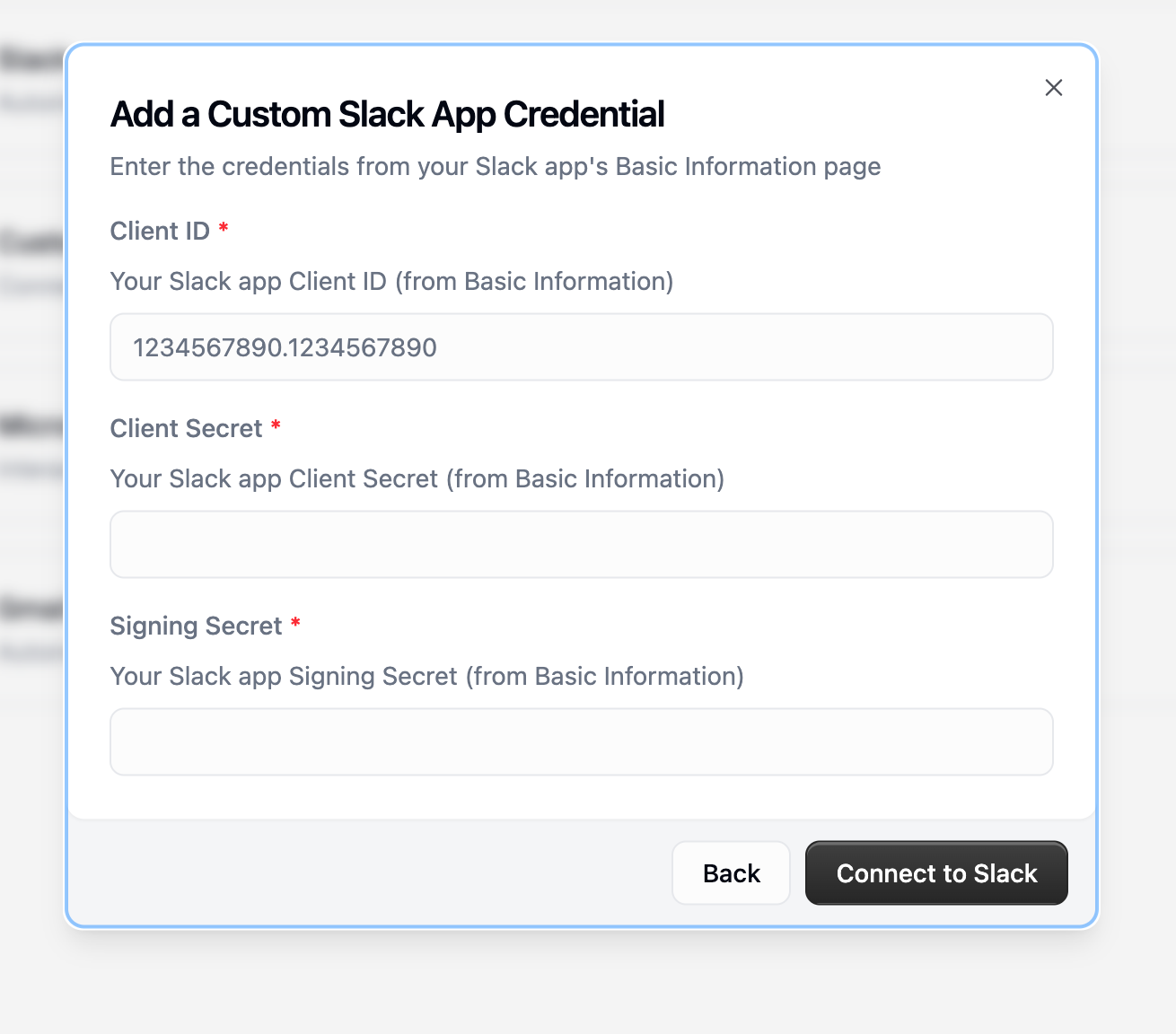
After creating your Slack app, you'll need to provide credentials from Slack's **Basic Information** page.
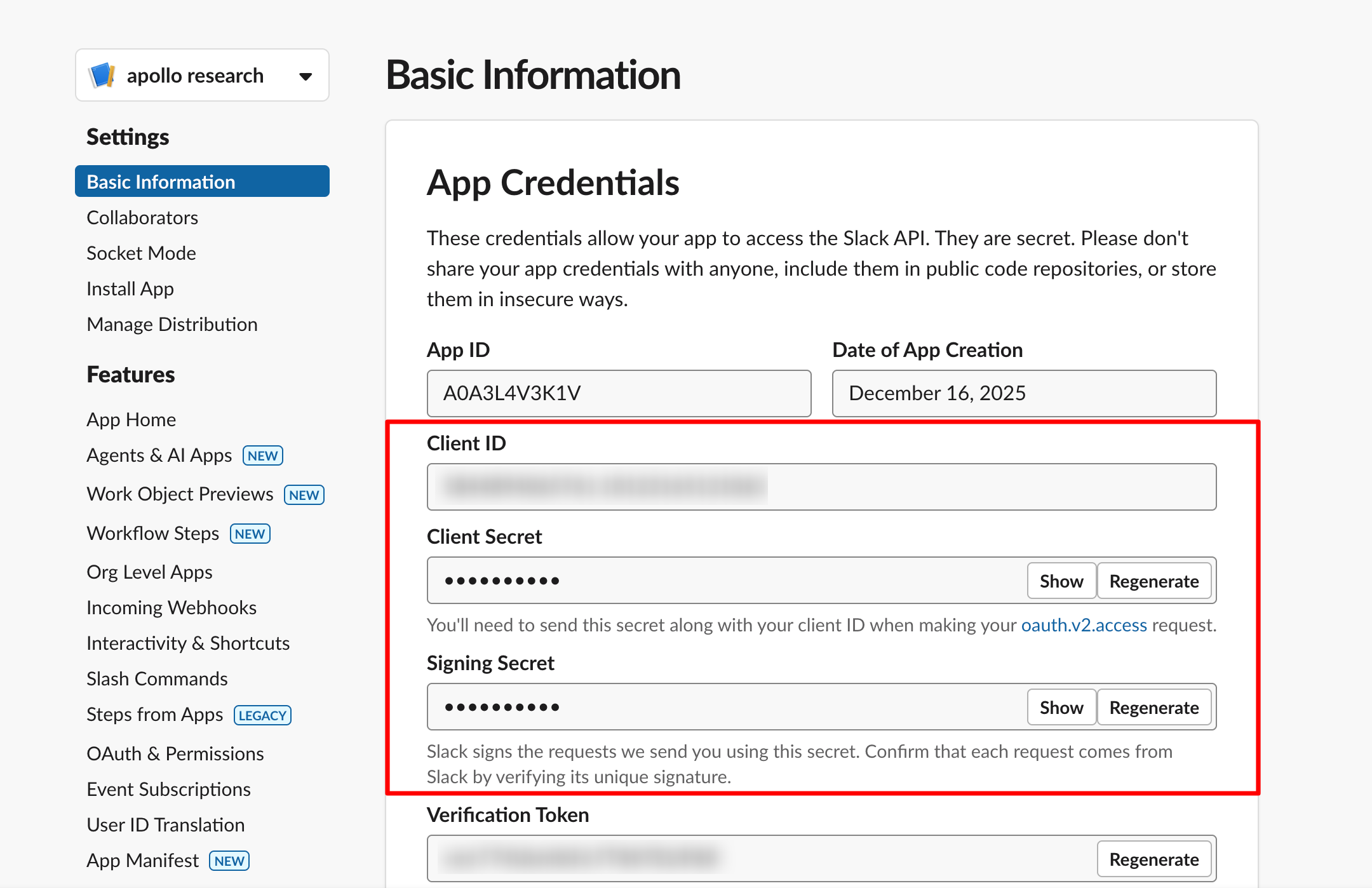
**In your Slack app settings, go to "Basic Information" and copy:**
* **Client ID** — Found under "App Credentials"
* **Client Secret** — Click "Show" to reveal, then copy
* **Signing Secret** — Click "Show" to reveal, then copy
Never share your Client Secret or Signing Secret publicly. Treat them like passwords.
Click **"Connect to Slack"** to complete the OAuth flow and authorize the connection.
Make sure your Slack app is installed to your workspace. If you skipped this step earlier, go to your Slack app settings → **OAuth & Permissions** → **Install to Workspace**.
Your custom bot needs to be invited to channels where you want it to work.
In Slack, go to each channel and type:
```
/invite @YourBotName
```
Replace `@YourBotName` with the App Tag you configured (e.g., `@salesassistant`).
Your custom Slack app agent is now ready! @mention your bot to start a conversation.
***
## Option 2: Connect an Existing App
If you already have a Slack app or need custom configurations, you can connect it directly to Gumloop.
In your agent, click the **"Add to Slack"** button in the top bar, then select the **"Custom App"** tab in the connection dialog.
Select **"Existing App"** to connect a Slack app you've already created.
Before connecting, ensure your existing Slack app has the required configuration:
In your Slack app settings, go to **OAuth & Permissions** and add these scopes:
| Scope | Purpose |
| ------------------- | ------------------------------------- |
| `app_mentions:read` | Receive @mentions of your bot |
| `channels:history` | Read messages in public channels |
| `channels:read` | List available channels |
| `chat:write` | Send messages as your bot |
| `groups:history` | Read messages in private channels |
| `groups:read` | List private channels |
| `im:history` | Read direct messages (if needed) |
| `users:read` | Look up user information |
| `users:read.email` | Match Slack users to Gumloop accounts |
| `files:read` | Access file attachments |
| `reactions:write` | Add emoji reactions to messages |
In your Slack app settings, go to **Event Subscriptions**:
1. Toggle **"Enable Events"** to ON
2. Set the **Request URL** to:
```
https://api.gumloop.com/api/v1/external/slack/events
```
3. Wait for verification (green checkmark)
4. Under **"Subscribe to bot events"**, add:
* `app_mention`
* `message.channels`
* `message.groups` (for private channels)
5. Save changes
In your Slack app settings, go to **Interactivity & Shortcuts**:
1. Toggle **"Interactivity"** to ON
2. Set the **Request URL** to:
```
https://api.gumloop.com/api/v1/external/slack/interactive
```
3. Save changes
This enables your custom Slack app to handle interactive components like button clicks, modal submissions, and form responses from your agent.
Go to **OAuth & Permissions** and click **"Install to Workspace"** if you haven't already. Authorize the app when prompted.
Provide the credentials from your Slack app's **Basic Information** page:
* **Client ID** — Found under "App Credentials"
* **Client Secret** — Click "Show" to reveal, then copy
* **Signing Secret** — Click "Show" to reveal, then copy
Click **"Connect to Slack"** to complete the OAuth flow.
Select your custom Slack app credential from the dropdown and click **"Add"**.
Then invite your bot to channels in Slack:
```
/invite @YourBotName
```
***
## Using Your Custom Slack App Agent
Once set up, interacting with your custom Slack app agent works similarly to the standard Gumloop integration, with a few key differences.
### Starting a Conversation
@mention your custom bot in any channel where it's been invited:
```
@YourBotName What are the latest support tickets?
```

The agent will:
1. Process your request using its configured tools and workflows
2. Respond in a thread to keep conversations organized
3. Continue the conversation within the thread based on your agent's settings
**Thread commands work here too!** Type `!stop` to stop the agent's response, or `!link` to get a link to view the conversation in Gumloop.
### Interactive Features
Custom Slack apps fully support Slack interactive components. Your agent can send messages with buttons, open modals, and collect form responses, just like the standard Gumloop integration.
Supported interactive components include:
* **Button clicks** — Respond to action buttons in agent messages
* **Modal submissions** — Collect structured input through Slack modals
* **Form responses** — Process multi-field form submissions from users
Interactive features require the **Interactivity Request URL** to be configured. If you used Gumloop's manifest to create your app, this is already set up. For existing apps, see the [Interactivity configuration step](#option-2-connect-an-existing-app) above.
### Key Differences from Standard Integration
Custom Slack apps don't support `/gummie` slash commands. You cannot use:
* `/gummie add` — Bot is added by inviting to channels instead
* `/gummie remove` — Remove bot by kicking from channels
* `/gummie active` — You know which bot is in a channel by its name
* `/gummie help` — Not available
**To manage your custom app agent:**
* Add to channels: `/invite @YourBotName`
* Remove from channels: `/kick @YourBotName` or remove via channel settings
Unlike the standard integration which is channel-specific, your custom Slack app works in **any channel where it's invited**. You don't need to "add" the agent to each channel—just invite the bot.
Your agent appears with whatever name and avatar you configured in Slack's app settings. Team members interact with `@YourBotName` instead of `@Gumloop`.
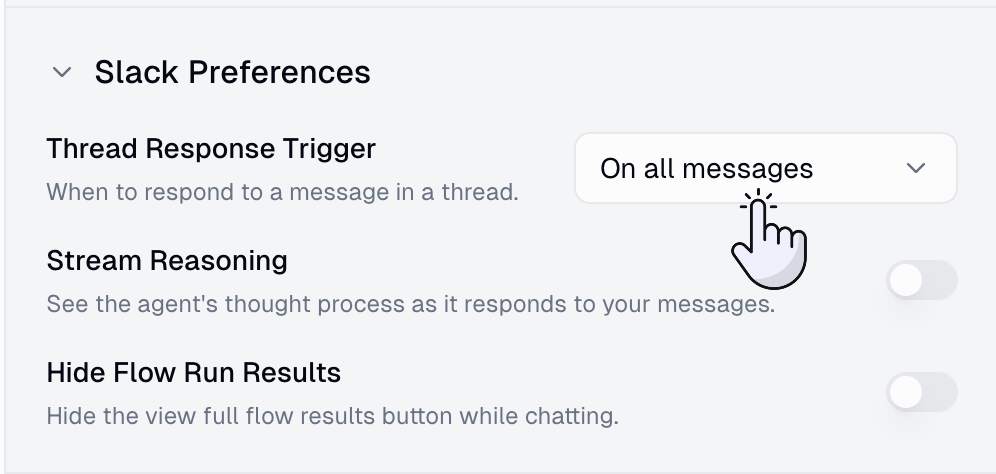
### Slack Preferences
All the same Slack preferences available for standard agents apply to custom Slack apps:
* **Thread Response Trigger**: Control whether the agent responds to all messages in a thread or only when @mentioned
* **Stream Reasoning**: Show or hide the agent's thought process
* **Hide Workflow Run Results**: Show or hide workflow execution details
Configure these in your agent's settings under **Slack Preferences**.
## Credential Ownership Options
When creating your custom Slack app credential, you can choose who has access:
| Credential Type | Who Can Use It | Best For |
| ---------------- | ------------------------ | --------------------------- |
| **Personal** | Only you | Testing, personal projects |
| **Team** | All team members | Team-shared agents |
| **Organization** | All organization members | Enterprise-wide deployments |
***
## Troubleshooting
**Check these items:**
* **Is the Slack app installed to your workspace?** This is the most common issue. Go to your Slack app settings → **OAuth & Permissions** → **Install to Workspace**.
* Is the bot invited to the channel? (`/invite @YourBotName`)
* Did you @mention the bot in your message?
* Are the event subscriptions configured correctly in Slack?
* Is the webhook URL verified? (`https://api.gumloop.com/api/v1/external/slack/events`)
* Is the credential properly assigned to your agent in Gumloop?
* Does the user have a Gumloop account with matching email?
**Check:**
* Is the bot invited to the non-working channels?
* For private channels, do you have `groups:history` and `groups:read` scopes configured?
* Is there a different agent assigned via the standard integration in that channel?
The URL `https://api.gumloop.com/api/v1/external/slack/events` should verify automatically.
**If it fails:**
* Check for typos in the URL
* Ensure you're using HTTPS (not HTTP)
* Try again after a few minutes (temporary network issues)
* Contact Gumloop support if the issue persists
If interactive components (buttons, modals, form submissions) are not working:
* **Is Interactivity enabled?** Go to your Slack app settings → **Interactivity & Shortcuts** → ensure the toggle is ON
* **Is the Request URL correct?** It should be set to `https://api.gumloop.com/api/v1/external/slack/interactive`
* **Is the Signing Secret correct?** Gumloop uses your app's Signing Secret to verify interactive payloads. Re-check the value in **Basic Information** → **App Credentials**
* **Did you use the manifest?** If you created your app using Gumloop's manifest, interactivity is pre-configured. If you connected an existing app, you may need to add this manually.
In your Slack app at [api.slack.com/apps](https://api.slack.com/apps):
* **Client ID, Client Secret, Signing Secret**: Found in **Basic Information** → **App Credentials**
* Click "Show" next to each secret to reveal it, then copy
***
## Important Limitations
Each custom Slack app credential can only be assigned to one Gummie agent. Create separate Slack apps for each agent you need.
Custom Slack apps don't support `/gummie` commands. Manage your bot by inviting/removing it from channels directly.
A custom Slack app credential cannot be shared between multiple agents. Assigning it to a second agent removes it from the first.
Unlike the standard integration, you must manually invite your custom bot to each channel where you want it to work.
***
## Security Considerations
Your Slack app's Client Secret and Signing Secret are stored securely in Gumloop and used to verify that incoming webhooks and interactive payloads are actually from Slack. Both event callbacks and interactive component actions (button clicks, modal submissions) are verified using your app's Signing Secret before processing. Never share these secrets or expose them in logs.
Users must have matching email addresses in Slack and Gumloop for the integration to work. This ensures proper authentication and prevents unauthorized access.
Before processing messages, Gumloop verifies:
* The user has a valid Gumloop account
* The user has permission to access the agent
* For team agents, team membership is verified
***
## FAQ
Yes! They operate independently. The standard bot uses channel-based mapping with `/gummie` commands, while custom apps use bot-based mapping with direct invites. You can have both active in different channels.
**New App** uses a pre-configured manifest that automatically sets up all required permissions and events—it's faster and less error-prone. **Existing App** lets you connect a Slack app you've already created, but you're responsible for ensuring all scopes and events are configured correctly.
The credential in Gumloop will stop working immediately. You'll need to create a new app and set it up again.
Update these in your Slack app settings at [api.slack.com/apps](https://api.slack.com/apps). Changes will reflect in Slack automatically—no changes needed in Gumloop.
Yes! This is useful when you want the same agent available in multiple Slack workspaces. Each workspace installation creates a separate credential, and you can assign all of them to a single agent.
***
## Next Steps
Learn how to create and configure agents in Gumloop
Review the standard Slack setup if you haven't used it yet
Learn more about credential types and management