> ## Documentation Index
> Fetch the complete documentation index at: https://docs.gumloop.com/llms.txt
> Use this file to discover all available pages before exploring further.
# Apps
## Overview
Gumloop connects to external services like Gmail, Slack, Salesforce, and more. **Apps** are how you authenticate these connections securely. You can connect multiple accounts for each service and choose which one to use in each agent or flow.
Private to you. Perfect for individual work, testing, and personal accounts.
Shared with your team. Ideal for collaborative agents and flows where everyone uses the same account.
Start with personal apps for most work. Use team apps only when your team needs to run agents and flows with shared accounts.
***
## Personal vs Team Apps
| | **Personal Apps** | **Team Apps** |
| ----------------------- | ------------------------------------------- | ----------------------------------- |
| **Who can use?** | Only you | All team members |
| **Where do they work?** | Any space (personal or team) | Specific team only |
| **Default in nodes?** | Yes, automatic default | No, must be selected manually |
| **Setup** | One-time, works everywhere | Per team |
| **Best for** | Individual work, testing, personal accounts | Team collaboration, shared accounts |
| **Privacy** | Fully private, even in teams | Shared with all team members |
***
## Connecting a Personal App
Visit your [Connectors page](https://www.gumloop.com/personal/connectors) or navigate via **Settings → Connectors**
Select the service you want to connect (Gmail, Slack, OpenAI, etc.)
**OAuth (most services):** Click "Connect" and follow the authorization flow. No manual token management needed. Examples: Gmail, Slack, Microsoft services.
**API Keys (some services):** Paste your API key directly. Examples: OpenAI, AWS, Anthropic.
If you connect multiple accounts for the same service (e.g., three different Gmail accounts), you can choose which one is your default. If you only have one account connected for a service, it's automatically your default.
**Privacy guaranteed:** Even in teams, other members cannot see or use your personal apps.
***
## Selecting Credentials in Nodes
### In Flows
In flows, every node that requires authentication has a **"Credentials to use"** dropdown. If you have multiple credentials connected for the same service (e.g., three Gmail accounts), you can pick exactly which one to use on each node.
All nodes default to your personal credential, even in teams. To use a team credential, you must manually select it from the dropdown on each node.
#### Dropdown options
Uses your default personal credential for this service. **Selected by default on all new nodes.**
Use when you're working in your personal space, testing, or want to use your own account even in a team.
Uses the team's default credential for this service. **Must be manually selected.**
Use when everyone on the team should use the same shared account (e.g., [marketing@company.com](mailto:marketing@company.com)).
If no team credential is set up for this service, the node will fail. Make sure team apps are configured first.
Choose any specific credential you've connected. Useful when you need different accounts for different parts of the same flow.
### In Agents
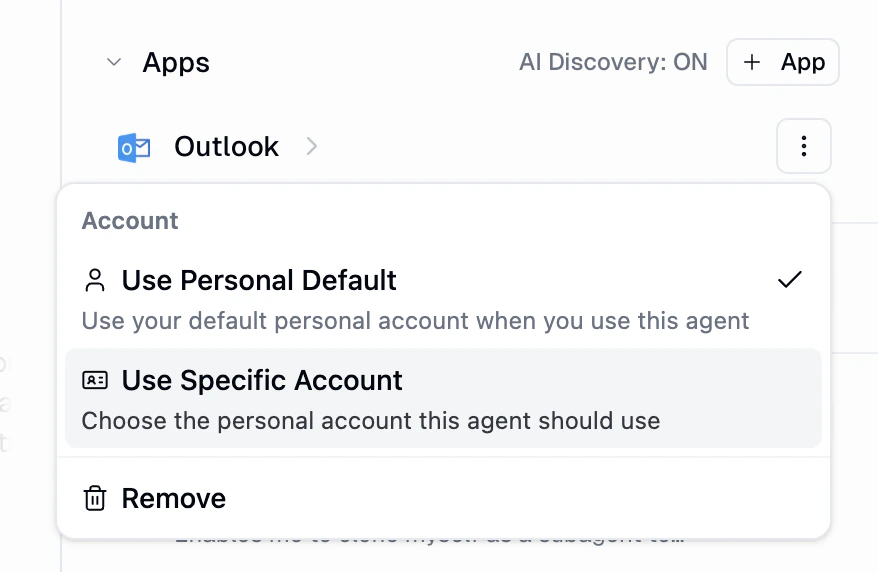
Each app (integration) connected to your agent has a credential menu. Click the three-dot icon next to any app to choose which account the agent should use.
The options you see depend on whether the agent is in your **personal space** or in a **team**.
#### Personal Agents
Personal agents offer two choices:
 | Option | What it does |
| ------------------------ | -------------------------------------------------------------------------------------------------------------------------------------------------------------------------------------------- |
| **Use Personal Default** | Uses your default account for this service. Each person who runs the agent uses their own default. This is the default setting. |
| **Use Specific Account** | Pick a specific personal account for this agent. Useful when you have multiple accounts for the same service (e.g., two Outlook inboxes) and want this agent to always use a particular one. |
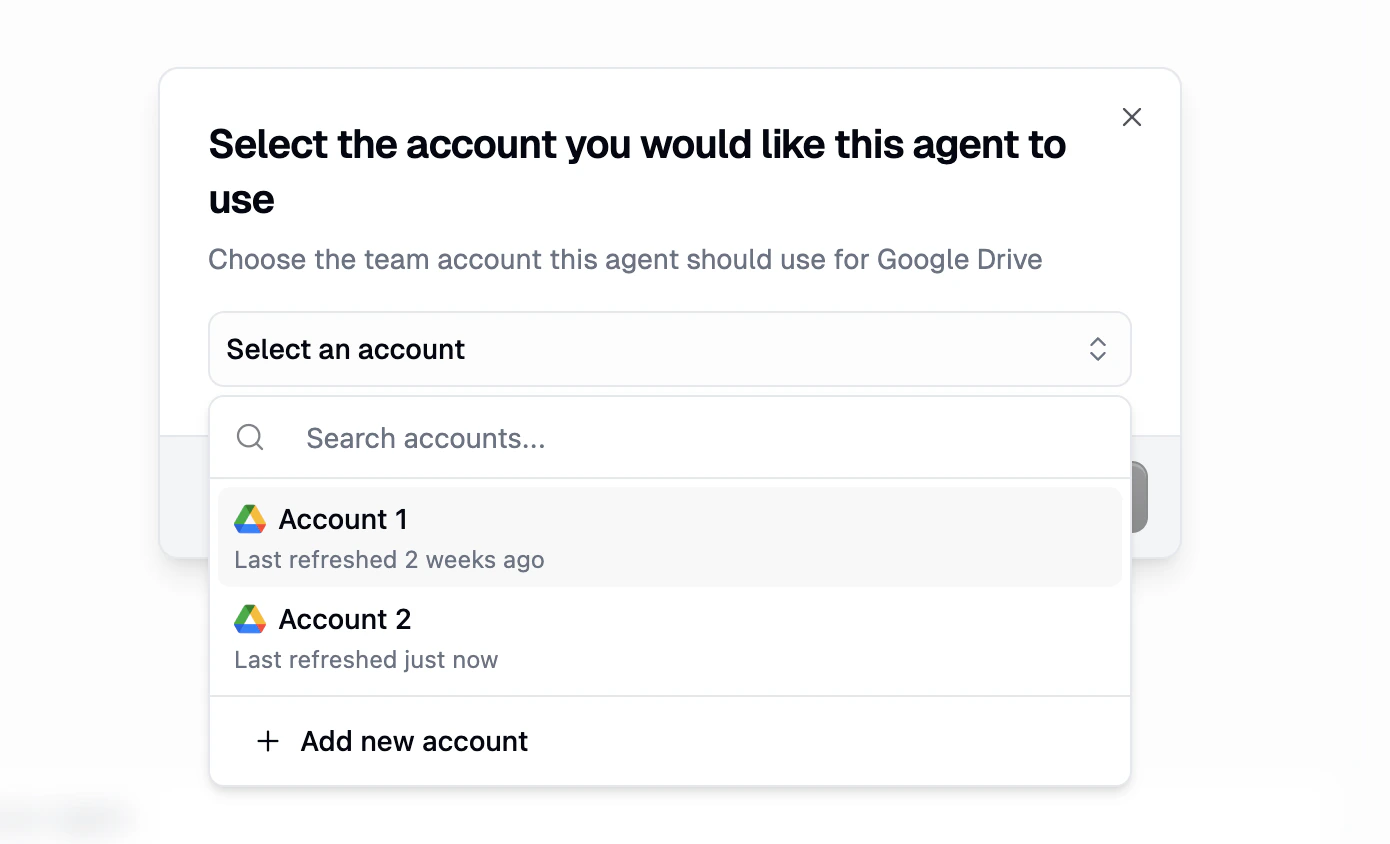
When you select **Use Specific Account**, a dialog opens showing all your connected accounts for that service:
| Option | What it does |
| ------------------------ | -------------------------------------------------------------------------------------------------------------------------------------------------------------------------------------------- |
| **Use Personal Default** | Uses your default account for this service. Each person who runs the agent uses their own default. This is the default setting. |
| **Use Specific Account** | Pick a specific personal account for this agent. Useful when you have multiple accounts for the same service (e.g., two Outlook inboxes) and want this agent to always use a particular one. |
When you select **Use Specific Account**, a dialog opens showing all your connected accounts for that service:
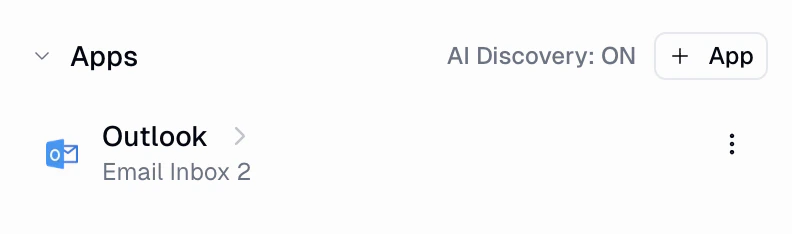
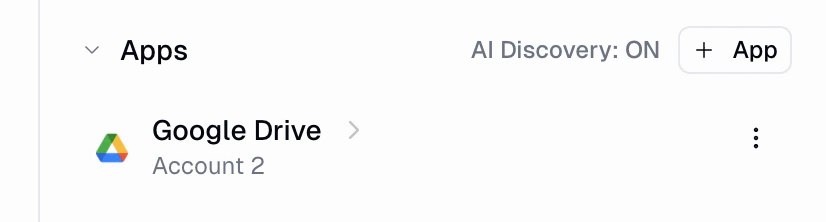
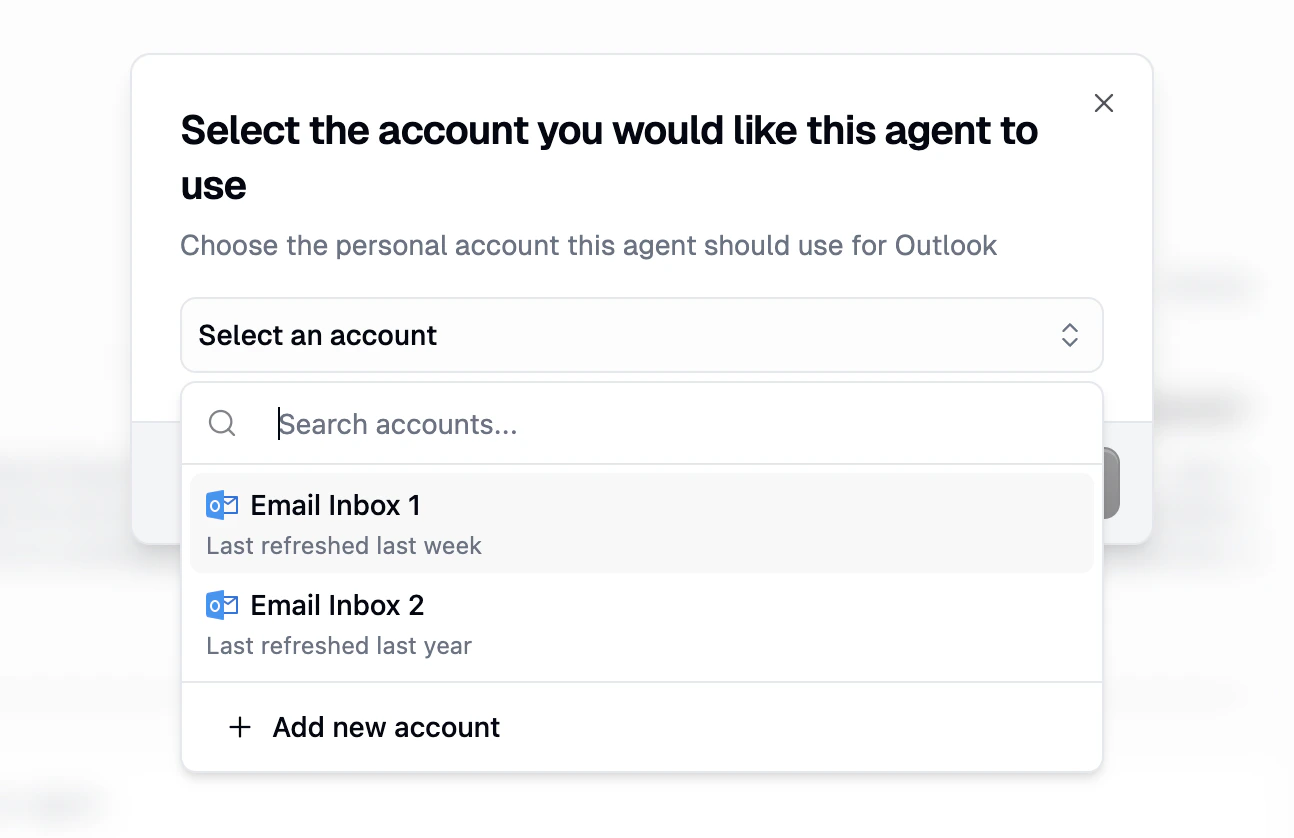 After selecting an account, the app row in your agent's configuration shows the chosen account name:
 #### Team Agents
Team agents have a third option: **Use Team Default**. This lets all team members share one account without each person needing their own credentials for that service.
#### Team Agents
Team agents have a third option: **Use Team Default**. This lets all team members share one account without each person needing their own credentials for that service.
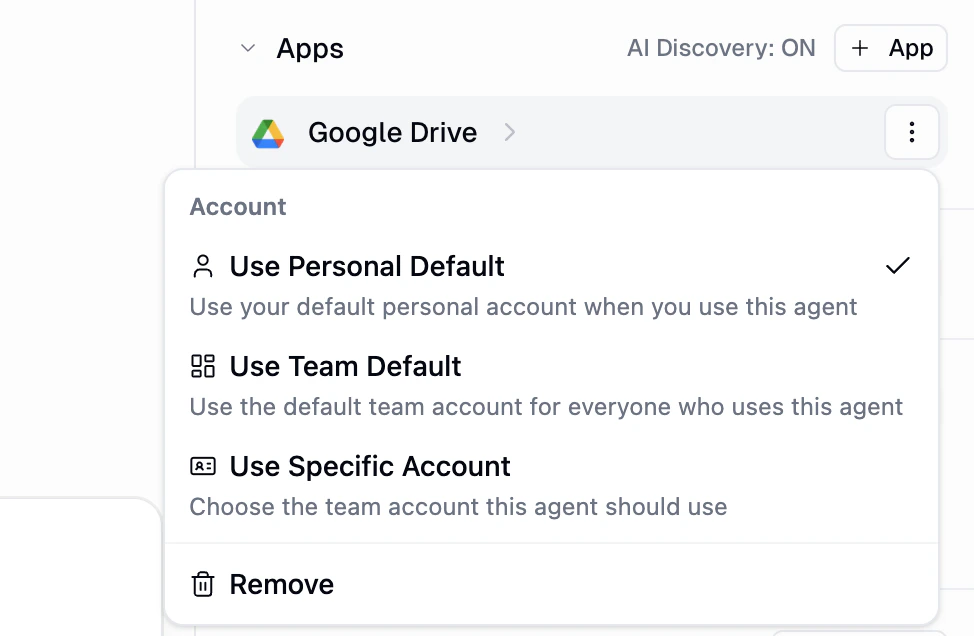 | Option | What it does |
| ------------------------ | --------------------------------------------------------------- |
| **Use Personal Default** | Each person who runs the agent uses their own personal account. |
| **Use Team Default** | Everyone on the team uses the same shared team account. |
| **Use Specific Account** | Pick a specific team account for this agent. |
Changing a team agent's credential affects everyone on the team. When you switch to a team account, a confirmation dialog appears to make sure you understand the impact.
| Option | What it does |
| ------------------------ | --------------------------------------------------------------- |
| **Use Personal Default** | Each person who runs the agent uses their own personal account. |
| **Use Team Default** | Everyone on the team uses the same shared team account. |
| **Use Specific Account** | Pick a specific team account for this agent. |
Changing a team agent's credential affects everyone on the team. When you switch to a team account, a confirmation dialog appears to make sure you understand the impact.
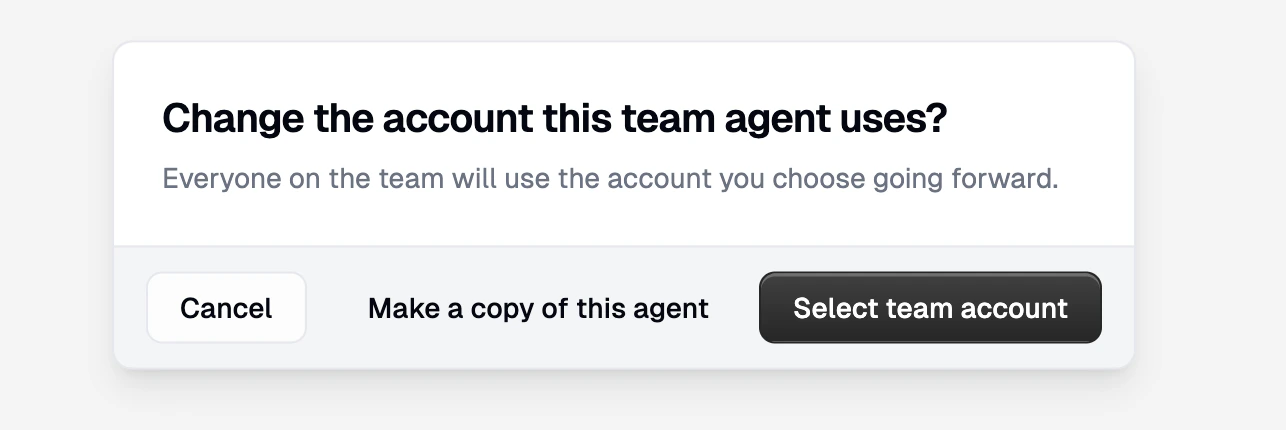 The confirmation dialog gives you three choices:
* **Cancel** to keep the current setting
* **Make a copy of this agent** to create a personal copy instead of changing the shared agent
* **Select team account** to proceed with the change
After confirming, you can select which team account to use:
The confirmation dialog gives you three choices:
* **Cancel** to keep the current setting
* **Make a copy of this agent** to create a personal copy instead of changing the shared agent
* **Select team account** to proceed with the change
After confirming, you can select which team account to use:
 #### Quick Summary
| Agent location | Default behavior | Can pick a specific account? |
| ------------------ | --------------------------------------------- | -------------------------------- |
| **Personal space** | Each user's personal default | Yes, from your personal accounts |
| **Team** | Each user's personal default (unless changed) | Yes, from team accounts |
For most use cases, **Use Personal Default** is the right choice. Each person's requests use their own accounts, keeping data private. Switch to team credentials only when everyone needs to read from or write to the same shared account (e.g., a shared support inbox or a team Google Drive).
Learn more about using agents with credentials in [Using Agents in Slack → Credentials & Authentication](https://docs.gumloop.com/core-concepts/agents_slack#credentials--authentication).
***
## Team Apps
Team apps are shared integrations that all team members can use. There are two ways to set them up.
### Option 1: Right-Click from the Sidebar
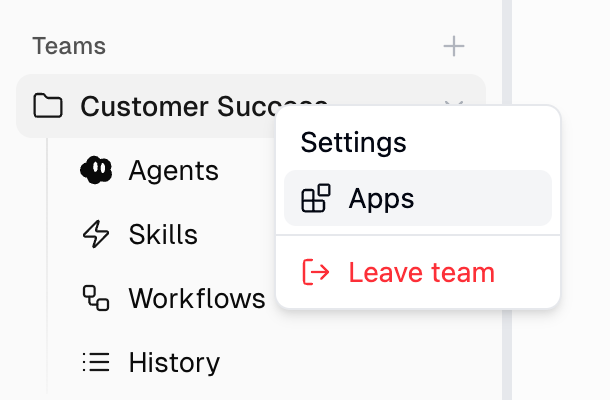
On the [Home page](https://www.gumloop.com/hub), **right-click** on your team in the sidebar and select **Apps**. Then click **Connect New App**.
#### Quick Summary
| Agent location | Default behavior | Can pick a specific account? |
| ------------------ | --------------------------------------------- | -------------------------------- |
| **Personal space** | Each user's personal default | Yes, from your personal accounts |
| **Team** | Each user's personal default (unless changed) | Yes, from team accounts |
For most use cases, **Use Personal Default** is the right choice. Each person's requests use their own accounts, keeping data private. Switch to team credentials only when everyone needs to read from or write to the same shared account (e.g., a shared support inbox or a team Google Drive).
Learn more about using agents with credentials in [Using Agents in Slack → Credentials & Authentication](https://docs.gumloop.com/core-concepts/agents_slack#credentials--authentication).
***
## Team Apps
Team apps are shared integrations that all team members can use. There are two ways to set them up.
### Option 1: Right-Click from the Sidebar
On the [Home page](https://www.gumloop.com/hub), **right-click** on your team in the sidebar and select **Apps**. Then click **Connect New App**.
 ### Option 2: From Organization Settings
1. Go to [Settings → Teams](https://www.gumloop.com/settings/organization/teams)
2. Click on the team, then select **Connectors** in the sidebar
3. Click **Connect New App**
***
## Managing Your Connectors
Visit your [Connectors page](https://www.gumloop.com/personal/connectors) to see all your personal connectors, last refresh time, connected services, and defaults.
OAuth apps automatically refresh when needed. If you see authentication errors:
1. Go to your Connectors page
2. Click **Reauthenticate** on the affected service
3. Complete the authorization flow again
1. Go to your Connectors page
2. Find the app to remove and click **Revoke**
3. Confirm removal
All auth tokens are removed immediately. Agents and flows using this app will fail until you reconnect.
**Personal default:** Your go-to app for a service. Used when "Personal Default" is selected in a node. Only affects your account.
**Team default:** The team's primary app for a service. Used when "Team Default" is selected. Applies to all team members.
***
## Microsoft Office Setup (Admin Only)
For organizations using Microsoft services (Teams, Outlook, Excel, Word, OneLake), **administrators must configure consent** in Microsoft Entra ID before users can authenticate.
### Option 1: Grant Admin Consent (Recommended)
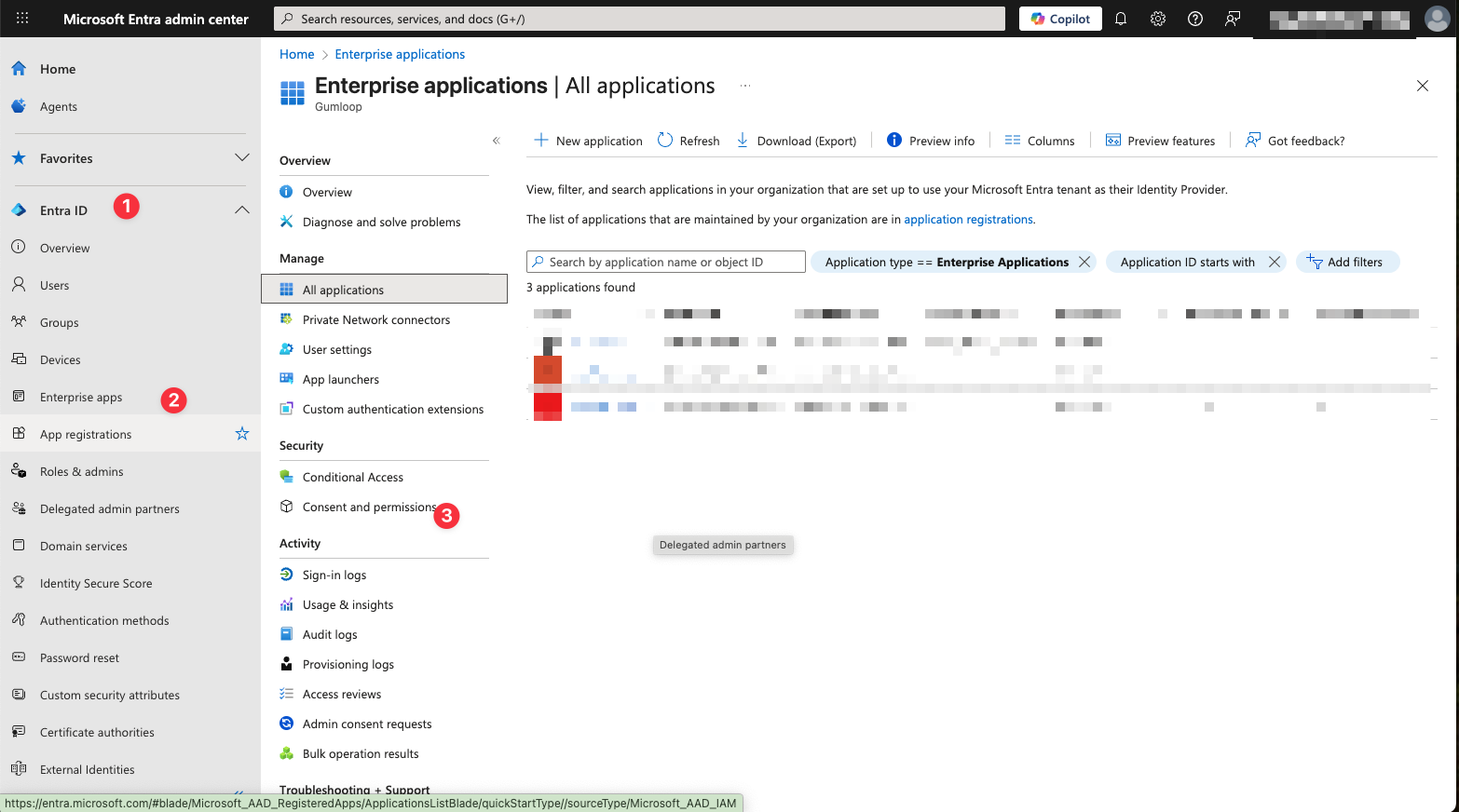
Go to [Microsoft Entra admin center](https://entra.microsoft.com)
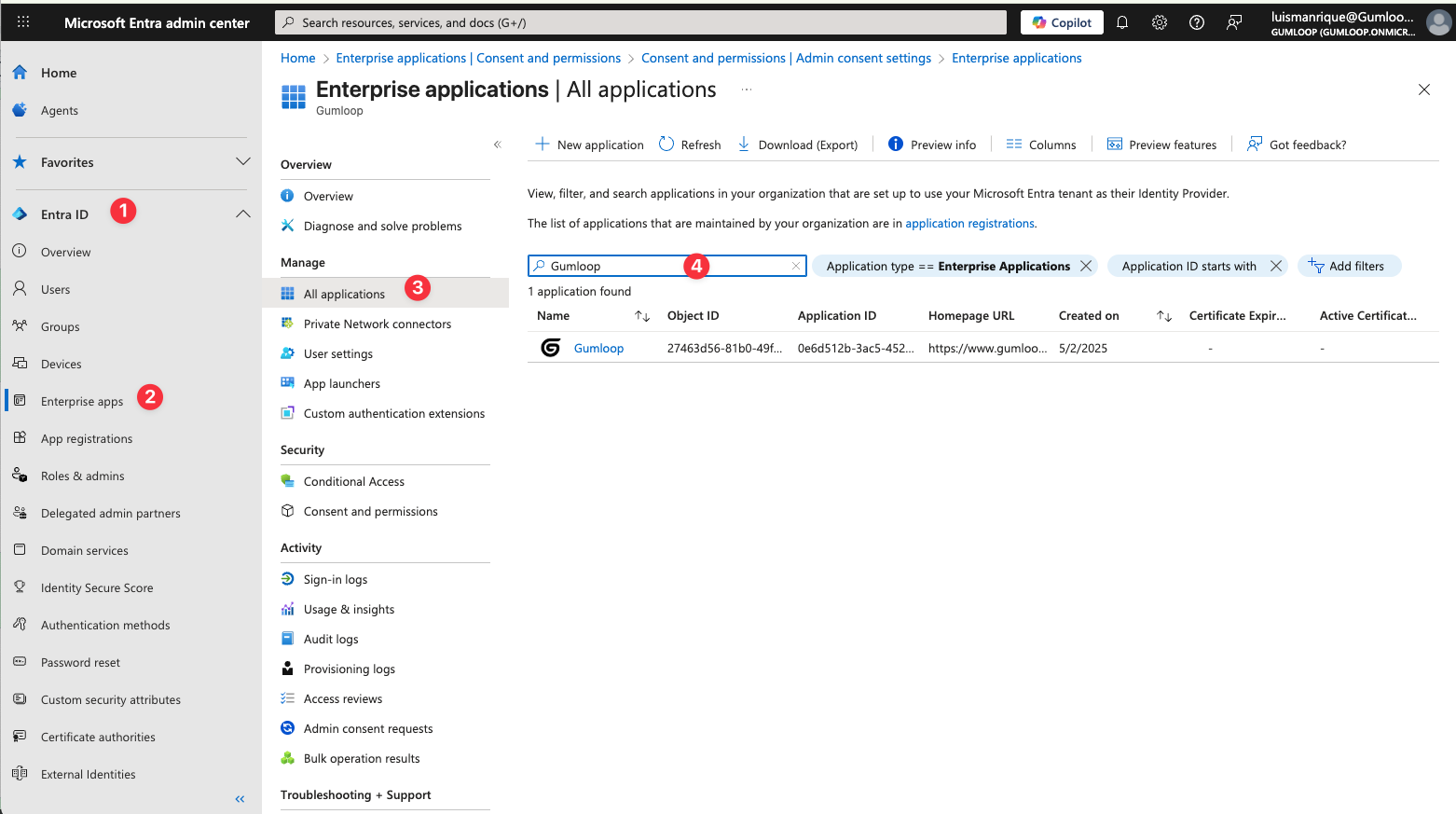
Navigate to **Entra ID > Enterprise apps > All applications**
Search for Gumloop using client ID: `d3c2a9a5-7f60-40d1-a8ba-62bab546a0f3`
Under **Security > Permissions**, click **Grant admin consent**
### Option 2: Enable User Requests
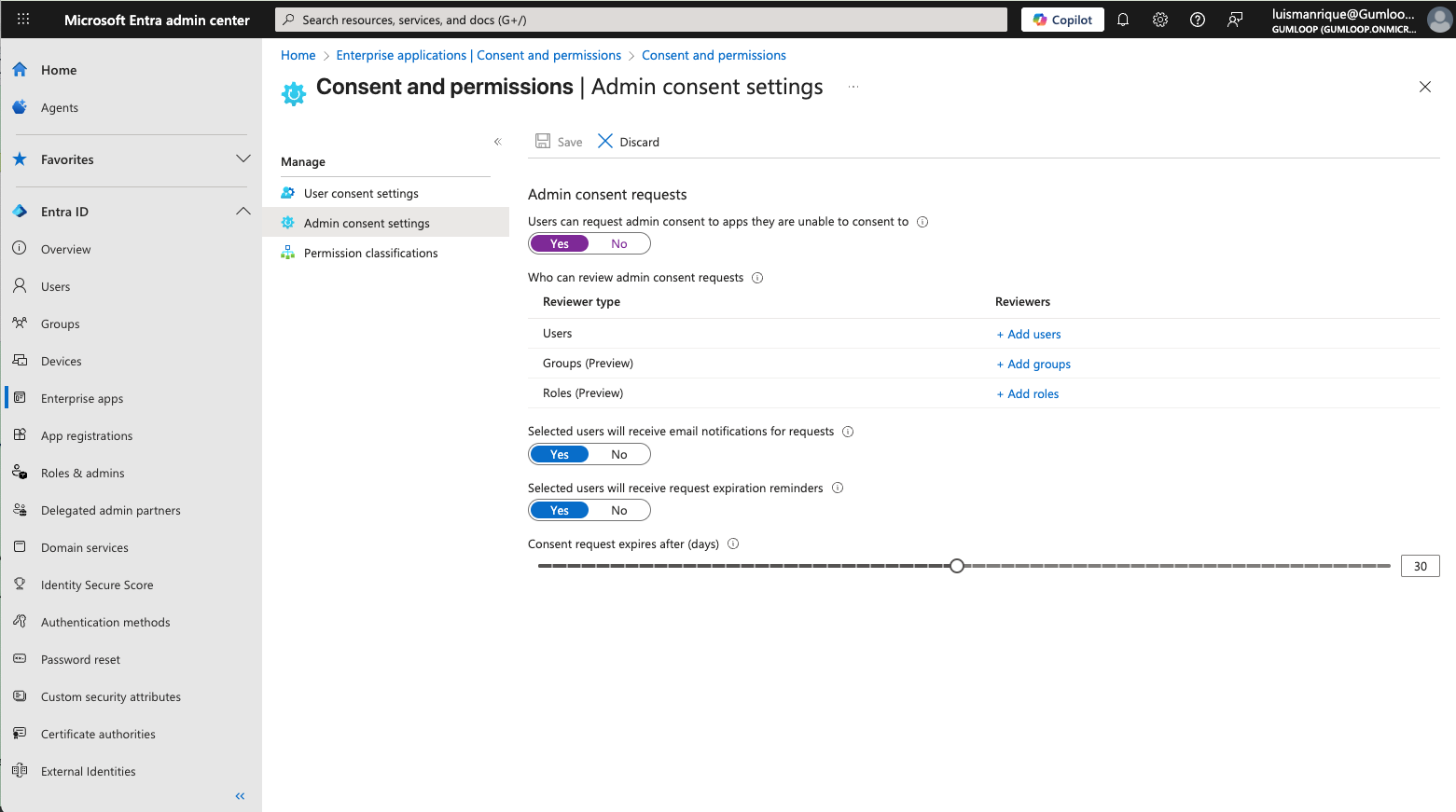
Go to **Entra ID > Enterprise apps > Consent and permissions > Admin consent settings**
Set **Users can request admin consent** to **Yes**
Set up reviewers and approval workflow for user requests
### If Gumloop Isn't in Your Tenant Yet
Use this URL to provision the app (replace `{tenant}` with your tenant ID):
```text theme={"dark"}
https://login.microsoftonline.com/{tenant}/adminconsent?client_id=d3c2a9a5-7f60-40d1-a8ba-62bab546a0f3
```
### Required Permissions by Service
| Integration | Key Permissions |
| -------------- | ----------------------------------------------------------------- |
| **Teams** | `Team.ReadBasic.All`, `ChannelMessage.Read.All`, `Chat.ReadWrite` |
| **Outlook** | `Mail.ReadWrite`, `Mail.Send` |
| **Excel/Word** | `Files.ReadWrite`, `Sites.ReadWrite.All` |
| **OneLake** | `https://storage.azure.com/user_impersonation` |
**Admin required:** You must be a Global Administrator, Cloud Application Administrator, or Application Administrator to grant consent.
***
## Salesforce Setup (Admin Only)
As of September 2025, Salesforce introduced new security restrictions that require administrators to pre-install the Gumloop connected app before users can authenticate with their Salesforce instances. For more details, see the [official Salesforce documentation](https://help.salesforce.com/s/articleView?id=005132365\&type=1).
Gumloop is a **Salesforce Connected App**, not an AppExchange app. You will **not** find it in the Salesforce AppExchange marketplace. A Salesforce administrator needs to authorize the connection directly.
The easiest way is for a **Salesforce administrator** to authenticate directly from Gumloop:
Visit the [Salesforce connectors page](https://www.gumloop.com/personal/connectors?provider=salesforce) in Gumloop
Click **Connect** next to Salesforce and sign in with your Salesforce admin account.
The Gumloop connected app is automatically installed in your Salesforce organization. No additional setup needed.
After the admin connects, all users in the Salesforce organization can authenticate their own accounts with Gumloop.
If a **non-admin user** tries to connect before an admin has authorized:
The user visits the [Salesforce connectors page](https://www.gumloop.com/personal/connectors?provider=salesforce) and clicks **Connect**
Salesforce blocks the connection. The Salesforce admin will see a request to approve the Gumloop app in their admin console.
The admin navigates to **Setup > Apps > Connected Apps > Manage Connected Apps** in Salesforce and approves the pending request.
After admin approval, the user can return and successfully complete the OAuth flow.
### Managing the Connected App in Salesforce
1. Go to **Setup > Apps > Connected Apps > Manage Connected Apps**
2. Find the Gumloop app to view or modify settings
3. Configure user access policies, IP restrictions, and session policies as needed
For more details, refer to the [Salesforce Connected App documentation](https://help.salesforce.com/s/articleView?id=sf.connected_app_overview.htm\&type=5).
***
## Security & Compliance
Certified secure infrastructure and processes
Full compliance with data protection regulations
View our complete security documentation
***
## Related Documentation
Understand how personal spaces and teams work
Organization and team permission levels
### Option 2: From Organization Settings
1. Go to [Settings → Teams](https://www.gumloop.com/settings/organization/teams)
2. Click on the team, then select **Connectors** in the sidebar
3. Click **Connect New App**
***
## Managing Your Connectors
Visit your [Connectors page](https://www.gumloop.com/personal/connectors) to see all your personal connectors, last refresh time, connected services, and defaults.
OAuth apps automatically refresh when needed. If you see authentication errors:
1. Go to your Connectors page
2. Click **Reauthenticate** on the affected service
3. Complete the authorization flow again
1. Go to your Connectors page
2. Find the app to remove and click **Revoke**
3. Confirm removal
All auth tokens are removed immediately. Agents and flows using this app will fail until you reconnect.
**Personal default:** Your go-to app for a service. Used when "Personal Default" is selected in a node. Only affects your account.
**Team default:** The team's primary app for a service. Used when "Team Default" is selected. Applies to all team members.
***
## Microsoft Office Setup (Admin Only)
For organizations using Microsoft services (Teams, Outlook, Excel, Word, OneLake), **administrators must configure consent** in Microsoft Entra ID before users can authenticate.
### Option 1: Grant Admin Consent (Recommended)
Go to [Microsoft Entra admin center](https://entra.microsoft.com)
Navigate to **Entra ID > Enterprise apps > All applications**
Search for Gumloop using client ID: `d3c2a9a5-7f60-40d1-a8ba-62bab546a0f3`
Under **Security > Permissions**, click **Grant admin consent**
### Option 2: Enable User Requests
Go to **Entra ID > Enterprise apps > Consent and permissions > Admin consent settings**
Set **Users can request admin consent** to **Yes**
Set up reviewers and approval workflow for user requests
### If Gumloop Isn't in Your Tenant Yet
Use this URL to provision the app (replace `{tenant}` with your tenant ID):
```text theme={"dark"}
https://login.microsoftonline.com/{tenant}/adminconsent?client_id=d3c2a9a5-7f60-40d1-a8ba-62bab546a0f3
```
### Required Permissions by Service
| Integration | Key Permissions |
| -------------- | ----------------------------------------------------------------- |
| **Teams** | `Team.ReadBasic.All`, `ChannelMessage.Read.All`, `Chat.ReadWrite` |
| **Outlook** | `Mail.ReadWrite`, `Mail.Send` |
| **Excel/Word** | `Files.ReadWrite`, `Sites.ReadWrite.All` |
| **OneLake** | `https://storage.azure.com/user_impersonation` |
**Admin required:** You must be a Global Administrator, Cloud Application Administrator, or Application Administrator to grant consent.
***
## Salesforce Setup (Admin Only)
As of September 2025, Salesforce introduced new security restrictions that require administrators to pre-install the Gumloop connected app before users can authenticate with their Salesforce instances. For more details, see the [official Salesforce documentation](https://help.salesforce.com/s/articleView?id=005132365\&type=1).
Gumloop is a **Salesforce Connected App**, not an AppExchange app. You will **not** find it in the Salesforce AppExchange marketplace. A Salesforce administrator needs to authorize the connection directly.
The easiest way is for a **Salesforce administrator** to authenticate directly from Gumloop:
Visit the [Salesforce connectors page](https://www.gumloop.com/personal/connectors?provider=salesforce) in Gumloop
Click **Connect** next to Salesforce and sign in with your Salesforce admin account.
The Gumloop connected app is automatically installed in your Salesforce organization. No additional setup needed.
After the admin connects, all users in the Salesforce organization can authenticate their own accounts with Gumloop.
If a **non-admin user** tries to connect before an admin has authorized:
The user visits the [Salesforce connectors page](https://www.gumloop.com/personal/connectors?provider=salesforce) and clicks **Connect**
Salesforce blocks the connection. The Salesforce admin will see a request to approve the Gumloop app in their admin console.
The admin navigates to **Setup > Apps > Connected Apps > Manage Connected Apps** in Salesforce and approves the pending request.
After admin approval, the user can return and successfully complete the OAuth flow.
### Managing the Connected App in Salesforce
1. Go to **Setup > Apps > Connected Apps > Manage Connected Apps**
2. Find the Gumloop app to view or modify settings
3. Configure user access policies, IP restrictions, and session policies as needed
For more details, refer to the [Salesforce Connected App documentation](https://help.salesforce.com/s/articleView?id=sf.connected_app_overview.htm\&type=5).
***
## Security & Compliance
Certified secure infrastructure and processes
Full compliance with data protection regulations
View our complete security documentation
***
## Related Documentation
Understand how personal spaces and teams work
Organization and team permission levels