> ## Documentation Index
> Fetch the complete documentation index at: https://docs.gumloop.com/llms.txt
> Use this file to discover all available pages before exploring further.
# Browser Logins and Profiles
> Let your agent sign in to websites without seeing your password: saved logins with 2FA, browser profiles that keep sessions across tasks, imported sign-ins, and 1Password.
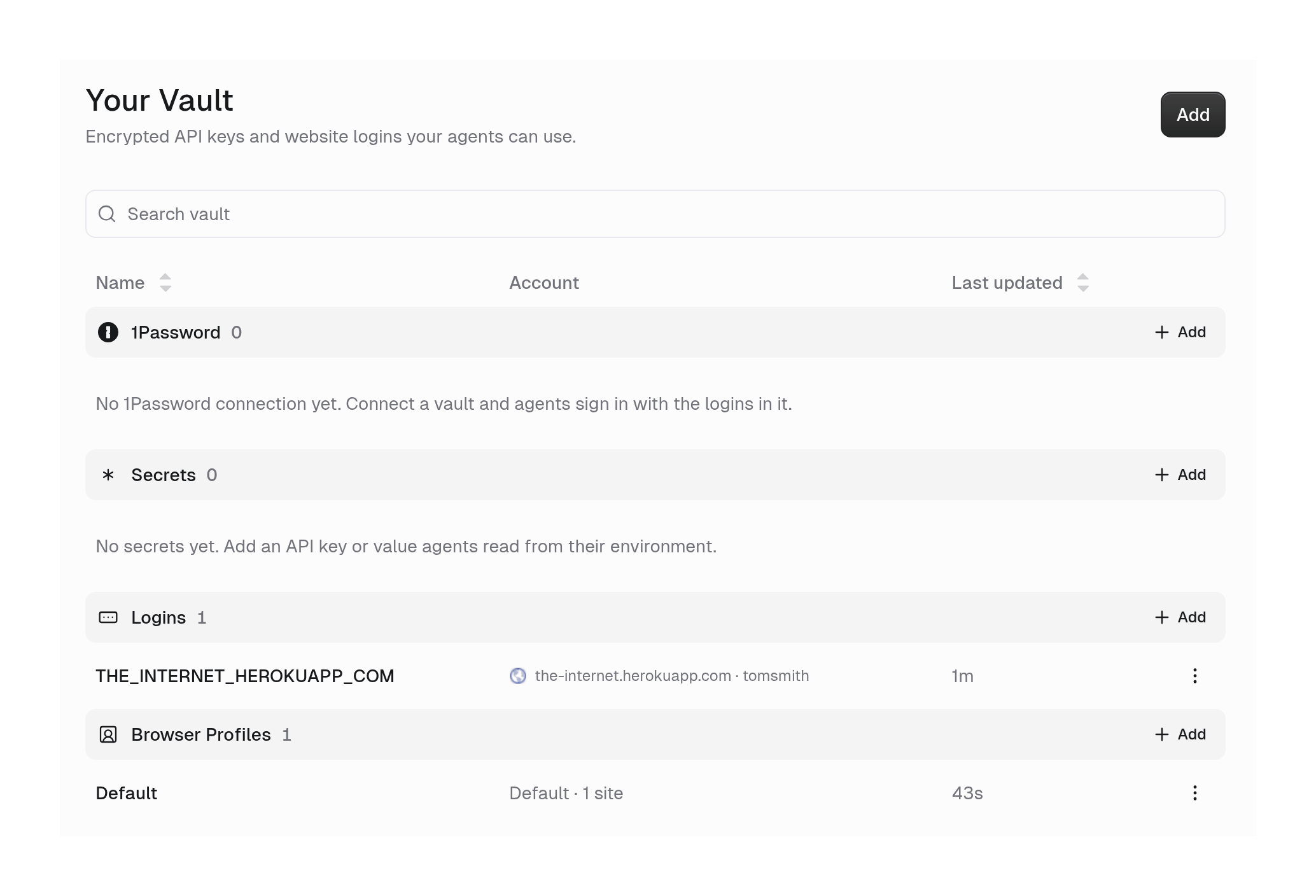
Your agent's [browser](/core-concepts/agent_browser) can sign in to websites in three ways: it restores a **browser profile** that is already signed in, it types a **saved login** (username, password, and optional 2FA) that Gumloop fills in for it, or it **hands the browser to you** to sign in. In every case, the agent never sees the password.
| | Browser profile | Saved login | Handoff |
| - | - | - | - |
| **What it holds** | The sites the browser is already signed in to | Username, password, optional 2FA key | Values you type once, or you sign in yourself |
| **Best for** | Staying signed in across tasks | Signing in again when a session expires | First sign-in, SSO, CAPTCHAs, phone approvals |
| **Where it lives** | Vault, **Browser Profiles** | Vault, **Logins** | The chat; can be saved as a login |
 ***
## User-owned or Agent-owned: whose accounts does the agent use?
Two settings on this page, **Browser profile** and **1Password**, ask the same question: when someone runs the agent, whose accounts does it use? You answer it with the same choice each time.
***
## User-owned or Agent-owned: whose accounts does the agent use?
Two settings on this page, **Browser profile** and **1Password**, ask the same question: when someone runs the agent, whose accounts does it use? You answer it with the same choice each time.
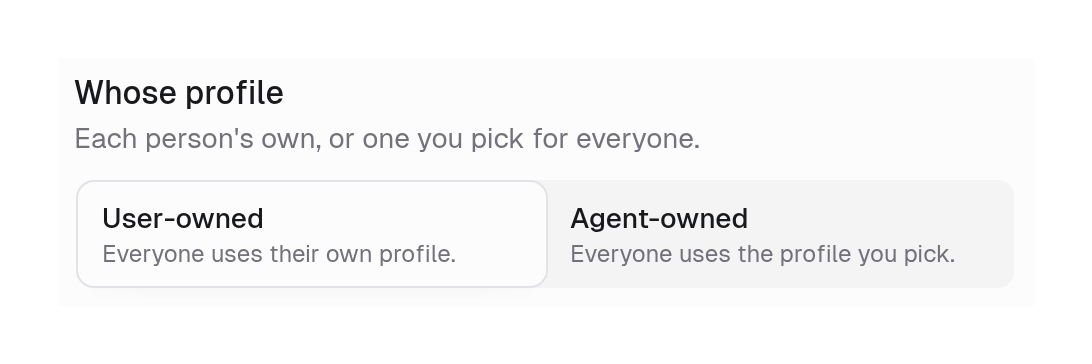 **Everyone acts as themselves.** Each person who runs the agent uses their own accounts. If ten people use the agent, it works in ten different accounts. Shown as **User/Team-owned** on team agents.
* **Browser profile:** each person's own saved sign-ins.
* **1Password:** each person's own service account.
**Use it when** people work in their own accounts, for example a research agent your team shares where each person signs in to their own LinkedIn.
**Everyone acts as one account you pick.** The agent always uses the profile or 1Password connection you chose, no matter who runs it. People who run the agent never get access to that account directly.
* **Browser profile:** one profile you pick, for everyone.
* **1Password:** one service account you pick, for everyone.
**Use it when** the agent should always work in one shared account, for example a support agent that signs in to the team's vendor portal.
Agent-owned works the same way it does for [connectors](/core-concepts/credentials#agent-owned-credentials). On organizations it needs the **Agent-owned credentials** feature on your [custom role](/help/sharing/enable-agent-owned-credentials), and it can't be used while the agent is shared with **Anyone**. Choosing Agent-owned on an Anyone-shared agent offers to change its sharing first.
***
## Logins
A login is a website username, password, and optional 2FA authenticator key, stored encrypted in your Vault. When the agent signs in, it names the login and Gumloop types the values into the page after checking the site. The password and 2FA key never reach the agent or its sandbox environment.
### How do I add a login?
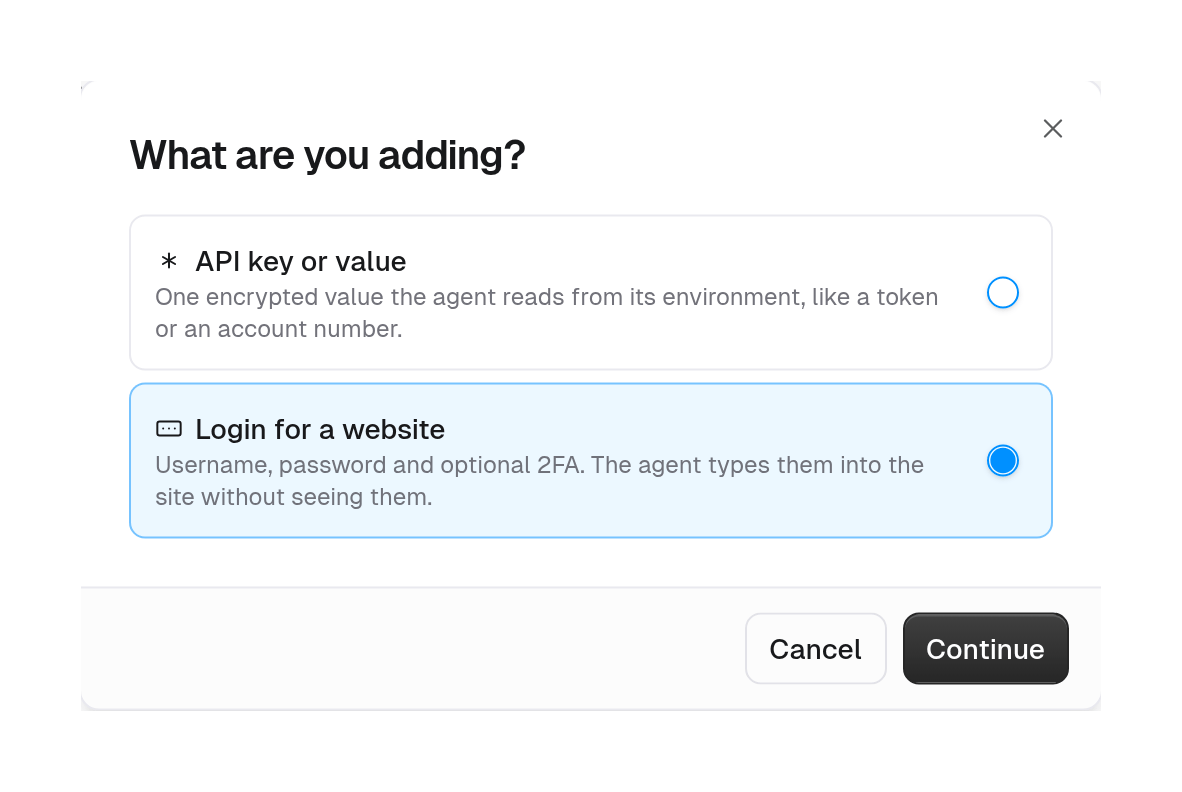
Go to [gumloop.com/personal/vault](https://www.gumloop.com/personal/vault) for your own logins, or your team's Vault for shared ones. Click **Add**.
*Username, password and optional 2FA. The agent types them into the site without seeing them.*
**Everyone acts as themselves.** Each person who runs the agent uses their own accounts. If ten people use the agent, it works in ten different accounts. Shown as **User/Team-owned** on team agents.
* **Browser profile:** each person's own saved sign-ins.
* **1Password:** each person's own service account.
**Use it when** people work in their own accounts, for example a research agent your team shares where each person signs in to their own LinkedIn.
**Everyone acts as one account you pick.** The agent always uses the profile or 1Password connection you chose, no matter who runs it. People who run the agent never get access to that account directly.
* **Browser profile:** one profile you pick, for everyone.
* **1Password:** one service account you pick, for everyone.
**Use it when** the agent should always work in one shared account, for example a support agent that signs in to the team's vendor portal.
Agent-owned works the same way it does for [connectors](/core-concepts/credentials#agent-owned-credentials). On organizations it needs the **Agent-owned credentials** feature on your [custom role](/help/sharing/enable-agent-owned-credentials), and it can't be used while the agent is shared with **Anyone**. Choosing Agent-owned on an Anyone-shared agent offers to change its sharing first.
***
## Logins
A login is a website username, password, and optional 2FA authenticator key, stored encrypted in your Vault. When the agent signs in, it names the login and Gumloop types the values into the page after checking the site. The password and 2FA key never reach the agent or its sandbox environment.
### How do I add a login?
Go to [gumloop.com/personal/vault](https://www.gumloop.com/personal/vault) for your own logins, or your team's Vault for shared ones. Click **Add**.
*Username, password and optional 2FA. The agent types them into the site without seeing them.*
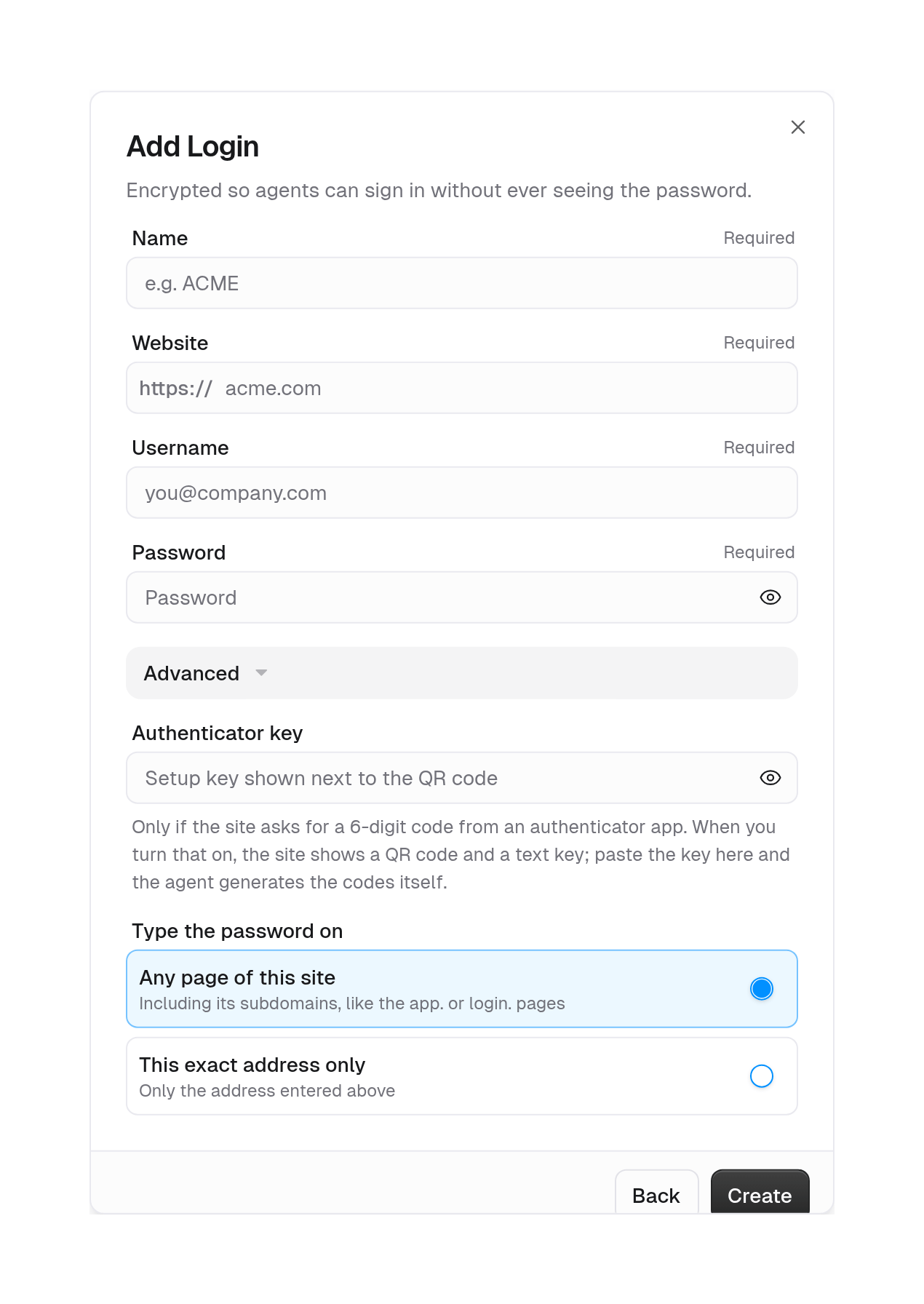 | Field | What to enter |
| - | - |
| **Name** | How the agent refers to the login, for example `ACME`. Cannot start with a number. |
| **Website** | The site's address, for example `acme.com`. |
| **Username** | The account's username or email. |
| **Password** | The account's password. |
| **Authenticator key** (Advanced) | Optional. The setup key the site shows next to its 2FA QR code (letters and digits 2 to 7). Gumloop generates the current 6-digit code each time the agent signs in. |
| **Type the password on** (Advanced) | **Any page of this site** (default) or **This exact address only**. See [Where can a login be typed?](#where-can-a-login-be-typed) |
The login appears under **Logins** in your Vault.
### How do I give an agent a login?
In the agent's **Browser** section, click **+ Login**. In **Add login to agent**, choose a **Name** for the agent to use, then a **Source**: an **Existing login** from your Vault, or a **New login** created on the spot.
| Field | What to enter |
| - | - |
| **Name** | How the agent refers to the login, for example `ACME`. Cannot start with a number. |
| **Website** | The site's address, for example `acme.com`. |
| **Username** | The account's username or email. |
| **Password** | The account's password. |
| **Authenticator key** (Advanced) | Optional. The setup key the site shows next to its 2FA QR code (letters and digits 2 to 7). Gumloop generates the current 6-digit code each time the agent signs in. |
| **Type the password on** (Advanced) | **Any page of this site** (default) or **This exact address only**. See [Where can a login be typed?](#where-can-a-login-be-typed) |
The login appears under **Logins** in your Vault.
### How do I give an agent a login?
In the agent's **Browser** section, click **+ Login**. In **Add login to agent**, choose a **Name** for the agent to use, then a **Source**: an **Existing login** from your Vault, or a **New login** created on the spot.
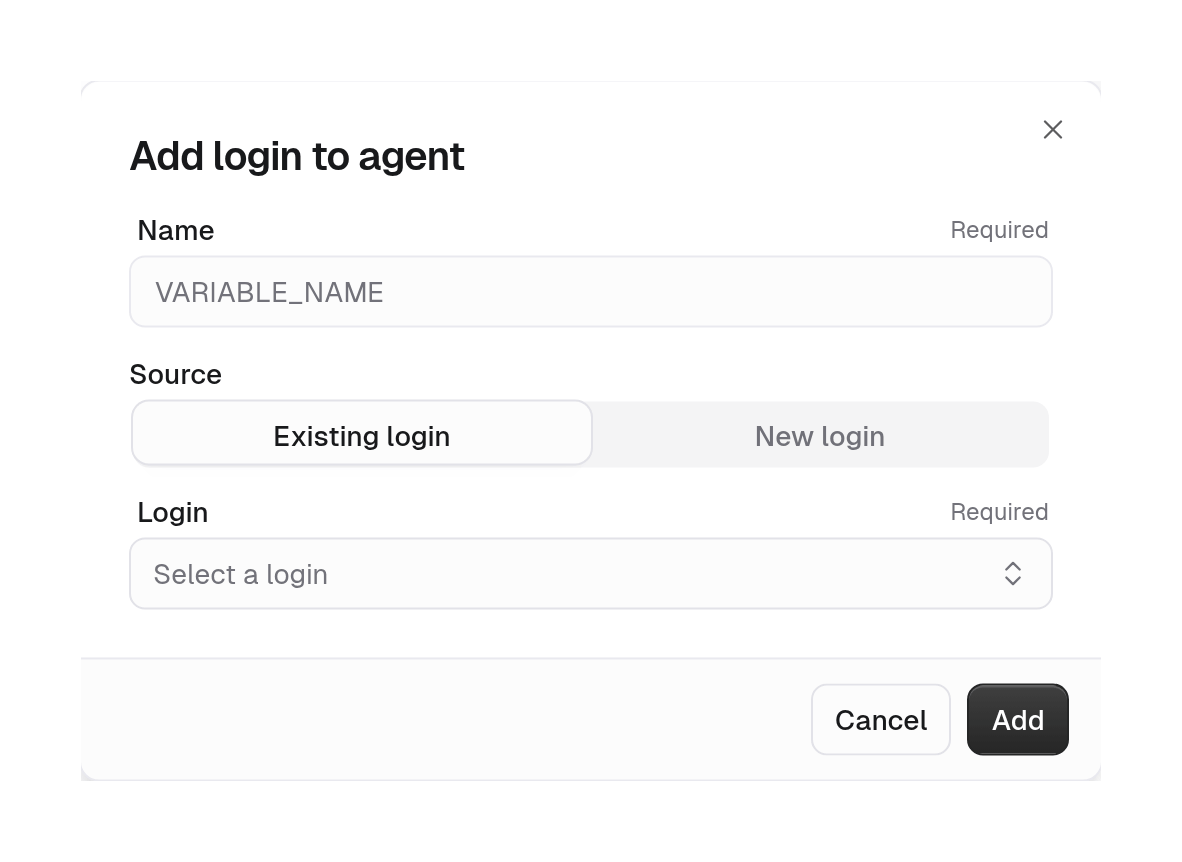 Gumloop also lists the agent's logins in its instructions, so the agent knows which sites it can sign in to and as which username. A binding you remove is revoked from the next turn, even in a running chat.
### Where can a login be typed?
Every fill is checked before anything is typed. The page field's scheme and port must match the login's website, and its host must match the **Type the password on** setting:
| Setting | Types on | Example for `acme.com` |
| - | - | - |
| **Any page of this site** | The site and its subdomains | `acme.com`, `app.acme.com`, `login.acme.com` |
| **This exact address only** | Only the exact host you entered | `acme.com` only |
The check uses the frame the field actually lives in, not just the top page, so a login form embedded from another site is refused. Shared hosting domains such as `github.io` or `herokuapp.com` count each subdomain as its own site, so a login for `alice.github.io` never types on `bob.github.io`.
If the check fails, nothing is typed and the agent is told to ask you with a [handoff](/core-concepts/agent_browser#when-does-the-agent-ask-me-for-help) instead.
### How do I save a login from a handoff?
When the agent asks you to sign in with a handoff card, tick **Save login for ``** before you click **Continue**. If the agent is in a team, choose who can use it: **Only me** or **My team**.
Gumloop also lists the agent's logins in its instructions, so the agent knows which sites it can sign in to and as which username. A binding you remove is revoked from the next turn, even in a running chat.
### Where can a login be typed?
Every fill is checked before anything is typed. The page field's scheme and port must match the login's website, and its host must match the **Type the password on** setting:
| Setting | Types on | Example for `acme.com` |
| - | - | - |
| **Any page of this site** | The site and its subdomains | `acme.com`, `app.acme.com`, `login.acme.com` |
| **This exact address only** | Only the exact host you entered | `acme.com` only |
The check uses the frame the field actually lives in, not just the top page, so a login form embedded from another site is refused. Shared hosting domains such as `github.io` or `herokuapp.com` count each subdomain as its own site, so a login for `alice.github.io` never types on `bob.github.io`.
If the check fails, nothing is typed and the agent is told to ask you with a [handoff](/core-concepts/agent_browser#when-does-the-agent-ask-me-for-help) instead.
### How do I save a login from a handoff?
When the agent asks you to sign in with a handoff card, tick **Save login for ``** before you click **Continue**. If the agent is in a team, choose who can use it: **Only me** or **My team**.
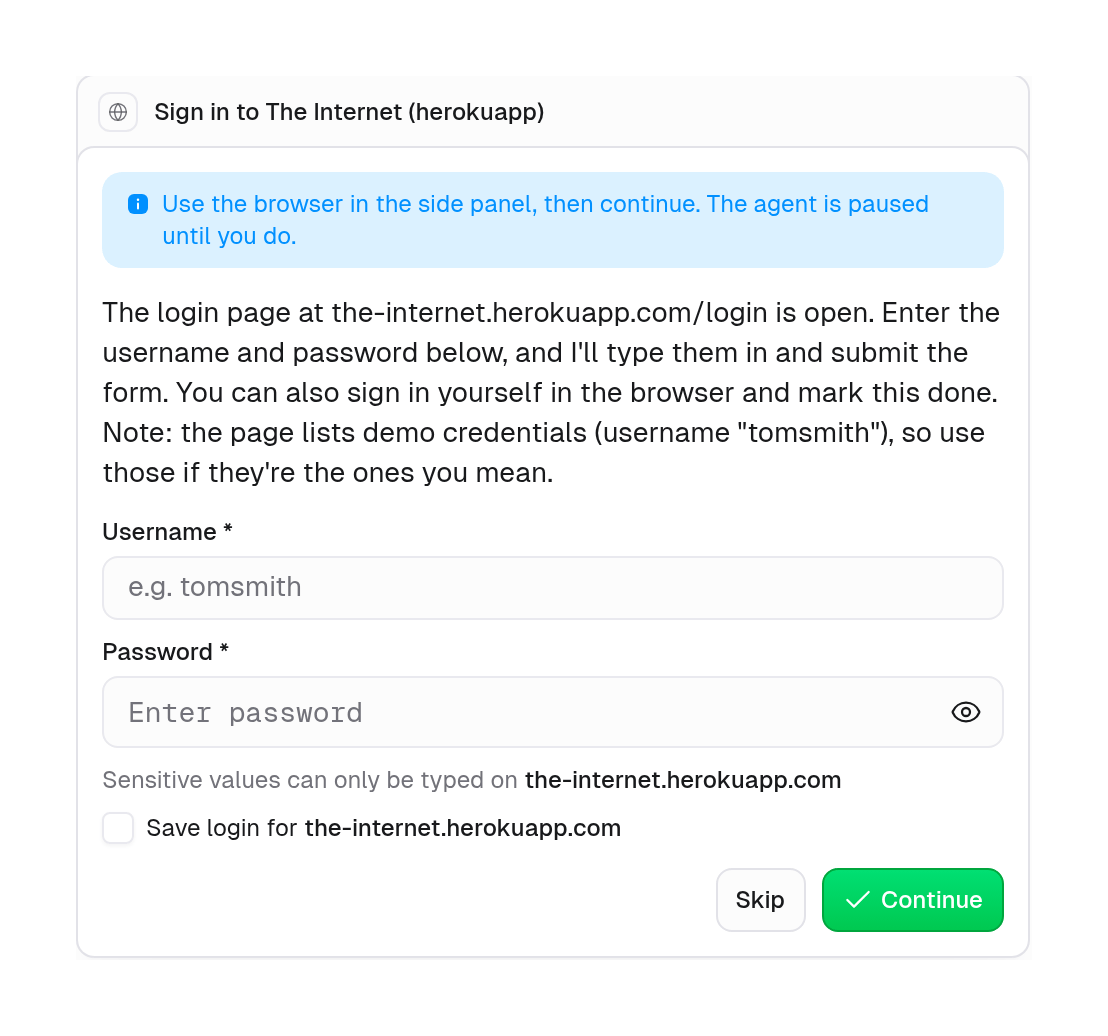 Gumloop saves the login to the matching Vault and names it after the site, for example `THE_INTERNET_HEROKUAPP_COM`. The card then reads *Saved the login for `` as `` and sent it to the agent*, and next time the agent signs in without asking.
***
## Browser profiles
**A browser profile is how the agent's browser remembers which websites it is signed in to.** It works like your own Chrome: sign in to a site once, and next time you open the browser you are still signed in. Without a profile, every task would start with a fresh browser that is signed out of everything.
### How does a profile keep the agent signed in?
It signs in with a [saved login](#logins), or you sign in for it with a [handoff](/core-concepts/agent_browser#when-does-the-agent-ask-me-for-help).
At the end of the agent's turn, the sign-in is saved to the browser profile.
The next time the agent opens the browser, even in a brand-new chat, it is already signed in to that site.
You do not need to set anything up. Your personal **Default** profile is created automatically the first time a task saves a sign-in.
### What's the difference between a profile and a login?
| | Browser profile | Login |
| - | - | - |
| **In plain terms** | "I'm already signed in" | "Here's how to sign in" |
| **What it stores** | The site's sign-in session (cookies and site data). No passwords. | Username, password, and optional 2FA key |
| **What the agent does with it** | Opens the site already signed in | Types it into the sign-in page |
They work best together. The profile keeps the agent signed in from task to task. When a site eventually signs it out, the agent uses the login to sign back in, and the profile saves the new session.
### Who owns a browser profile?
A profile belongs to a **person** or a **team**, never to an agent. An agent that uses a profile can use every site that profile is signed in to.
### Can everyone who runs the agent share one profile?
Yes, with **Agent-owned**. By default the profile is **User-owned**, so everyone uses their own sign-ins. Change it from the **Browser profile** row in the agent's **Browser** section. See [User-owned or Agent-owned](#user-owned-or-agent-owned-whose-accounts-does-the-agent-use) for which to pick.
Gumloop saves the login to the matching Vault and names it after the site, for example `THE_INTERNET_HEROKUAPP_COM`. The card then reads *Saved the login for `` as `` and sent it to the agent*, and next time the agent signs in without asking.
***
## Browser profiles
**A browser profile is how the agent's browser remembers which websites it is signed in to.** It works like your own Chrome: sign in to a site once, and next time you open the browser you are still signed in. Without a profile, every task would start with a fresh browser that is signed out of everything.
### How does a profile keep the agent signed in?
It signs in with a [saved login](#logins), or you sign in for it with a [handoff](/core-concepts/agent_browser#when-does-the-agent-ask-me-for-help).
At the end of the agent's turn, the sign-in is saved to the browser profile.
The next time the agent opens the browser, even in a brand-new chat, it is already signed in to that site.
You do not need to set anything up. Your personal **Default** profile is created automatically the first time a task saves a sign-in.
### What's the difference between a profile and a login?
| | Browser profile | Login |
| - | - | - |
| **In plain terms** | "I'm already signed in" | "Here's how to sign in" |
| **What it stores** | The site's sign-in session (cookies and site data). No passwords. | Username, password, and optional 2FA key |
| **What the agent does with it** | Opens the site already signed in | Types it into the sign-in page |
They work best together. The profile keeps the agent signed in from task to task. When a site eventually signs it out, the agent uses the login to sign back in, and the profile saves the new session.
### Who owns a browser profile?
A profile belongs to a **person** or a **team**, never to an agent. An agent that uses a profile can use every site that profile is signed in to.
### Can everyone who runs the agent share one profile?
Yes, with **Agent-owned**. By default the profile is **User-owned**, so everyone uses their own sign-ins. Change it from the **Browser profile** row in the agent's **Browser** section. See [User-owned or Agent-owned](#user-owned-or-agent-owned-whose-accounts-does-the-agent-use) for which to pick.
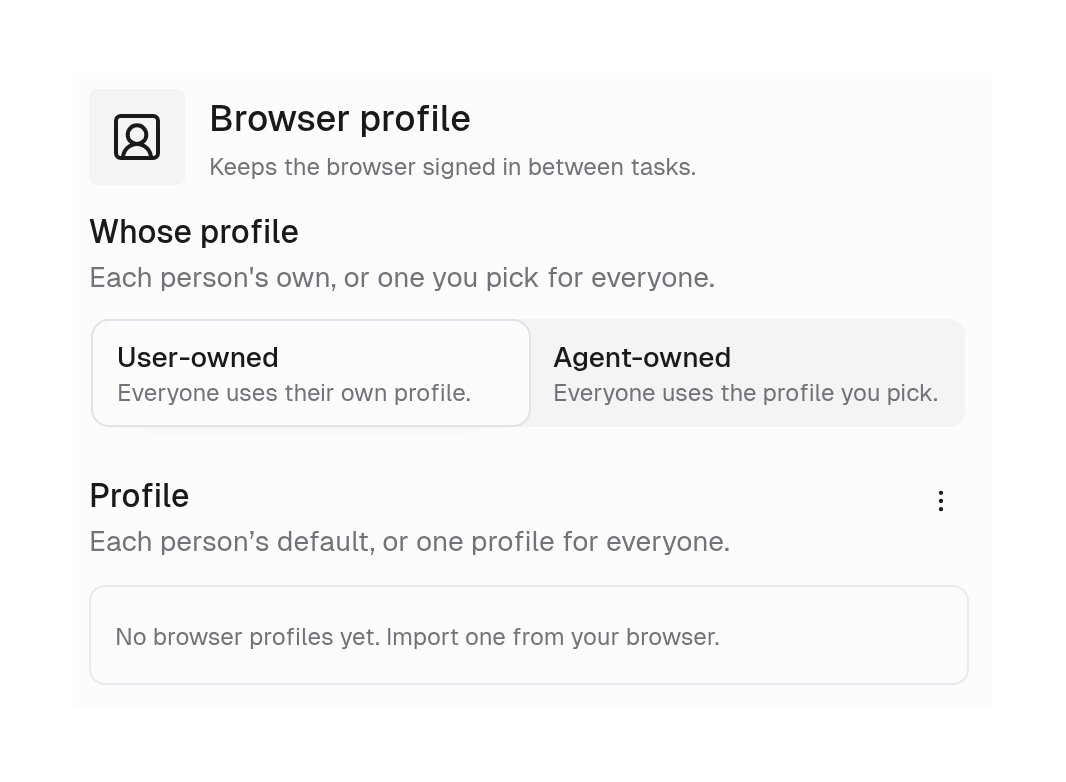 * **User-owned:** *Everyone uses their own profile.* Each person's personal **Default** profile is used.
* **Agent-owned:** *Everyone uses the profile you pick.* Picking a profile in **Profile** switches the agent to Agent-owned.
The profile menu also has **Import from browser** and **Manage browser profiles** (opens the Vault). Incognito chats never restore or save a profile.
### How do I bring my own sign-ins into a profile?
Import the cookies from a browser on your computer, so agents open those sites already signed in. Open **Import logins** from the profile menu in the agent's **Browser profile** view, from **Import** in a profile's menu in the Vault, or from **Add** on the Vault's **Browser Profiles** row.
* **User-owned:** *Everyone uses their own profile.* Each person's personal **Default** profile is used.
* **Agent-owned:** *Everyone uses the profile you pick.* Picking a profile in **Profile** switches the agent to Agent-owned.
The profile menu also has **Import from browser** and **Manage browser profiles** (opens the Vault). Incognito chats never restore or save a profile.
### How do I bring my own sign-ins into a profile?
Import the cookies from a browser on your computer, so agents open those sites already signed in. Open **Import logins** from the profile menu in the agent's **Browser profile** view, from **Import** in a profile's menu in the Vault, or from **Add** on the Vault's **Browser Profiles** row.
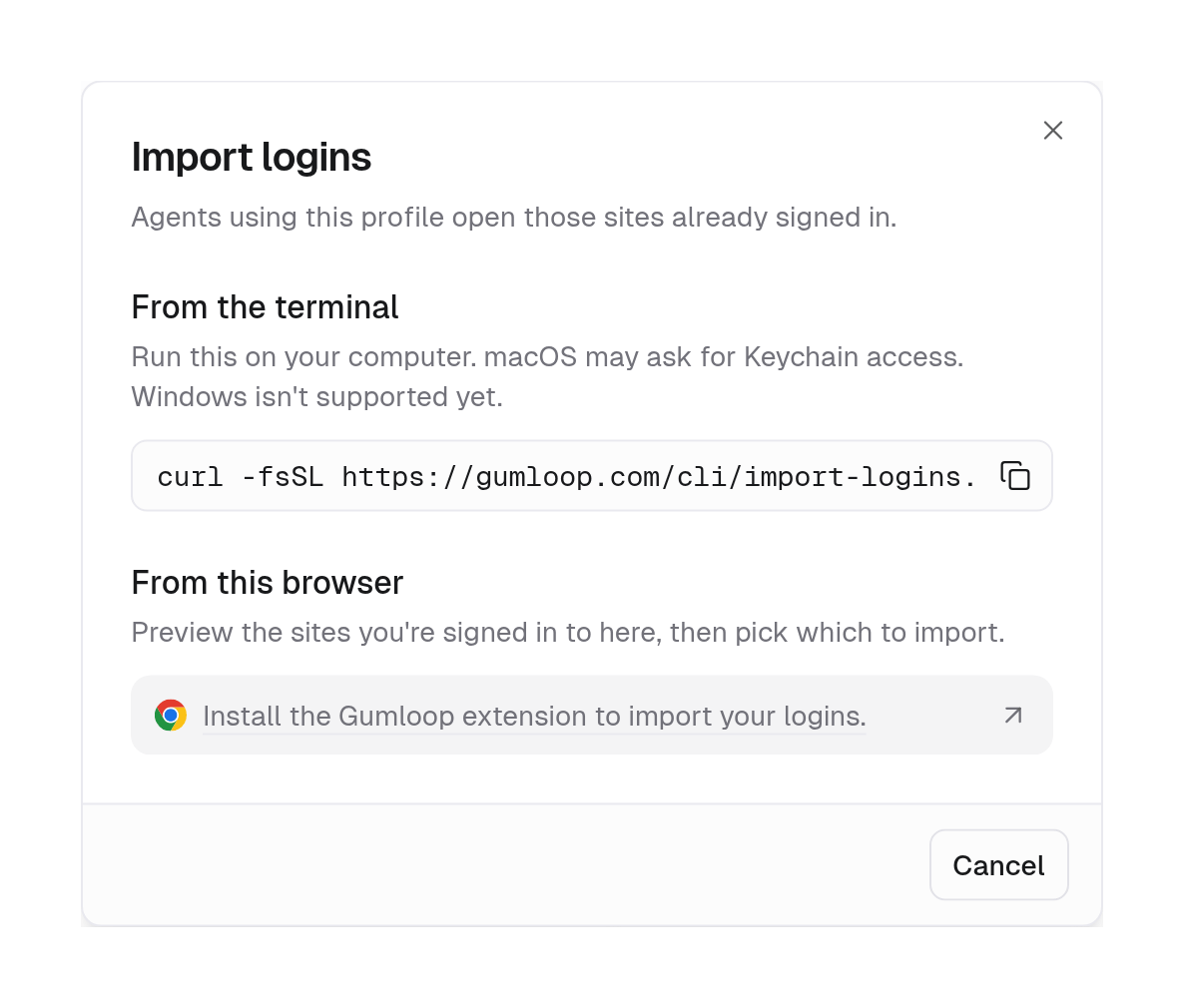 Copy the command from the dialog and run it on your computer. The dialog fills in the target profile for you.
```bash Terminal theme={"dark"}
curl -fsSL https://gumloop.com/cli/import-logins.sh | sh
```
macOS may ask for Keychain access. Windows is not supported yet.
With the [Gumloop CLI](/cli/overview) installed, you can run the import directly:
```bash Terminal theme={"dark"}
gumloop browser import-logins
gumloop browser import-logins --include-domain github.com --include-domain linear.app
gumloop browser import-logins --browser brave --exclude-domain doubleclick.net
```
| Option | What it does |
| - | - |
| `--url` | Import only this site, for example `https://github.com`. Default: every site. |
| `--include-domain` | Only these domains and their subdomains. Repeat for several. |
| `--exclude-domain` | Skip these domains and their subdomains. Repeat for several. |
| `--into` | Target profile id or name. Default: your personal default profile. |
| `--team` | Team id when the target profile belongs to a team. |
| `--browser` | `chrome`, `chromium`, `brave`, `edge`, `arc`, or `firefox`. Default: ask. |
| `--browser-profile` | Local browser profile name, for example `Default` or `Work`. |
| `--yes`, `-y` | Do not ask for confirmation. |
List your profiles and the sites they hold with `gumloop browser profiles list` (add `--team ` for a team's).
Install the Gumloop Chrome extension, then click **Preview** in the dialog. Pick the sites to import (*N of M sites*, with **Select all** and **Select none**) and click **Import**.
Import cookies programmatically with [Import cookies](/api-reference/browser-profiles/import-cookies), and list profiles with [List browser profiles](/api-reference/browser-profiles/list-browser-profiles).
* Imports bring **cookies only**, not local storage.
* An import can carry up to **20,000 cookies**. A profile holds up to **25,000 cookies** or **24 MB**.
* Importing while a task is running is safe: the import and the task's end-of-turn save are merged, not overwritten.
* Only people who manage team secrets can import into a team profile. Only a personal profile's owner can import into it.
### How do I manage profiles?
In the Vault's **Browser Profiles** section, **Add** opens **Import logins**, and each profile's menu has **Import**, **Rename**, and **Delete**.
| Action | Effect |
| - | - |
| **Remove a site** | Open a profile to see its sites and remove one. *Agents using `` are signed out of ``.* |
| **Delete** | *Agents using it start signed out. This cannot be undone.* |
When an agent switches profiles, or its profile is deleted, the browser is reset before the next step so no session carries over from one profile to another.
***
## 1Password
Connect 1Password and the agent can sign in with the logins in your 1Password vaults, including 2FA codes. You don't copy anything into Gumloop, and the agent never sees the passwords.
### How does 1Password work with the agent?
The first time the agent uses its browser in a turn, Gumloop reads the list of Login items in the vaults you allowed. It reads only each item's title and website, never the password.
The agent searches that list for the site it is on, for example `github.com`, and finds the matching item.
Gumloop fetches just that one item from 1Password and types the username, password, and current 2FA code into the page, after checking it is the item's site. 1Password logs each read.
### How do I set up 1Password?
1Password service accounts can't see Private vaults, so give agents a vault of their own, such as **Gumloop Agents**. Add the logins agents will use. Each login needs its **website** filled in, plus 2FA where the site asks for it.
In 1Password [Developer Tools](https://my.1password.com/developer-tools/directory), create a **Service Account** with **read-only** access to that vault. Copy the `ops_` token. 1Password shows it only once.
In your [Vault](https://www.gumloop.com/personal/vault) (or your team's Vault), click **Add** on the **1Password** row and paste the token.
In the agent's **Browser** section, open **1Password** and click **Turn on** under **Use 1Password**. The agent's **Browser** must be on first.
**Whose service account:** **User-owned** uses each person's own default service account (or the team's default on team agents); **Agent-owned** uses one service account you pick for everyone. See [User-owned or Agent-owned](#user-owned-or-agent-owned-whose-accounts-does-the-agent-use).
**Vaults:** **All vaults** the service account can read, or up to 10 specific vaults.
[Gumball](/core-concepts/gumball) needs no setup. Once you connect 1Password, it can use every vault your default connection can read.
### How does the agent find the right login?
Each 1Password Login item becomes a login named `OP_`, for example `OP_GITHUB`. The agent finds items by searching:
| Search for | Finds |
| - | - |
| **A site**, such as `github.com` or a URL | Items saved for that site. Searching the site the agent is on is how it usually finds the login. |
| **Words**, such as `acme billing` | Items whose title, site, or username contains all the words |
A login named "GitHub" but saved for a different website does not match a `github.com` search, because matching uses the item's website, not its title.
### What are the 1Password limits?
| Limit | Value |
| - | - |
| **Vaults per agent** | All vaults, or up to 10 specific vaults |
| **Logins available per turn** | Up to 500 items across all vaults |
| **Results per search** | 25. A broader search asks the agent to narrow it down. |
| **Items that can be used** | Login items with a website. An item types only on its own websites. |
| **Private vaults** | Not visible to service accounts |
| **Changes in 1Password** | A new or removed login or vault shows up on the agent's next turn |
### What else should I know?
* **If 1Password is unavailable** or rate-limits the service account, that turn runs without 1Password logins and the task continues.
* **If a Vault login and a 1Password item have the same name,** the Vault login is used. Two 1Password items with the same title get `_2`, `_3`, and so on.
* **Keep agent vaults small.** An agent can sign in with any login in the vaults you give it.
* **Agent-owned 1Password** is not used while the agent is shared with **Anyone**.
***
## FAQ
<AccordionGroup>
<Accordion title="The agent says it can't type my login on this page. Why?">
The page failed the site check. Common causes: the login is set to **This exact address only** and the form is on another subdomain (for example `login.acme.com`), the form is inside an embedded frame from a different site, or the scheme or port differs. Edit the login and set **Type the password on** to **Any page of this site**, or let the agent ask you with a handoff.
</Accordion>
<Accordion title="Can the agent handle SMS or email 2FA codes?">
Only authenticator-app codes can be generated automatically, from the login's **Authenticator key**. For codes sent by SMS or email, the agent hands the browser to you with a one-time code field.
</Accordion>
<Accordion title="How do I change a saved password?">
Edit the login in the Vault. Leave **Password** or **Authenticator key** blank to keep the current value.
</Accordion>
<Accordion title="Do my teammates get my sign-ins?">
Not with the default **User-owned** setting: each person uses their own profile and their own logins. With an **Agent-owned** profile or a team login, everyone who runs the agent uses the same sessions or credentials.
</Accordion>
<Accordion title="I deleted the agent's profile. Why didn't it fall back to mine?">
An agent-owned profile stays pinned even after it is deleted, so the browser starts signed out rather than silently using someone else's sessions. Pick a new profile, or switch **Whose profile** back to **User-owned**.
</Accordion>
<Accordion title="Why is the agent signed out even though I imported my cookies?">
Check that you imported into the profile the agent uses (see **Browser profile** in the agent's **Browser** section), and that the site's session had not expired in your own browser. Some sites also tie sessions to local storage, which imports do not copy. In that case, save a login so the agent can sign in itself.
</Accordion>
</AccordionGroup>
***
## Related
<Columns cols={2}>
<Card title="Agent Browser" icon="window-maximize" href="/core-concepts/agent_browser">
Turn on the browser, watch it live, replay steps, and answer handoffs.
</Card>
<Card title="Code Sandbox & Secrets" icon="vault" href="/core-concepts/agent_sandbox_and_secrets">
The Vault, secrets, and the sandbox the browser runs in.
</Card>
<Card title="CLI" icon="terminal" href="/cli/overview">
Install the Gumloop CLI to import sign-ins from your terminal.
</Card>
<Card title="Custom Roles" icon="users-gear" href="/enterprise-features/user_groups">
Control who can give agents a browser.
</Card>
</Columns>
Copy the command from the dialog and run it on your computer. The dialog fills in the target profile for you.
```bash Terminal theme={"dark"}
curl -fsSL https://gumloop.com/cli/import-logins.sh | sh
```
macOS may ask for Keychain access. Windows is not supported yet.
With the [Gumloop CLI](/cli/overview) installed, you can run the import directly:
```bash Terminal theme={"dark"}
gumloop browser import-logins
gumloop browser import-logins --include-domain github.com --include-domain linear.app
gumloop browser import-logins --browser brave --exclude-domain doubleclick.net
```
| Option | What it does |
| - | - |
| `--url` | Import only this site, for example `https://github.com`. Default: every site. |
| `--include-domain` | Only these domains and their subdomains. Repeat for several. |
| `--exclude-domain` | Skip these domains and their subdomains. Repeat for several. |
| `--into` | Target profile id or name. Default: your personal default profile. |
| `--team` | Team id when the target profile belongs to a team. |
| `--browser` | `chrome`, `chromium`, `brave`, `edge`, `arc`, or `firefox`. Default: ask. |
| `--browser-profile` | Local browser profile name, for example `Default` or `Work`. |
| `--yes`, `-y` | Do not ask for confirmation. |
List your profiles and the sites they hold with `gumloop browser profiles list` (add `--team ` for a team's).
Install the Gumloop Chrome extension, then click **Preview** in the dialog. Pick the sites to import (*N of M sites*, with **Select all** and **Select none**) and click **Import**.
Import cookies programmatically with [Import cookies](/api-reference/browser-profiles/import-cookies), and list profiles with [List browser profiles](/api-reference/browser-profiles/list-browser-profiles).
* Imports bring **cookies only**, not local storage.
* An import can carry up to **20,000 cookies**. A profile holds up to **25,000 cookies** or **24 MB**.
* Importing while a task is running is safe: the import and the task's end-of-turn save are merged, not overwritten.
* Only people who manage team secrets can import into a team profile. Only a personal profile's owner can import into it.
### How do I manage profiles?
In the Vault's **Browser Profiles** section, **Add** opens **Import logins**, and each profile's menu has **Import**, **Rename**, and **Delete**.
| Action | Effect |
| - | - |
| **Remove a site** | Open a profile to see its sites and remove one. *Agents using `` are signed out of ``.* |
| **Delete** | *Agents using it start signed out. This cannot be undone.* |
When an agent switches profiles, or its profile is deleted, the browser is reset before the next step so no session carries over from one profile to another.
***
## 1Password
Connect 1Password and the agent can sign in with the logins in your 1Password vaults, including 2FA codes. You don't copy anything into Gumloop, and the agent never sees the passwords.
### How does 1Password work with the agent?
The first time the agent uses its browser in a turn, Gumloop reads the list of Login items in the vaults you allowed. It reads only each item's title and website, never the password.
The agent searches that list for the site it is on, for example `github.com`, and finds the matching item.
Gumloop fetches just that one item from 1Password and types the username, password, and current 2FA code into the page, after checking it is the item's site. 1Password logs each read.
### How do I set up 1Password?
1Password service accounts can't see Private vaults, so give agents a vault of their own, such as **Gumloop Agents**. Add the logins agents will use. Each login needs its **website** filled in, plus 2FA where the site asks for it.
In 1Password [Developer Tools](https://my.1password.com/developer-tools/directory), create a **Service Account** with **read-only** access to that vault. Copy the `ops_` token. 1Password shows it only once.
In your [Vault](https://www.gumloop.com/personal/vault) (or your team's Vault), click **Add** on the **1Password** row and paste the token.
In the agent's **Browser** section, open **1Password** and click **Turn on** under **Use 1Password**. The agent's **Browser** must be on first.
**Whose service account:** **User-owned** uses each person's own default service account (or the team's default on team agents); **Agent-owned** uses one service account you pick for everyone. See [User-owned or Agent-owned](#user-owned-or-agent-owned-whose-accounts-does-the-agent-use).
**Vaults:** **All vaults** the service account can read, or up to 10 specific vaults.
[Gumball](/core-concepts/gumball) needs no setup. Once you connect 1Password, it can use every vault your default connection can read.
### How does the agent find the right login?
Each 1Password Login item becomes a login named `OP_`, for example `OP_GITHUB`. The agent finds items by searching:
| Search for | Finds |
| - | - |
| **A site**, such as `github.com` or a URL | Items saved for that site. Searching the site the agent is on is how it usually finds the login. |
| **Words**, such as `acme billing` | Items whose title, site, or username contains all the words |
A login named "GitHub" but saved for a different website does not match a `github.com` search, because matching uses the item's website, not its title.
### What are the 1Password limits?
| Limit | Value |
| - | - |
| **Vaults per agent** | All vaults, or up to 10 specific vaults |
| **Logins available per turn** | Up to 500 items across all vaults |
| **Results per search** | 25. A broader search asks the agent to narrow it down. |
| **Items that can be used** | Login items with a website. An item types only on its own websites. |
| **Private vaults** | Not visible to service accounts |
| **Changes in 1Password** | A new or removed login or vault shows up on the agent's next turn |
### What else should I know?
* **If 1Password is unavailable** or rate-limits the service account, that turn runs without 1Password logins and the task continues.
* **If a Vault login and a 1Password item have the same name,** the Vault login is used. Two 1Password items with the same title get `_2`, `_3`, and so on.
* **Keep agent vaults small.** An agent can sign in with any login in the vaults you give it.
* **Agent-owned 1Password** is not used while the agent is shared with **Anyone**.
***
## FAQ
<AccordionGroup>
<Accordion title="The agent says it can't type my login on this page. Why?">
The page failed the site check. Common causes: the login is set to **This exact address only** and the form is on another subdomain (for example `login.acme.com`), the form is inside an embedded frame from a different site, or the scheme or port differs. Edit the login and set **Type the password on** to **Any page of this site**, or let the agent ask you with a handoff.
</Accordion>
<Accordion title="Can the agent handle SMS or email 2FA codes?">
Only authenticator-app codes can be generated automatically, from the login's **Authenticator key**. For codes sent by SMS or email, the agent hands the browser to you with a one-time code field.
</Accordion>
<Accordion title="How do I change a saved password?">
Edit the login in the Vault. Leave **Password** or **Authenticator key** blank to keep the current value.
</Accordion>
<Accordion title="Do my teammates get my sign-ins?">
Not with the default **User-owned** setting: each person uses their own profile and their own logins. With an **Agent-owned** profile or a team login, everyone who runs the agent uses the same sessions or credentials.
</Accordion>
<Accordion title="I deleted the agent's profile. Why didn't it fall back to mine?">
An agent-owned profile stays pinned even after it is deleted, so the browser starts signed out rather than silently using someone else's sessions. Pick a new profile, or switch **Whose profile** back to **User-owned**.
</Accordion>
<Accordion title="Why is the agent signed out even though I imported my cookies?">
Check that you imported into the profile the agent uses (see **Browser profile** in the agent's **Browser** section), and that the site's session had not expired in your own browser. Some sites also tie sessions to local storage, which imports do not copy. In that case, save a login so the agent can sign in itself.
</Accordion>
</AccordionGroup>
***
## Related
<Columns cols={2}>
<Card title="Agent Browser" icon="window-maximize" href="/core-concepts/agent_browser">
Turn on the browser, watch it live, replay steps, and answer handoffs.
</Card>
<Card title="Code Sandbox & Secrets" icon="vault" href="/core-concepts/agent_sandbox_and_secrets">
The Vault, secrets, and the sandbox the browser runs in.
</Card>
<Card title="CLI" icon="terminal" href="/cli/overview">
Install the Gumloop CLI to import sign-ins from your terminal.
</Card>
<Card title="Custom Roles" icon="users-gear" href="/enterprise-features/user_groups">
Control who can give agents a browser.
</Card>
</Columns>