> ## Documentation Index
> Fetch the complete documentation index at: https://docs.gumloop.com/llms.txt
> Use this file to discover all available pages before exploring further.
# Brain
> Brain is your company knowledge base for agents. Connect your tools once, and your agents can search everything your team knows.
Your agents can already take actions through [connectors](/core-concepts/agents#connectors) and follow your processes through [skills](/core-concepts/skills#what-is-a-skill). What they cannot do out of the box is know what *your company* knows: your documents, your Slack threads, your past decisions, and where any of it lives.
**Brain** is where that knowledge lives.
You connect the tools your team already uses, Gumloop indexes them, and your agents can then search across all of it and answer from your real content, with citations, instead of guessing.
 Brain is available on the **Pro** and **Enterprise** plans.
## How Brain fits with tools and skills
Brain is the third piece of what makes an agent useful. Each answers a different question:
| Piece | Gives your agent | Answers |
| --------------------------------------------------- | -------------------------------------- | ----------------------------------- |
| [**Connectors**](/core-concepts/agents#connectors) | The ability to take live actions | "Send this Slack message" |
| [**Skills**](/core-concepts/skills#what-is-a-skill) | Reusable instructions for a task | "Draft outreach using our sequence" |
| **Brain** | Searchable knowledge from your content | "What does our refund policy say?" |
They work together. An agent might **search Brain** for your pricing policy, follow a **skill** to format a quote, then use a **connector** to email it.
The mental model for the rest of this page: **indexing a source makes knowledge available; attaching it to an agent makes that knowledge usable by that agent.**
## Where you access Brain
Open **Brain** from the left sidebar, or jump straight to a page:
Sources only you can see.
Sources shared across your company.
The **All**, **Mine**, and **Organization** tabs filter by scope, and **+ Source** adds one. To scope knowledge to a single agent, use its [Knowledge Sources](#giving-an-agent-knowledge) section.
## How access works
Every source has a **scope** that decides who can see and search it. You choose the scope when you add a source, and can change it later with **Share**.
Only you can see and search it.
Everyone on that [team](/core-concepts/teams) can see and search it.
Everyone in your organization can see and search it. Often set up once by an admin for the whole company.
**Brain controls access by scope, not by the source's own per-document permissions.** Anyone who can see a source can search everything indexed in it. For example, if you index a Google Drive folder at **Organization** scope, any agent user in your org can retrieve any file in that folder through Brain, even files they could not open directly in Drive. Only connect and scope content to the audience you intend to give access to. See [sharing and permissions](/core-concepts/share_permissions#general-access).
**Your data stays yours.** Indexed content is used only to answer your own team's agents. The embedding provider Gumloop uses runs under a zero-data-retention policy, so your content is not retained by it or used to train third-party models, and Brain respects [incognito](/core-concepts/agents#incognito-mode) chats.
## Adding a source
A **knowledge source** is a connection to a place your knowledge already lives. Gumloop reads from it, indexes the content, and keeps it in sync.
Brain is available on the **Pro** and **Enterprise** plans.
## How Brain fits with tools and skills
Brain is the third piece of what makes an agent useful. Each answers a different question:
| Piece | Gives your agent | Answers |
| --------------------------------------------------- | -------------------------------------- | ----------------------------------- |
| [**Connectors**](/core-concepts/agents#connectors) | The ability to take live actions | "Send this Slack message" |
| [**Skills**](/core-concepts/skills#what-is-a-skill) | Reusable instructions for a task | "Draft outreach using our sequence" |
| **Brain** | Searchable knowledge from your content | "What does our refund policy say?" |
They work together. An agent might **search Brain** for your pricing policy, follow a **skill** to format a quote, then use a **connector** to email it.
The mental model for the rest of this page: **indexing a source makes knowledge available; attaching it to an agent makes that knowledge usable by that agent.**
## Where you access Brain
Open **Brain** from the left sidebar, or jump straight to a page:
Sources only you can see.
Sources shared across your company.
The **All**, **Mine**, and **Organization** tabs filter by scope, and **+ Source** adds one. To scope knowledge to a single agent, use its [Knowledge Sources](#giving-an-agent-knowledge) section.
## How access works
Every source has a **scope** that decides who can see and search it. You choose the scope when you add a source, and can change it later with **Share**.
Only you can see and search it.
Everyone on that [team](/core-concepts/teams) can see and search it.
Everyone in your organization can see and search it. Often set up once by an admin for the whole company.
**Brain controls access by scope, not by the source's own per-document permissions.** Anyone who can see a source can search everything indexed in it. For example, if you index a Google Drive folder at **Organization** scope, any agent user in your org can retrieve any file in that folder through Brain, even files they could not open directly in Drive. Only connect and scope content to the audience you intend to give access to. See [sharing and permissions](/core-concepts/share_permissions#general-access).
**Your data stays yours.** Indexed content is used only to answer your own team's agents. The embedding provider Gumloop uses runs under a zero-data-retention policy, so your content is not retained by it or used to train third-party models, and Brain respects [incognito](/core-concepts/agents#incognito-mode) chats.
## Adding a source
A **knowledge source** is a connection to a place your knowledge already lives. Gumloop reads from it, indexes the content, and keeps it in sync.
 On the **Brain** page (or an agent's Knowledge Sources section), click **+ Source** and pick a source type.
Give the source a clear, descriptive name. This is how agents and your team will see it. Then choose the connected account Gumloop should use to read the content.
On the **Brain** page (or an agent's Knowledge Sources section), click **+ Source** and pick a source type.
Give the source a clear, descriptive name. This is how agents and your team will see it. Then choose the connected account Gumloop should use to read the content.
 Narrow the source to only what you want indexed: specific drives, folders, channels, spaces, or repositories. Everything you include inherits the source's scope, so pick with the audience in mind.
 Click **Add source**. Gumloop starts crawling and indexing.
### What gets indexed
Brain reads the text in your content. What that means per source:
| Source | What gets indexed |
| ---------------- | ---------------------------------------------------------------------------------------------------------------------------------------------------------------------------------- |
| **Notion** | Full page content for the pages and databases you connect. |
| **Google Drive** | File contents from the drives and folders you pick, including Google Docs, Sheets, and Slides (converted for indexing). Folders organize results but are not documents themselves. |
| **Slack** | Messages, including thread replies, from the public channels you choose. |
| **GitHub** | Files from the repository you connect. |
| **Confluence** | Pages from the Confluence space you connect. |
| **File uploads** | The files you upload: PDFs, Office files (`.docx`, `.pptx`, `.xlsx`), rich text, Markdown, JSON, XML, YAML, and plain text, up to about 400 MB each. |
Brain does not run OCR on images, so text inside images or scanned pages is not indexed. Private Slack channels are not synced.
## What happens after you add a source
Once a source is added, Gumloop takes over. You do not manage any of this:
Gumloop reads the source, detects what is new or changed, and indexes the content for both semantic (meaning-based) and keyword search. The source moves to **Active** and its items show as **Indexed**.
External sources re-sync automatically (by default about hourly for connectors like Google Drive), so answers reflect the latest version. If a document is deleted or moved out of a source's scope upstream, the next successful sync removes it from Brain too. File uploads do not auto-sync because there is no remote system to poll.
**How long until it is searchable?** Indexing time depends on the source's size, from a minute or two for a small source to longer for large ones. The **Status** column shows progress and flips to Active once items are indexed and ready to search.
If your admins have already set up **Organization** sources, they appear under the Organization tab and are ready to search right away. You do not need to add anything yourself to start benefiting from Brain.
## Managing your sources
### The sources list
On the Brain page, each source shows an at-a-glance summary:
| Column | What it shows |
| ------------ | ---------------------------------------------------- |
| **Name** | The source name, grouped by source type. |
| **Docs** | How many documents are indexed. |
| **Activity** | How often the source has been searched recently. |
| **Access** | Who can see and search it (its scope). |
| **Status** | The current sync status (Active, Paused, and so on). |
The **Overview** panel summarizes total sources and recent activity across everything you can see.
### A source's detail page
Click any source to open it. You get:
* The list of items it contains, each with its status and last-updated time.
* An **Overview** panel: status, document count, activity, last sync, and who added it.
* **Search this source** to preview what is indexed, and **Edit** to change what it syncs.
Click **Add source**. Gumloop starts crawling and indexing.
### What gets indexed
Brain reads the text in your content. What that means per source:
| Source | What gets indexed |
| ---------------- | ---------------------------------------------------------------------------------------------------------------------------------------------------------------------------------- |
| **Notion** | Full page content for the pages and databases you connect. |
| **Google Drive** | File contents from the drives and folders you pick, including Google Docs, Sheets, and Slides (converted for indexing). Folders organize results but are not documents themselves. |
| **Slack** | Messages, including thread replies, from the public channels you choose. |
| **GitHub** | Files from the repository you connect. |
| **Confluence** | Pages from the Confluence space you connect. |
| **File uploads** | The files you upload: PDFs, Office files (`.docx`, `.pptx`, `.xlsx`), rich text, Markdown, JSON, XML, YAML, and plain text, up to about 400 MB each. |
Brain does not run OCR on images, so text inside images or scanned pages is not indexed. Private Slack channels are not synced.
## What happens after you add a source
Once a source is added, Gumloop takes over. You do not manage any of this:
Gumloop reads the source, detects what is new or changed, and indexes the content for both semantic (meaning-based) and keyword search. The source moves to **Active** and its items show as **Indexed**.
External sources re-sync automatically (by default about hourly for connectors like Google Drive), so answers reflect the latest version. If a document is deleted or moved out of a source's scope upstream, the next successful sync removes it from Brain too. File uploads do not auto-sync because there is no remote system to poll.
**How long until it is searchable?** Indexing time depends on the source's size, from a minute or two for a small source to longer for large ones. The **Status** column shows progress and flips to Active once items are indexed and ready to search.
If your admins have already set up **Organization** sources, they appear under the Organization tab and are ready to search right away. You do not need to add anything yourself to start benefiting from Brain.
## Managing your sources
### The sources list
On the Brain page, each source shows an at-a-glance summary:
| Column | What it shows |
| ------------ | ---------------------------------------------------- |
| **Name** | The source name, grouped by source type. |
| **Docs** | How many documents are indexed. |
| **Activity** | How often the source has been searched recently. |
| **Access** | Who can see and search it (its scope). |
| **Status** | The current sync status (Active, Paused, and so on). |
The **Overview** panel summarizes total sources and recent activity across everything you can see.
### A source's detail page
Click any source to open it. You get:
* The list of items it contains, each with its status and last-updated time.
* An **Overview** panel: status, document count, activity, last sync, and who added it.
* **Search this source** to preview what is indexed, and **Edit** to change what it syncs.
 ### Source actions
Open the **⋮** menu on any source for its management actions:
### Source actions
Open the **⋮** menu on any source for its management actions:
 Force an immediate sync to pull the latest content without waiting for the next scheduled run.
Stop syncing and stop any running indexing work. Already-indexed content stays searchable. Resume any time.
Change the source's scope (Personal, Team, or Organization) to widen or narrow who can see and search it.
Change the display name your team and agents see. Renaming does not re-index anything.
Remove the source and all of its indexed chunks from Brain. This cannot be undone.
### Statuses
| Status | Meaning |
| ----------- | ------------------------------------------------------------------- |
| **Active** | The source is connected and syncing normally. |
| **Paused** | Syncing is stopped until you resume it. |
| **Syncing** | A sync is currently running. |
| **Indexed** | An item has been processed and is searchable. |
| **Failed** | The last sync hit an error. Re-sync or check the connected account. |
| **Partial** | The last sync finished, but some items did not index. |
## The knowledge graph
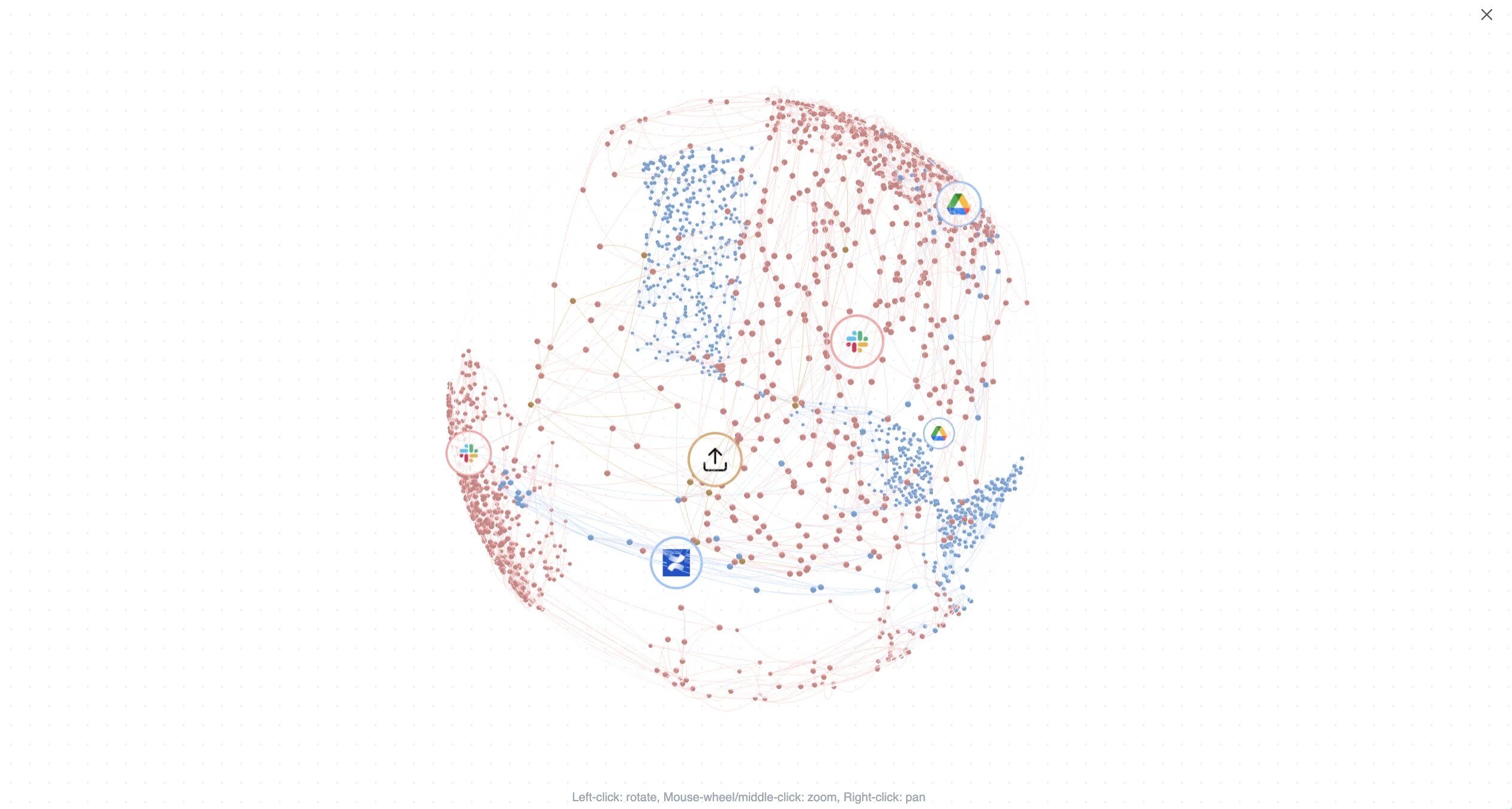
Every Brain view includes a **knowledge graph**: an interactive 3D map of everything you have indexed. Each point is a piece of your knowledge, clustered by source and colored so you can see how your Slack, Drive, Confluence, and other content group and connect. Click **View knowledge graph** or **Expand** to open it full screen and drag to explore.
Force an immediate sync to pull the latest content without waiting for the next scheduled run.
Stop syncing and stop any running indexing work. Already-indexed content stays searchable. Resume any time.
Change the source's scope (Personal, Team, or Organization) to widen or narrow who can see and search it.
Change the display name your team and agents see. Renaming does not re-index anything.
Remove the source and all of its indexed chunks from Brain. This cannot be undone.
### Statuses
| Status | Meaning |
| ----------- | ------------------------------------------------------------------- |
| **Active** | The source is connected and syncing normally. |
| **Paused** | Syncing is stopped until you resume it. |
| **Syncing** | A sync is currently running. |
| **Indexed** | An item has been processed and is searchable. |
| **Failed** | The last sync hit an error. Re-sync or check the connected account. |
| **Partial** | The last sync finished, but some items did not index. |
## The knowledge graph
Every Brain view includes a **knowledge graph**: an interactive 3D map of everything you have indexed. Each point is a piece of your knowledge, clustered by source and colored so you can see how your Slack, Drive, Confluence, and other content group and connect. Click **View knowledge graph** or **Expand** to open it full screen and drag to explore.
 ## Giving an agent knowledge
Adding a source to Brain makes it available. To let a specific agent *use* it, attach it in that agent's configuration.
## Giving an agent knowledge
Adding a source to Brain makes it available. To let a specific agent *use* it, attach it in that agent's configuration.
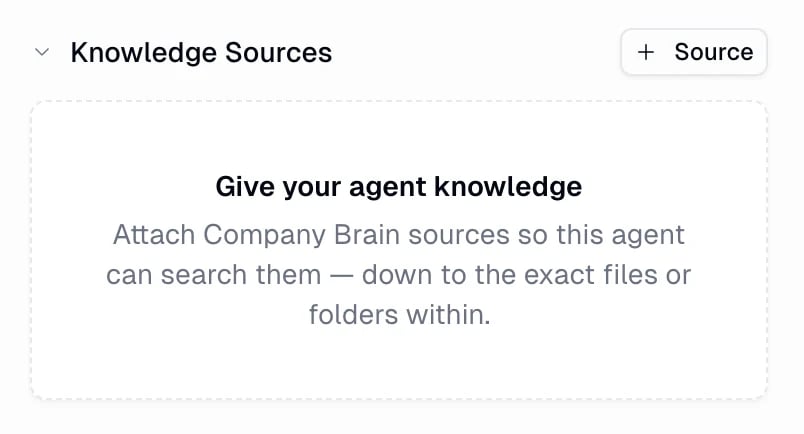 In the agent's configuration, find the **Knowledge Sources** section and click **+ Source**.
Pick from your Personal, Team, and Organization sources, or **Upload files** to add knowledge straight to this agent. You can drill into a source to attach only the exact files or folders that are relevant, so the agent searches a focused set.
In the agent's configuration, find the **Knowledge Sources** section and click **+ Source**.
Pick from your Personal, Team, and Organization sources, or **Upload files** to add knowledge straight to this agent. You can drill into a source to attach only the exact files or folders that are relevant, so the agent searches a focused set.
 Once a source is attached, the agent gets two built-in tools automatically:
* **Search Company Brain** runs a hybrid search across the attached sources and returns the most relevant snippets. In chat this shows as *Searching Company Brain*.
* **Read document** fetches the full text of a specific document when a snippet is not enough. In chat this shows as *Reading document*.
The agent decides when to search. When you ask about internal knowledge, it searches Brain, cites what it found, and can open a full document for more context.
## Prompting an agent to use Brain
Once knowledge is attached, you use the agent normally. It reaches for Brain when a question is about your internal content, often running several searches at once and citing the sources it used.
Once a source is attached, the agent gets two built-in tools automatically:
* **Search Company Brain** runs a hybrid search across the attached sources and returns the most relevant snippets. In chat this shows as *Searching Company Brain*.
* **Read document** fetches the full text of a specific document when a snippet is not enough. In chat this shows as *Reading document*.
The agent decides when to search. When you ask about internal knowledge, it searches Brain, cites what it found, and can open a full document for more context.
## Prompting an agent to use Brain
Once knowledge is attached, you use the agent normally. It reaches for Brain when a question is about your internal content, often running several searches at once and citing the sources it used.
 Prompts that work well:
* "According to our internal docs, what is our refund window?"
* "Find the launch retro notes and summarize the top three action items."
* "What did we decide about pricing in the Slack thread last quarter?"
* "Search our knowledge base for the onboarding checklist and turn it into an email."
Nudge the agent toward Brain when you want a grounded answer: phrases like "according to our docs," "search our knowledge base," or "what do we know about" make it clear you want a cited answer from your content, not a general one.
## Your agents' artifacts
Beyond the sources you connect, Gumloop can index the [artifacts](/core-concepts/agent_artifacts#how-artifacts-work) your agents produce, the files they generate for you in chat, so agents can search and reuse past work instead of starting from scratch.
* Artifacts are indexed at the **Personal** (your artifacts) or **Team** (a project's artifacts) level.
* Only the newest version of each artifact is indexed, and it updates in place when a new version is produced.
* Agents find them with the same **Search Company Brain** and **Read document** tools, so "pull up the deck we made last week" works like any other knowledge lookup.
## Credits
Brain usage consumes Gumloop credits:
* **Indexing** is charged as content is processed, so most of the cost lands when you first add a source and when its content changes.
* **Searching** is charged per query, and an agent's Brain searches are billed inside that agent's run.
Bigger sources and heavier search usage cost more. See [Credits](/core-concepts/credits#what-you-pay-for) for how credits work across the platform.
## FAQ
**Brain** is knowledge your agents can *search* (documents, messages, files). [**Skills**](/core-concepts/skills#what-is-a-skill) are instructions that teach an agent *how to do a task* your way. Use Brain for "what do we know about X," and skills for "here's our process for doing X."
A connector lets an agent take live actions and fetch specific items on demand. Brain pre-indexes your content so the agent can do fast, semantic **search across everything** at once, with citations, instead of navigating a tool call by call.
It depends on the source's size, from a minute or two for a small source to longer for large ones. The source shows **Active** and its items show **Indexed** once they are ready.
Yes. When a document is deleted or moved out of a source's scope upstream, the next successful sync removes it from Brain. To remove an entire source, use **Delete**.
No. Your indexed content is used only to answer your own team's agents, and the embedding provider Gumloop uses runs under a zero-data-retention policy, so your content is not retained by it or used to train third-party models.
It depends on the source's **scope**. Personal sources are visible only to you, Team sources to that [team](/core-concepts/teams), and Organization sources to everyone in your org. Anyone who can see a source can search everything indexed in it, so scope carefully.
Common document formats such as PDFs, Office files (`.docx`, `.pptx`, `.xlsx`), rich text, Markdown, JSON, XML, YAML, and plain text, up to about 400 MB per file. Unsupported types are rejected, and Brain does not read text inside images.
Yes. Gumloop can index your agents' [artifacts](/core-concepts/agent_artifacts#how-artifacts-work) at the Personal or Team level, so an agent can search and reuse past outputs. Only the newest version of each artifact is indexed.
Yes. Each source has a **Search this source** box, and the Brain page has a global search so you can find and preview content directly.
Brain is available on the **Pro** and **Enterprise** plans.
## Next steps
Build and configure agents that use your knowledge.
Teach agents how to do tasks your way, on top of what they know.
Prompts that work well:
* "According to our internal docs, what is our refund window?"
* "Find the launch retro notes and summarize the top three action items."
* "What did we decide about pricing in the Slack thread last quarter?"
* "Search our knowledge base for the onboarding checklist and turn it into an email."
Nudge the agent toward Brain when you want a grounded answer: phrases like "according to our docs," "search our knowledge base," or "what do we know about" make it clear you want a cited answer from your content, not a general one.
## Your agents' artifacts
Beyond the sources you connect, Gumloop can index the [artifacts](/core-concepts/agent_artifacts#how-artifacts-work) your agents produce, the files they generate for you in chat, so agents can search and reuse past work instead of starting from scratch.
* Artifacts are indexed at the **Personal** (your artifacts) or **Team** (a project's artifacts) level.
* Only the newest version of each artifact is indexed, and it updates in place when a new version is produced.
* Agents find them with the same **Search Company Brain** and **Read document** tools, so "pull up the deck we made last week" works like any other knowledge lookup.
## Credits
Brain usage consumes Gumloop credits:
* **Indexing** is charged as content is processed, so most of the cost lands when you first add a source and when its content changes.
* **Searching** is charged per query, and an agent's Brain searches are billed inside that agent's run.
Bigger sources and heavier search usage cost more. See [Credits](/core-concepts/credits#what-you-pay-for) for how credits work across the platform.
## FAQ
**Brain** is knowledge your agents can *search* (documents, messages, files). [**Skills**](/core-concepts/skills#what-is-a-skill) are instructions that teach an agent *how to do a task* your way. Use Brain for "what do we know about X," and skills for "here's our process for doing X."
A connector lets an agent take live actions and fetch specific items on demand. Brain pre-indexes your content so the agent can do fast, semantic **search across everything** at once, with citations, instead of navigating a tool call by call.
It depends on the source's size, from a minute or two for a small source to longer for large ones. The source shows **Active** and its items show **Indexed** once they are ready.
Yes. When a document is deleted or moved out of a source's scope upstream, the next successful sync removes it from Brain. To remove an entire source, use **Delete**.
No. Your indexed content is used only to answer your own team's agents, and the embedding provider Gumloop uses runs under a zero-data-retention policy, so your content is not retained by it or used to train third-party models.
It depends on the source's **scope**. Personal sources are visible only to you, Team sources to that [team](/core-concepts/teams), and Organization sources to everyone in your org. Anyone who can see a source can search everything indexed in it, so scope carefully.
Common document formats such as PDFs, Office files (`.docx`, `.pptx`, `.xlsx`), rich text, Markdown, JSON, XML, YAML, and plain text, up to about 400 MB per file. Unsupported types are rejected, and Brain does not read text inside images.
Yes. Gumloop can index your agents' [artifacts](/core-concepts/agent_artifacts#how-artifacts-work) at the Personal or Team level, so an agent can search and reuse past outputs. Only the newest version of each artifact is indexed.
Yes. Each source has a **Search this source** box, and the Brain page has a global search so you can find and preview content directly.
Brain is available on the **Pro** and **Enterprise** plans.
## Next steps
Build and configure agents that use your knowledge.
Teach agents how to do tasks your way, on top of what they know.