> ## Documentation Index
> Fetch the complete documentation index at: https://docs.gumloop.com/llms.txt
> Use this file to discover all available pages before exploring further.
# Create Triggers With AI
> Let AI build custom polling triggers that monitor any combination of apps and fire your agent when conditions are met.
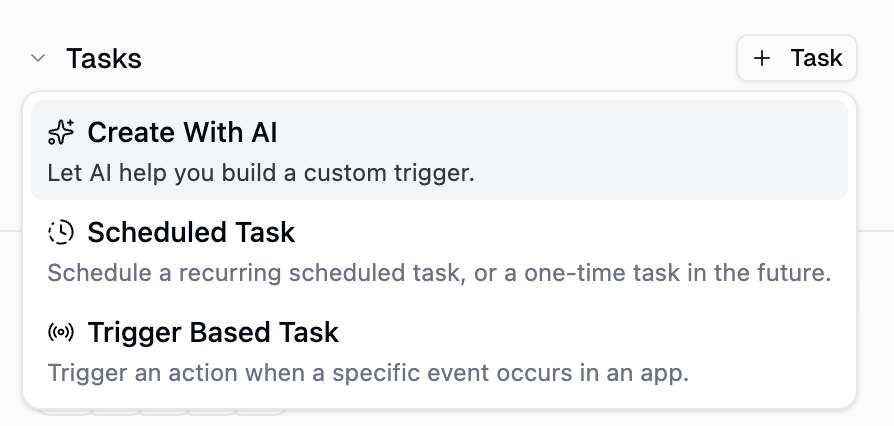
The **Create With AI** option lets you describe what you want to monitor in plain language, and your agent builds a custom polling trigger for you automatically. Unlike pre-built [event-based triggers](/core-concepts/agent_triggers#event-based-triggers) that are limited to a single integration, AI-created triggers can combine multiple services, apply custom filtering logic, and handle scenarios that no pre-built trigger covers.
 ***
## When to Use AI Triggers
AI-created triggers (also called **custom MCP triggers**) are the right choice when:
| Scenario | Why AI trigger? |
| -------------------------------------------------------------- | ------------------------------------------------------------------------------------------------------------------------------- |
| Monitor **multiple services** at once | Pre-built triggers only watch one app. AI triggers can poll Gmail *and* check Salesforce in the same trigger. |
| Apply **custom filtering logic** | "Only alert me if the email sender has an open deal in HubSpot" requires logic no pre-built trigger offers. |
| Watch a service that **has no pre-built trigger** | Any app connected via MCP can be monitored, even if Gumloop doesn't have a dedicated trigger node for it. |
| Detect **computed conditions** | "Pipeline total dropped 20% since last check" or "Slack message with no reply after 30 minutes" need stateful comparison logic. |
| Combine data from **different sources** to decide when to fire | "New Jira ticket where the reporter has open GitHub PRs" cross-references two systems. |
If your use case is simple single-service monitoring (e.g., "new email from X" or "new Slack message in #channel"), a [pre-built event-based trigger](/core-concepts/agent_triggers#event-based-triggers) is faster to set up and fires in real-time. Use AI triggers for anything more complex.
***
## How It Works
When you select **Create With AI** from the **+ Trigger** menu (or simply describe what you want in the agent chat), the agent follows a structured process:
The agent identifies which apps your trigger needs (e.g., Gmail, Salesforce, Slack). If any are not yet connected to the agent, it prompts you to add and authenticate them before proceeding.
The agent queries each connected service to find the exact tools and parameters available. It never guesses tool names or schemas.
Based on your request, the agent writes a custom trigger class that polls the relevant services and detects when your condition is met.
The trigger code runs in a secure, isolated sandbox environment to verify it works correctly with your real data. If there are issues (wrong credentials, API errors), the agent reports them so you can fix the configuration.
On its first run, the trigger records the current state of the data (e.g., the latest email ID, the current pipeline total). Future polls compare against this baseline to detect *new* changes.
Once validated, the trigger is saved and starts polling on the schedule you specified. When the trigger condition is met, your agent receives the event data and acts on it.
***
## Creating a Trigger
There are two ways to create an AI trigger:
Go to your agent's configuration page, find the **Triggers** section, click **+ Trigger**, and select **Create With AI**. This opens a chat where the agent walks you through the process.
Simply describe what you want to your agent in natural language. If the request involves monitoring or automation that needs custom logic, the agent will automatically use the AI trigger creation flow.
**Examples of what you can say:**
* "Let me know when I get a new email from @partner.com that has a matching open deal in Salesforce."
* "Watch Slack #support for messages with no reply after 30 minutes."
* "Alert me when our Salesforce pipeline total drops more than 20%."
### What You Need
Before the agent can build your trigger, make sure:
1. **The required apps are connected to the agent.** Go to your agent's **Tools** section and add the integrations the trigger needs. The agent will prompt you if anything is missing.
2. **You've authenticated with each service.** Visit your [Connectors page](https://www.gumloop.com/personal/connectors) to connect credentials.
3. **The agent has trigger creation enabled.** This is on by default for the general personal assistant. For custom agents, ensure the **Triggers** toggle is enabled under Tools.
***
## Examples
Here are real-world examples to illustrate the range of triggers you can build. Just describe any of these to your agent and it will build the trigger for you.
### Single-Service Triggers
**Prompt:** "Alert me when my Airtable 'Inventory' items drop below 10 in quantity."
Reads Airtable records and checks quantity fields against a threshold. Uses state to avoid re-alerting on the same item.
**Services:** Airtable
**Prompt:** "Notify me when a HubSpot deal moves to 'Closed Won'."
Polls HubSpot deals and detects *changes* in the deal stage, not just the current value. Stores the last known stage to identify transitions.
**Services:** HubSpot
**Prompt:** "Watch Slack #support for messages with no reply after 30 minutes."
Polls Slack messages, checks timestamps, and fires when a message has been sitting without a reply for the specified window.
**Services:** Slack
**Prompt:** "Alert me when a Linear issue has been stuck in 'In Progress' for over 5 days."
Polls Linear issues, performs date arithmetic, and detects stale items. Deduplicates so you only get alerted once per issue.
**Services:** Linear
**Prompt:** "Notify me when someone mentions a dollar amount over \$10k in Slack #sales."
Parses Slack messages with regex to extract dollar amounts and fires when one exceeds the threshold.
**Services:** Slack
**Prompt:** "Alert me when our Salesforce pipeline total drops more than 20% since last check."
Stores the pipeline total after each poll and compares it to the next check. Fires on significant percentage drops.
**Services:** Salesforce
### Multi-Service Triggers
**Prompt:** "When I get a new Gmail email, check if the sender is already in our HubSpot contacts."
Polls Gmail for new emails, then queries HubSpot to check if the sender exists as a contact. Fires with both email details and the HubSpot match result.
**Services:** Gmail + HubSpot
**Prompt:** "Watch for new Salesforce leads that don't already exist in HubSpot."
Polls Salesforce for new leads, then checks HubSpot to see if the lead email already exists. Only fires for leads that are truly net-new across both CRMs.
**Services:** Salesforce + HubSpot
**Prompt:** "Alert me when a GitHub PR is opened and the linked Jira ticket is still in 'To Do'."
Watches GitHub for new PRs, parses the Jira ticket reference from the PR title or description, then checks the ticket status in Jira. Fires when the status hasn't been updated.
**Services:** GitHub + Jira
**Prompt:** "Notify me about new emails from @partner.com if there's a matching open deal in Salesforce."
Monitors Gmail for emails from a specific domain, then queries Salesforce to find related open deals. Only fires when both conditions are true.
**Services:** Gmail + Salesforce
**Prompt:** "Watch for new Jira tickets -- check if the reporter has open GitHub PRs and find their Slack handle."
Monitors Jira for new tickets, looks up the reporter in GitHub to find their open PRs, and resolves their Slack handle. Fires with enriched context from all three systems.
**Services:** Jira + GitHub + Slack
### External MCP Server Triggers
AI triggers work with any MCP-compatible server, not just Gumloop's built-in integrations. If you've connected an external MCP server (like Notion's official MCP or Stripe's MCP), you can build triggers against it.
**Prompt:** "Watch for new database entries in Notion."
Uses an external Notion MCP server to poll for new pages in a database. Works even though Notion isn't a built-in trigger integration.
**Services:** Notion (external MCP)
**Prompt:** "Notify me about new Stripe subscriptions if the customer email appears in my recent Gmail."
Combines an external Stripe MCP server with Gmail to cross-reference new subscriptions against your email history.
**Services:** Stripe (external MCP) + Gmail
***
## Poll Frequency and Scheduling
Every AI trigger runs on a polling schedule. The agent chooses a frequency based on your intent, but you can also specify it explicitly.
| Frequency | Use case | Credit impact |
| --------------------------- | --------------------------------------------------- | ------------------------- |
| **Every 5 minutes** (300s) | Time-sensitive monitoring ("notify me immediately") | Highest -- 288 checks/day |
| **Every 15 minutes** (900s) | Standard monitoring | 96 checks/day |
| **Every hour** (3600s) | Periodic checks | 24 checks/day |
| **Every day** (86400s) | Daily reports or digests | 1 check/day |
| **Every week** (604800s) | Weekly summaries | \~0.14 checks/day |
**Minimum frequency:** 5 minutes (300 seconds).
**Maximum frequency:** 1 week (604,800 seconds).
**Default:** 5 minutes if not specified.
Match the poll frequency to your actual need. If "check every hour" is good enough, don't poll every 5 minutes -- you'll save significant credits over time.
***
## How Triggers Detect Changes (State Management)
AI triggers use a **state checkpoint system** to track what they've already seen, ensuring they only fire on genuinely new data.
### How it works
1. **First run (baseline):** The trigger polls the API, records the current state (e.g., the latest email ID, the current pipeline total), and does *not* fire. This establishes the baseline.
2. **Subsequent runs:** Each poll compares the new data against the stored state. If something new is detected, the trigger fires with only the new items.
3. **State updates:** After each successful poll, the trigger updates its stored state so the next poll has an accurate comparison point.
### State window
State is stored as a **sliding window of up to 5,000 checkpoint entries**. Older entries are automatically trimmed. This is designed for deduplication -- storing only the minimal data needed to identify what's new (like IDs and timestamps), not full API responses.
State exists only for deduplication. The trigger stores the minimum needed to tell "new" from "already seen." If you need to retain historical data, have your agent save it elsewhere (e.g., Google Sheets, Airtable) when the trigger fires.
***
## Credit Costs (Polling Only)
AI triggers consume a small number of credits **each time they poll** -- this is the cost of checking whether your condition is met, not the cost of the agent acting on it.
The credits listed here cover **only the polling check** (running the trigger code in the sandbox). When a trigger actually fires and your agent processes the event, the agent interaction has its own separate credit cost based on the AI model, conversation length, and any tools or workflows the agent uses. See [Understanding Credit Costs](/core-concepts/agents#understanding-credit-costs) for details on agent interaction pricing.
**Polling cost formula:**
```
credits_per_check = execution_time_seconds x 0.018 (rounded up, minimum 1 credit)
credits_per_day = credits_per_check x (86400 / poll_frequency)
```
**Typical polling costs:**
| Trigger complexity | Execution time | Poll frequency | Credits/check | Credits/day |
| ----------------------- | -------------- | -------------- | ------------- | ----------- |
| Simple (1 API call) | \~3s | Every 5 min | 1 | \~288 |
| Medium (2-3 API calls) | \~8s | Every 15 min | 1 | \~96 |
| Complex (multi-service) | \~15s | Every hour | 1 | \~24 |
| Heavy (many API calls) | \~60s | Every hour | 2 | \~48 |
These costs are charged **every poll cycle**, whether the trigger fires or not. The cost of the agent responding when the trigger fires is separate and depends on the agent's model and what actions it takes.
The agent shows you the estimated polling credit cost before activating the trigger, so there are no surprises.
To reduce polling costs: increase the poll interval (check less often), simplify the trigger logic, or use a pre-built event-based trigger where available (those don't have per-poll costs).
***
## Limits and Safety
### Trigger limits
* **Maximum 10 active triggers per agent per user.** This includes all trigger types: AI-created, pre-built integration triggers, and scheduled triggers. If you hit the limit, deactivate or delete unused triggers first.
* **Maximum trigger code size:** 5,000 lines. If a trigger is this large, it probably needs to be simplified.
### Circuit breaker
If a trigger fires **more than 20 times within 10 minutes**, it is automatically deactivated. This prevents runaway triggers from draining credits or overwhelming your agent.
To re-enable: fix the underlying issue (usually a trigger that fires on every poll instead of only on new data), then re-enable from the **Triggers** section.
### Deduplication
Each trigger fire is deduplicated based on the data payload. If the exact same data would fire the trigger twice (e.g., due to a race condition), the duplicate is silently dropped.
### Credit limit protection
If your account runs out of credits, polling is paused automatically. The trigger resumes when credits are available again.
### Read-only enforcement
AI trigger code can only **read** data from your connected services. It cannot create, update, delete, or send anything. All actions happen through the agent's prompt after the trigger fires.
The trigger detects the condition; the *agent* takes the action. For example, a trigger can detect "new email from VIP client" but cannot reply to the email itself. The agent does that based on the prompt you configured.
***
## Managing AI Triggers
### From the Triggers section
All active triggers (AI-created, pre-built, and scheduled) appear in the **Triggers** section of your agent's configuration page. Click any trigger to see its details, or use the three-dot menu to:
* **Edit** the trigger name, prompt, or poll frequency
* **Test Now** to run the trigger's check immediately
* **Deactivate** the trigger (pauses polling without deleting)
* **Delete** the trigger entirely
***
## When to Use AI Triggers
AI-created triggers (also called **custom MCP triggers**) are the right choice when:
| Scenario | Why AI trigger? |
| -------------------------------------------------------------- | ------------------------------------------------------------------------------------------------------------------------------- |
| Monitor **multiple services** at once | Pre-built triggers only watch one app. AI triggers can poll Gmail *and* check Salesforce in the same trigger. |
| Apply **custom filtering logic** | "Only alert me if the email sender has an open deal in HubSpot" requires logic no pre-built trigger offers. |
| Watch a service that **has no pre-built trigger** | Any app connected via MCP can be monitored, even if Gumloop doesn't have a dedicated trigger node for it. |
| Detect **computed conditions** | "Pipeline total dropped 20% since last check" or "Slack message with no reply after 30 minutes" need stateful comparison logic. |
| Combine data from **different sources** to decide when to fire | "New Jira ticket where the reporter has open GitHub PRs" cross-references two systems. |
If your use case is simple single-service monitoring (e.g., "new email from X" or "new Slack message in #channel"), a [pre-built event-based trigger](/core-concepts/agent_triggers#event-based-triggers) is faster to set up and fires in real-time. Use AI triggers for anything more complex.
***
## How It Works
When you select **Create With AI** from the **+ Trigger** menu (or simply describe what you want in the agent chat), the agent follows a structured process:
The agent identifies which apps your trigger needs (e.g., Gmail, Salesforce, Slack). If any are not yet connected to the agent, it prompts you to add and authenticate them before proceeding.
The agent queries each connected service to find the exact tools and parameters available. It never guesses tool names or schemas.
Based on your request, the agent writes a custom trigger class that polls the relevant services and detects when your condition is met.
The trigger code runs in a secure, isolated sandbox environment to verify it works correctly with your real data. If there are issues (wrong credentials, API errors), the agent reports them so you can fix the configuration.
On its first run, the trigger records the current state of the data (e.g., the latest email ID, the current pipeline total). Future polls compare against this baseline to detect *new* changes.
Once validated, the trigger is saved and starts polling on the schedule you specified. When the trigger condition is met, your agent receives the event data and acts on it.
***
## Creating a Trigger
There are two ways to create an AI trigger:
Go to your agent's configuration page, find the **Triggers** section, click **+ Trigger**, and select **Create With AI**. This opens a chat where the agent walks you through the process.
Simply describe what you want to your agent in natural language. If the request involves monitoring or automation that needs custom logic, the agent will automatically use the AI trigger creation flow.
**Examples of what you can say:**
* "Let me know when I get a new email from @partner.com that has a matching open deal in Salesforce."
* "Watch Slack #support for messages with no reply after 30 minutes."
* "Alert me when our Salesforce pipeline total drops more than 20%."
### What You Need
Before the agent can build your trigger, make sure:
1. **The required apps are connected to the agent.** Go to your agent's **Tools** section and add the integrations the trigger needs. The agent will prompt you if anything is missing.
2. **You've authenticated with each service.** Visit your [Connectors page](https://www.gumloop.com/personal/connectors) to connect credentials.
3. **The agent has trigger creation enabled.** This is on by default for the general personal assistant. For custom agents, ensure the **Triggers** toggle is enabled under Tools.
***
## Examples
Here are real-world examples to illustrate the range of triggers you can build. Just describe any of these to your agent and it will build the trigger for you.
### Single-Service Triggers
**Prompt:** "Alert me when my Airtable 'Inventory' items drop below 10 in quantity."
Reads Airtable records and checks quantity fields against a threshold. Uses state to avoid re-alerting on the same item.
**Services:** Airtable
**Prompt:** "Notify me when a HubSpot deal moves to 'Closed Won'."
Polls HubSpot deals and detects *changes* in the deal stage, not just the current value. Stores the last known stage to identify transitions.
**Services:** HubSpot
**Prompt:** "Watch Slack #support for messages with no reply after 30 minutes."
Polls Slack messages, checks timestamps, and fires when a message has been sitting without a reply for the specified window.
**Services:** Slack
**Prompt:** "Alert me when a Linear issue has been stuck in 'In Progress' for over 5 days."
Polls Linear issues, performs date arithmetic, and detects stale items. Deduplicates so you only get alerted once per issue.
**Services:** Linear
**Prompt:** "Notify me when someone mentions a dollar amount over \$10k in Slack #sales."
Parses Slack messages with regex to extract dollar amounts and fires when one exceeds the threshold.
**Services:** Slack
**Prompt:** "Alert me when our Salesforce pipeline total drops more than 20% since last check."
Stores the pipeline total after each poll and compares it to the next check. Fires on significant percentage drops.
**Services:** Salesforce
### Multi-Service Triggers
**Prompt:** "When I get a new Gmail email, check if the sender is already in our HubSpot contacts."
Polls Gmail for new emails, then queries HubSpot to check if the sender exists as a contact. Fires with both email details and the HubSpot match result.
**Services:** Gmail + HubSpot
**Prompt:** "Watch for new Salesforce leads that don't already exist in HubSpot."
Polls Salesforce for new leads, then checks HubSpot to see if the lead email already exists. Only fires for leads that are truly net-new across both CRMs.
**Services:** Salesforce + HubSpot
**Prompt:** "Alert me when a GitHub PR is opened and the linked Jira ticket is still in 'To Do'."
Watches GitHub for new PRs, parses the Jira ticket reference from the PR title or description, then checks the ticket status in Jira. Fires when the status hasn't been updated.
**Services:** GitHub + Jira
**Prompt:** "Notify me about new emails from @partner.com if there's a matching open deal in Salesforce."
Monitors Gmail for emails from a specific domain, then queries Salesforce to find related open deals. Only fires when both conditions are true.
**Services:** Gmail + Salesforce
**Prompt:** "Watch for new Jira tickets -- check if the reporter has open GitHub PRs and find their Slack handle."
Monitors Jira for new tickets, looks up the reporter in GitHub to find their open PRs, and resolves their Slack handle. Fires with enriched context from all three systems.
**Services:** Jira + GitHub + Slack
### External MCP Server Triggers
AI triggers work with any MCP-compatible server, not just Gumloop's built-in integrations. If you've connected an external MCP server (like Notion's official MCP or Stripe's MCP), you can build triggers against it.
**Prompt:** "Watch for new database entries in Notion."
Uses an external Notion MCP server to poll for new pages in a database. Works even though Notion isn't a built-in trigger integration.
**Services:** Notion (external MCP)
**Prompt:** "Notify me about new Stripe subscriptions if the customer email appears in my recent Gmail."
Combines an external Stripe MCP server with Gmail to cross-reference new subscriptions against your email history.
**Services:** Stripe (external MCP) + Gmail
***
## Poll Frequency and Scheduling
Every AI trigger runs on a polling schedule. The agent chooses a frequency based on your intent, but you can also specify it explicitly.
| Frequency | Use case | Credit impact |
| --------------------------- | --------------------------------------------------- | ------------------------- |
| **Every 5 minutes** (300s) | Time-sensitive monitoring ("notify me immediately") | Highest -- 288 checks/day |
| **Every 15 minutes** (900s) | Standard monitoring | 96 checks/day |
| **Every hour** (3600s) | Periodic checks | 24 checks/day |
| **Every day** (86400s) | Daily reports or digests | 1 check/day |
| **Every week** (604800s) | Weekly summaries | \~0.14 checks/day |
**Minimum frequency:** 5 minutes (300 seconds).
**Maximum frequency:** 1 week (604,800 seconds).
**Default:** 5 minutes if not specified.
Match the poll frequency to your actual need. If "check every hour" is good enough, don't poll every 5 minutes -- you'll save significant credits over time.
***
## How Triggers Detect Changes (State Management)
AI triggers use a **state checkpoint system** to track what they've already seen, ensuring they only fire on genuinely new data.
### How it works
1. **First run (baseline):** The trigger polls the API, records the current state (e.g., the latest email ID, the current pipeline total), and does *not* fire. This establishes the baseline.
2. **Subsequent runs:** Each poll compares the new data against the stored state. If something new is detected, the trigger fires with only the new items.
3. **State updates:** After each successful poll, the trigger updates its stored state so the next poll has an accurate comparison point.
### State window
State is stored as a **sliding window of up to 5,000 checkpoint entries**. Older entries are automatically trimmed. This is designed for deduplication -- storing only the minimal data needed to identify what's new (like IDs and timestamps), not full API responses.
State exists only for deduplication. The trigger stores the minimum needed to tell "new" from "already seen." If you need to retain historical data, have your agent save it elsewhere (e.g., Google Sheets, Airtable) when the trigger fires.
***
## Credit Costs (Polling Only)
AI triggers consume a small number of credits **each time they poll** -- this is the cost of checking whether your condition is met, not the cost of the agent acting on it.
The credits listed here cover **only the polling check** (running the trigger code in the sandbox). When a trigger actually fires and your agent processes the event, the agent interaction has its own separate credit cost based on the AI model, conversation length, and any tools or workflows the agent uses. See [Understanding Credit Costs](/core-concepts/agents#understanding-credit-costs) for details on agent interaction pricing.
**Polling cost formula:**
```
credits_per_check = execution_time_seconds x 0.018 (rounded up, minimum 1 credit)
credits_per_day = credits_per_check x (86400 / poll_frequency)
```
**Typical polling costs:**
| Trigger complexity | Execution time | Poll frequency | Credits/check | Credits/day |
| ----------------------- | -------------- | -------------- | ------------- | ----------- |
| Simple (1 API call) | \~3s | Every 5 min | 1 | \~288 |
| Medium (2-3 API calls) | \~8s | Every 15 min | 1 | \~96 |
| Complex (multi-service) | \~15s | Every hour | 1 | \~24 |
| Heavy (many API calls) | \~60s | Every hour | 2 | \~48 |
These costs are charged **every poll cycle**, whether the trigger fires or not. The cost of the agent responding when the trigger fires is separate and depends on the agent's model and what actions it takes.
The agent shows you the estimated polling credit cost before activating the trigger, so there are no surprises.
To reduce polling costs: increase the poll interval (check less often), simplify the trigger logic, or use a pre-built event-based trigger where available (those don't have per-poll costs).
***
## Limits and Safety
### Trigger limits
* **Maximum 10 active triggers per agent per user.** This includes all trigger types: AI-created, pre-built integration triggers, and scheduled triggers. If you hit the limit, deactivate or delete unused triggers first.
* **Maximum trigger code size:** 5,000 lines. If a trigger is this large, it probably needs to be simplified.
### Circuit breaker
If a trigger fires **more than 20 times within 10 minutes**, it is automatically deactivated. This prevents runaway triggers from draining credits or overwhelming your agent.
To re-enable: fix the underlying issue (usually a trigger that fires on every poll instead of only on new data), then re-enable from the **Triggers** section.
### Deduplication
Each trigger fire is deduplicated based on the data payload. If the exact same data would fire the trigger twice (e.g., due to a race condition), the duplicate is silently dropped.
### Credit limit protection
If your account runs out of credits, polling is paused automatically. The trigger resumes when credits are available again.
### Read-only enforcement
AI trigger code can only **read** data from your connected services. It cannot create, update, delete, or send anything. All actions happen through the agent's prompt after the trigger fires.
The trigger detects the condition; the *agent* takes the action. For example, a trigger can detect "new email from VIP client" but cannot reply to the email itself. The agent does that based on the prompt you configured.
***
## Managing AI Triggers
### From the Triggers section
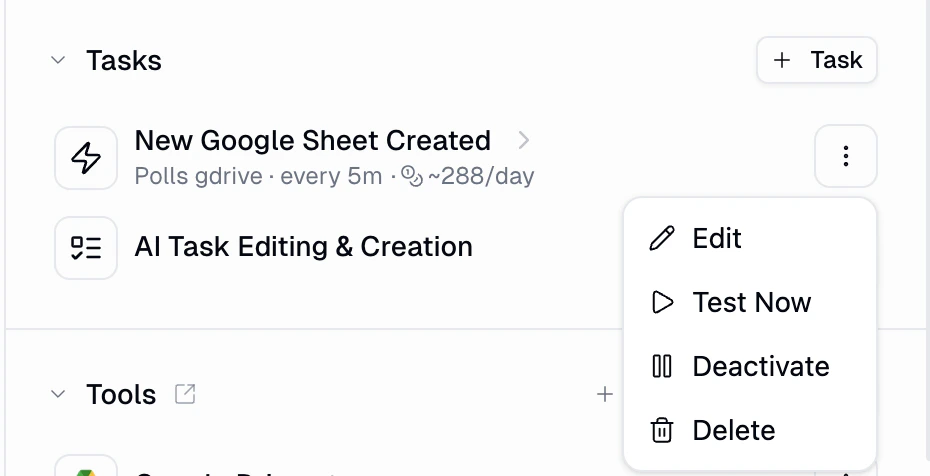
All active triggers (AI-created, pre-built, and scheduled) appear in the **Triggers** section of your agent's configuration page. Click any trigger to see its details, or use the three-dot menu to:
* **Edit** the trigger name, prompt, or poll frequency
* **Test Now** to run the trigger's check immediately
* **Deactivate** the trigger (pauses polling without deleting)
* **Delete** the trigger entirely
 ### From the chat
You can also ask your agent to manage triggers conversationally:
| What you say | What happens |
| ------------------------------------------------------ | --------------------------------------------------------------- |
| "Show me my active triggers" | Agent lists all triggers with their status |
| "Change the email trigger to check every hour instead" | Agent updates the poll frequency |
| "Pause the Salesforce pipeline monitor" | Agent deactivates the trigger |
| "Delete the Slack support trigger" | Agent removes the trigger |
| "Test the Gmail trigger now" | Agent runs the trigger's check immediately and shows the result |
### Testing a trigger
Use **Test Now** (from the UI or by asking the agent) to run the trigger's check immediately without waiting for the next poll. This is useful for:
* Verifying a newly created trigger works correctly
* Debugging triggers that aren't firing as expected
* Checking what data the trigger would return right now
The test returns one of three statuses:
* **Fired** + data: New items were detected (shows the items)
* **Empty**: No new data since the last poll
* **Error**: Something went wrong (shows the error message)
***
## Prompt Templates
When an AI trigger fires, the trigger data is injected into a prompt template you configure. The agent receives this prompt and acts on it.
### From the chat
You can also ask your agent to manage triggers conversationally:
| What you say | What happens |
| ------------------------------------------------------ | --------------------------------------------------------------- |
| "Show me my active triggers" | Agent lists all triggers with their status |
| "Change the email trigger to check every hour instead" | Agent updates the poll frequency |
| "Pause the Salesforce pipeline monitor" | Agent deactivates the trigger |
| "Delete the Slack support trigger" | Agent removes the trigger |
| "Test the Gmail trigger now" | Agent runs the trigger's check immediately and shows the result |
### Testing a trigger
Use **Test Now** (from the UI or by asking the agent) to run the trigger's check immediately without waiting for the next poll. This is useful for:
* Verifying a newly created trigger works correctly
* Debugging triggers that aren't firing as expected
* Checking what data the trigger would return right now
The test returns one of three statuses:
* **Fired** + data: New items were detected (shows the items)
* **Empty**: No new data since the last poll
* **Error**: Something went wrong (shows the error message)
***
## Prompt Templates
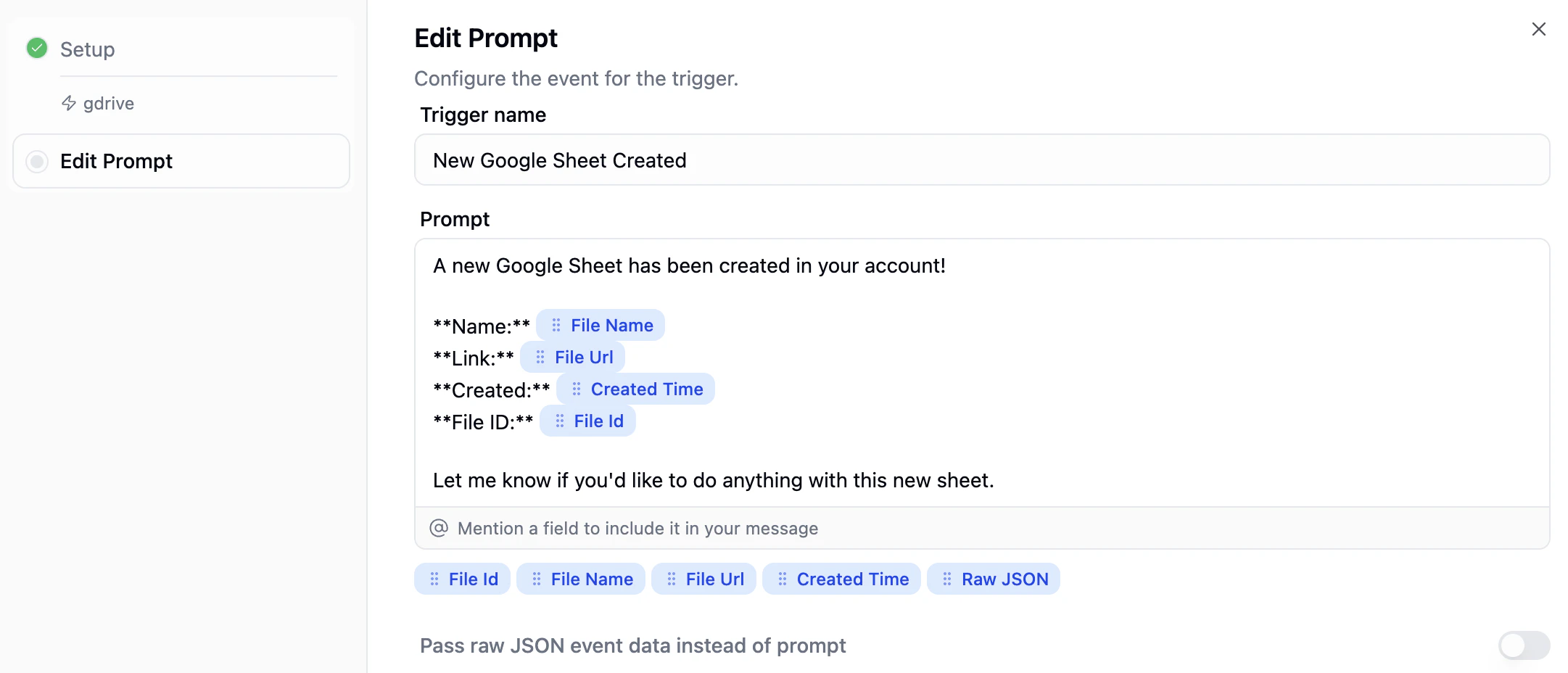
When an AI trigger fires, the trigger data is injected into a prompt template you configure. The agent receives this prompt and acts on it.
 ### Inserting trigger fields
The prompt editor shows all available output fields as **chips** below the text area. Click a chip (or type `@` and select a field) to insert it into your prompt. When the trigger fires, each field chip is replaced with the actual value from the trigger data.
For example, if your trigger outputs `File Name`, `File Url`, `Created Time`, and `File Id`, your prompt might look like:
> A new Google Sheet has been created in your account!
>
> **Name:** `File Name` **Link:** `File Url` **Created:** `Created Time` **File ID:** `File Id`
>
> Let me know if you'd like to do anything with this new sheet.
### Raw data mode
Toggle **Pass raw JSON event data instead of prompt** at the bottom of the editor to send the entire trigger payload as JSON instead of using the prompt template. This is useful when you want the agent to dynamically decide what's important rather than mapping specific fields.
Use raw data mode when your trigger returns many fields and you want the agent to interpret them flexibly, or when you're prototyping and don't want to set up a structured prompt yet.
***
## Supported Server Types
AI triggers work with three types of MCP servers:
Gumloop's built-in MCP servers (Gmail, Slack, GitHub, Salesforce, Airtable, HubSpot, Linear, Jira, Google Calendar, and 70+ more). Connect from your agent's Tools page.
Any third-party MCP-compatible server (e.g., Notion's MCP at `mcp.notion.com`, Stripe's MCP at `mcp.stripe.com`). Connect via the Custom MCP option in your agent's Tools.
Custom MCP servers deployed through Gumloop's [Hosted MCPs](/enterprise-features/hosted_mcps) infrastructure. These are organization-managed servers configured in **Settings → Organization → Hosted MCPs**.
A single trigger can combine servers of **different types**. For example, you can build a trigger that polls a built-in Gmail server *and* an external Stripe MCP server in the same check.
***
## AI Triggers vs. Pre-Built Triggers vs. Scheduled Triggers
| Feature | AI Triggers (Create With AI) | Pre-Built Triggers | Scheduled Triggers |
| ------------------ | ----------------------------------------------- | ------------------------------ | ----------------------------- |
| **Setup** | Describe in natural language | Configure via UI form | Configure via UI form |
| **Multi-service** | Yes -- combine any MCP servers | Single service only | N/A |
| **Custom logic** | Yes -- filtering, thresholds, cross-referencing | Limited to built-in parameters | N/A (prompt-based) |
| **Latency** | Polling (minimum 5 min) | Real-time or polling (\~60s) | Cron or one-time |
| **Any MCP server** | Yes | Only supported integrations | N/A |
| **Credit cost** | Per-poll sandbox execution | Per-trigger execution | Per-run execution |
| **Best for** | Complex, multi-service, conditional monitoring | Simple single-service events | Recurring or delayed triggers |
***
## Troubleshooting
**Common causes:**
* The baseline captured the current state, and nothing has changed since. Try creating new data in the monitored service, then use **Test Now** to verify.
* The poll frequency is longer than expected (check if it was set to hourly/daily instead of every 5 minutes).
* The trigger condition is too specific and no data matches.
The trigger isn't correctly tracking state between polls. This usually means the deduplication logic isn't working -- the trigger is treating existing data as new every time. If this happens repeatedly, the circuit breaker will auto-deactivate the trigger. Delete it and ask your agent to rebuild with better deduplication.
Make sure the required integrations are connected and authenticated:
1. Go to your [Connectors page](https://www.gumloop.com/personal/connectors) and verify the service is connected
2. Go to your agent's **Tools** section and verify the integration is added
3. Try disconnecting and reconnecting the credential
Two common reasons:
* **Circuit breaker:** The trigger fired more than 20 times in 10 minutes. Fix the trigger logic and re-enable.
* **Credit limit exceeded:** Your account ran out of credits. Add more credits and re-enable.
The error message from the sandbox will tell you what went wrong. Common issues:
* **Auth errors:** Credentials expired or permissions changed. Reconnect the integration.
* **API errors:** The external service returned an error. Check if the service is operational.
* **Code errors:** The trigger logic has a bug. Ask your agent to fix it and recreate the trigger.
No. Trigger code is managed by the AI agent. To change the trigger's behavior, describe what you want differently and the agent will rebuild the trigger. You can update the name, prompt, and poll frequency without rebuilding.
***
## FAQ
No. You describe what you want in plain language, and the agent writes all the code. You never see or edit code directly.
Yes. Any agent with the **Triggers** toggle enabled under Tools can create AI triggers. The general personal assistant has this enabled by default.
The trigger data is injected into the prompt template you configured, and the agent receives it as a new message. The agent then processes the prompt and takes whatever action you specified (reply to email, post to Slack, update a spreadsheet, etc.).
Yes. This is one of the main advantages of AI triggers. A single trigger can poll Gmail, check Salesforce, and verify data in Airtable -- all in one check cycle.
The agent builds stateful deduplication logic tailored to your use case. It tracks IDs, timestamps, hashes, or whatever is appropriate to distinguish new data from previously seen data. The sliding window of 5,000 state entries ensures long-term accuracy without unbounded storage growth.
No. Triggers are strictly read-only. They can poll and read data, but cannot create, update, or delete anything. All write actions happen through the agent after the trigger fires.
10 active triggers per agent per user. This limit includes all trigger types (AI-created, pre-built integration triggers, and scheduled triggers).
Yes. Just describe what you want to monitor, and the agent will build and activate the trigger. You don't need to go through the **+ Trigger** menu.
Either go to the **Triggers** section and click **Deactivate** or **Delete**, or tell your agent "pause the \[trigger name]" or "delete the \[trigger name]" in chat.
***
## Related Documentation
Pre-built event-based triggers and scheduled triggers
Teach your agent reusable processes
Connect external MCP servers to your agent
### Inserting trigger fields
The prompt editor shows all available output fields as **chips** below the text area. Click a chip (or type `@` and select a field) to insert it into your prompt. When the trigger fires, each field chip is replaced with the actual value from the trigger data.
For example, if your trigger outputs `File Name`, `File Url`, `Created Time`, and `File Id`, your prompt might look like:
> A new Google Sheet has been created in your account!
>
> **Name:** `File Name` **Link:** `File Url` **Created:** `Created Time` **File ID:** `File Id`
>
> Let me know if you'd like to do anything with this new sheet.
### Raw data mode
Toggle **Pass raw JSON event data instead of prompt** at the bottom of the editor to send the entire trigger payload as JSON instead of using the prompt template. This is useful when you want the agent to dynamically decide what's important rather than mapping specific fields.
Use raw data mode when your trigger returns many fields and you want the agent to interpret them flexibly, or when you're prototyping and don't want to set up a structured prompt yet.
***
## Supported Server Types
AI triggers work with three types of MCP servers:
Gumloop's built-in MCP servers (Gmail, Slack, GitHub, Salesforce, Airtable, HubSpot, Linear, Jira, Google Calendar, and 70+ more). Connect from your agent's Tools page.
Any third-party MCP-compatible server (e.g., Notion's MCP at `mcp.notion.com`, Stripe's MCP at `mcp.stripe.com`). Connect via the Custom MCP option in your agent's Tools.
Custom MCP servers deployed through Gumloop's [Hosted MCPs](/enterprise-features/hosted_mcps) infrastructure. These are organization-managed servers configured in **Settings → Organization → Hosted MCPs**.
A single trigger can combine servers of **different types**. For example, you can build a trigger that polls a built-in Gmail server *and* an external Stripe MCP server in the same check.
***
## AI Triggers vs. Pre-Built Triggers vs. Scheduled Triggers
| Feature | AI Triggers (Create With AI) | Pre-Built Triggers | Scheduled Triggers |
| ------------------ | ----------------------------------------------- | ------------------------------ | ----------------------------- |
| **Setup** | Describe in natural language | Configure via UI form | Configure via UI form |
| **Multi-service** | Yes -- combine any MCP servers | Single service only | N/A |
| **Custom logic** | Yes -- filtering, thresholds, cross-referencing | Limited to built-in parameters | N/A (prompt-based) |
| **Latency** | Polling (minimum 5 min) | Real-time or polling (\~60s) | Cron or one-time |
| **Any MCP server** | Yes | Only supported integrations | N/A |
| **Credit cost** | Per-poll sandbox execution | Per-trigger execution | Per-run execution |
| **Best for** | Complex, multi-service, conditional monitoring | Simple single-service events | Recurring or delayed triggers |
***
## Troubleshooting
**Common causes:**
* The baseline captured the current state, and nothing has changed since. Try creating new data in the monitored service, then use **Test Now** to verify.
* The poll frequency is longer than expected (check if it was set to hourly/daily instead of every 5 minutes).
* The trigger condition is too specific and no data matches.
The trigger isn't correctly tracking state between polls. This usually means the deduplication logic isn't working -- the trigger is treating existing data as new every time. If this happens repeatedly, the circuit breaker will auto-deactivate the trigger. Delete it and ask your agent to rebuild with better deduplication.
Make sure the required integrations are connected and authenticated:
1. Go to your [Connectors page](https://www.gumloop.com/personal/connectors) and verify the service is connected
2. Go to your agent's **Tools** section and verify the integration is added
3. Try disconnecting and reconnecting the credential
Two common reasons:
* **Circuit breaker:** The trigger fired more than 20 times in 10 minutes. Fix the trigger logic and re-enable.
* **Credit limit exceeded:** Your account ran out of credits. Add more credits and re-enable.
The error message from the sandbox will tell you what went wrong. Common issues:
* **Auth errors:** Credentials expired or permissions changed. Reconnect the integration.
* **API errors:** The external service returned an error. Check if the service is operational.
* **Code errors:** The trigger logic has a bug. Ask your agent to fix it and recreate the trigger.
No. Trigger code is managed by the AI agent. To change the trigger's behavior, describe what you want differently and the agent will rebuild the trigger. You can update the name, prompt, and poll frequency without rebuilding.
***
## FAQ
No. You describe what you want in plain language, and the agent writes all the code. You never see or edit code directly.
Yes. Any agent with the **Triggers** toggle enabled under Tools can create AI triggers. The general personal assistant has this enabled by default.
The trigger data is injected into the prompt template you configured, and the agent receives it as a new message. The agent then processes the prompt and takes whatever action you specified (reply to email, post to Slack, update a spreadsheet, etc.).
Yes. This is one of the main advantages of AI triggers. A single trigger can poll Gmail, check Salesforce, and verify data in Airtable -- all in one check cycle.
The agent builds stateful deduplication logic tailored to your use case. It tracks IDs, timestamps, hashes, or whatever is appropriate to distinguish new data from previously seen data. The sliding window of 5,000 state entries ensures long-term accuracy without unbounded storage growth.
No. Triggers are strictly read-only. They can poll and read data, but cannot create, update, or delete anything. All write actions happen through the agent after the trigger fires.
10 active triggers per agent per user. This limit includes all trigger types (AI-created, pre-built integration triggers, and scheduled triggers).
Yes. Just describe what you want to monitor, and the agent will build and activate the trigger. You don't need to go through the **+ Trigger** menu.
Either go to the **Triggers** section and click **Deactivate** or **Delete**, or tell your agent "pause the \[trigger name]" or "delete the \[trigger name]" in chat.
***
## Related Documentation
Pre-built event-based triggers and scheduled triggers
Teach your agent reusable processes
Connect external MCP servers to your agent