> ## Documentation Index
> Fetch the complete documentation index at: https://docs.gumloop.com/llms.txt
> Use this file to discover all available pages before exploring further.
# Using Agents in Slack
Connect your Gumloop agents to Slack channels so your entire team can interact with AI-powered assistants in the tools they use every day.
## Why Use Agents in Slack?
Bringing agents to Slack transforms how your team learns and adopts AI automation:
**Visibility by default**: Every interaction in a channel becomes a learning opportunity for the team. No more siloed knowledge—everyone sees how to use agents effectively.
**Where work happens**: Teams already use Slack for communication. Agents integrate seamlessly into existing workflows without requiring new tools.
**Team-wide access**: Instead of one person running automations, entire teams can leverage the same agent with consistent results.
**Zero learning curve**: If your team knows how to @mention someone in Slack, they know how to use an agent. No training required.
**The Learning Effect**: When someone asks an agent a question in a channel, everyone sees the interaction. This passive learning accelerates team-wide adoption faster than any training session could.
## Adding an Agent to Slack
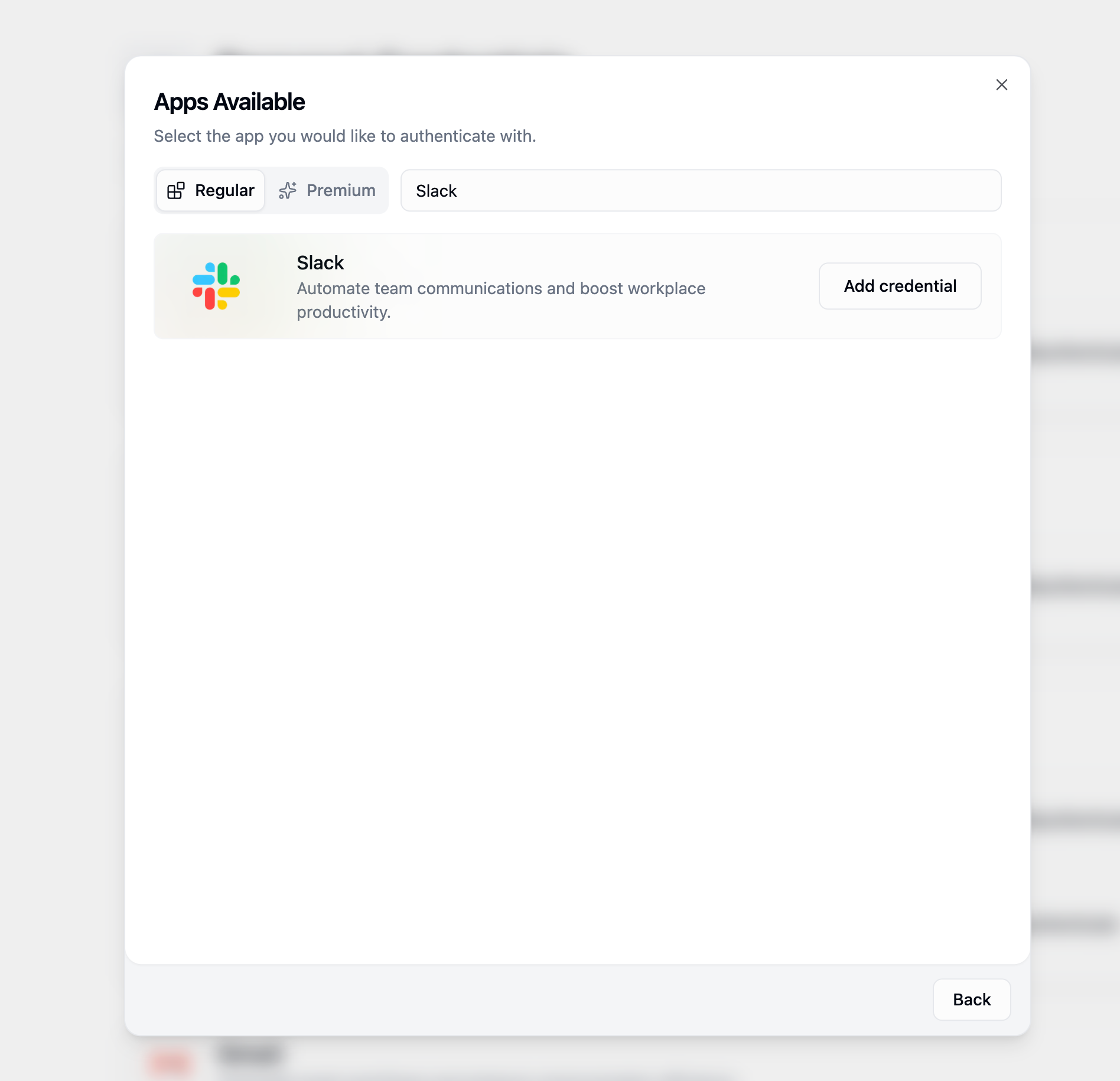
If you haven't connected Gumloop to your Slack workspace yet, visit the [personal credentials page](https://www.gumloop.com/settings/profile/credentials?provider=slack), click **Add Credential** for Slack, and follow the OAuth flow to authorize Gumloop.
 Open your agent in Gumloop and click the **"Add to Slack"** button in the top bar.
 This opens a dialog with three connection methods:
Creates a brand new Slack channel and connects your agent to it automatically.
Enter a channel name, optionally toggle **Make Channel Private**, and click **Create & Connect**.
This opens a dialog with three connection methods:
Creates a brand new Slack channel and connects your agent to it automatically.
Enter a channel name, optionally toggle **Make Channel Private**, and click **Create & Connect**.
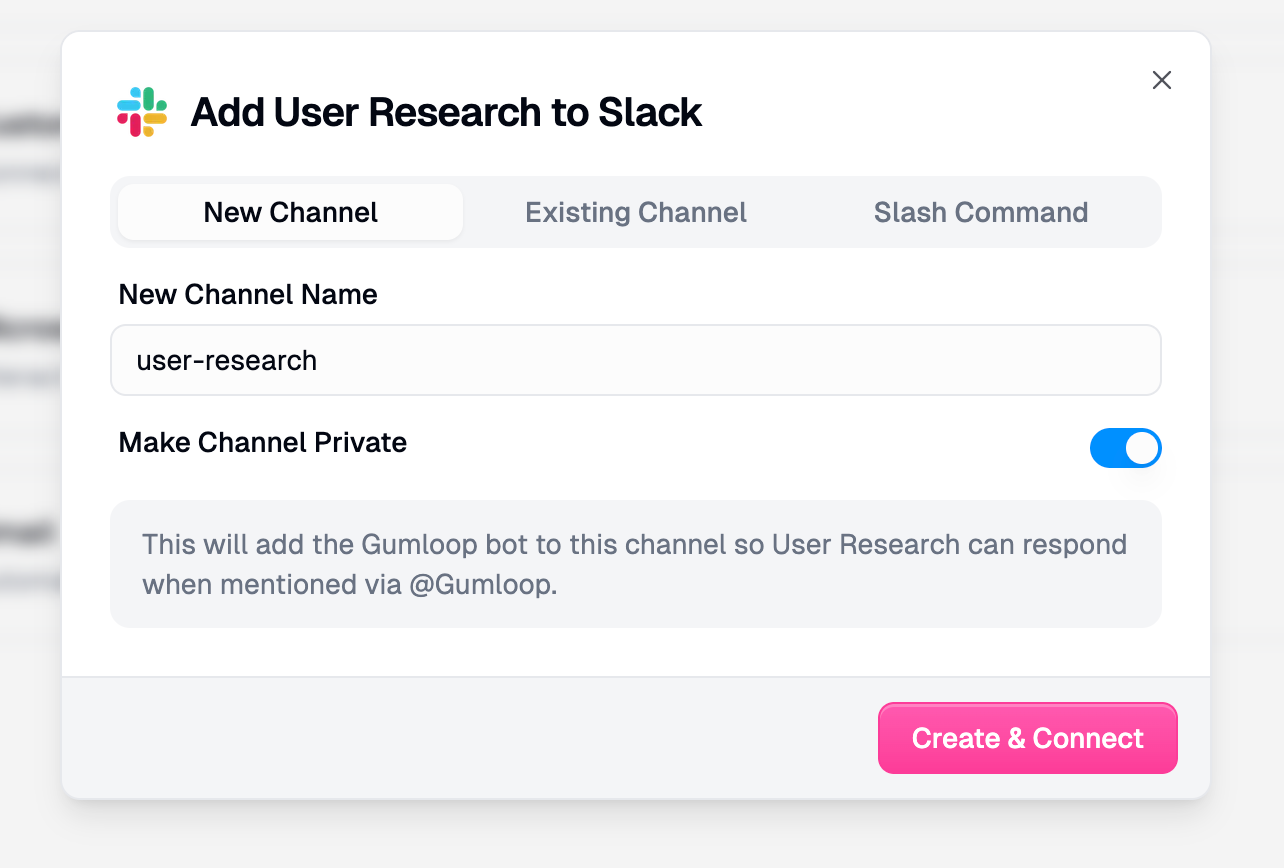 The Gumloop bot is added to the channel and your agent is ready to go.
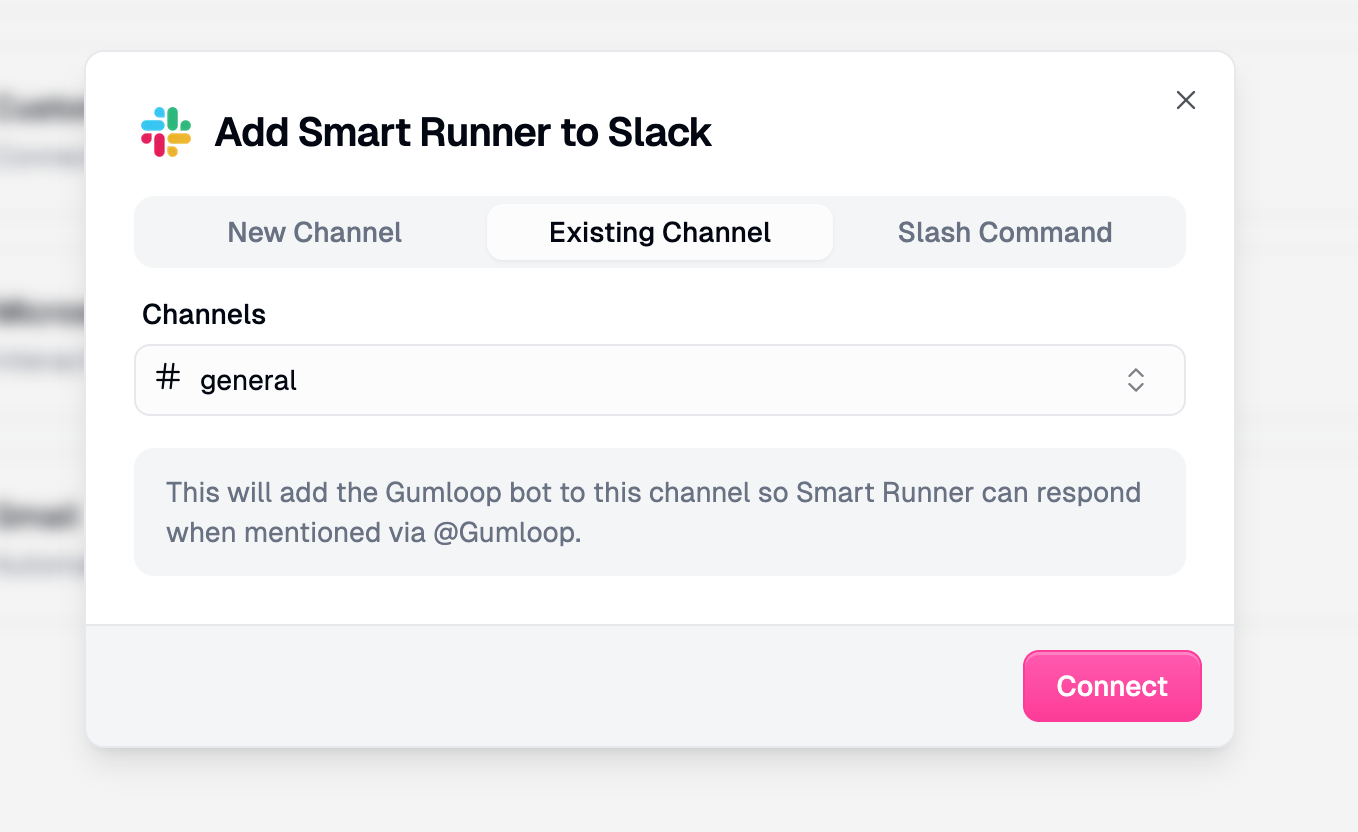
Connects your agent to a channel that already exists in your Slack workspace.
Pick a channel from the dropdown and click **Connect**.
The Gumloop bot is added to the channel and your agent is ready to go.
Connects your agent to a channel that already exists in your Slack workspace.
Pick a channel from the dropdown and click **Connect**.
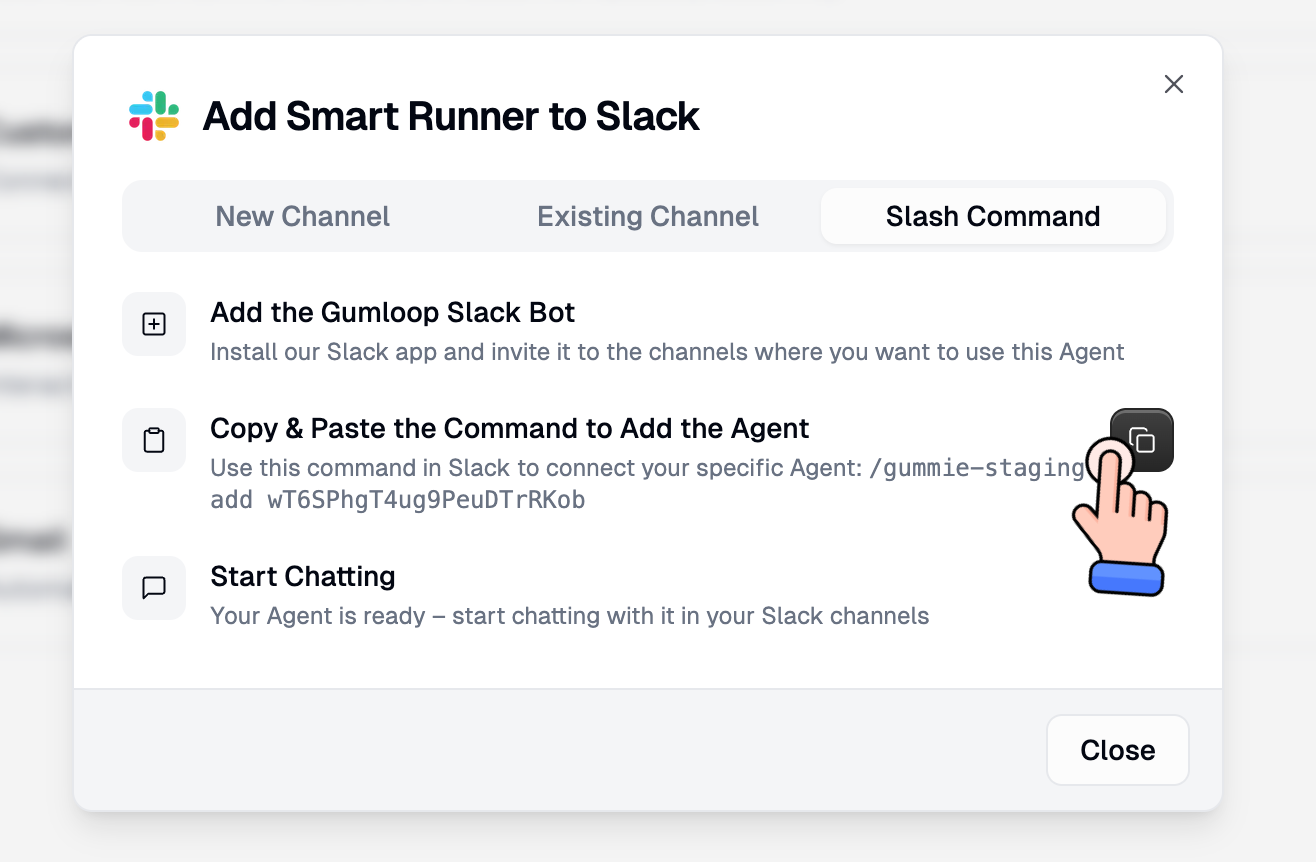
 If you prefer to connect manually, this tab gives you a step-by-step guide: install the Gumloop Slack bot, copy the `/gummie add` command for your specific agent, and paste it in any Slack channel.
 **One agent per channel** with the standard @Gumloop bot. To switch agents, remove the current one first with `/gummie remove`. Need multiple agents in one channel? Use a [Custom Slack App](/core-concepts/custom_slack_app) for each additional agent.
Agents can be added to **public or private channels**, but **not to direct messages (DMs)**.
## Using Your Agent in Slack
To interact with your agent, **@mention it** in any message:
```text theme={"dark"}
@Gumloop [your question or task]
```
You can `@Gumloop` in a **top-level message** to start a new thread, or inside an **existing thread** to continue the conversation. The agent responds wherever you tag it.
**One agent per channel** with the standard @Gumloop bot. To switch agents, remove the current one first with `/gummie remove`. Need multiple agents in one channel? Use a [Custom Slack App](/core-concepts/custom_slack_app) for each additional agent.
Agents can be added to **public or private channels**, but **not to direct messages (DMs)**.
## Using Your Agent in Slack
To interact with your agent, **@mention it** in any message:
```text theme={"dark"}
@Gumloop [your question or task]
```
You can `@Gumloop` in a **top-level message** to start a new thread, or inside an **existing thread** to continue the conversation. The agent responds wherever you tag it.
 **Need custom branding?** Connect your own Slack app so the agent appears with a custom name and avatar instead of "@Gumloop". See [Custom Slack App Integration](/core-concepts/custom_slack_app).
## Customizing Agent Behavior in Slack
These preferences are in your agent's settings under **Slack Preferences**. Changes take effect immediately for new conversations.
**Need custom branding?** Connect your own Slack app so the agent appears with a custom name and avatar instead of "@Gumloop". See [Custom Slack App Integration](/core-concepts/custom_slack_app).
## Customizing Agent Behavior in Slack
These preferences are in your agent's settings under **Slack Preferences**. Changes take effect immediately for new conversations.
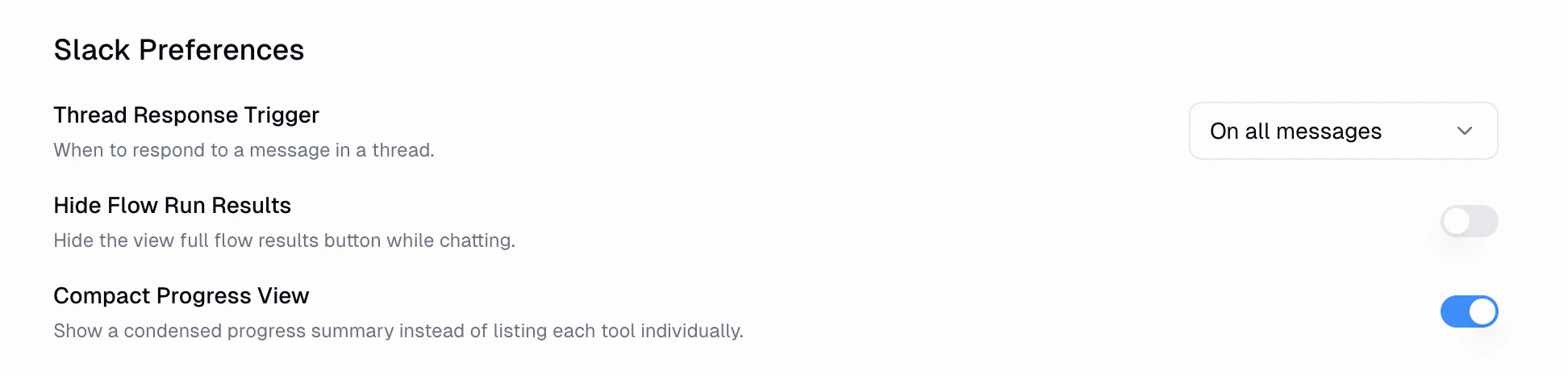 ### Thread Response Trigger
Controls whether the agent responds to **every message** in a thread or **only when @mentioned**.
Agent responds to every thread reply, no @mention needed. Best for support channels and active collaboration where the agent should participate in every message.
**Example**: You start with `@Gumloop analyze this customer`. Any follow-up like "What about their purchase history?" automatically triggers the agent.
Agent only responds when explicitly @mentioned. Your team can discuss in the thread without triggering the agent.
**Example**: After `@Gumloop analyze this customer`, your team can discuss the results freely. The agent only responds again when someone `@Gumloop`s a follow-up.
### Hide Workflow Run Results
Hides the "View full workflow results" button and run metadata from threads. **Disabled by default** (details shown). Enable it for cleaner, more conversational threads when your team doesn't need workflow visibility.
### Compact Progress View
Shows a condensed progress summary instead of listing each tool call individually. **Enabled by default.** Keeps threads tidy when the agent uses many tools in a single response.
### Attribution Stamp
When your agent sends a message in Slack, an **attribution stamp** is automatically included beneath the message. This stamp shows the name of the agent that sent the message along with a **View conversation** link that takes you directly to the full conversation in Gumloop.
This makes it easy for anyone in the channel to see which agent is responding and jump into the full Gumloop conversation for more details, tool call history, and credit usage.
Attribution stamps are enabled by default. You can disable them per agent in **Agent Settings > Slack Preferences**.
### Image Generation
When your agent uses the Image Generation tool, both the **image file** and a **link** are sent directly in the thread. Enable it by adding the **Image Generation** tool in your agent's **Tools** section.
### Thread Response Trigger
Controls whether the agent responds to **every message** in a thread or **only when @mentioned**.
Agent responds to every thread reply, no @mention needed. Best for support channels and active collaboration where the agent should participate in every message.
**Example**: You start with `@Gumloop analyze this customer`. Any follow-up like "What about their purchase history?" automatically triggers the agent.
Agent only responds when explicitly @mentioned. Your team can discuss in the thread without triggering the agent.
**Example**: After `@Gumloop analyze this customer`, your team can discuss the results freely. The agent only responds again when someone `@Gumloop`s a follow-up.
### Hide Workflow Run Results
Hides the "View full workflow results" button and run metadata from threads. **Disabled by default** (details shown). Enable it for cleaner, more conversational threads when your team doesn't need workflow visibility.
### Compact Progress View
Shows a condensed progress summary instead of listing each tool call individually. **Enabled by default.** Keeps threads tidy when the agent uses many tools in a single response.
### Attribution Stamp
When your agent sends a message in Slack, an **attribution stamp** is automatically included beneath the message. This stamp shows the name of the agent that sent the message along with a **View conversation** link that takes you directly to the full conversation in Gumloop.
This makes it easy for anyone in the channel to see which agent is responding and jump into the full Gumloop conversation for more details, tool call history, and credit usage.
Attribution stamps are enabled by default. You can disable them per agent in **Agent Settings > Slack Preferences**.
### Image Generation
When your agent uses the Image Generation tool, both the **image file** and a **link** are sent directly in the thread. Enable it by adding the **Image Generation** tool in your agent's **Tools** section.
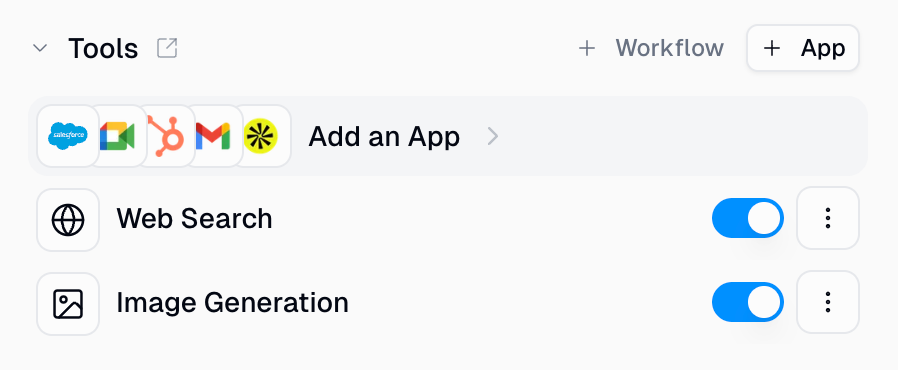 Image generation costs **30 credits per image** regardless of model (DALL-E 3, Gemini 2.5 Flash, Gemini 3 Pro, or GPT-Image-1). This is in addition to normal model costs.
## Credentials & Authentication
### How Authentication Works
When you interact with an agent in Slack, the agent uses **your personal default credentials** (unless team apps are configured), not the agent creator's credentials. This ensures proper access control and data privacy.
If your Slack email matches your Gumloop account:
1. The agent automatically uses your personal default credentials
2. You have immediate access to all tools and workflows you're authorized to use
3. No additional setup required
**Example**: If the agent uses Gmail and Google Calendar, it will access your personal Gmail and Calendar using your authenticated credentials.
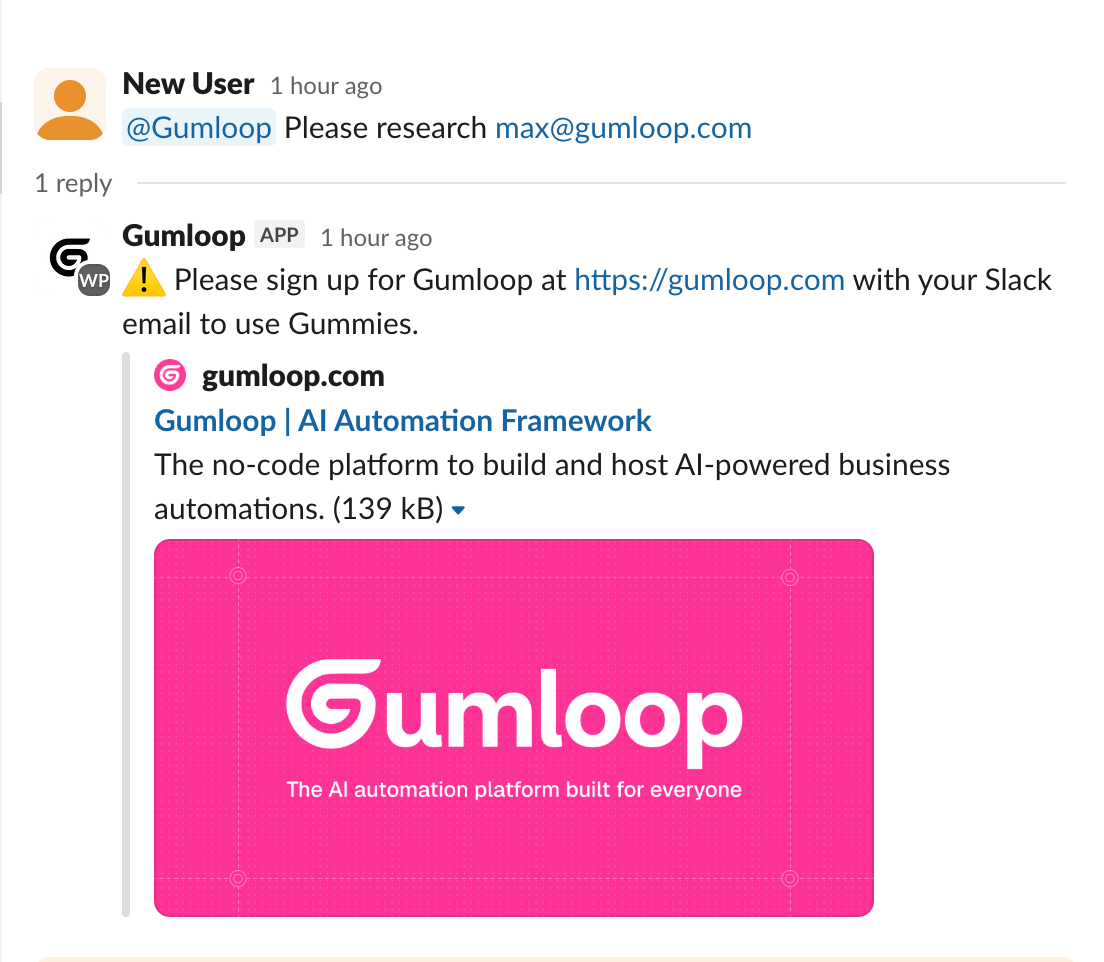
If you're not yet a Gumloop user, you'll see a signup prompt the first time you try to use an agent:
**What happens**:
1. Agent responds with a message asking you to sign up
2. Click the link to create your Gumloop account using your Slack email
3. After signing up, authenticate with the services the agent needs
4. Return to Slack and @Gumloop the agent again
You must use the same email address for Slack and Gumloop for the integration to work properly.
If the agent needs a credential you haven't set up yet:
1. The agent will notify you about the missing authentication
2. Visit your [Gumloop credentials page](https://www.gumloop.com/settings/profile/credentials)
3. Authenticate with the required service
4. Return to Slack and retry your request
**Example**: If an agent uses Google Calendar but you haven't authenticated, you'll get a message like:
```
⚠️ I need access to Google Calendar to complete this task.
Please authenticate at: https://www.gumloop.com/settings/profile/credentials
```
**Recommendation**: Always create agents in your personal space unless you need shared team apps or team collaboration features.
**Personal Agents** (created in personal space):
* Anyone in the Slack channel can use the agent
* Each user's request runs on their own personal credentials
* Non-Gumloop users will be prompted to sign up
* Best for most use cases
**Team Agents** (created in a team):
* **Access control**: Only members of that specific Gumloop team can use the agent
* **App behavior**: If an MCP integration or app is set to use "team default," the team apps are used instead of personal apps
* Non-team members will receive an access denied message
Learn more about the differences between personal and team spaces in the [Organizations and Teams documentation](/core-concepts/teams#personal-vs-team).
### Key Differences Summary
| Feature | Personal Agent | Team Agent |
| --------------- | ---------------------------------- | ------------------------------------------------ |
| Who can use it? | Anyone in Slack channel | Only team members |
| Apps used | Always personal default | Personal default OR team default (if configured) |
| Best for | General use, maximum accessibility | Team collaboration with shared apps |
### Using Team Apps with Agents
If you want team members to use your agent without requiring them to set up their own apps, you can configure the agent to use team apps. This is particularly useful when you want to share an agent with your team and have everyone use the same connected integrations.
**Pro or Enterprise plan required**: Teams are available on Pro and Enterprise plans only.
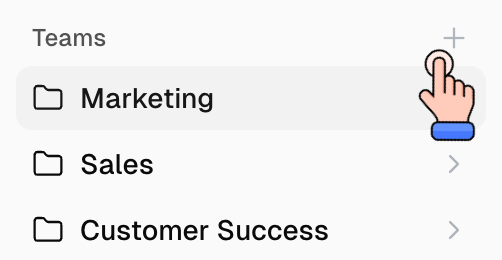
First, ensure you have a team set up. On the [Home page](https://www.gumloop.com/hub), find the **Teams** section in the sidebar and click the **+** icon to create a new team.
Image generation costs **30 credits per image** regardless of model (DALL-E 3, Gemini 2.5 Flash, Gemini 3 Pro, or GPT-Image-1). This is in addition to normal model costs.
## Credentials & Authentication
### How Authentication Works
When you interact with an agent in Slack, the agent uses **your personal default credentials** (unless team apps are configured), not the agent creator's credentials. This ensures proper access control and data privacy.
If your Slack email matches your Gumloop account:
1. The agent automatically uses your personal default credentials
2. You have immediate access to all tools and workflows you're authorized to use
3. No additional setup required
**Example**: If the agent uses Gmail and Google Calendar, it will access your personal Gmail and Calendar using your authenticated credentials.
If you're not yet a Gumloop user, you'll see a signup prompt the first time you try to use an agent:
**What happens**:
1. Agent responds with a message asking you to sign up
2. Click the link to create your Gumloop account using your Slack email
3. After signing up, authenticate with the services the agent needs
4. Return to Slack and @Gumloop the agent again
You must use the same email address for Slack and Gumloop for the integration to work properly.
If the agent needs a credential you haven't set up yet:
1. The agent will notify you about the missing authentication
2. Visit your [Gumloop credentials page](https://www.gumloop.com/settings/profile/credentials)
3. Authenticate with the required service
4. Return to Slack and retry your request
**Example**: If an agent uses Google Calendar but you haven't authenticated, you'll get a message like:
```
⚠️ I need access to Google Calendar to complete this task.
Please authenticate at: https://www.gumloop.com/settings/profile/credentials
```
**Recommendation**: Always create agents in your personal space unless you need shared team apps or team collaboration features.
**Personal Agents** (created in personal space):
* Anyone in the Slack channel can use the agent
* Each user's request runs on their own personal credentials
* Non-Gumloop users will be prompted to sign up
* Best for most use cases
**Team Agents** (created in a team):
* **Access control**: Only members of that specific Gumloop team can use the agent
* **App behavior**: If an MCP integration or app is set to use "team default," the team apps are used instead of personal apps
* Non-team members will receive an access denied message
Learn more about the differences between personal and team spaces in the [Organizations and Teams documentation](/core-concepts/teams#personal-vs-team).
### Key Differences Summary
| Feature | Personal Agent | Team Agent |
| --------------- | ---------------------------------- | ------------------------------------------------ |
| Who can use it? | Anyone in Slack channel | Only team members |
| Apps used | Always personal default | Personal default OR team default (if configured) |
| Best for | General use, maximum accessibility | Team collaboration with shared apps |
### Using Team Apps with Agents
If you want team members to use your agent without requiring them to set up their own apps, you can configure the agent to use team apps. This is particularly useful when you want to share an agent with your team and have everyone use the same connected integrations.
**Pro or Enterprise plan required**: Teams are available on Pro and Enterprise plans only.
First, ensure you have a team set up. On the [Home page](https://www.gumloop.com/hub), find the **Teams** section in the sidebar and click the **+** icon to create a new team.
 Alternatively, you can set a **default team** that all organization members automatically join. Go to [Settings → Teams](https://www.gumloop.com/settings/organization/teams), click the three-dot menu next to a team, and select **Make Default**.
Learn more about creating teams in the [Organizations and Teams documentation](/core-concepts/teams#creating-a-team).
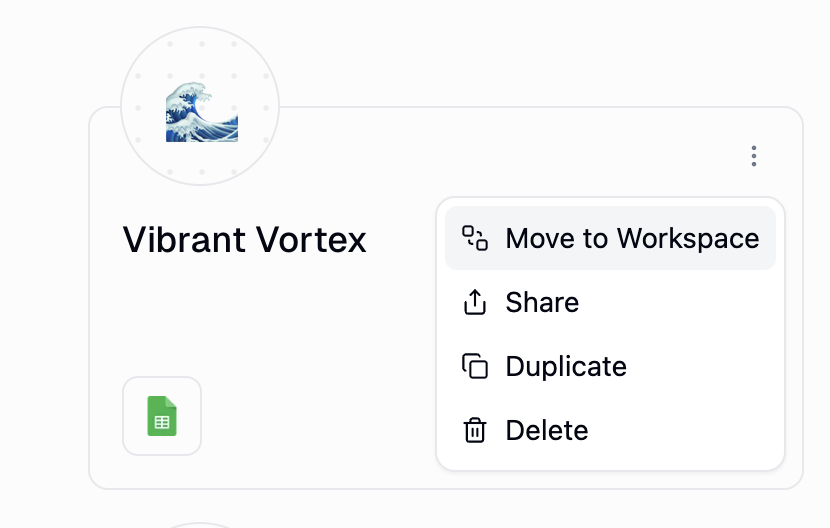
From the hub page, find your agent and click the three-dot menu (⋮). Select **"Move to Team"** and choose the destination team.
Team apps are shared integrations and API keys that all team members can use. To connect apps for your team, **right-click** on your team in the sidebar and select **Apps**.
Alternatively, you can set a **default team** that all organization members automatically join. Go to [Settings → Teams](https://www.gumloop.com/settings/organization/teams), click the three-dot menu next to a team, and select **Make Default**.
Learn more about creating teams in the [Organizations and Teams documentation](/core-concepts/teams#creating-a-team).
From the hub page, find your agent and click the three-dot menu (⋮). Select **"Move to Team"** and choose the destination team.
Team apps are shared integrations and API keys that all team members can use. To connect apps for your team, **right-click** on your team in the sidebar and select **Apps**.
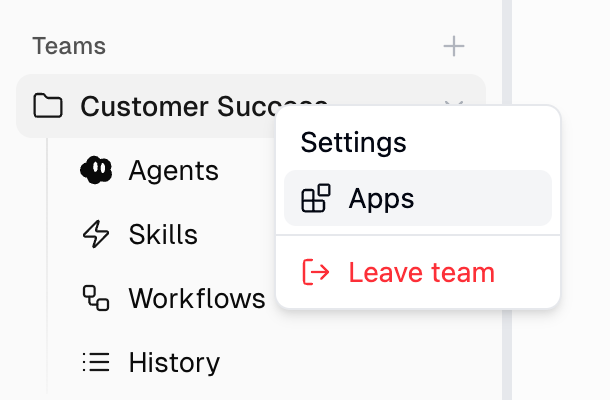 Click **Connect New App** to add the integrations your agent needs (e.g., Gmail, Google Drive, Salesforce).
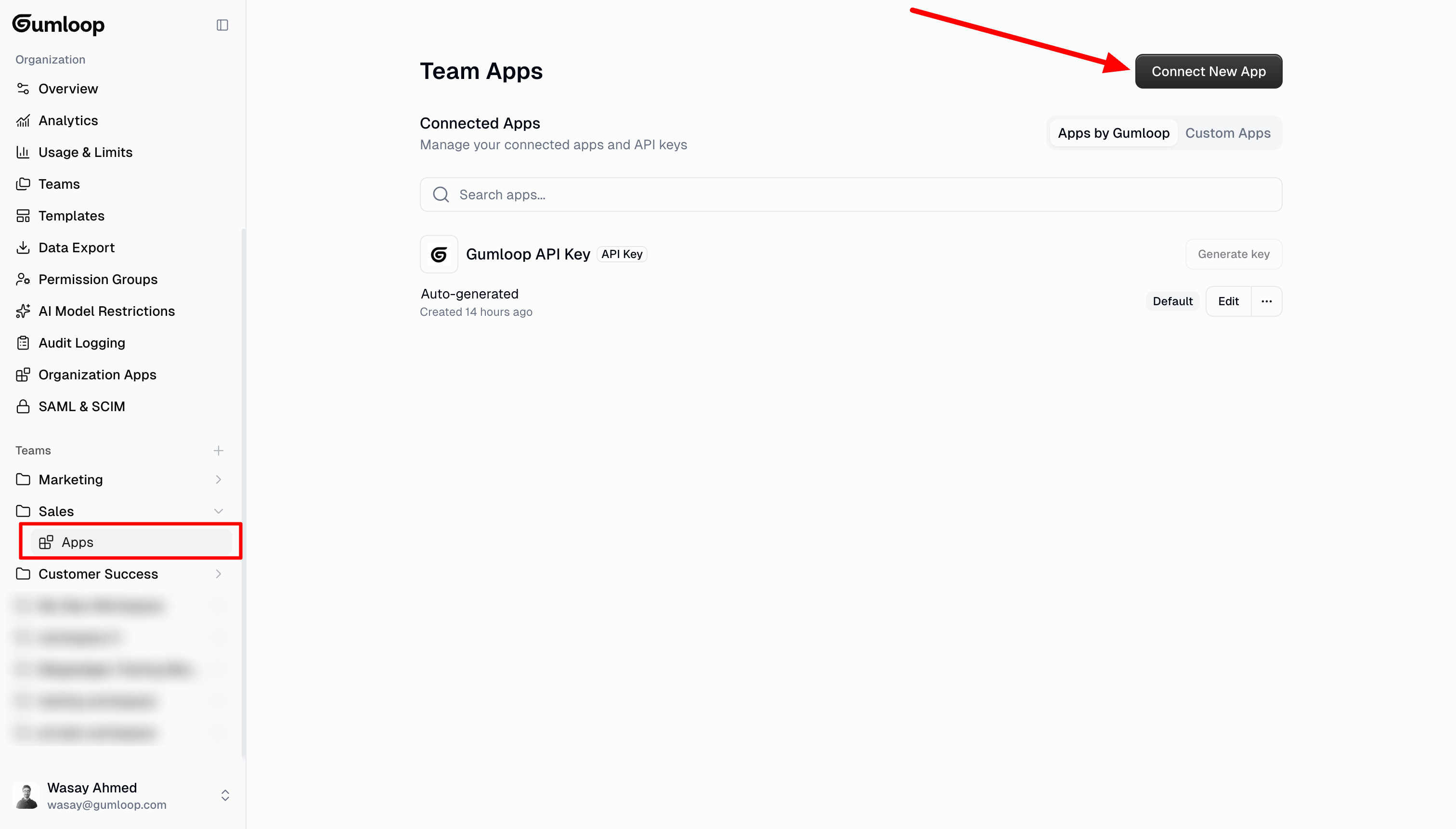 Members of your team will be able to use the apps you connect here through workflows and agents. Learn more about connecting team apps in the [Organizations and Teams documentation](/core-concepts/teams#connecting-team-apps).
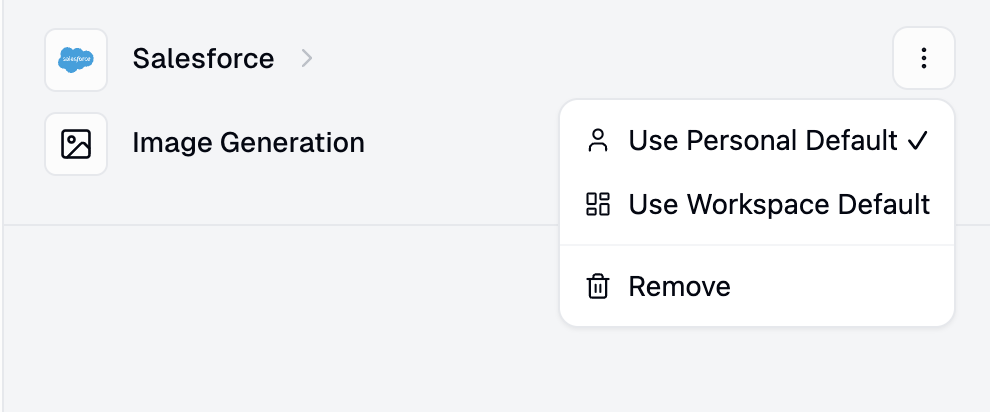
In your agent's settings, switch each integration from "Use Personal Default" to **"Use Team Default"**. Click the three-dot menu next to each integration and select the team app option.
**Important**: When an agent is in a team, users invoking the agent must also be members of that team. Otherwise, they will not be able to use the team apps or invoke the agent. To avoid manually adding users, set a **default team** which automatically includes all organization members.
### Data Privacy & Security
When you use an agent with personal credentials, only your authenticated credentials are used. Other team members cannot access your personal data through the agent.
Admin security controls and user roles in Gumloop apply to agents just like they do to workflows. You can only access what you're authorized to access.
## Slack Commands
### Channel Commands
| Command | What It Does |
| ------------------------ | ------------------------------------------------------------------ |
| `/gummie add [agent-id]` | Add an agent to the current channel |
| `/gummie remove` | Remove the agent from the current channel |
| `/gummie active` | Show which agent is active in this channel |
| `/gummie help` | Show all available commands |
| `/invite @Gumloop` | Add the Gumloop bot to the channel (required before `/gummie add`) |
### Thread Commands
| Command | What It Does |
| ------- | ---------------------------------------------------------------------------------------------------------------------------- |
| `!stop` | Stop the agent's current response and prevent further replies in this thread. The agent reacts with 👍 to confirm. |
| `!link` | Get an ephemeral link (only visible to you) to view the full conversation in Gumloop, including tool calls and credit usage. |
With the standard @Gumloop bot, only one agent can be active per channel. To switch agents, run `/gummie remove` first. If you need **multiple agents in the same channel**, use a [Custom Slack App](/core-concepts/custom_slack_app) for each additional agent.
## Best Practices & Troubleshooting
Deploy agents strategically to appropriate channels:
**Supported channel types**:
* ✅ Public channels
* ✅ Private channels
* ❌ Direct messages (DMs) - Not supported
**Example deployments**:
* **#support**: Customer service agents with ticket triage capabilities
* **#sales**: Lead research and enrichment agents
* **#marketing**: Campaign planning and content strategy agents
* **#data**: Data analysis and reporting agents
When adding an agent to a channel, post a message explaining what the agent can do, how to use it (`@Gumloop [your question]`), and a quick example. This reduces friction and encourages proper usage.
* ✅ "Support Ticket Assistant", "Sales Lead Researcher"
* ❌ "Agent 1", "My Bot"
Team members can check which agent is active with `/gummie active`.
* **"On all messages"**: Best for support bots and active collaboration
* **"Only on mentions"** (Recommended): Best for most use cases, lets teams discuss without triggering the agent
Watch which questions get asked most, where agents struggle, and which workflows are called most often. Use these insights to refine instructions, add tools, and improve accuracy. View all conversations in the agent's settings page.
Before deploying to a team channel: test with your own credentials, document which services team members need to authenticate with, and share the [credentials page](https://www.gumloop.com/settings/profile/credentials) link.
For maximum automation, combine agents with Slack triggers. The agent handles ad-hoc questions while a workflow trigger automatically processes every new message for logging.
1. ✅ Did you @Gumloop the agent in your message?
2. ✅ Is Gumloop added to the channel? (`/invite @Gumloop`)
3\. ✅ Is an agent added to this channel? (`/gummie active` to verify)
4\. ✅ Is this a public or private channel? (Not DMs)
3. ✅ Have you authenticated with the required services?
Check thread response mode: if set to "Only on mentions," you must @mention the agent in each thread reply. Verify in Gumloop → Agent Settings → Slack → Thread Response Trigger.
Your Slack email must match your Gumloop account email. If they're different, update one to match the other, then try again.
Visit your [credentials page](https://www.gumloop.com/settings/profile/credentials), authenticate with the required service, and retry. For team agents, contact your team admin.
With the standard @Gumloop bot, only one agent can be active per channel. Run `/gummie active` to check, `/gummie remove` to clear, then `/gummie add [correct-agent-id]`. For multiple agents in one channel, use a [Custom Slack App](/core-concepts/custom_slack_app).
* ✅ Agents work in public and private channels, **not DMs**
* ✅ Run `/invite @Gumloop` in the channel first
* ✅ Ensure you have permission to add apps to the channel
* ✅ Verify you copied the complete agent ID
Optimize workflows to use fewer AI nodes, limit tools to only what's necessary, use faster models, or break complex tasks into smaller interactions.
Skip the ID entirely: open your agent and click the **"Add to Slack"** button in the top bar. The **New Channel** and **Existing Channel** tabs handle everything. For the manual method, use the **Commands** tab to copy the full command.
## Example Use Cases
**Agent**: Support Ticket Assistant
**Channel**: #customer-support (public channel)
**Common interactions**:
```
Team member: "@Gumloop Is ticket #12345 eligible for a refund?"
Agent: [Checks ticket, reads policy, evaluates eligibility]
Team member (in thread): "What about ticket #12346?"
Agent (if "On all messages"): [Automatically checks ticket #12346]
Or (if "Only on mentions"): [Waits for @mention]
Team member: "@Gumloop Pull the last 5 interactions with customer@email.com"
Agent: [Searches CRM and email, returns history]
```
**Why it works**: Support team gets instant access to information without leaving Slack. Every interaction teaches the team how to use the agent for similar queries.
**Setup tip**: Use "On all messages" mode for support channels to maintain conversation flow.
**Agent**: Lead Research Assistant
**Channel**: #sales-team (public channel)
**Common interactions**:
```
Team member: "@Gumloop Research this company: [LinkedIn URL]"
Agent: [Enriches lead, checks CRM for activity, drafts outreach]
Team member (in thread): "Thanks! What's the best time to reach out?"
(With "Only on mentions" - no agent response, allows team discussion)
Team member: "@Gumloop What's the status of opportunities over $50k?"
Agent: [Queries Salesforce, summarizes pipeline]
```
**Why it works**: Sales reps get instant research without switching tools. Newer reps learn by watching experienced reps use the agent.
**Setup tip**: Use "Only on mentions" mode to allow sales discussions without agent interruption.
**Agent**: Data Analysis Assistant
**Channel**: #data-team (private channel)
**Common interactions**:
```
Team member: "@Gumloop Compare Q4 revenue vs Q3 by product line"
Agent: [Runs BigQuery workflow, generates comparison]
Team member (in thread): "@Gumloop Now break it down by region"
Agent: [Continues analysis with regional breakdown]
Team member: "@Gumloop Flag any anomalies in yesterday's user signups"
Agent: [Analyzes data, identifies outliers, reports findings]
```
**Why it works**: Analysts get quick answers to data questions. Non-technical team members learn what data is available and how to access it.
**Setup tip**: Works in private channels too! Use "Only on mentions" for controlled analysis requests.
## Important Limitations
Only one @Gumloop agent per channel. For multiple agents in the same channel, use a [Custom Slack App](/core-concepts/custom_slack_app) for each.
Agents work in public and private channels only, not in DMs.
You must @mention the agent to invoke it. Thread behavior depends on your response mode setting.
Personal agents use your personal default apps. Team agents may use team apps if configured.
Your Slack email must match your Gumloop account email for the integration to work.
## Next Steps
Learn how to create and configure agents in Gumloop
Deploy the same agents to Microsoft Teams channels
Explore pre-built agents you can deploy immediately
Members of your team will be able to use the apps you connect here through workflows and agents. Learn more about connecting team apps in the [Organizations and Teams documentation](/core-concepts/teams#connecting-team-apps).
In your agent's settings, switch each integration from "Use Personal Default" to **"Use Team Default"**. Click the three-dot menu next to each integration and select the team app option.
**Important**: When an agent is in a team, users invoking the agent must also be members of that team. Otherwise, they will not be able to use the team apps or invoke the agent. To avoid manually adding users, set a **default team** which automatically includes all organization members.
### Data Privacy & Security
When you use an agent with personal credentials, only your authenticated credentials are used. Other team members cannot access your personal data through the agent.
Admin security controls and user roles in Gumloop apply to agents just like they do to workflows. You can only access what you're authorized to access.
## Slack Commands
### Channel Commands
| Command | What It Does |
| ------------------------ | ------------------------------------------------------------------ |
| `/gummie add [agent-id]` | Add an agent to the current channel |
| `/gummie remove` | Remove the agent from the current channel |
| `/gummie active` | Show which agent is active in this channel |
| `/gummie help` | Show all available commands |
| `/invite @Gumloop` | Add the Gumloop bot to the channel (required before `/gummie add`) |
### Thread Commands
| Command | What It Does |
| ------- | ---------------------------------------------------------------------------------------------------------------------------- |
| `!stop` | Stop the agent's current response and prevent further replies in this thread. The agent reacts with 👍 to confirm. |
| `!link` | Get an ephemeral link (only visible to you) to view the full conversation in Gumloop, including tool calls and credit usage. |
With the standard @Gumloop bot, only one agent can be active per channel. To switch agents, run `/gummie remove` first. If you need **multiple agents in the same channel**, use a [Custom Slack App](/core-concepts/custom_slack_app) for each additional agent.
## Best Practices & Troubleshooting
Deploy agents strategically to appropriate channels:
**Supported channel types**:
* ✅ Public channels
* ✅ Private channels
* ❌ Direct messages (DMs) - Not supported
**Example deployments**:
* **#support**: Customer service agents with ticket triage capabilities
* **#sales**: Lead research and enrichment agents
* **#marketing**: Campaign planning and content strategy agents
* **#data**: Data analysis and reporting agents
When adding an agent to a channel, post a message explaining what the agent can do, how to use it (`@Gumloop [your question]`), and a quick example. This reduces friction and encourages proper usage.
* ✅ "Support Ticket Assistant", "Sales Lead Researcher"
* ❌ "Agent 1", "My Bot"
Team members can check which agent is active with `/gummie active`.
* **"On all messages"**: Best for support bots and active collaboration
* **"Only on mentions"** (Recommended): Best for most use cases, lets teams discuss without triggering the agent
Watch which questions get asked most, where agents struggle, and which workflows are called most often. Use these insights to refine instructions, add tools, and improve accuracy. View all conversations in the agent's settings page.
Before deploying to a team channel: test with your own credentials, document which services team members need to authenticate with, and share the [credentials page](https://www.gumloop.com/settings/profile/credentials) link.
For maximum automation, combine agents with Slack triggers. The agent handles ad-hoc questions while a workflow trigger automatically processes every new message for logging.
1. ✅ Did you @Gumloop the agent in your message?
2. ✅ Is Gumloop added to the channel? (`/invite @Gumloop`)
3\. ✅ Is an agent added to this channel? (`/gummie active` to verify)
4\. ✅ Is this a public or private channel? (Not DMs)
3. ✅ Have you authenticated with the required services?
Check thread response mode: if set to "Only on mentions," you must @mention the agent in each thread reply. Verify in Gumloop → Agent Settings → Slack → Thread Response Trigger.
Your Slack email must match your Gumloop account email. If they're different, update one to match the other, then try again.
Visit your [credentials page](https://www.gumloop.com/settings/profile/credentials), authenticate with the required service, and retry. For team agents, contact your team admin.
With the standard @Gumloop bot, only one agent can be active per channel. Run `/gummie active` to check, `/gummie remove` to clear, then `/gummie add [correct-agent-id]`. For multiple agents in one channel, use a [Custom Slack App](/core-concepts/custom_slack_app).
* ✅ Agents work in public and private channels, **not DMs**
* ✅ Run `/invite @Gumloop` in the channel first
* ✅ Ensure you have permission to add apps to the channel
* ✅ Verify you copied the complete agent ID
Optimize workflows to use fewer AI nodes, limit tools to only what's necessary, use faster models, or break complex tasks into smaller interactions.
Skip the ID entirely: open your agent and click the **"Add to Slack"** button in the top bar. The **New Channel** and **Existing Channel** tabs handle everything. For the manual method, use the **Commands** tab to copy the full command.
## Example Use Cases
**Agent**: Support Ticket Assistant
**Channel**: #customer-support (public channel)
**Common interactions**:
```
Team member: "@Gumloop Is ticket #12345 eligible for a refund?"
Agent: [Checks ticket, reads policy, evaluates eligibility]
Team member (in thread): "What about ticket #12346?"
Agent (if "On all messages"): [Automatically checks ticket #12346]
Or (if "Only on mentions"): [Waits for @mention]
Team member: "@Gumloop Pull the last 5 interactions with customer@email.com"
Agent: [Searches CRM and email, returns history]
```
**Why it works**: Support team gets instant access to information without leaving Slack. Every interaction teaches the team how to use the agent for similar queries.
**Setup tip**: Use "On all messages" mode for support channels to maintain conversation flow.
**Agent**: Lead Research Assistant
**Channel**: #sales-team (public channel)
**Common interactions**:
```
Team member: "@Gumloop Research this company: [LinkedIn URL]"
Agent: [Enriches lead, checks CRM for activity, drafts outreach]
Team member (in thread): "Thanks! What's the best time to reach out?"
(With "Only on mentions" - no agent response, allows team discussion)
Team member: "@Gumloop What's the status of opportunities over $50k?"
Agent: [Queries Salesforce, summarizes pipeline]
```
**Why it works**: Sales reps get instant research without switching tools. Newer reps learn by watching experienced reps use the agent.
**Setup tip**: Use "Only on mentions" mode to allow sales discussions without agent interruption.
**Agent**: Data Analysis Assistant
**Channel**: #data-team (private channel)
**Common interactions**:
```
Team member: "@Gumloop Compare Q4 revenue vs Q3 by product line"
Agent: [Runs BigQuery workflow, generates comparison]
Team member (in thread): "@Gumloop Now break it down by region"
Agent: [Continues analysis with regional breakdown]
Team member: "@Gumloop Flag any anomalies in yesterday's user signups"
Agent: [Analyzes data, identifies outliers, reports findings]
```
**Why it works**: Analysts get quick answers to data questions. Non-technical team members learn what data is available and how to access it.
**Setup tip**: Works in private channels too! Use "Only on mentions" for controlled analysis requests.
## Important Limitations
Only one @Gumloop agent per channel. For multiple agents in the same channel, use a [Custom Slack App](/core-concepts/custom_slack_app) for each.
Agents work in public and private channels only, not in DMs.
You must @mention the agent to invoke it. Thread behavior depends on your response mode setting.
Personal agents use your personal default apps. Team agents may use team apps if configured.
Your Slack email must match your Gumloop account email for the integration to work.
## Next Steps
Learn how to create and configure agents in Gumloop
Deploy the same agents to Microsoft Teams channels
Explore pre-built agents you can deploy immediately