> ## Documentation Index
> Fetch the complete documentation index at: https://docs.gumloop.com/llms.txt
> Use this file to discover all available pages before exploring further.
# Agents
> Create AI-powered assistants that use tools, learn from feedback, and run on autopilot.
export const VideoButton = ({label = "Watch video", videoId, hash, title, meta}) => {
const [open, setOpen] = useState(false);
const overlayRef = useRef(null);
const src = videoId ? `https://player.vimeo.com/video/${videoId}?h=${hash}&autoplay=1&title=0&byline=0&portrait=0` : '';
useEffect(() => {
if (!open) return;
const overlay = document.createElement('div');
overlay.setAttribute('style', 'position:fixed;inset:0;z-index:99999;background:rgba(0,0,0,0.75);display:flex;align-items:center;justify-content:center;padding:24px;');
const esc = s => s.replace(/&/g, '&').replace(//g, '>').replace(/"/g, '"').replace(/'/g, ''');
const displayTitle = title || label;
const escapedTitle = esc(displayTitle);
const escapedMeta = meta ? esc(meta) : '';
const metaHtml = escapedMeta ? '
' + escapedMeta + '
' : '';
overlay.innerHTML = '
' + '
' + '
' + escapedTitle + '
' + metaHtml + '
' + '' + '
' + '' + '
';
const close = () => setOpen(false);
overlay.addEventListener('click', close);
overlay.querySelector('[data-modal]').addEventListener('click', e => e.stopPropagation());
overlay.querySelector('[data-close]').addEventListener('click', close);
document.body.appendChild(overlay);
overlayRef.current = overlay;
return () => {
if (overlay.parentNode) document.body.removeChild(overlay);
overlayRef.current = null;
};
}, [open, src, title, label, meta]);
return ;
};
Agents are AI-powered assistants that can use tools to solve open-ended tasks. Unlike workflows that follow predetermined paths, agents make intelligent decisions about which tools to use and when, adapting their approach based on the task at hand.
***
## What Are Agents?
Think of agents as intelligent assistants that can orchestrate your workflows. You give them a goal, provide them with tools (integrations and workflows), and they figure out how to accomplish the task by deciding which tools to use and when.
**Key Characteristics:**
* **Adaptive**: Different approaches for different situations
* **Tool-driven**: Use integrations and workflows as needed
* **Conversational**: Interactive back-and-forth discussions
* **Context-aware**: Consider your instructions and conversation history
**Agents vs. Workflows**: Agents are like quarterbacks who read the situation and call the right plays (workflows). Workflows are the plays themselves: reliable, repeatable sequences that execute consistently.
***
## Creating Your First Agent
Select integrations and workflows your agent needs.
**Start Simple**: Begin with 2-3 tools and add more as needed. Too many tools can overwhelm the agent and make behavior less predictable.
If you're using workflows as tools, use descriptive names like "Get User Activity and Salesforce Status" instead of "User Workflow" so agents understand when to use them.
Create clear, specific instructions:
```
You're a support operations assistant helping evaluate discount eligibility.
When given a Zendesk ticket number:
1. Retrieve ticket details and display them
2. Ask for confirmation before proceeding
3. Run "Get User Profile" workflow
4. Read discount criteria from Notion page [URL]
5. Evaluate eligibility with clear reasoning
Always respond professionally. If uncertain, ask for clarification.
```
Your agent is brilliant but new to your business. Be explicit about your preferences and expectations.
Use the built-in chat interface to test:
* **Start Simple**: Test basic functionality with straightforward requests
* **Find Edge Cases**: Try unexpected inputs and ambiguous requests
* **Refine Instructions**: When mistakes occur, ask the agent: "What could I add to your instructions to help you handle this correctly next time?"
* **Document Patterns**: Keep notes on successful approaches
For MCP integrations, you can restrict which specific tools the agent can access. This makes your agent more reliable and prevents unintended actions.
**How to limit tools:**
1. Click on any MCP integration you've added (Gmail, Salesforce, Slack, etc.)
2. Toggle off specific tools you don't want the agent to use
**Example configurations:**
* **Gmail**: ✅ Search emails, Read emails → ❌ Send email, Delete email
* **Salesforce**: ✅ Get account, Search records → ❌ Delete record, Update record
* **Slack**: ✅ Read messages, Search channels → ❌ Send message, Create channel
**Why this matters:**
* Prevents destructive actions (deleting, sending)
* Makes agent behavior more predictable
* Reduces risk of unintended operations
* Improves reliability by limiting decision space
Add this to your system prompt: "If a user asks you to perform an action that's disabled (like sending an email), explicitly tell them that capability is not available for this agent."
***
## How Agents Work
Agents operate through a framework of **Tools**, **Instructions**, **Skills** and **Reasoning**.
### Tools (What Agents Can Use)
Agents are equipped with tools to accomplish tasks:
Direct connections to external services:
* **Gmail**: Read, search, and send emails
* **Salesforce**: Query records and update data
* **Notion**: Search documentation and databases
* **Zendesk**: Retrieve and manage support tickets
* **Google Calendar**: Check availability and schedule meetings
* **And many more**
Agents use the personal default credentials of whoever is running them (unless team credentials are configured). You'll be prompted to authenticate if needed.
Your workflows become powerful tools for agents:
* Agents see the workflow name and description
* Understand expected inputs and outputs
* Call workflows when appropriate
* Process results to inform next steps
**Example:** A workflow that queries BigQuery, pulls Salesforce data, and combines them becomes a single "Get User Profile" tool for your agent.
Connect your own MCP server for services not available natively:
* Internal company APIs
* Custom data sources
* Specialized tools
Learn more in the [MCP documentation](https://docs.gumloop.com/nodes/mcp/custom_mcp_servers).
The Code Sandbox is **natively enabled** on all agents. Your agent can execute code in a secure, isolated environment:
* **Run Python code** for data analysis, visualizations, and computations
* **Execute shell commands** for file operations and package installation
* **Read/write files** in the sandbox filesystem
* **Upload/download files** between Gumloop storage and the sandbox
The sandbox comes with 80+ pre-installed Python packages including pandas, numpy, matplotlib, scikit-learn, and more. See the [Code Sandbox section](#code-sandbox) below for details.
Agents have built-in **Web Search** and **Web Fetch** tools that are enabled by default. These allow your agent to search the web and fetch content from URLs without needing to connect a separate integration.
* **Web Search**: Search the web for information relevant to the current task
* **Web Fetch**: Retrieve and read content from specific URLs
You can configure the **Fetch Provider** (Firecrawl, Parallel, Exa, or Gumloop) to control how web content is retrieved. Use the three-dot menu to enable, disable, or change provider settings.
These tools are available out of the box — no API keys or integration setup required.
When enabled, your agent can **search and retrieve previous conversations** to find relevant context from past interactions. This is a powerful tool for building agents that improve over time.
**How it works:**
* **Search by keyword**: The agent searches past conversations for messages matching your query, ranked by relevance
* **Retrieve full conversations**: Once a relevant conversation is found, the agent can load the full message history for detailed context
* **Date filtering**: Narrow searches to specific time ranges (e.g., conversations from the last week)
* **Team-wide search**: For project/team agents, search across all team members' conversations — not just your own
**Why this matters:**
Search Past Conversations makes it easy to continuously improve your agent over time. For example, you can tell your agent:
> *"Look at the past 10 conversations and find gaps in how you handled requests. Then update your skills or system prompt based on the feedback I provided in those interactions."*
Because your agent can reflect on its own history, it can identify patterns, spot recurring issues, and proactively refine its behavior. This creates a feedback loop where every conversation makes the agent smarter and more aligned with how you work.
**Use cases:**
* **Self-improvement**: Ask your agent to review past conversations and update its skills or instructions based on what it learns
* **Context recall**: "What did we discuss about the Q3 marketing plan?" — the agent finds and summarizes relevant past conversations
* **Pattern detection**: Identify recurring questions or issues across conversations to improve workflows
* **Onboarding**: New team members can ask the agent to surface relevant past discussions on a topic
Toggle this on from the **Tools** section of your agent configuration. It is found alongside other built-in tools like Code Sandbox and Skill Editing. Use the three-dot menu to enable or disable it.
Combine Search Past Conversations with [Self-Improve Instructions](#self-improve-instructions) and [Skills](/core-concepts/skills) to create an agent that genuinely learns from experience. The agent can search its history, identify what went well or poorly, and update its own instructions and skills accordingly.
This toggle controls whether your agent can **create and edit skills on its own** during conversations. It's found in the **Tools** section of your agent configuration and is **enabled by default**.
**Enabled (default, recommended):** Your agent can create new skills, update existing ones, and fix its own mistakes. This is the preferred option because it allows the agent to be iterative and continuously improve its playbooks over time.
**Disabled:** Your agent can still **read and use** the skills you've already attached, but it cannot create new skills or edit existing ones on the fly. Use this if you want tighter control over your skill library.
Keep this enabled to get the most value from [skills](/core-concepts/skills). An agent that can refine its own playbooks gets better with every conversation.
By default, custom agents can only use the specific tools you've added to their configuration. **Tool Discovery** changes this by letting a custom agent dynamically discover and use any MCP integration the user has connected, just like the general agent does.
When Tool Discovery is enabled on a custom agent, the agent sees all of the user's connected integrations at runtime and can call any tool from those integrations. The agent's explicitly added tools still act as the primary set, but the full catalog of connected servers is available for discovery.
**Why this matters:**
* Your custom agent can handle tasks that span integrations you didn't anticipate during setup
* You don't need to manually add every possible MCP tool to the agent's configuration
* The agent still respects per-tool restrictions and disabled servers you've configured
**How to enable it:**
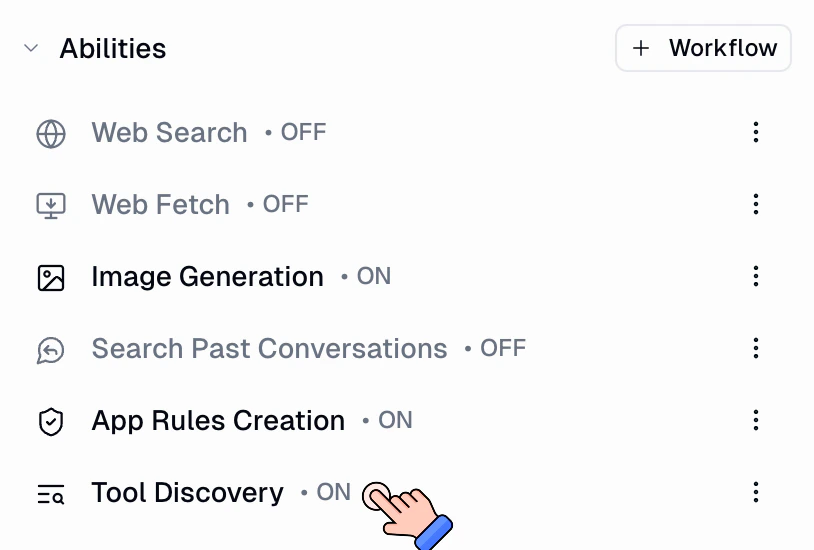
Tool Discovery is a toggle in the **Abilities** section of your agent's configuration. Once enabled, the agent will see all connected MCP servers (guMCP, Gumstack, and custom MCP) for the user who is chatting, filtered by any restrictions you've set.
The general agent already uses Tool Discovery by default. This setting is specifically for custom agents that you want to give broader tool access to.
### Instructions (How Agents Behave)
The system prompt defines your agent's personality, behavior, and decision-making:
**Good:** "You're an executive assistant for a CFO of a Fortune 500 company."
**Bad:** "You help with tasks."
A specific role sets tone, expertise level, and communication style automatically.
Explain when and how to use specific tools:
```
When the user provides a ticket number:
1. Retrieve ticket details and ask for confirmation
2. Once confirmed, run the "Get User Profile" workflow
3. Read the discount policy from Notion
4. Assess eligibility and explain your reasoning
```
Define when the agent should ask before acting:
"Always ask for confirmation before:
* Sending emails
* Deleting data
* Making changes to external systems"
Control tone, length, and format:
"Always respond professionally. Keep responses under 100 words. Use bullet points for lists."
#### Self-Improve Instructions
Your agent can update its own system prompt during any conversation. If something goes wrong, you don't need to leave the chat and manually edit the instructions. Just tell the agent to fix it, right there in the conversation.
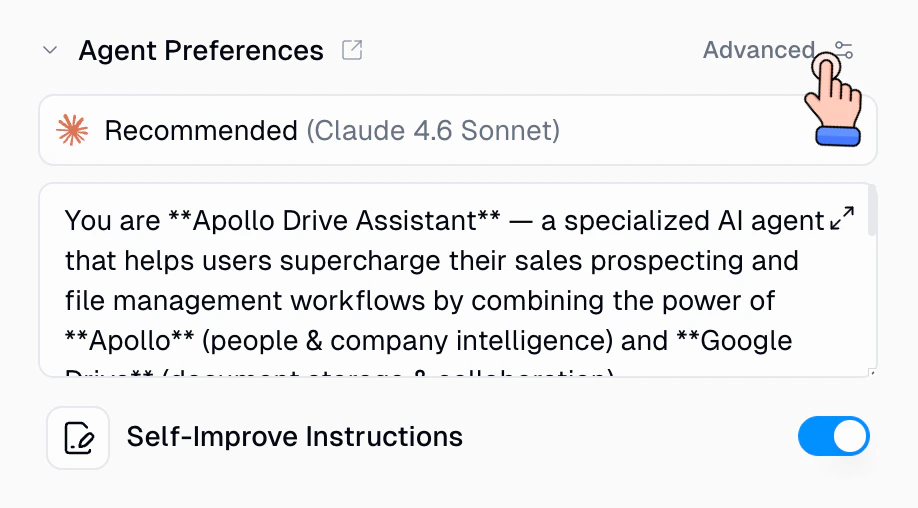
Toggle this on in **Agent Preferences**, right below the system prompt editor. Enabled by default for new agents. Changes take effect immediately and persist across all future conversations.
"Update your system prompt to never do X again" or "Add a rule that all emails should be under 100 words." The agent modifies its instructions on the spot.
You correct the agent ("don't use that tone," "always check Salesforce first") and it proactively updates its instructions so the same mistake doesn't happen again.
The agent has access to a file containing its current system prompt in its sandbox. When it modifies that file, changes are automatically detected, saved, and applied to the very next step in the conversation. Every future conversation uses the updated version.
**Safety guards:** The agent cannot delete its own instructions (empty content is rejected), and there is no version history. If the agent makes an unwanted change, you can manually revert by editing the system prompt.
This works hand-in-hand with [skills](/core-concepts/skills). Skills teach the agent how to do specific tasks; Self-Improve Instructions lets the agent refine its overall personality, tone, and decision-making rules. Together, they create an agent that gets better with every conversation.
### Reasoning (How Agents Think)
When you assign a task, the agent:
1. **Analyzes** the request and available tools
2. **Decides** which tools to use and in what order
3. **Executes** tool calls and adapts based on results
4. **Asks** for confirmation when needed (based on instructions)
5. **Explains** its reasoning step-by-step
***
## Triggers
Agents can run autonomously without manual interaction. Set up **scheduled triggers** to run on a recurring schedule or as a one-time trigger, or create **event-based triggers** to fire your agent when something happens in an external service.
Run your agent on a recurring schedule (e.g. every weekday at 9 AM) or as a one-time trigger (e.g. in 30 minutes). Your agent can even create and manage its own schedules during a conversation.
Fire your agent when a new email arrives, a Slack message is posted, a database record changes, and more. Supports Gmail, Slack, Teams, Google Sheets, Notion, Airtable, Zendesk, and other integrations.
Learn how to set up scheduled triggers, event-based triggers, prompt templates, and manage active triggers.
***
## Skills
Your system prompt defines who the agent is. Tools give it the ability to act. But without skills, your agent improvises every time. It might send a decent email, but it won't follow your outreach sequence, use your templates, or log things the way you want.
Skills fill that gap. They're reusable knowledge packs that teach your agent how to do specific work **your way**:
* **Encode multi-step processes** the agent should follow every time (outreach sequences, triage checklists, reporting workflows)
* **Store templates and domain knowledge** too detailed for the system prompt
* **Load only when relevant**, saving tokens compared to stuffing everything into the system prompt
* **Improve over time** as the agent learns from your feedback and even creates new skills on its own
Learn how to create skills, attach them to agents, and build a knowledge base that improves over time.
***
## Embedding Agents in Workflows
Creating an agent is the **0 to 1**. Embedding that agent in a workflow is the **1 to 100**.
The Agent node lets you run any of your pre-configured agents directly within your workflows. With [Triggers](#triggers), agents can already run on a schedule, respond to external events, or be invoked via webhooks on their own. Embedding them in workflows unlocks additional capabilities: chaining with other nodes and batch processing.
| Capability | Standalone Agent | Agent in Workflow |
| -------------------------- | ---------------- | ----------------- |
| **Manual Chat** | ✅ Yes | ✅ Yes |
| **Scheduled Runs** | ✅ Yes | ✅ Yes |
| **Event-Based Triggers** | ✅ Yes | ✅ Yes |
| **Webhook Triggers** | ✅ Yes | ✅ Yes |
| **Chain with Other Nodes** | ❌ No | ✅ Yes |
| **Batch Processing** | ❌ No | ✅ Yes |
**You are the orchestrator:**
* Monitor conditions manually
* Decide when to run workflows
* String workflows together yourself
* Handle exceptions and edge cases
**Agent orchestrates automatically:**
* Monitors and responds to requests
* Decides which workflows to use
* Chains workflows intelligently
* Adapts to results and conditions
### Using Workflows as Agent Tools
The section above covers putting an **agent inside a workflow**, where the workflow triggers and orchestrates the agent. This is the reverse: giving your agent **workflows it can call as tools**.
When a workflow is attached as a tool, the agent decides when to use it, fills in the inputs, kicks it off, and reads the outputs. The agent is the orchestrator; the workflow just does its job and returns the result.
**Tips for building workflows your agent will call:**
**Critical**: Agents identify workflow parameters through Input and Output nodes.
```
Input Node: "company_name" (text)
Input Node: "date_range" (text)
[Your workflow logic here]
Output Node: "enriched_data" (object)
Output Node: "success" (boolean)
```
Without clear inputs/outputs, the agent won't know how to use the workflow properly.
Workflow names should clearly indicate their purpose:
✅ **Good**: "Get User Activity and Salesforce Status", "Enrich Lead from LinkedIn Profile"
❌ **Bad**: "User Workflow", "Workflow 1", "Data Thing"
Write descriptions that help agents understand:
* What the workflow does
* When it should be used
* What inputs it expects
* What outputs it provides
**Example**: "Takes a LinkedIn profile URL and returns enriched company data including size, industry, recent funding, and key contacts. Use when researching new leads or companies."
Each workflow should do one thing well:
* ✅ "Enrich Contact from Email"
* ✅ "Send Slack Notification"
* ❌ "Enrich Contact and Send Notification and Update CRM"
Let the agent orchestrate multiple focused workflows rather than building mega-workflows.
Learn more about the Agent node in the [Agent Node documentation](/core-concepts/agent_node).
***
## Code Sandbox
The Code Sandbox gives your agent the ability to execute Python code and shell commands in a secure, isolated environment. It's **natively enabled** on all agents, so there's nothing to configure.
**What the sandbox can do:**
* **Run Python code** for data analysis, visualizations, and computations
* **Execute shell commands** for file operations and package installation
* **Read and write files** in the sandbox filesystem
* **Upload and download files** between Gumloop storage and the sandbox
The sandbox comes pre-loaded with 80+ Python packages including pandas, numpy, matplotlib, scikit-learn, and more. If you need something that isn't installed, your agent can install it with `pip install` during the conversation.
The sandbox environment persists across tool calls within the same conversation, allowing your agent to build on previous work and maintain state throughout the interaction.
**Data Science & Analysis**: pandas, numpy, scipy, scikit-learn, statsmodels
**Visualization**: matplotlib, seaborn, plotly, bokeh
**AI & Machine Learning**: openai, anthropic, google-generativeai, mistralai, llama-index-core, gensim
**Web & APIs**: requests, aiohttp, beautifulsoup4, scrapy, selenium, playwright
**File Processing**: openpyxl, PyMuPDF, python-docx, Pillow, opencv-python, imageio
**Media Processing**: moviepy, librosa, ffmpeg-python, yt-dlp, soundfile
**Natural Language Processing**: nltk, spacy, textblob
**Database & Cloud**: psycopg2-binary, pymongo, PyMySQL, pyodbc, boto3, google-cloud-storage
If you need a package that isn't pre-installed, your agent can install it using `pip install package-name` via the shell command tool. However, installed packages only persist for the current conversation.
* **Execution Timeouts**: Python scripts: 120 seconds max. Shell commands: 60 seconds default. Search operations: 30 seconds.
* **File Size Limits**: Can ingest files which are at max 300MB
* **Session Persistence**: The sandbox persists within a single conversation. Starting a new conversation creates a fresh sandbox.
* **Network Access**: The sandbox has internet access for pip installs and API calls, but cannot access your local network.
* **No GUI Support**: The sandbox runs headless. Visualizations must be saved to files (e.g., `plt.savefig()`).
* **Resource Constraints**: Suitable for data analysis and scripting, not for training large ML models.
***
## Voice Input
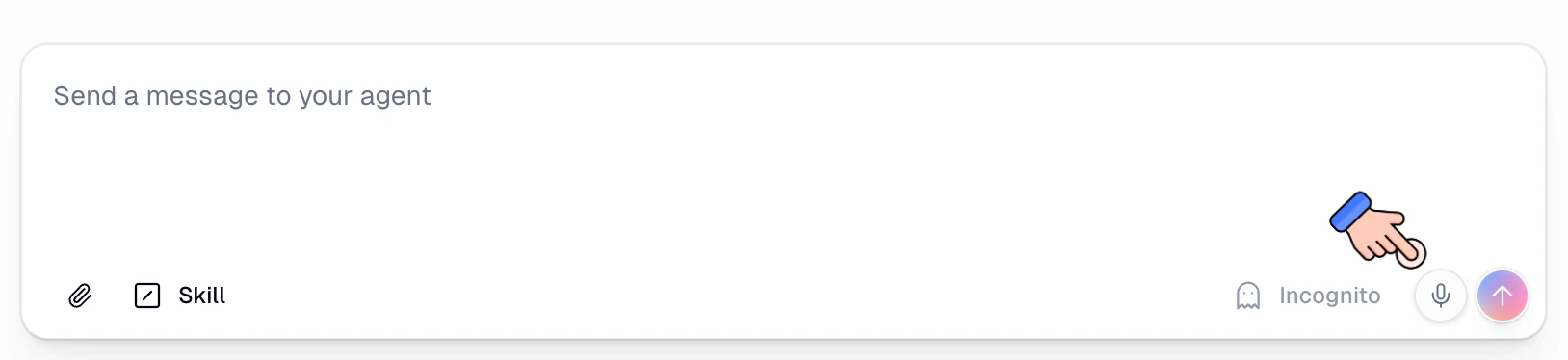
You can send audio messages to your agent instead of typing. Gumloop transcribes your audio on the server and sends the text to the agent, so the conversation flows naturally whether you type or talk.
### How It Works
1. Record or upload an audio file in the chat input
2. Gumloop transcribes the audio using an AI transcription model
3. The transcribed text appears as your message in the conversation
4. The agent responds to the transcribed text like any other message
The transcription happens entirely on Gumloop's servers. Your agent never receives the raw audio file, only the text transcript.
### Supported Formats and Limits
| Detail | Value |
| ------------------------ | --------------------------------------------------------------------------------------------------------------------------------------- |
| **Supported formats** | mp3, mp4, mpeg, mpga, m4a, wav, webm |
| **Maximum file size** | 25 MB |
| **Supported MIME types** | audio/aac, audio/flac, audio/m4a, audio/mp3, audio/mp4, audio/mpeg, audio/ogg, audio/wav, audio/webm, video/mp4, video/mpeg, video/webm |
### Transcription Models
Gumloop uses OpenAI transcription models to convert your audio to text:
| Model | Best For |
| -------------------------- | ----------------------------------------------------------- |
| **OpenAI Whisper** | General-purpose transcription, broad language support |
| **GPT-4o Transcribe** | Higher accuracy, better handling of accents and noisy audio |
| **GPT-4o Mini Transcribe** | Faster and cheaper, good for clear audio |
The system automatically selects the best available model. If you're using BYOK (Bring Your Own Key), transcription uses your API key and you receive the standard 50% credit discount.
***
## Subagents
Subagents let your agent delegate tasks to other agents. Instead of handling everything in a single conversation, your agent can spin up focused helpers that work in parallel, then collect the results and continue.
### How Subagents Work
When an agent needs to delegate, it uses the **invoke\_agent** tool to spawn one or more subagents. Each subagent runs as an independent conversation with its own context, tools, and sandbox. Results flow back to the parent agent when finished.
**There are two types of subagent invocations:**
The agent creates a copy of itself as a subagent. The clone has the same tools, instructions, and capabilities as the parent. This is useful for parallelizing work: the parent can spawn multiple clones, each tackling a different subtask simultaneously.
**Example:** An agent researching competitors can spawn three clones, each researching a different company at the same time. Once all clones finish, the parent combines the results.
Self-cloning is **enabled by default** for all agents. The clone appears in the Subagents list as **"(Me)"** with a description like "Enables me to clone myself as a subagent to parallelize work."
Clones can optionally have their MCP tools scoped down using **tool\_scope**, which restricts the clone to only specific MCP servers. Non-MCP tools (sandbox, image generation, web search) are always preserved.
The agent calls a different, specialized agent by its ID. This is useful when you have purpose-built agents for specific domains (e.g., a "Sales" agent, a "Marketing" agent, a "Support" agent) and want a coordinator agent to delegate to them based on the task.
**Example:** A lead qualification agent receives a new lead and delegates to a "Sales Research" agent to pull CRM data and a "Marketing Insights" agent to check campaign engagement, both running in parallel.
To allow invoking other agents, you must explicitly add them to the **Subagents** list in your agent's configuration.
### Configuring Subagents
Navigate to your agent and scroll down to the **Subagents** section in the configuration panel.
Click the **+ Subagent** button to open the selection sheet. You will see a list of all custom agents in your project. Select the agents you want to allow as subagents.
Only **custom agents** in the same project can be added as subagents. The agent being configured is excluded from the list (self-cloning is managed separately).
Self-cloning is enabled by default. To disable it, click the three-dot menu on the **(Me)** entry in the Subagents list and select **Remove**. When disabled, the agent cannot spawn copies of itself.
### Behind the Scenes
When the agent invokes subagents:
1. **Interaction created**: Each subagent gets its own interaction record. The parent agent's conversation references the child interactions, and all subagent conversations are visible in the chat history.
2. **Parallel execution**: Multiple subagents run concurrently. The number of simultaneous subagents is based on your subscription tier.
3. **Progress tracking**: For batch invocations (multiple subagents at once), a shared progress board tracks each child's status. Sibling agents can see each other's progress and communicate via broadcast notes.
4. **Artifact transfer**: The parent can transfer specific files from its sandbox to a subagent before execution. After the subagent finishes, its conversation transcript is saved and can be read by the parent.
5. **Timeout handling**: Subagents run as queued background tasks with their own execution budget (approximately half the parent agent's time limit). If a subagent exceeds its time limit, it receives a graceful abort signal followed by a hard cancellation if it does not stop.
6. **Depth limits**: Self-cloning has a depth limit of 1, meaning a clone cannot clone itself again. However, cross-agent chains (Agent A invokes Agent B, which invokes Agent C) are unlimited.
### Subagent FAQ
Yes. All custom agents have the invoke\_agent tool available. Self-cloning is enabled by default. To invoke other specific agents, you need to add them to the Subagents list.
Subagents run under the same user context as the parent agent. They use the credentials of the person who initiated the conversation.
Yes, if the subagent has other agents configured in its Subagents list, it can invoke them. Self-clones cannot re-clone (depth limit of 1), but cross-agent invocations are unlimited.
Subagent interactions appear in the agent's chat history. The parent conversation includes links to each child's interaction. You can also view the full subagent transcript through the conversation history in the Gumloop UI.
If a subagent encounters an error or times out, the failure is reported back to the parent agent. The parent can then decide how to proceed, for example by retrying, trying a different approach, or reporting the error to the user.
Yes. The number of concurrent subagents depends on your subscription tier.
***
## Message Queue and Steering
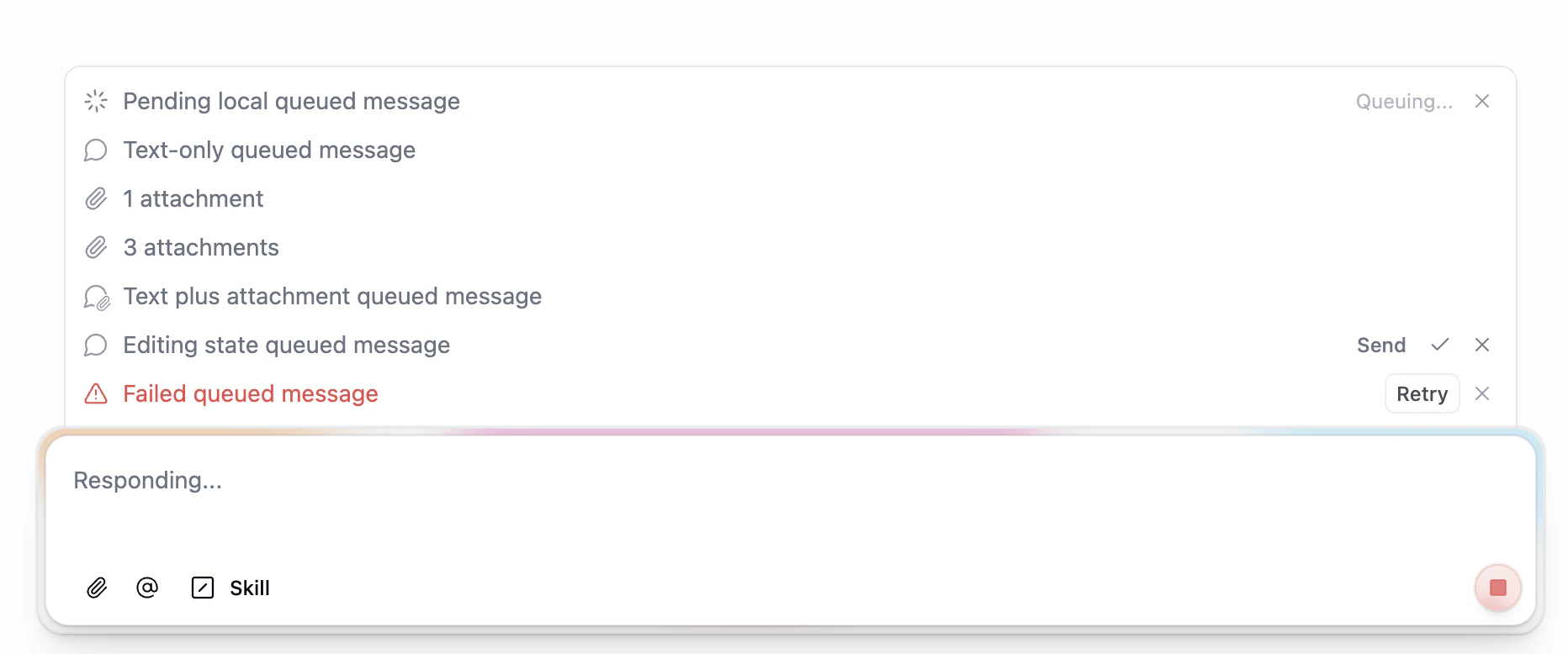
When your agent is busy processing a response, you don't have to wait for it to finish before sending your next message. The **message queue** lets you line up additional messages while the agent is working, and the agent picks them up automatically between processing steps.
### How It Works
1. While the agent shows "Responding...", type and send additional messages as usual
2. Your messages appear in a queue above the input field, in the order you sent them
3. Between processing steps (for example, after the agent finishes a tool call), the agent automatically drains the next queued message and incorporates it into the conversation
4. The agent treats the queued message as if you had sent it at that moment, adjusting its response accordingly
This is especially useful when you realize mid-response that you forgot to include important context, want to redirect the agent's approach, or need to add follow-up instructions before the current response finishes.
### What You Can Do With Queued Messages
| Action | Description |
| --------------------------- | ------------------------------------------------------------------------ |
| **Queue multiple messages** | Send as many follow-ups as you want while the agent is responding |
| **Include attachments** | Queued messages can contain files and images, just like regular messages |
| **Edit before delivery** | Click a queued message to edit its text before the agent picks it up |
| **Reorder the queue** | Drag messages to change the order the agent will process them |
| **Remove a message** | Cancel a queued message before it gets delivered to the agent |
| **Retry failed messages** | If a queued message fails to send, you can retry it |
### Steering
Because queued messages are injected at natural breakpoints (between model steps, after tool results), they act as **steering inputs**. You can use this to:
* **Redirect the agent**: "Actually, focus on the Q3 numbers instead"
* **Add missing context**: "By the way, the deadline is Friday"
* **Refine the request**: "Make it more concise" or "Include a chart"
* **Stack instructions**: Queue up a sequence of tasks for the agent to work through
The agent processes queued messages one at a time in order. Each message becomes part of the conversation history, so the agent has full context of everything you've queued when it gets to the next message.
If the agent finishes responding before your queued message is drained, the message is delivered as a normal follow-up. The queue is only active while the agent is mid-response.
***
## AI Advanced Settings
Fine-tune how your agent's AI model behaves, manages long conversations, and handles failures. Access these settings by clicking the **AI Advanced Settings** button in your agent configuration.
**Defaults are optimized.** All settings are pre-configured for the best balance of performance, cost, and reliability. Only adjust these if you have a specific need.
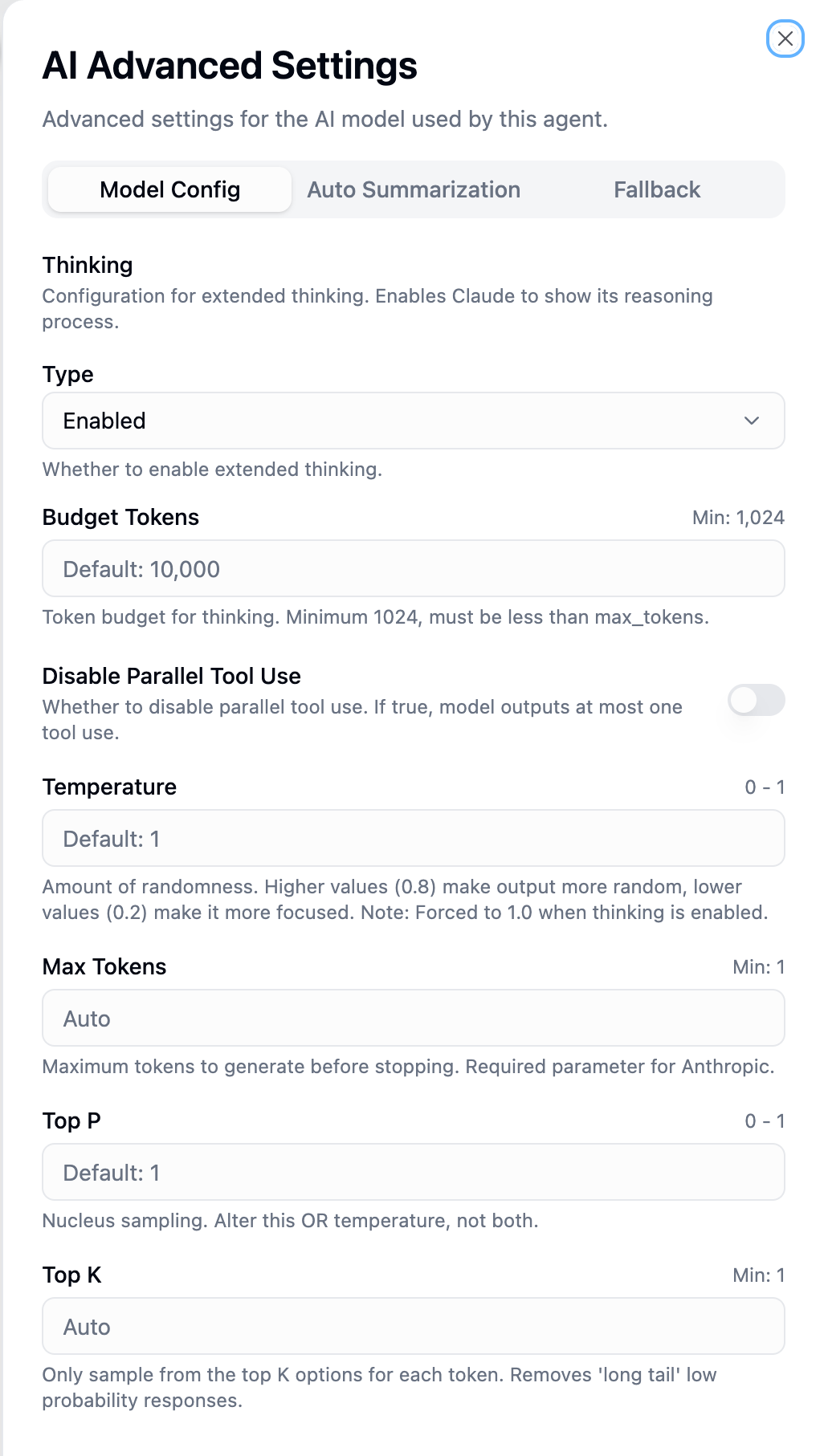
Customize AI model behavior. Available parameters vary by provider (OpenAI, Anthropic, Google). Settings are stored per-provider, so switching models preserves your preferences for each.
| Parameter | Range | Default | Description |
| ----------------------- | ----------------- | ------- | --------------------------------------------------------------------------------------------------------------------------------------------------- |
| **Reasoning Effort** | low, medium, high | medium | Controls computational effort before responding. Higher = more thorough reasoning but slower and more tokens. *Only for o-series and GPT-5 models.* |
| **Temperature** | 0–2 | 1 | Controls output randomness. 0 = deterministic, 2 = highly creative. |
| **Max Output Tokens** | 1+ | Auto | Upper bound for generated tokens (includes reasoning tokens). If unset, uses model default. |
| **Max Tool Calls** | 1+ | Auto | Limits total tool calls per response. Useful for cost control. |
| **Top P** | 0–1 | 1 | Nucleus sampling. Model considers only tokens in the top P probability mass. *Only for GPT-4o, GPT-4.1, GPT-5.1, GPT-5.2, o3, o4.* |
| **Parallel Tool Calls** | on/off | on | When on, model can execute multiple tools simultaneously. Disable if tools depend on each other's results. |
Adjust **either** Temperature **or** Top P, not both. Using both produces unpredictable results.
| Parameter | Range | Default | Description |
| ----------------------------- | ----------------- | ------- | -------------------------------------------------------------------------------------------------------------------------------------------- |
| **Extended Thinking** | enabled, disabled | enabled | Shows Claude's reasoning process before the final answer. When enabled, temperature is forced to 1.0. |
| **Budget Tokens** | 1,024+ | 10,000 | Token budget for thinking. Higher = more thorough reasoning but slower. *Only shown when thinking is enabled.* Must be less than Max Tokens. |
| **Temperature** | 0–1 | 1 | Controls output randomness. Note: forced to 1.0 when Extended Thinking is enabled. |
| **Max Tokens** | 1+ | Auto | Maximum tokens to generate. Defaults: 64,000 (Claude 4.5), 8,192 (older models). |
| **Top P** | 0–1 | 1 | Nucleus sampling threshold. |
| **Top K** | 1+ | Auto | Limits sampling to top K most likely tokens. Lower values (10–40) produce more focused outputs by removing long-tail responses. |
| **Disable Parallel Tool Use** | on/off | off | When on, model outputs at most one tool call per response. Enable for strict sequential execution. |
| Parameter | Range | Default | Description |
| --------------------- | --------- | ------- | ------------------------------------------------------------------------------------------------------------------------- |
| **Thinking Level** | LOW, HIGH | HIGH | Controls depth of internal reasoning. LOW = faster responses, HIGH = deeper analysis. *Only for Gemini 2.5 and 3 models.* |
| **Temperature** | 0–2 | 1 | Controls output randomness. |
| **Top P** | 0–1 | 0.95 | Nucleus sampling. Note: Google's default (0.95) is lower than other providers. |
| **Top K** | 1+ | Auto | Maximum tokens considered at each generation step. |
| **Max Output Tokens** | 1+ | Auto | Maximum tokens to generate. |
**Temperature vs Reasoning**: Temperature controls *randomness* in word selection. Reasoning effort/thinking controls *how much the model deliberates* before responding. For complex analysis, increase reasoning, not temperature.
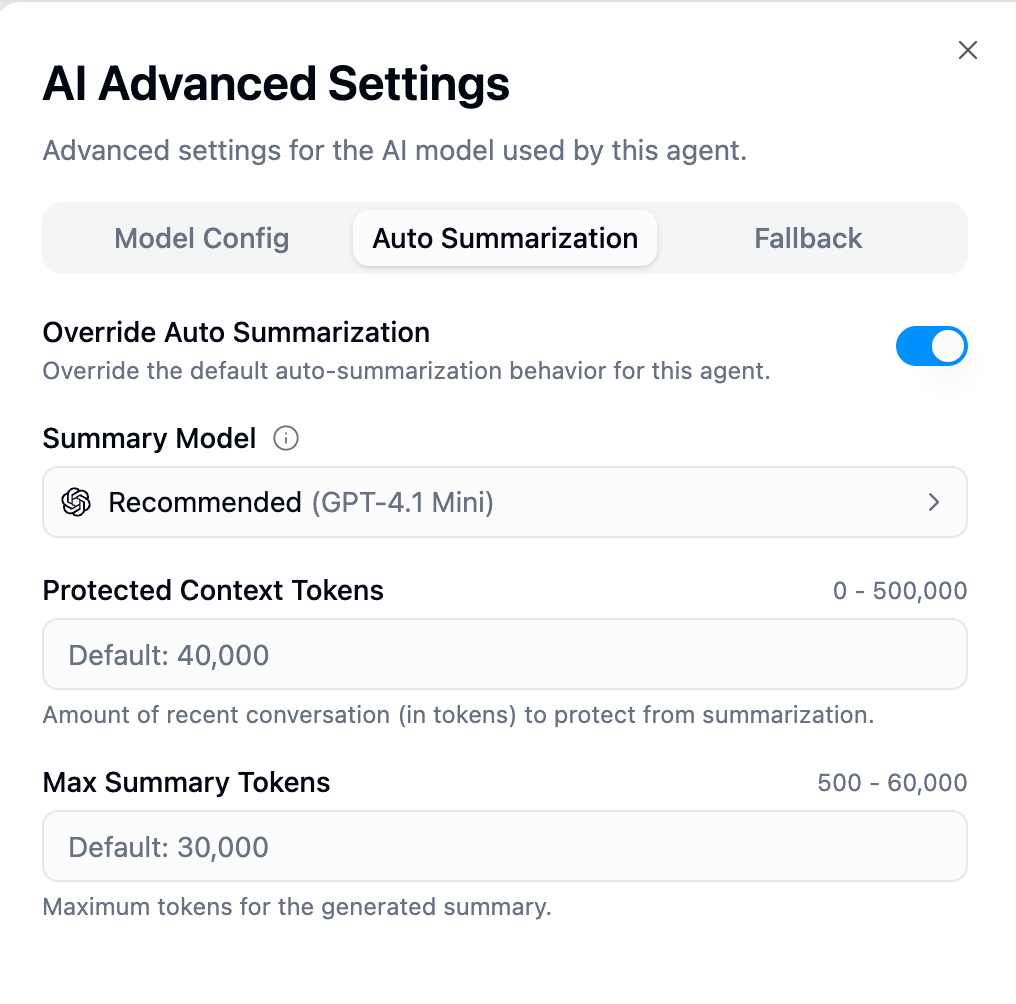
Manages long conversations by summarizing older messages when context limits are reached.
When a conversation approaches the model's context limit, the system identifies the oldest messages, generates a structured summary (**Goal**, **Actions Taken**, **Key Data**, **Status**, **Next Steps**), and replaces them while keeping recent messages in full detail.
Compaction operates at the **part level** within messages, not just message level. This enables finer-grained compaction when a single message contains many large parts (e.g., 24 tool call results totaling 150k+ tokens).
| Behavior | Auto Mode (Default) | Override Mode |
| ---------------------- | ------------------------------------ | ------------------------------- |
| **When to summarize** | System determines automatically | System determines automatically |
| **Summary model** | Auto-selected (fast, cost-effective) | You choose the model |
| **Prune Protection** | Optimized default (40,000 tokens) | Configurable |
| **Summary Max Tokens** | Optimized default (30,000 tokens) | Configurable |
Keep defaults unless you have specific context requirements. Lower Prune Protect = more aggressive summarization. Higher Summary Max = summaries trigger earlier.
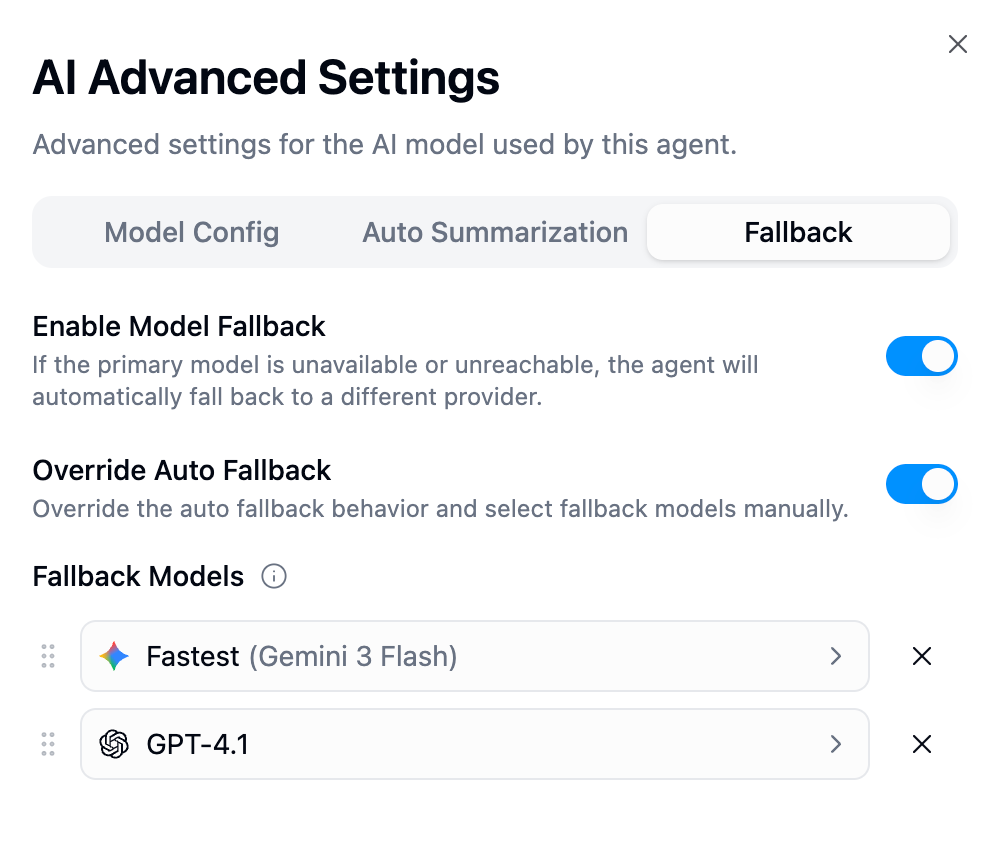
Ensures reliability by automatically switching to alternative AI models when your primary model is unavailable.
When errors occur, the system classifies the error, retries based on severity, then falls back to the next model in the chain. Models from the same provider are automatically excluded for true redundancy.
| Error Type | Retries Before Fallback | Rationale |
| ------------- | ----------------------- | ----------------------------------------- |
| Rate Limit | 2 | Rate limits often clear quickly |
| Provider 5xx | 1 | Provider unhealthy, fallback faster |
| Network Error | 0 | Immediate fallback (no retries) |
| Timeout | 1 | Server overloaded, try once then fallback |
**Auto Mode (Default):** Fallback models are selected based on your primary model's characteristics:
| Primary Model Type | Fallback Chain |
| ----------------------------------------- | -------------------------------------------- |
| Expert/Smartest (intelligence rating > 4) | Claude Opus 4.5 → Gemini 3 Pro → GPT-5.2 |
| Fastest (speed rating > 4) | Gemini 3 Flash → Claude Haiku 4.5 → GPT-4.1 |
| Recommended/Balanced | Claude Sonnet 4.5 → Gemini 3 Flash → GPT-5.2 |
**Override Mode:** Manually select up to 2 fallback models. Drag-and-drop to set priority order. Models from the same provider as your primary are automatically filtered out.
Disabling fallback means your agent will fail if the primary model is unavailable. Keep enabled unless you have specific compliance requirements.
***
## Context Usage Meter
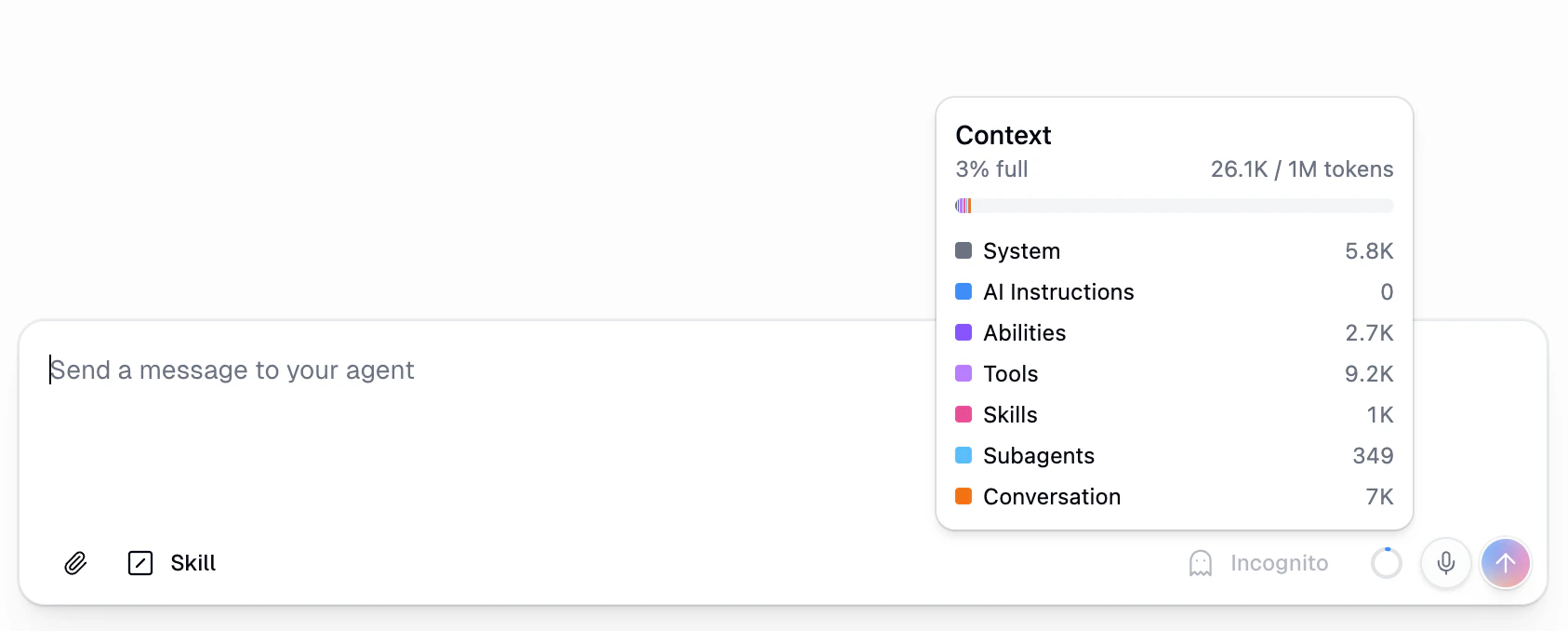
The Context Usage Meter gives you real-time visibility into how much of your AI model's context window is being used during a conversation. You'll find it as a small circular icon in the bottom-right corner of the chat input area.
Hover over the icon to see a detailed breakdown of token usage across different categories:
| Category | What It Includes |
| ------------------- | -------------------------------------------------------- |
| **System** | Gumloop's internal system prompt that powers your agent |
| **AI Instructions** | The custom instructions you wrote for your agent |
| **Abilities** | Built-in capabilities like code execution and web search |
| **Tools** | MCP integrations and workflows you've connected |
| **Skills** | Any skills attached to the agent |
| **Subagents** | Token overhead from connected subagents |
| **Conversation** | The actual messages exchanged in the current chat |
The meter shows a percentage of how full the context window is, along with the exact token count (e.g., "26.1K / 1M tokens"). As your conversation grows, the Conversation portion increases while the other categories remain relatively stable.
If you notice the context is getting full, consider reducing the number of tools or skills attached to your agent, or switch to a model with a larger context window. You can also rely on [Auto Summarization](#auto-summarization) to compress older messages automatically.
***
## Understanding Credit Costs
Agents consume credits based on AI model usage, workflow executions, and integration operations.
Credits are charged per AI interaction. Cost depends on **message length**, **model selected**, **conversation history** (each message includes previous context), and **number of tools available**.
### Model Pricing Overview
**Best for simple tasks and high-volume usage**
| Model | \~Cost per Message | Best For |
| ---------------- | ------------------ | ----------------------------- |
| GPT-4.1 Mini | 2-3 credits | Simple tasks, quick responses |
| GPT-5 Mini | 2-3 credits | General queries |
| Claude Haiku 4.5 | 2-4 credits | Fast interactions |
**Balanced performance for most use cases**
| Model | \~Cost per Message | Best For |
| ----------------- | ------------------ | ------------------------------- |
| Claude Sonnet 4.5 | 15-25 credits | Most tasks, standard operations |
| Claude 3.7 Sonnet | 15-25 credits | Reliable automation |
| GPT-4.1 | 15-25 credits | General purpose |
**Complex analysis and difficult reasoning**
| Model | \~Cost per Message | Best For |
| ----------------------- | ------------------ | ------------------ |
| Claude 4.1 Opus | 30-50 credits | Complex analysis |
| Claude 4 Opus | 30-50 credits | Difficult tasks |
| GPT-5 | 30-50 credits | Advanced reasoning |
| OpenAI o3 | 50-100 credits | Complex problems |
| OpenAI o3 Deep Research | 100-200 credits | Extensive research |
Credit costs are approximate per message. Actual costs vary based on message length, conversation history, tools available, and whether the agent executes workflows. Agents also support **Kimi K2.5** and **Qwen 3.5** via OpenRouter (exclusive to agents, not available in workflow nodes).
### Workflow and Integration Costs
When agents call workflows or integrations, additional costs apply:
| Node Type | Credit Cost | Examples |
| ----------- | -------------- | ----------------------------------------------- |
| Free Nodes | 0 credits | Input/Output, Filter, Router, Most integrations |
| Low Cost | 2-3 credits | Ask AI (simple), Run Code, Custom Operators |
| Medium Cost | 10-30 credits | AI with large prompts, AI Vision |
| High Cost | 10-60+ credits | Data enrichment, Premium APIs |
**Integration Costs:**
* **Free**: Google Workspace, Slack, Airtable, Notion, Salesforce, HubSpot, 150+ more
* **Paid**: Data enrichment services (eg. Hunter.io \~10 credits, ZoomInfo \~60 credits)
### Optimizing Credit Usage
Use budget models for simple tasks. Reserve expert models for complex analysis that truly requires advanced reasoning.
Start new conversations for different topics. Long threads accumulate context costs with each message.
Specific prompts get better results faster, reducing back-and-forth messages and total credit consumption.
Start with 2-3 essential tools. Each additional tool increases the system prompt size and base cost.
**Message Length**: Longer inputs and outputs consume more tokens. Short message (\~50 words): \~500 tokens. Medium (\~200 words): \~2,000 tokens. Long (\~500 words): \~5,000 tokens.
**Conversation History**: Each message includes previous context. 1st message: Base cost. 5th message: \~20% higher. 10th message: \~40% higher. Start new conversations for unrelated topics.
**Tool Availability**: More tools = larger system prompt. 2-3 tools: Base cost. 5-10 tools: +10-20%. 15+ tools: +30-40%.
**Multi-Step Operations**: Workflow calls trigger multiple AI steps. Example: Decide to call workflow (\~5 credits) + Process results (\~5 credits) + Generate response (\~5 credits) = \~15 credits + workflow cost.
### Tracking Credit Usage
* **Real-time Display**: Credits shown next to each agent response as it streams
* **Conversation History**: View total credits per conversation thread
* **[History Page](https://www.gumloop.com/history)**: See credit costs for agent chats and Agent node executions (when run via workflows)
* **[Account Dashboard](https://www.gumloop.com/settings/profile/general)**: Track total credits used across all agents and timeframes
For full details, see the [Credits documentation](/core-concepts/credits).
***
## Credentials & Authentication
When an agent uses integrations and workflows, it needs credentials to access external services. You can control which account each app uses from the agent's configuration page.
**Key principle**: By default, agents use the credentials of the person running the agent, not the agent creator's credentials. You can also pin a specific account for any app.
Each app connected to your agent has a three-dot menu where you choose how credentials work:
* **Use Personal Default** — Each person who runs the agent uses their own default account. This is the default.
* **Use Team Default** (team agents only) — Everyone on the team uses the same shared account.
* **Use Specific Account** — Pin a specific account for this agent. Useful when you have multiple accounts for the same service.
**Personal agents** are created in your personal space. By default, each user's requests use their own personal credentials.
You can also select **Use Specific Account** to pin a particular personal account for this agent. This is helpful when you have multiple accounts for the same service (e.g., two Outlook inboxes) and want the agent to always use a specific one.
**Best for:** Most use cases, maximum data privacy, individual productivity, testing and development
Always create agents in your personal space unless you specifically need team credentials or access control features.
**Team agents** are created in teams and have additional credential options:
* **Use Personal Default** — same as personal agents, each person uses their own account
* **Use Team Default** — everyone on the team uses the same shared team account
* **Use Specific Account** — pin a specific team account for this agent
When you switch a team agent between personal and team credentials, a confirmation dialog appears because the change affects all team members.
**Best for:** Team collaboration requiring shared credentials, controlled access to specific team members
Learn more about teams in the [Organizations and Teams documentation](/core-concepts/teams#personal-vs-team) and [share permissions](/core-concepts/share_permissions).
Before using an agent with integrations:
1. Visit your [credentials page](https://www.gumloop.com/settings/profile/credentials)
2. Authenticate with required services (Gmail, Salesforce, etc.)
3. Set credentials as your personal default
**What happens if credentials are missing:**
* The agent will notify you about missing authentication
* You'll receive a link to the credentials page
* After authenticating, return and retry your request
Agents will automatically detect missing credentials and guide you through the authentication process.
With personal agents and personal credentials, only your authenticated accounts are accessed. Other users cannot see your data through the agent.
Admin security controls and user roles apply to agents just like workflows. You can only access what you're authorized to access.
For full details and screenshots of the credential selection flow, see the [Apps documentation](/core-concepts/credentials#in-agents).
***
## App Rules
App Rules let you put guardrails on the tools your agent can use. Instead of just toggling tools on or off, App Rules intercept individual tool calls and **block** or **tag** them based on conditions you define.
For example, you can create a rule that prevents your agent from sending Slack messages to a specific channel, or blocks Linear ticket creation unless at least two labels are attached.
Agent-level App Rules are available on **Pro** and **Enterprise** plans (up to 3 rules per agent on Pro). Organization-wide rules require **Enterprise**. Learn more in [App Policies](/enterprise-features/app-policies/overview).
### Agent-Level Rules
Agent-level rules target a specific agent, so they only apply to tool calls made by that agent. There are two ways to create them.
**From the agent configuration panel:**
Open the detail view of any connected app in your agent's config. The **Rules** tab shows all rules targeting this agent for that app. You can toggle rules on or off and click through to the rule detail sheet.
**From agent chat (agent-created rules):**
Your agent can also propose its own rules during a conversation. Enable this by toggling **App Rules Creation** to **ON** in the **Abilities** section of your agent's configuration.
With this enabled, you can ask your agent something like *"Create a linear app rule to never create a ticket without having at least two labels"* and it will propose a rule for your review. All rule proposals require explicit approval: you'll see a card in the chat with **Accept** / **Reject** buttons.
Agent-created rules only apply to that specific agent's tool calls. They do not affect other agents, other users, or organization-wide policies.
Learn about organization-level rules, agent-level rules, rule conditions (CEL), the AI rule builder, and more.
***
## Best Practices & Troubleshooting
Begin with 2-3 tools and straightforward instructions. Test thoroughly before adding more capabilities.
**Anti-pattern:** Creating an agent with 15 tools and a 2000-word system prompt immediately.
**Better approach:** Start with core functionality, observe how the agent behaves, then incrementally add tools and refine instructions based on real usage.
Agents improve over time as you refine instructions based on real interactions:
* Review conversation history regularly for patterns
* When agents make mistakes, ask: "What could I add to your instructions to prevent this?"
* Document edge cases and add explicit handling rules
* Celebrate successful patterns and codify them in instructions
When creating workflows that agents will call:
* **Always use Input and Output nodes** so agents understand parameters
* Keep workflows focused on single responsibilities
* Use descriptive names that indicate purpose
* Write clear descriptions explaining when to use the workflow
* Test workflows independently before giving them to agents
Define what agents should NOT do to prevent unintended actions:
```
Never:
- Delete customer data or records
- Send emails without explicit user approval
- Make purchases or financial commitments
- Override manual decisions by team members
- Modify production data without confirmation
```
Be explicit about destructive actions requiring human oversight.
Track metrics to understand agent effectiveness:
* **Time saved**: Hours saved per week through automation
* **Success rate**: Tasks completed successfully vs requiring intervention
* **Tool usage**: Which workflows/integrations are used most frequently
* **Credit efficiency**: Cost per completed task or interaction
**Symptoms**: Agent calls inappropriate tools or skips necessary steps
**Solutions**:
* Make tool names more descriptive and explicit
* Add specific "When to use" guidance in system prompt
* Reduce number of similar tools that might confuse the agent
* Provide examples: "When user asks X, use tool Y"
* Check if workflow descriptions clearly explain their purpose
**Symptoms**: Agent fails to call workflows correctly or misinterprets results
**Solutions**:
* Ensure workflows have Input and Output nodes defined
* Use clear, descriptive names for input/output fields
* Add workflow descriptions explaining parameters
* Test workflow independently to verify inputs/outputs work
* Simplify complex workflows into smaller, focused ones
**Symptoms**: Agent reports missing credentials or authentication failures
**Solutions**:
* Visit your [credentials page](https://www.gumloop.com/settings/profile/credentials)
* Authenticate with the required service
* Set it as your personal default credential
* For team agents using team credentials, contact your team admin
* Return to the agent and retry your request
**Symptoms**: Agent seeks approval for routine operations, slowing down interactions
**Solutions**:
* Explicitly list operations that don't need confirmation
* Add "proceed automatically when..." clauses for common scenarios
* Specify conditions under which confirmation IS required
* Review and tighten confirmation rules in system prompt
**Symptoms**: Agent takes sensitive actions without required approval
**Solutions**:
* Add explicit "always ask before..." rules for destructive actions
* List all sensitive operations requiring human approval
* Include examples of when to ask vs when to proceed
* Test with dry-run scenarios before giving real access
**Symptoms**: Responses too verbose, too terse, wrong tone, or poor formatting
**Solutions**:
* Update role definition to set appropriate tone
* Add response format examples in instructions
* Specify length constraints: "Keep responses under 100 words"
* Request specific formatting: "Use bullet points for lists"
* Provide example responses that match desired style
**Symptoms**: Agent stops mid-task, declares tasks impossible, or gets stuck
**Solutions**:
* Verify all required tools are properly connected
* Check authentication for all integrations (agents will prompt if needed)
* Review error logs in conversation history for specific failures
* Simplify initial instructions and build up complexity gradually
* Test individual tools work before expecting agent to orchestrate them
* Check if workflows have errors that prevent agent from calling them
**Symptoms**: Agent consuming more credits than expected
**Solutions**:
* Switch to a less expensive model for simple tasks
* Start new conversations instead of continuing long threads
* Reduce number of tools to decrease system prompt size
* Optimize workflows to use fewer AI nodes
* Write clearer prompts to reduce back-and-forth messages
* Review if agent is making unnecessary tool calls
***
## Finding Agents
The **Agents** page lets you browse all agents you have access to. Use the tabs at the top to switch between views:
| Tab | What It Shows |
| ------------------ | ------------------------------------------------------------------------- |
| **Mine** | Agents you created |
| **Shared with me** | Agents that others have shared with you directly or via your organization |
| **Organization** | All agents visible to your entire organization |
Each agent card shows the agent name, connected integrations, creator, and last activity. You can search by name and switch between grid and list views.
***
## Managing Chats
Every conversation with your agent appears in the sidebar. You can rename, share, or delete any chat from the context menu.
Right-click a chat (or click the three-dot menu) to see your options:
| Action | What it does |
| ---------- | ------------------------------------------------------ |
| **Share** | Share the conversation with others as a read-only link |
| **Rename** | Give the chat a custom name so you can find it later |
| **Delete** | Permanently remove the conversation |
Rename chats to keep your sidebar organized, especially when you have many conversations with the same agent. A clear name like "Q2 Marketing Plan" is easier to find than an auto-generated title.
***
## General Preferences
### Follow-Up Prompts
Suggest follow-up prompts after each response for the user to continue the conversation. Found in **General Preferences** in your agent's settings. **Enabled by default.** Disable it if you don't want suggested next steps shown after each agent response.
***
## Incognito Mode
Incognito mode lets you have conversations with an agent that are **not saved to the database**. Messages are held only in temporary memory during the conversation and are automatically deleted after 24 hours.
### How to Use Incognito Mode
Toggle the **Incognito** button in the chat input bar before sending your message. When incognito is active, the conversation bypasses permanent storage entirely.
### What Happens in Incognito Mode
| Behavior | Standard Chat | Incognito Chat |
| ----------------------------- | -------------------------------------- | ------------------------------------------------------------------------------------------------------ |
| **Message storage** | Saved permanently to the database | Not saved to the database |
| **Visible in chat history** | Yes | No. Hidden from the sidebar, search, and all chat listings |
| **Included in data exports** | Yes | No |
| **Files and artifacts** | Stored permanently | Stored in ephemeral storage and auto-deleted after 24 hours. No permanent artifact records are created |
| **Subagent behavior** | N/A | Incognito propagates to all subagents automatically |
| **Used for self-improvement** | Yes, agent can learn from interactions | No, incognito conversations are excluded from reflections |
Incognito mode applies to the entire conversation. If an agent spawns subagents during an incognito interaction, those subagent conversations are also incognito.Once an incognito conversation expires (after 24 hours), all messages and files are permanently gone. There is no way to recover them.
***
## Next Steps
Let your agent review its own work on a schedule and propose improvements automatically
Set up scheduled triggers and event-based triggers to run agents automatically
Create reusable knowledge packs that teach your agents how to do specific work
Embed agents in workflows for chaining with other nodes and batch processing
Deploy agents to Slack channels for team-wide access
Set guardrails on agent tool calls with organization or agent-level rules
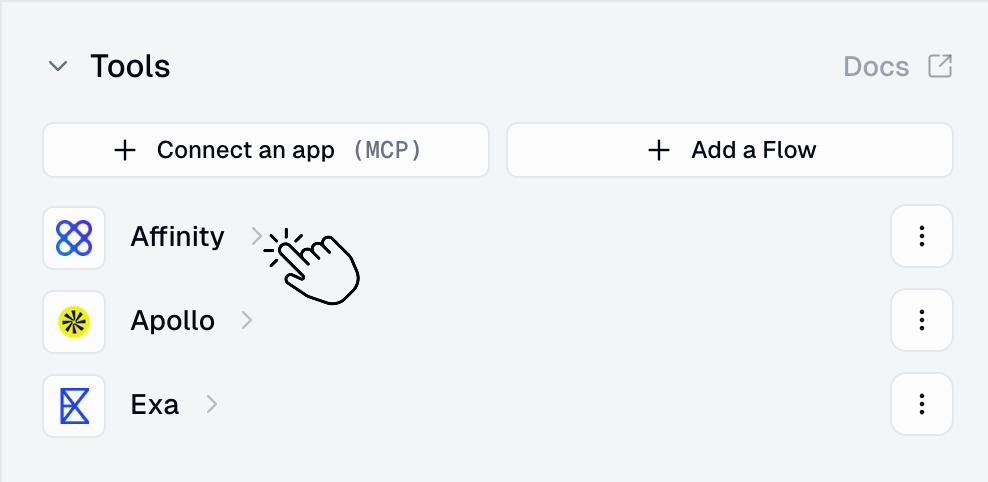 1. Click on any MCP integration you've added (Gmail, Salesforce, Slack, etc.)
2. Toggle off specific tools you don't want the agent to use
1. Click on any MCP integration you've added (Gmail, Salesforce, Slack, etc.)
2. Toggle off specific tools you don't want the agent to use
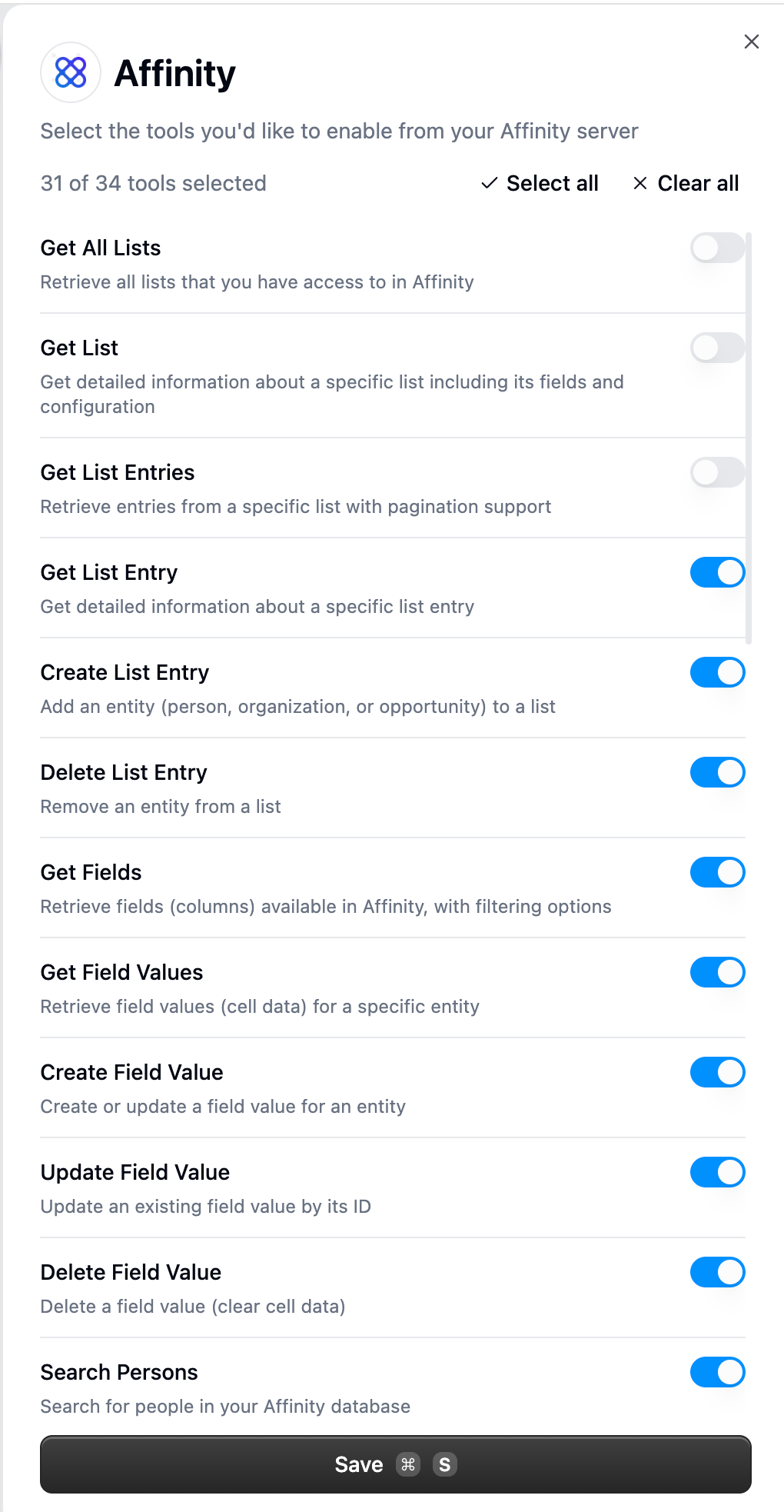 **Example configurations:**
* **Gmail**: ✅ Search emails, Read emails → ❌ Send email, Delete email
* **Salesforce**: ✅ Get account, Search records → ❌ Delete record, Update record
* **Slack**: ✅ Read messages, Search channels → ❌ Send message, Create channel
**Why this matters:**
* Prevents destructive actions (deleting, sending)
* Makes agent behavior more predictable
* Reduces risk of unintended operations
* Improves reliability by limiting decision space
**Example configurations:**
* **Gmail**: ✅ Search emails, Read emails → ❌ Send email, Delete email
* **Salesforce**: ✅ Get account, Search records → ❌ Delete record, Update record
* **Slack**: ✅ Read messages, Search channels → ❌ Send message, Create channel
**Why this matters:**
* Prevents destructive actions (deleting, sending)
* Makes agent behavior more predictable
* Reduces risk of unintended operations
* Improves reliability by limiting decision space
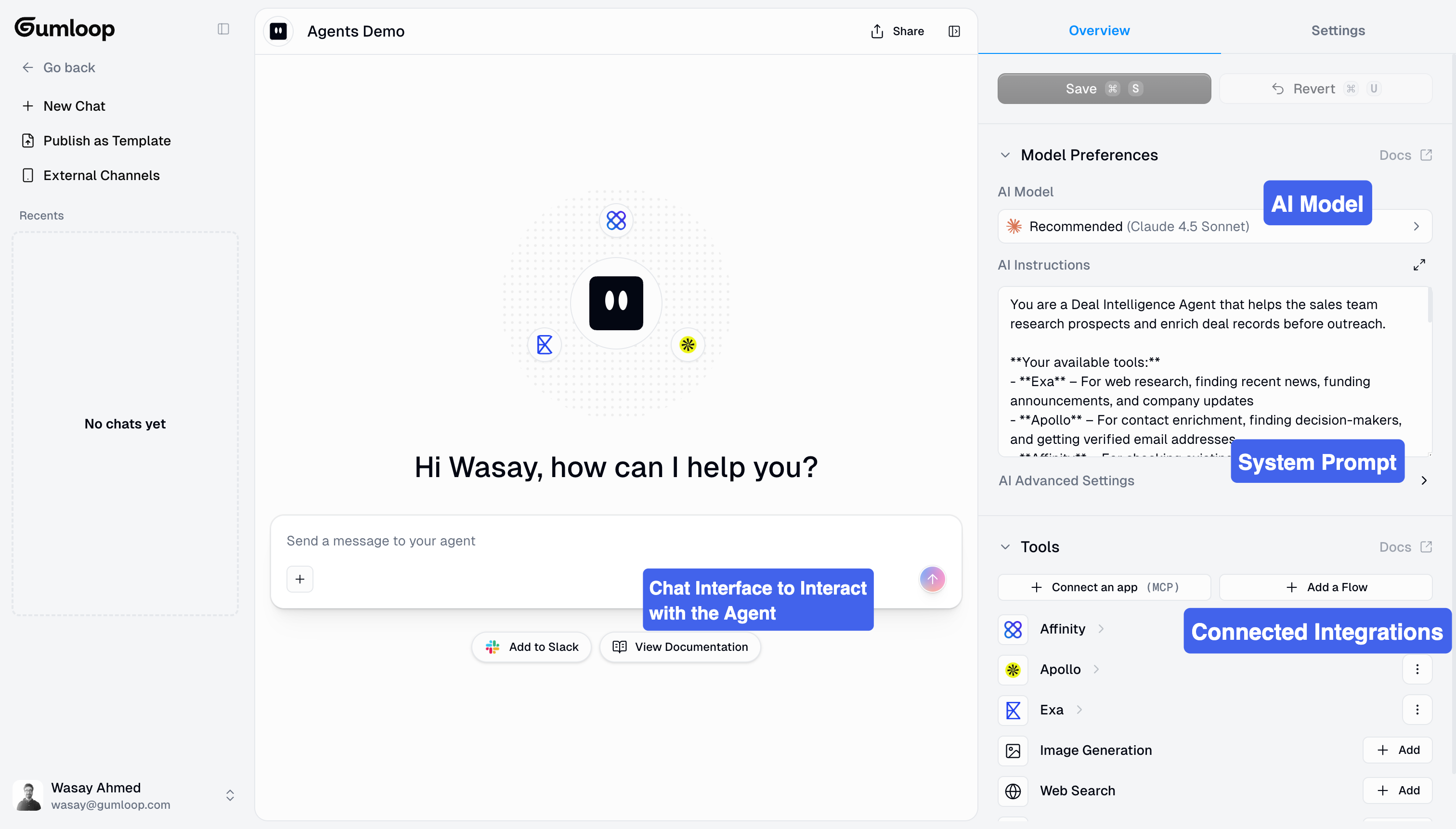 ### Tools (What Agents Can Use)
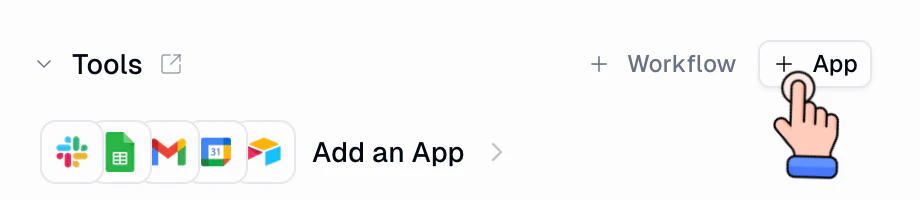
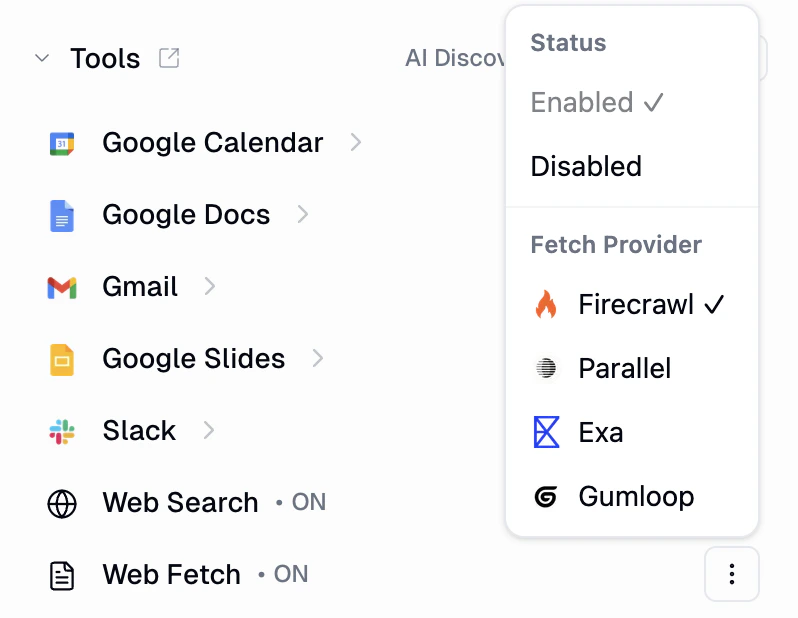 * **Web Search**: Search the web for information relevant to the current task
* **Web Fetch**: Retrieve and read content from specific URLs
You can configure the **Fetch Provider** (Firecrawl, Parallel, Exa, or Gumloop) to control how web content is retrieved. Use the three-dot menu to enable, disable, or change provider settings.
* **Web Search**: Search the web for information relevant to the current task
* **Web Fetch**: Retrieve and read content from specific URLs
You can configure the **Fetch Provider** (Firecrawl, Parallel, Exa, or Gumloop) to control how web content is retrieved. Use the three-dot menu to enable, disable, or change provider settings.
 **How it works:**
* **Search by keyword**: The agent searches past conversations for messages matching your query, ranked by relevance
* **Retrieve full conversations**: Once a relevant conversation is found, the agent can load the full message history for detailed context
* **Date filtering**: Narrow searches to specific time ranges (e.g., conversations from the last week)
* **Team-wide search**: For project/team agents, search across all team members' conversations — not just your own
**Why this matters:**
Search Past Conversations makes it easy to continuously improve your agent over time. For example, you can tell your agent:
> *"Look at the past 10 conversations and find gaps in how you handled requests. Then update your skills or system prompt based on the feedback I provided in those interactions."*
Because your agent can reflect on its own history, it can identify patterns, spot recurring issues, and proactively refine its behavior. This creates a feedback loop where every conversation makes the agent smarter and more aligned with how you work.
**Use cases:**
* **Self-improvement**: Ask your agent to review past conversations and update its skills or instructions based on what it learns
* **Context recall**: "What did we discuss about the Q3 marketing plan?" — the agent finds and summarizes relevant past conversations
* **Pattern detection**: Identify recurring questions or issues across conversations to improve workflows
* **Onboarding**: New team members can ask the agent to surface relevant past discussions on a topic
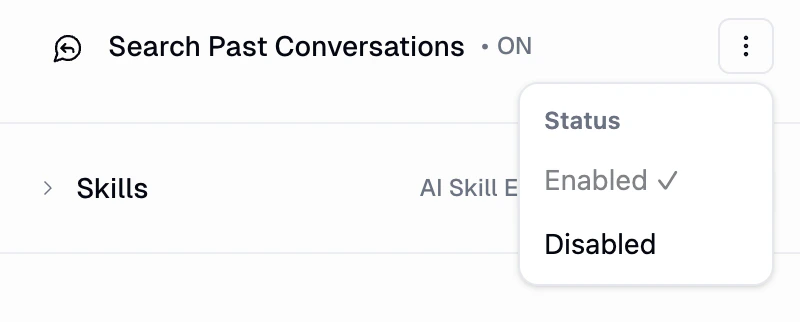
Toggle this on from the **Tools** section of your agent configuration. It is found alongside other built-in tools like Code Sandbox and Skill Editing. Use the three-dot menu to enable or disable it.
**How it works:**
* **Search by keyword**: The agent searches past conversations for messages matching your query, ranked by relevance
* **Retrieve full conversations**: Once a relevant conversation is found, the agent can load the full message history for detailed context
* **Date filtering**: Narrow searches to specific time ranges (e.g., conversations from the last week)
* **Team-wide search**: For project/team agents, search across all team members' conversations — not just your own
**Why this matters:**
Search Past Conversations makes it easy to continuously improve your agent over time. For example, you can tell your agent:
> *"Look at the past 10 conversations and find gaps in how you handled requests. Then update your skills or system prompt based on the feedback I provided in those interactions."*
Because your agent can reflect on its own history, it can identify patterns, spot recurring issues, and proactively refine its behavior. This creates a feedback loop where every conversation makes the agent smarter and more aligned with how you work.
**Use cases:**
* **Self-improvement**: Ask your agent to review past conversations and update its skills or instructions based on what it learns
* **Context recall**: "What did we discuss about the Q3 marketing plan?" — the agent finds and summarizes relevant past conversations
* **Pattern detection**: Identify recurring questions or issues across conversations to improve workflows
* **Onboarding**: New team members can ask the agent to surface relevant past discussions on a topic
Toggle this on from the **Tools** section of your agent configuration. It is found alongside other built-in tools like Code Sandbox and Skill Editing. Use the three-dot menu to enable or disable it.
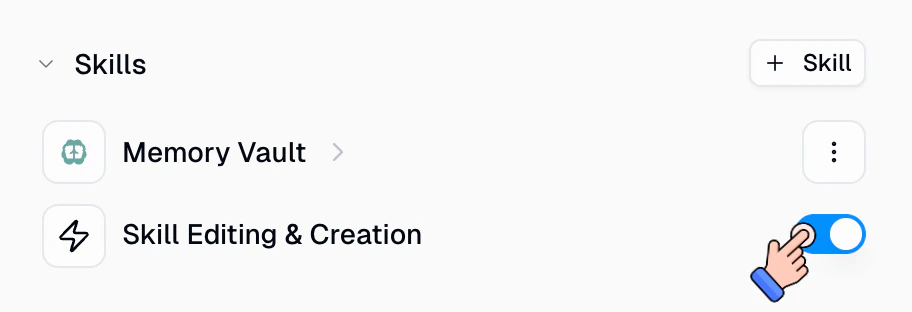 **Enabled (default, recommended):** Your agent can create new skills, update existing ones, and fix its own mistakes. This is the preferred option because it allows the agent to be iterative and continuously improve its playbooks over time.
**Disabled:** Your agent can still **read and use** the skills you've already attached, but it cannot create new skills or edit existing ones on the fly. Use this if you want tighter control over your skill library.
**Enabled (default, recommended):** Your agent can create new skills, update existing ones, and fix its own mistakes. This is the preferred option because it allows the agent to be iterative and continuously improve its playbooks over time.
**Disabled:** Your agent can still **read and use** the skills you've already attached, but it cannot create new skills or edit existing ones on the fly. Use this if you want tighter control over your skill library.
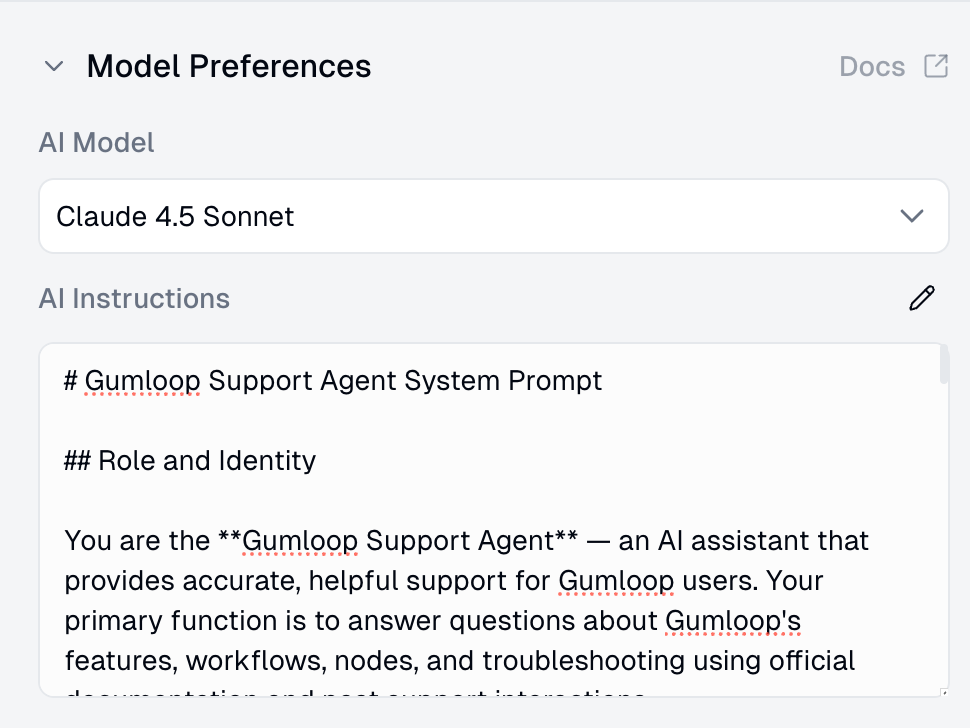
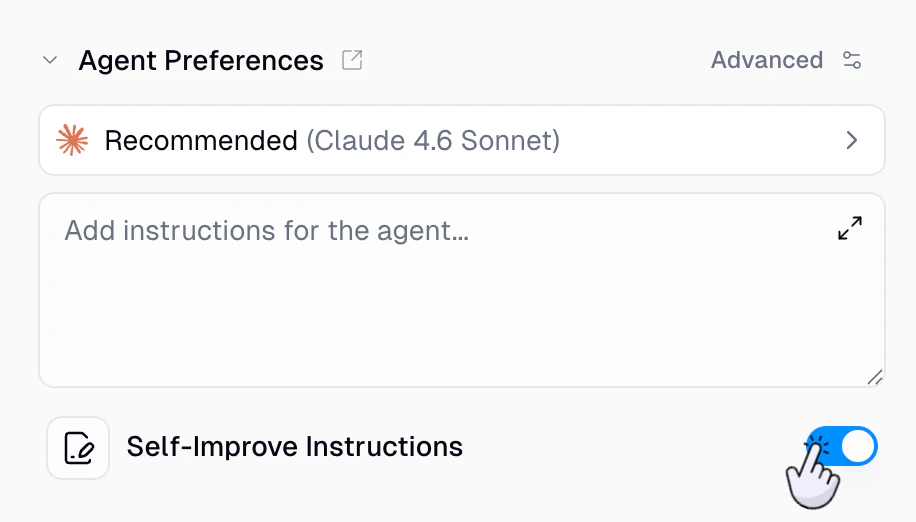 Toggle this on in **Agent Preferences**, right below the system prompt editor. Enabled by default for new agents. Changes take effect immediately and persist across all future conversations.
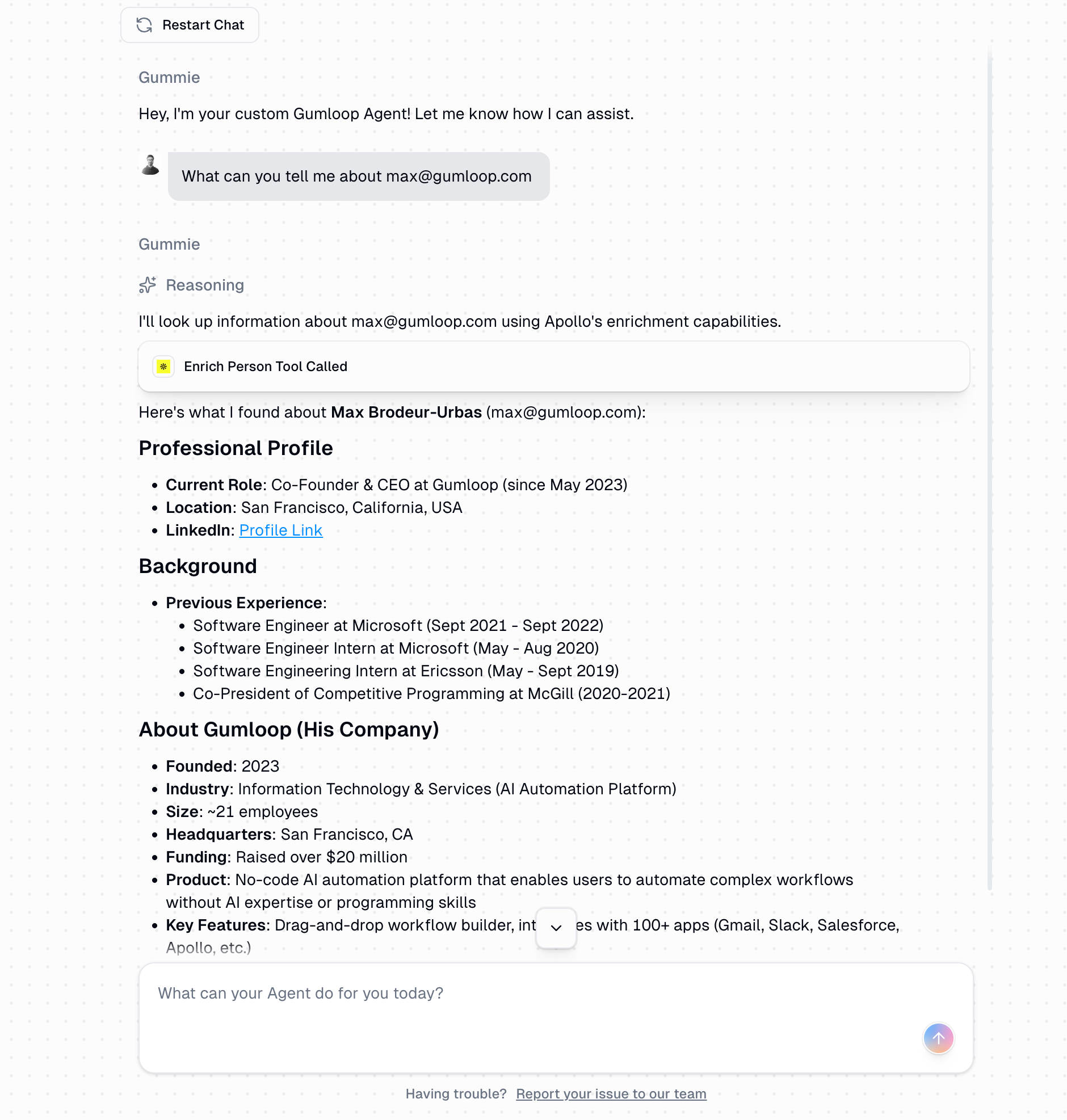 1. **Analyzes** the request and available tools
2. **Decides** which tools to use and in what order
3. **Executes** tool calls and adapts based on results
4. **Asks** for confirmation when needed (based on instructions)
5. **Explains** its reasoning step-by-step
***
## Triggers
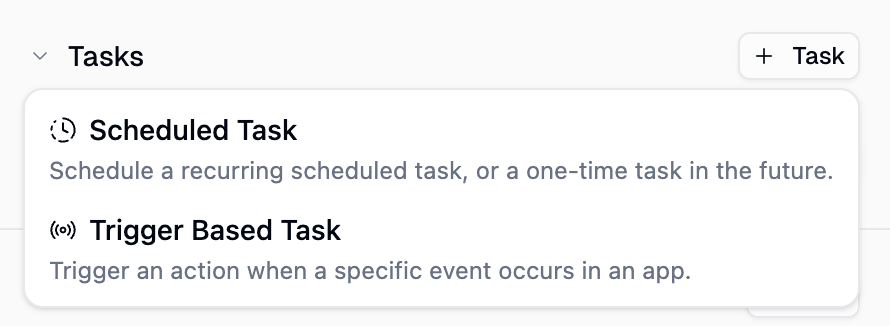
Agents can run autonomously without manual interaction. Set up **scheduled triggers** to run on a recurring schedule or as a one-time trigger, or create **event-based triggers** to fire your agent when something happens in an external service.
1. **Analyzes** the request and available tools
2. **Decides** which tools to use and in what order
3. **Executes** tool calls and adapts based on results
4. **Asks** for confirmation when needed (based on instructions)
5. **Explains** its reasoning step-by-step
***
## Triggers
Agents can run autonomously without manual interaction. Set up **scheduled triggers** to run on a recurring schedule or as a one-time trigger, or create **event-based triggers** to fire your agent when something happens in an external service.
 ### How It Works
1. Record or upload an audio file in the chat input
2. Gumloop transcribes the audio using an AI transcription model
3. The transcribed text appears as your message in the conversation
4. The agent responds to the transcribed text like any other message
The transcription happens entirely on Gumloop's servers. Your agent never receives the raw audio file, only the text transcript.
### Supported Formats and Limits
| Detail | Value |
| ------------------------ | --------------------------------------------------------------------------------------------------------------------------------------- |
| **Supported formats** | mp3, mp4, mpeg, mpga, m4a, wav, webm |
| **Maximum file size** | 25 MB |
| **Supported MIME types** | audio/aac, audio/flac, audio/m4a, audio/mp3, audio/mp4, audio/mpeg, audio/ogg, audio/wav, audio/webm, video/mp4, video/mpeg, video/webm |
### Transcription Models
Gumloop uses OpenAI transcription models to convert your audio to text:
| Model | Best For |
| -------------------------- | ----------------------------------------------------------- |
| **OpenAI Whisper** | General-purpose transcription, broad language support |
| **GPT-4o Transcribe** | Higher accuracy, better handling of accents and noisy audio |
| **GPT-4o Mini Transcribe** | Faster and cheaper, good for clear audio |
The system automatically selects the best available model. If you're using BYOK (Bring Your Own Key), transcription uses your API key and you receive the standard 50% credit discount.
***
## Subagents
Subagents let your agent delegate tasks to other agents. Instead of handling everything in a single conversation, your agent can spin up focused helpers that work in parallel, then collect the results and continue.
### How It Works
1. Record or upload an audio file in the chat input
2. Gumloop transcribes the audio using an AI transcription model
3. The transcribed text appears as your message in the conversation
4. The agent responds to the transcribed text like any other message
The transcription happens entirely on Gumloop's servers. Your agent never receives the raw audio file, only the text transcript.
### Supported Formats and Limits
| Detail | Value |
| ------------------------ | --------------------------------------------------------------------------------------------------------------------------------------- |
| **Supported formats** | mp3, mp4, mpeg, mpga, m4a, wav, webm |
| **Maximum file size** | 25 MB |
| **Supported MIME types** | audio/aac, audio/flac, audio/m4a, audio/mp3, audio/mp4, audio/mpeg, audio/ogg, audio/wav, audio/webm, video/mp4, video/mpeg, video/webm |
### Transcription Models
Gumloop uses OpenAI transcription models to convert your audio to text:
| Model | Best For |
| -------------------------- | ----------------------------------------------------------- |
| **OpenAI Whisper** | General-purpose transcription, broad language support |
| **GPT-4o Transcribe** | Higher accuracy, better handling of accents and noisy audio |
| **GPT-4o Mini Transcribe** | Faster and cheaper, good for clear audio |
The system automatically selects the best available model. If you're using BYOK (Bring Your Own Key), transcription uses your API key and you receive the standard 50% credit discount.
***
## Subagents
Subagents let your agent delegate tasks to other agents. Instead of handling everything in a single conversation, your agent can spin up focused helpers that work in parallel, then collect the results and continue.
 ### How It Works
1. While the agent shows "Responding...", type and send additional messages as usual
2. Your messages appear in a queue above the input field, in the order you sent them
3. Between processing steps (for example, after the agent finishes a tool call), the agent automatically drains the next queued message and incorporates it into the conversation
4. The agent treats the queued message as if you had sent it at that moment, adjusting its response accordingly
This is especially useful when you realize mid-response that you forgot to include important context, want to redirect the agent's approach, or need to add follow-up instructions before the current response finishes.
### What You Can Do With Queued Messages
| Action | Description |
| --------------------------- | ------------------------------------------------------------------------ |
| **Queue multiple messages** | Send as many follow-ups as you want while the agent is responding |
| **Include attachments** | Queued messages can contain files and images, just like regular messages |
| **Edit before delivery** | Click a queued message to edit its text before the agent picks it up |
| **Reorder the queue** | Drag messages to change the order the agent will process them |
| **Remove a message** | Cancel a queued message before it gets delivered to the agent |
| **Retry failed messages** | If a queued message fails to send, you can retry it |
### Steering
Because queued messages are injected at natural breakpoints (between model steps, after tool results), they act as **steering inputs**. You can use this to:
* **Redirect the agent**: "Actually, focus on the Q3 numbers instead"
* **Add missing context**: "By the way, the deadline is Friday"
* **Refine the request**: "Make it more concise" or "Include a chart"
* **Stack instructions**: Queue up a sequence of tasks for the agent to work through
The agent processes queued messages one at a time in order. Each message becomes part of the conversation history, so the agent has full context of everything you've queued when it gets to the next message.
### How It Works
1. While the agent shows "Responding...", type and send additional messages as usual
2. Your messages appear in a queue above the input field, in the order you sent them
3. Between processing steps (for example, after the agent finishes a tool call), the agent automatically drains the next queued message and incorporates it into the conversation
4. The agent treats the queued message as if you had sent it at that moment, adjusting its response accordingly
This is especially useful when you realize mid-response that you forgot to include important context, want to redirect the agent's approach, or need to add follow-up instructions before the current response finishes.
### What You Can Do With Queued Messages
| Action | Description |
| --------------------------- | ------------------------------------------------------------------------ |
| **Queue multiple messages** | Send as many follow-ups as you want while the agent is responding |
| **Include attachments** | Queued messages can contain files and images, just like regular messages |
| **Edit before delivery** | Click a queued message to edit its text before the agent picks it up |
| **Reorder the queue** | Drag messages to change the order the agent will process them |
| **Remove a message** | Cancel a queued message before it gets delivered to the agent |
| **Retry failed messages** | If a queued message fails to send, you can retry it |
### Steering
Because queued messages are injected at natural breakpoints (between model steps, after tool results), they act as **steering inputs**. You can use this to:
* **Redirect the agent**: "Actually, focus on the Q3 numbers instead"
* **Add missing context**: "By the way, the deadline is Friday"
* **Refine the request**: "Make it more concise" or "Include a chart"
* **Stack instructions**: Queue up a sequence of tasks for the agent to work through
The agent processes queued messages one at a time in order. Each message becomes part of the conversation history, so the agent has full context of everything you've queued when it gets to the next message.
 When a conversation approaches the model's context limit, the system identifies the oldest messages, generates a structured summary (**Goal**, **Actions Taken**, **Key Data**, **Status**, **Next Steps**), and replaces them while keeping recent messages in full detail.
 When errors occur, the system classifies the error, retries based on severity, then falls back to the next model in the chain. Models from the same provider are automatically excluded for true redundancy.
| Error Type | Retries Before Fallback | Rationale |
| ------------- | ----------------------- | ----------------------------------------- |
| Rate Limit | 2 | Rate limits often clear quickly |
| Provider 5xx | 1 | Provider unhealthy, fallback faster |
| Network Error | 0 | Immediate fallback (no retries) |
| Timeout | 1 | Server overloaded, try once then fallback |
**Auto Mode (Default):** Fallback models are selected based on your primary model's characteristics:
| Primary Model Type | Fallback Chain |
| ----------------------------------------- | -------------------------------------------- |
| Expert/Smartest (intelligence rating > 4) | Claude Opus 4.5 → Gemini 3 Pro → GPT-5.2 |
| Fastest (speed rating > 4) | Gemini 3 Flash → Claude Haiku 4.5 → GPT-4.1 |
| Recommended/Balanced | Claude Sonnet 4.5 → Gemini 3 Flash → GPT-5.2 |
**Override Mode:** Manually select up to 2 fallback models. Drag-and-drop to set priority order. Models from the same provider as your primary are automatically filtered out.
When errors occur, the system classifies the error, retries based on severity, then falls back to the next model in the chain. Models from the same provider are automatically excluded for true redundancy.
| Error Type | Retries Before Fallback | Rationale |
| ------------- | ----------------------- | ----------------------------------------- |
| Rate Limit | 2 | Rate limits often clear quickly |
| Provider 5xx | 1 | Provider unhealthy, fallback faster |
| Network Error | 0 | Immediate fallback (no retries) |
| Timeout | 1 | Server overloaded, try once then fallback |
**Auto Mode (Default):** Fallback models are selected based on your primary model's characteristics:
| Primary Model Type | Fallback Chain |
| ----------------------------------------- | -------------------------------------------- |
| Expert/Smartest (intelligence rating > 4) | Claude Opus 4.5 → Gemini 3 Pro → GPT-5.2 |
| Fastest (speed rating > 4) | Gemini 3 Flash → Claude Haiku 4.5 → GPT-4.1 |
| Recommended/Balanced | Claude Sonnet 4.5 → Gemini 3 Flash → GPT-5.2 |
**Override Mode:** Manually select up to 2 fallback models. Drag-and-drop to set priority order. Models from the same provider as your primary are automatically filtered out.
 Hover over the icon to see a detailed breakdown of token usage across different categories:
| Category | What It Includes |
| ------------------- | -------------------------------------------------------- |
| **System** | Gumloop's internal system prompt that powers your agent |
| **AI Instructions** | The custom instructions you wrote for your agent |
| **Abilities** | Built-in capabilities like code execution and web search |
| **Tools** | MCP integrations and workflows you've connected |
| **Skills** | Any skills attached to the agent |
| **Subagents** | Token overhead from connected subagents |
| **Conversation** | The actual messages exchanged in the current chat |
The meter shows a percentage of how full the context window is, along with the exact token count (e.g., "26.1K / 1M tokens"). As your conversation grows, the Conversation portion increases while the other categories remain relatively stable.
Hover over the icon to see a detailed breakdown of token usage across different categories:
| Category | What It Includes |
| ------------------- | -------------------------------------------------------- |
| **System** | Gumloop's internal system prompt that powers your agent |
| **AI Instructions** | The custom instructions you wrote for your agent |
| **Abilities** | Built-in capabilities like code execution and web search |
| **Tools** | MCP integrations and workflows you've connected |
| **Skills** | Any skills attached to the agent |
| **Subagents** | Token overhead from connected subagents |
| **Conversation** | The actual messages exchanged in the current chat |
The meter shows a percentage of how full the context window is, along with the exact token count (e.g., "26.1K / 1M tokens"). As your conversation grows, the Conversation portion increases while the other categories remain relatively stable.
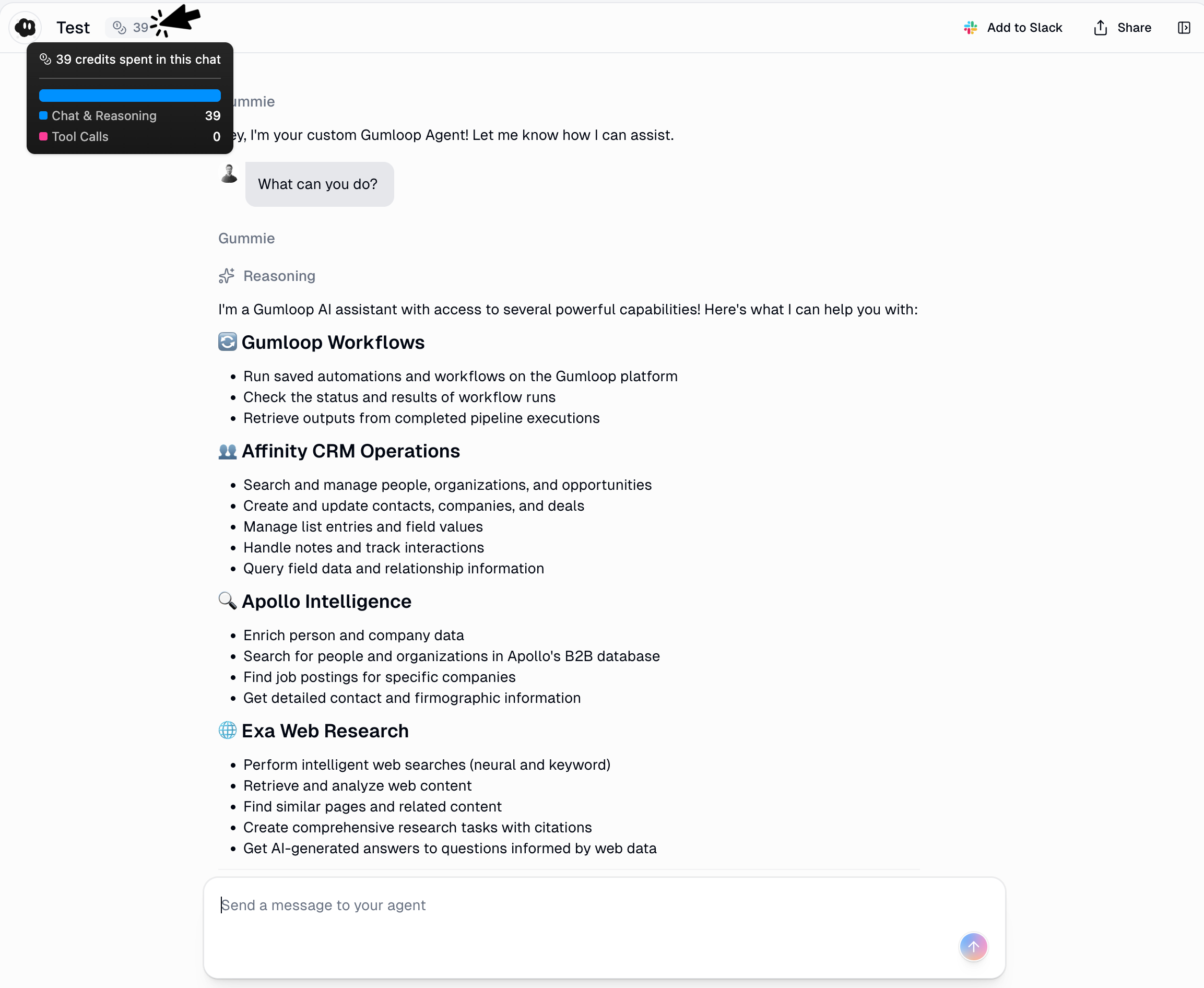 * **Real-time Display**: Credits shown next to each agent response as it streams
* **Conversation History**: View total credits per conversation thread
* **[History Page](https://www.gumloop.com/history)**: See credit costs for agent chats and Agent node executions (when run via workflows)
* **[Account Dashboard](https://www.gumloop.com/settings/profile/general)**: Track total credits used across all agents and timeframes
For full details, see the [Credits documentation](/core-concepts/credits).
***
## Credentials & Authentication
When an agent uses integrations and workflows, it needs credentials to access external services. You can control which account each app uses from the agent's configuration page.
* **Real-time Display**: Credits shown next to each agent response as it streams
* **Conversation History**: View total credits per conversation thread
* **[History Page](https://www.gumloop.com/history)**: See credit costs for agent chats and Agent node executions (when run via workflows)
* **[Account Dashboard](https://www.gumloop.com/settings/profile/general)**: Track total credits used across all agents and timeframes
For full details, see the [Credits documentation](/core-concepts/credits).
***
## Credentials & Authentication
When an agent uses integrations and workflows, it needs credentials to access external services. You can control which account each app uses from the agent's configuration page.
 **From agent chat (agent-created rules):**
Your agent can also propose its own rules during a conversation. Enable this by toggling **App Rules Creation** to **ON** in the **Abilities** section of your agent's configuration.
**From agent chat (agent-created rules):**
Your agent can also propose its own rules during a conversation. Enable this by toggling **App Rules Creation** to **ON** in the **Abilities** section of your agent's configuration.
 With this enabled, you can ask your agent something like *"Create a linear app rule to never create a ticket without having at least two labels"* and it will propose a rule for your review. All rule proposals require explicit approval: you'll see a card in the chat with **Accept** / **Reject** buttons.

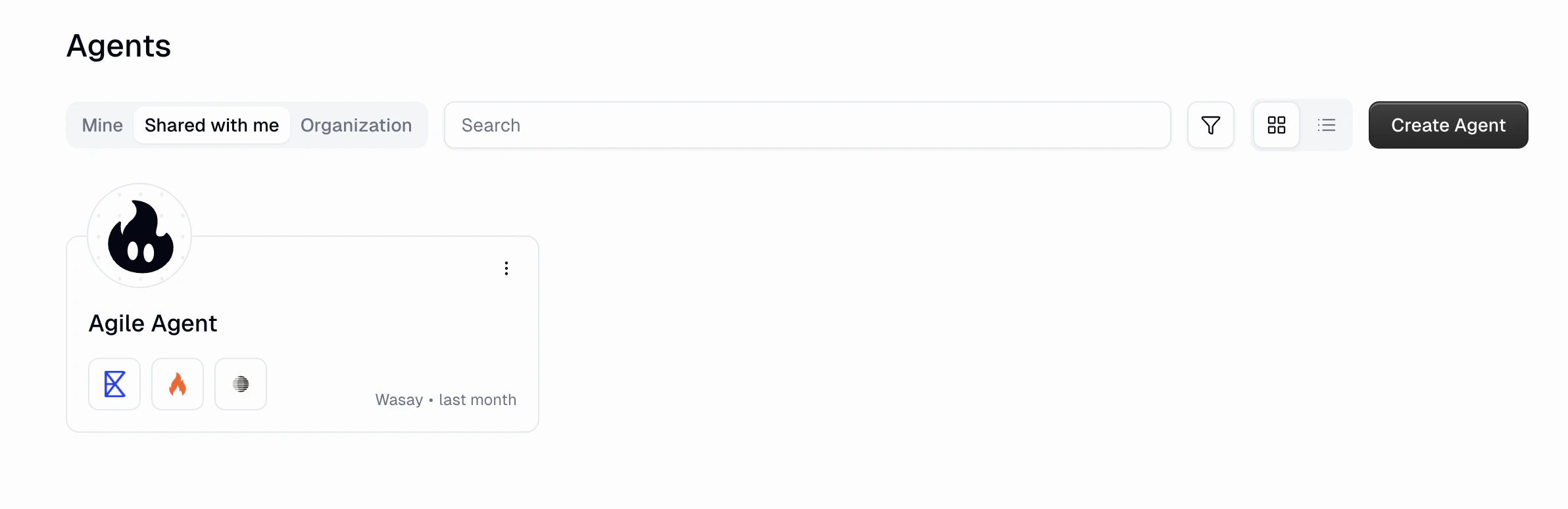
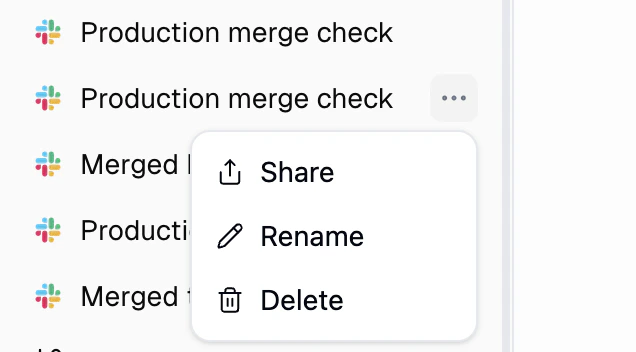 | Action | What it does |
| ---------- | ------------------------------------------------------ |
| **Share** | Share the conversation with others as a read-only link |
| **Rename** | Give the chat a custom name so you can find it later |
| **Delete** | Permanently remove the conversation |
| Action | What it does |
| ---------- | ------------------------------------------------------ |
| **Share** | Share the conversation with others as a read-only link |
| **Rename** | Give the chat a custom name so you can find it later |
| **Delete** | Permanently remove the conversation |
 ***
## Incognito Mode
Incognito mode lets you have conversations with an agent that are **not saved to the database**. Messages are held only in temporary memory during the conversation and are automatically deleted after 24 hours.
***
## Incognito Mode
Incognito mode lets you have conversations with an agent that are **not saved to the database**. Messages are held only in temporary memory during the conversation and are automatically deleted after 24 hours.
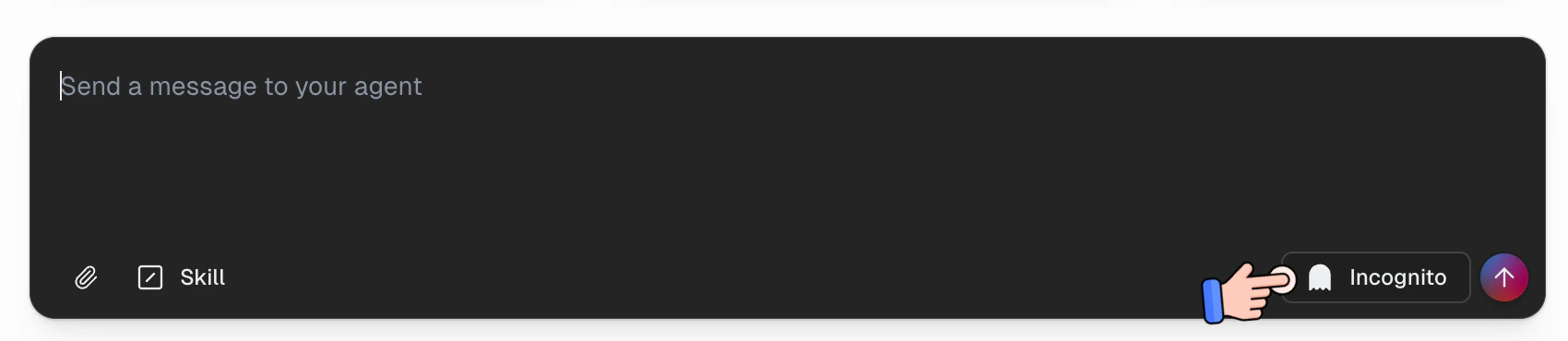 ### How to Use Incognito Mode
Toggle the **Incognito** button in the chat input bar before sending your message. When incognito is active, the conversation bypasses permanent storage entirely.
### What Happens in Incognito Mode
| Behavior | Standard Chat | Incognito Chat |
| ----------------------------- | -------------------------------------- | ------------------------------------------------------------------------------------------------------ |
| **Message storage** | Saved permanently to the database | Not saved to the database |
| **Visible in chat history** | Yes | No. Hidden from the sidebar, search, and all chat listings |
| **Included in data exports** | Yes | No |
| **Files and artifacts** | Stored permanently | Stored in ephemeral storage and auto-deleted after 24 hours. No permanent artifact records are created |
| **Subagent behavior** | N/A | Incognito propagates to all subagents automatically |
| **Used for self-improvement** | Yes, agent can learn from interactions | No, incognito conversations are excluded from reflections |
### How to Use Incognito Mode
Toggle the **Incognito** button in the chat input bar before sending your message. When incognito is active, the conversation bypasses permanent storage entirely.
### What Happens in Incognito Mode
| Behavior | Standard Chat | Incognito Chat |
| ----------------------------- | -------------------------------------- | ------------------------------------------------------------------------------------------------------ |
| **Message storage** | Saved permanently to the database | Not saved to the database |
| **Visible in chat history** | Yes | No. Hidden from the sidebar, search, and all chat listings |
| **Included in data exports** | Yes | No |
| **Files and artifacts** | Stored permanently | Stored in ephemeral storage and auto-deleted after 24 hours. No permanent artifact records are created |
| **Subagent behavior** | N/A | Incognito propagates to all subagents automatically |
| **Used for self-improvement** | Yes, agent can learn from interactions | No, incognito conversations are excluded from reflections |