> ## Documentation Index
> Fetch the complete documentation index at: https://docs.gumloop.com/llms.txt
> Use this file to discover all available pages before exploring further.
# Agent Triggers
> Run your agents automatically on a schedule or in response to external events like emails, Slack messages, and more.
Agents can run autonomously without manual interaction. Set up **scheduled triggers** to run on a recurring or one-time basis, or create **event-based triggers** to fire your agent when something happens in an external service.
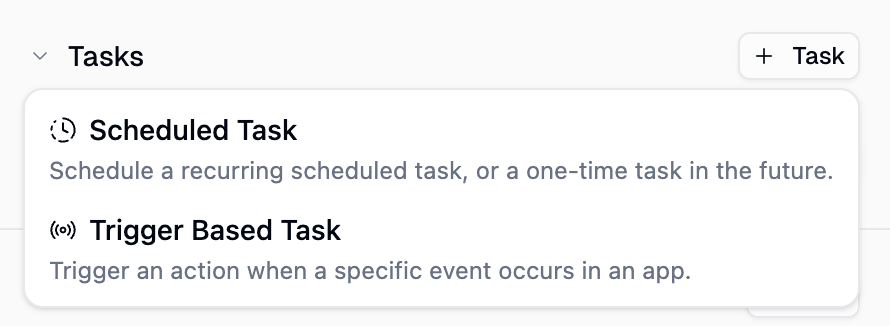 All triggers are managed from the **Triggers** section of your agent's configuration page. Click **+ Trigger** to create a new one.
Need to monitor multiple services, apply custom logic, or watch an app without a pre-built trigger? Use [**Create With AI**](/core-concepts/ai_trigger_creation) to build custom triggers in natural language.
***
## Scheduled Triggers
Schedule your agent to run automatically on a **recurring schedule** or as a **one-time trigger**. When a trigger fires, the agent receives a prompt you configure and processes it exactly as if you had typed it in the chat.
### Setting Up a Scheduled Trigger
Go to your agent's configuration page, find the **Triggers** section, and click **+ Trigger**. Choose **Scheduled Trigger** as the type, then fill in three fields:
* **Name**: A short label (e.g., "Daily Ticket Summary")
* **Schedule**: When the trigger should run (recurring cron or one-time)
* **Prompt**: The message your agent receives when the trigger fires
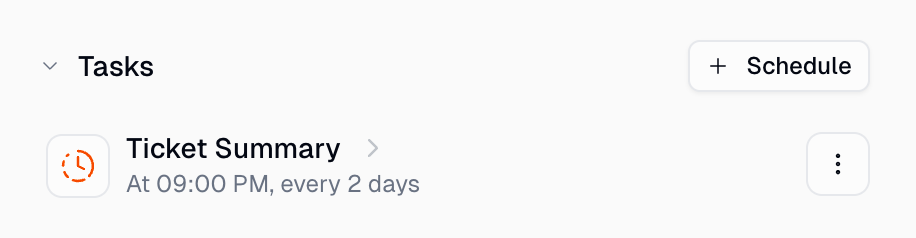
Click **Create** and the trigger is immediately active.
Runs on a cron schedule until you pause or delete it. You don't need to know cron syntax: describe your schedule in plain language and the AI generates the expression.
All triggers are managed from the **Triggers** section of your agent's configuration page. Click **+ Trigger** to create a new one.
Need to monitor multiple services, apply custom logic, or watch an app without a pre-built trigger? Use [**Create With AI**](/core-concepts/ai_trigger_creation) to build custom triggers in natural language.
***
## Scheduled Triggers
Schedule your agent to run automatically on a **recurring schedule** or as a **one-time trigger**. When a trigger fires, the agent receives a prompt you configure and processes it exactly as if you had typed it in the chat.
### Setting Up a Scheduled Trigger
Go to your agent's configuration page, find the **Triggers** section, and click **+ Trigger**. Choose **Scheduled Trigger** as the type, then fill in three fields:
* **Name**: A short label (e.g., "Daily Ticket Summary")
* **Schedule**: When the trigger should run (recurring cron or one-time)
* **Prompt**: The message your agent receives when the trigger fires
Click **Create** and the trigger is immediately active.
Runs on a cron schedule until you pause or delete it. You don't need to know cron syntax: describe your schedule in plain language and the AI generates the expression.
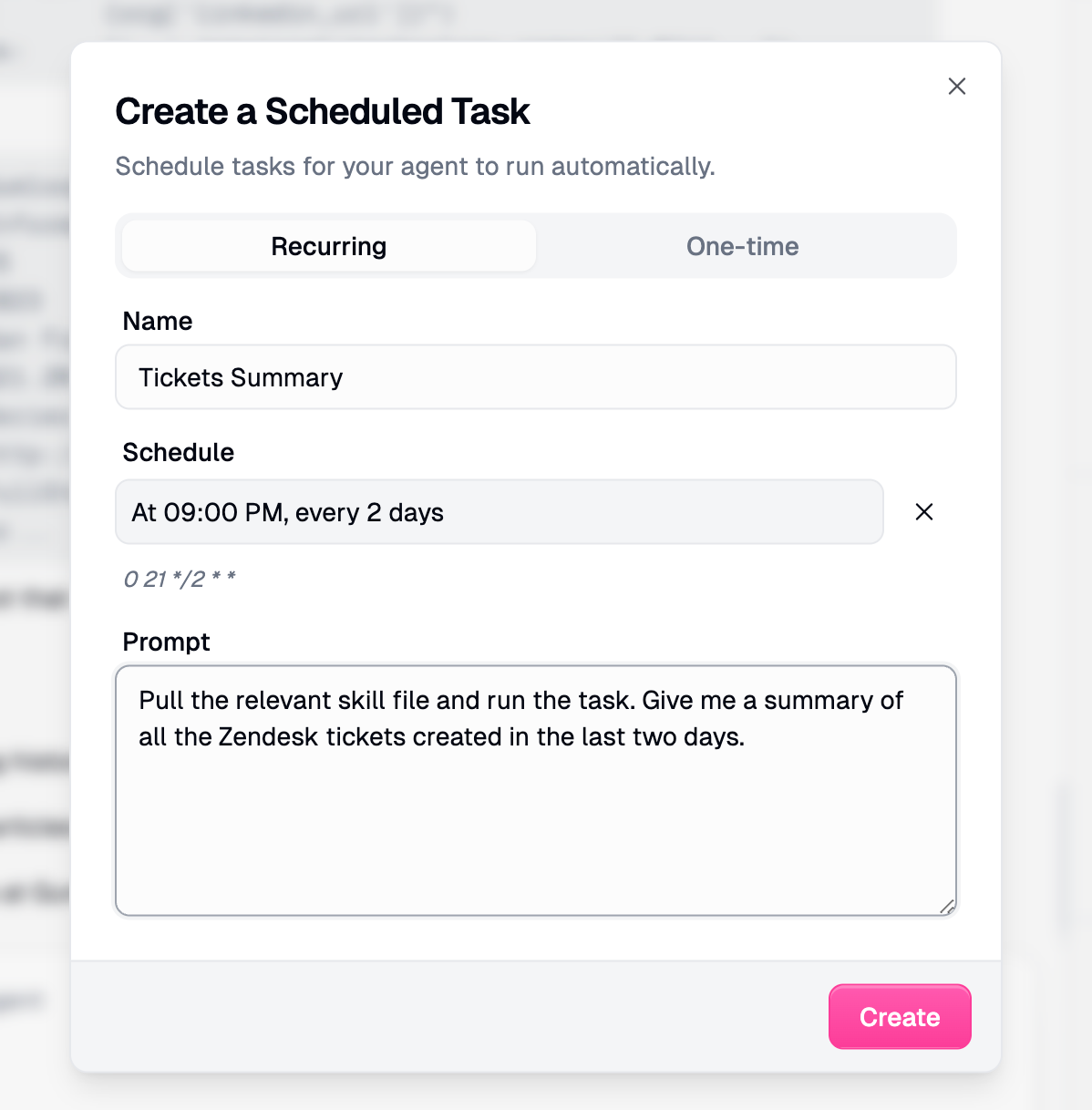 Minimum interval is 1 minute. Timezones default to your browser's timezone.
Runs once and is **automatically deleted** after execution.
Minimum interval is 1 minute. Timezones default to your browser's timezone.
Runs once and is **automatically deleted** after execution.
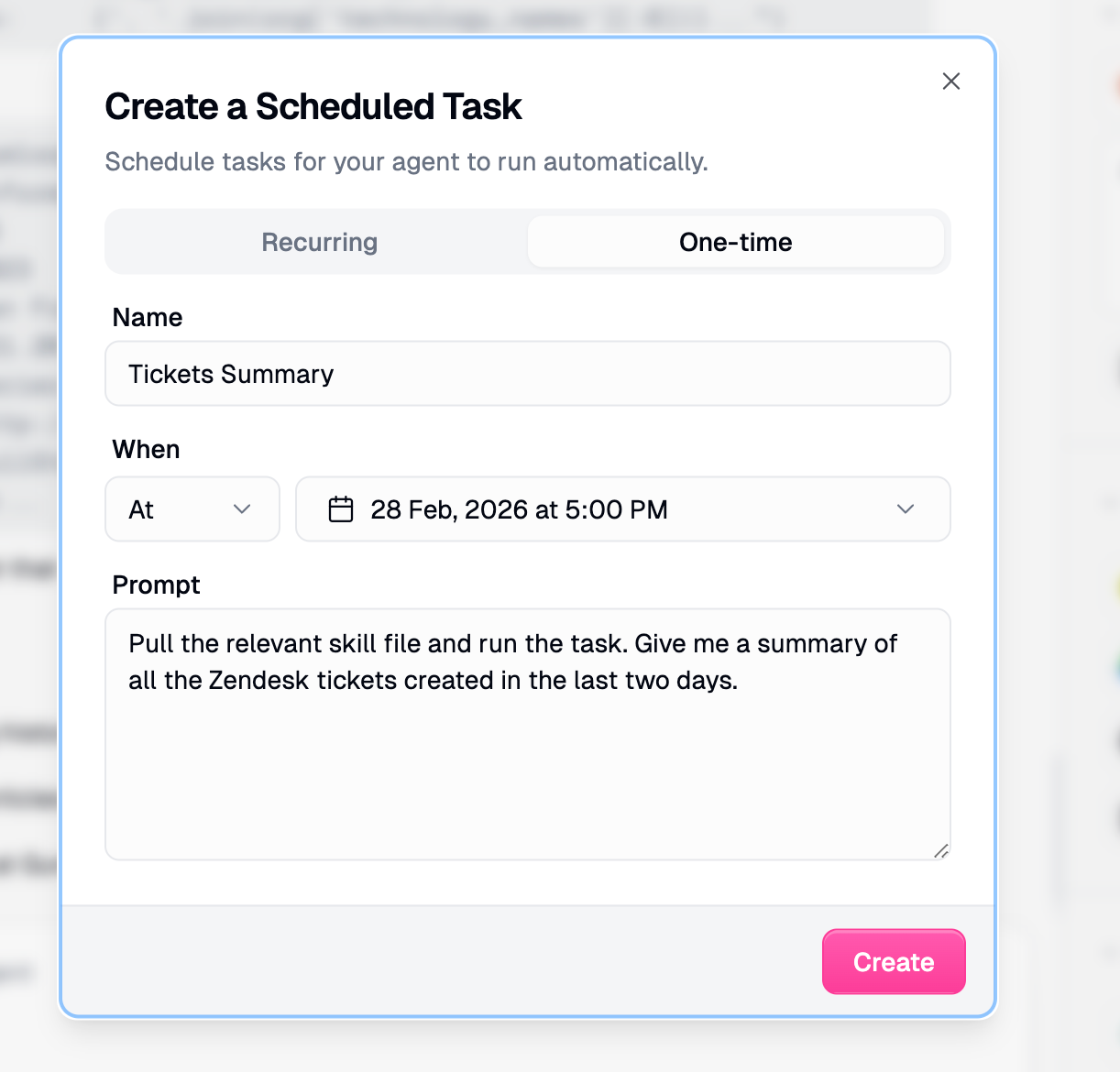 * **Relative** ("In" mode): In 30 minutes, 2 hours, 3 days
* **Absolute** ("At" mode): Pick a specific date and time
Once created, triggers appear in the **Triggers** section. Click to edit, or use the three-dot menu to enable, disable, or delete.
* **Relative** ("In" mode): In 30 minutes, 2 hours, 3 days
* **Absolute** ("At" mode): Pick a specific date and time
Once created, triggers appear in the **Triggers** section. Click to edit, or use the three-dot menu to enable, disable, or delete.
 ### Writing Good Trigger Prompts
The prompt is what your agent receives when the trigger fires. Be specific:
| ✅ Good | ❌ Bad |
| ------------------------------------------------------------------------------------------------ | --------------------- |
| "Give me a summary of all the Zendesk tickets created in the last two days." | "Do the usual thing." |
| "Check my Gmail for unread client emails, summarize them, and post to #client-updates in Slack." | "Check emails." |
If your agent has a relevant [skill](/core-concepts/skills) for the task, reference it in the prompt. The agent will load the skill and follow its instructions for consistent results.
### Self-Scheduling
Your agent can create and manage its own triggers during a conversation. Just tell it what you need:
| What you say | What happens |
| -------------------------------------------------- | ---------------------------------------------- |
| "Remind me to check emails every weekday at 9 AM" | Agent creates a recurring scheduled trigger |
| "In 30 minutes, check if the deployment succeeded" | Agent creates a one-time delayed trigger |
| "Show me my active schedules" | Agent lists all its triggers |
| "Pause the daily email check" | Agent disables the trigger without deleting it |
Agents can only manage their own schedules, not those of other agents.
***
## Event-Based Triggers
Event-based triggers fire your agent when something happens in an external service. Instead of checking manually, your agent reacts automatically to new emails, messages, database changes, and more.
When a trigger fires, the event data (e.g., the email body, the Slack message) is injected into a prompt template you write. The agent processes it as if you had typed it in the chat.
### Supported Integrations
New email in a label
New channel message
Emoji reaction on a message
New channel message
New file in a folder
New or updated row
Upcoming event
New or updated page
New or updated record
New ticket or comment
New or updated record in any object
New or updated issue
New issue created
Web changes matching a query
Also supported: **Google Forms**, **Typeform**, **HubSpot**, **incident.io**, and **Jira**. Some integrations (Gmail, Slack, Slack Reaction, Teams, Drive, Forms, Typeform, Zendesk, Parallel Web Monitor) are **real-time** and fire within seconds. Others (Sheets, Calendar, Notion, Airtable, HubSpot, incident.io, Salesforce, Linear, Jira) use **polling** and check for changes approximately every 60 seconds.
### Setting Up an Event-Based Trigger
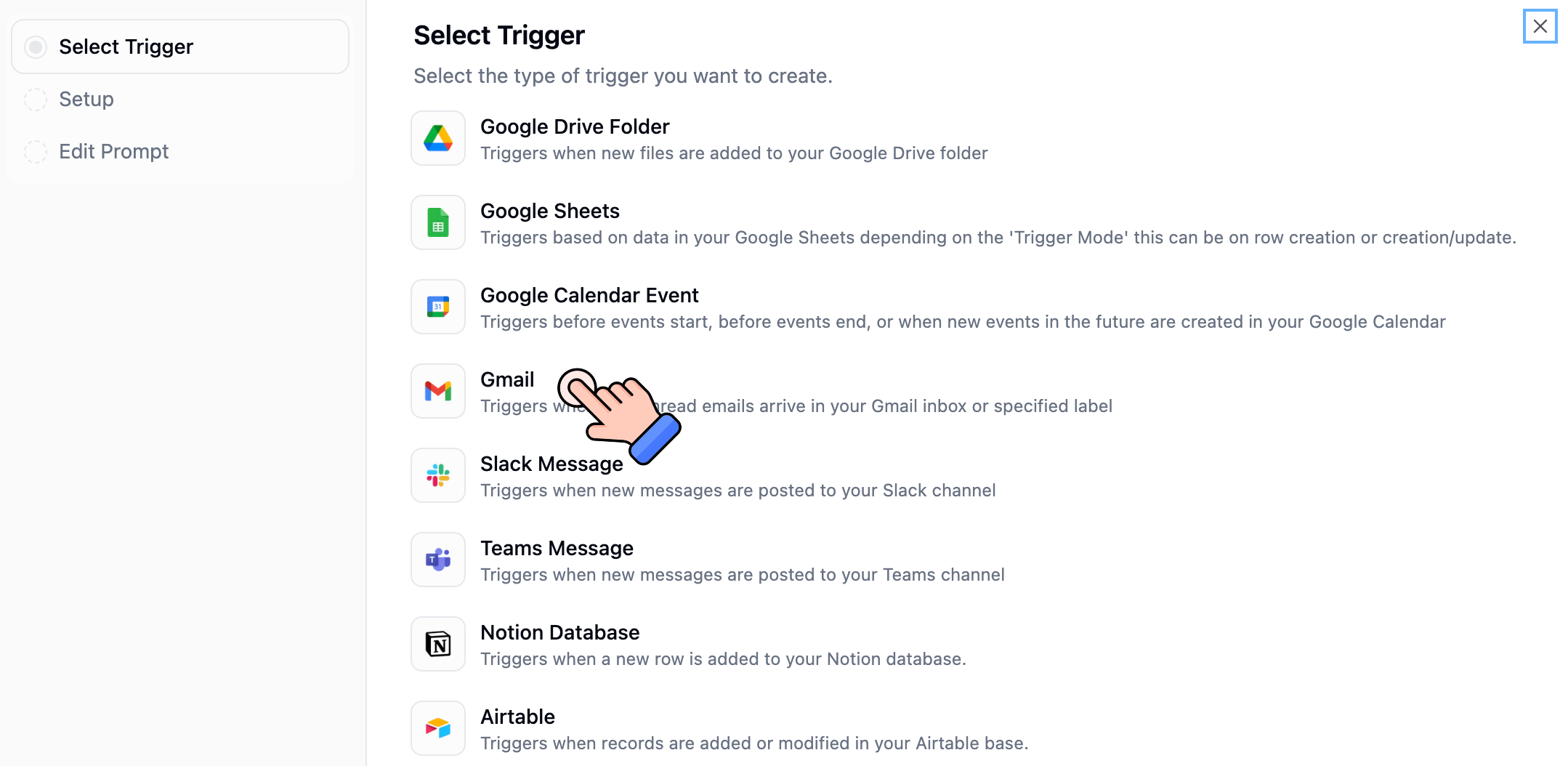
Go to your agent's configuration page, find the **Triggers** section, and click **+ Trigger**. Choose **Event-Based Trigger** as the type. Then follow three steps:
Choose which integration event should fire your agent.
### Writing Good Trigger Prompts
The prompt is what your agent receives when the trigger fires. Be specific:
| ✅ Good | ❌ Bad |
| ------------------------------------------------------------------------------------------------ | --------------------- |
| "Give me a summary of all the Zendesk tickets created in the last two days." | "Do the usual thing." |
| "Check my Gmail for unread client emails, summarize them, and post to #client-updates in Slack." | "Check emails." |
If your agent has a relevant [skill](/core-concepts/skills) for the task, reference it in the prompt. The agent will load the skill and follow its instructions for consistent results.
### Self-Scheduling
Your agent can create and manage its own triggers during a conversation. Just tell it what you need:
| What you say | What happens |
| -------------------------------------------------- | ---------------------------------------------- |
| "Remind me to check emails every weekday at 9 AM" | Agent creates a recurring scheduled trigger |
| "In 30 minutes, check if the deployment succeeded" | Agent creates a one-time delayed trigger |
| "Show me my active schedules" | Agent lists all its triggers |
| "Pause the daily email check" | Agent disables the trigger without deleting it |
Agents can only manage their own schedules, not those of other agents.
***
## Event-Based Triggers
Event-based triggers fire your agent when something happens in an external service. Instead of checking manually, your agent reacts automatically to new emails, messages, database changes, and more.
When a trigger fires, the event data (e.g., the email body, the Slack message) is injected into a prompt template you write. The agent processes it as if you had typed it in the chat.
### Supported Integrations
New email in a label
New channel message
Emoji reaction on a message
New channel message
New file in a folder
New or updated row
Upcoming event
New or updated page
New or updated record
New ticket or comment
New or updated record in any object
New or updated issue
New issue created
Web changes matching a query
Also supported: **Google Forms**, **Typeform**, **HubSpot**, **incident.io**, and **Jira**. Some integrations (Gmail, Slack, Slack Reaction, Teams, Drive, Forms, Typeform, Zendesk, Parallel Web Monitor) are **real-time** and fire within seconds. Others (Sheets, Calendar, Notion, Airtable, HubSpot, incident.io, Salesforce, Linear, Jira) use **polling** and check for changes approximately every 60 seconds.
### Setting Up an Event-Based Trigger
Go to your agent's configuration page, find the **Triggers** section, and click **+ Trigger**. Choose **Event-Based Trigger** as the type. Then follow three steps:
Choose which integration event should fire your agent.
 Connect your credentials and set up the specific parameters for your trigger. For example, with Gmail you can choose which label to monitor, whether to mark emails as read, and whether to read HTML content.
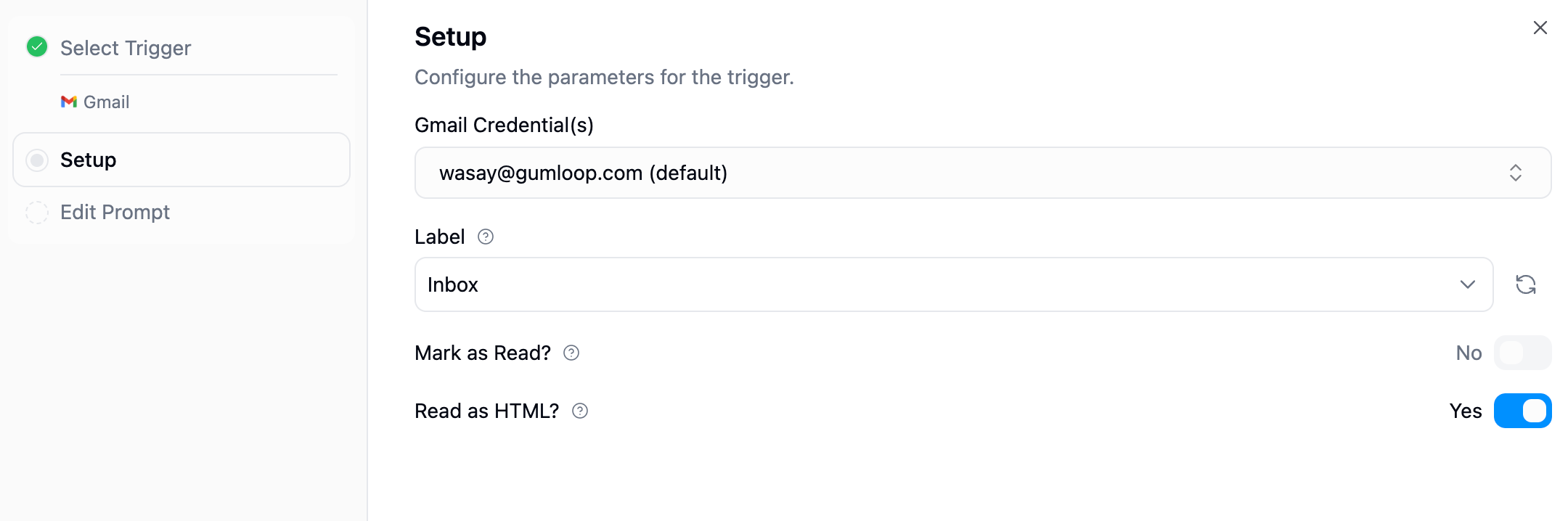 Your agent uses the credentials of the person who created the trigger. Make sure you've connected the required app on your [Connectors page](https://www.gumloop.com/personal/connectors) before setting up the trigger.
Define what your agent should do when the trigger fires. Use **template variables** (shown as badges) to inject event data into your prompt.
Your agent uses the credentials of the person who created the trigger. Make sure you've connected the required app on your [Connectors page](https://www.gumloop.com/personal/connectors) before setting up the trigger.
Define what your agent should do when the trigger fires. Use **template variables** (shown as badges) to inject event data into your prompt.
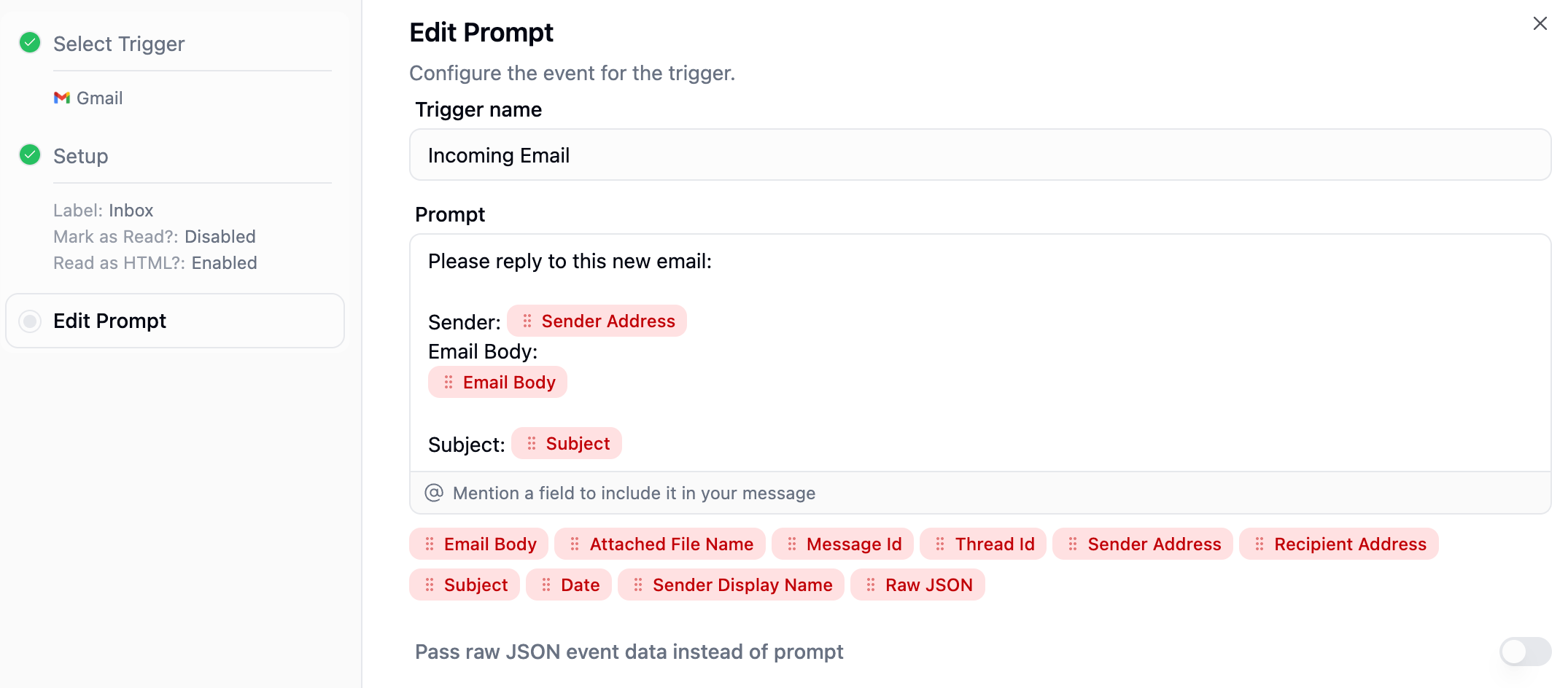 Template variables are specific to each integration. For Gmail, you get variables like `Email Body`, `Subject`, `Sender`, and `Attached File Name`. For Slack, you get `Message`, `Sender Name`, `Channel Name`, etc.
### Prompt Templates
When an event-based trigger fires, the event data is injected into your prompt template before the agent receives it.
**How it works:**
1. You write a prompt template with placeholder variables (shown as badges in the UI)
2. When the trigger fires, each variable is replaced with the actual event data
3. The agent receives the fully resolved prompt and acts on it
**Example:**
Your template:
```
New email from {Sender}: Subject: {Subject}
{Email Body}
Please categorize this email and draft a response if it's from a client.
```
When fired, your agent sees:
```
New email from john@acme.com: Subject: Q1 Budget Review
Hi, can we schedule a meeting to discuss the Q1 budget numbers?
Please categorize this email and draft a response if it's from a client.
```
You can also toggle **Pass Raw Data** to send the entire event payload as JSON instead of using template variables. This is useful when you want the agent to decide what's relevant.
### Managing Active Triggers
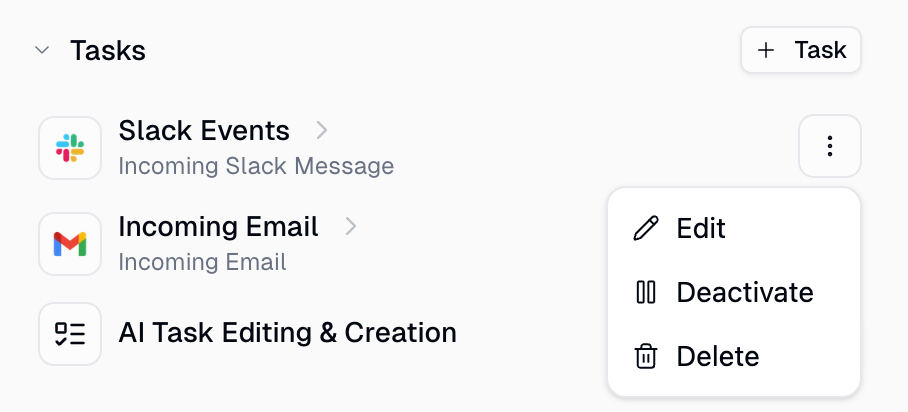
All your triggers (both scheduled and event-based) appear in the **Triggers** section of your agent's configuration. From here you can edit, deactivate, or delete any trigger.
Template variables are specific to each integration. For Gmail, you get variables like `Email Body`, `Subject`, `Sender`, and `Attached File Name`. For Slack, you get `Message`, `Sender Name`, `Channel Name`, etc.
### Prompt Templates
When an event-based trigger fires, the event data is injected into your prompt template before the agent receives it.
**How it works:**
1. You write a prompt template with placeholder variables (shown as badges in the UI)
2. When the trigger fires, each variable is replaced with the actual event data
3. The agent receives the fully resolved prompt and acts on it
**Example:**
Your template:
```
New email from {Sender}: Subject: {Subject}
{Email Body}
Please categorize this email and draft a response if it's from a client.
```
When fired, your agent sees:
```
New email from john@acme.com: Subject: Q1 Budget Review
Hi, can we schedule a meeting to discuss the Q1 budget numbers?
Please categorize this email and draft a response if it's from a client.
```
You can also toggle **Pass Raw Data** to send the entire event payload as JSON instead of using template variables. This is useful when you want the agent to decide what's relevant.
### Managing Active Triggers
All your triggers (both scheduled and event-based) appear in the **Triggers** section of your agent's configuration. From here you can edit, deactivate, or delete any trigger.
 ### Integration Details
**Fires when**: A new email arrives in the specified label. *(Real-time)*
**Configuration**: Choose your Gmail credential, select a label to monitor (e.g., INBOX, a custom label), and optionally enable "Mark as Read" and "Read as HTML".
**Available variables**: Email Body, Subject, Sender, Attached File Name, Date, Message ID, Thread ID
Due to Google API limitations, only one Gmail account can be monitored per credential. For multiple accounts, create separate triggers with different credentials.
**Fires when**: A new message is posted in the specified channel. *(Real-time)*
**Configuration**: Choose your Slack credential and select the channel to monitor. "Ignore Bot Messages" is enabled by default. You can also optionally ignore thread replies.
**Available variables**: Message, Sender Name, Channel Name, Channel ID, Date, Thread ID, Attachment Names
"Ignore Bot Messages" is on by default to prevent infinite loops if your agent posts back to the same channel. We recommend keeping it enabled unless you specifically need to process bot messages.
**Fires when**: Someone reacts to a message with an emoji in the specified channel. *(Real-time)*
**Configuration**: Choose your Slack credential and select the channel to watch. Optionally filter by specific emoji (e.g., `white_check_mark`, `thumbsup`). Leave the emoji filter empty to trigger on any reaction. "Ignore Reactions From Bots" is enabled by default. You can also include or exclude reactions on thread replies, and optionally read the full thread for additional context.
**Available variables**: Message, Emoji, Reaction Count, Reacted By, Message Sender, Attachment Names, Thread ID, Thread Link, Channel Name, Channel ID, Date
"Ignore Reactions From Bots" is on by default. Reactions from Gumloop itself are always ignored regardless of this setting, preventing infinite loops if your agent reacts to messages in the same channel.
**Fires when**: A new message is posted in the specified Teams channel. *(Real-time)*
**Configuration**: Choose your Teams credential, select the team and channel. Optionally ignore bot messages and thread replies.
**Available variables**: Message, Sender Name, Channel Name, Channel ID, Date, Subject
Teams triggers only work with Microsoft 365 work or school accounts. Personal Microsoft accounts are not supported.
Want your team to chat with an agent inside a Teams channel instead? See [Using Agents in Microsoft Teams](/core-concepts/agents_teams).
**Fires when**: A new file is uploaded to the specified folder. *(Real-time)*
**Configuration**: Choose your Google Drive credential and select the folder to watch.
**Available variables**: File Name, File ID, File Type, Modified Date
**Fires when**: A new row is added or an existing row is updated, depending on your trigger mode. *(Polling, \~60s)*
**Configuration**: Choose your Google Sheets credential, select the spreadsheet and worksheet. Pick a trigger mode: "Create Row" (new rows only) or "Create or Update Row" (new and modified rows).
**Available variables**: All column values from the row that triggered the event
**Fires when**: An event is approaching on your calendar. *(Polling, \~60s)*
**Configuration**: Choose your Google Calendar credential, select the calendar, and set how many minutes before the event the trigger should fire (default: 15 minutes).
**Available variables**: Event Title, Start Time, End Time, Attendees, Description, Location
**Fires when**: A new page is created or an existing page is updated in the specified database. *(Polling, \~60s)*
**Configuration**: Choose your Notion credential and select the database to monitor.
**Available variables**: All database property values from the page that triggered the event
**Fires when**: A new record is created or an existing record is updated in the specified table. *(Polling, \~60s)*
**Configuration**: Choose your Airtable credential, select the base, table, and optionally a view. Requires a "Last Modified Timestamp" field in your table.
**Available variables**: All field values from the record that triggered the event
**Fires when**: Depending on your trigger mode: new ticket created, new comment added, ticket status changed, or ticket enters a view. *(Real-time)*
**Configuration**: Choose your Zendesk credential and select a trigger mode. Optionally filter by ticket type, priority, or status.
**Available variables**: Ticket ID, URL, Subject, Description, Status, Priority, Type, Requester Email, Assignee Email, Comments
**Fires when**: A new form response is submitted. *(Real-time)*
**Configuration**: Choose your Google credential and select the Google Form to monitor.
**Available variables**: All submitted form field values
**Fires when**: A new form submission is received. *(Real-time)*
**Configuration**: Choose your Typeform credential and select the form to monitor.
**Available variables**: All submitted form field values
**Fires when**: New records appear in a specified HubSpot list. *(Polling, \~60s)*
**Configuration**: Choose your HubSpot credential, select the list to monitor, and configure the object type.
**Available variables**: All property values from the records that triggered the event
**Fires when**: A new incident is detected. *(Polling, \~60s)*
**Configuration**: Choose your incident.io credential. Optionally filter by severity (Minor, Major, Critical) and mode (Standard, Retrospective, Tutorial, Test).
**Available variables**: Incident ID, Name, Status, Severity, Timestamps, Summary, Permalink, Slack Channel ID
**Fires when**: A new record is created or an existing record is updated in the selected Salesforce object, depending on the trigger mode. *(Polling, \~60s)*
**Configuration**: Choose your Salesforce credential, select the object to monitor (e.g., Lead, Contact, Opportunity, Account, Case, or any custom object), and choose a **Trigger Mode**:
* **New Record**: Fires when a new record is created
* **Updated Record**: Fires when an existing record is modified (newly created records are automatically excluded)
**Available variables**: All fields from the selected Salesforce object (e.g., First Name, Last Name, Email, Company, etc.). The exact fields depend on the object type.
The trigger uses a compound cursor based on the relevant timestamp field (`CreatedDate` or `LastModifiedDate`) and record `Id` to avoid duplicates. It fetches up to 5 records per poll. In Updated Record mode, each modification to a record triggers the agent again.
**Fires when**: A new issue is created or an existing issue is updated in the selected Linear team, depending on the trigger mode. *(Polling, \~60s)*
**Configuration**: Choose your Linear credential, select the **Team** to monitor (required), and choose a **Trigger Mode**:
* **New Issue**: Fires when a new issue is created
* **Updated Issue**: Fires when an existing issue is modified (newly created issues are automatically excluded)
Optionally add **Filters** to narrow which issues fire the trigger:
* **Status**: Filter by issue status (e.g., In Progress, Done, Backlog)
* **Project**: Filter by Linear project
* **Priority**: Filter by priority level (e.g., Urgent, High, Medium, Low)
* **Labels**: Filter by issue labels (matches issues with at least one of the selected labels)
* **Assignee**: Filter by the team member assigned to the issue
**Available variables**: Description, Identifier (e.g., "ENG-123"), Title, URL, Assignee, Status, Project, Labels
The trigger fetches up to 5 issues per poll. In Updated Issue mode, each modification to an issue triggers the agent again. A Team must be selected — it is a required parameter.
**Fires when**: A new issue is created in the selected Jira project. *(Polling, \~60s)*
**Configuration**: Choose your Jira credential, select the **Resource** (your Jira instance), the **Project** to monitor, and optionally apply filters to narrow which issues fire the trigger.
**Filter options**:
* **Standard Filters**: Filter by Status, Priority, Labels, Issue Type, Assignee, and Custom Fields
* **JQL**: Write a custom Jira Query Language expression for advanced filtering
* **Saved Filter**: Use an existing filter saved in your Jira instance
**Available variables**: Issue ID, Key, Summary, and other issue fields based on the **Information to Read** selection
The trigger fetches up to 5 new issues per poll. Uses a compound cursor based on the issue's `created` timestamp and issue key to avoid duplicates. You must connect your Jira account on the [Connectors page](https://www.gumloop.com/personal/connectors) before setting up the trigger.
**Fires when**: Relevant changes are detected on the web matching your natural-language query. *(Real-time via webhook)*
**Configuration**: No credentials required — works out of the box. Write a **Query** describing what you want to monitor and set the **Frequency** for how often to check (hourly, daily, or weekly).
Unlike other triggers that watch a specific service, the Parallel Web Monitor uses AI to scan the entire web for material changes matching your query. This makes it ideal for open-ended monitoring like tracking competitors, news, or market changes.
**Query examples**:
* "OpenAI product announcements and API pricing changes"
* "Acme Corp product launches, pricing changes, and new partnerships"
* "YC Startups that have raised Series A funding"
* "SEC rulings on cryptocurrency ETF applications"
* "New job postings for VP of Engineering at FAANG companies"
**Available variables**: Event Output, Event Date, Source URLs
Be specific in your query. "AI news" is too broad — "Anthropic and OpenAI model release announcements" will produce much more relevant results.
***
## Good to Know
### File and Attachment Handling
When a trigger passes files or attachments to your agent, the agent **automatically receives and can process them**. This includes:
* **Email attachments** from Gmail triggers (PDFs, spreadsheets, images, etc.)
* **Slack file attachments** from Slack message triggers
* **Google Drive files** from Drive triggers (the actual file content, not just the metadata)
* **Teams attachments** from Microsoft Teams message triggers
Your agent can read text-based files (PDFs, CSVs, DOCX, etc.), parse images using vision capabilities, and use file contents as context for its response. No additional configuration is needed.
### Credentials
Triggers use the credentials of the **person who created the trigger**, not whoever is chatting with the agent. Make sure you've connected the required app on your [Connectors page](https://www.gumloop.com/personal/connectors) before setting up a trigger.
For team agents, if team credentials are configured, those can be used instead of personal credentials.
### Auto-Disable on Failure
All triggers (scheduled and event-based) automatically deactivate after **3 consecutive failed runs**. Common causes include expired credentials, deleted resources (channels, folders, databases), or permission changes.
To fix: resolve the underlying issue, then re-enable the trigger from the Triggers section.
### Overlapping Runs
If a previous trigger execution is still running when the next one fires, the new execution is **skipped**. This prevents duplicate work and ensures your agent finishes one task before starting the next.
### Credits
Each trigger execution costs credits based on model and tool usage, the same as a normal chat message. One-time scheduled triggers are automatically deleted after execution (whether they succeed or fail).
### Monthly Trigger Run Limit (Free Plan)
Free plan users have a **monthly limit of 10 triggered runs per trigger**. This applies to all recurring scheduled triggers and event-based triggers. One-time (delayed) triggers are excluded.
The counter tracks completed triggered runs per calendar month and resets on the 1st of each month.
| Threshold | What Happens |
| ----------- | -------------------------------------------------------------------- |
| **8 runs** | You receive a warning notification that your trigger will pause soon |
| **10 runs** | The trigger is automatically paused |
**Notifications are sent via:**
* Email
* Slack DM
* In-app notification
When you receive a warning or pause notification, you can approve to **keep the trigger running for the rest of the month**. This overrides the limit until the next calendar month, when the counter resets.
To unpause a trigger that was automatically disabled, click the action link in the notification (email, Slack, or in-app) and approve to keep it running.
Upgrade to a paid plan to remove monthly trigger run limits entirely.
***
## FAQ
No. Delete the existing trigger and create a new one with the desired type.
The same model configured for the agent. There's no separate model setting for triggered vs. interactive runs.
Yes. They appear in the agent's run history as triggered executions.
Yes. When a trigger includes files (email attachments, Slack files, Google Drive uploads), the agent automatically receives them and can read text-based files, parse images, and use the content in its response.
Some integrations use **polling** instead of real-time webhooks. Polling-based triggers (Google Sheets, Notion, Airtable, Google Calendar, HubSpot, incident.io, Jira) check for changes approximately every 60 seconds. Real-time triggers (Gmail, Slack, Slack Reaction, Teams, Google Drive, Zendesk, Google Forms, Typeform, Parallel Web Monitor) fire within seconds.
Yes. You can add as many scheduled triggers and event-based triggers as you need to a single agent. Each trigger operates independently.
Free plan users are limited to 10 triggered runs per trigger per calendar month. A warning is sent at 8 runs, and the trigger is automatically paused at 10. You can approve to keep it running for the rest of the month from the notification. Paid plans have no trigger run limits.
Yes! Agents can create and manage their own **scheduled triggers** and **custom AI triggers** during conversations. Just describe what you want to monitor and the agent builds it. See [Create Triggers With AI](/core-concepts/ai_trigger_creation) for details. Pre-built integration triggers must still be set up from the agent's configuration page.
***
## Related Documentation
Build custom multi-service triggers in natural language
Learn about building and configuring agents
Trigger workflows (not agents) based on events
Teach your agent reusable processes
### Integration Details
**Fires when**: A new email arrives in the specified label. *(Real-time)*
**Configuration**: Choose your Gmail credential, select a label to monitor (e.g., INBOX, a custom label), and optionally enable "Mark as Read" and "Read as HTML".
**Available variables**: Email Body, Subject, Sender, Attached File Name, Date, Message ID, Thread ID
Due to Google API limitations, only one Gmail account can be monitored per credential. For multiple accounts, create separate triggers with different credentials.
**Fires when**: A new message is posted in the specified channel. *(Real-time)*
**Configuration**: Choose your Slack credential and select the channel to monitor. "Ignore Bot Messages" is enabled by default. You can also optionally ignore thread replies.
**Available variables**: Message, Sender Name, Channel Name, Channel ID, Date, Thread ID, Attachment Names
"Ignore Bot Messages" is on by default to prevent infinite loops if your agent posts back to the same channel. We recommend keeping it enabled unless you specifically need to process bot messages.
**Fires when**: Someone reacts to a message with an emoji in the specified channel. *(Real-time)*
**Configuration**: Choose your Slack credential and select the channel to watch. Optionally filter by specific emoji (e.g., `white_check_mark`, `thumbsup`). Leave the emoji filter empty to trigger on any reaction. "Ignore Reactions From Bots" is enabled by default. You can also include or exclude reactions on thread replies, and optionally read the full thread for additional context.
**Available variables**: Message, Emoji, Reaction Count, Reacted By, Message Sender, Attachment Names, Thread ID, Thread Link, Channel Name, Channel ID, Date
"Ignore Reactions From Bots" is on by default. Reactions from Gumloop itself are always ignored regardless of this setting, preventing infinite loops if your agent reacts to messages in the same channel.
**Fires when**: A new message is posted in the specified Teams channel. *(Real-time)*
**Configuration**: Choose your Teams credential, select the team and channel. Optionally ignore bot messages and thread replies.
**Available variables**: Message, Sender Name, Channel Name, Channel ID, Date, Subject
Teams triggers only work with Microsoft 365 work or school accounts. Personal Microsoft accounts are not supported.
Want your team to chat with an agent inside a Teams channel instead? See [Using Agents in Microsoft Teams](/core-concepts/agents_teams).
**Fires when**: A new file is uploaded to the specified folder. *(Real-time)*
**Configuration**: Choose your Google Drive credential and select the folder to watch.
**Available variables**: File Name, File ID, File Type, Modified Date
**Fires when**: A new row is added or an existing row is updated, depending on your trigger mode. *(Polling, \~60s)*
**Configuration**: Choose your Google Sheets credential, select the spreadsheet and worksheet. Pick a trigger mode: "Create Row" (new rows only) or "Create or Update Row" (new and modified rows).
**Available variables**: All column values from the row that triggered the event
**Fires when**: An event is approaching on your calendar. *(Polling, \~60s)*
**Configuration**: Choose your Google Calendar credential, select the calendar, and set how many minutes before the event the trigger should fire (default: 15 minutes).
**Available variables**: Event Title, Start Time, End Time, Attendees, Description, Location
**Fires when**: A new page is created or an existing page is updated in the specified database. *(Polling, \~60s)*
**Configuration**: Choose your Notion credential and select the database to monitor.
**Available variables**: All database property values from the page that triggered the event
**Fires when**: A new record is created or an existing record is updated in the specified table. *(Polling, \~60s)*
**Configuration**: Choose your Airtable credential, select the base, table, and optionally a view. Requires a "Last Modified Timestamp" field in your table.
**Available variables**: All field values from the record that triggered the event
**Fires when**: Depending on your trigger mode: new ticket created, new comment added, ticket status changed, or ticket enters a view. *(Real-time)*
**Configuration**: Choose your Zendesk credential and select a trigger mode. Optionally filter by ticket type, priority, or status.
**Available variables**: Ticket ID, URL, Subject, Description, Status, Priority, Type, Requester Email, Assignee Email, Comments
**Fires when**: A new form response is submitted. *(Real-time)*
**Configuration**: Choose your Google credential and select the Google Form to monitor.
**Available variables**: All submitted form field values
**Fires when**: A new form submission is received. *(Real-time)*
**Configuration**: Choose your Typeform credential and select the form to monitor.
**Available variables**: All submitted form field values
**Fires when**: New records appear in a specified HubSpot list. *(Polling, \~60s)*
**Configuration**: Choose your HubSpot credential, select the list to monitor, and configure the object type.
**Available variables**: All property values from the records that triggered the event
**Fires when**: A new incident is detected. *(Polling, \~60s)*
**Configuration**: Choose your incident.io credential. Optionally filter by severity (Minor, Major, Critical) and mode (Standard, Retrospective, Tutorial, Test).
**Available variables**: Incident ID, Name, Status, Severity, Timestamps, Summary, Permalink, Slack Channel ID
**Fires when**: A new record is created or an existing record is updated in the selected Salesforce object, depending on the trigger mode. *(Polling, \~60s)*
**Configuration**: Choose your Salesforce credential, select the object to monitor (e.g., Lead, Contact, Opportunity, Account, Case, or any custom object), and choose a **Trigger Mode**:
* **New Record**: Fires when a new record is created
* **Updated Record**: Fires when an existing record is modified (newly created records are automatically excluded)
**Available variables**: All fields from the selected Salesforce object (e.g., First Name, Last Name, Email, Company, etc.). The exact fields depend on the object type.
The trigger uses a compound cursor based on the relevant timestamp field (`CreatedDate` or `LastModifiedDate`) and record `Id` to avoid duplicates. It fetches up to 5 records per poll. In Updated Record mode, each modification to a record triggers the agent again.
**Fires when**: A new issue is created or an existing issue is updated in the selected Linear team, depending on the trigger mode. *(Polling, \~60s)*
**Configuration**: Choose your Linear credential, select the **Team** to monitor (required), and choose a **Trigger Mode**:
* **New Issue**: Fires when a new issue is created
* **Updated Issue**: Fires when an existing issue is modified (newly created issues are automatically excluded)
Optionally add **Filters** to narrow which issues fire the trigger:
* **Status**: Filter by issue status (e.g., In Progress, Done, Backlog)
* **Project**: Filter by Linear project
* **Priority**: Filter by priority level (e.g., Urgent, High, Medium, Low)
* **Labels**: Filter by issue labels (matches issues with at least one of the selected labels)
* **Assignee**: Filter by the team member assigned to the issue
**Available variables**: Description, Identifier (e.g., "ENG-123"), Title, URL, Assignee, Status, Project, Labels
The trigger fetches up to 5 issues per poll. In Updated Issue mode, each modification to an issue triggers the agent again. A Team must be selected — it is a required parameter.
**Fires when**: A new issue is created in the selected Jira project. *(Polling, \~60s)*
**Configuration**: Choose your Jira credential, select the **Resource** (your Jira instance), the **Project** to monitor, and optionally apply filters to narrow which issues fire the trigger.
**Filter options**:
* **Standard Filters**: Filter by Status, Priority, Labels, Issue Type, Assignee, and Custom Fields
* **JQL**: Write a custom Jira Query Language expression for advanced filtering
* **Saved Filter**: Use an existing filter saved in your Jira instance
**Available variables**: Issue ID, Key, Summary, and other issue fields based on the **Information to Read** selection
The trigger fetches up to 5 new issues per poll. Uses a compound cursor based on the issue's `created` timestamp and issue key to avoid duplicates. You must connect your Jira account on the [Connectors page](https://www.gumloop.com/personal/connectors) before setting up the trigger.
**Fires when**: Relevant changes are detected on the web matching your natural-language query. *(Real-time via webhook)*
**Configuration**: No credentials required — works out of the box. Write a **Query** describing what you want to monitor and set the **Frequency** for how often to check (hourly, daily, or weekly).
Unlike other triggers that watch a specific service, the Parallel Web Monitor uses AI to scan the entire web for material changes matching your query. This makes it ideal for open-ended monitoring like tracking competitors, news, or market changes.
**Query examples**:
* "OpenAI product announcements and API pricing changes"
* "Acme Corp product launches, pricing changes, and new partnerships"
* "YC Startups that have raised Series A funding"
* "SEC rulings on cryptocurrency ETF applications"
* "New job postings for VP of Engineering at FAANG companies"
**Available variables**: Event Output, Event Date, Source URLs
Be specific in your query. "AI news" is too broad — "Anthropic and OpenAI model release announcements" will produce much more relevant results.
***
## Good to Know
### File and Attachment Handling
When a trigger passes files or attachments to your agent, the agent **automatically receives and can process them**. This includes:
* **Email attachments** from Gmail triggers (PDFs, spreadsheets, images, etc.)
* **Slack file attachments** from Slack message triggers
* **Google Drive files** from Drive triggers (the actual file content, not just the metadata)
* **Teams attachments** from Microsoft Teams message triggers
Your agent can read text-based files (PDFs, CSVs, DOCX, etc.), parse images using vision capabilities, and use file contents as context for its response. No additional configuration is needed.
### Credentials
Triggers use the credentials of the **person who created the trigger**, not whoever is chatting with the agent. Make sure you've connected the required app on your [Connectors page](https://www.gumloop.com/personal/connectors) before setting up a trigger.
For team agents, if team credentials are configured, those can be used instead of personal credentials.
### Auto-Disable on Failure
All triggers (scheduled and event-based) automatically deactivate after **3 consecutive failed runs**. Common causes include expired credentials, deleted resources (channels, folders, databases), or permission changes.
To fix: resolve the underlying issue, then re-enable the trigger from the Triggers section.
### Overlapping Runs
If a previous trigger execution is still running when the next one fires, the new execution is **skipped**. This prevents duplicate work and ensures your agent finishes one task before starting the next.
### Credits
Each trigger execution costs credits based on model and tool usage, the same as a normal chat message. One-time scheduled triggers are automatically deleted after execution (whether they succeed or fail).
### Monthly Trigger Run Limit (Free Plan)
Free plan users have a **monthly limit of 10 triggered runs per trigger**. This applies to all recurring scheduled triggers and event-based triggers. One-time (delayed) triggers are excluded.
The counter tracks completed triggered runs per calendar month and resets on the 1st of each month.
| Threshold | What Happens |
| ----------- | -------------------------------------------------------------------- |
| **8 runs** | You receive a warning notification that your trigger will pause soon |
| **10 runs** | The trigger is automatically paused |
**Notifications are sent via:**
* Email
* Slack DM
* In-app notification
When you receive a warning or pause notification, you can approve to **keep the trigger running for the rest of the month**. This overrides the limit until the next calendar month, when the counter resets.
To unpause a trigger that was automatically disabled, click the action link in the notification (email, Slack, or in-app) and approve to keep it running.
Upgrade to a paid plan to remove monthly trigger run limits entirely.
***
## FAQ
No. Delete the existing trigger and create a new one with the desired type.
The same model configured for the agent. There's no separate model setting for triggered vs. interactive runs.
Yes. They appear in the agent's run history as triggered executions.
Yes. When a trigger includes files (email attachments, Slack files, Google Drive uploads), the agent automatically receives them and can read text-based files, parse images, and use the content in its response.
Some integrations use **polling** instead of real-time webhooks. Polling-based triggers (Google Sheets, Notion, Airtable, Google Calendar, HubSpot, incident.io, Jira) check for changes approximately every 60 seconds. Real-time triggers (Gmail, Slack, Slack Reaction, Teams, Google Drive, Zendesk, Google Forms, Typeform, Parallel Web Monitor) fire within seconds.
Yes. You can add as many scheduled triggers and event-based triggers as you need to a single agent. Each trigger operates independently.
Free plan users are limited to 10 triggered runs per trigger per calendar month. A warning is sent at 8 runs, and the trigger is automatically paused at 10. You can approve to keep it running for the rest of the month from the notification. Paid plans have no trigger run limits.
Yes! Agents can create and manage their own **scheduled triggers** and **custom AI triggers** during conversations. Just describe what you want to monitor and the agent builds it. See [Create Triggers With AI](/core-concepts/ai_trigger_creation) for details. Pre-built integration triggers must still be set up from the agent's configuration page.
***
## Related Documentation
Build custom multi-service triggers in natural language
Learn about building and configuring agents
Trigger workflows (not agents) based on events
Teach your agent reusable processes