> ## Documentation Index
> Fetch the complete documentation index at: https://docs.gumloop.com/llms.txt
> Use this file to discover all available pages before exploring further.
# Agent Browser
> Give your agent a real Chromium browser to open sites, sign in, fill forms, and download files. Watch it live, replay every step, and hand it the keyboard when it needs you.
The agent browser is a real Chromium browser that runs inside your agent's cloud sandbox. With it, an agent can open any website, click and type like a person, sign in with saved logins, fill forms, and download files, including on sites that need JavaScript, a signed-in session, or a real browser to load.
You can watch the browser live from the chat, take over when the agent needs a human, and replay every browser step after the task finishes.
 ***
## What can the agent browser do?
Open pages, click, type, scroll, switch tabs, and read what is on screen, including JavaScript-heavy pages.
Type saved logins and 2FA codes into a site. The agent never sees the password. See [Browser Logins and Profiles](/core-concepts/browser_logins_and_profiles).
Sign-ins are saved to a browser profile at the end of each turn and restored on the next task.
When it hits a login, 2FA code, CAPTCHA, or purchase confirmation, the agent pauses and hands the browser to you.
Watch the browser live in the side panel, and replay a recording of every browser step afterwards.
Route traffic through a residential proxy so sites see a visitor from the country you pick.
Use the browser for sites and tasks no [connector](/core-concepts/credentials) covers. When a connector covers the app (Gmail, Salesforce, Notion, and so on), it is faster and more reliable than clicking through the site.
***
## How do I turn on the browser for an agent?
The browser is an ability you turn on per custom agent, from the **Browser** section of the agent's configuration.
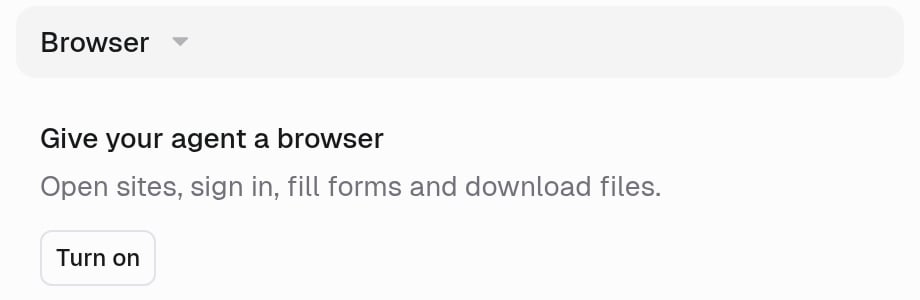
Open the agent and find the **Browser** section in the configuration panel. When the browser is off, it reads **Give your agent a browser**.
***
## What can the agent browser do?
Open pages, click, type, scroll, switch tabs, and read what is on screen, including JavaScript-heavy pages.
Type saved logins and 2FA codes into a site. The agent never sees the password. See [Browser Logins and Profiles](/core-concepts/browser_logins_and_profiles).
Sign-ins are saved to a browser profile at the end of each turn and restored on the next task.
When it hits a login, 2FA code, CAPTCHA, or purchase confirmation, the agent pauses and hands the browser to you.
Watch the browser live in the side panel, and replay a recording of every browser step afterwards.
Route traffic through a residential proxy so sites see a visitor from the country you pick.
Use the browser for sites and tasks no [connector](/core-concepts/credentials) covers. When a connector covers the app (Gmail, Salesforce, Notion, and so on), it is faster and more reliable than clicking through the site.
***
## How do I turn on the browser for an agent?
The browser is an ability you turn on per custom agent, from the **Browser** section of the agent's configuration.
Open the agent and find the **Browser** section in the configuration panel. When the browser is off, it reads **Give your agent a browser**.
 The section expands to show the **Browser** toggle and its settings.
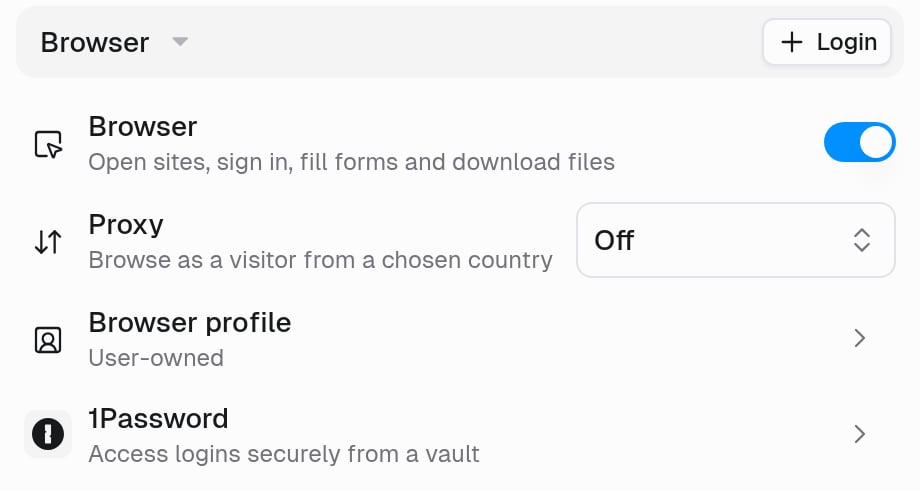 | Setting | What it does |
| - | - |
| **Proxy** | **Off** by default. Pick a country to browse as a visitor from that country. See [Proxy](#how-do-i-browse-from-another-country). |
| **Browser profile** | Whose saved sign-ins the browser starts with. See [Browser profiles](/core-concepts/browser_logins_and_profiles#browser-profiles). |
| **1Password** | Let the agent type logins from a 1Password vault. See [1Password](/core-concepts/browser_logins_and_profiles#1password). |
| **+ Login** | Bind a saved website login to the agent. See [Logins](/core-concepts/browser_logins_and_profiles#logins). |
Click **Save**. The browser is available from the next message.
Turning the browser off also turns off its proxy, browser profile, and 1Password settings. Logins you bound stay listed so you can still remove them.
### Which agents get the browser?
| Agent | Browser access |
| - | - |
| **New custom agents** | Turned on by default when the person who creates the agent is allowed to use the browser. |
| **Existing custom agents** | Off until someone turns it on in the **Browser** section. |
| **[Gumball](/core-concepts/gumball)** | Available whenever your role allows the browser. There is nothing to configure. |
If you do not see a **Browser** section at all, the browser is not available on your account yet.
### Why does it say "Turned off for your role"?
Your organization hasn't given your role access to the browser yet. **Reach out to your [organization admin](https://www.gumloop.com/settings/organization/members?role=admin)** and ask them to add the **Agent browser** feature to your role. Until they do, agents you run work without the browser.
#### For admins: turn on the browser for a role
On Enterprise organizations, the browser is controlled by the **Agent browser** feature in [Custom Roles](/enterprise-features/user_groups). It is off by default.
Go to [Settings > Organization > Custom Roles](https://www.gumloop.com/settings/organization/groups).
Click the role the person belongs to. To turn it on for everyone, open your default role (the one every new member joins, such as **Default Group**).
Open the **Features** tab, click **Add Features**, select **Agent browser**, and click **Add Features**.
| Setting | What it does |
| - | - |
| **Proxy** | **Off** by default. Pick a country to browse as a visitor from that country. See [Proxy](#how-do-i-browse-from-another-country). |
| **Browser profile** | Whose saved sign-ins the browser starts with. See [Browser profiles](/core-concepts/browser_logins_and_profiles#browser-profiles). |
| **1Password** | Let the agent type logins from a 1Password vault. See [1Password](/core-concepts/browser_logins_and_profiles#1password). |
| **+ Login** | Bind a saved website login to the agent. See [Logins](/core-concepts/browser_logins_and_profiles#logins). |
Click **Save**. The browser is available from the next message.
Turning the browser off also turns off its proxy, browser profile, and 1Password settings. Logins you bound stay listed so you can still remove them.
### Which agents get the browser?
| Agent | Browser access |
| - | - |
| **New custom agents** | Turned on by default when the person who creates the agent is allowed to use the browser. |
| **Existing custom agents** | Off until someone turns it on in the **Browser** section. |
| **[Gumball](/core-concepts/gumball)** | Available whenever your role allows the browser. There is nothing to configure. |
If you do not see a **Browser** section at all, the browser is not available on your account yet.
### Why does it say "Turned off for your role"?
Your organization hasn't given your role access to the browser yet. **Reach out to your [organization admin](https://www.gumloop.com/settings/organization/members?role=admin)** and ask them to add the **Agent browser** feature to your role. Until they do, agents you run work without the browser.
#### For admins: turn on the browser for a role
On Enterprise organizations, the browser is controlled by the **Agent browser** feature in [Custom Roles](/enterprise-features/user_groups). It is off by default.
Go to [Settings > Organization > Custom Roles](https://www.gumloop.com/settings/organization/groups).
Click the role the person belongs to. To turn it on for everyone, open your default role (the one every new member joins, such as **Default Group**).
Open the **Features** tab, click **Add Features**, select **Agent browser**, and click **Add Features**.
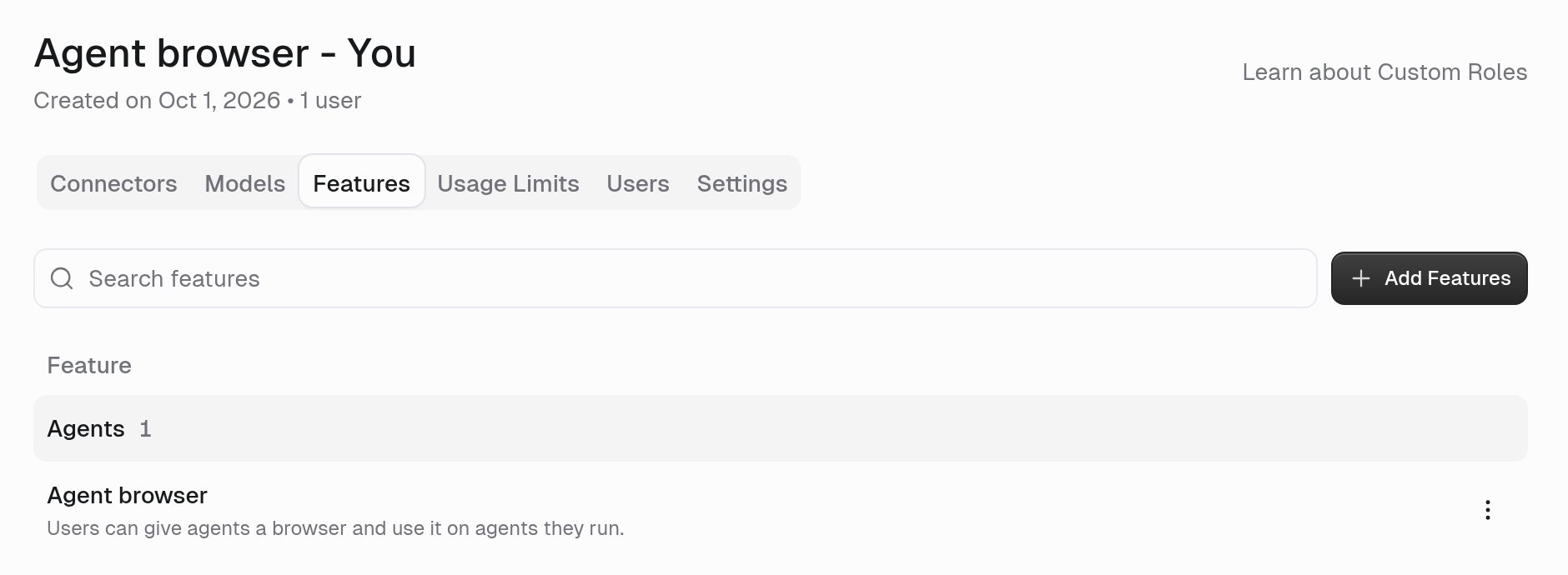 The change applies from the person's next message. No one needs to reconfigure their agents.
***
## How do I watch the agent use the browser?
As soon as the browser starts, a **Browser** panel opens on the right side of the chat. It has two modes, switched from the pill at the bottom of the panel.
**Live** streams the agent's browser as it works, with its real tab strip, **Back**, **Forward**, **Reload**, and an address bar.
The change applies from the person's next message. No one needs to reconfigure their agents.
***
## How do I watch the agent use the browser?
As soon as the browser starts, a **Browser** panel opens on the right side of the chat. It has two modes, switched from the pill at the bottom of the panel.
**Live** streams the agent's browser as it works, with its real tab strip, **Back**, **Forward**, **Reload**, and an address bar.
 * While the agent is driving, the page has a blue glow.
* You can click and type directly in the page. Your clicks and typing go to the real browser.
* Type a URL or search terms in the address bar. Anything that is not a web address becomes a Google search.
* Open a new tab with **+** and switch tabs from the tab strip.
* If someone else in the chat is using the browser, you see a label with their name, such as *Max is using the browser*.
* While the agent is driving, the page has a blue glow.
* You can click and type directly in the page. Your clicks and typing go to the real browser.
* Type a URL or search terms in the address bar. Anything that is not a web address becomes a Google search.
* Open a new tab with **+** and switch tabs from the tab strip.
* If someone else in the chat is using the browser, you see a label with their name, such as *Max is using the browser*.
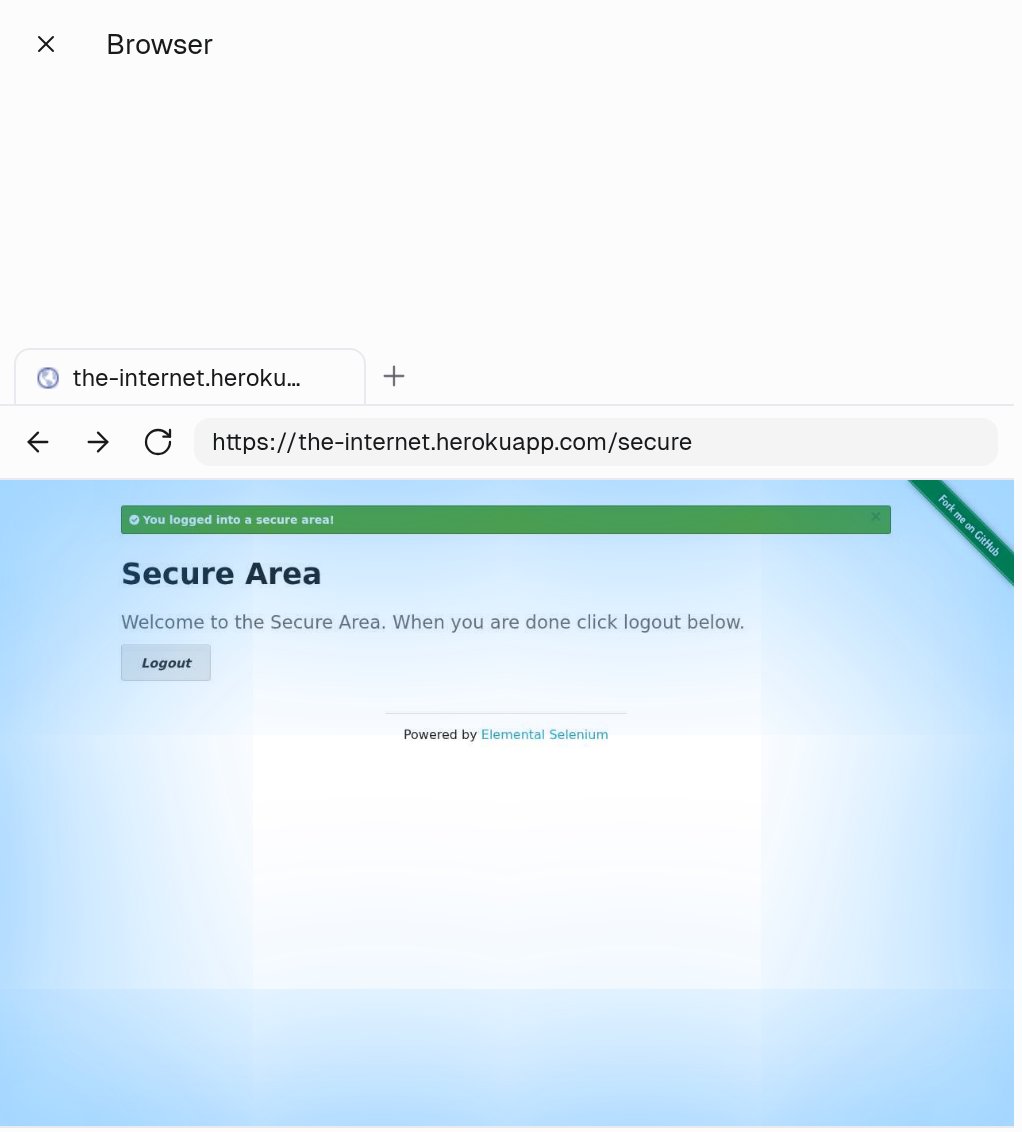 **Replay · N steps** plays back a recording of every browser step in the chat, as one timeline.
 * Step back and forward between browser steps, play or pause, scrub, and change the playback speed.
* The tab strip and address bar replay with the clip, so you can see which page each step was on.
* Screenshots the agent took are marked on the timeline.
* Open the replay later from **Browser replay** under the agent's message.
Only one driver at a time. While a person is controlling the browser, the agent cannot run browser steps on the same page. During a handoff, only the person the browser was handed to can control it.
### When do recordings appear?
Every browser step is recorded. Recordings are attached when the turn finishes, so a running or paused turn never shows a half-finished clip. A very long step is cut off at the frame limit and marked **Truncated at the frame limit**.
Recordings from a [subagent](/core-concepts/agents) stay in that subagent's own chat; they are not copied into the parent chat.
***
## When does the agent ask me for help?
The agent hands the browser to you when it reaches something only you can do: a sign-in it has no login for, a 2FA or one-time code, a CAPTCHA it could not pass, an SSO button, approving on your phone, or confirming a purchase. This is a **browser handoff**. The agent pauses until you answer.
```mermaid theme={"dark"}
flowchart LR
A[Agent reaches a login or check] --> B{Can it finish alone?}
B -- Yes --> C[Agent continues]
B -- No --> D[Handoff card in chat]
D --> E[You type values in the card]
D --> F[You do it in the live browser]
D --> G[Skip]
E --> H[Agent types them in and continues]
F --> C
G --> I[Agent continues without it]
```
### What does the handoff card look like?
* Step back and forward between browser steps, play or pause, scrub, and change the playback speed.
* The tab strip and address bar replay with the clip, so you can see which page each step was on.
* Screenshots the agent took are marked on the timeline.
* Open the replay later from **Browser replay** under the agent's message.
Only one driver at a time. While a person is controlling the browser, the agent cannot run browser steps on the same page. During a handoff, only the person the browser was handed to can control it.
### When do recordings appear?
Every browser step is recorded. Recordings are attached when the turn finishes, so a running or paused turn never shows a half-finished clip. A very long step is cut off at the frame limit and marked **Truncated at the frame limit**.
Recordings from a [subagent](/core-concepts/agents) stay in that subagent's own chat; they are not copied into the parent chat.
***
## When does the agent ask me for help?
The agent hands the browser to you when it reaches something only you can do: a sign-in it has no login for, a 2FA or one-time code, a CAPTCHA it could not pass, an SSO button, approving on your phone, or confirming a purchase. This is a **browser handoff**. The agent pauses until you answer.
```mermaid theme={"dark"}
flowchart LR
A[Agent reaches a login or check] --> B{Can it finish alone?}
B -- Yes --> C[Agent continues]
B -- No --> D[Handoff card in chat]
D --> E[You type values in the card]
D --> F[You do it in the live browser]
D --> G[Skip]
E --> H[Agent types them in and continues]
F --> C
G --> I[Agent continues without it]
```
### What does the handoff card look like?
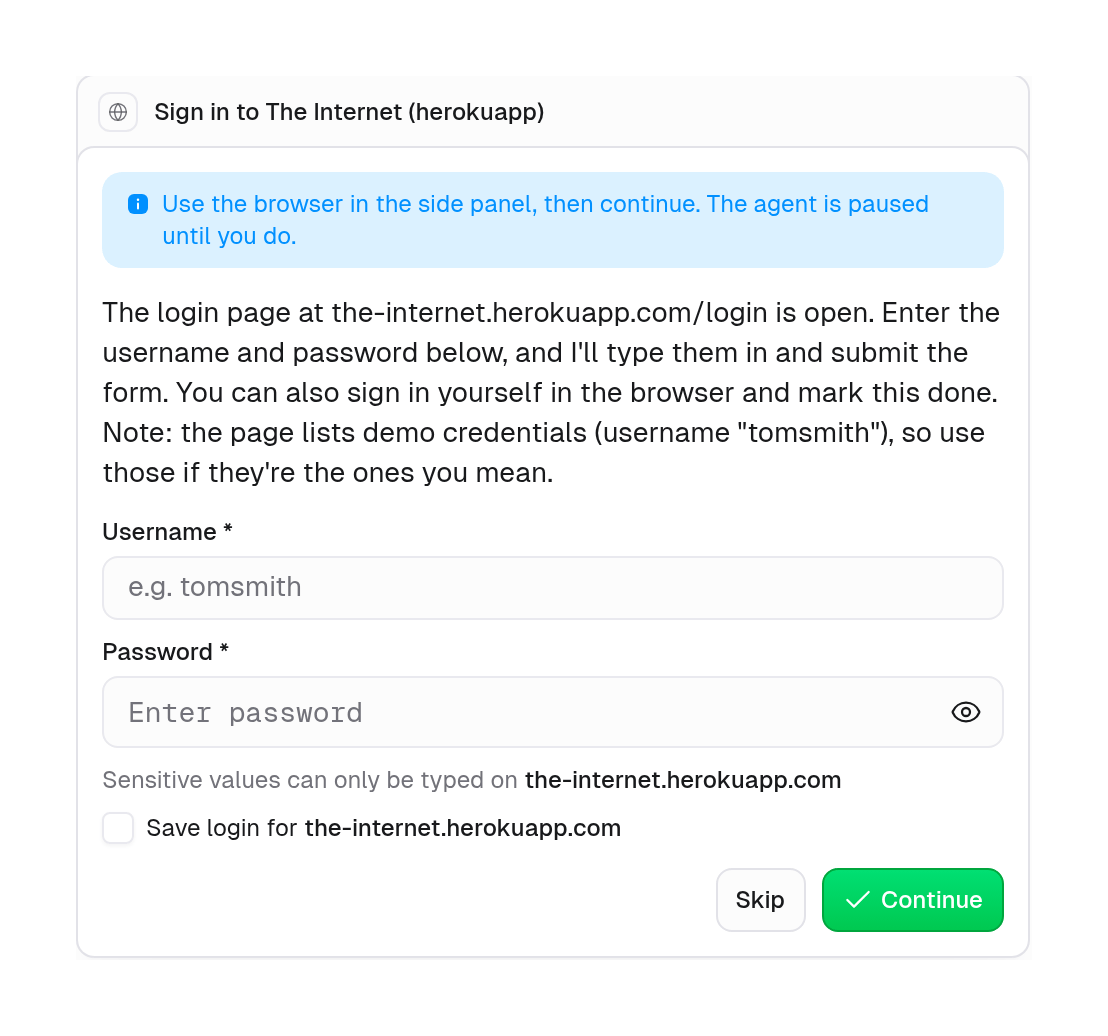 | Part | What it means |
| - | - |
| **Status banner** | *Use the browser in the side panel, then continue. The agent is paused until you do.* |
| **Instructions** | What the agent needs, written by the agent. |
| **Fields** | Up to six inputs, such as a username, password, or one-time code. Password and code fields are sensitive. |
| **Sensitive values can only be typed on ``** | Sensitive values are locked to the exact host the browser was on when it asked. They cannot be typed anywhere else. |
| **Save login for ``** | Saves the username and password to your Vault so the agent can sign in next time without asking. Pick **Only me** or **My team** when both are offered. |
| **Skip** | Decline. The agent continues without your help. |
| **Open browser** / **Continue** | Open the live panel if it is closed, then continue once you have entered values or finished in the browser. |
### How do I answer a handoff?
Fill in the fields and click **Continue**. The agent receives sensitive values only as references, never as text. It types them into the page with a secure fill that checks the site first. The password field is masked in the live view, recordings, and screenshots.
| Part | What it means |
| - | - |
| **Status banner** | *Use the browser in the side panel, then continue. The agent is paused until you do.* |
| **Instructions** | What the agent needs, written by the agent. |
| **Fields** | Up to six inputs, such as a username, password, or one-time code. Password and code fields are sensitive. |
| **Sensitive values can only be typed on ``** | Sensitive values are locked to the exact host the browser was on when it asked. They cannot be typed anywhere else. |
| **Save login for ``** | Saves the username and password to your Vault so the agent can sign in next time without asking. Pick **Only me** or **My team** when both are offered. |
| **Skip** | Decline. The agent continues without your help. |
| **Open browser** / **Continue** | Open the live panel if it is closed, then continue once you have entered values or finished in the browser. |
### How do I answer a handoff?
Fill in the fields and click **Continue**. The agent receives sensitive values only as references, never as text. It types them into the page with a secure fill that checks the site first. The password field is masked in the live view, recordings, and screenshots.
 Use the live panel to sign in, enter the code, or pass the check, then click **Continue**. The agent looks at the page and picks up from there. Use this for SSO buttons, CAPTCHAs, phone approvals, and purchase confirmations, where there is nothing to type.
When the chat runs in Slack, the handoff posts to the thread with buttons:
| Handoff | Buttons |
| - | - |
| With fields | **Enter the details** (opens a form), **I did it in the browser**, **I couldn't do it** |
| Without fields | **Open in Gumloop**, **I did it in the browser**, **I couldn't do it** |
Sensitive fields in the Slack form show the host they can be typed on. You can also open the browser in Gumloop, complete the step there, then hand it back from the thread.
The card resolves to one of: **Completed in the browser**, **Could not be completed in the browser**, or *Saved the login for `` as `` and sent it to the agent*.
Only the person whose message the agent is working on can answer its handoff. Everyone else in the chat sees the card as *waiting for* that person.
***
## How do I browse from another country?
Set **Proxy** in the **Browser** section to a country (**Browse from**). The browser then exits through a residential proxy in that country, so sites see a visitor from there. **Off** is the default.
* Each sandbox keeps one exit IP for its lifetime.
* The agent is told which country it browses from.
* Changing the proxy restarts the browser. Open tabs close, but sign-ins are kept.
* Proxy bandwidth is not billed separately.
***
## How does the agent stay signed in?
The browser remembers which websites it is signed in to with a **browser profile**. At the end of each turn, Gumloop saves any new sign-ins to the profile, and the next task starts already signed in, even in a brand-new chat.
Use the live panel to sign in, enter the code, or pass the check, then click **Continue**. The agent looks at the page and picks up from there. Use this for SSO buttons, CAPTCHAs, phone approvals, and purchase confirmations, where there is nothing to type.
When the chat runs in Slack, the handoff posts to the thread with buttons:
| Handoff | Buttons |
| - | - |
| With fields | **Enter the details** (opens a form), **I did it in the browser**, **I couldn't do it** |
| Without fields | **Open in Gumloop**, **I did it in the browser**, **I couldn't do it** |
Sensitive fields in the Slack form show the host they can be typed on. You can also open the browser in Gumloop, complete the step there, then hand it back from the thread.
The card resolves to one of: **Completed in the browser**, **Could not be completed in the browser**, or *Saved the login for `` as `` and sent it to the agent*.
Only the person whose message the agent is working on can answer its handoff. Everyone else in the chat sees the card as *waiting for* that person.
***
## How do I browse from another country?
Set **Proxy** in the **Browser** section to a country (**Browse from**). The browser then exits through a residential proxy in that country, so sites see a visitor from there. **Off** is the default.
* Each sandbox keeps one exit IP for its lifetime.
* The agent is told which country it browses from.
* Changing the proxy restarts the browser. Open tabs close, but sign-ins are kept.
* Proxy bandwidth is not billed separately.
***
## How does the agent stay signed in?
The browser remembers which websites it is signed in to with a **browser profile**. At the end of each turn, Gumloop saves any new sign-ins to the profile, and the next task starts already signed in, even in a brand-new chat.
 When a saved session has expired, the agent signs back in with a [saved login](/core-concepts/browser_logins_and_profiles#logins) and the end-of-turn save keeps the new session. For profile ownership, importing your own browser's sign-ins, and 1Password, see [Browser Logins and Profiles](/core-concepts/browser_logins_and_profiles).
***
## Limits
| Limit | Value |
| - | - |
| **Window** | Desktop Chromium. Mobile and device emulation are not supported, so mobile-only checks cannot be tested. |
| **Handoff fields** | 6 per handoff |
| **Recording** | One clip per browser step, cut off at the frame limit |
| **Sign-in saving** | At the end of each turn, not mid-turn |
| **Incognito chats** | No browser profile is restored or saved |
The browser shares the agent's [Code Sandbox](/core-concepts/agent_sandbox_and_secrets), so the sandbox's limits apply too.
***
## How is the browser billed?
The browser has no separate charge. Browser steps aren't billed as tool calls, and the proxy, recordings, and live view are free. A browser task is billed like any other [agent chat](/core-concepts/credits):
* **Compute:** 5 credits per minute the agent spends working in the browser.
* **Chat & Reasoning:** the model reading pages and screenshots.
Time spent waiting on you during a handoff isn't billed.
***
## How are passwords kept safe?
No. Login passwords, 2FA setup keys, and sensitive handoff answers are never shown to the agent and are not stored in the sandbox environment. The agent refers to them by name, and Gumloop types them in for it. 2FA codes are generated by Gumloop at the moment of typing, so the setup key never enters the sandbox. The **username** is not secret: the agent can read it.
Every secure fill is checked against the login's site before anything is typed: the scheme, port, and host of the frame the field lives in must match. A mismatch types nothing and tells the agent to ask you instead. Handoff answers are locked to the exact host they were asked on, and the card shows you that host before you type.
No. Password and code fields are masked before and after typing, including if the site has a show-password toggle, and a screenshot is skipped if a typed field cannot be masked. Values are also kept out of chat transcripts and logs.
These protections defend against a web page steering the agent. They are not a hard boundary against an agent that sets out to extract a value from its own sandbox. Treat every login an agent can type as usable by that agent, and bind only the logins it needs. For tighter control, restrict **Agent browser** with [Custom Roles](/enterprise-features/user_groups).
***
## FAQ
Check three things: the **Browser** section is turned on and saved, your role allows **Agent browser**, and the task actually needs a browser. If a [connector](/core-concepts/credentials) can do the job, the agent may use it instead. To force the browser, ask explicitly, for example *"Use your browser to open ..."*.
If your organization uses Custom Roles, **Agent browser** is denied by default and is checked for whoever runs the agent, not whoever configured it. A teammate whose role lacks it gets an agent without the browser. See [Why does it say "Turned off for your role"?](#why-does-it-say-%E2%80%9Cturned-off-for-your-role%E2%80%9D) for what to ask your admin and how they turn it on.
Yes. Click into the **Live** view and use the page. While you hold control, the agent cannot run browser steps on that page, so it is best to take over when the agent asks with a handoff.
The browser restarts when the proxy setting changes or when it switches to a different browser profile. Tabs close; sign-ins in the profile are kept. A tab that stops responding for about a minute is also closed, and the agent is told so it does not retry the same page.
The usual causes:
* **The chat was incognito.** Incognito chats never save or restore sign-ins.
* **Someone else ran it.** With the default **User-owned** profile, each person has their own sign-ins, so a teammate's run starts from their profile, not yours.
* **The site signed the browser out.** Sessions expire. [Give the agent a login](/core-concepts/browser_logins_and_profiles#how-do-i-give-an-agent-a-login) so it can sign back in on its own.
See [Browser profiles](/core-concepts/browser_logins_and_profiles#browser-profiles) for how sign-ins are saved.
No. Mobile viewports, mobile user agents, and touch emulation are not supported. The agent reports mobile checks as not testable rather than as site failures.
Most of the time. When it cannot, it hands the browser to you with a handoff so you can solve it in the live view.
***
## Related
Saved logins, 2FA, browser profiles, importing sign-ins, and 1Password.
The sandbox the browser runs in, and the Vault.
Approvals and questions that pause an agent.
Grant or restrict Agent browser per role.
When a saved session has expired, the agent signs back in with a [saved login](/core-concepts/browser_logins_and_profiles#logins) and the end-of-turn save keeps the new session. For profile ownership, importing your own browser's sign-ins, and 1Password, see [Browser Logins and Profiles](/core-concepts/browser_logins_and_profiles).
***
## Limits
| Limit | Value |
| - | - |
| **Window** | Desktop Chromium. Mobile and device emulation are not supported, so mobile-only checks cannot be tested. |
| **Handoff fields** | 6 per handoff |
| **Recording** | One clip per browser step, cut off at the frame limit |
| **Sign-in saving** | At the end of each turn, not mid-turn |
| **Incognito chats** | No browser profile is restored or saved |
The browser shares the agent's [Code Sandbox](/core-concepts/agent_sandbox_and_secrets), so the sandbox's limits apply too.
***
## How is the browser billed?
The browser has no separate charge. Browser steps aren't billed as tool calls, and the proxy, recordings, and live view are free. A browser task is billed like any other [agent chat](/core-concepts/credits):
* **Compute:** 5 credits per minute the agent spends working in the browser.
* **Chat & Reasoning:** the model reading pages and screenshots.
Time spent waiting on you during a handoff isn't billed.
***
## How are passwords kept safe?
No. Login passwords, 2FA setup keys, and sensitive handoff answers are never shown to the agent and are not stored in the sandbox environment. The agent refers to them by name, and Gumloop types them in for it. 2FA codes are generated by Gumloop at the moment of typing, so the setup key never enters the sandbox. The **username** is not secret: the agent can read it.
Every secure fill is checked against the login's site before anything is typed: the scheme, port, and host of the frame the field lives in must match. A mismatch types nothing and tells the agent to ask you instead. Handoff answers are locked to the exact host they were asked on, and the card shows you that host before you type.
No. Password and code fields are masked before and after typing, including if the site has a show-password toggle, and a screenshot is skipped if a typed field cannot be masked. Values are also kept out of chat transcripts and logs.
These protections defend against a web page steering the agent. They are not a hard boundary against an agent that sets out to extract a value from its own sandbox. Treat every login an agent can type as usable by that agent, and bind only the logins it needs. For tighter control, restrict **Agent browser** with [Custom Roles](/enterprise-features/user_groups).
***
## FAQ
Check three things: the **Browser** section is turned on and saved, your role allows **Agent browser**, and the task actually needs a browser. If a [connector](/core-concepts/credentials) can do the job, the agent may use it instead. To force the browser, ask explicitly, for example *"Use your browser to open ..."*.
If your organization uses Custom Roles, **Agent browser** is denied by default and is checked for whoever runs the agent, not whoever configured it. A teammate whose role lacks it gets an agent without the browser. See [Why does it say "Turned off for your role"?](#why-does-it-say-%E2%80%9Cturned-off-for-your-role%E2%80%9D) for what to ask your admin and how they turn it on.
Yes. Click into the **Live** view and use the page. While you hold control, the agent cannot run browser steps on that page, so it is best to take over when the agent asks with a handoff.
The browser restarts when the proxy setting changes or when it switches to a different browser profile. Tabs close; sign-ins in the profile are kept. A tab that stops responding for about a minute is also closed, and the agent is told so it does not retry the same page.
The usual causes:
* **The chat was incognito.** Incognito chats never save or restore sign-ins.
* **Someone else ran it.** With the default **User-owned** profile, each person has their own sign-ins, so a teammate's run starts from their profile, not yours.
* **The site signed the browser out.** Sessions expire. [Give the agent a login](/core-concepts/browser_logins_and_profiles#how-do-i-give-an-agent-a-login) so it can sign back in on its own.
See [Browser profiles](/core-concepts/browser_logins_and_profiles#browser-profiles) for how sign-ins are saved.
No. Mobile viewports, mobile user agents, and touch emulation are not supported. The agent reports mobile checks as not testable rather than as site failures.
Most of the time. When it cannot, it hands the browser to you with a handoff so you can solve it in the live view.
***
## Related
Saved logins, 2FA, browser profiles, importing sign-ins, and 1Password.
The sandbox the browser runs in, and the Vault.
Approvals and questions that pause an agent.
Grant or restrict Agent browser per role.