> ## Documentation Index
> Fetch the complete documentation index at: https://docs.gumloop.com/llms.txt
> Use this file to discover all available pages before exploring further.
# Agent Artifacts (Files)
When your Gumloop agents generate files during a conversation, those files are saved as **artifacts**. Reports, spreadsheets, images, code files, HTML dashboards: anything your agent creates can be viewed, downloaded, shared, and version-tracked directly from the chat.
## How Artifacts Work
When an agent generates a file in its sandbox (using code execution, data processing, or any tool that produces a file), it exports the file using a built-in export tool. This:
1. Saves the file to secure cloud storage
2. Creates a versioned artifact record
3. Generates preview thumbnails and representations
4. Displays the file as a rich card in the chat
You don't need to configure anything. Agents automatically export files they create, and artifacts appear inline in the conversation as they're generated.
## Viewing Artifacts
### In-Chat Preview
When an agent exports a file, it appears as a card in the chat message showing the filename, file type icon, and a thumbnail preview (for supported types). Click the card to open a side panel preview without leaving the chat.
### Dedicated Viewer Page
Each artifact has its own shareable page at a unique URL. The viewer page shows:
* Full-width file preview
* Filename, file type, and size
* Who created it and which agent generated it
* Links to view the source chat and agent (if you have access)
### Files Sidebar
All files from a conversation are listed in the **Files** section of the chat sidebar. Click any file to preview it, open it in a new tab, copy its link, or download it.
## Supported Preview Types
Gumloop can render inline previews for many file types:
| File Type | Preview |
| -------------------------------------------------- | ------------------------------ |
| **HTML** (.html) | Interactive sandboxed preview |
| **Images** (.png, .jpg, .gif, .webp, .svg) | Native image viewer |
| **PDF** (.pdf) | PDF viewer |
| **Spreadsheets** (.csv, .xlsx, .xls) | Spreadsheet viewer |
| **Presentations** (.pptx, .ppt) | Slide viewer or PDF preview |
| **Text & Code** (.txt, .md, .py, .js, .json, etc.) | Syntax-highlighted text viewer |
| **All other files** | Download prompt with file size |
Files larger than 50 MB cannot be previewed inline and are shown as download-only.
## Actions
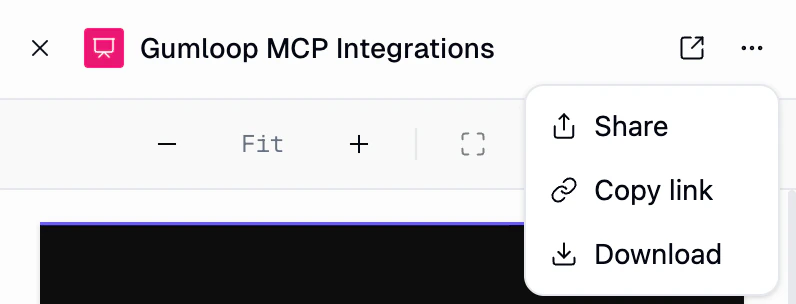
From the viewer page or the in-chat card, you can perform several actions on an artifact:
| Action | Description |
| ------------------- | ------------------------------------------------------- |
| **Download** | Download the original file to your device |
| **Share** | Open the share dialog to manage who can access the file |
| **Copy link** | Copy a shareable URL to your clipboard |
| **Open in new tab** | Open the dedicated viewer page |
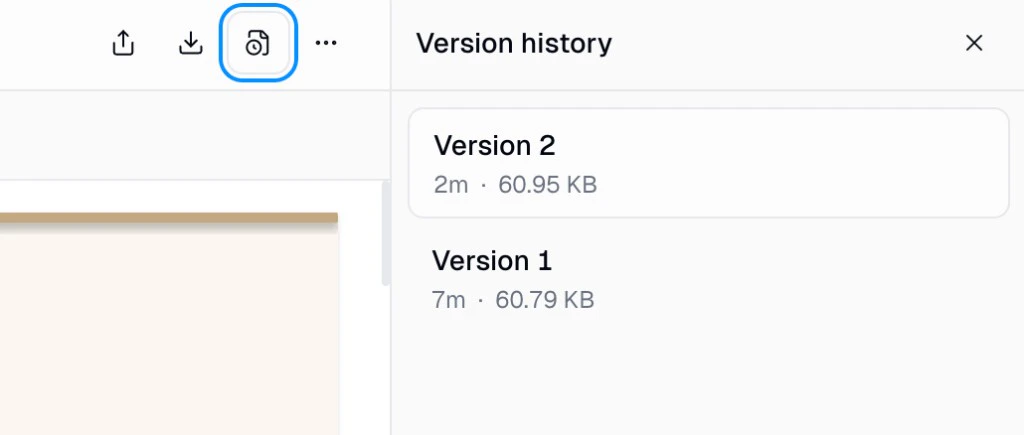
| **Version history** | View all versions of the file |
| **Full screen** | Available for HTML artifacts only |
## Automatic Versioning
When an agent exports a file with the **same filename** multiple times in the same conversation, Gumloop automatically creates new versions instead of overwriting. This gives you a full history of how a file evolved during the conversation.
Each version shows:
* **Version number** (v1, v2, v3, etc.)
* **Timestamp** of when it was created
* **File size**
Click any version to view it. The latest version is always shown by default.
Agents are instructed to keep the same filename and let the system handle versioning. If you see files like `report_v2.pdf` instead of version 2 of `report.pdf`, you can update your agent's instructions to tell it not to rename files for versioning.
## Sharing & Access Control
Artifacts use Gumloop's [share permissions](/core-concepts/share_permissions) system. You can control who can view, download, and manage each file.
### Share Dialog
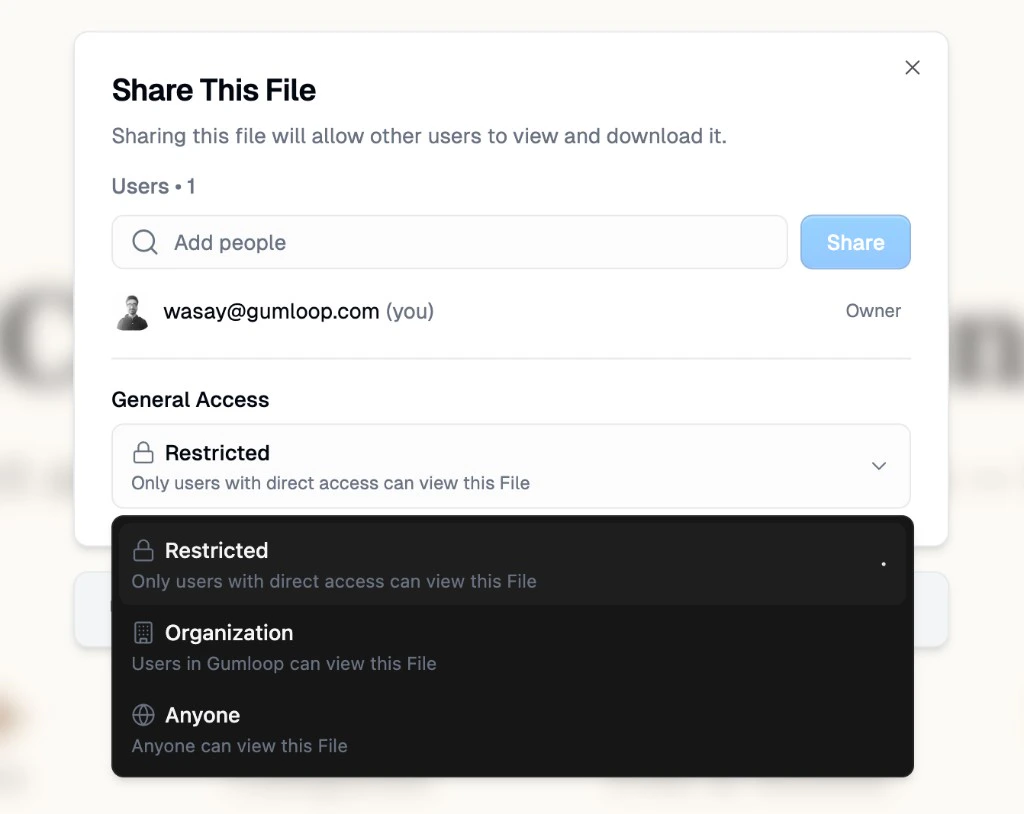
Click **Share** from the options menu to open the share dialog:
You can:
* **Add specific users** by email
* **Set General Access** to control broader visibility
### General Access Levels
| Level | Who Can Access |
| ---------------- | ---------------------------------------------------------------- |
| **Restricted** | Only you and explicitly shared users |
| **Organization** | All members of your organization |
| **Anyone** | Anyone with the link, including people without a Gumloop account |
### Default File Sharing
Each agent has a **Default File Sharing** setting that controls how new artifacts are shared when created. You can configure this in **Agent Settings > Chat Preferences > Default File Sharing**:
| Setting | What Happens |
| ---------------- | ---------------------------------------------------------------------------------- |
| **Default** | Team agents share with the team. Personal agents keep files restricted (only you). |
| **Organization** | Files are shared with your entire organization |
| **Anyone** | Files are publicly accessible via link |
The default sharing setting applies to **new** artifacts only. You can always change the sharing level of any individual artifact after it's created.
### Requesting Access
If someone shares a file link with you but you don't have access:
* **Not signed in**: You'll see a prompt to create a Gumloop account
* **Signed in, no access**: You'll see a **Request Access** button that sends a notification to the file's owner or a workspace admin. If they have Slack connected, they can approve with a single click. See [Action Requests](/core-concepts/share_permissions#action-requests) for more details.
## HTML Artifacts
HTML files get special treatment. Agents can generate fully interactive HTML pages, dashboards, and web applications that render directly in the viewer.
### Full Screen Mode
HTML artifacts support a **full screen mode** that hides the toolbar and gives the artifact the full browser window. This is useful for dashboards, interactive tools, and presentations. Click the full screen button in the viewer toolbar to enter full screen.
### Security
HTML artifacts run in a **strict security sandbox**. This is important because agents can generate arbitrary HTML and JavaScript. The sandbox:
* Blocks access to your Gumloop session, cookies, and storage
* Blocks direct network requests (fetch, XHR, WebSocket)
* Prevents opening new windows or popups
* Automatically strips sensitive headers from any proxied requests
**Safe requests** (GET, HEAD) from within an HTML artifact are automatically proxied. **Unsafe requests** (POST, PUT, DELETE) require your explicit approval via a confirmation dialog.
## Interactive Artifacts (Live Data)
Interactive artifacts are HTML files that pull **live data from your connected integrations** every time you open them. Instead of showing a static snapshot from when the agent ran, the data refreshes on each view using your own credentials.
This is the difference between an agent handing you a screenshot of your Slack channels vs. giving you a live dashboard that always shows the latest.
### How They Work
When you ask an agent to build something that needs live data, it creates two things:
1. **An HTML file** with the layout, styling, and JavaScript for the UI
2. **One or more Python data scripts** that fetch data from your integrations at view time
The HTML calls `fetch('/gumloop/data/...')` to request data. Gumloop intercepts these requests, runs the matching Python script in a secure sandbox, and returns the results as JSON. The HTML then renders the data.
You don't need to know any of this to use it. Just ask your agent for a dashboard, report, or tool that uses your connected apps, and it handles the wiring.
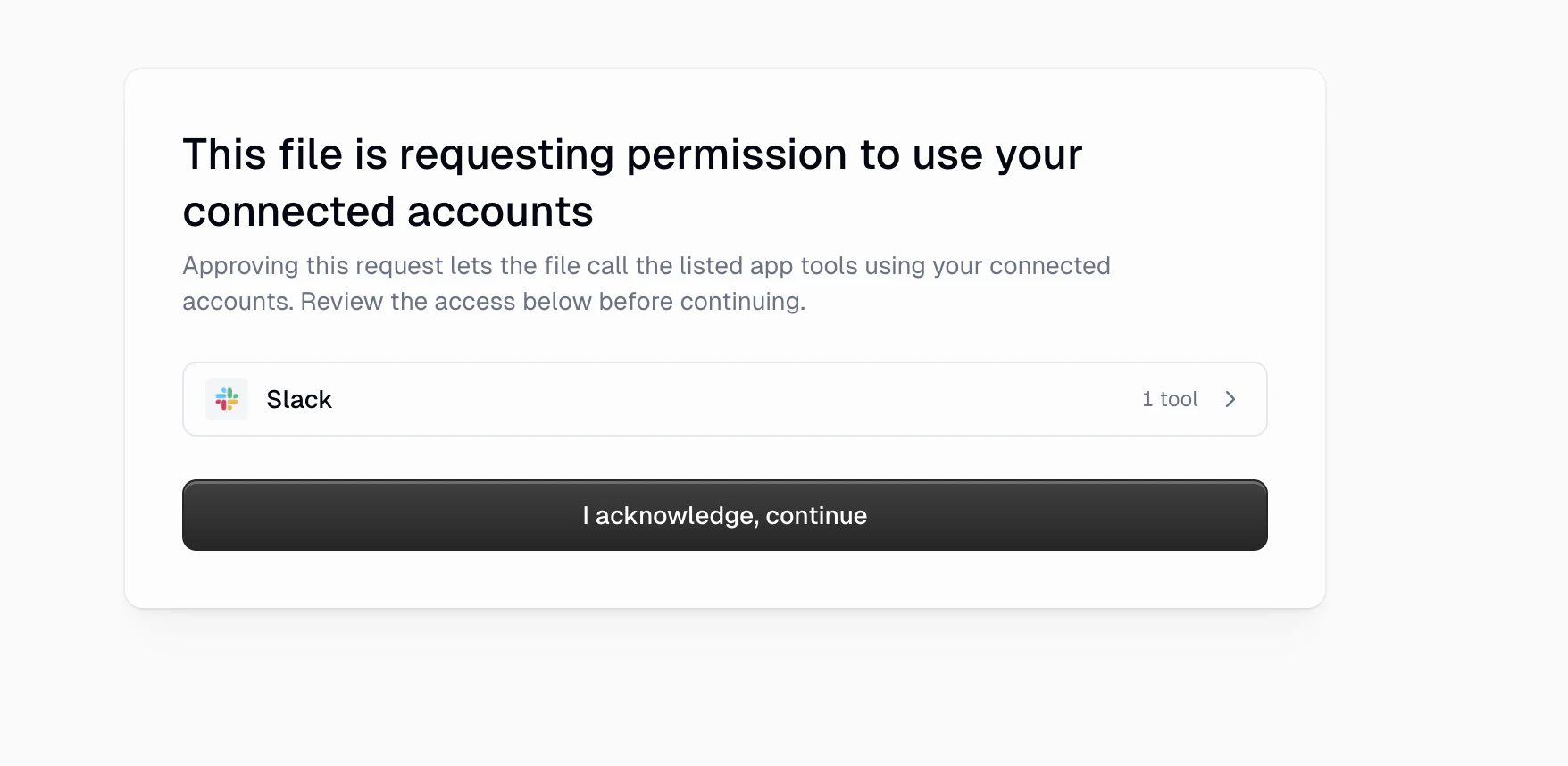
### Integration Consent
When you open an interactive artifact for the first time, you'll see a consent overlay that lists every integration the file can access and the specific actions it can perform.
**You must approve before any scripts run.** This is a deliberate security step. It means:
* You always know exactly which integrations a file will use
* No data is fetched until you explicitly approve
* If someone shares a file with you, you decide whether to grant it access to your accounts
Consent is per-session. If you refresh the page, you'll see the consent overlay again. This is intentional: it ensures you're always aware of what a file is doing.
### Your Credentials, Your Data
Interactive artifacts run using the **viewer's** connected accounts, not the creator's. This is a core design choice.
If your teammate creates a "Team Slack Dashboard" and shares it with you:
* When **they** open it, they see data from **their** Slack account
* When **you** open it, you see data from **your** Slack account
* The file creator never sees your data and you never see theirs
Each time a script runs, Gumloop mints a short-lived, scoped token that only allows the specific integrations and tools that the file declared. The token expires in 5 minutes and is invalidated as soon as the script finishes. Your credentials are never exposed to the HTML itself.
If you haven't connected a required integration, you'll see a setup prompt asking you to connect it before the file can load. The artifact won't execute until all required integrations are connected.
### What Can You Build?
Anything that combines a UI with live integration data. Here are some example prompts:
**Dashboards and monitors:**
* "Build me a dashboard that shows my open Linear issues, today's Google Calendar events, and my unread Gmail count."
* "Create a live team status page that pulls from Slack, Google Sheets, and HubSpot."
* "Make a monitoring page that shows my recent GitHub pull requests and their CI status."
**Interactive tools:**
* "Create an HTML form where I can compose a message, pick a Slack channel from a dropdown, and send it."
* "Build a tool that lets me search my Google Drive files and preview them."
* "Make a form that creates a new Linear issue with title, description, and assignee fields."
**Reports with live data:**
* "Generate a weekly summary report that pulls my Gmail activity, calendar meetings, and Slack messages from the past 7 days."
* "Create a CRM overview that shows my HubSpot deals pipeline with real-time data."
**Multi-integration workflows:**
* "Build a meeting prep page that, given a calendar event, pulls the attendee list from Google Calendar, finds their LinkedIn profiles, and shows recent email threads."
The more specific you are about which integrations and data you want, the better the result. Tell the agent exactly which tools you want it to pull from.
### How Teams Use Interactive Artifacts
Interactive artifacts are especially powerful for teams because the same file works differently for each person.
**Shared dashboards:** A team lead creates a "My Open Tasks" dashboard and shares it with the whole team. Each team member opens the same link but sees their own tasks, their own calendar, their own inbox. One artifact, personalized for everyone.
**Self-service tools:** An ops lead creates a "Post to #announcements" tool with a form. Anyone on the team can use it to send formatted messages to the channel without needing Slack open.
**Onboarding kits:** Create a "New Hire Status" page that shows a new team member their onboarding checklist from Linear, upcoming meetings from Google Calendar, and key documents from Google Drive. Share the link in your onboarding workflow.
**Client-facing reports:** Build a report template that pulls live data from your CRM. Share it with stakeholders, and each person sees data scoped to their access level.
### Credits
Every time a data script runs, the **viewer** is charged credits for the sandbox execution time. The creator is not charged when someone else opens their file.
This means:
* You pay for what you use, not for what others view
* If you share a dashboard with 10 people, each person pays for their own data loads
* If you have no credits remaining, scripts won't execute and you'll see an error
### Refreshing Data
Data scripts run each time you open the artifact. If the HTML includes a refresh button or auto-refresh timer, each refresh triggers a new script execution.
Keep in mind:
* Each execution costs credits
* Each execution creates a fresh sandbox (no state carried between refreshes)
* Scripts have a 5-minute timeout for long-running queries
### Error Handling
If a data script fails (the integration is disconnected, the API returns an error, or the script times out), the HTML receives an error response. Well-built artifacts will show a friendly error message. If the agent didn't include error handling, the section may simply be blank.
Common reasons a script might fail:
* You haven't connected the required integration
* Your integration token has expired (reconnect in Settings > Integrations)
* The script timed out (queries that scan large amounts of data may exceed the 5-minute limit)
* You've run out of credits
## Mobile Behavior
On mobile devices, artifacts work slightly differently:
* Clicking a file card opens the dedicated viewer page in a new tab (instead of a side panel)
* Auto-preview of new files is disabled to avoid disrupting the chat experience
## Files Page
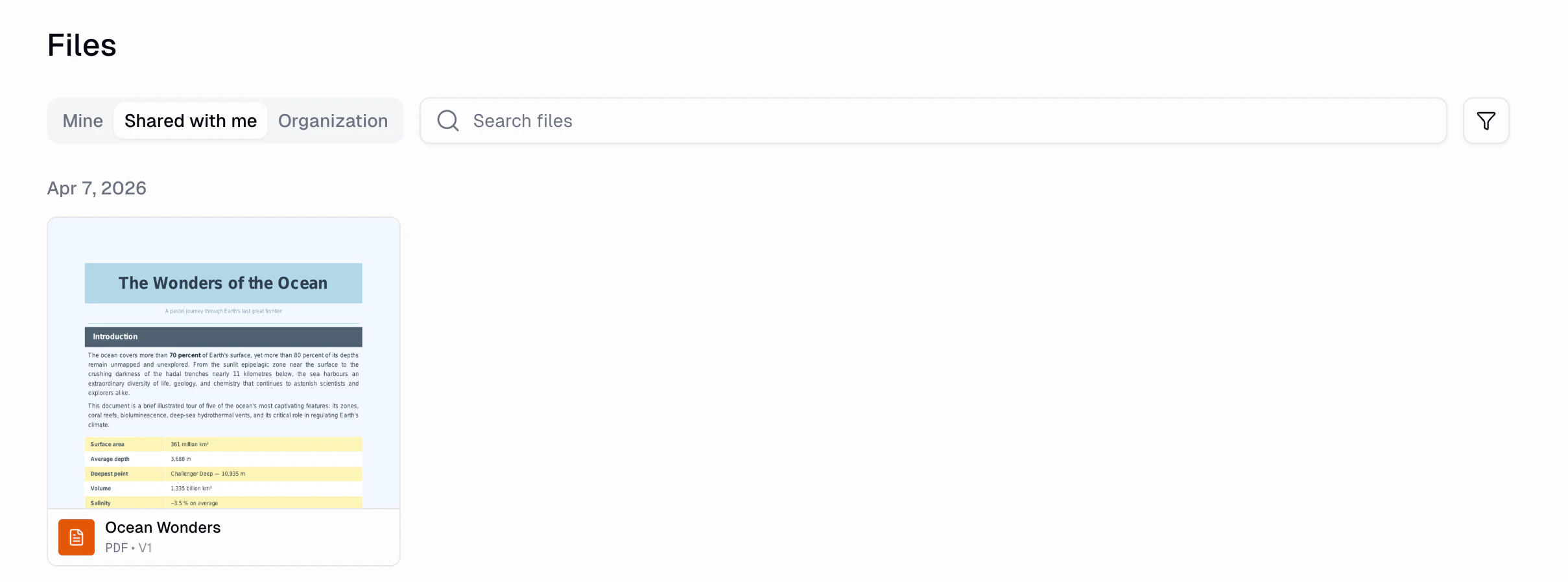
All your files are accessible from a dedicated **Files** page at [gumloop.com/personal/files](https://www.gumloop.com/personal/files). This page provides a centralized view of every artifact you've created or received across all your agent conversations.
The Files page has three tabs for filtering your view:
| Tab | What It Shows |
| ------------------ | ------------------------------------------------------------------------ |
| **Mine** | Files you created (from your own agent conversations) |
| **Shared with me** | Files that others have shared with you directly or via your organization |
| **Organization** | All files visible to your organization |
You can search files by name, filter by media type, and sort by date. Each file card shows a thumbnail preview, filename, file type, and version number.
## Workspace Files (Persistent Across Conversations)
By default, files created during an agent conversation are scoped to that conversation. However, agents can also work with **workspace files** that persist across conversations.
Files saved to the `/home/user/.workspace/` directory in the agent's sandbox are treated as **workspace-scoped artifacts**. These files are not tied to a single conversation — they persist and are available in future conversations with the same agent.
### How Workspace Scope Works
* **Project members** share a common workspace. Files saved to `.workspace/` by one member are visible to other members of the same project.
* **Non-members** get an isolated workspace. Their `.workspace/` files are private and only accessible to them.
This is useful for agents that maintain ongoing project files, configuration, or reference data that should carry over between sessions.
Workspace files follow the same artifact system — they are versioned, previewable, and shareable just like conversation-scoped artifacts.
***
## Common Questions
Artifacts are stored securely in Google Cloud Storage. Files are accessible through the Gumloop viewer or via download. They persist as long as the conversation exists.
There is no hard limit on file size for creation. However, files larger than 50 MB cannot be previewed inline and will show a download prompt instead.
Artifact deletion is managed by the file owner. If you're the owner (the person who ran the agent conversation that created the file), you have full control.
If the agent exports a file with the same filename in the same conversation, it automatically creates a new **version**. You can browse all versions from the version history panel. No data is lost.
Yes. You can either add them by email in the share dialog, or set General Access to "Anyone" to make the file accessible via link. Enterprise admins can restrict public sharing if needed.
These links only appear if you have access to the source agent. Artifact access does not automatically grant access to the agent that created it. Ask the agent owner to share the agent with you separately.
Yes. Go to your agent's **Settings > Chat Preferences > Default File Sharing** and choose between Default, Organization, or Anyone. This applies to all new files the agent creates going forward.
A **static** artifact is a regular file (PDF, image, CSV, or even a plain HTML page) that shows the same content every time you open it. An **interactive** artifact is an HTML file with attached data scripts that fetch live data from your integrations each time you open it. You can tell by whether you see a consent overlay when you open the file.
**Yours.** Interactive artifacts always run with the viewer's connected accounts. The creator's credentials are never used when you open a shared file. This means you'll see your own data, and the creator never has access to it.
Consent is per-session by design. Each time you open the file, you're reminded which integrations it will access and you must explicitly approve. This ensures you're always aware of what the file is doing with your accounts.
You'll see a setup screen that lists the integrations the file needs. You can connect them directly from this screen. The file won't run any scripts until all required integrations are connected.
The **viewer** pays. Each time someone opens an interactive artifact, the scripts run using their credits. The creator is not charged when others view their files.
Both. Agents can build artifacts with forms and buttons that trigger write actions like sending a Slack message or creating a Linear issue. These actions run with your credentials and cost your credits, just like read operations.
No. HTML artifacts run in a strict sandbox that blocks access to your Gumloop session, cookies, localStorage, and all direct network requests. The only way the HTML can reach external services is through Gumloop's security proxy, which strips sensitive headers and blocks private network access.
Common fixes: (1) Check that all required integrations are connected in Settings > Integrations. (2) If a token has expired, disconnect and reconnect the integration. (3) Make sure you have credits remaining. (4) For very large queries, the script may have timed out (5-minute limit). Try asking the agent to reduce the data scope.
## Related Documentation
Learn how to create and configure agents
Understand roles, access levels, and sharing
Upload and manage files in workflows