> ## Documentation Index
> Fetch the complete documentation index at: https://docs.gumloop.com/llms.txt
> Use this file to discover all available pages before exploring further.
# Agent Access
> Owners, Users, User Permissions, and Task Visibility on an agent
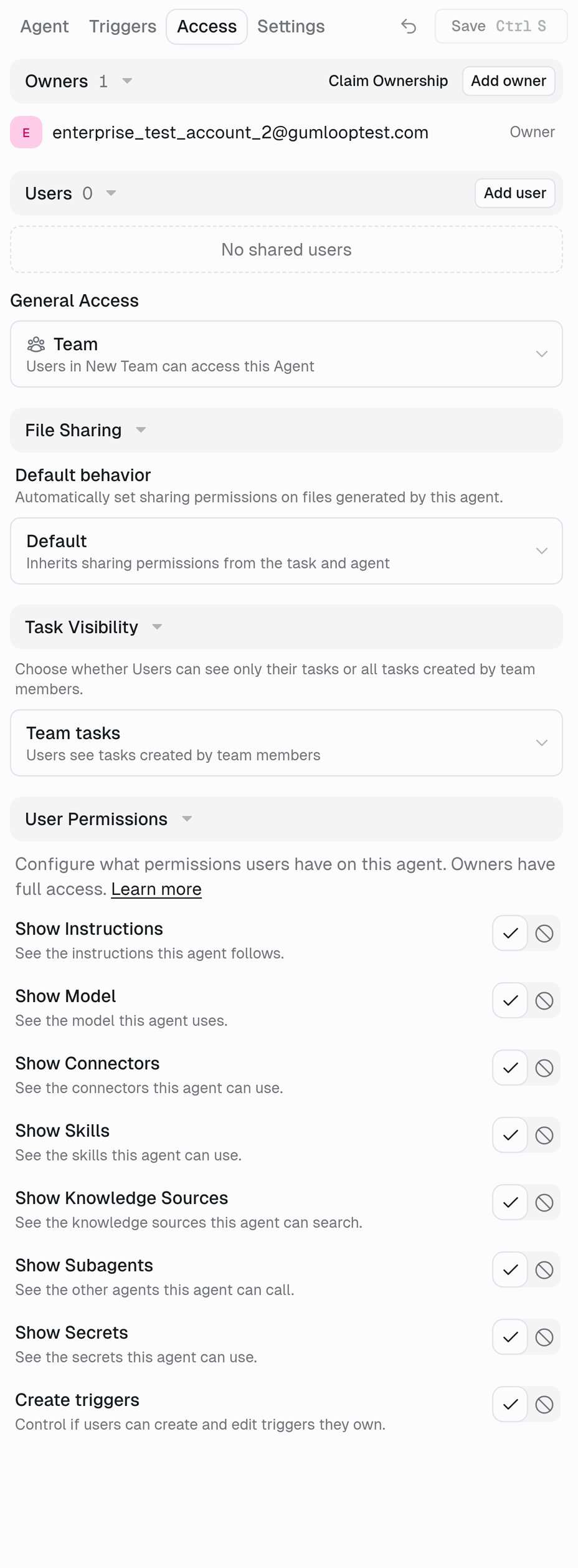
Every agent has two roles. You manage them from the **Access** tab.
Runs the agent and manages it: instructions, model, connectors, skills, triggers, access, and deletion.
Runs the agent. Everything else is read-only. Owners decide how much of the setup a User can see.
 If someone needs to change the agent, make them an **Owner**. There is no editor role on agents.
## Owners
An Owner can:
* Edit instructions, model, connectors, skills, knowledge sources, subagents, secrets, and abilities
* Create and manage **every** trigger on the agent, including triggers other people created
* Add and remove Owners and Users, and change General Access
* See every task and its task-linked artifacts. This does not automatically grant access to another person's private persistent workspace files
* Set User Permissions and Task Visibility
* Delete the agent
Open **Access** → **Add owner** → enter their email. The invite reads *Can manage this agent*.
Click a User's role and choose **Promote to Owner**. Click an Owner's role and choose **Demote to User**. The last Owner cannot be demoted or removed.
## Users
A User can start tasks and see whatever Owners chose to show. Visible instructions, connectors, and skills are still read-only.
**Add a User:** **Access** → **Add user** → enter their email. The invite reads *Can use this agent*.
You usually do not add people one by one. **General Access** covers the common case.
### General Access
Everyone who comes in this way is a **User**. There is no role picker.
| Setting | Who can use the agent |
| ---------------- | --------------------------------------------------------------------- |
| **Restricted** | Only the Owners and the people added by email (personal agents only). |
| **Team** | Everyone in the team the agent lives in. |
| **Organization** | Everyone in your organization. |
| **Anyone** | Anyone with the link, including people without a Gumloop account. |
Agents that live in a team cannot be **Restricted**. Team is the floor. A direct email grant still keeps access if General Access is lowered later.
## User Permissions
Eight per-agent switches. Owners always see everything.
If someone needs to change the agent, make them an **Owner**. There is no editor role on agents.
## Owners
An Owner can:
* Edit instructions, model, connectors, skills, knowledge sources, subagents, secrets, and abilities
* Create and manage **every** trigger on the agent, including triggers other people created
* Add and remove Owners and Users, and change General Access
* See every task and its task-linked artifacts. This does not automatically grant access to another person's private persistent workspace files
* Set User Permissions and Task Visibility
* Delete the agent
Open **Access** → **Add owner** → enter their email. The invite reads *Can manage this agent*.
Click a User's role and choose **Promote to Owner**. Click an Owner's role and choose **Demote to User**. The last Owner cannot be demoted or removed.
## Users
A User can start tasks and see whatever Owners chose to show. Visible instructions, connectors, and skills are still read-only.
**Add a User:** **Access** → **Add user** → enter their email. The invite reads *Can use this agent*.
You usually do not add people one by one. **General Access** covers the common case.
### General Access
Everyone who comes in this way is a **User**. There is no role picker.
| Setting | Who can use the agent |
| ---------------- | --------------------------------------------------------------------- |
| **Restricted** | Only the Owners and the people added by email (personal agents only). |
| **Team** | Everyone in the team the agent lives in. |
| **Organization** | Everyone in your organization. |
| **Anyone** | Anyone with the link, including people without a Gumloop account. |
Agents that live in a team cannot be **Restricted**. Team is the floor. A direct email grant still keeps access if General Access is lowered later.
## User Permissions
Eight per-agent switches. Owners always see everything.
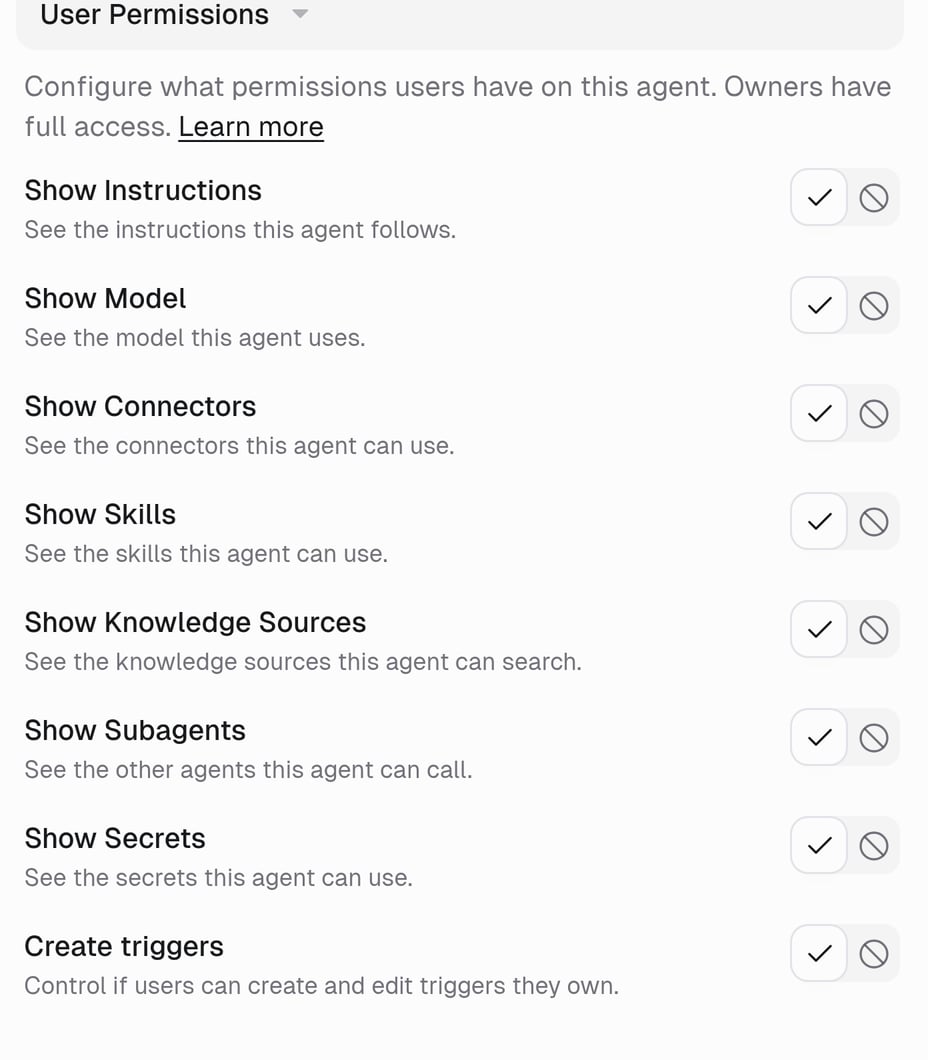 | Setting | Show means the User can |
| -------------------------- | ----------------------------------------------------------------- |
| **Show Instructions** | Read the instructions the agent follows (read-only). |
| **Show Model** | See which model the agent runs on. |
| **Show Connectors** | See the connected apps the agent can use. |
| **Show Skills** | See the skills the agent can use. |
| **Show Knowledge Sources** | See the knowledge sources the agent can search. |
| **Show Subagents** | See the other agents this agent can call. |
| **Show Secrets** | See the names of the secrets the agent can use. |
| **Create triggers** | Create and edit their own triggers (**Allow** / **Don't allow**). |
Turning **Show Instructions** on lets a User read the prompt. Changing it is still Owner-only.
If you hide Connectors, the agent still uses Gmail. The User just does not see Gmail listed.
Out of the box every visibility setting is **Show** and **Create triggers** is **Allow**. Organization admins can ship different defaults with [Agent Default Settings](/enterprise-features/agent_default_settings).
If you switch **Create triggers** to **Don't allow** while Users already have triggers, Gumloop asks what to do:
* **Keep running** — they keep firing. Users cannot create, edit, or activate triggers, but can still view, deactivate, and delete their own.
* **Disable them** — they are switched off.
Owners can still manage those triggers from the **Triggers** tab. Allowing creation again does not automatically reactivate disabled triggers.
**A practical setup.** An internal support agent everyone talks to: General Access **Organization**, *Show Instructions* **Hide**, *Show Connectors* **Show**, *Create triggers* **Don't allow**.
## Task Visibility
A **task** is one conversation with the agent.
Task Visibility only exists on **team agents**. New team agents default to **Team tasks**. On a personal agent, Users normally see only their own tasks, so the setting is not shown. Owners can see all tasks on either kind of agent, and a task can also be shared separately.
| Option | What Users see |
| -------------------- | --------------------------------------------------------------------------------------------------------------- |
| **Their tasks only** | Each User sees only the tasks they created. |
| **Team tasks** | Users can **read** tasks created by team members. Continuing another person's task still requires Owner access. |
Owners always see every task on the agent.
## File Sharing
**Default behavior** sets sharing for files the agent generates. **Default** inherits the sharing of the task and the agent, so a file created in a team task is visible to the people who can see that task. See [Agent Artifacts](/core-concepts/agent_artifacts).
## Requesting and claiming access
If you are a User and need to manage the agent, open the **⋮** menu in the agent header and choose **Request Owner access**. Pick which Owner should receive it and send. They approve or deny it from their inbox. See [Request Owner Access](/help/sharing/request-owner-access).
If an agent's Owners are unavailable, an organization admin in the same organization can manage the agent through administrative access and can claim durable ownership. Claiming does not require every existing Owner to be gone: it changes the canonical creator and adds an Owner grant. Existing Owners remain. See [Claim an ownerless agent](/help/sharing/claim-an-ownerless-agent).
Organization admins can reach any agent in the organization through their admin override, even without a grant. Admin access is not the same as being an Owner. That is why **Claim Ownership** exists.
## FAQ
They no longer apply to agents. An editor becomes an **Owner**; a viewer or use-only person becomes a **User** whose visibility you tune with User Permissions. Skills still use Editor, Viewer, and Use Only. See [Sharing a skill](/core-concepts/skills#sharing-a-skill).
No. Every User Permission is about seeing, not editing. Editing the agent requires Owner.
Not today. User Permissions are per agent, not per person. If one person needs more, make them an Owner, or make a copy of the agent with different settings.
An agent always needs someone who can manage it. Add a second Owner first, then demote or remove the original.
An organization admin can open it and use **Claim Ownership** to take it over.
## Related
The agent builder, tab by tab.
Who can create triggers, and what happens when you turn that off.
Quick answer with the eight settings.
Owner vs User, and roles on skills.
| Setting | Show means the User can |
| -------------------------- | ----------------------------------------------------------------- |
| **Show Instructions** | Read the instructions the agent follows (read-only). |
| **Show Model** | See which model the agent runs on. |
| **Show Connectors** | See the connected apps the agent can use. |
| **Show Skills** | See the skills the agent can use. |
| **Show Knowledge Sources** | See the knowledge sources the agent can search. |
| **Show Subagents** | See the other agents this agent can call. |
| **Show Secrets** | See the names of the secrets the agent can use. |
| **Create triggers** | Create and edit their own triggers (**Allow** / **Don't allow**). |
Turning **Show Instructions** on lets a User read the prompt. Changing it is still Owner-only.
If you hide Connectors, the agent still uses Gmail. The User just does not see Gmail listed.
Out of the box every visibility setting is **Show** and **Create triggers** is **Allow**. Organization admins can ship different defaults with [Agent Default Settings](/enterprise-features/agent_default_settings).
If you switch **Create triggers** to **Don't allow** while Users already have triggers, Gumloop asks what to do:
* **Keep running** — they keep firing. Users cannot create, edit, or activate triggers, but can still view, deactivate, and delete their own.
* **Disable them** — they are switched off.
Owners can still manage those triggers from the **Triggers** tab. Allowing creation again does not automatically reactivate disabled triggers.
**A practical setup.** An internal support agent everyone talks to: General Access **Organization**, *Show Instructions* **Hide**, *Show Connectors* **Show**, *Create triggers* **Don't allow**.
## Task Visibility
A **task** is one conversation with the agent.
Task Visibility only exists on **team agents**. New team agents default to **Team tasks**. On a personal agent, Users normally see only their own tasks, so the setting is not shown. Owners can see all tasks on either kind of agent, and a task can also be shared separately.
| Option | What Users see |
| -------------------- | --------------------------------------------------------------------------------------------------------------- |
| **Their tasks only** | Each User sees only the tasks they created. |
| **Team tasks** | Users can **read** tasks created by team members. Continuing another person's task still requires Owner access. |
Owners always see every task on the agent.
## File Sharing
**Default behavior** sets sharing for files the agent generates. **Default** inherits the sharing of the task and the agent, so a file created in a team task is visible to the people who can see that task. See [Agent Artifacts](/core-concepts/agent_artifacts).
## Requesting and claiming access
If you are a User and need to manage the agent, open the **⋮** menu in the agent header and choose **Request Owner access**. Pick which Owner should receive it and send. They approve or deny it from their inbox. See [Request Owner Access](/help/sharing/request-owner-access).
If an agent's Owners are unavailable, an organization admin in the same organization can manage the agent through administrative access and can claim durable ownership. Claiming does not require every existing Owner to be gone: it changes the canonical creator and adds an Owner grant. Existing Owners remain. See [Claim an ownerless agent](/help/sharing/claim-an-ownerless-agent).
Organization admins can reach any agent in the organization through their admin override, even without a grant. Admin access is not the same as being an Owner. That is why **Claim Ownership** exists.
## FAQ
They no longer apply to agents. An editor becomes an **Owner**; a viewer or use-only person becomes a **User** whose visibility you tune with User Permissions. Skills still use Editor, Viewer, and Use Only. See [Sharing a skill](/core-concepts/skills#sharing-a-skill).
No. Every User Permission is about seeing, not editing. Editing the agent requires Owner.
Not today. User Permissions are per agent, not per person. If one person needs more, make them an Owner, or make a copy of the agent with different settings.
An agent always needs someone who can manage it. Add a second Owner first, then demote or remove the original.
An organization admin can open it and use **Claim Ownership** to take it over.
## Related
The agent builder, tab by tab.
Who can create triggers, and what happens when you turn that off.
Quick answer with the eight settings.
Owner vs User, and roles on skills.