> ## Documentation Index
> Fetch the complete documentation index at: https://docs.gumloop.com/llms.txt
> Use this file to discover all available pages before exploring further.
# Type Mismatch Errors
Type mismatch errors occur when you try to connect nodes with incompatible data types. Don't worry though - they're easy to understand and fix once you know what to look for! This guide will help you identify these errors and show you exactly how to resolve them.
## What is a Type Mismatch Error?
A type mismatch error occurs when you try to connect nodes that expect different types of data. In Gumloop, data flows between nodes in two main formats:
* **Text** (String): A single piece of information (one email, one article, one message)
* **List** (Array): Multiple pieces of information (multiple emails, articles, messages)
The basic rule is simple:
* If a node expects text input → pass in text
* If a node expects list input → pass in list
However, there's a special case: You can pass a **list** into a node that expects **text** by enabling "Loop Mode". When Loop Mode is on, the node will process each item in the list one by one.
**For example:**
```mermaid theme={"dark"}
%%{init: {'theme':'neutral', 'themeVariables': { 'primaryColor': '#f5f5f5', 'primaryBorderColor': '#ddd'}}}%%
flowchart LR
A["Google Sheet
(list of topics)"] --> B1["Ask AI
(Loop Mode ON)"]
B1 -.- C1["✅ Processes each topic"]
A --> B2["Ask AI
(Loop Mode OFF)"]
B2 -.- C2["❌ Error"]
```
A type mismatch typically happens when you try to:
1. **Send a list where a node expects a single text**
*Example*: Trying to send \[email1, email2, email3] to a node that expects just one email
2. **Send a single text where a node expects a list**
*Example*: Trying to send one email to a node that expects \[email1, email2, email3]
When this happens, you'll see a red error message warning you about the mismatch. The good news is that these errors are easy to fix using the right nodes, which we'll cover in this guide.
## Common Scenarios and Solutions
### Scenario 1: List → Text (Multiple Items to Single Item)
**The Problem:**
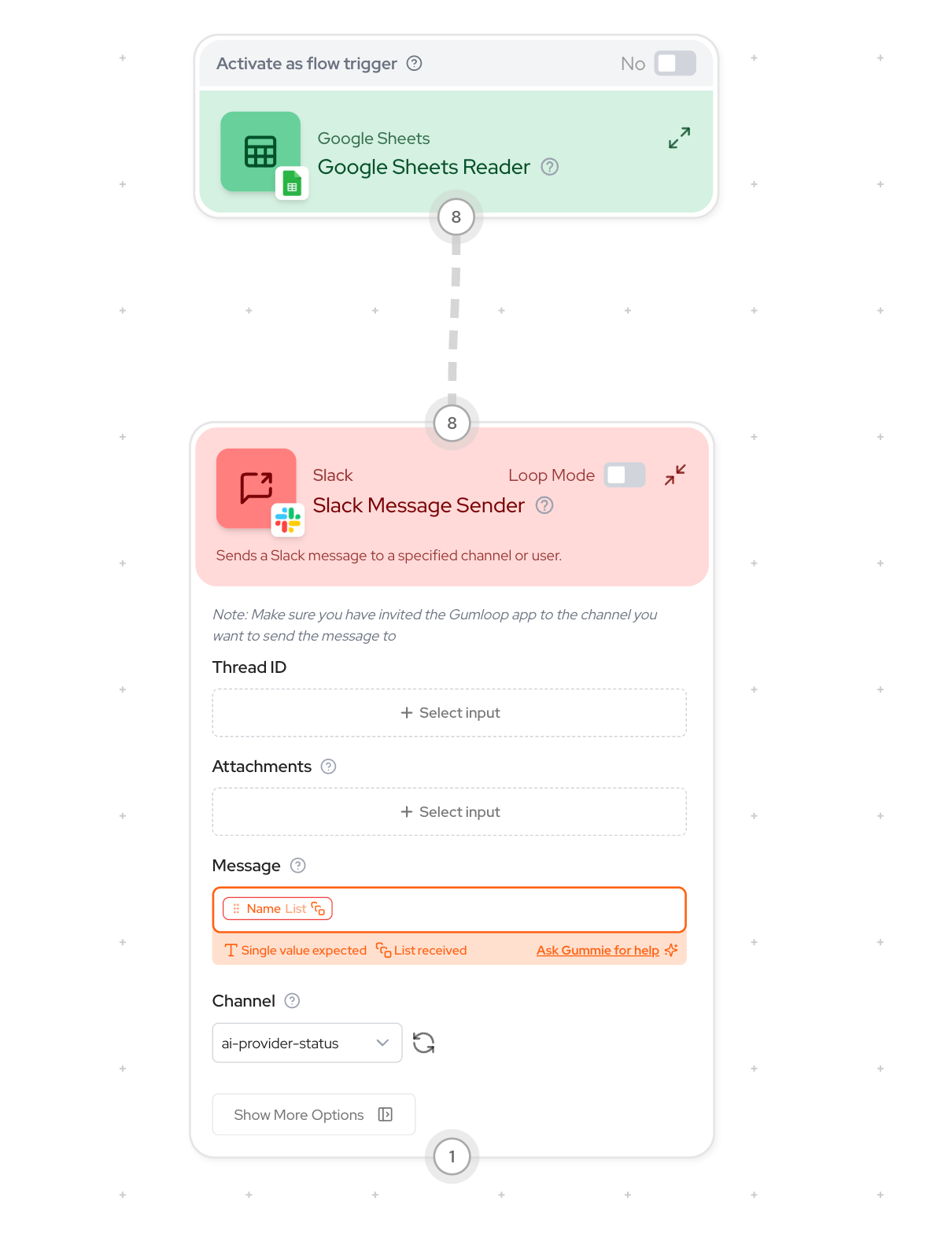
You have a list of items (like multiple research topics from a Google Sheet) that you want to process as a single text input (like merging them and sending as a single message on Slack).
**Example:**
```mermaid theme={"dark"}
%%{init: {'theme':'neutral', 'themeVariables': { 'primaryColor': '#f5f5f5', 'primaryBorderColor': '#ddd'}}}%%
flowchart TD
A["Google Sheet Reader
(outputs list of research topics)"] --> B["Slack Message Sender
(expects single text input)"]
```
**Error Message:** `Single Value Expected, List Received`
**The Solution:**
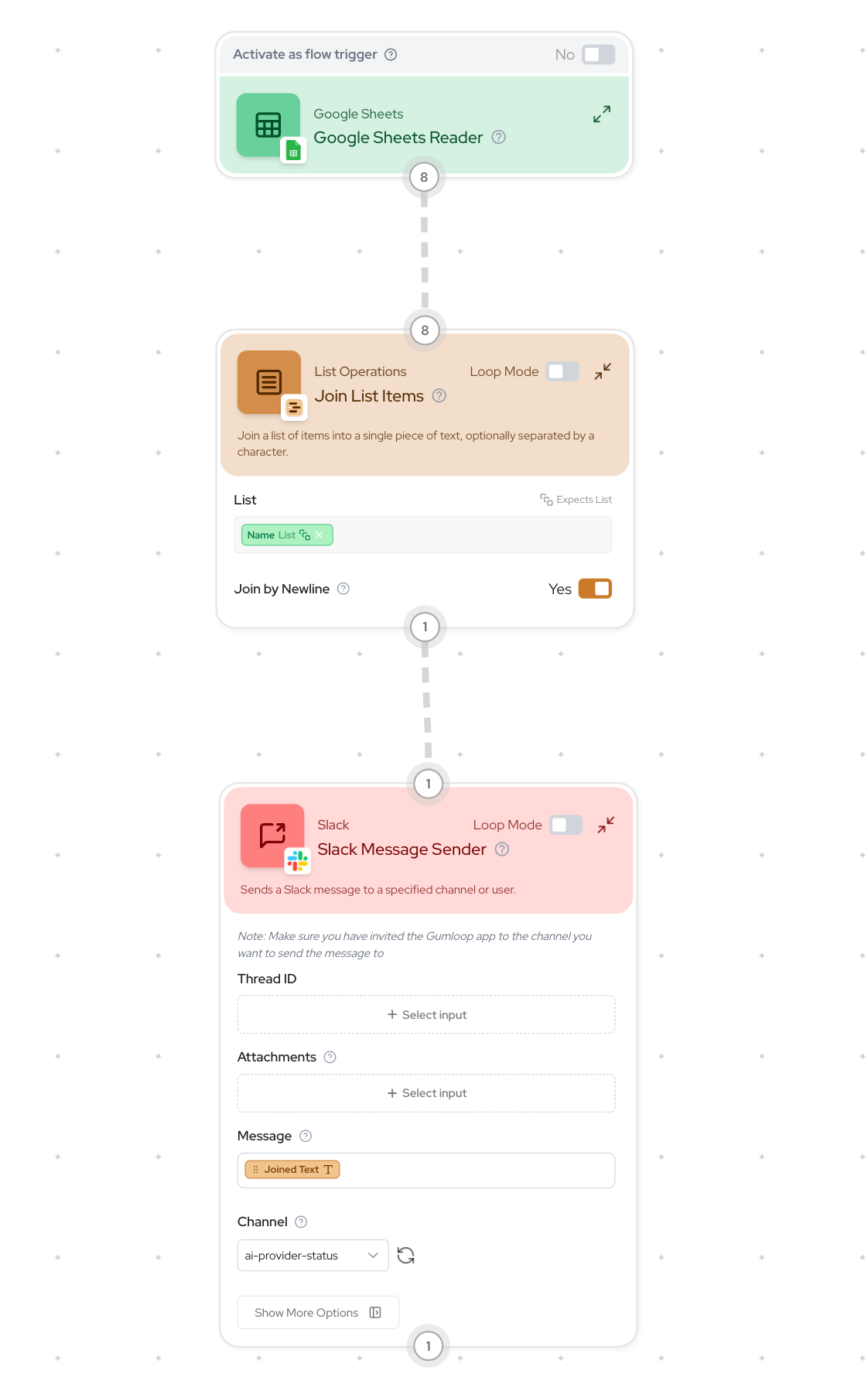
Use the **Join List Items** node to combine all items in the list into a single text string.
**Steps:**
1. Insert a Join List Items node between your nodes
2. Connect your list output to the Join List Items input
3. Choose a separator (like newline)
4. Connect the Join List Items output to your target node
**Common Use Case:**
* Combining any list of items into a single text
* Converting any list data into a single text string for nodes that expect text input
* Processing multiple items together rather than individually in a loop
### Scenario 2: Text → List (Single Item to Multiple Items)
**The Problem:**
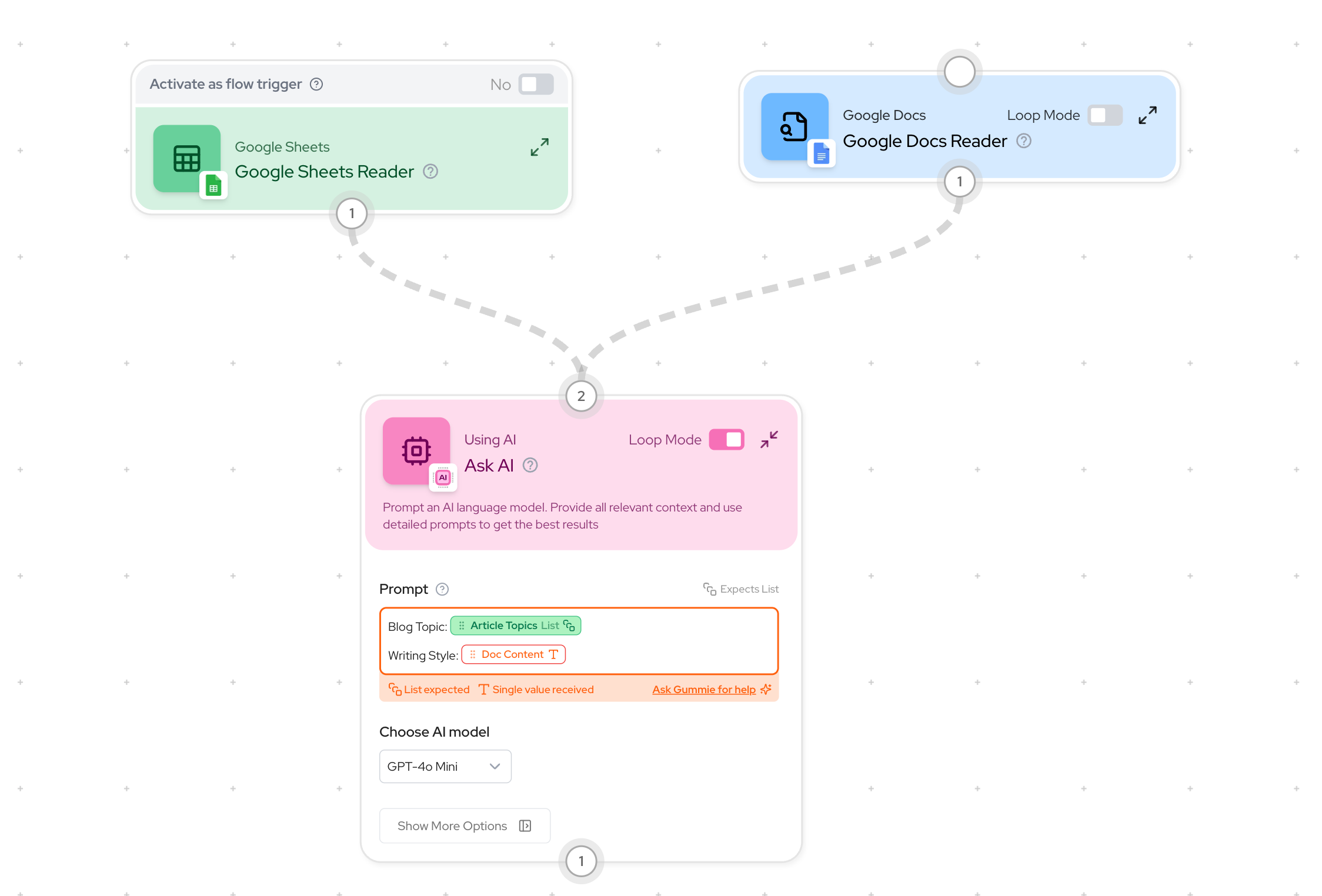
You have a single text item (like a writing style guide from a Google Doc) that needs to be used with each item in a list (like multiple blog posts that need the same style guide).
**Example:**
```mermaid theme={"dark"}
%%{init: {'theme':'neutral', 'themeVariables': { 'primaryColor': '#f5f5f5', 'primaryBorderColor': '#ddd'}}}%%
flowchart TD
A["Google Sheet Reader
(multiple blog topics)"] --> C["Combine Text"]
B["Google Doc Reader
(single style guide)"] --> C
```
**Error Message:** `List Expected, Single Value Received`
**The Solution:**
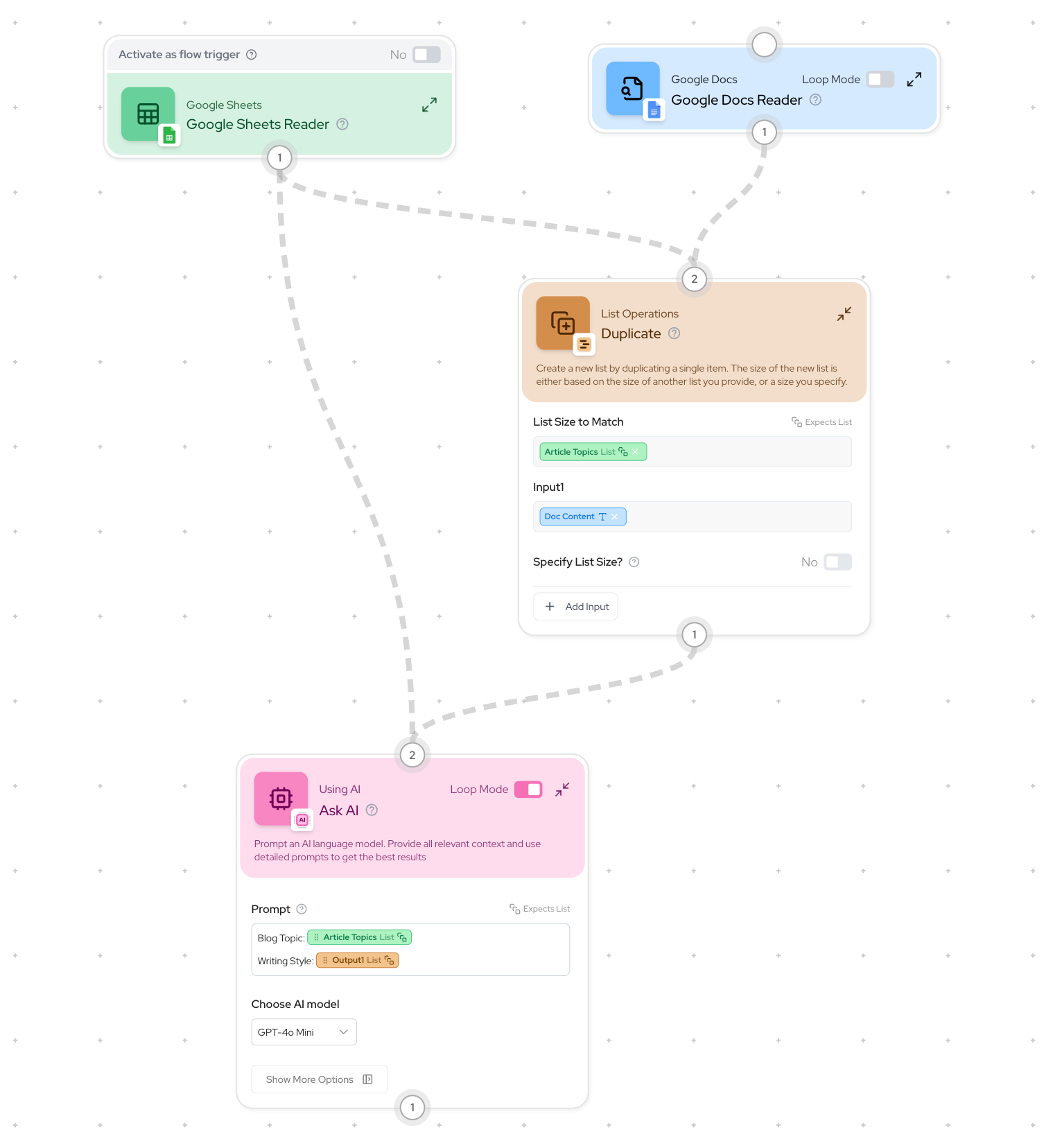
Use the **Duplicate** node to create a list containing multiple copies of your text.
**Steps:**
1. Add a Duplicate node after your single text source
2. Connect your text to the Duplicate node's input
3. Connect your list to the "List size to match" input
* This tells the node how many copies to create
4. The output will be a list of identical items matching your other list's size
**Common Use Case:**
* Using any single text input with multiple list items
* Applying the same data or context across multiple operations
* Converting any single text input into a list to match other list operations
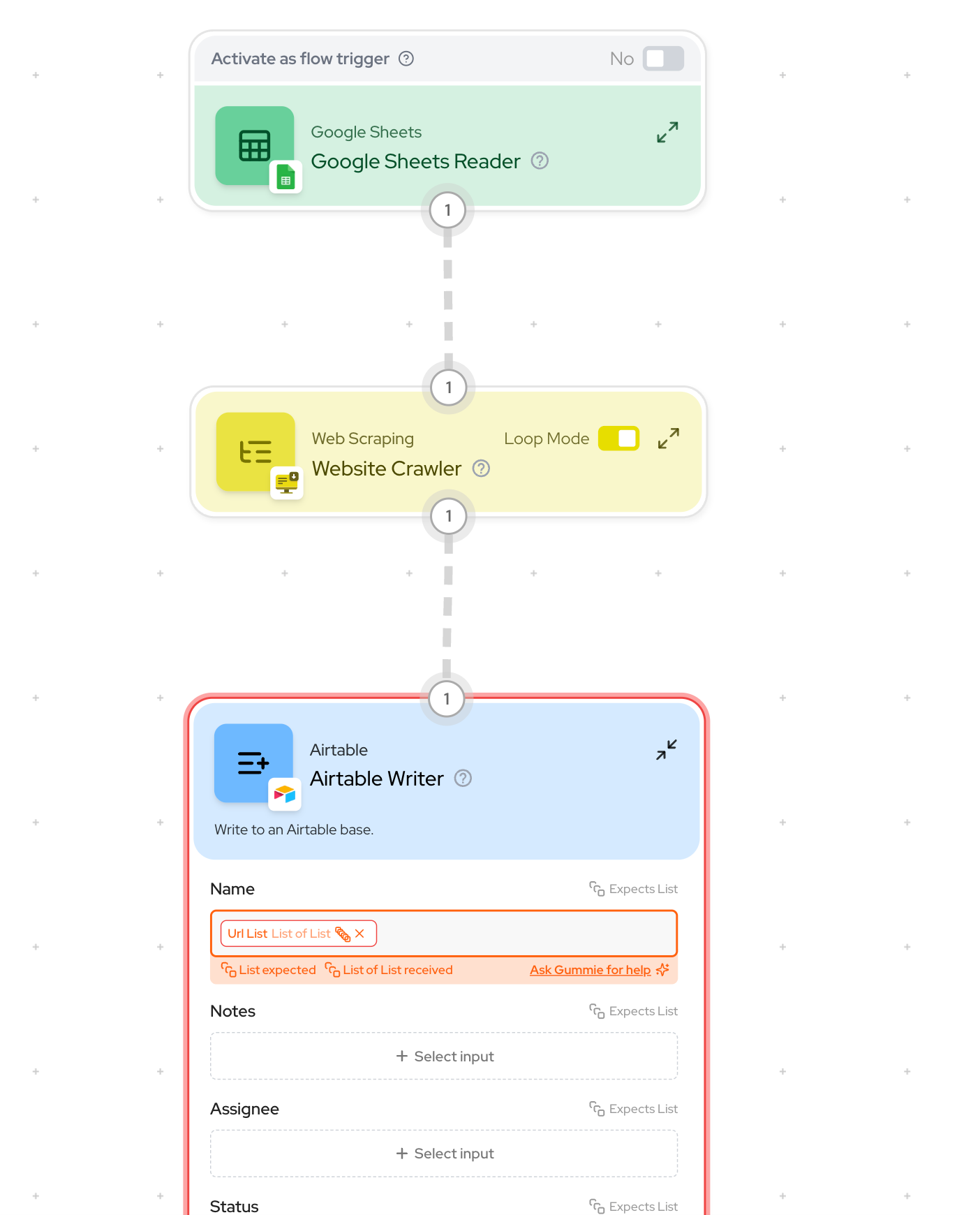
### Scenario 3: List of Lists → List (Nested Lists)
**The Problem:**
You have a nested list (a list containing other lists) but need a simple, flat list.
**Example:**
```mermaid theme={"dark"}
%%{init: {'theme':'neutral', 'themeVariables': { 'primaryColor': '#f5f5f5', 'primaryBorderColor': '#ddd'}}}%%
flowchart TD
A["Google Sheet
(list of URLs)"] --> B["Website Crawler
(outputs list of URLs for each input,
hence the output becomes List of List)"] --> C["Output the URLs for each site
on Airtable"]
```
**Error Message:** `List Expected, List of List Received`
#### Two Solutions:
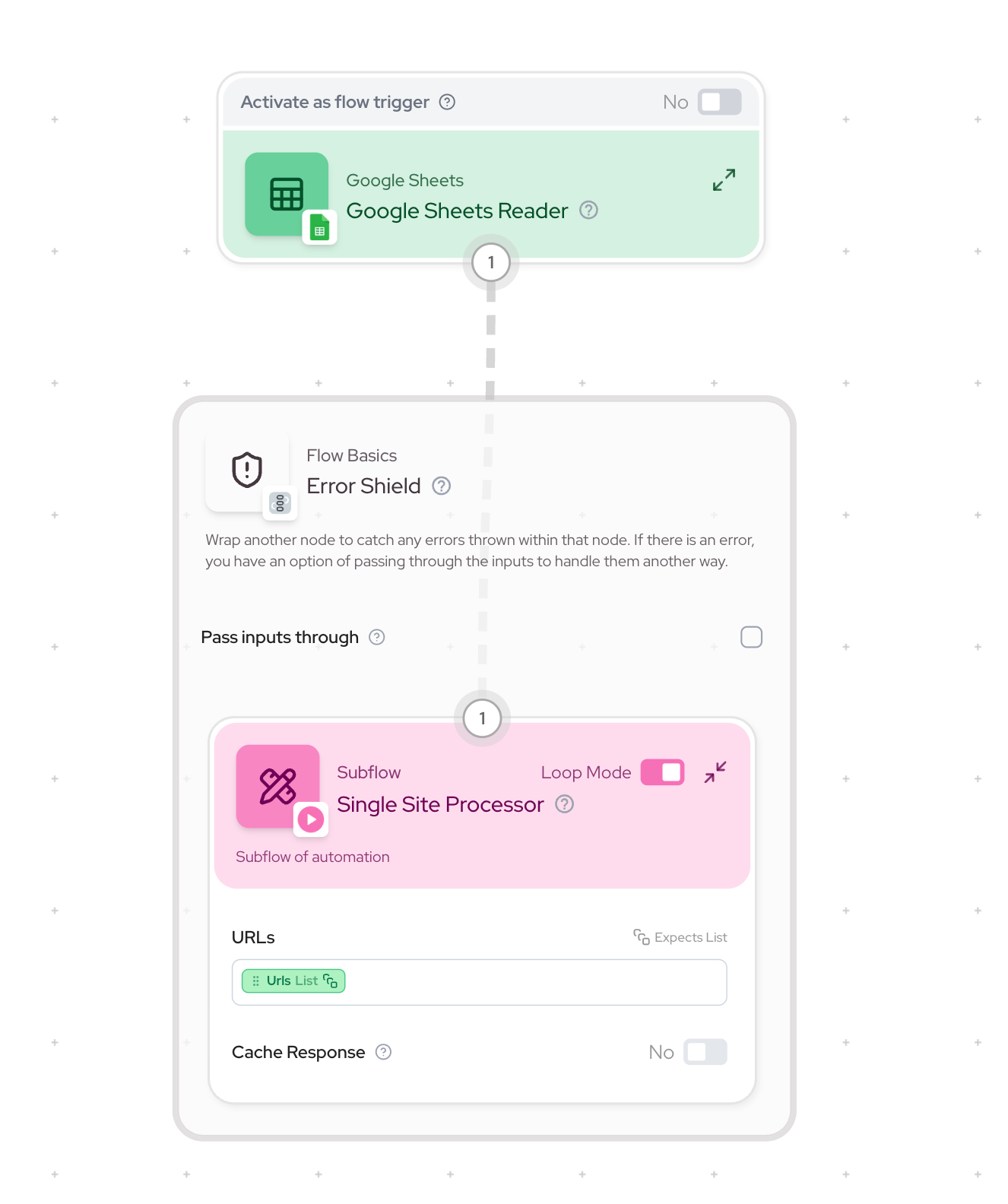
#### Option 1: Use a [Subflow](https://docs.gumloop.com/core-concepts/subflows) (Recommended)
1. Create a subflow to process each inner list
2. Add input/output nodes in the subflow
3. Process the inner list items individually
4. Use the subflow in your main workflow with Loop Mode enabled
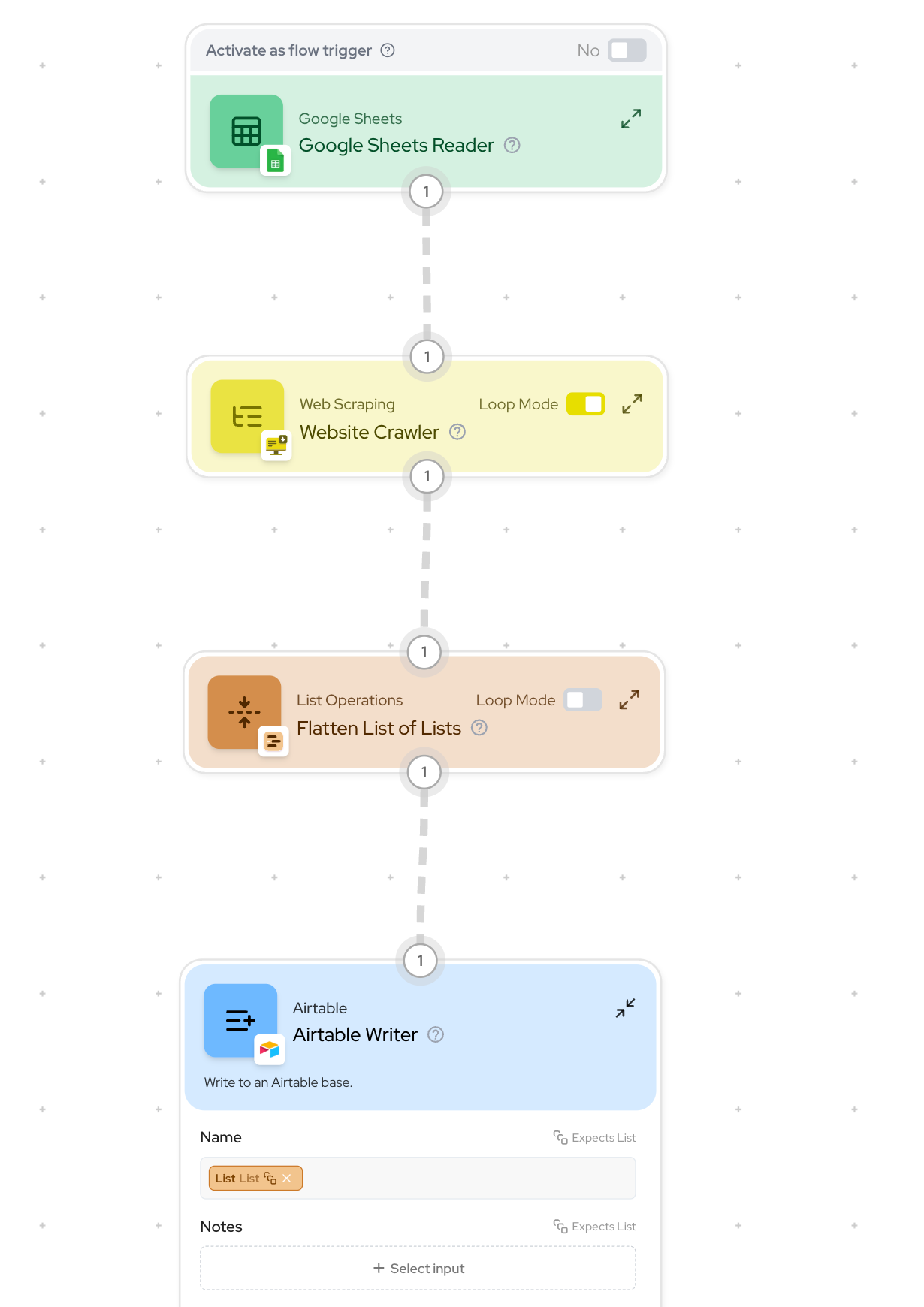
#### Option 2: Use Flatten List Node
1. Add the Flatten List node
2. Connect your nested list to it
3. Get a single-level list as output
## Tips for Preventing Type Mismatches
1. **Check Node Types:**
* Look for list vs text indicators in the node input and output connections
2. **Understanding Loop Mode:**
* Enable for processing lists item by item
* Disable when working with entire lists at once
> Example: If you have a Google Sheet with a column that you want to send to AI as a whole for context, you'd use a `Join List Items` node to merge the contents of each row from that column instead of enabling loop mode and processing each row in a loop.
3. **Plan Your Data Flow:**
* Think about whether you need to process items individuall in a loop or as a group
* Consider using Join List Items when you need all items processed together without looping over each item
* Use Loop Mode when each item needs individual processing
## Quick Reference Table
| Scenario | Problem | Solution Node | How It Works |
| -------------------- | --------------------------------------- | ----------------------- | ---------------------------------------------------------------------------------------------------------------------------------------- |
| List → Text | Need to combine multiple items into one | Join List Items | Concatenates all items in a list into a single text string, using a separator |
| Text → List | Need to use one item with many | Duplicate | Creates multiple copies of a single text input to match the size of another list, ensuring compatible data structures |
| List of Lists → List | Have nested lists that need flattening | Subflow or Flatten List | Either processes inner lists through a dedicated workflow (Subflow) or combines all nested items into a single-level list (Flatten List) |
**Still stuck?** If you've tried these solutions and still can't resolve your type mismatch error, [reach out to us](https://portal.usepylon.com/gumloop/forms/help) and we'll help!